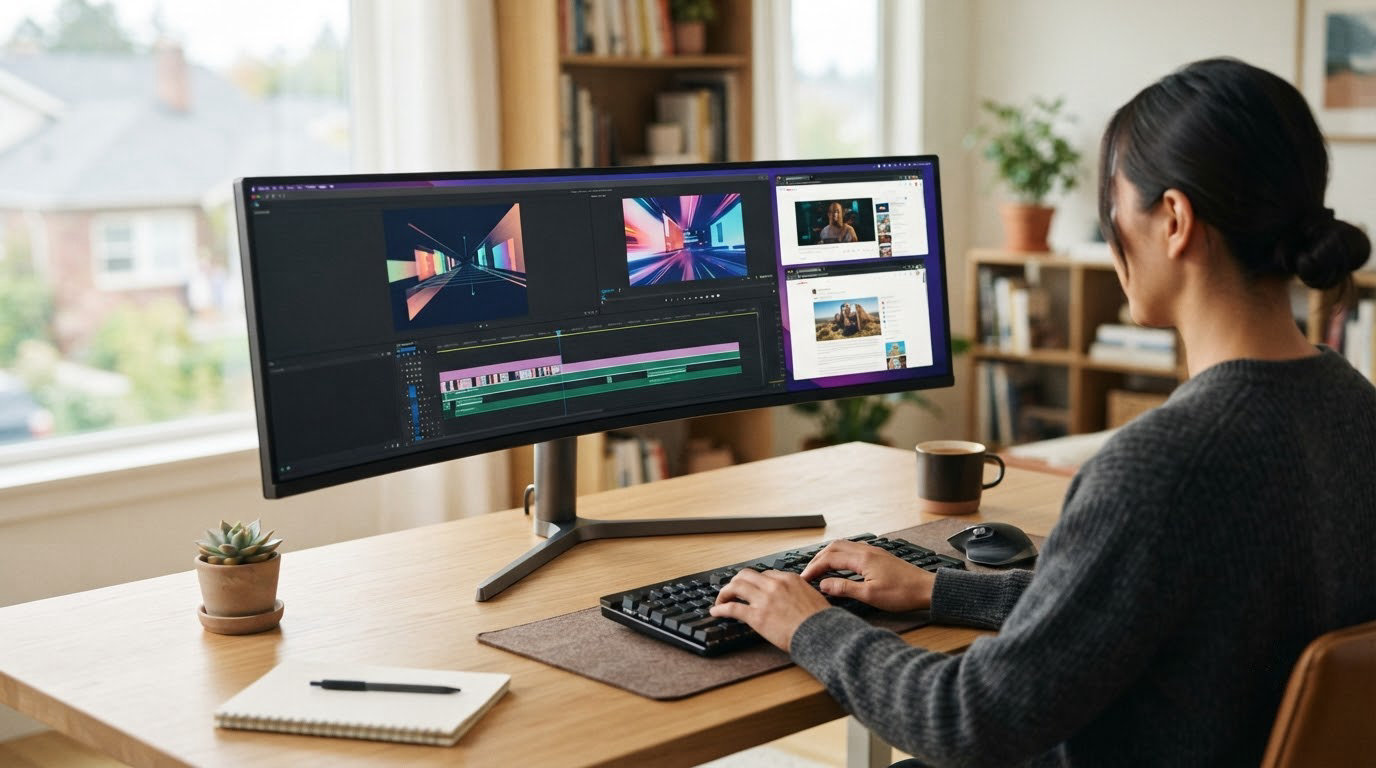
One of the hardest parts of switching to a wider screen is that the panels get thin at the edges, the stand barely moves, and the specs all look the same in a listing photo. The Sceptre C305B leads our Amazon Prime Big Deal Days ultrawide monitor deals because it does the plainest job well: a 30-inch 21:9 panel, refresh rates that run well past what you need, and thousands of owners who have lived with it long enough to know where it falls down. Two others suit different desks: the SANSUI ES-G34C5 for anyone who wants a proper 3440×1440 panel with a very high refresh rate, and the CRUA CR490QB if you have the desk depth for a 32:9 screen.
Prices and eligibility shift through the event, so treat these as the panels worth watching on October 2026, not as confirmed offers. Press the button under any pick to see where that specific listing sits right now.
Table of Contents
Our Top 3 Picks for Best Amazon Prime Big Deal Days Ultrawide Monitor Deals in 2026

Sceptre C305B
- 21:9 ultrawide at 2560x1080
- Up to 200Hz over DisplayPort
- AMD FreeSync and built-in speakers

SANSUI ES-G34C5
- 3440x1440 UWQHD at up to 200Hz
- 1ms OD response with Fast VA
- HDMI 2.1 VRR and PIP/PBP

CRUA CR490QB
- 49-inch 5120x1440 DQHD
- Up to 165Hz with FreeSync
- Height-adjustable stand
The three picks above split by need rather than by rank after first place. A 30-inch 2560×1080 panel is the easiest ultrawide to live with, a 34-inch 3440×1440 screen is the productivity default, and a 49-inch 32:9 display is the only one of the three that genuinely replaces two monitors.
Best Amazon Prime Big Deal Days Ultrawide Monitor Deals Compared
| Product | Specifications | Action |
|---|---|---|
| Sceptre C305B |
|
Check Deal Price |
| SANSUI ES-G34C5 |
|
Check Deal Price |
| CRUA CR490QB |
|
Check Deal Price |
 Amzfast AMZG49C7U Amzfast AMZG49C7U |
|
Check Deal Price |
 Alienware AW3425DWM Alienware AW3425DWM |
|
Check Deal Price |
 LG UltraGear 45GX950A LG UltraGear 45GX950A |
|
Check Deal Price |
 Alienware AW3423DWF Alienware AW3423DWF |
|
Check Deal Price |
 Sceptre C345B Sceptre C345B |
|
Check Deal Price |
 Samsung S95UA Samsung S95UA |
|
Check Deal Price |
 Samsung Odyssey OLED G9 Samsung Odyssey OLED G9 |
|
Check Deal Price |
How We Chose
We compared the specs that actually decide an ultrawide purchase: native resolution, refresh rate over each input, panel type, contrast and colour coverage, stand adjustment, warranty length and port selection. Then we read the owner reviews on Amazon, because the complaints there are more useful than the bullet points. Ratings and listing data were checked on October 2026.
1. Sceptre C305B: Editor’s Choice for Value
Sceptre 30-inch Curved Gaming Monitor 21:9 2560×1080 Ultra Wide/ Slim HDMI DisplayPort up to 200Hz Build-in Speakers, Metal Black (C305B-200UN1)
Best for: first ultrawide
Resolution: 2560x1080
Refresh: up to 200Hz
Panel: LED
Pros
- Most reviewed ultrawide here with more than 12k owner ratings
- 200Hz over DisplayPort with FreeSync that works with NVIDIA cards
- Metal stand with rubber feet and cable routing
- DisplayPort cable included
- Good contrast and colour without calibration
Cons
- Built-in speakers are office-level only
- Needs a manual resolution change after plugging in
- HDMI 2.0 caps out at 120Hz
Buy the Sceptre C305B if your desk is shallow and you have never run an ultrawide before. At 30 inches and 2560×1080 it is the least dramatic upgrade from a 16:9 screen, which is exactly why it works as a first one. The 21:9 shape gives you a document and a chat window side by side without the panel overhang that makes 34-inch models crowd a small desk.
Owners consistently single out two things. The refresh rate runs up to 200Hz over DisplayPort, which is far more headroom than most cards can feed, and FreeSync is reported as working properly in both fullscreen and windowed mode rather than only in one. Roughly 12k ratings give this listing more history than anything else on the list, so its weak points are well documented: the built-in speakers are office-grade, and the panel usually has to be set to its native resolution manually after first plug-in.
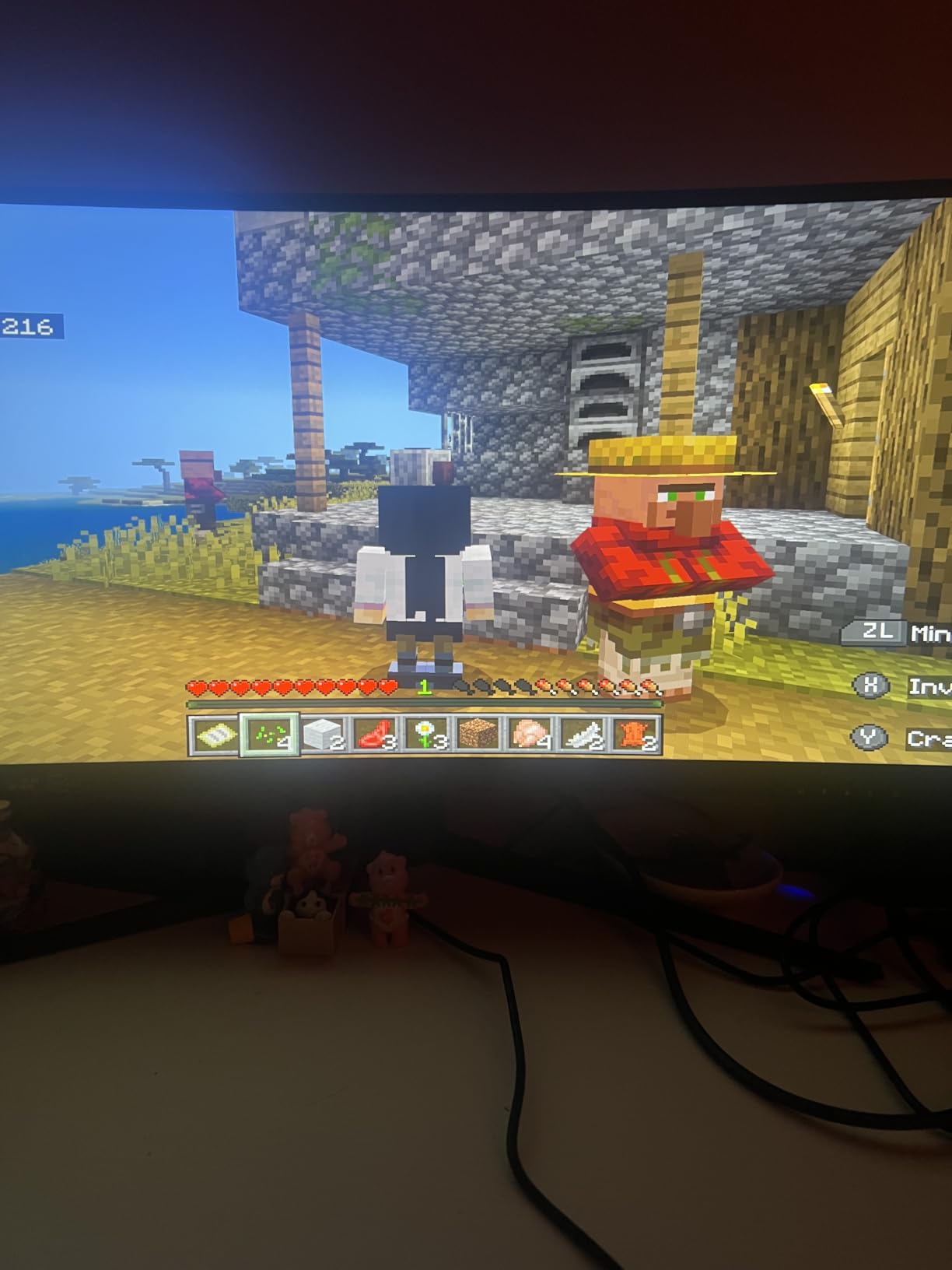
Compared with the SANSUI ES-G34C5, the Sceptre trades pixel density for simplicity. If you want text to look sharp at arm’s length in a code editor, the 3440×1440 panel is the better buy and the Sceptre is not.
Good to know: a few owners mention panels arriving damaged in transit, so check the screen with the full return window in front of you.

2. SANSUI ES-G34C5: Best for High Refresh on a Budget
SANSUI 34-Inch Curved Gaming Monitor UWQHD 3440 x 1440P 200Hz Ultrawide
Best for: high refresh gaming
Resolution: 3440x1440
Refresh: up to 200Hz
Panel: Fast VA
Pros
- 3440x1440 at up to 200Hz at a low asking price
- AI crosshair and sniper scope modes that actually help in shooters
- Dual HDMI 2.1 plus DisplayPort 1.4
- PIP/PBP for two sources
- No light leaks reported
Cons
- Tilt-only stand with no height or swivel
- Dual HDMI may only negotiate 100Hz with some sources
- Some units need brightness raised to 100
The SANSUI ES-G34C5 is the pick when a 34-inch screen has to run fast and the budget is the reason you are reading this during a sale. It pairs a 3440×1440 UWQHD panel with a 200Hz ceiling over both DisplayPort 1.4 and HDMI 2.1, and it advertises 1ms OD response on a Fast VA panel. Colour coverage is listed at 130 percent sRGB and 96 percent DCI-P3.
The gaming OSD is the part owners notice. Built-in crosshair and sniper scope modes have been described as genuinely useful rather than filler, and PIP/PBP is there when you want a spreadsheet beside a game. What you give up is ergonomic adjustment: the stand tilts and nothing more, so on a desk with a monitor shelf already in the way, that matters more than the spec sheet suggests.
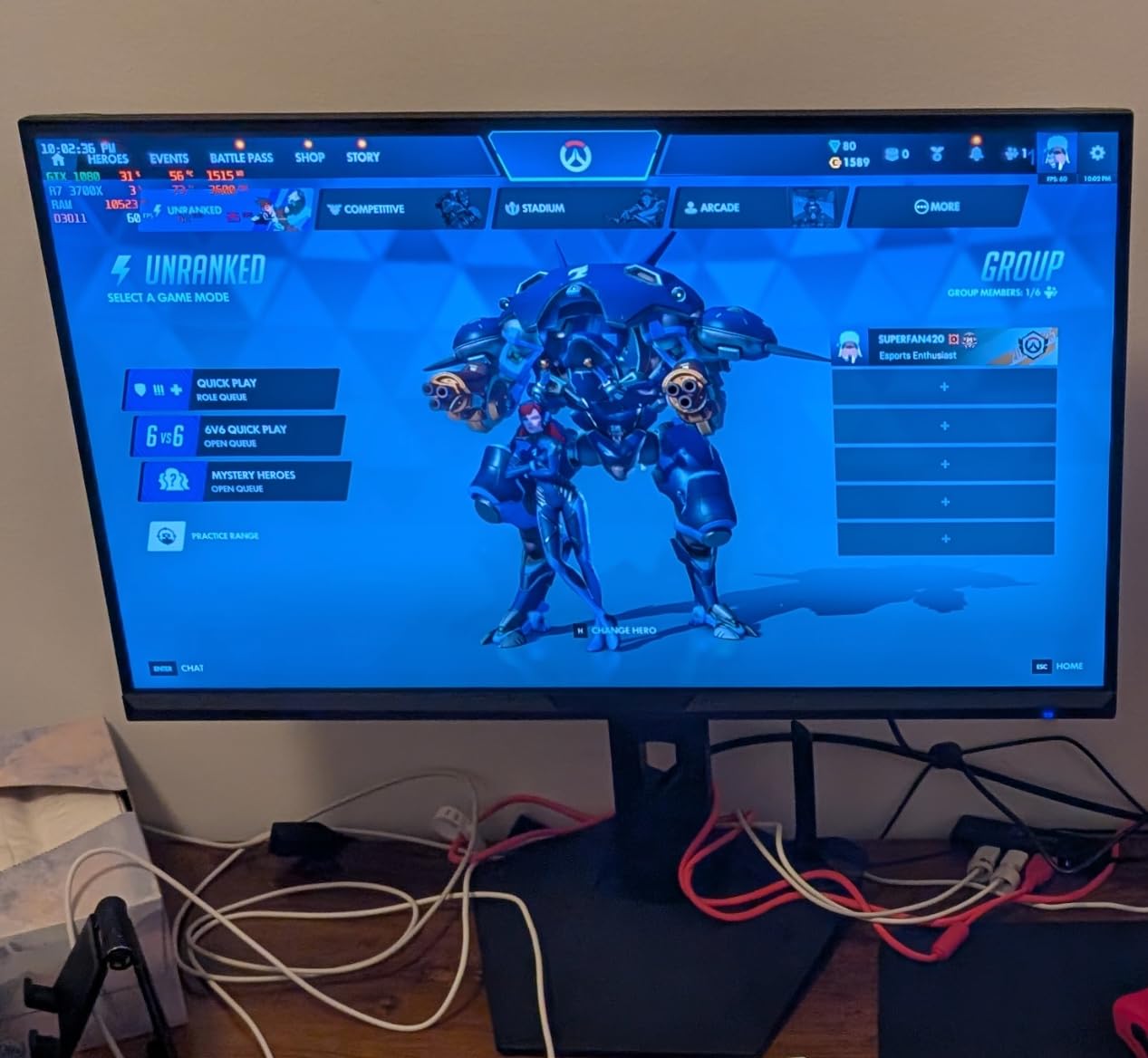
Where the Alienware AW3425DWM in this list asks a premium for a colour-accurate 180Hz panel and a three-year warranty, the SANSUI asks you to accept a tilt-only stand and a shorter support commitment. Owners also report mixed quality control across the brand’s monitor lines, and a minority needed to raise brightness because of dark corners.
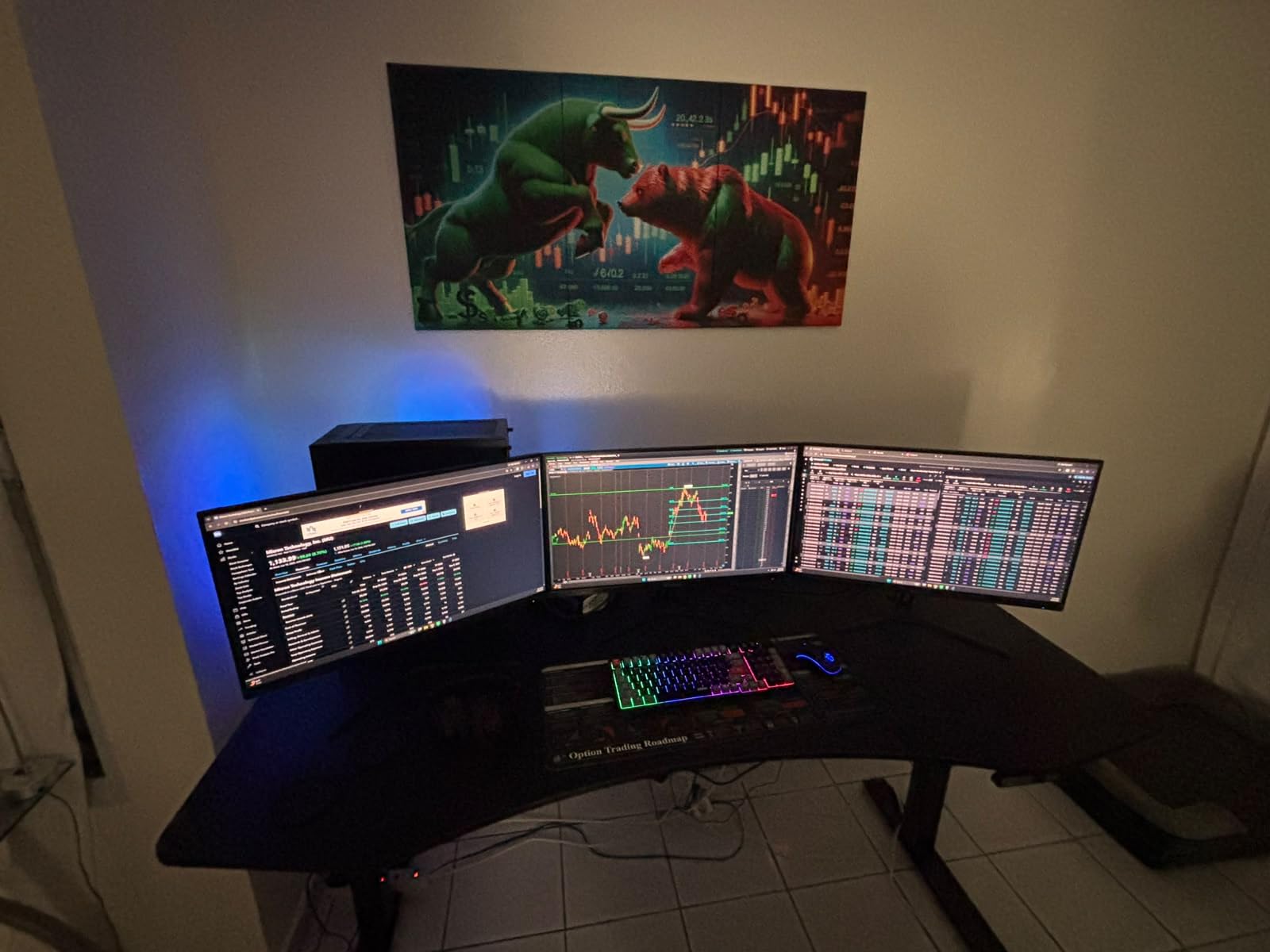
3. CRUA CR490QB: Best for Super-Ultrawide Space
CRUA 49″ DQHD 165Hz Ultrawide Curved Gaming Monitor, 1500R, FreeSync, Black
Best for: replacing two monitors
Resolution: 5120x1440
Refresh: up to 165Hz
Panel: VA LCD
Pros
- Dual QHD 5120x1440 across 49 inches
- Up to 165Hz with FreeSync
- Height-adjustable stand for aligning with a second display
- 120 percent sRGB and 3000:1 contrast
- 1500R curve is gentle at the edges
Cons
- No built-in speakers
- A minority report brightness and colour shift at the far edges
- Needs a capable GPU to drive 5120x1440
The CRUA CR490QB is the most convincing reason in this list to drop a dual-monitor arm. A 49-inch 32:9 panel gives you two 2560×1440 workspaces side by side, and at up to 165Hz with FreeSync it does not feel like a productivity screen pretending to be a gaming one.
Owners point to the height-adjustable stand as the detail that makes it usable day to day, since it lets you align the top edge with a second display when you eventually need one. The 1500R curve is shallow enough that the edges stay usable for documents, which is not always true on a super ultrawide. It is the largest panel here that still fits a normal desk, but only just: measure the depth before you commit.
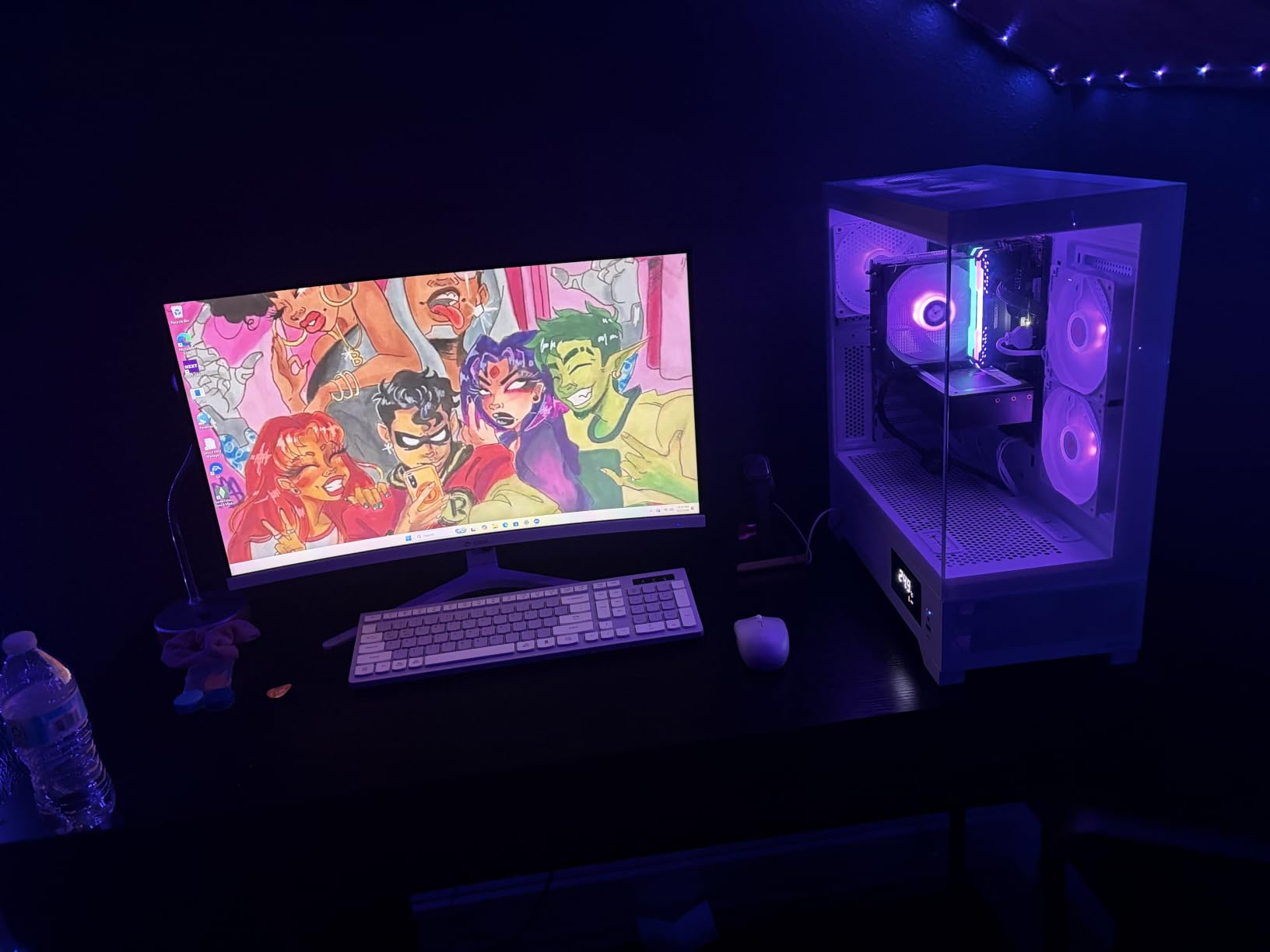
Skip it if: your graphics card is a mid-range model. Driving 5120×1440 at 165Hz is a different ask from 3440×1440, and several owners report the frame rate is the limit rather than the monitor. The Samsung Odyssey OLED G9 in this list does the same width with far better contrast, at the cost of OLED handling.
Where the Amzfast AMZG49C7U competes directly, the CRUA runs a faster refresh rate and the Amzfast adds a working split-screen mode and a fuller stand adjustment.
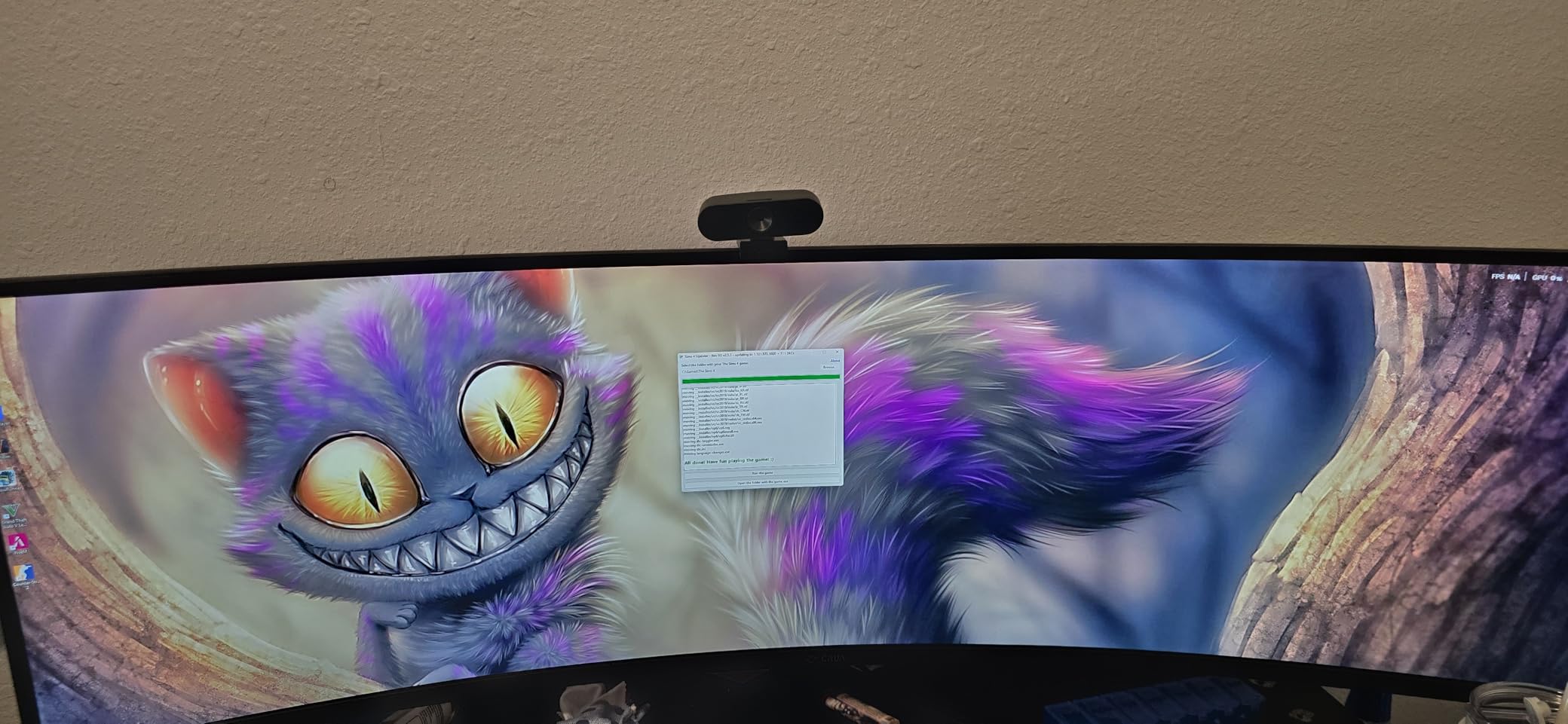
4. Amzfast AMZG49C7U: Best for Two-Source Split Screen
Amzfast 49 Inch Curved Monitor 120Hz DQHD (5120×1440) Ultrawide Gaming Monitor, 120% sRGB, 1500R, 1ms MPRT, HDR, Adaptive Sync, PIP/PBP, Height Adjustable, HDMI 2.0/DP 1.4, VESA 75×75, AMZG49C7U
Best for: split-screen sources
Resolution: 5120x1440
Refresh: 120Hz over DP
Panel: VA
Pros
- PIP/PBP splits two sources into two 1440p workspaces
- Stand adjusts 110mm in height with 20 degree swivel
- Tilt range of -5 to +20 degrees
- Matte finish with blue light reduction and flicker-free backlight
- DP cable and power cord in the box
Cons
- 120Hz is reached only over DisplayPort 1.4
- No built-in speakers despite the compatibility note
- VESA 75x75mm mount is smaller than typical for 49 inch
Buy the Amzfast AMZG49C7U if you regularly run two machines rather than two windows. Its PIP/PBP mode divides the panel into two 1440p halves, which turns a single cable from a work laptop and a single cable from a desktop into a workable desk. The 120Hz ceiling is fine for that job because split-screen halves are not where refresh rate gets judged.
The stand is the quiet strength here. It runs 110mm of height adjustment, swivels 20 degrees each way and tilts through a 25-degree range, which is more than the CRUA manages and much more than a tilt-only budget 34-inch. Power draw is listed at 72 watts, and the matte finish helps in a bright room.
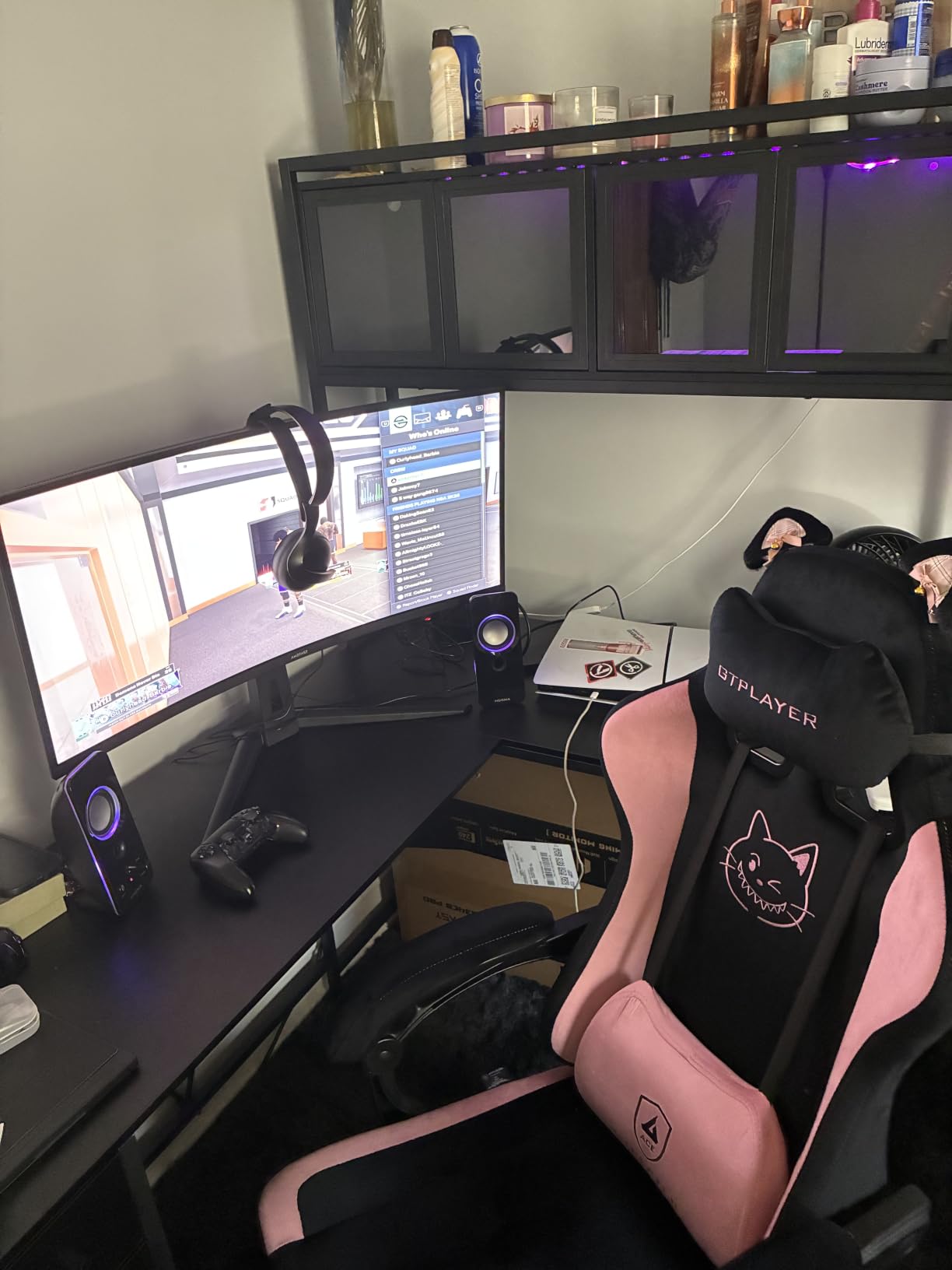
Two caveats come up repeatedly in reviews. The advertised 120Hz only appears on the DisplayPort 1.4 inputs, not over HDMI 2.0, so use the right cable from the start. The port counts also differ between the listing description and the spec table, and the VESA pattern is 75x75mm, which is smaller than the 100x100mm most arms and mounts for a 49-inch panel expect.
5. Alienware AW3425DWM: Top Rated
Alienware 34 Curved Gaming Monitor – AW3425DWM – 34-inch WQHD 180Hz 1ms Display, 1500R, AMD FreeSync Premium, VESA AdaptiveSync.
Best for: competitive shooters
Resolution: 3440x1440
Refresh: 180Hz
Panel: LCD
Pros
- 180Hz with 1ms GtG response for fast motion
- DCI-P3 95 percent coverage and DisplayHDR 400
- FreeSync Premium with VESA AdaptiveSync
- Height adjustable stand
- Three-year warranty and a USB hub
Cons
- Console mode may need the bundled USB connection
- No integrated speakers
The Alienware AW3425DWM carries the highest average rating of the ten, and the reason is not mysterious: 180Hz, 1ms grey-to-grey response and FreeSync Premium on a 3440×1440 panel, wrapped in a three-year warranty that most of the budget panels here cannot match. Dell built this one for people who play shooters seriously but also want their desk to work.
Colour is handled properly rather than approximately. DCI-P3 95 percent coverage means photo and video work is not a compromise, and the hardware low blue light filter cuts glare without the washed-out look software filters tend to produce. A USB hub is included, though there are no speakers, so plan on external audio.
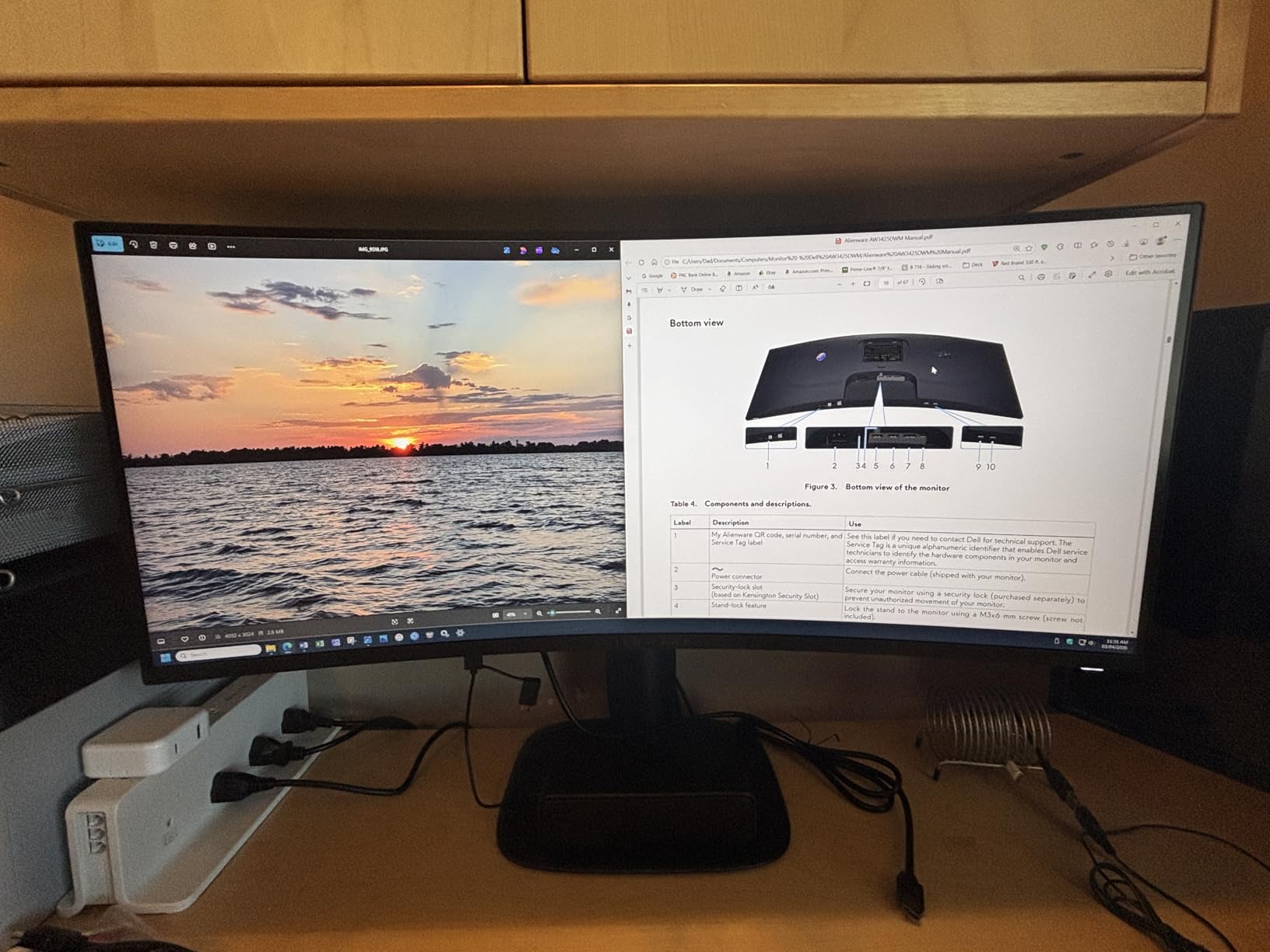
Two practical notes. It draws 85 watts, the highest figure in this group, which matters on a laptop battery. And some of the gaming features, including the console mode, are reported to need the bundled USB connection present, which is easy to forget on a desk with one cable.
Compared with the SANSUI ES-G34C5, both reach 200Hz on paper, but the Alienware gives you a stand that adjusts, accurate colour and a warranty that runs three years instead of one.
6. LG UltraGear 45GX950A: Best for 5K2K Creative Work
LG 45GX950A-B 45-inch Ultragear 5K2K WUHD (5120 x 2160) OLED Curved Gaming Monitor, Dual-Mode, 165Hz, 0.03ms, NVIDIA G-Sync, AMD FreeSync Premium Pro, HDR True Black 400, USB Type-C 90W, DP2.1
Best for: photo and video
Resolution: 5120x2160
Refresh: 165Hz or 330Hz
Panel: OLED
Pros
- 5K2K at 125 PPI with an updated subpixel layout for clean text
- 98.5 percent DCI-P3 and up to 1300 nits peak
- 0.03ms GtG with FreeSync Premium Pro and G-SYNC
- USB-C with 90W power delivery
- Built-in speakers that replace desktop units
Cons
- Needs a high-end GPU for 5120x2160
- Dual mode scaling produces artifacts rather than clean letterboxing
- 800R curve adds slight geometric distortion for editing
The LG UltraGear 45GX950A is the only 21:9 panel in this list that runs 5120×2160. At 125 pixels per inch with an updated subpixel layout, it is the display here where code, spreadsheets and photo crops all look right at the same time, and it carries more usable area than the 49-inch 32:9 panels without their awkward bottom corners.
It is also the only pick with USB-C power delivery at 90W, so a single-cable laptop setup works without a dock, and the built-in speakers are loud enough that desktop units become optional. Dual mode gives you 165Hz at 5K2K or 330Hz at Wide Full HD through a hotkey.
Owners are consistent about setup: the picture looks flat out of the box until you run Windows HDR calibration and adjust Black Stabilizer, and the dual-mode scaling is its weakest feature, producing scaling artifacts rather than simple letterboxing. The 800R curve also bends text slightly at the edges, which photo and video editors notice more than gamers do.
Against the Alienware AW3423DWF, the LG wins on pixel density, brightness headroom and docking, while the Alienware keeps a gentler 1800R curve and a simpler refresh story at a lower resolution.
7. Alienware AW3423DWF: Best for OLED Color Accuracy
Alienware AW3423DWF Curved QD-OLED Gaming Monitor – 34-inch Quantum Dot, 0.1Ms 165Hz 21:9, 99.3% DCI-P3 Color Gamut, VESA DisplayHDR, 400, AMD FreeSync Premium Pro – Black
Best for: color-critical editing
Resolution: 3440x1440
Refresh: 165Hz over DP
Panel: QD-OLED
Pros
- QD-OLED panel with true blacks and 1000000:1 contrast
- 99.3 percent DCI-P3 with a factory calibration report
- Creator Mode switches between DCI-P3 and sRGB
- Five USB 3.2 ports for peripherals
- Three-year warranty with OLED burn-in coverage
Cons
- 250 nits is modest for HDR
- HDMI input tops out at 100Hz
- OLED can smear on static text
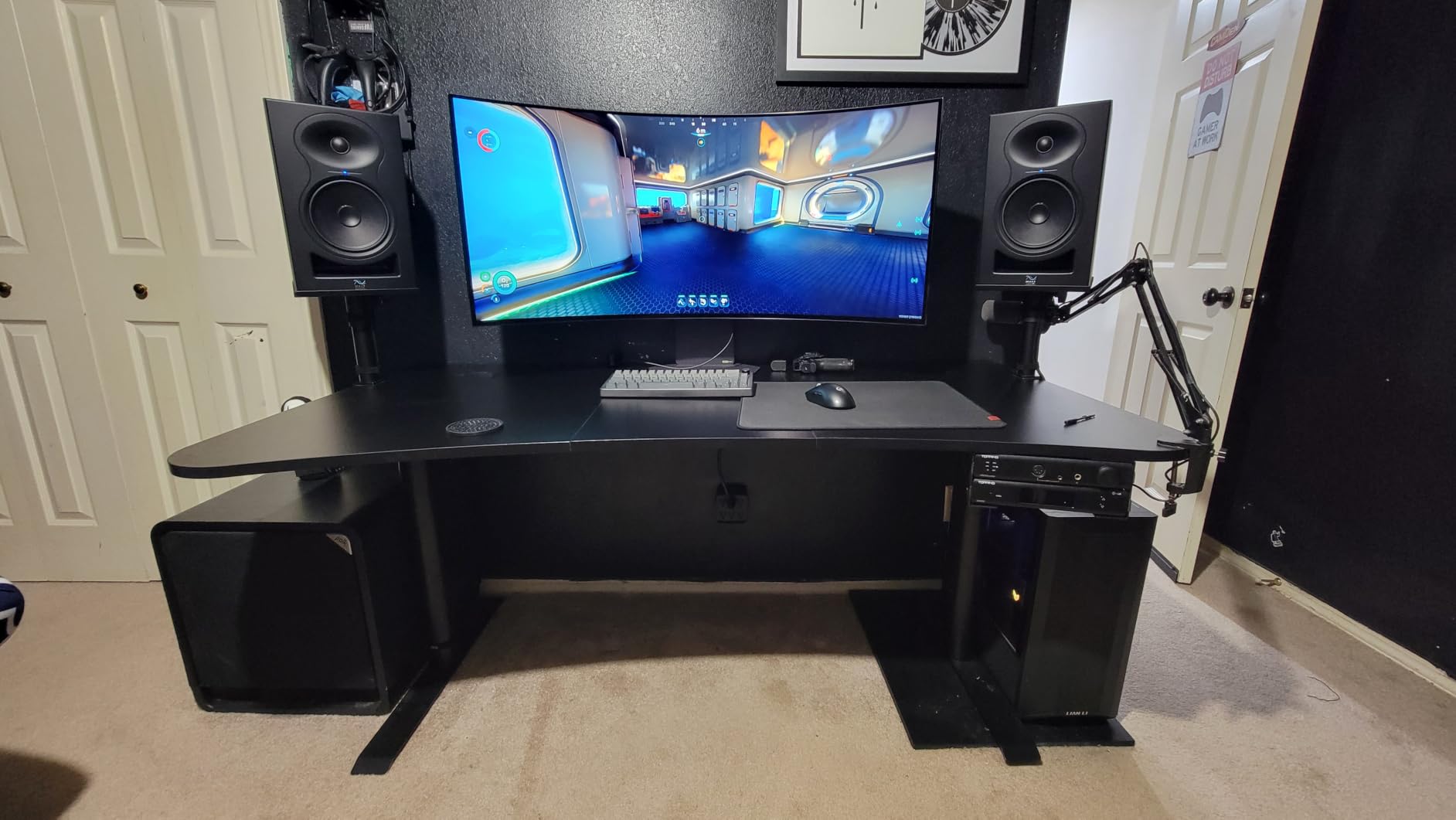
Pick the Alienware AW3423DWF when colour accuracy is the actual job. The panel covers 99.3 percent of DCI-P3 and ships with a factory calibration report, and Creator Mode lets you switch the colour space between DCI-P3 and sRGB from the on-screen menu rather than guessing in a colour profile.
The 1800R curve is gentler than the LG’s, which matters if you keep a reference image near the edge of the frame. Motion is handled with 0.03ms-class response via FreeSync Premium Pro and VESA AdaptiveSync, and the USB hub has five USB 3.2 ports, enough to connect a keyboard and mouse to the monitor instead of the tower.
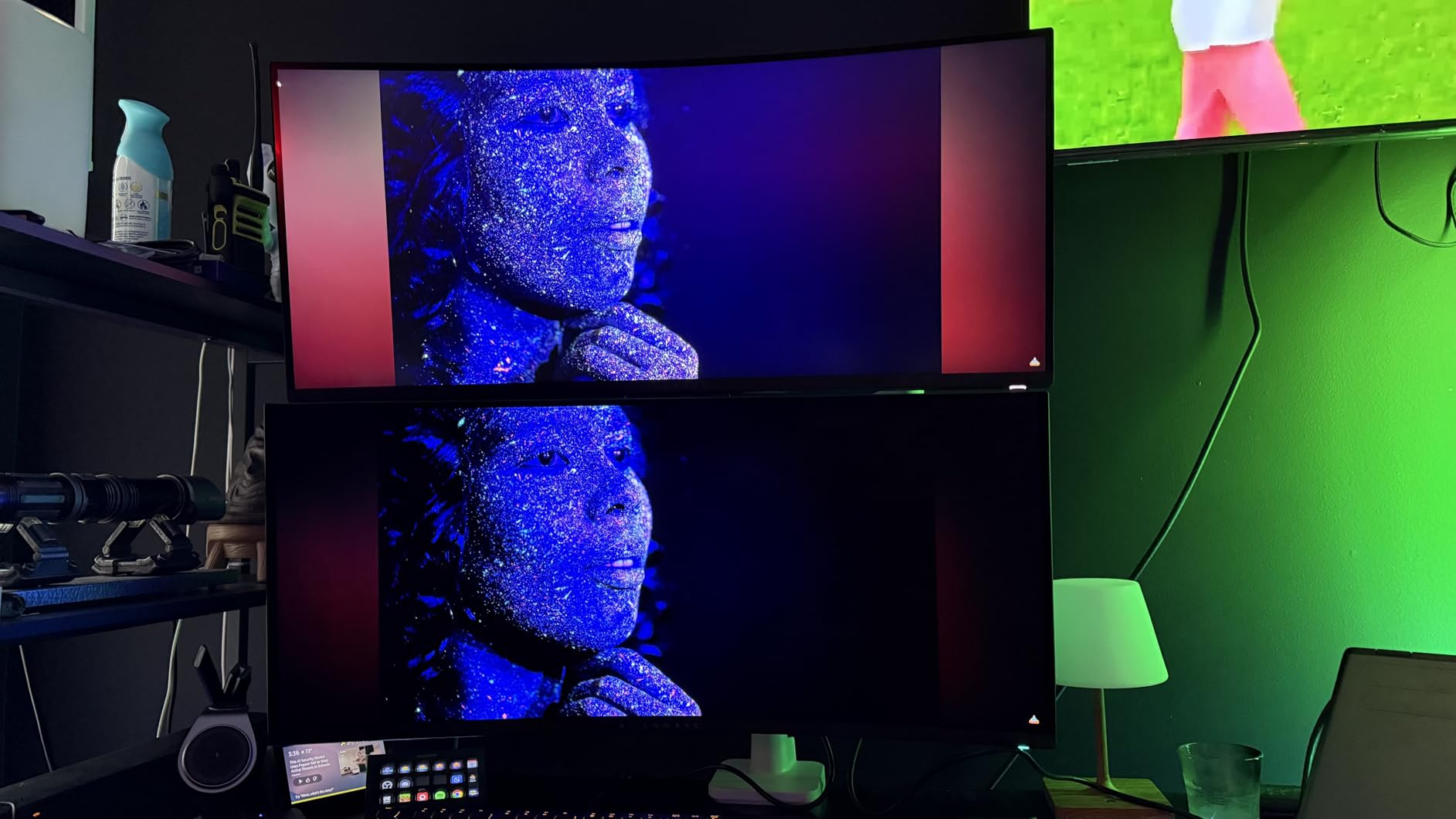
The trade-offs are OLED ones. At 250 nits typical brightness, HDR content looks flat next to newer QD-OLED panels, and HDMI input caps at 100Hz, so use DisplayPort. Owners also note that static desktop text can smear on an OLED panel, which is worth knowing before you put a terminal window on it all day.

8. Sceptre C345B: Budget Pick
Sceptre 34-Inch Curved Ultrawide WQHD Monitor, 3440 x 1440, R1500, Up to 180Hz/165Hz, DisplayPort x2, 100% sRGB, 1ms, Built-in Speakers, Black (C345B-QUT168 Series)
Best for: 34 inch on a budget
Resolution: 3440x1440
Refresh: up to 180Hz
Panel: LED
Pros
- Sharp 3440x1440 image at 400 cd/m2 with few dead pixel reports
- Sceptre support replaced a faulty unit within a week for several owners
- Included in the box: a screwdriver and HDMI cable
- OSD sits at the bottom centre with downward facing inputs
- Tilt adjustment suits shallow desks
Cons
- DisplayPort cable not included and bundled HDMI reaches 100Hz
- Windows 11 HDR mode produces a poor image
- OSD input switching is unreliable and can fail to wake the screen
The Sceptre C345B is the cheapest route to a real 34-inch 3440×1440 panel on this list, and on brightness it is competitive with picks that cost far more. At 400 cd per square metre it handles a bright office better than several OLED options, which matters more in daylight than the spec comparison usually suggests.
FreeSync Premium is supported, and PIP/PBP is present if you want to bring in a second source. Owners also mention that Sceptre’s support replaced a faulty unit within about a week, which tells you something about how a purchase on a sale page goes wrong when it does.
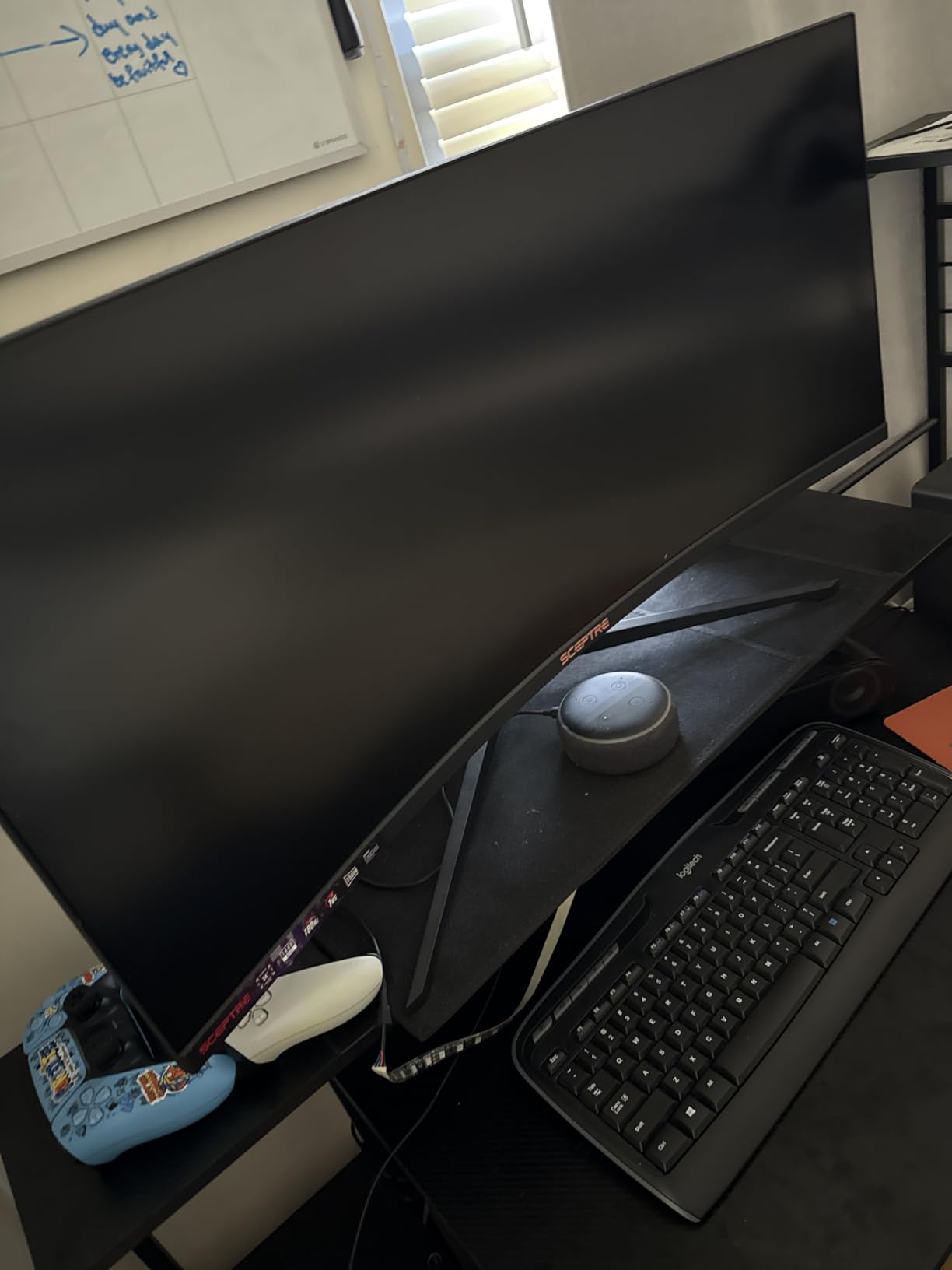
Good to know: the DisplayPort cable is not in the box, and the bundled HDMI cable only negotiates 100Hz. If you want the full refresh rate, bring your own DP cable. Several reviews also flag that HDR under Windows 11 looks bad enough to leave switched off, and that switching inputs through the joystick can fail to wake the display.
9. Samsung S95UA: Best for USB-C Docking
Samsung 49” Business Curved Ultrawide Dual QHD Computer Monitor, USB-C, DisplayPort, HDMI, 120Hz, VESA DisplayHDR 400, Built-in Speakers, Height Adjustable Stand, Eye Care, LS49C954UANXZA, 2024
Best for: laptop docking
Resolution: 5120x1440
Refresh: 120Hz
Panel: LED LCD
Pros
- USB-C with 90W charging plus DisplayPort and two HDMI inputs
- Three USB ports turn it into a one-cable dock
- Built-in speakers remove two desk peripherals
- Gentle 1000R curve reduces edge distortion
- Three-year warranty with ship-in service
Cons
- 5ms response and 120Hz are modest for competitive gaming
- 72 percent color gamut trails the OLED options
- Weighs more than 32 pounds so setup takes two people
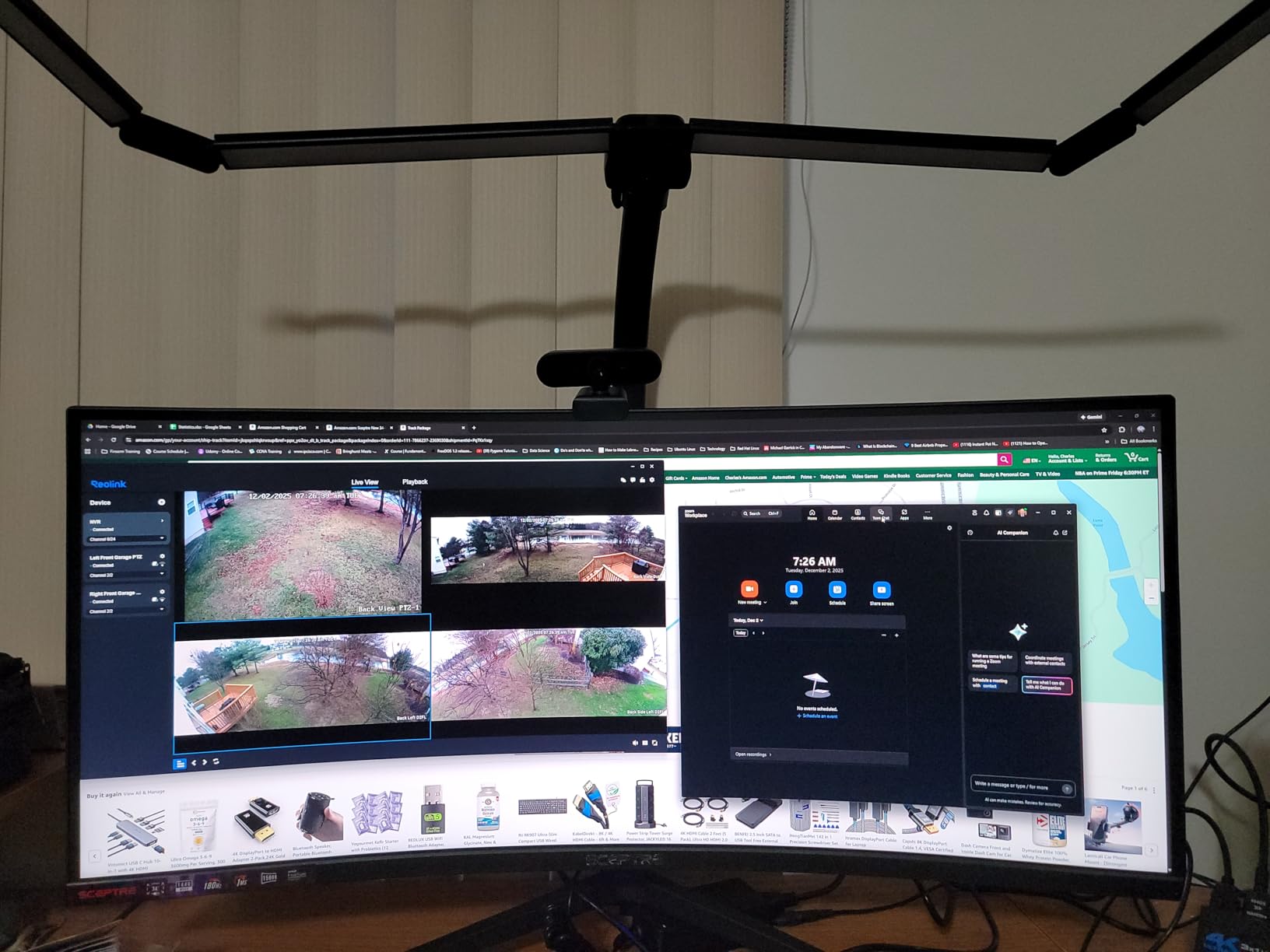
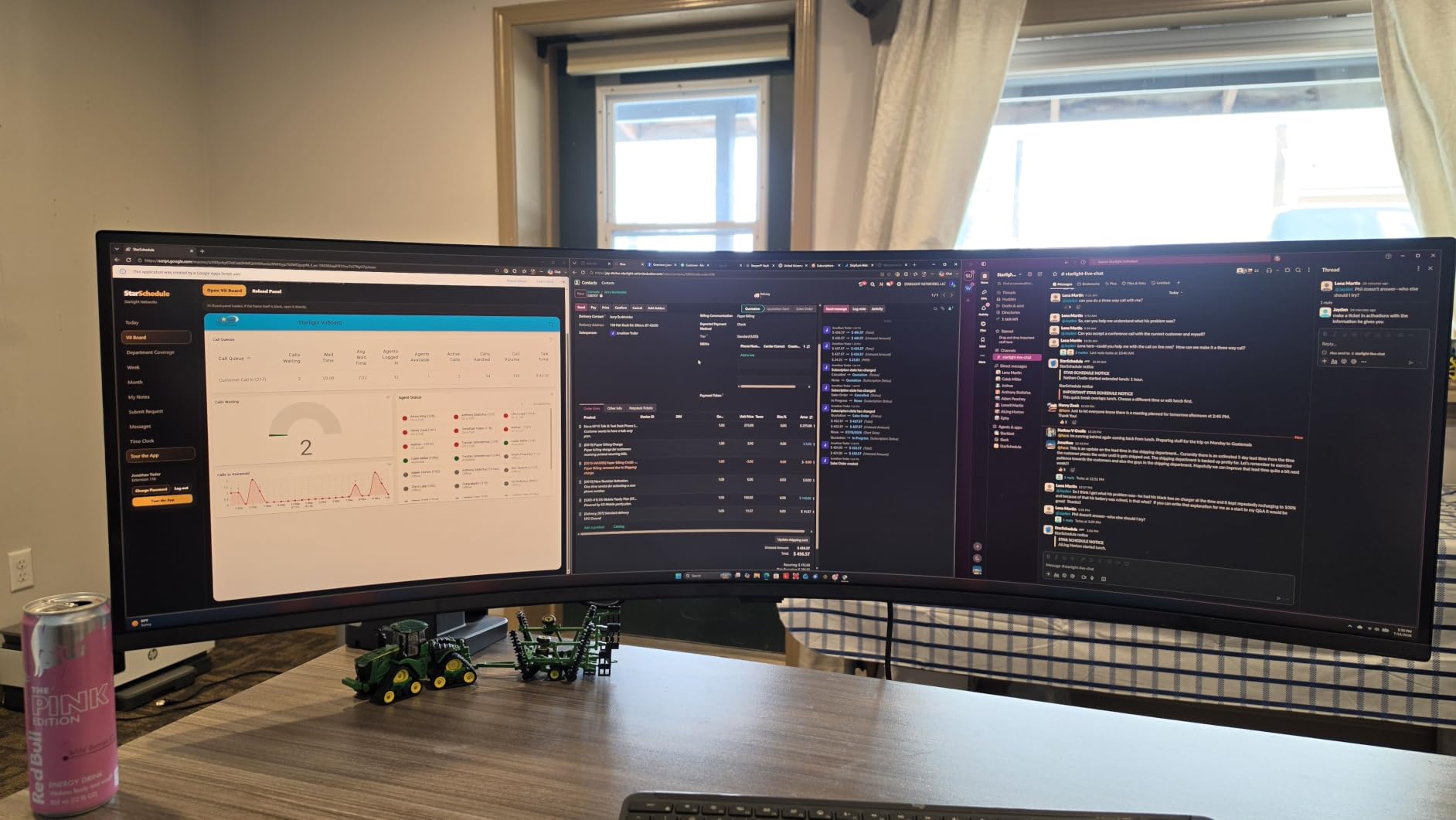
The Samsung S95UA is the pick for an office desk where one cable should do everything. USB-C with 90W charging, DisplayPort, two HDMI ports and three USB ports mean a laptop can charge, drive the panel and host peripherals through the monitor alone. Built-in speakers remove two more items from the desk, which on a 49-inch panel is a real gain.
The 1000R curve is the gentlest here, so documents near the edges stay readable. For spreadsheets, timelines and long sessions in reference material, that matters more than refresh rate. Owners rate the screen real estate and the docking behaviour as the reason they bought it.
Gamers should look elsewhere. A 5ms response time, 120Hz and a listed colour gamut around 72 percent leave this well behind the QD-OLED options, and DisplayHDR 400 is an entry certification with modest peak brightness. It also weighs more than 32 pounds, which makes setup a two-person job and argues for a proper desk rather than a riser.
Against the CRUA CR490QB, the Samsung adds USB-C charging, speakers and a gentler curve, while the CRUA runs a higher refresh rate for a wider range of machines.
10. Samsung Odyssey OLED G9: Best for 49-Inch OLED Gaming
Samsung 49″ Odyssey OLED G9 (G91SD) Dual QHD QD-OLED Curved Gaming Monitor
Best for: 49 inch OLED gaming
Resolution: 5120x1440
Refresh: 144Hz
Panel: QD-OLED
Pros
- True blacks at 1000000:1 contrast in a dark room
- 0.03ms response with FreeSync Premium Pro and G-SYNC
- 110 PPI keeps text sharp across the panel
- Taskbar and logo detection plus a dimming screen saver against burn-in
- Height and tilt adjustable stand with a three-year warranty
Cons
- 250 cd per square metre is low for HDR content at full screen
- Picture-in-Picture is less flexible than a full PBP split
- One of the lowest average ratings here with a higher share of one-star reviews
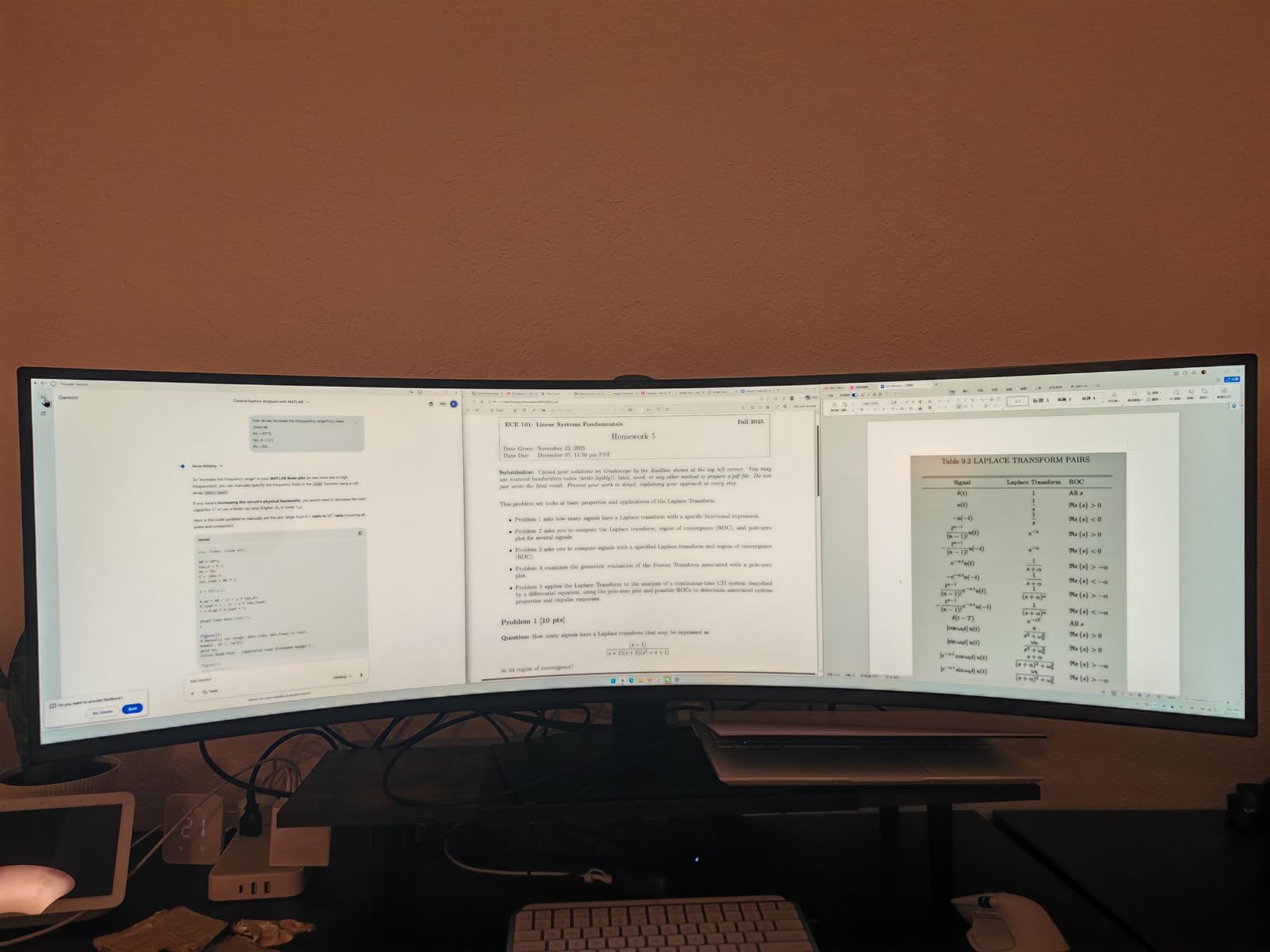
The Samsung Odyssey OLED G9 brings OLED contrast to the full 32:9 format. At 5120×1440 across 49 inches and 110 pixels per inch, text stays sharp enough for a second monitor’s worth of work, and the 0.03ms response with FreeSync Premium Pro makes motion effectively tear-free.
Samsung’s burn-in handling is the part to read before buying. Logo and taskbar detection moves those elements out of the way, and a screen saver dims the panel after ten minutes of inactivity. A Thermal Modulation System reads surface temperature and pulls brightness back when the panel runs hot.
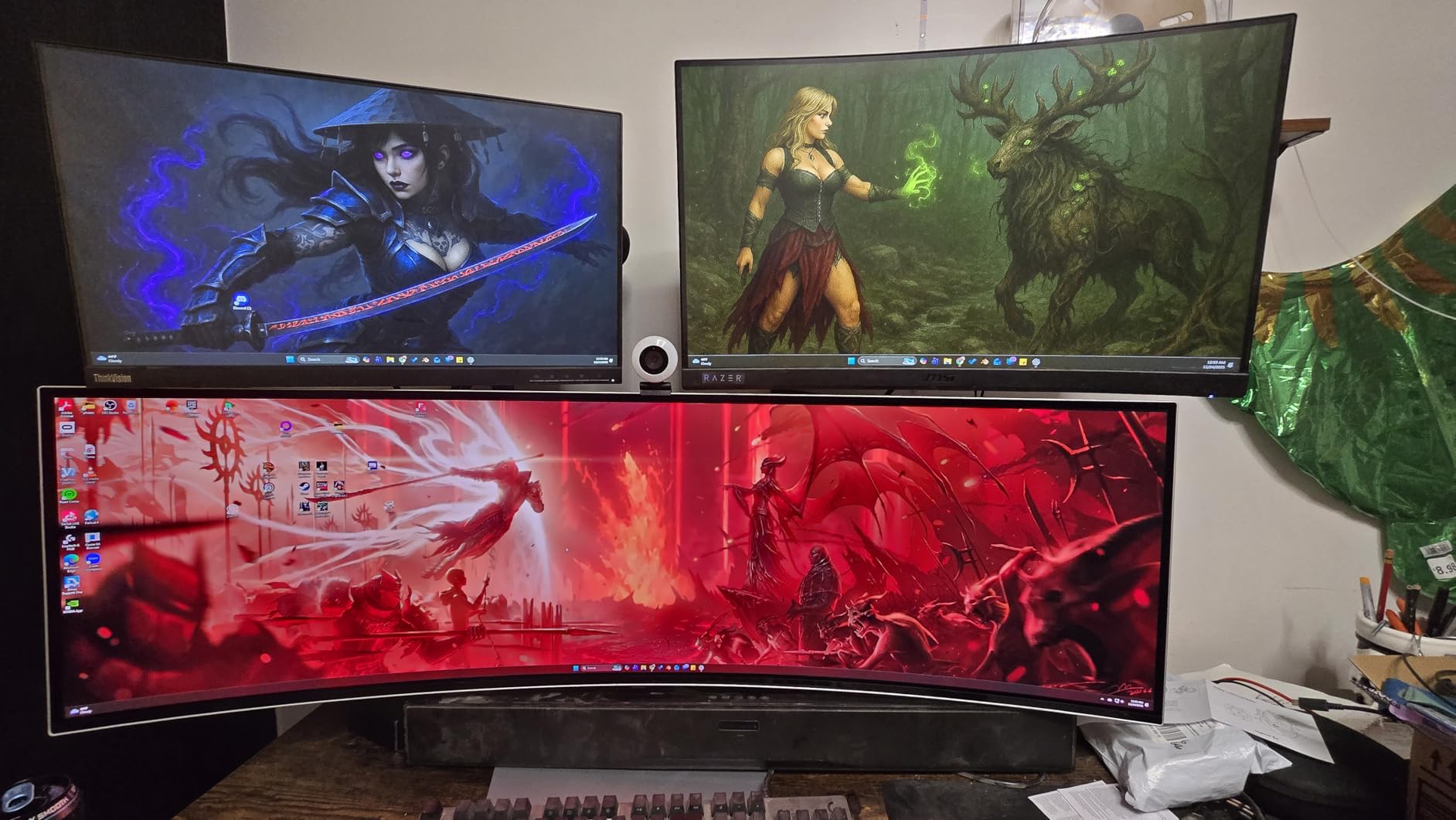
The critical reviews concentrate on three things: 250 cd per square metre is not much headroom for HDR content on a full-screen OLED, Picture-in-Picture is less flexible than a genuine two-input split, and this listing carries the lowest average rating in the group with a larger share of one-star reviews than the others. Owners also note full-screen 49-inch OLED can be power hungry.
Compared with the Alienware AW3423DWF, the Samsung gives you the wider canvas and better blacks but less brightness headroom and no factory calibration report in the box.
How to Choose Ultrawide Monitors During Prime Big Deal Days
Choose the Right Curved or Flat Panel
Every panel in this list is curved, and the reason is ergonomic rather than decorative. A 1500R or 1800R curve puts the far edges at roughly the same distance from your eyes as the centre, which reduces the head-turning that makes a wide flat screen tiring over a long session. Tighter curves such as the LG’s 800R wrap further around you and add more geometric distortion at the edges, which is why photographers and video editors sometimes step back from them.
Flat ultrawides exist and make sense when the display will be viewed by more than one person at a time, or when colour grading across a frame has to be geometrically true. For a single user at one desk, curved wins on comfort. Our ultrawide monitors for multitasking breakdown covers the workspace layouts in more detail.
Match Resolution and Refresh Rate to the Work
2560×1080 is comfortable with text but soft when zoomed, and it suits a 30-inch panel such as the Sceptre C305B. 3440×1440, often called UWQHD or WQHD and dual QHD in part, is the productivity default at 34 inches and pairs well with the 165Hz to 200Hz panels here. 5120×1440 gives you two 1440p halves side by side, and 5120×2160 adds the vertical pixels that code and timelines actually use.
Refresh rate is cheaper to buy than pixels, so take the higher number when the budget allows. The catch is your graphics card: 3440×1440 at 180Hz needs a capable card, and 5120×2160 at 165Hz needs a very high-end one. Owners of the 49-inch panels here repeatedly report that the card, not the monitor, is the limit. For consoles, check the HDMI version, because HDMI 2.0 inputs cap several of these panels at 100 or 120Hz.
Check Desk Depth and Windows Scaling
A 34-inch ultrawide is about 31 inches wide with the stand, and a 49-inch panel is roughly 46 to 47 inches. That second number is the one that catches people out. Super-ultrawides sit close to the desk edge because the panel leans forward, so measure your desk depth before committing to a 49-inch model. If you plan on a mount rather than the factory stand, our picks for monitor arms for home offices cover the weight and VESA pattern differences that matter on panels this size.
Windows scales a 21:9 panel as a single wide monitor, and macOS handles ultrawides well. What you will notice is that a 34-inch 21:9 screen has slightly less total area than a large 16:9 display, so if you are coming from a 32-inch 16:9, the win is in layout flexibility rather than sheer pixels. Set the scaling so that text at your usual reading distance is the size you already like before you move anything.
Review Ports, Power Delivery and USB Support
Two things on a monitor can replace a dock entirely: USB-C with power delivery and a built-in USB hub. The LG UltraGear 45GX950A charges a laptop at 90W over USB-C, and the Samsung S95UA does the same while adding DisplayPort and two HDMI inputs. Neither of the budget 34-inch panels here does this, so if you run a laptop daily, budget for a dock or check our guide to gaming monitors with USB-C before you settle.
Count the ports rather than trusting the listing count, since two panels here disagree with their own spec tables. The Alienware AW3423DWF carries five USB 3.2 ports and a USB-C to DisplayPort cable, while the Alienware AW3425DWM has three USB ports that some gaming features depend on. Anything you buy at 120Hz or above needs a DisplayPort 1.4 cable, and several of these boxes do not include one.
How to Shop Ultrawide Monitor Deals During the Sale
Confirm the model number before you click, not the marketing name. Ultrawide listings get revised mid-range, and a WQHD panel can share a product family with a different brightness or stand. Check the exact model string in the technical details, verify the size and panel type match what the page claims, and confirm whether a DisplayPort cable and the stand riser are in the box. Look at who the seller and shipper are, and read the return terms on large displays carefully before checkout. Most offers in this event need a Prime membership, and the pricing can move several times across the two days.
- Match the model number in the listing, not just the product family name.
- Check the panel type: LED, Fast VA, VA LCD and QD-OLED behave very differently.
- Confirm the refresh rate you need is available on the port you plan to use.
- Verify whether a DisplayPort cable is included in the box, since several are not.
- Measure desk depth before any 49-inch panel.
- Confirm the warranty length and whether it includes panel burn-in coverage.
Frequently Asked Questions
When does Amazon Prime Big Deal Days run in 2026?
Amazon Prime Big Deal Days runs October 6-7, 2026. Monitor offers across the ultrawide category usually appear in the run-up as well as during the two days themselves, and pricing can shift more than once while the event is live.
Do you need Prime to buy during Amazon Prime Big Deal Days?
Most offers in the event are limited to Prime members, and non-members can see a different price at checkout than the one shown on the deal page. A Prime trial counts as membership if it is active when you buy, so signing up for a month first is a common approach.
Is a 34-inch ultrawide monitor big enough for multitasking?
Yes for most desk work. A 34-inch 21:9 panel gives you roughly two 2560×1440 windows side by side, which handles a document beside a browser or an editor beside a terminal. Note that it has slightly less total area than a large 16:9 display, so the gain is in layout rather than raw pixels.
Should I buy a 34-inch or 49-inch ultrawide monitor?
A 34-inch panel suits a normal desk and almost every graphics card. A 49-inch 32:9 screen genuinely replaces two monitors and needs a deep desk, a capable GPU and a mount that takes the weight. Simulators and cockpit-style layouts are the case where the bigger panel clearly wins.
Do ultrawide monitors need special scaling in Windows?
No manual scaling is needed, since Windows treats a 21:9 or 32:9 panel as one wide screen. You may still want to adjust the display scale so text matches the size you are used to, and some apps that assume a 16:9 layout leave gaps on an ultrawide.
What matters most when comparing Best Amazon Prime Big Deal Days Ultrawide Monitor Deals?
Resolution and refresh rate come first, then panel type, because an OLED panel and a VA LCD panel at the same size behave very differently for text, contrast and motion. Stand adjustment, port selection and warranty length decide how the monitor feels after the first month.
Final Verdict: Best Amazon Prime Big Deal Days Ultrawide Monitor Deals
The Sceptre C305B is the pick worth watching most closely during the sale, because a 30-inch 21:9 panel at this spec level is the least risky way into ultrawide and it carries the longest owner history here. For the cheapest route to a genuine 34-inch 3440×1440 screen, the Sceptre C345B does the job for less than anything else on the list.
Beyond those two, the SANSUI ES-G34C5 fits high refresh gaming on a smaller budget, the Alienware AW3425DWM is the top rated option with colour you can trust and a three-year warranty, and the Alienware AW3423DWF takes that further with QD-OLED accuracy. For raw workspace, the CRUA CR490QB does 49 inches without the OLED handling, and the Amzfast AMZG49C7U is the one to pick when two machines share the desk. The Samsung S95UA covers docking-heavy offices with 90W USB-C charging and built-in speakers, the LG UltraGear 45GX950A is the choice when 5K2K sharpness matters more than the asking figure, and the Samsung Odyssey OLED G9 is the 49-inch option for a dark room and fast motion.
Check the model numbers, bring your own DisplayPort cable if the box does not include one, and press the button on any pick you want to price before the event moves on.