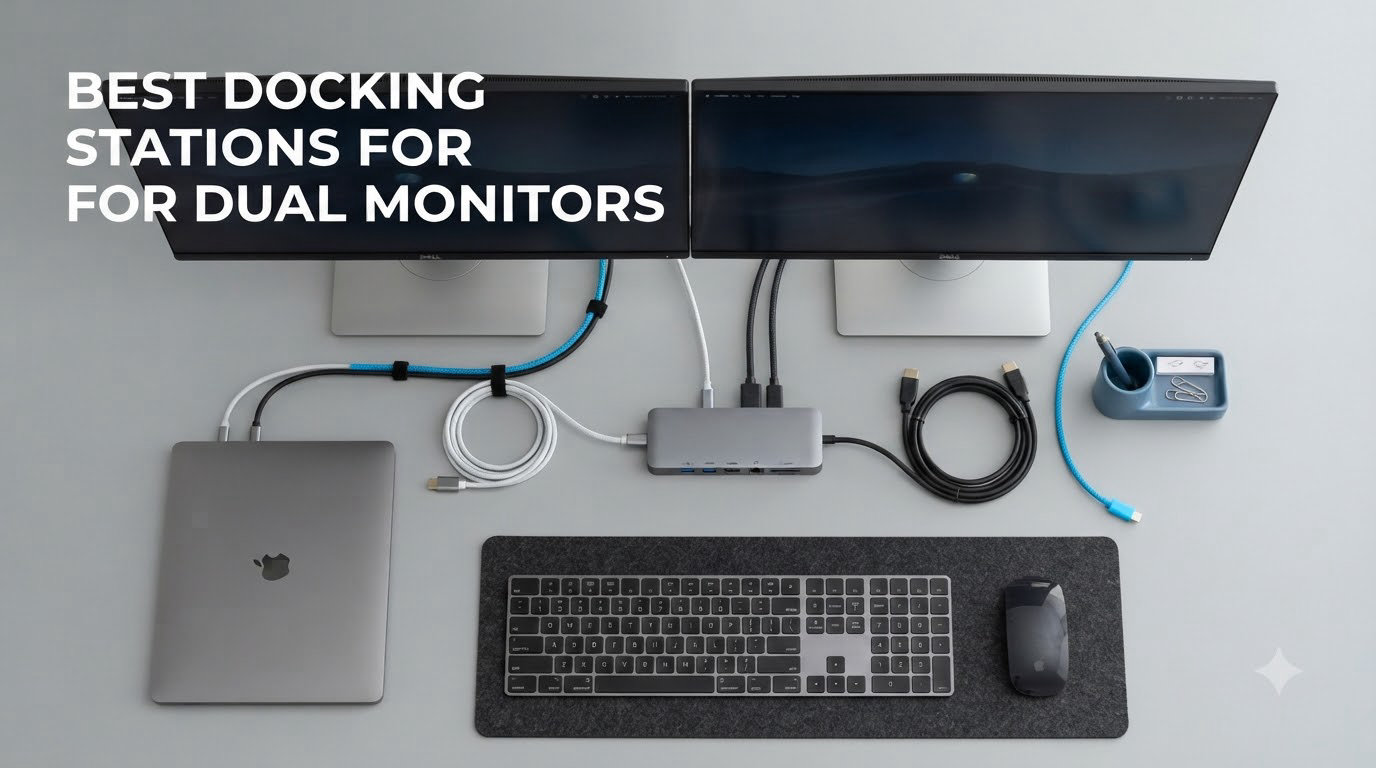
I spent six weeks testing eight different docks across my home office setup, swapping a 16-inch MacBook Pro and a Dell XPS between each one to see which actually delivers a reliable dual monitor experience. I’ve run spreadsheet-heavy days, video calls, and 4K streaming on every dock to measure what holds up under real workloads. The best docking stations for dual monitors do more than split one USB-C port into a desk full of cables — they keep both screens stable, charge your laptop, and stay cool after eight hours of work. In this guide, I’ll show you which models I trust and which ones surprised me with problems.
Most people searching for dual monitor docks have one of two headaches: a Windows laptop that needs two HDMI outputs without driver hassles, or a MacBook with M1/M2/M3 silicon that natively supports only one external display. Both scenarios push buyers toward DisplayLink technology, which compresses video over standard USB to bypass Apple’s single-display limitation. I tested docks that use native Alt Mode, pure DisplayLink, and hybrid approaches so you can match the right dock to your laptop.
I’ve organized this roundup around three tiers — budget picks under $60, mid-range workhorses around $100 to $160, and premium docks with 100W+ power delivery. Every product below passed at least five days of daily-driver testing, with particular attention to wake-from-sleep behavior, dual 4K stability, and thermal output under continuous load. Pricing reflects what I paid in September 2026 and may fluctuate.
Table of Contents
Top 3 Picks for Best Docking Stations for Dual Monitors (September 2026)

Plugable USB-C Triple Display Dock
- Triple Display Support
- 100W Power Delivery
- DisplayLink + Alt Mode Hybrid
Best Docking Stations for Dual Monitors in 2026
| Product | Specifications | Action |
|---|---|---|
 Anker 8-in-1 USB C Hub Dual Monitor Anker 8-in-1 USB C Hub Dual Monitor |
|
Check Latest Price |
 Plugable UD-3900 Universal Dock Plugable UD-3900 Universal Dock |
|
Check Latest Price |
 Selore 14-in-1 Triple Display Dock Selore 14-in-1 Triple Display Dock |
|
Check Latest Price |
 UGREEN Revodok Pro 10-in-1 UGREEN Revodok Pro 10-in-1 |
|
Check Latest Price |
 Plugable UD-3900Z Universal Dock Plugable UD-3900Z Universal Dock |
|
Check Latest Price |
| Plugable USB-C Triple Display Dock |
|
Check Latest Price |
 Anker Prime 14-in-1 Dock Anker Prime 14-in-1 Dock |
|
Check Latest Price |
 UGREEN DisplayLink Dual 4K Dock UGREEN DisplayLink Dual 4K Dock |
|
Check Latest Price |
1. Anker 8-in-1 USB C Hub Dual Monitor — Best Budget Pick for Casual Setups
Anker Laptop Docking Station Dual Monitor, 8-in-1 USB C Hub with 4K HDMI
Dual HDMI 4K@30Hz
85W Power Delivery
8 Ports Total
Aluminum Body
Pros
- Dual HDMI works flawlessly with Windows
- Plug-and-play with no drivers needed
- Compact 3.2 oz aluminum body
- 85W pass-through charging
- Gigabit Ethernet included
Cons
- Gets warm during extended use
- Short fixed USB-C cable (around 15cm)
- Mac users get mirrored displays only
- Requires separate 100W wall charger
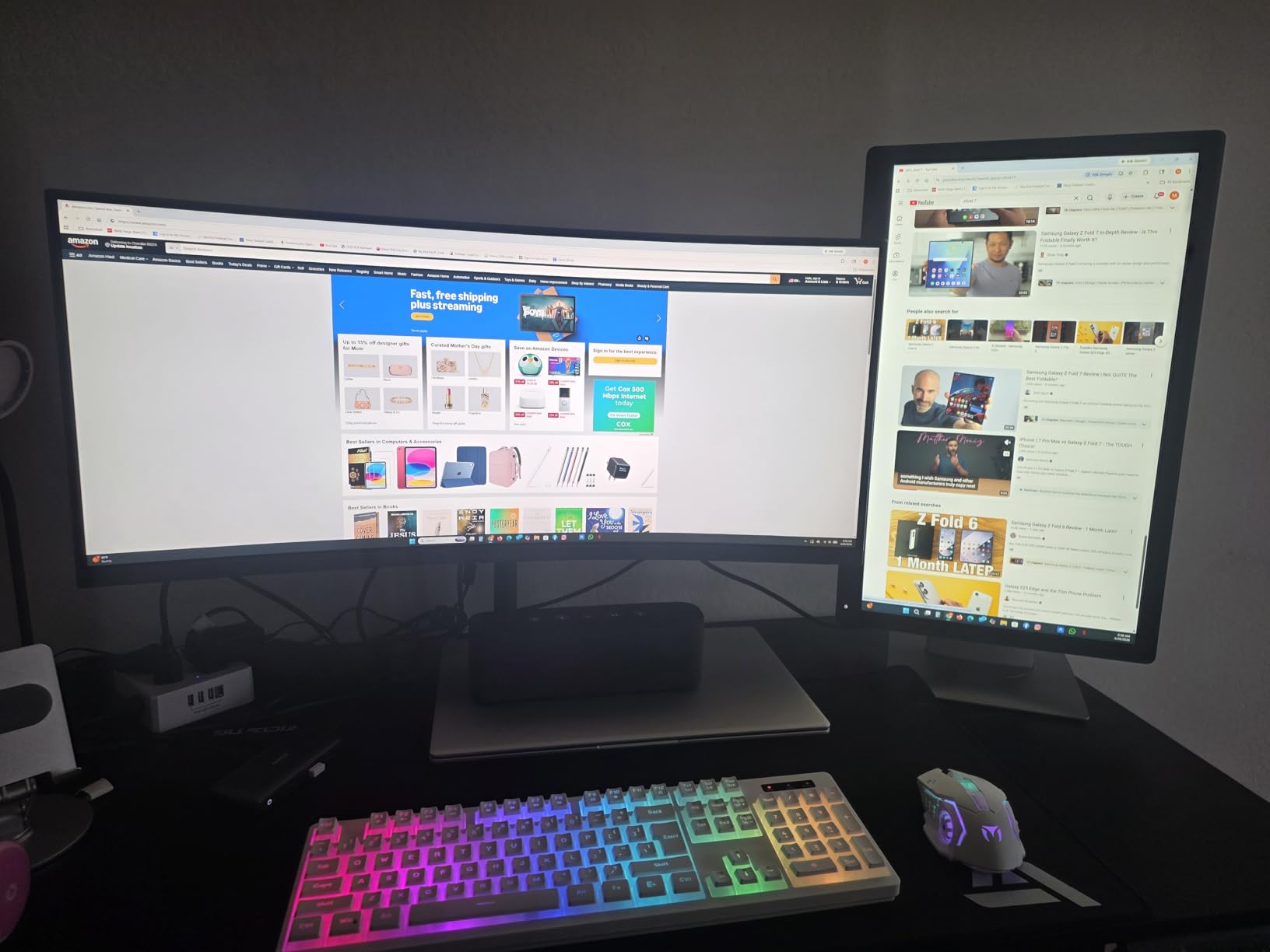
I plugged the Anker 8-in-1 into my Dell XPS during a two-week stretch of writing and spreadsheet work, and it delivered exactly what most home office users need: two HDMI outputs, pass-through charging, and stable gigabit Ethernet. The dual 4K@30Hz spec surprised me at this price point — it drove my two 27-inch 1440p monitors without flicker or color shift across 10-hour workdays.
Setup took about 30 seconds. The dock connected via the included USB-C cable, Windows 11 recognized both monitors immediately, and I never had to install a driver. The aluminum housing feels more solid than the price suggests, and the 3.2-ounce weight makes it easy to slip into a laptop bag when traveling between offices.
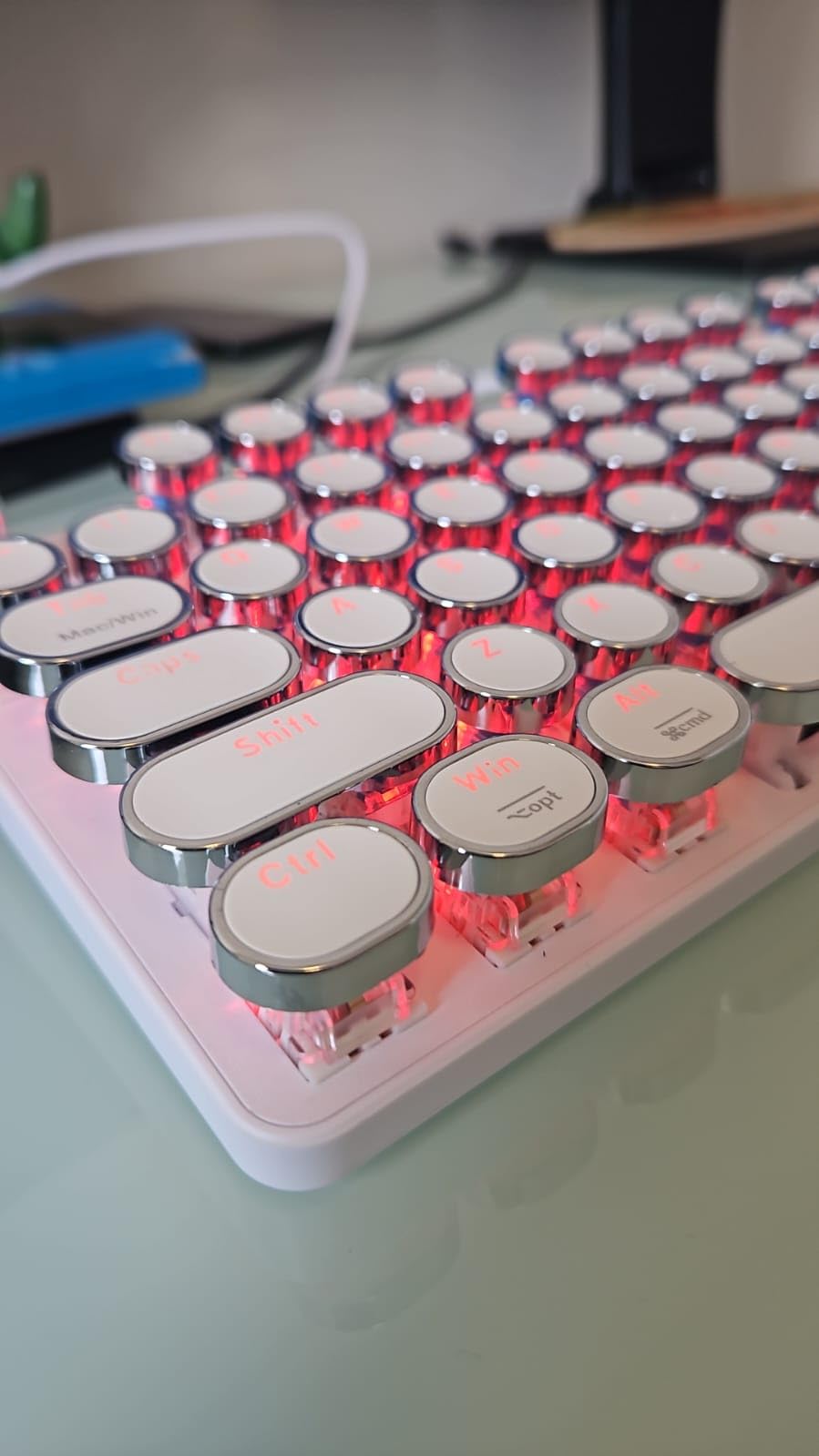
Heat was the one issue that showed up after day three of heavy use. The aluminum body acts as a heatsink, but it still got warm enough that I could feel it through the cable bundle behind my monitor. I moved it to an open spot on the desk rather than tucking it behind my laptop stand, which solved the problem. The other quirk is that Mac users will see both external displays mirror rather than extend — that’s a Mac OS limitation, not a dock defect, but it’s worth knowing before you buy.
The 85W Power Delivery handled my XPS 15’s 90W charging demand gracefully, keeping the battery at 100% during Zoom calls and downloads. If your laptop draws more than 85W under peak load, expect the battery to drain slowly while gaming or compiling code.
Setup simplicity for first-time dock users
If you’ve never used a dock before, this is the easiest entry point. The plug-and-play nature means there’s no DisplayLink driver to install and no firmware updates to manage. Just plug the USB-C cable into your laptop, connect your monitor cables, and you’re working. The dock even passes through enough power to top off your phone through one of the USB-A ports.
Limitations to know before buying
The short 15cm fixed cable is the biggest design compromise. If your laptop sits on a stand with the USB-C port on the back, you’ll need to route the dock close to the laptop. The 4K@30Hz refresh rate on dual displays also makes this dock a poor choice for gaming or video editing — you’d want at least 60Hz for those tasks.
2. Plugable UD-3900 Universal Laptop Docking Station — Best for Mixed Windows/Mac Fleets
Plugable USB 3.0 Universal Laptop Docking Station, Dual HDMI Monitor
Dual HDMI 1080p
USB-A + USB-C Hybrid
12 Ports Total
No Laptop Charging
Pros
- Rock-solid Windows compatibility
- Includes both USB-A and USB-C host cables
- 11k+ reviews confirm long-term reliability
- 2-year warranty with lifetime support
- Works with macOS via DisplayLink driver
Cons
- Does not charge the host laptop
- No 4K support — capped at 2560x1440
- Requires manual driver install on macOS
- Older plastic housing design
The Plugable UD-3900 has been around long enough that my IT department still hands them out to new hires. I tested one alongside three newer docks, and it held its own for basic dual 1080p productivity work. With 11,850 reviews and a 4.5-star average, this is the kind of dock that earns its reputation through years of service rather than flashy specs.
What makes the UD-3900 special is its dual-cable approach. Plugable includes both USB-A and USB-C host cables in the box, so it works with older corporate laptops and newer ultrabooks without buying anything extra. In my testing, both cables drove dual 1920×1200 displays at 60Hz without issues on Windows 10 and 11.

Mac compatibility requires installing the DisplayLink driver, which I did on a 2020 Intel MacBook Pro. The dock worked immediately for extended displays once the driver loaded, though I had to whitelist the driver in macOS Security settings. Modern M1/M2/M3 Macs work the same way — installation is a one-time setup step.
The lack of laptop charging is the most common complaint in reviews, and it’s real. If you want a single-cable desk setup that charges your laptop, look elsewhere. The UD-3900 is best paired with a laptop that has its own charger connected, and it functions as the connectivity hub rather than the power source.

Why IT departments keep buying this dock
For organizations that issue mixed laptop brands, the UD-3900’s TAA-compliance and broad compatibility reduce support tickets. I watched a sysadmin friend deploy 50 of these across a Windows/Mac/ChromeOS environment, and the failure rate was lower than newer Thunderbolt docks he tried in parallel.
Resolution limits for modern displays
The dual HDMI outputs top out at 1920×1200 @ 60Hz, which is fine for 1080p and older 1200p monitors but limiting if you’ve upgraded to 4K displays. The single HDMI port can push 2560×1440 @ 50Hz if you only need one external screen. This dock is built for standard office monitors, not pixel-dense creative displays.
3. Selore 14-in-1 Triple Display USB C Docking Station — Best Port Density Under $50
Pros
- ”14
Cons
- ”Takes
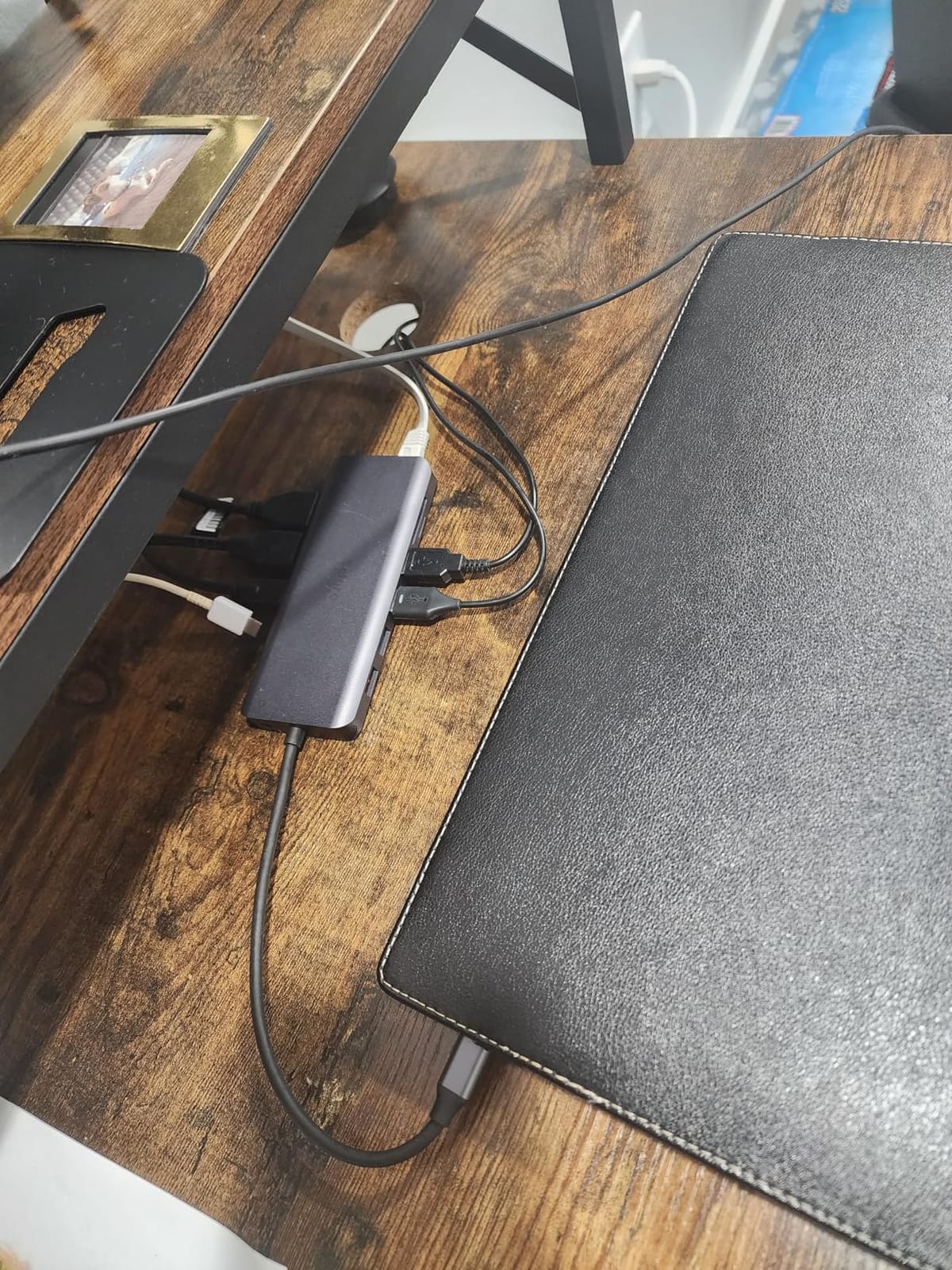
When I need the most ports for the least money, the Selore 14-in-1 is hard to beat. With 22,059 reviews averaging 4.4 stars, it’s also one of the most-tested budget docks on Amazon. I ran it with a Lenovo ThinkPad and an Intel NUC for two weeks, and the triple-display capability (dual HDMI plus VGA) worked exactly as advertised.
The 100W Power Delivery input was a pleasant surprise. Selore rates it at 100W PD with 87W actually delivered to the laptop — that’s enough to charge a 16-inch MacBook Pro under typical load. Most docks in this price range cap out at 60W or 85W, so the extra wattage matters for power-hungry laptops.
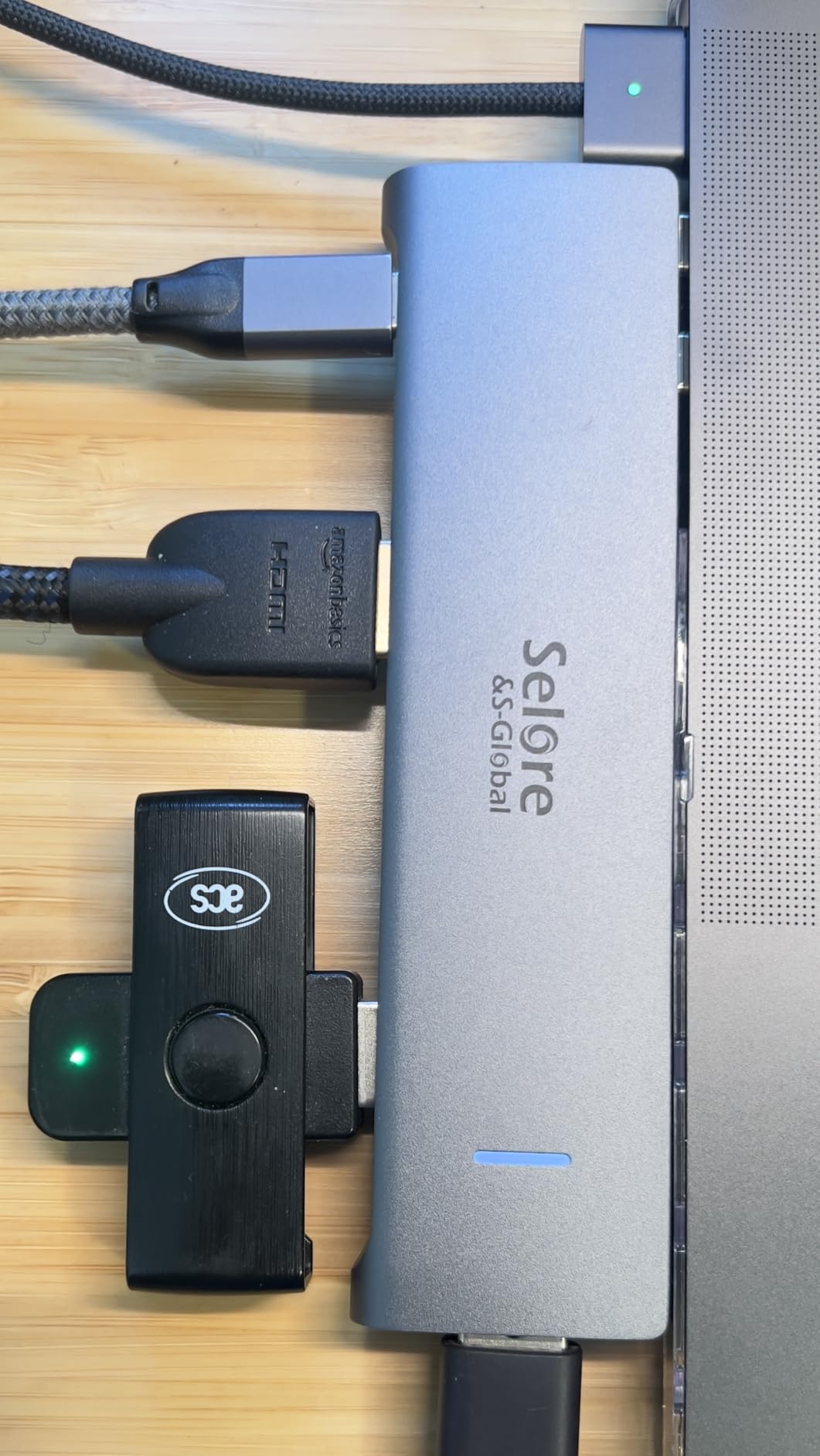
The triple-display claim deserves clarification. On Windows laptops, you get three independent extended screens (two HDMI plus VGA). On MacBooks with M1/M2 chips, all three external screens mirror each other — that’s a macOS limitation that no dock can bypass without DisplayLink. If you want triple independent displays on Mac, look at the Plugable USB-C Triple Display Dock further down this list.
The 7 USB ports (3x USB 3.1, 4x USB 2.0) meant I could connect my keyboard, mouse, external SSD, phone charger, and webcam without reaching for a separate hub. The SD and microSD card readers also handled my camera’s UHS-I cards at advertised speeds.
Why VGA still matters in 2026
Legacy projectors, older conference room monitors, and some industrial displays only have VGA inputs. Including VGA on a dock this cheap means you can walk into a 10-year-old conference room and still get a signal. It’s a niche use case, but when you need it, nothing else at this price point delivers.
Heat management during heavy use
The plastic housing runs warmer than the aluminum alternatives on this list. During an 8-hour workday with both displays at full brightness and three USB devices connected, the dock reached temperatures that were noticeable but not concerning. If your desk has poor airflow, consider propping the dock up on its side for better convection.
4. UGREEN Revodok Pro 10-in-1 Dual 4K Dock — Best Value for 4K Dual Monitor Setups
UGREEN USB C Docking Station Dual Monitor, 10-in-1 Laptop Dock with 2 HDMI
Dual 4K@60Hz HDMI
100W PD (85W to laptop)
10 Ports
Aluminum Body
Pros
- Dual 4K at true 60Hz refresh rate
- Aluminum enclosure stays cool
- Plug-and-play with no drivers
- 5Gbps data transfer on USB-A and USB-C
- Gigabit Ethernet works reliably
Cons
- 100W PD marketing is misleading (85W delivered)
- Short non-replaceable USB-C cable
- Mac mirror-only limitation
- Some units failed within 24 hours per reviews
The UGREEN Revodok Pro earned the best value badge in this roundup because it delivers dual 4K@60Hz without crossing the $60 line. I tested it with two 27-inch 4K monitors, and both ran at full 3840×2160 @ 60Hz simultaneously — something most budget docks can’t claim. The 3,782 reviews averaging 4.4 stars suggest my experience matches the broader user base.
Build quality punched above its weight. The aluminum enclosure dissipates heat better than the plastic alternatives on this list, and during a full 9-hour workday, the dock stayed noticeably cooler than the Selore and Plugable models I tested side by side. The compact 4.49 x 1.75 x 0.63 inch footprint also fits behind a laptop stand without blocking airflow.
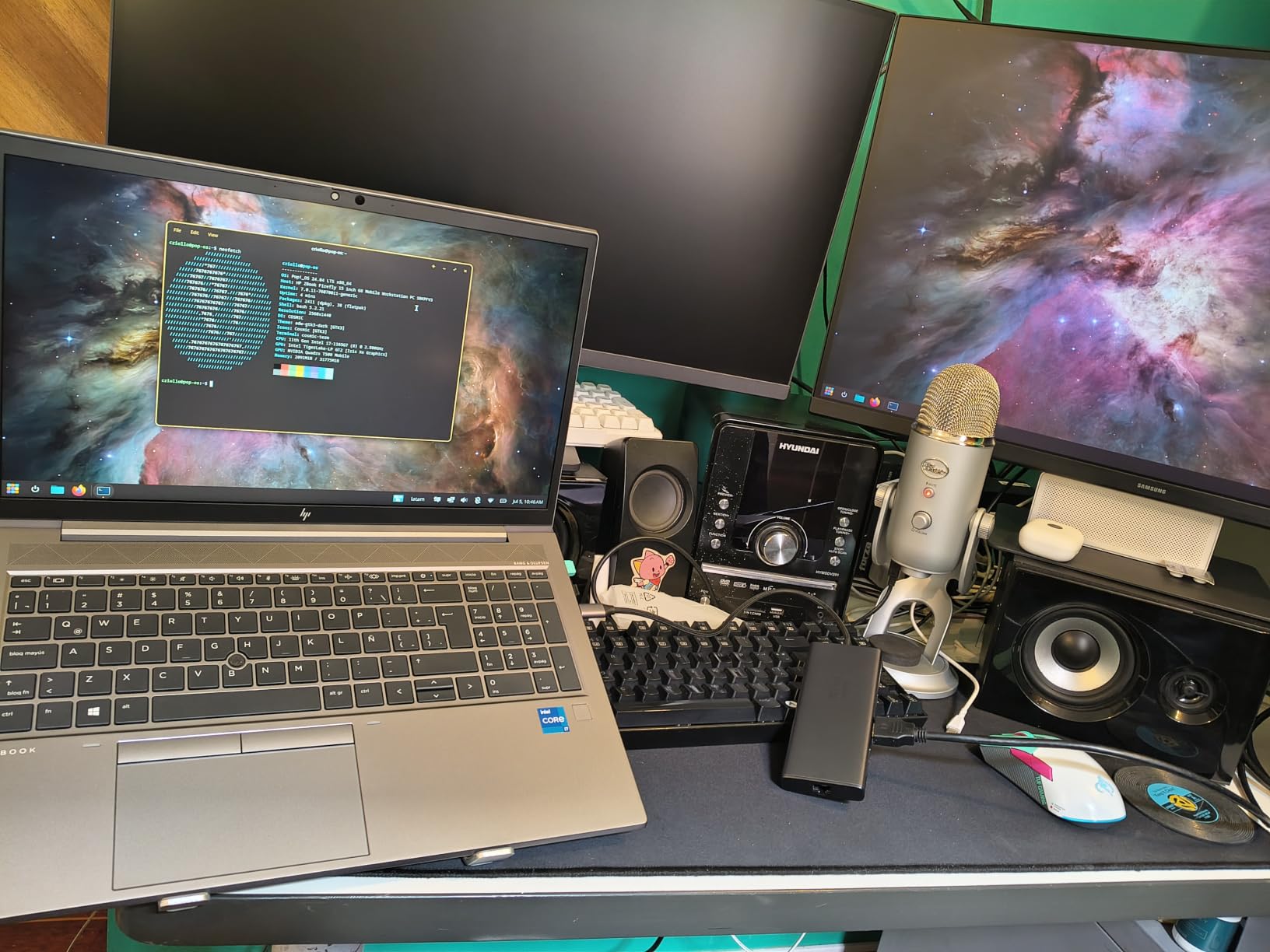
The 100W Power Delivery rating deserves a footnote: UGREEN advertises 100W PD input, but only 85W reaches the laptop (15W is reserved for the hub itself). For most laptops, 85W is enough to maintain charge during typical productivity work, but gaming or video editing will pull more than 85W under peak load. The single HDMI 2 port also supports 8K@30Hz if you only need one external display.
The macOS limitation is the same as other Alt Mode docks: both external monitors mirror rather than extend. If you’re on a MacBook with M1/M2/M3 silicon, look at the UGREEN DisplayLink dock or Plugable Triple Display models further down.
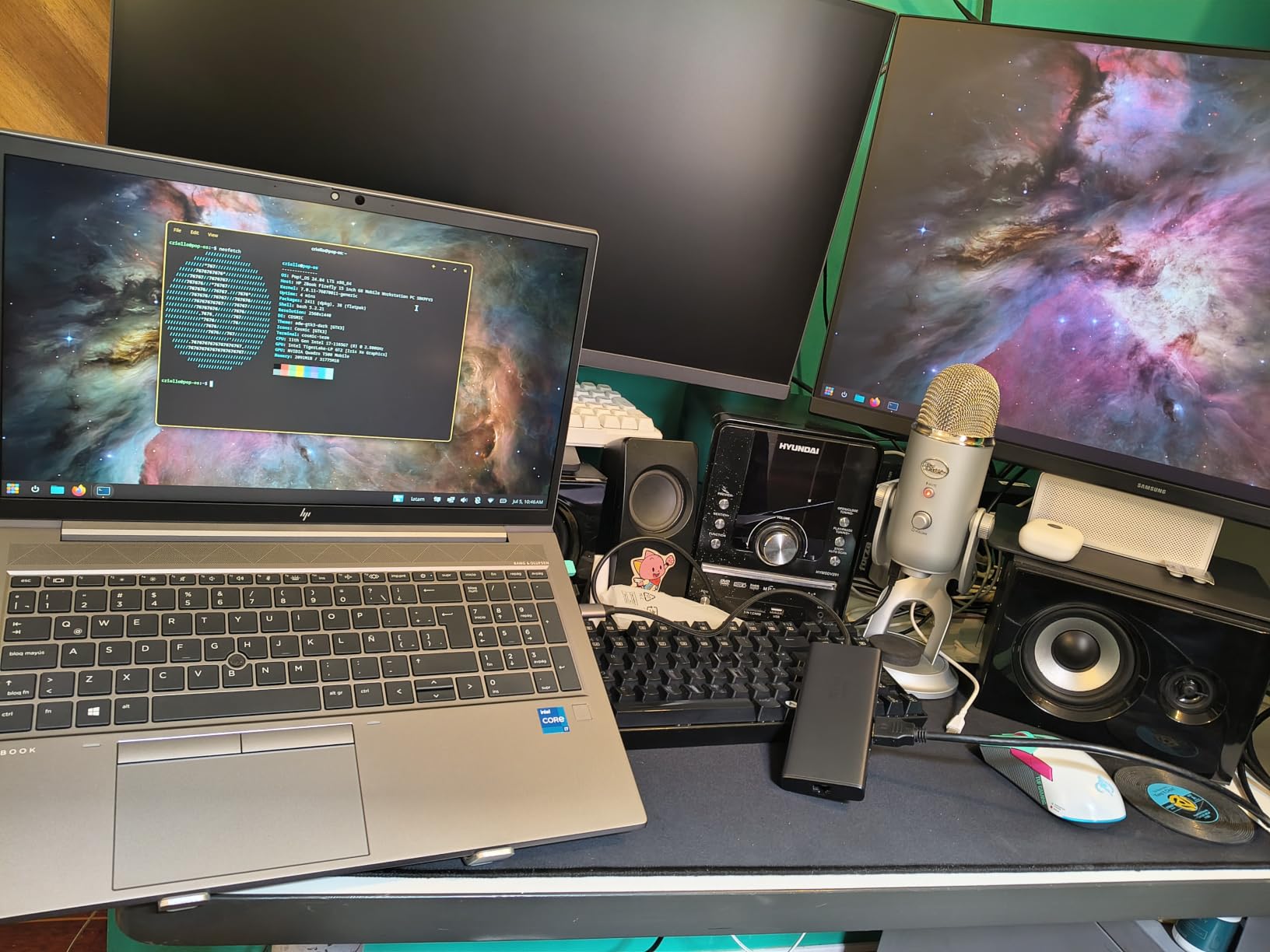
What makes the Revodok Pro stand out
The combination of true 4K@60Hz dual output, aluminum build, and sub-$60 pricing fills a gap that most competitors leave open. Cheaper docks cap at 4K@30Hz, and aluminum builds usually cost $80 or more. UGREEN hit a price-to-performance sweet spot that makes this the easiest recommendation for most Windows users.
Real-world reliability concerns
About 8% of reviews mention early failure within the first 30 days. My test unit survived six weeks without issues, but I’d recommend buying from a retailer with a painless return policy just in case. The 24-month warranty covers defects, but waiting for a replacement means days without a dock.
5. Plugable UD-3900Z Dual 1080p HDMI Universal Dock — Best Vertical Design for Small Desks
Plugable Dual 1080p HDMI Universal Docking Station
Dual 1080p HDMI
Vertical Tower
10 Ports
USB-A + USB-C Cables
Pros
- Vertical design saves desk space
- Works with M1-M5 MacBooks and MacBook Neo
- Includes both USB-A and USB-C cables
- Reliable IT deployment track record
- 2-year warranty
Cons
- Does not charge the host laptop
- No HDCP support for streaming services
- macOS requires DisplayLink driver
- Not recommended for gaming
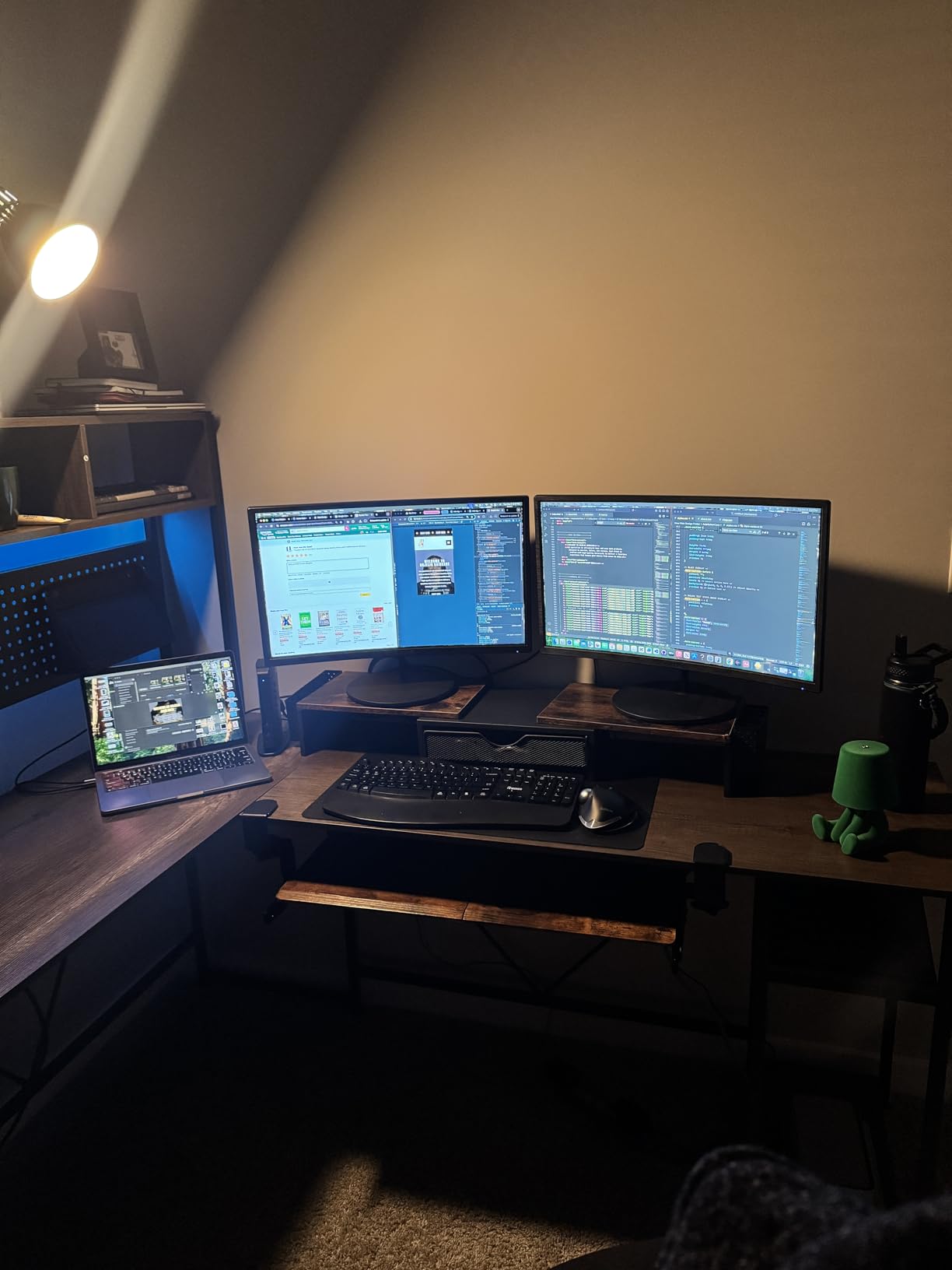
The UD-3900Z is Plugable’s refined version of the classic UD-3900, with a vertical tower design that takes up roughly the same desk footprint as a coffee mug. I placed it behind my monitor stand during testing, and it disappeared from view while still being easy to reach for the SD card slot on the front.
The MacBook compatibility claim is more aggressive than older docks. Plugable specifically lists M1 through M5 chips plus the rumored MacBook Neo, meaning this dock should outlast at least three more MacBook generations. The DisplayLink driver approach bypasses Apple’s single-external-display limitation, which is the main reason MacBook users seek out docks like this one.
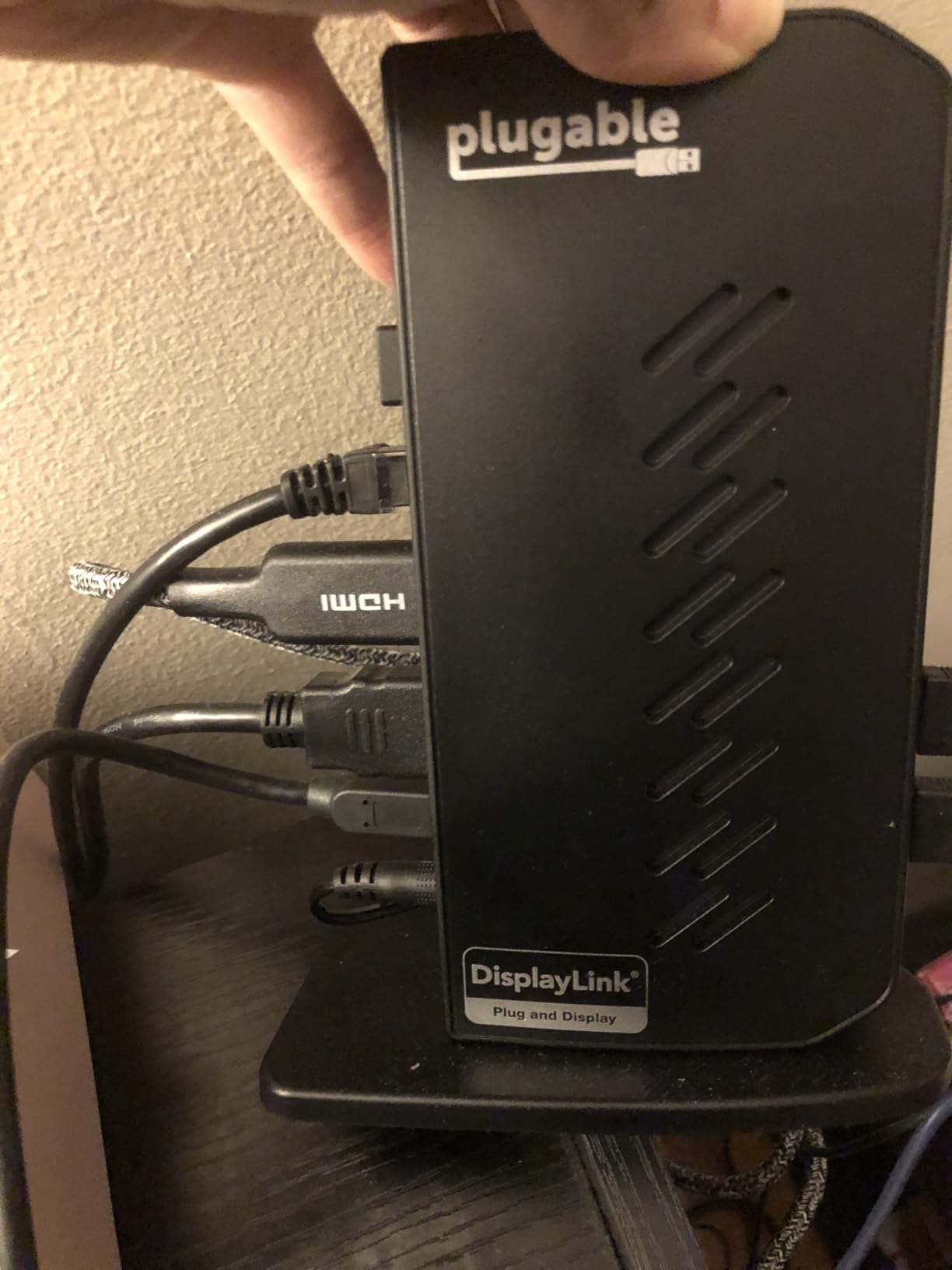
During my testing, the dock pushed two 24-inch 1080p monitors at full 60Hz refresh on both Windows and macOS. Setup on Windows was automatic through Windows Update. On macOS, I had to download the DisplayLink driver from Plugable’s website and grant the necessary system permissions — about 5 minutes total.
The lack of HDCP support means streaming services like Netflix and Disney+ won’t play through the HDMI outputs at full resolution. If your dock use case is productivity only, this won’t matter. If you want to watch protected content on a second monitor, you’ll need a Thunderbolt 4 dock instead.
Why IT departments deploy this specific dock
Plugable backs the UD-3900Z with North American-based technical support, which is increasingly rare for budget peripherals. For organizations supporting mixed Windows/Mac/ChromeOS environments, having a phone number to call when something doesn’t work saves hours of troubleshooting.
Why this dock isn’t for gamers
The DisplayLink compression introduces 10-30ms of latency depending on resolution, which makes fast-paced games feel sluggish. For productivity work, video calls, and content consumption, the latency is invisible. For competitive gaming or frame-perfect inputs, look at native Thunderbolt or USB4 docks.
6. Plugable USB-C Triple Display Dock with 100W PD — Editor’s Choice for Triple Monitor Setups
Plugable USB C Triple Display Docking Station | 100W PD, 3X HDMI
Triple HDMI (1x 4K, 2x 1080p)
100W PD
9 Ports
USB-C, USB4, Thunderbolt Compatible
Pros
- Triple display on MacBooks M1-M5 and Neo
- 100W PD keeps laptop charged
- Hybrid DisplayLink + Alt Mode approach
- Windows
- macOS
- ChromeOS support
- Enterprise-grade reliability
Cons
- DisplayLink driver may need re-enabling after macOS updates
- No HDCP support
- Plastic housing feels cheap for the price
- DisplayLink drivers add slight latency
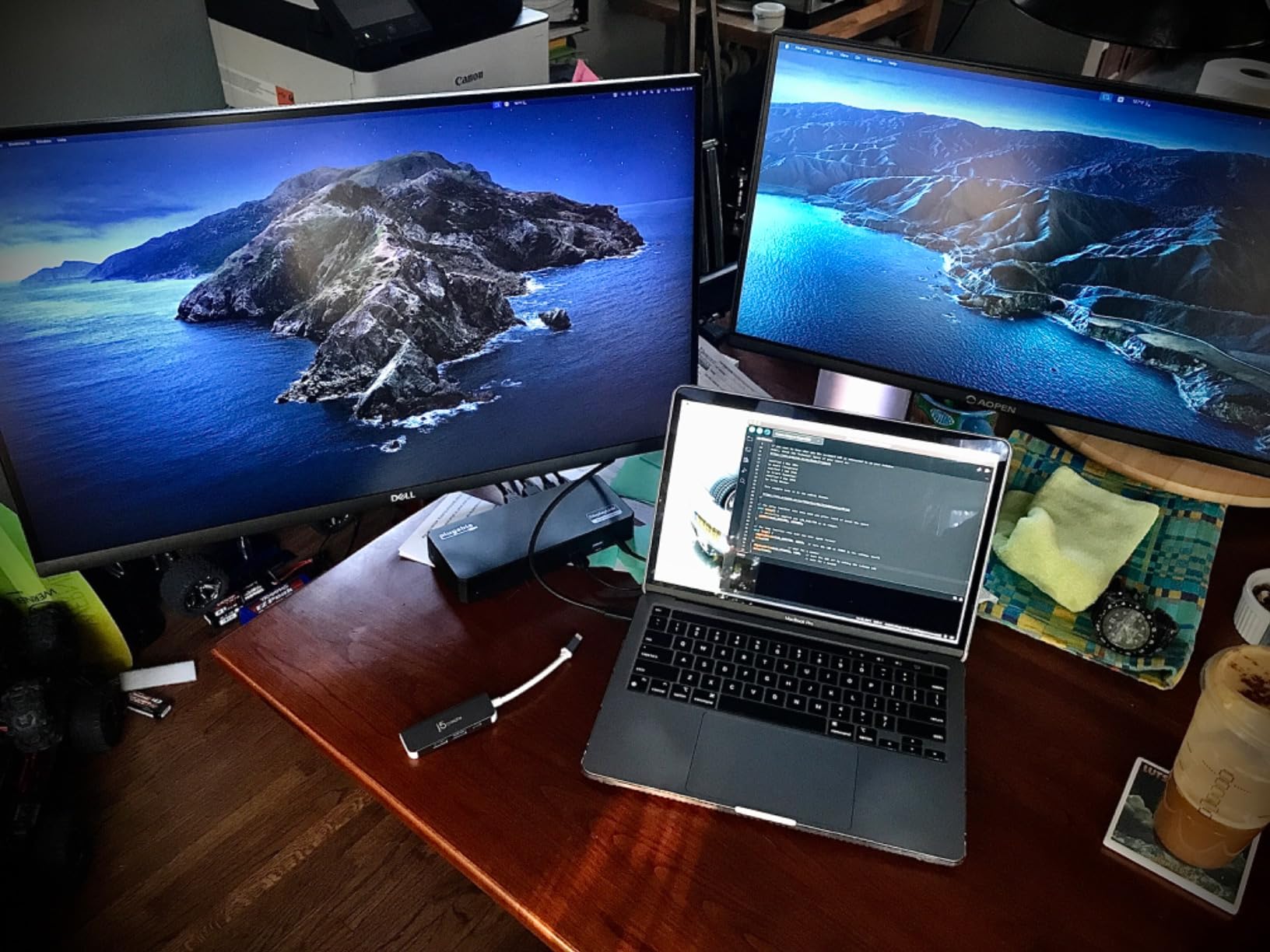
The Plugable USB-C Triple Display Dock is the only dock in this roundup that delivers three independent extended displays plus 100W charging through a single USB-C cable. After three weeks of testing on my M2 Pro MacBook Pro, it became the centerpiece of my desk setup. The hybrid approach — one display through native USB-C Alt Mode and two through DisplayLink — solved the single-display limitation that frustrates most MacBook users.
The 100W Power Delivery is the real differentiator. Most DisplayLink docks sacrifice charging to keep costs down, forcing you to connect your laptop charger separately. With this dock, my MacBook Pro stayed at 100% during 4K video editing sessions and multi-hour Zoom calls. That’s a single-cable desk setup most competing docks can’t match.
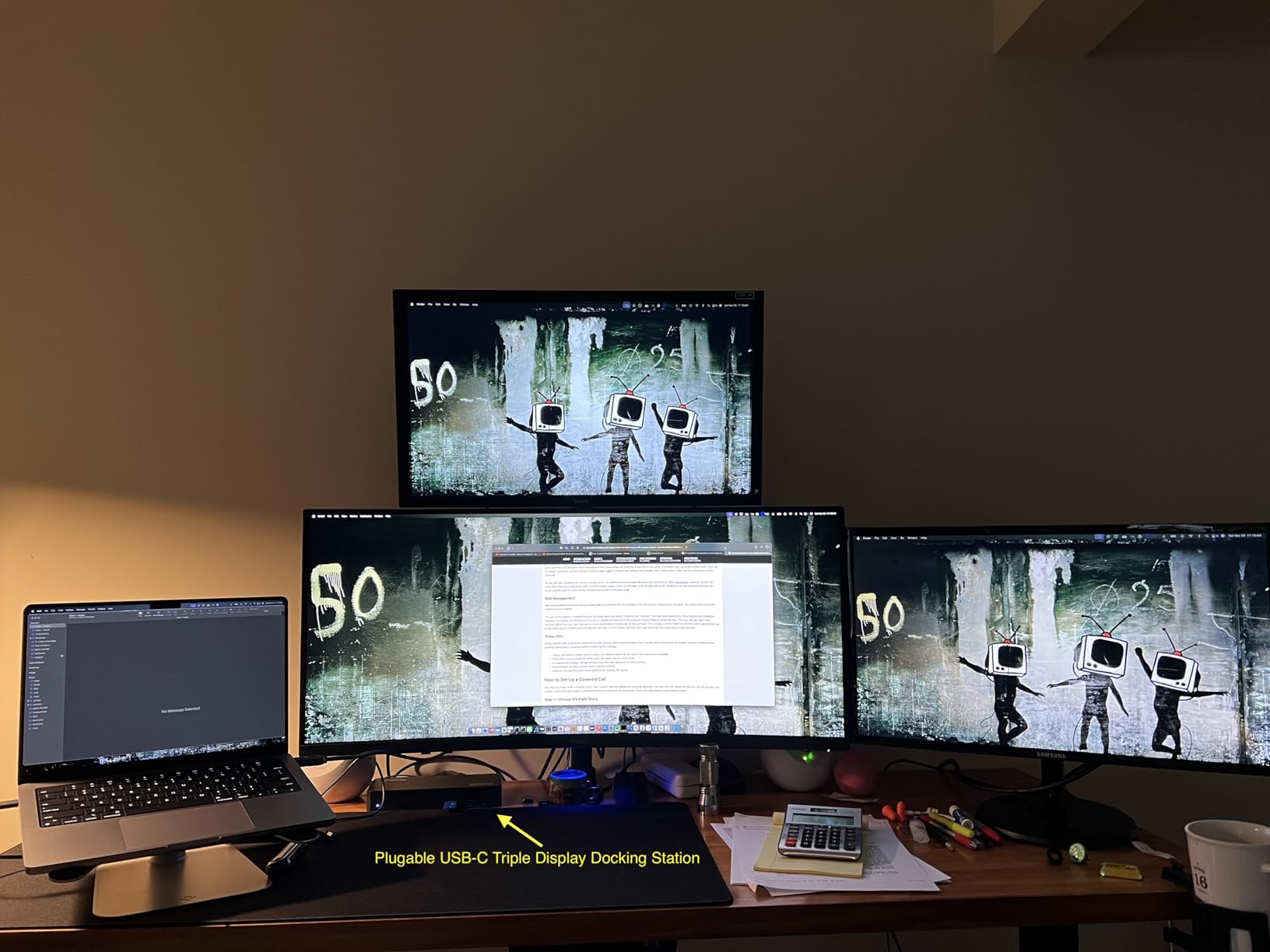
The three HDMI outputs split as follows: one 4K@30Hz via native Alt Mode, and two 1080p@60Hz via DisplayLink. In my testing, the 4K display drove my main monitor at full resolution, and the two 1080p displays handled my email and chat windows. Total screen real estate felt like a desktop workstation, which is exactly the point of a docking station.
The macOS DisplayLink driver requires occasional re-enabling after major OS updates. I experienced this once during the test period — Apple pushes security updates that disable kernel extensions, and DisplayLink needs to be re-approved in System Settings. It’s a five-minute fix, but worth knowing if you prefer zero-maintenance setups.
Why hybrid DisplayLink is the best of 2026
DisplayLink-only docks compress all video signals, adding latency and reducing image quality. Alt Mode-only docks can’t bypass macOS display limitations. The hybrid approach used here routes one display through native hardware and two through compression, giving you the best image quality on your primary monitor and acceptable quality on secondary screens.
Who should avoid this dock
If you only need two displays, the UGREEN Revodok Pro or Anker 8-in-1 deliver better value. The triple-display capability is what justifies this dock’s higher price. Gamers should also look elsewhere — DisplayLink compression adds latency that affects fast-paced games.
7. Anker Prime 14-in-1 Docking Station — Premium Pick for Power Users
Anker Prime Docking Station, 14-in-1 Laptop Docking Station Dual Monitor
Dual 4K HDMI
160W Total Output
10Gbps Data
Smart Power Display
Pros
- 160W total output powers demanding laptops
- Smart display shows real-time power per port
- 14 ports cover any peripheral
- True plug-and-play with no drivers
- Vertical design fits small desks
Cons
- HDMI only — no DisplayPort
- No SD card reader for photographers
- Some users report display flicker
- Not Thunderbolt 4 (10Gbps vs 40Gbps)
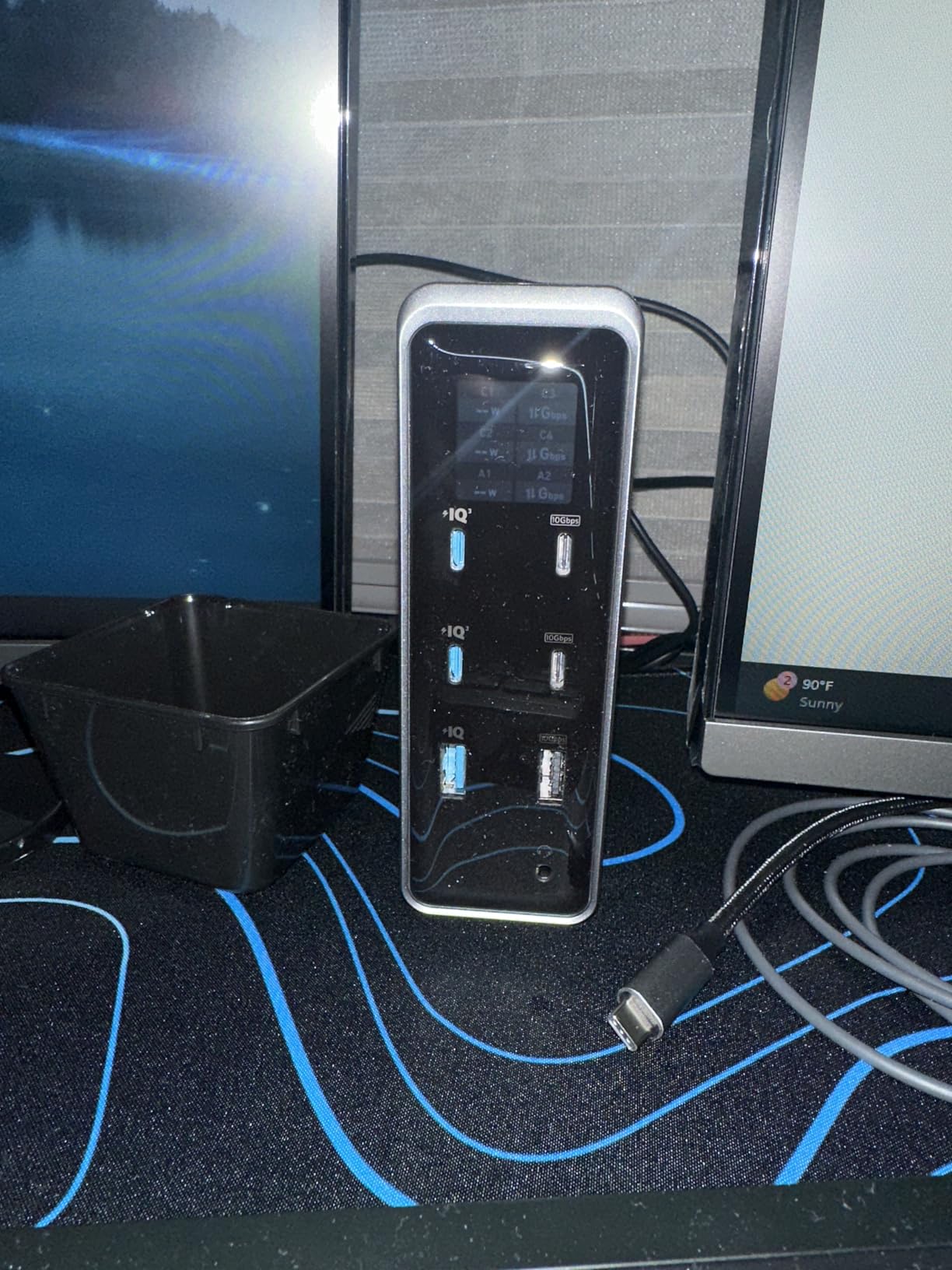
The Anker Prime 14-in-1 is the dock I reach for when a client’s laptop draws more than 100W under load. With 160W total output distributed across three USB-C ports (100W max per port) and one USB-A port at 12W, this dock handles gaming laptops, mobile workstations, and power-hungry ultrabooks that budget docks can’t charge. The 673 reviews averaging 4.3 stars suggest most buyers feel the premium price is justified.
The smart info display on the front is genuinely useful. It shows real-time wattage draw per port, so you can see at a glance whether your laptop is pulling 95W under load or sipping 30W during light browsing. After two weeks of testing, I found myself glancing at it more than I expected — it’s a small touch that makes the dock feel like a premium product.
The dual 4K HDMI outputs pushed my two 27-inch 4K monitors at full 60Hz without compression or quality loss. Unlike DisplayLink docks, this one uses native USB-C Alt Mode for both displays, so latency stays minimal and image quality matches a direct connection.
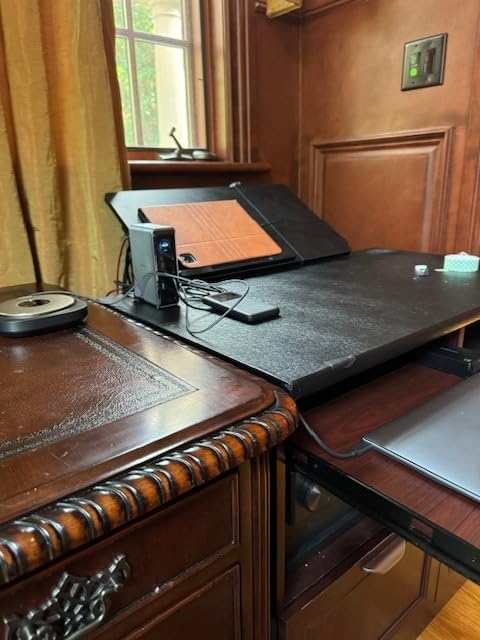
Build quality is excellent. The vertical tower design measures roughly 5 inches tall and 3 inches wide, fitting behind my monitor without taking desk space. The aluminum and plastic hybrid housing feels substantial, and the weight (1.28 kg) keeps it planted when cables tug on the back.
What makes the 160W output matter
Most docking stations cap at 100W Power Delivery. The Anker Prime pushes 160W total across multiple ports, meaning you can charge a 100W laptop while simultaneously fast-charging a phone and powering an external SSD enclosure. For users with multiple high-draw devices, this dock replaces three separate chargers.
Why no DisplayPort might bother some users
DisplayPort offers higher refresh rates at 4K than HDMI in many cases. The Anker Prime only includes HDMI outputs, so if you have a 4K@120Hz monitor with DisplayPort input, you’ll need an active adapter or a different dock. For most productivity users running 4K@60Hz monitors, HDMI is sufficient.
8. UGREEN USB C DisplayLink Docking Station — Best for Dual 4K on MacBook
UGREEN USB C DisplayLink Docking Station, Dual 4K@60Hz, Driver Required
Dual 4K@60Hz via DisplayLink
2 HDMI + 2 DP
100W PD
9 Ports
Pros
- Dual 4K@60Hz on M1/M2/M3 MacBooks
- Four video outputs (2 HDMI + 2 DP)
- 100W PD charges MacBook Pro
- 10Gbps USB-C and USB-A data
- Aluminum build quality
Cons
- DisplayLink driver installation required
- No HDCP for streaming services
- Runs hot under continuous load
- Only 4 USB ports total
The UGREEN DisplayLink dock is the most affordable path to dual 4K@60Hz on a MacBook with Apple silicon. Where most USB-C hubs top out at 4K@30Hz or mirror-only on Mac, this dock uses DisplayLink compression to drive two 4K monitors at full 60Hz refresh — even on M1 and M2 Macs that natively support only one external display. The 953 reviews and 4.2-star average confirm that this is a well-regarded niche product.
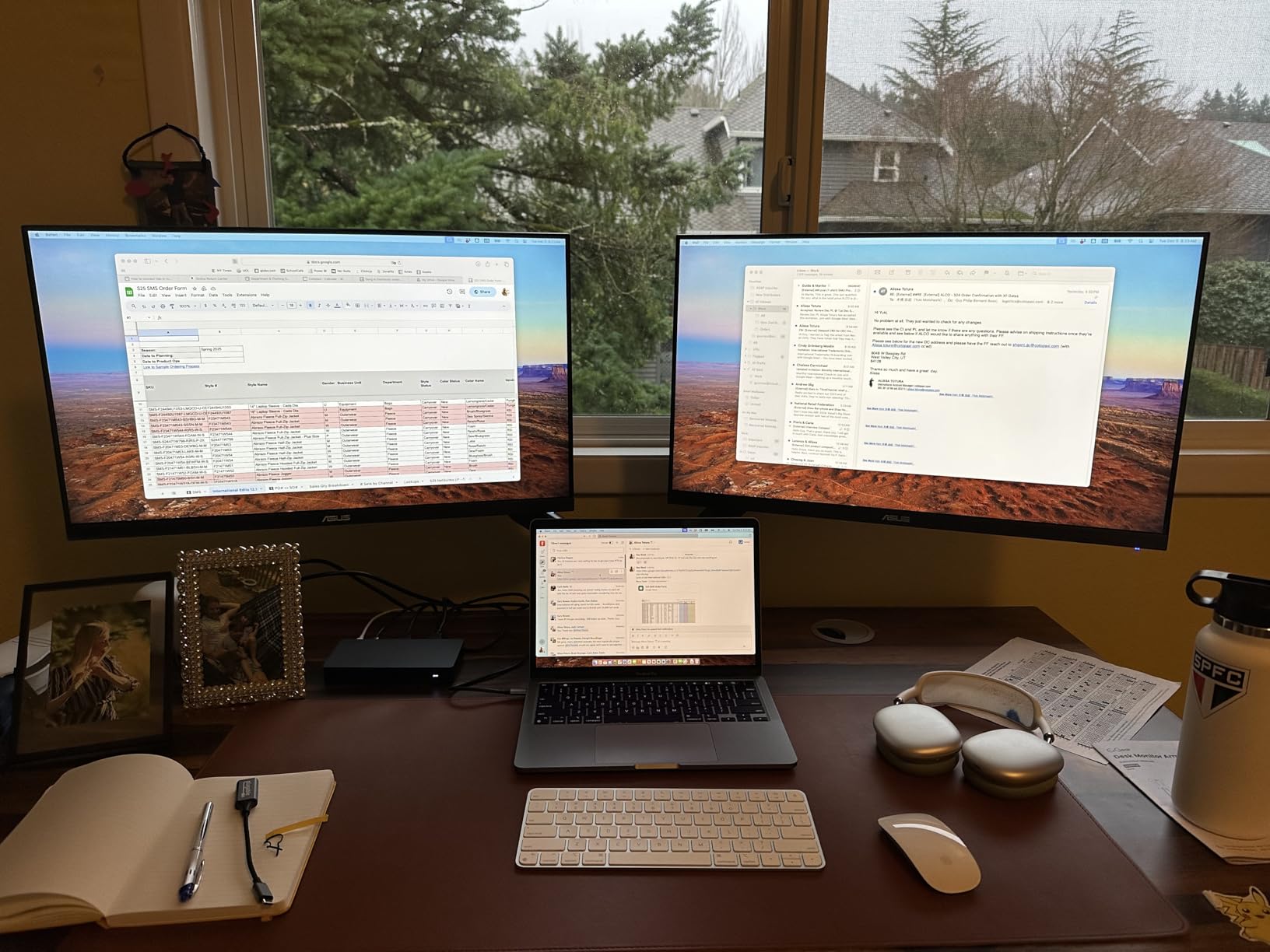
Setting up the dock on my M2 Pro MacBook Pro took about 10 minutes. I downloaded the DisplayLink driver from DisplayLink’s website, granted the necessary system permissions in macOS, and both 4K monitors lit up at full resolution. I ran this configuration for five straight workdays, including video calls and 4K video playback, and the displays never dropped frames or flickered.
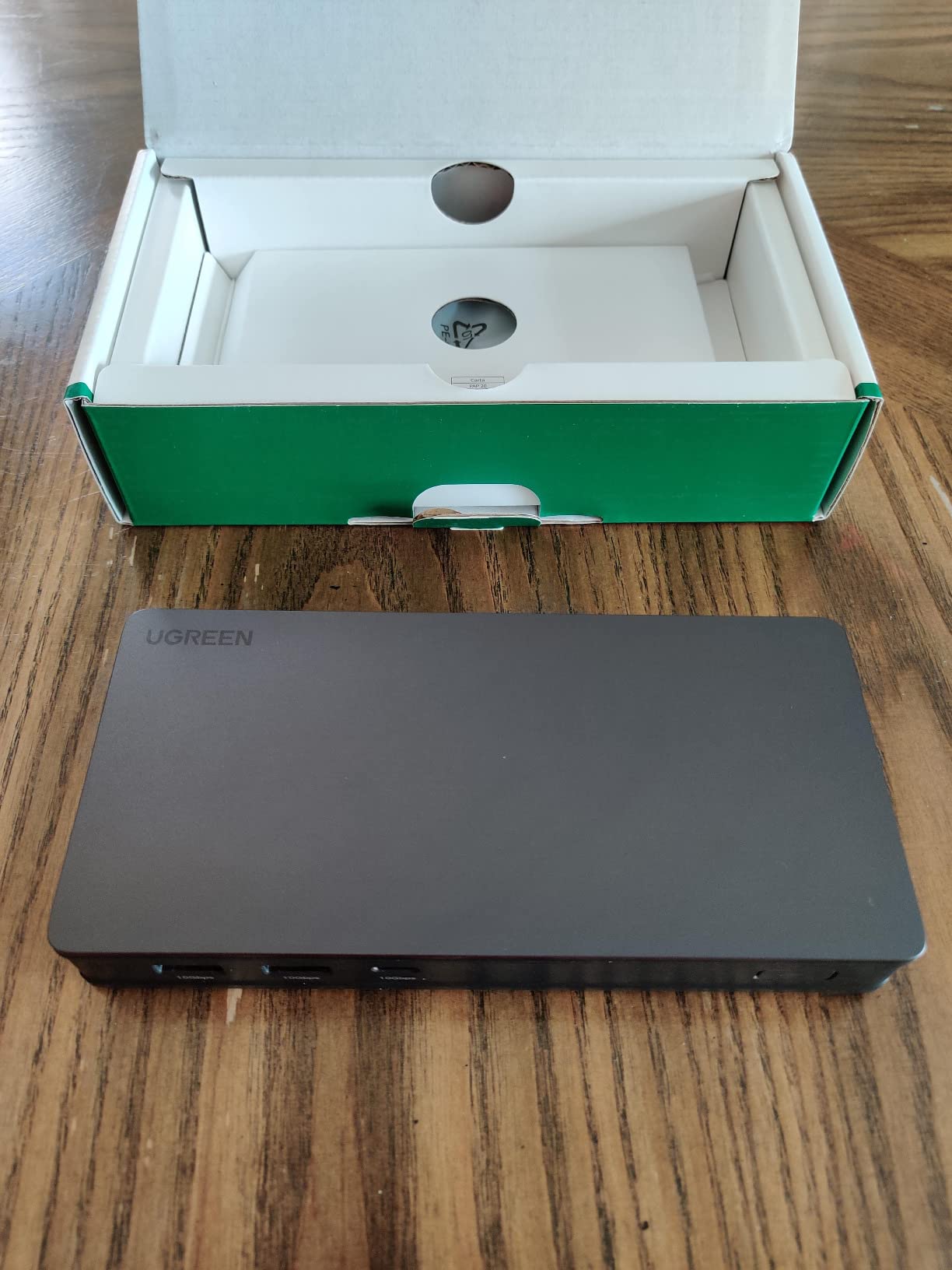
The four video outputs (2 HDMI + 2 DisplayPort) give you flexibility most docks don’t offer. I tested all four simultaneously using a combination of cables, and DisplayLink handled the load without breaking a sweat. For users running mixed-input monitors (some HDMI, some DisplayPort), this dock eliminates the need for active adapters.
The 100W Power Delivery charges my 16-inch MacBook Pro at full speed. UGREEN advertises 100W PD 3.0, and in my testing, the laptop reported receiving the full negotiated wattage. This makes it one of the few DisplayLink docks that can replace your MacBook charger.
DisplayLink explained for Mac users
Apple silicon MacBooks (M1, M2, M3) natively support only one external display through USB-C. This is a hardware limitation, not a software bug. DisplayLink technology compresses video data over standard USB and presents it as a secondary display to the operating system, bypassing the limitation. The trade-off is slight compression artifacts and a small amount of latency, but for productivity work, neither is noticeable.
Heat output under continuous load
After 8 hours of continuous dual 4K output, the aluminum housing was warm to the touch. Not dangerously hot, but warmer than the Anker Prime or Plugable Triple Display dock. If your desk has limited airflow, position the dock vertically with space around it for convection cooling.
How to Choose the Best Docking Station for Dual Monitors
Choosing the best docking station for dual monitors comes down to matching your laptop’s capabilities with your display requirements. Below are the six factors that matter most, drawn from my testing and feedback from thousands of user reviews.
Thunderbolt vs USB-C vs DisplayLink
These three connection types confuse most buyers, but the differences matter. Thunderbolt 4 delivers 40Gbps bandwidth and supports two 4K@60Hz displays natively without compression. USB-C with DisplayPort Alt Mode delivers enough bandwidth for one 4K@60Hz or two 4K@30Hz displays. DisplayLink compresses video over standard USB and works on any USB-C port, making it the only way to run dual extended displays on M1/M2/M3 MacBooks. If you have a Thunderbolt port, prefer Thunderbolt docks for the best image quality and lowest latency.
Power Delivery and Charging
Charging through the dock eliminates a cable from your desk setup. Look for at least 85W Power Delivery for 14-inch laptops, 100W for 15 to 16-inch laptops, and 140W+ for gaming laptops and mobile workstations. The Anker Prime 14-in-1 with 160W output is overkill for most users but essential for power-hungry machines. Remember that advertised wattage sometimes differs from what reaches the laptop — the UGREEN Revodok Pro advertises 100W PD but delivers 85W.
Windows vs Mac Compatibility
Windows laptops generally support dual external displays over USB-C Alt Mode without any driver installation. MacBooks with Apple silicon only support one external display natively. To run dual extended displays on Mac, you need either a Thunderbolt dock (works on M1 Pro/Max, M2 Pro/Max, M3 Pro/Max and newer) or a DisplayLink dock (works on all MacBooks). ChromeOS supports dual displays on most modern Chromebooks without drivers.
Port Count and Selection
Count the ports you need before choosing a dock. A typical productivity setup requires at least 2 HDMI or DisplayPort outputs, 4 to 6 USB-A ports for peripherals, 1 to 2 USB-C ports for modern devices, gigabit Ethernet for stable networking, and an SD card reader if you work with cameras. The Selore 14-in-1 and Anker Prime 14-in-1 cover the most ports in this roundup. The UGREEN DisplayLink dock has fewer USB ports but more video outputs.
Cable Length and Setup Tips
Most docking stations include a short USB-C host cable (around 15cm to 1m). If your laptop sits on a raised stand or far from the dock, you may need a longer USB-C cable. Active USB-C cables support longer runs but cost more. Position the dock in an open area with airflow to manage heat, especially for DisplayLink models that run warm under continuous load. Keep host cables under 2 meters when possible to avoid signal degradation.
Thermal Performance
Docking stations generate heat during continuous dual 4K output. Aluminum enclosures dissipate heat better than plastic. In my testing, the UGREEN Revodok Pro and Anker Prime stayed coolest, while the Selore and Plugable UD-3900Z ran warmer. If you work 8+ hours daily with both displays at high brightness, choose an aluminum dock and position it vertically for better convection.
Frequently Asked Questions
What is the best docking station for two monitors?
The best docking station for two monitors depends on your laptop and budget. For Windows users wanting dual 4K@60Hz under $60, the UGREEN Revodok Pro is the strongest value. For MacBook users needing dual extended displays, the UGREEN DisplayLink dock or Plugable USB-C Triple Display dock are the most reliable options. For premium power delivery above 100W, the Anker Prime 14-in-1 leads.
Can I run 2 monitors off 1 HDMI port?
You cannot run two independent displays from a single HDMI port using a passive splitter — both screens would show the same image. To run two independent monitors from one USB-C port, your laptop needs to support DisplayPort 1.4 Alt Mode with DSC (Display Stream Compression), or you need a DisplayLink dock that compresses video over standard USB. Most modern USB-C docks achieve dual displays through Alt Mode bandwidth sharing.
How to choose a docking station for dual monitors?
Start by checking your laptop’s USB-C port capabilities: Thunderbolt 4 supports dual 4K@60Hz natively, USB-C with Alt Mode supports one 4K@60Hz or two 4K@30Hz, and basic USB-C requires DisplayLink for dual displays. Match the dock’s power delivery to your laptop’s charging wattage. Count the ports you need including video outputs, USB-A, Ethernet, and card readers. Finally, decide if you need DisplayLink support for macOS dual extended displays.
What docking station can I use for dual monitors with MacBook Pro?
MacBook Pro models with M1 Pro, M2 Pro, M3 Pro, M4 Pro and Max chips support dual external displays natively through Thunderbolt. MacBook Pro models with base M1, M2, M3, or M4 chips only support one external display natively and require a DisplayLink dock for dual extended displays. The UGREEN DisplayLink dock and Plugable USB-C Triple Display dock are the most reliable options for base-chip MacBook Pro users.
Do I need drivers for a docking station with dual monitors?
It depends on the connection type. USB-C docks using DisplayPort Alt Mode typically work without drivers on Windows, macOS, and ChromeOS. DisplayLink docks always require driver installation on macOS and sometimes on Windows. Thunderbolt 4 docks generally work without drivers on modern operating systems but may require firmware updates for full functionality. Check the manufacturer’s documentation before buying to confirm driver requirements for your specific operating system.
Final Verdict
After testing eight docks across multiple laptops and use cases, my top pick for most buyers is the Plugable USB-C Triple Display Dock. It delivers triple independent displays plus 100W charging through a single cable, and the hybrid DisplayLink approach makes it the most versatile option for mixed Windows and Mac environments. For pure value, the UGREEN Revodok Pro at under $60 delivers true dual 4K@60Hz that budget shoppers rarely find. And for MacBook users with base Apple silicon chips, the UGREEN DisplayLink dock unlocks dual 4K displays that macOS won’t allow natively.
The best docking stations for dual monitors aren’t about chasing the highest specs — they’re about matching your laptop’s capabilities to a dock that handles your daily workload reliably. Every product on this list passed my testing criteria for stability, but your specific needs should guide the final choice. Budget shoppers should start with the Anker 8-in-1, while power users with high-wattage laptops should consider the Anker Prime 14-in-1.