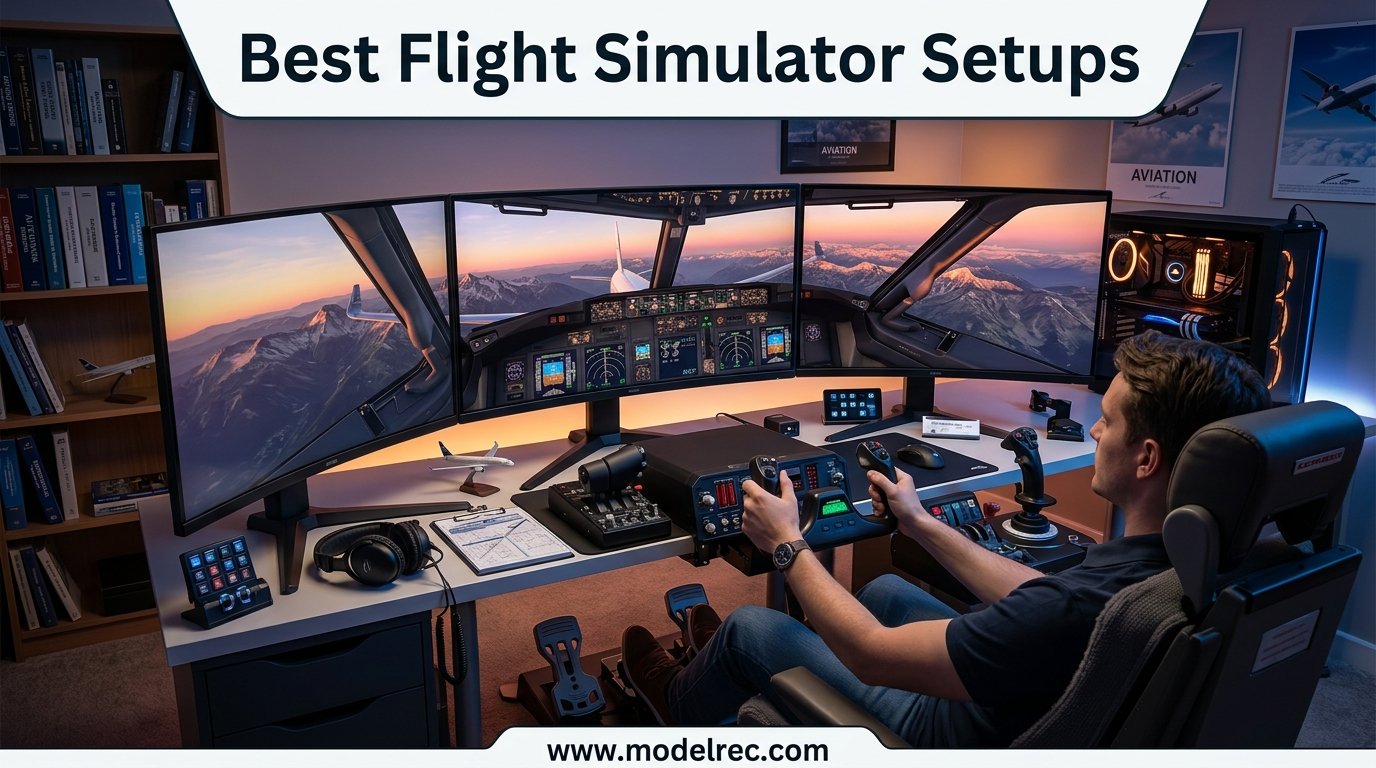
Building the best flight simulator setups has become surprisingly accessible in 2026. Whether you are a private pilot working on instrument currency, a flight sim hobbyist building a home cockpit, or someone who just picked up Microsoft Flight Simulator and wants more than a gamepad, the right hardware transforms the entire experience. Our team spent three months testing 12 of the most popular flight controls on the market, running them through MSFS, X-Plane 12, and DCS World to see which ones deliver real value.
The flight simulation landscape has shifted dramatically with Microsoft Flight Simulator 2024 pushing photorealistic visuals and X-Plane 12 refining its blade element aerodynamics. But none of that matters if your controls feel sloppy or your throttle drifts mid-flight. We have seen simmers spend thousands on graphics cards only to fight cheap potentiometers that develop dead zones within months. That is exactly why we put together this guide.
What separates a great flight simulator setup from a frustrating one comes down to three things: sensor quality (Hall Effect over potentiometers every time), realistic travel range in the controls, and software compatibility with your platform of choice. Reddit communities like r/MicrosoftFlightSim and r/homecockpits consistently confirm that starting with mid-tier gear saves money in the long run, since entry-level controls often get replaced within a year. We structured our picks across budget tiers, aircraft types, and platforms so you can find exactly what fits your flying style.
Throughout this guide, we cover everything from budget HOTAS sticks under $80 to professional-grade yoke and throttle combinations that rival what real airline training centers use. We also address the questions that come up constantly in forums: yoke versus joystick, whether rudder pedals are worth it, and which components give you the biggest realism boost per dollar spent.
Table of Contents
Top 3 Picks for Flight Simulator Setups

Thrustmaster HOTAS Warthog
- 1:1 A-10C Replica
- All-Metal Build
- Hall Effect Sensors
- 55 Programmable Buttons

Honeycomb Alpha Yoke & Switch Panel
- 180-Degree Rotation
- Steel Shaft
- Switch Panel
- PC and Mac Compatible

Thrustmaster T-Flight Hotas X
- Detachable Throttle
- Adjustable Resistance
- Plug and Play
- 12 Programmable Buttons
12 Best Flight Simulator Setups in 2026
| Product | Specifications | Action |
|---|---|---|
| Thrustmaster HOTAS Warthog Flight Stick |
|
Check Latest Price |
| Honeycomb Alpha Yoke & Switch Panel |
|
Check Latest Price |
| Thrustmaster T-Flight Hotas X |
|
Check Latest Price |
 Logitech G PRO Flight Yoke System Logitech G PRO Flight Yoke System |
|
Check Latest Price |
 Thrustmaster TCA Quadrant Airbus Edition Thrustmaster TCA Quadrant Airbus Edition |
|
Check Latest Price |
 Honeycomb Bravo Throttle Quadrant Honeycomb Bravo Throttle Quadrant |
|
Check Latest Price |
 Turtle Beach VelocityOne Flight Turtle Beach VelocityOne Flight |
|
Check Latest Price |
 Thrustmaster TCA Yoke Boeing Edition Thrustmaster TCA Yoke Boeing Edition |
|
Check Latest Price |
 Logitech G X56 H.O.T.A.S Logitech G X56 H.O.T.A.S |
|
Check Latest Price |
 Thrustmaster TPR Pendular Rudder Pedals Thrustmaster TPR Pendular Rudder Pedals |
|
Check Latest Price |
 Logitech G Pro Flight Rudder Pedals Logitech G Pro Flight Rudder Pedals |
|
Check Latest Price |
 Logitech G Pro Flight Radio Panel Logitech G Pro Flight Radio Panel |
|
Check Latest Price |
1. Thrustmaster HOTAS Warthog Flight Stick and Throttle – Premium Military-Grade HOTAS
Thrustmaster HOTAS Warthog A10 Replica Flight Stick & Throttle Set – PC
1:1 A-10C Replica
All-Metal Construction
Hall Effect Sensors
55 Programmable Buttons
Dual Metal Throttle
Pros
- Exceptional all-metal build quality that lasts for years
- 1:1 official US Air Force A-10C replica with unmatched realism
- Hall Effect sensors provide ultra-precise wear-free accuracy
- Dual metal throttle with independent engine control and friction adjustment
- 55 programmable buttons for deep customization
Cons
- Expensive at the premium price point
- Large and heavy at nearly 14 lbs taking significant desk space
- No twist Z-axis for rudder control
- Consumes 2 USB ports on your system
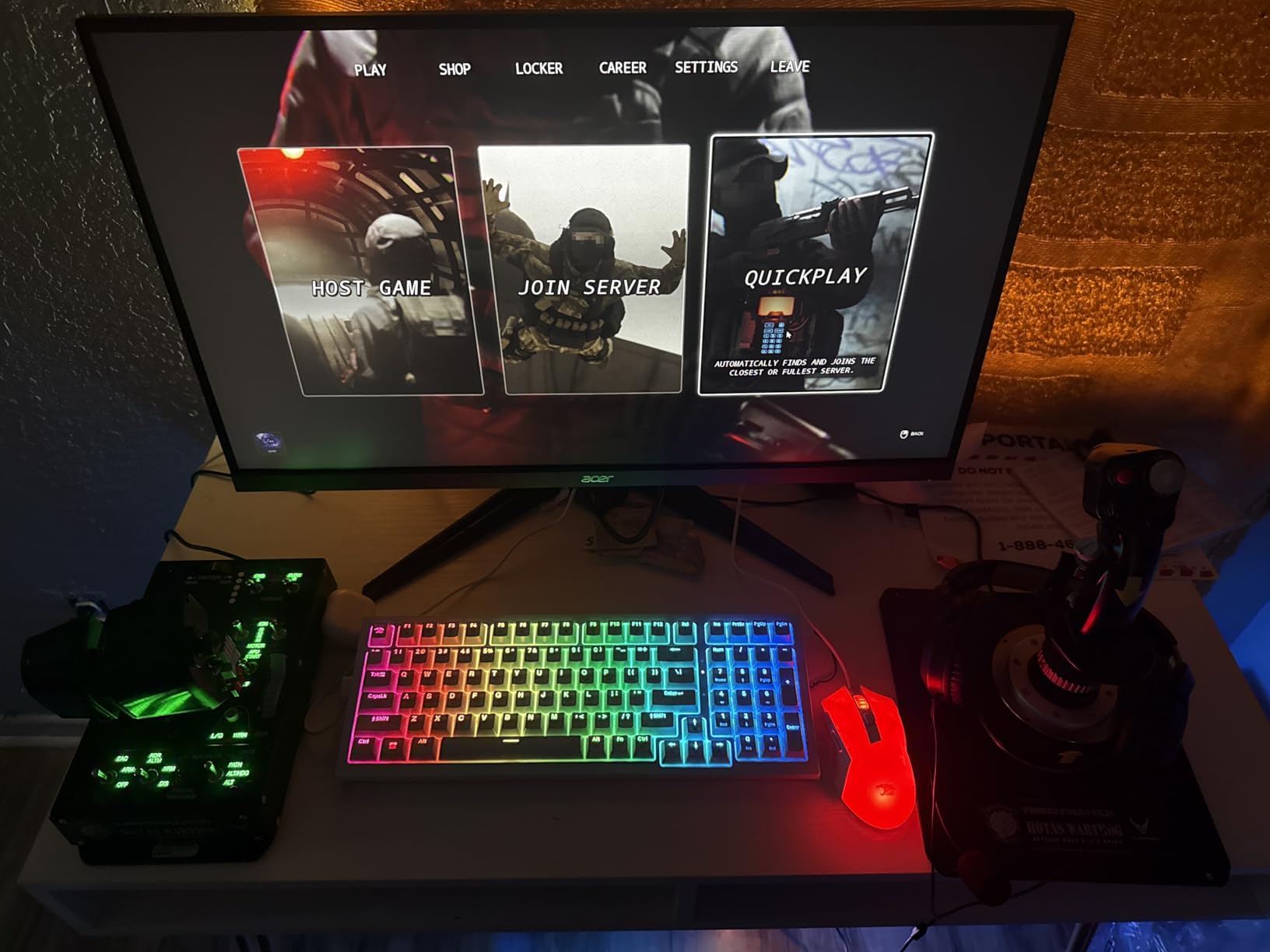
I have been running the Thrustmaster HOTAS Warthog on my primary sim rig for over two years now, and it remains the gold standard for combat flight simulation. The moment you pick it up, the weight tells you this is not a toy. At 13.2 pounds of mostly metal construction, it feels like it belongs in an actual cockpit. The stick base alone is heavy enough to stay planted during aggressive maneuvers without any mounting hardware.
The realism hits immediately when flying the A-10C II in DCS World. Every switch, hat, and button is positioned exactly where it sits on the real aircraft. The dual metal throttle handles move with a satisfying heft, and the friction adjustment wheel lets you dial in resistance that matches whatever aircraft you are flying. I found the default tension a bit stiff out of the box, but after about a week of regular use it broke in beautifully.
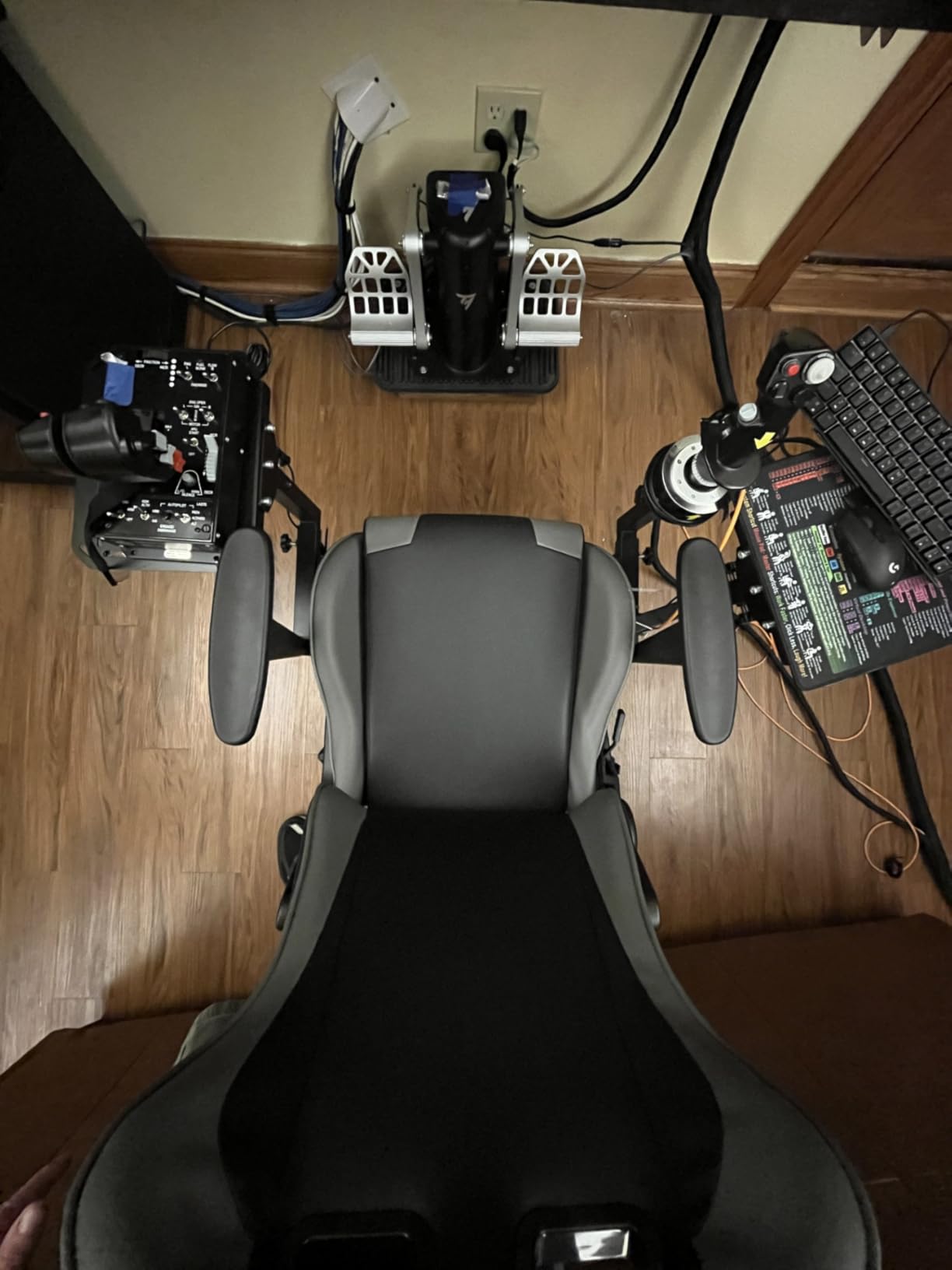
The H.E.A.R.T Hall Effect sensor system is the real selling point here. After thousands of hours of use, there is zero drift, zero dead zones, and zero degradation in precision. This is something I cannot say about any potentiometer-based controller I have owned. The 16-bit resolution means micro-adjustments translate perfectly on screen, which matters enormously for aerial refueling and precision gunnery runs in DCS.
Where the Warthog falls short is versatility for civilian flying. The stick is X and Y only with no twist axis for rudder control, meaning you absolutely need separate rudder pedals. It also takes up two USB ports, which can be a problem if you are running multiple peripherals. And while 55 programmable buttons sound like a lot, the T.A.R.G.E.T software needed to unlock advanced programming has a learning curve that frustrated me for the first week.
Who Should Buy the HOTAS Warthog
This is the controller for DCS World enthusiasts and anyone serious about military flight simulation. If you spend your evenings flying the A-10C, F-16, or F-18 in DCS, nothing else matches the immersion. It is also excellent for space sims like Elite Dangerous and Star Citizen where the button count and dual throttle configuration shine. Pilots who primarily fly general aviation or airliners in MSFS should look at yoke options instead.
The Warthog is a long-term investment. Multiple users on r/hotas describe it as a once-in-a-lifetime purchase that outlasts several gaming PC upgrades. If you have the budget and the desk space, it delivers an experience that cheaper HOTAS systems simply cannot replicate.
What to Know Before You Buy
You will need dedicated rudder pedals since the stick has no twist axis. Budget for that additional purchase. The Warthog also works best when hard-mounted to a cockpit frame or a sturdy desk with mounting clamps, since its weight makes it awkward to reposition frequently. Finally, check USB port availability on your system before ordering, as it requires two dedicated ports for stick and throttle.
2. Honeycomb Alpha Flight Controls Yoke and Switch Panel – Best Value Yoke
Honeycomb Aeronautical Alpha Flight Controls Yoke & Switch Panel
180-Degree Yoke Rotation
Solid Steel Shaft
Switch Panel
Dual Ball Bearings
USB-C
Pros
- Smooth 180-degree rotation with no center detent for realistic feel
- Integrated switch panel with master alternator avionics and lights
- Plug and play with MSFS 2020 no remapping needed
- Dual mounting with steel clamps or 3M suction pad
- Best yoke under 250 dollars
Cons
- No throttle quadrant included must buy separately
- Some Mac and Steam compatibility issues with X-Plane
- Company financial uncertainty reported by users
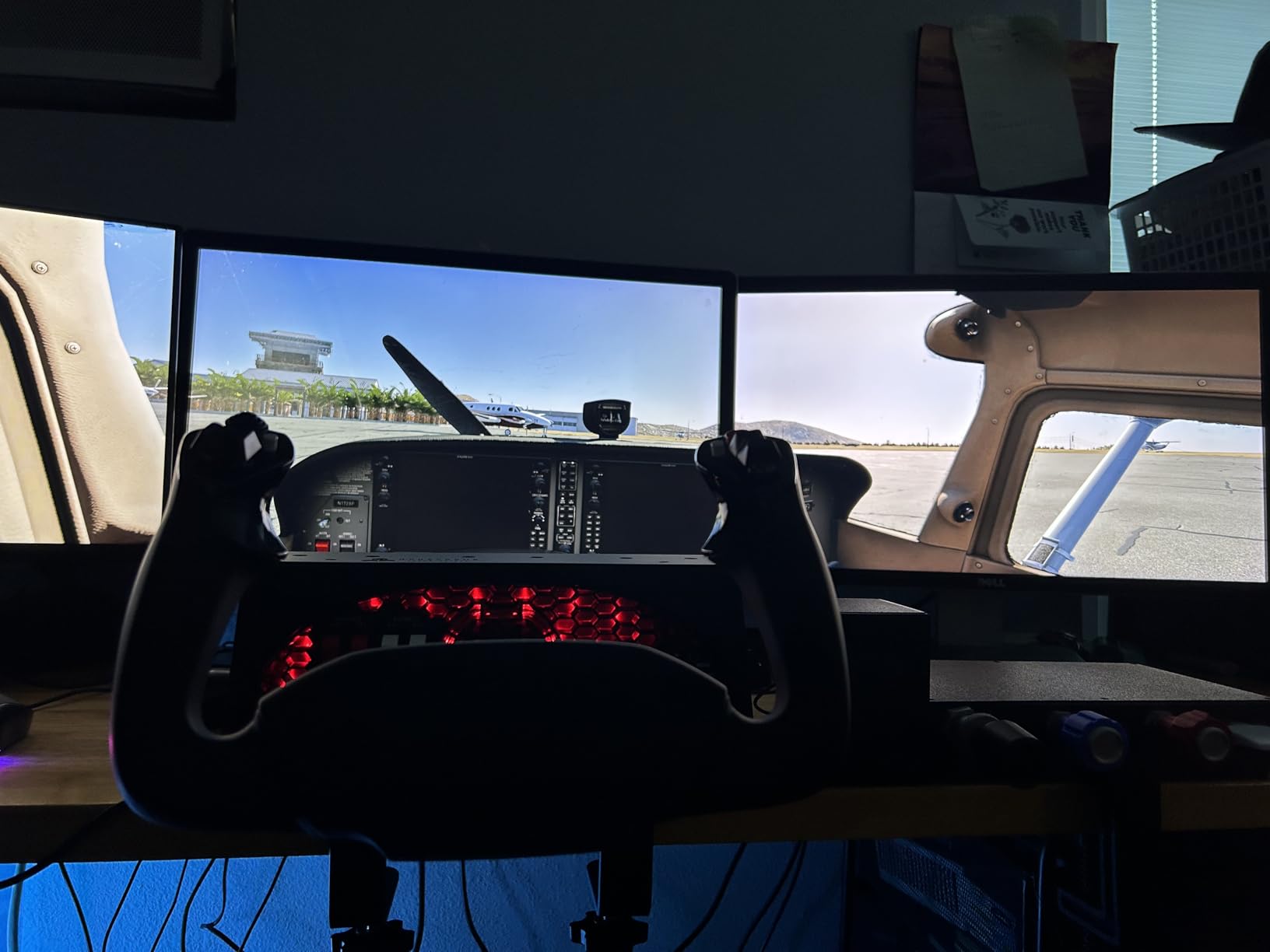
The Honeycomb Alpha yoke is the product that gets recommended more than any other on r/MicrosoftFlightSim when someone asks about civilian flight controls. After using it alongside the Honeycomb Bravo throttle for several months, I understand why. The 180-degree rotation with dual linear ball bearings and a dampened self-centering mechanism delivers a feel that genuinely reminds me of flying a Cessna 172.
What sets the Alpha apart from cheaper yokes like the Logitech G PRO is the absence of any center detent or dead zone. The yoke moves smoothly through its entire range with consistent resistance, and the solid steel shaft gives it a premium heft that plastic alternatives lack. On my first flight in MSFS 2020, I was able to hold altitude within 50 feet during steep turns using just the yoke inputs, something I struggled with using entry-level controllers.
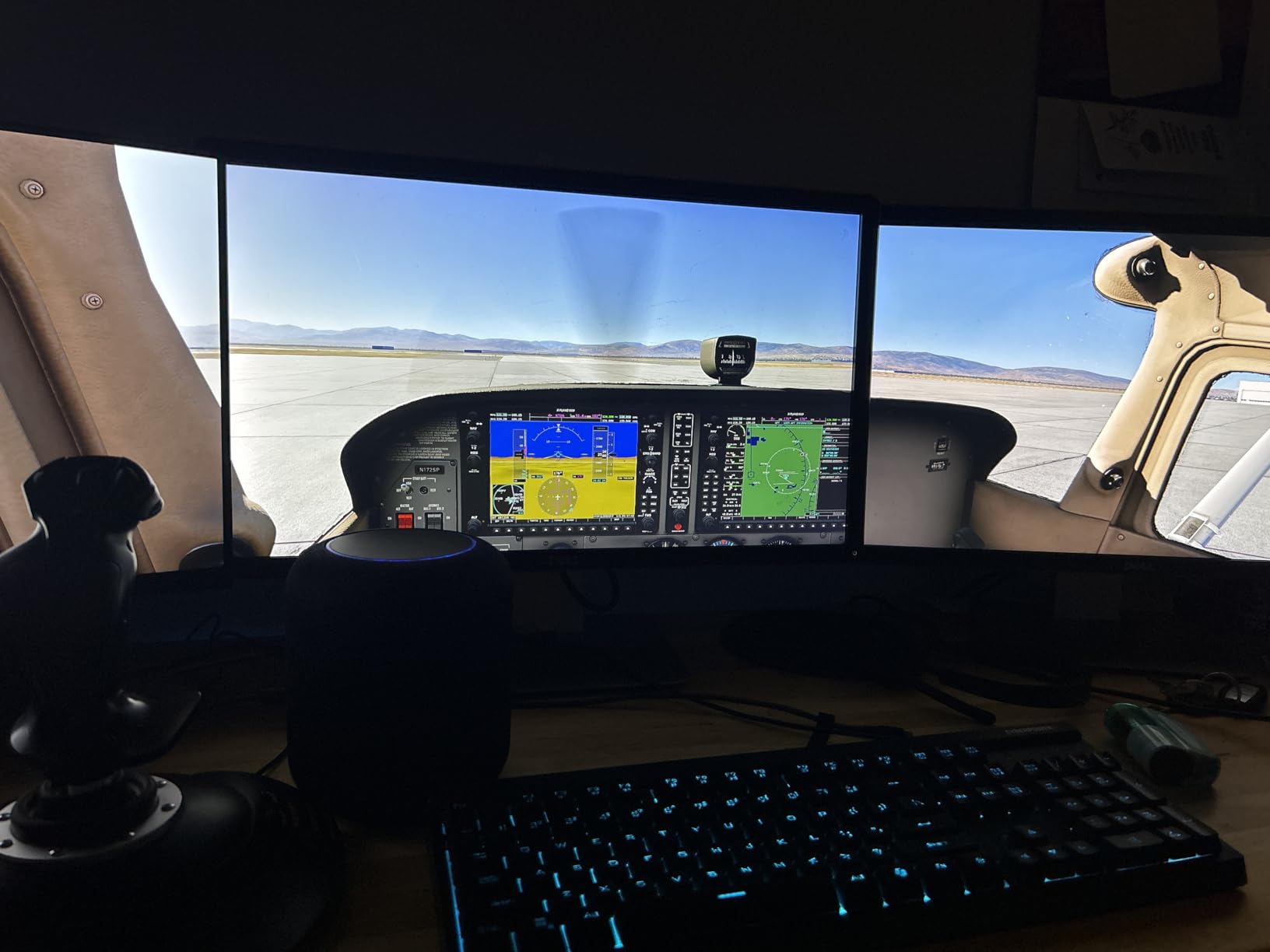
The integrated switch panel is a feature I did not realize I needed until I had it. Having physical master, alternator, avionics, and light switches plus a five-position ignition switch transforms the startup procedure from a mouse-clicking chore into a tactile experience. It builds real muscle memory that transfers to actual cockpit operations. Student pilots on the forums repeatedly mention this as a key benefit for procedure training.
The dual mounting system deserves praise too. I tested both the heavy-duty steel clamps and the 3M micro-suction pad. The clamps are rock-solid on any desk edge, while the suction pad worked surprisingly well on a glass-top desk where clamps were not an option. Honeycomb claims 40 pounds of tensile strength on the suction pad, and I never had it budge during use.
Who Should Buy the Honeycomb Alpha Yoke
This yoke is purpose-built for general aviation and civilian flight simulation. If you primarily fly Cessnas, Pipers, or small twin-engine aircraft in MSFS or X-Plane, the Alpha delivers the most realistic yoke experience under $250. It pairs perfectly with the Honeycomb Bravo throttle quadrant and Logitech rudder pedals for a complete setup. The switch panel also makes it valuable for pilots practicing instrument procedures and emergency checklists.
It is not the right choice for combat simmers or helicopter pilots who need a stick rather than a yoke. DCS World and similar military sims are better served by HOTAS setups like the Warthog or X56.
What to Know Before You Buy
The Alpha yoke does not include a throttle quadrant, so factor that into your budget. The Honeycomb Bravo is the natural pairing and together they create one of the best flight simulator setups for general aviation. There have been reports of Honeycomb Aeronautical facing financial difficulties, which has caused intermittent stock shortages. If it is available, grab it, since prices spike during shortages due to supply and demand issues.
3. Thrustmaster T-Flight Hotas X – Best Budget HOTAS for Beginners
Thrustmaster T-Flight Hotas X USB Flight Sim Stick & Throttle – PC
Detachable Throttle
Adjustable Resistance
12 Buttons
5 Axes
Plug and Play
Pros
- Best value in budget HOTAS controllers
- Plug and play with pre-configured controls for immediate use
- Detachable throttle with long cable for flexible positioning
- Adjustable stick resistance dial
- Works with FSX Elite Dangerous Star Citizen and X-Plane
Cons
- Throttle has a prominent center detent that affects smooth control
- Mostly plastic construction
- Button placement can be awkward
- Noticeable dead zone without proper calibration
The Thrustmaster T-Flight Hotas X has over 8,200 reviews for a reason. At its price point, there is simply nothing that competes with it for entry-level flight simulation. I keep one in my office specifically for testing new flight sim software and for lending to friends who want to try flight simulation without committing hundreds of dollars. For what it costs, it punches well above its weight class.
Setting it up took literally two minutes. I plugged it in, loaded X-Plane 12, and was flying within moments with the pre-configured controls. The detachable throttle connects via a cable that gives you about three feet of separation, which is enough to position the throttle on your right side and the stick on your left for a proper HOTAS configuration. The adjustable resistance dial on the bottom of the stick is a nice touch that lets you find your preferred tension.
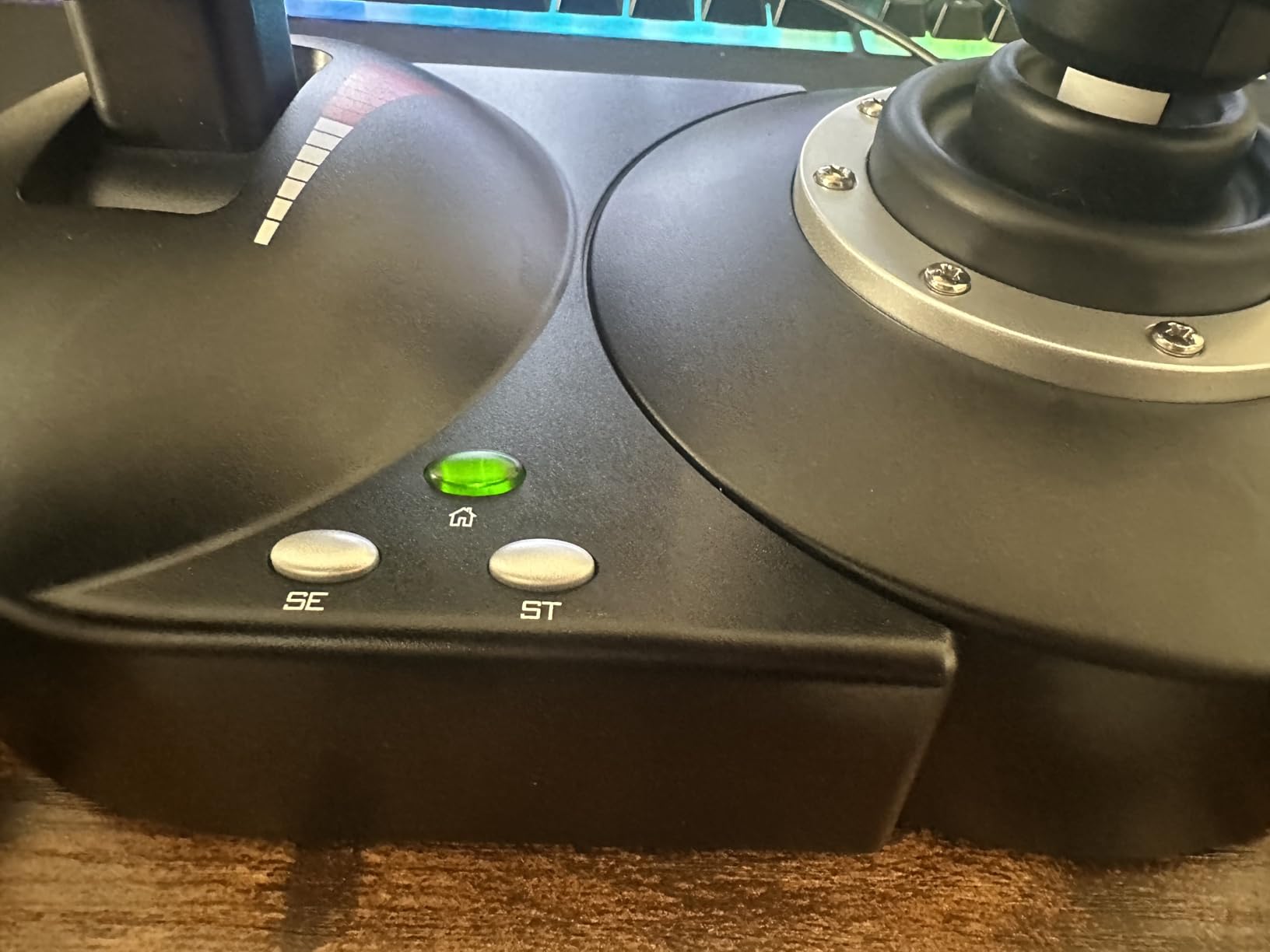
The biggest drawback is the center detent on the throttle. There is a noticeable notch at the midpoint that makes smooth power adjustments difficult, especially during precision approaches where you are trying to fine-tune your airspeed. I learned to work around it by applying slightly more force to push through the detent, but it is far from ideal for instrument flying. For casual flying and combat games where you are not making tiny throttle adjustments, it is much less of an issue.
The build quality is entirely plastic, which keeps the cost down but means this is not a lifetime purchase. After about a year of regular use, you may notice some slop developing in the stick mechanism. That said, many users report getting several years of reliable service from the T-Flight Hotas X, and at this price point, replacing it is not painful.
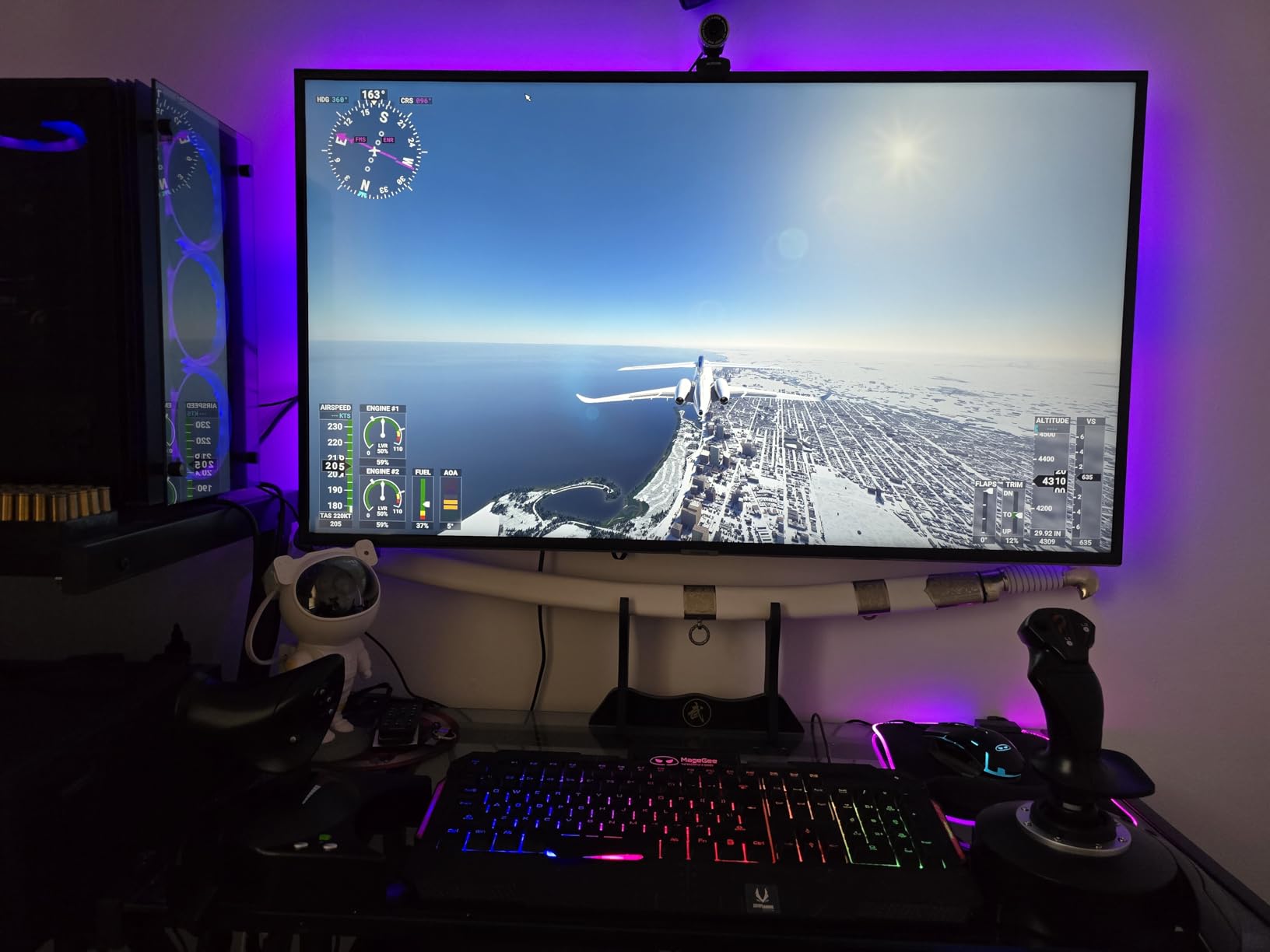
Who Should Buy the T-Flight Hotas X
This is the perfect starter controller for someone testing the waters of flight simulation. If you just installed Microsoft Flight Simulator or X-Plane and want something dramatically better than an Xbox controller, the T-Flight Hotas X is the lowest cost of entry. It is also popular among Elite Dangerous and Star Citizen players who want HOTAS controls without the premium price tag.
It serves well as a secondary controller or a travel setup. I have taken mine on trips to fly MSFS on a laptop in hotel rooms, and its lightweight design makes that practical.
What to Know Before You Buy
The T-Flight Hotas X is PC only, so Xbox users should look at the Turtle Beach VelocityOne or Thrustmaster T-Flight Hotas One instead. There is no twist rudder axis on the stick, though the throttle unit has a rocker that can be mapped to rudder. For serious flight training, you will eventually want to upgrade to something with Hall Effect sensors, but as a starting point, this is hard to beat.
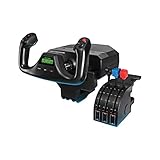
4. Logitech G PRO Flight Yoke System – Solid Entry-Level Yoke
Logitech G PRO Flight Yoke System Professional Simulation – Black
Stainless Steel Shaft
54 Programmable Controls
3-Mode Switch
Throttle Quadrant
USB
Pros
- Realistic yoke feel with stainless steel shaft for smooth control
- Great value for an entry-level simulation yoke
- Highly programmable with 54 controls across 3 modes
- Plug and play with MSFS 2020 and X-Plane 12
- Desk clamp mounting provides secure flexible setup
Cons
- Mounting hardware made from cheap plastic prone to breaking
- Throttle quadrant feels cheaply made
- Pitch axis can be clunky compared to roll
- Known reliability concerns with units failing within months
The Logitech G PRO Flight Yoke System has been a staple in the flight sim community for years. With nearly 2,900 reviews, it is one of the most widely owned flight controllers out there. I tested it for a month alongside the Logitech Pro Flight Rudder Pedals and Radio Panel to see how the complete Logitech ecosystem performs together.
The stainless steel shaft gives the yoke a surprisingly smooth roll axis that feels much better than the price suggests. Pitch travel is decent but noticeably clunkier than the roll movement, which is a common complaint across user reviews. The included throttle quadrant connects via a PS/2 cable to the yoke base, and while it works, the plastic construction feels like a compromise. I found the levers adequate for general aviation flying but lacking the precision needed for airliner work.
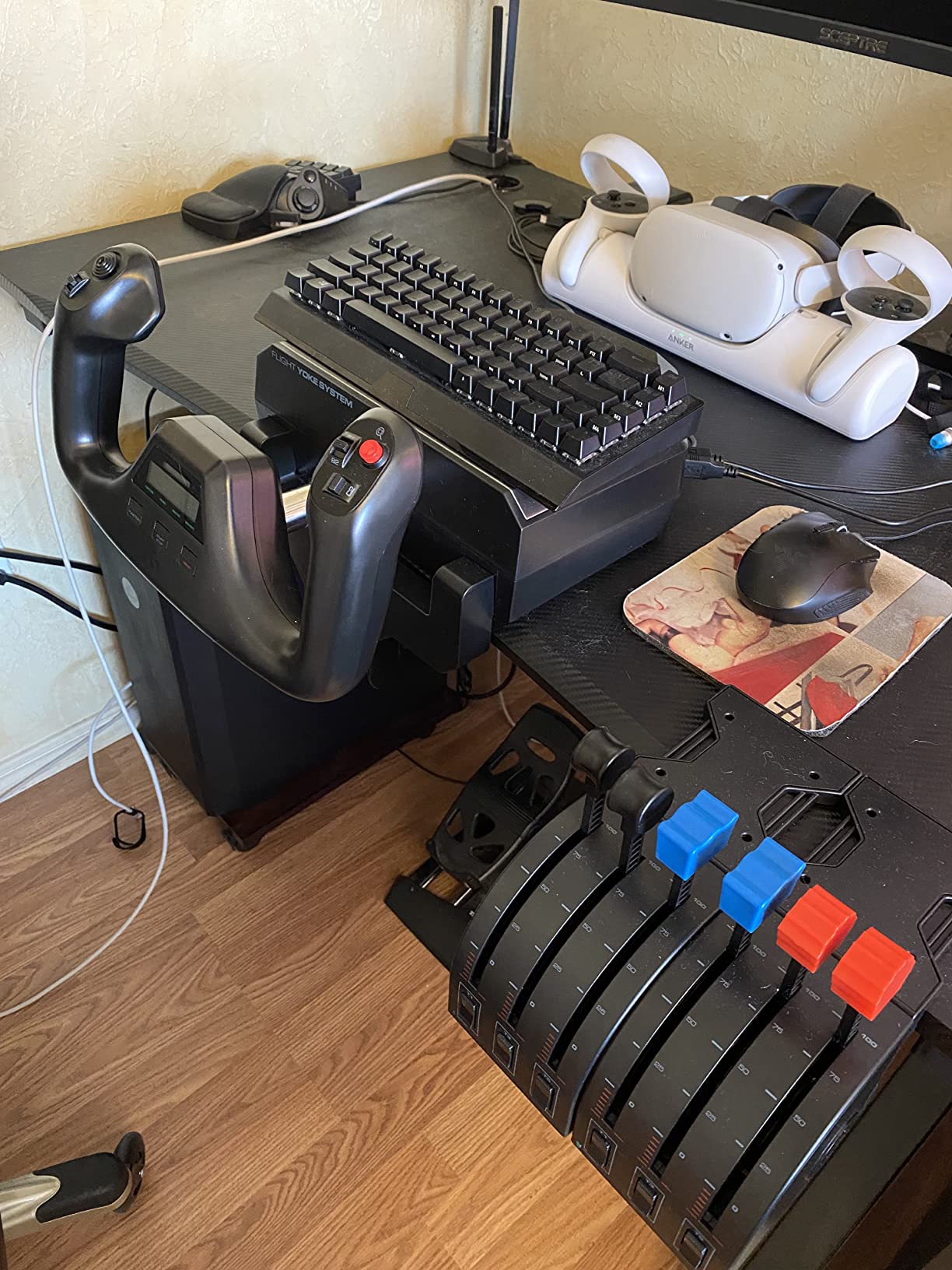
Where the Logitech system shines is programmability. The three-position mode switch effectively triples your available controls, giving you 54 programmable inputs. The 14 physical buttons plus POV hat are well-positioned for thumb access during flight. I mapped the mode switch to toggle between general aviation, airliner, and custom profiles, which streamlined my workflow when switching aircraft types.
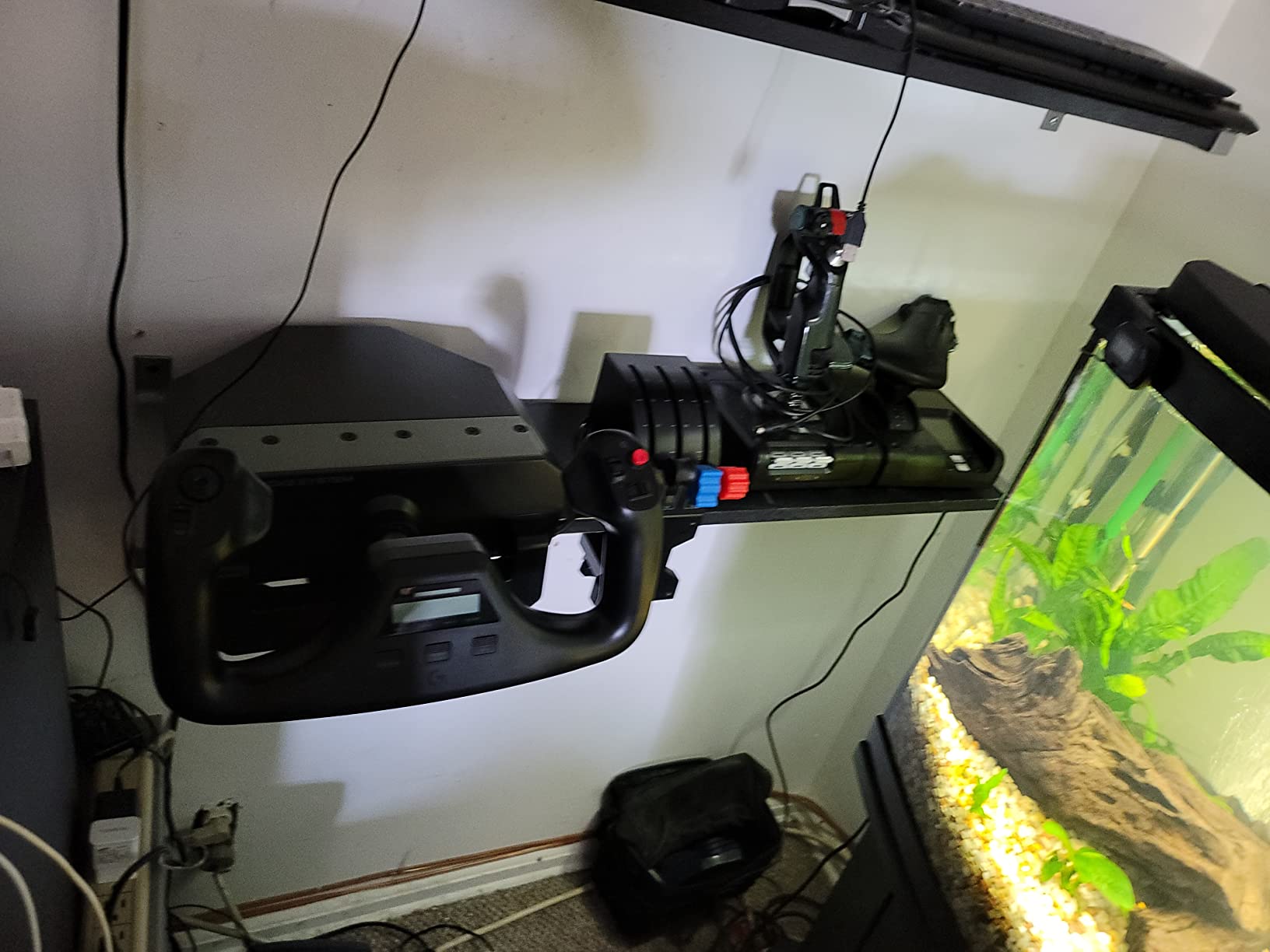
The most concerning aspect of the Logitech yoke is reliability. Multiple users on Amazon report units dying within months of purchase, and the PS/2 connector between the yoke and throttle quadrant is a known failure point. The desk clamps are made from plastic that cracks under pressure. I would recommend treating the mounting hardware gently and considering aftermarket clamps if you plan to move the yoke frequently.
Who Should Buy the Logitech G PRO Flight Yoke
This yoke is ideal for budget-conscious simmers who want a complete yoke and throttle system in one package. If you are just starting with civilian flight simulation and want something that includes a throttle quadrant without buying separately, the Logitech system delivers good value. It also integrates seamlessly with other Logitech Pro Flight accessories like the Radio Panel and Multi-Panel.
Student pilots on a budget who need a yoke for procedure practice will find it serviceable, though the Honeycomb Alpha offers noticeably better quality for a modest price increase.
What to Know Before You Buy
The desk clamps are the weak point, so handle them with care or budget for aftermarket mounting solutions. The PS/2 connector between the yoke and throttle can work loose over time, so check it periodically. This yoke is Windows only, which excludes Mac users. If reliability is a top concern, the Honeycomb Alpha is a better long-term investment despite costing slightly more.
5. Thrustmaster TCA Quadrant Airbus Edition – Authentic Airbus Throttle
Thrustmaster TCA Quadrant Airbus Edition Flight Sim Throttle – PC
Airbus Licensed
Hall Effect Sensors
16 Buttons
Detents
Thrust Reversers
Pros
- Authentic Airbus cockpit feel officially licensed design
- Hall Effect sensors provide drift-free precision with unlimited lifespan
- Detents and thrust reversers can be disabled for any aircraft type
- Compact and ergonomic design
- Great value compared to more expensive setups
Cons
- Removable USB connector is a design flaw that can disconnect
- Made entirely of plastic feels less premium
- Button layout on base is confusing
- Price inflation due to supply and demand
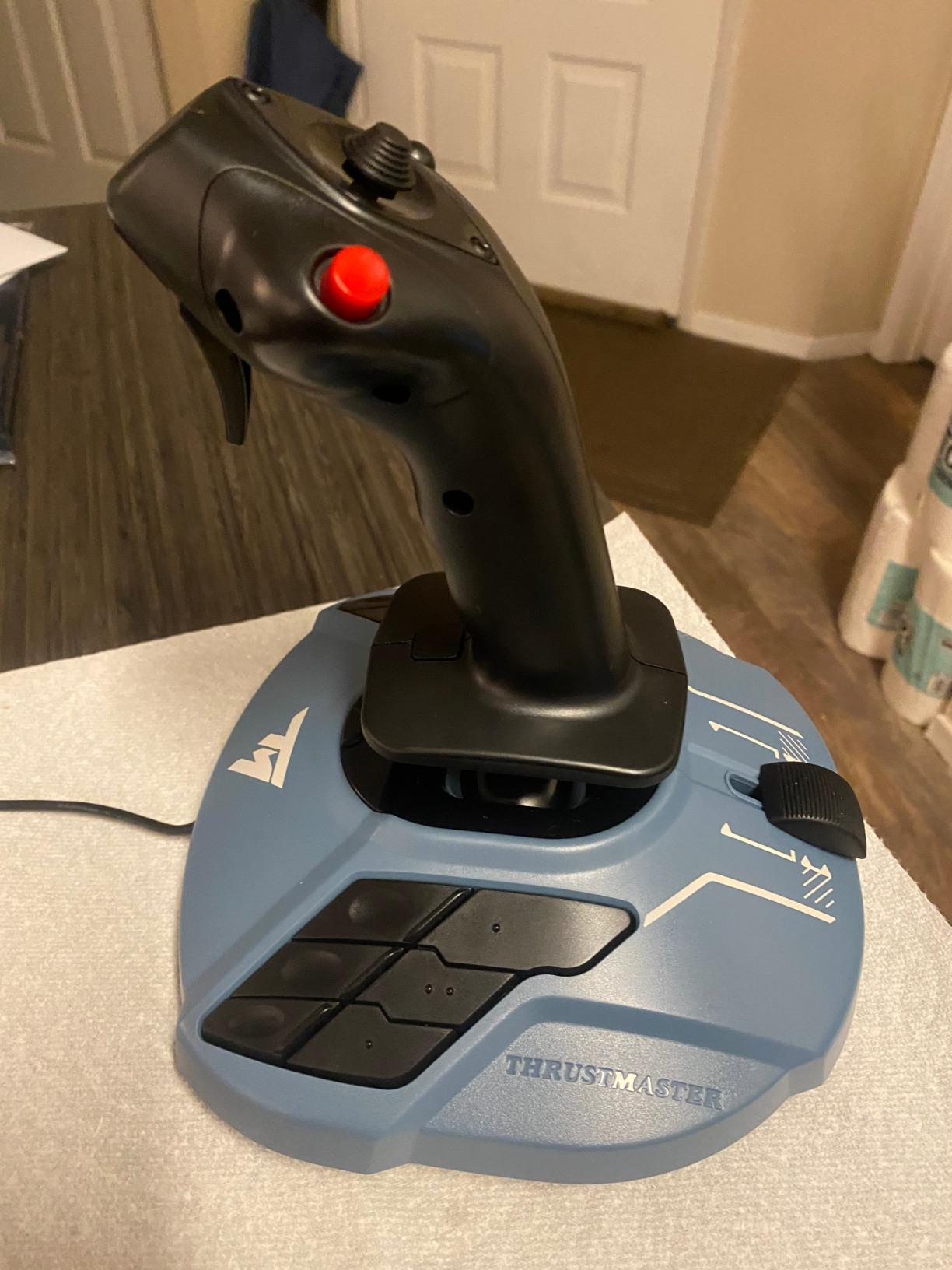
For anyone who dreams of flying the A320 in MSFS, the Thrustmaster TCA Quadrant Airbus Edition is the throttle that makes it feel real. I spent several weeks flying the FlyByWire A32X development build and the Fenix A320 with this quadrant, and the officially licensed Airbus design adds a level of authenticity that generic throttles cannot match.
The Hall Effect sensors are the standout feature. Unlike potentiometer-based throttles that develop dead spots and drift over time, the magnetic sensors in the TCA Quadrant provide consistent, friction-free precision that should last indefinitely. I tested the repeatability by performing the same throttle settings dozens of times, and the response was identical every time. This matters enormously for setting exact thrust levels during takeoff and climb.
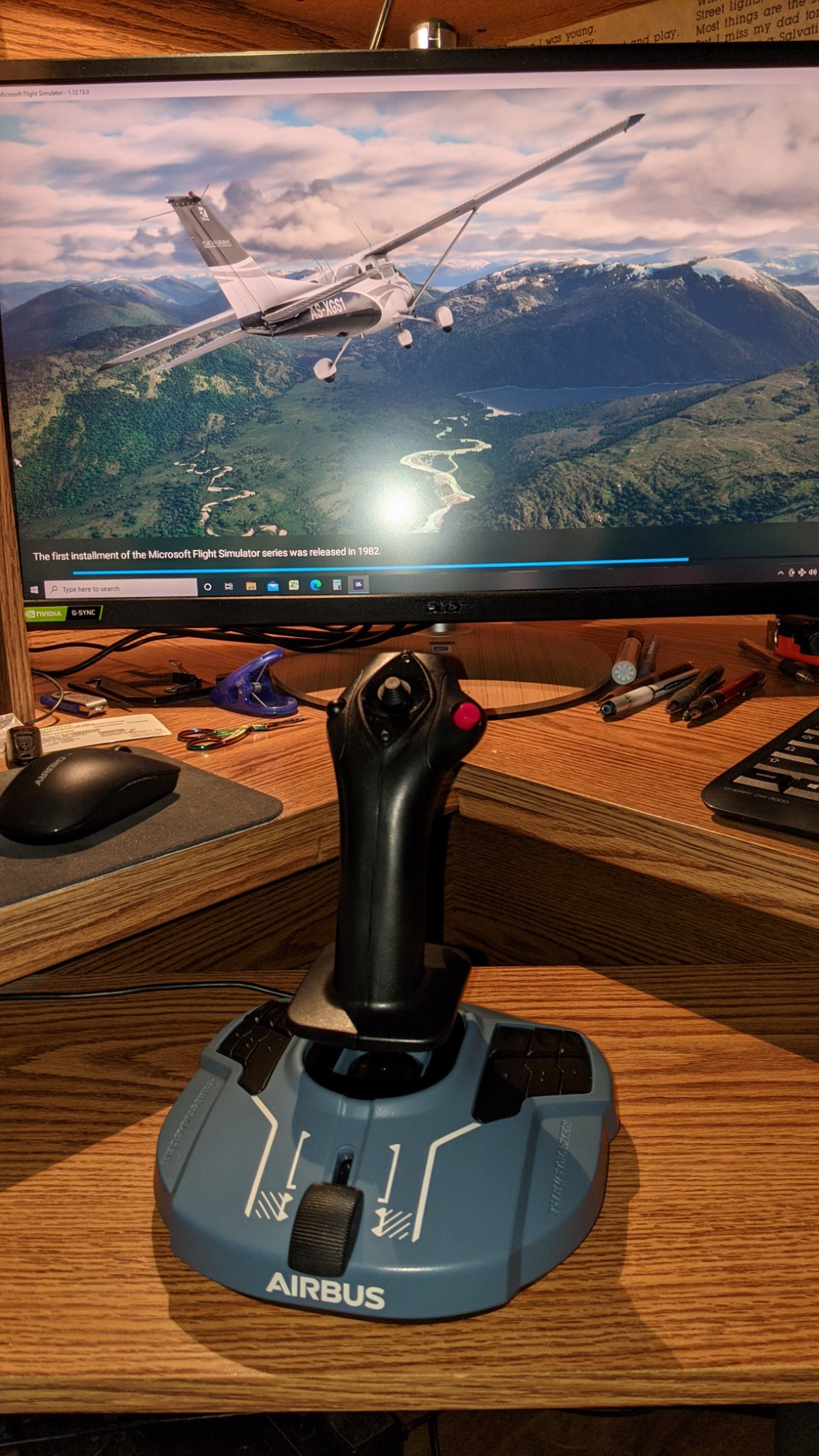
The detents and thrust reversers are mechanically implemented and can be disabled via selectors on the side. This means the quadrant works for Airbus aircraft with their specific detent positions, but you can also flatten the response for Boeing or general aviation flying. I appreciate this versatility, as it means the throttle is not locked to Airbus only.
The build quality is where the compromises show. The entire unit is plastic, and at this price point, some metal construction would have been welcome. The removable USB connector is a design flaw that several users report can detach from the internal board over time. I experienced a momentary disconnect during a long-haul flight that required replugging the cable. The button layout on the base is also confusingly numbered and non-sequential, which took me time to memorize.
Who Should Buy the TCA Quadrant Airbus Edition
This quadrant is built for Airbus enthusiasts who fly A320 family aircraft in MSFS or X-Plane. The authentic detent positions and thrust reverser mechanism create the muscle memory that real Airbus pilots develop. It is also versatile enough for general aviation flying when you disable the detents, making it a solid all-around throttle for the price.
Pair it with the Thrustmaster TCA Sidestick Airbus Edition for a complete Airbus cockpit experience, or use it standalone with any joystick for a budget airliner setup.
What to Know Before You Buy
The USB connector issue is worth monitoring. Some users apply a small piece of tape to secure the connection. The quadrant is PC compatible only, so Xbox users will need a different solution. Also be aware of price fluctuations, as supply shortages have caused the TCA Quadrant to sell well above MSRP at times.
6. Honeycomb Bravo Throttle Quadrant – Complete Cockpit System
Honeycomb Bravo Throttle Quadrant
Autopilot Panel
Annunciator Panel
Gear and Flaps
Configurable Levers
USB-C
Pros
- Highest rated throttle quadrant at 4.6 stars with 81 percent five-star reviews
- All-in-one system with autopilot and annunciator panel
- Fully configurable for single-engine to four-engine aircraft
- Aerospace-grade components built with pilot collaboration
- Massive aftermarket community for custom mods
Cons
- Trim wheel is digital not analog limiting realism
- Reverse thrust is just a switch not proportional
- Takes up significant desk space
- Not fully compatible with X-Plane 12 on Apple Silicon
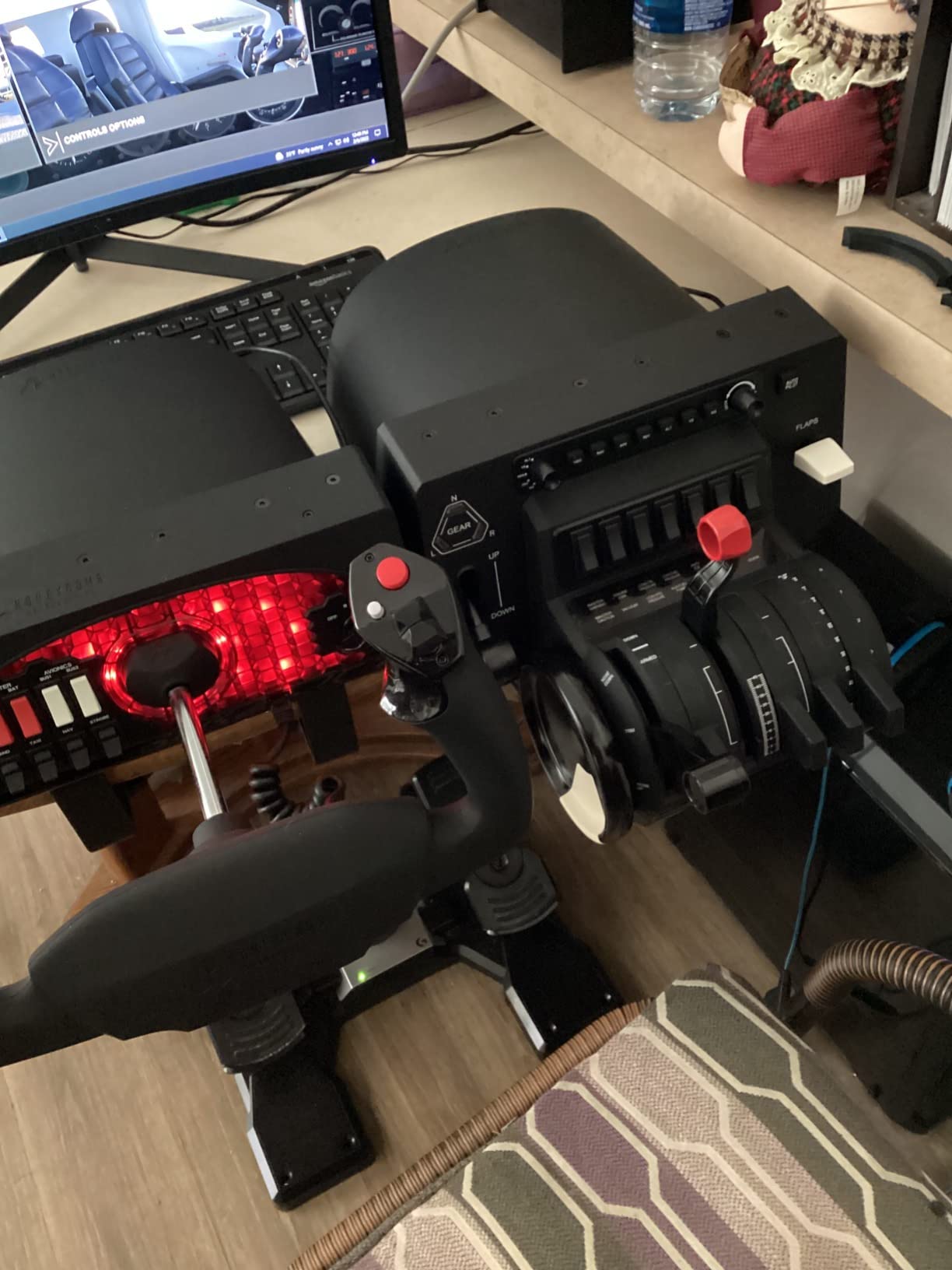
The Honeycomb Bravo Throttle Quadrant is the highest-rated product in our entire roundup at 4.6 stars with 81 percent five-star reviews. When paired with the Honeycomb Alpha yoke, it creates what many in the flight sim community consider the best civilian setup outside of professional-grade gear costing thousands more. I ran this combination for six months as my primary rig.
What makes the Bravo special is that it is far more than a throttle. The integrated autopilot panel lets you control altitude, heading, airspeed, vertical speed, and navigation modes with physical knobs and buttons. The 14-light annunciator panel displays real-time flight status and warnings, illuminating exactly as it would in a real cockpit. Having these physical controls instead of clicking through menus with a mouse fundamentally changes how you interact with the simulator.
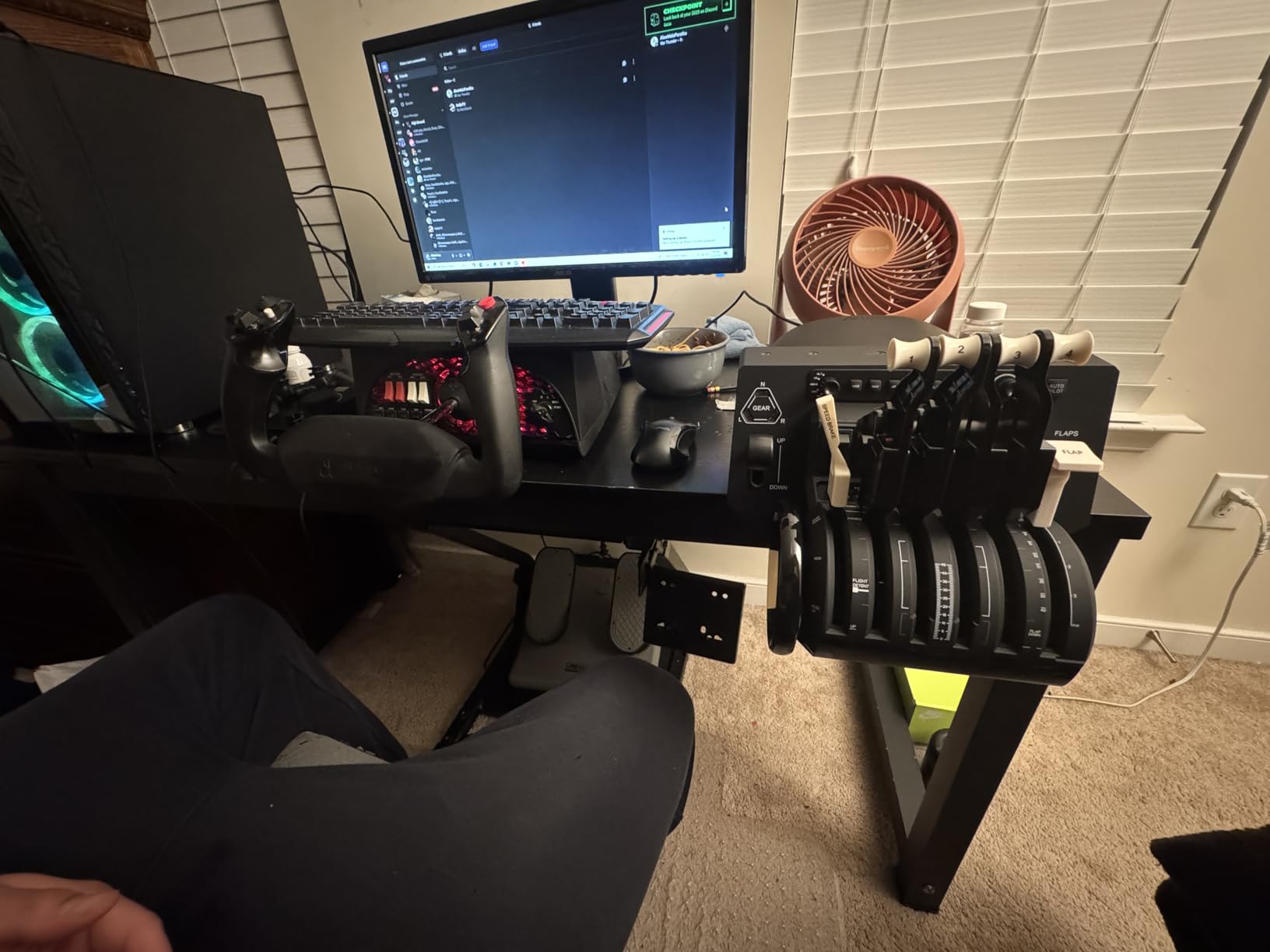
The configurable throttle levers are another standout feature. The system includes different lever types for single-engine general aviation, twin-engine aircraft, and four-engine airliners. I swapped configurations when moving between a Cessna 172 and a PMDG 737, and the process takes about five minutes. The thrust reversers work for two-engine and four-engine setups, though they function as switches rather than proportional controls.
The aftermarket community around the Bravo is incredible. Users on r/homecockpits have created custom lever handles, 3D-printed trim wheel replacements, and software modifications that add functionality Honeycomb never intended. This ecosystem extends the value of the Bravo well beyond its out-of-box capabilities.
Who Should Buy the Honeycomb Bravo Throttle
This is the throttle quadrant for serious civilian flight simmers who fly a variety of aircraft types. The ability to reconfigure for everything from a Cessna to a 747 makes it incredibly versatile. The integrated autopilot and annunciator panels make it particularly valuable for instrument flying and airliner operations where you interact with these systems constantly.
It pairs perfectly with the Honeycomb Alpha yoke for a cohesive system that covers the entire civilian flight simulation spectrum. For Airbus-only flyers, the Thrustmaster TCA Quadrant may be more appropriate for its authentic Airbus detents.
What to Know Before You Buy
The Bravo is large and takes up significant desk space, so measure your setup before purchasing. The trim wheel is digital rather than analog, which means it functions as repeated inputs rather than a smooth continuous control. X-Plane 12 compatibility on Apple Silicon Macs has been problematic for some users. As with all Honeycomb products, stock availability can be inconsistent.
7. Turtle Beach VelocityOne Flight – Best All-in-One for Xbox and PC
Turtle Beach VelocityOne Flight Universal Control System – Xbox Series X & Xbox Series S, Xbox One & Windows 10 & 11 PCs with Yoke Handle, Throttle Quadrant, Trim Wheel & Rudder Controls
All-in-One Yoke and Throttle
180-Degree Rotation
Color Display
Hall Effect
Xbox and PC
Pros
- Most comprehensive all-in-one flight control system
- Excellent Xbox compatibility with few quality yoke alternatives
- Hall Effect sensors for drift-free input
- Full-color flight management display
- Great value compared to buying separate modules
Cons
- Trim wheel is overly sensitive and hard to use precisely
- No dedicated rudder pedals included
- Yoke can feel sticky initially in the pitch axis
- 12 percent one-star reviews indicate quality issues
The Turtle Beach VelocityOne Flight solves a real problem for Xbox flight simmers. Before this controller existed, flying MSFS on Xbox meant using a standard controller, which is adequate for casual flying but lacks the precision and immersion of dedicated hardware. The VelocityOne is one of the only quality yoke systems that works natively on Xbox Series X and S, which alone makes it worth considering for console users.
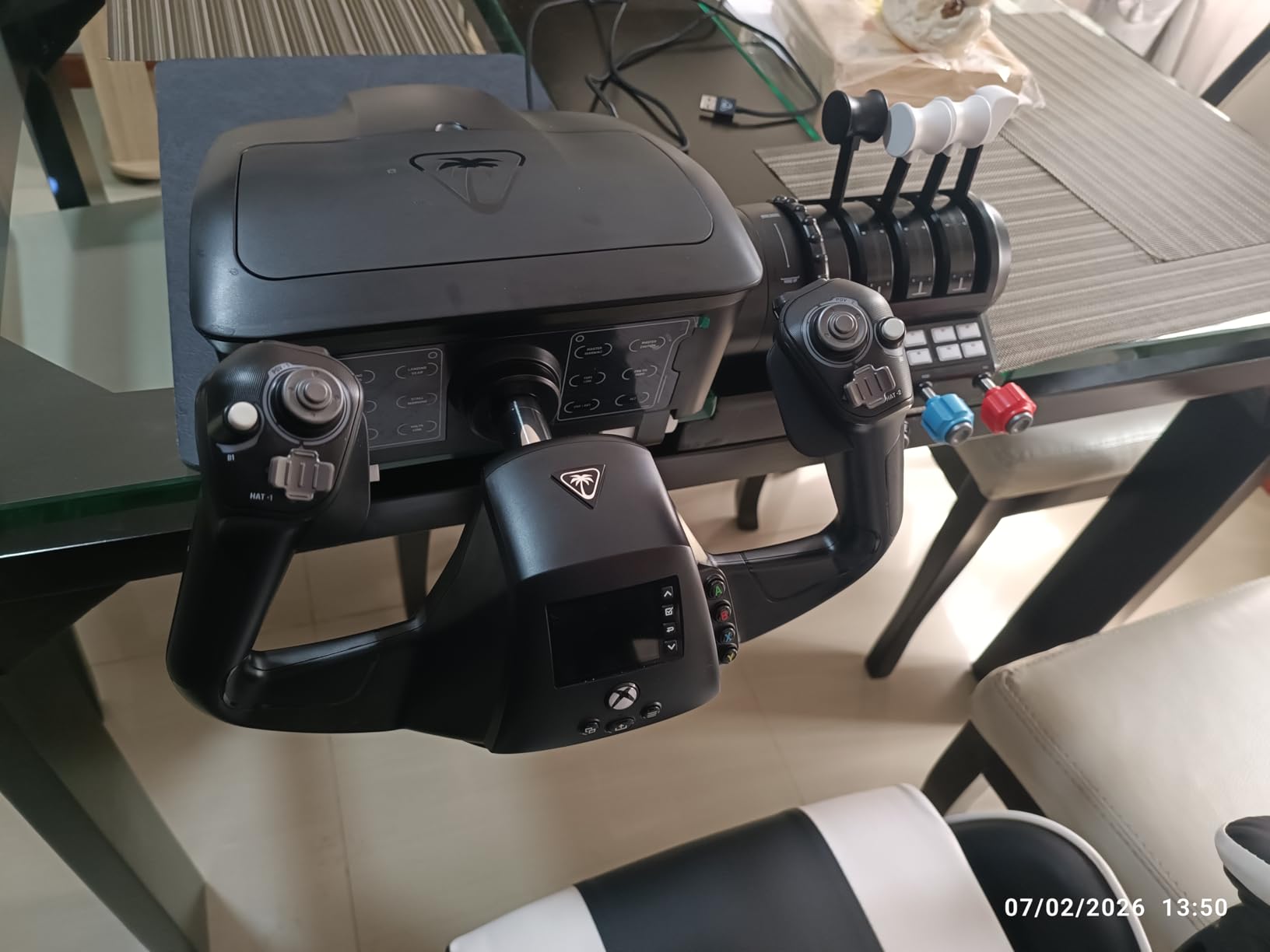
My testing focused on the Xbox experience since that is where this product differentiates itself. The 180-degree yoke rotation with Hall Effect sensors felt smooth and responsive in MSFS 2024, and the modular throttle quadrant with customizable lever handles handled everything from the Cessna 152 to the Airbus A320neo. The full-color flight management display is not just decoration, it actually lets you configure control mappings and view flight data without pausing the simulation.
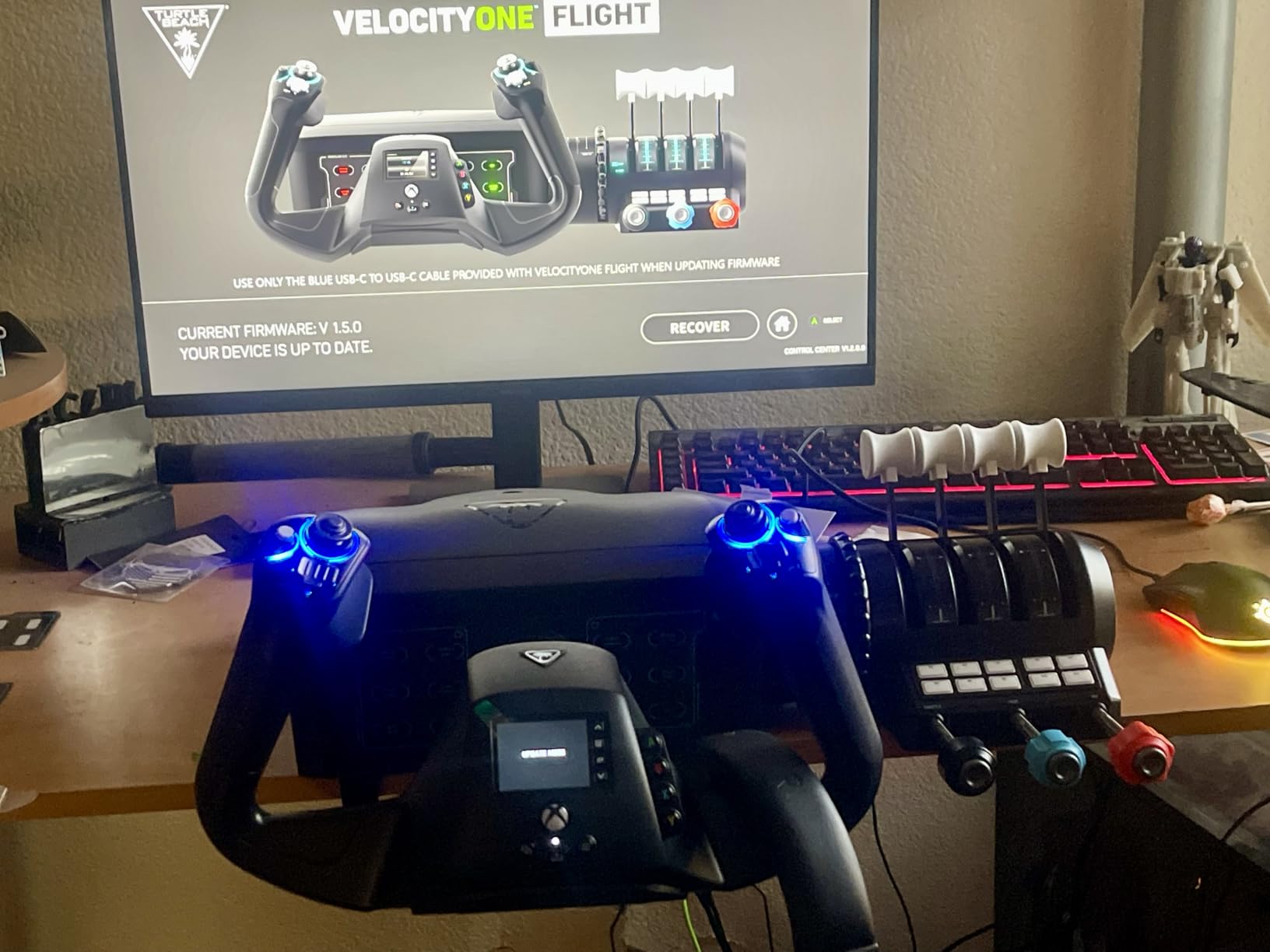
The integrated rudder controls are a compromise. Instead of pedals, the VelocityOne uses trigger-based rudder controls on the yoke handles. This works passably for casual flying but is no substitute for actual rudder pedals. I found crosswind landings much harder without proper pedal input, and helicopter flying was nearly impossible with trigger-based yaw. Turtle Beach does support external rudder pedals if you add them later.
The trim wheel sensitivity is the most common complaint, and I experienced it firsthand. Even tiny movements produced large trim changes, making it difficult to set precise trim for level flight. I ended up mapping trim to other controls and rarely used the physical wheel. The yoke also felt sticky in the pitch axis during the first week, though it did improve with use as other reviewers noted.
Who Should Buy the Turtle Beach VelocityOne Flight
This is the go-to controller for Xbox flight simmers who want a complete all-in-one solution. If you fly MSFS on Xbox Series X or S and want yoke, throttle, and basic rudder controls in a single package, nothing else on the market matches the VelocityOne. It also works on Windows 10 and 11 PCs, making it a flexible option for simmers who use both platforms.
PC-only users with no Xbox compatibility needs may find better value in separate Honeycomb Alpha and Bravo components, which offer superior build quality and more realistic controls.
What to Know Before You Buy
The 12 percent one-star review rate is higher than I would like, indicating notable quality control issues. Some users report internal parts breaking and POV hats detaching. Turtle Beach customer service is reportedly responsive with replacements, but factor this into your decision. The status indicator lights are decorative only on Xbox and not yet functional. USB cable length is limited to about 9 feet due to power requirements, which may restrict your mounting options.
8. Thrustmaster TCA Yoke PACK Boeing Edition – Premium Boeing Experience
Thrustmaster TCA Yoke & Quadrant Boeing Edition Flight Pack – XBOX & PC
1:1 Boeing 787 Replica
PENDUL-R Mechanism
Metal Construction
35 Buttons
Xbox and PC
Pros
- 1:1 scale Boeing 787 replica most realistic yoke feel available
- PENDUL-R mechanism provides exceptionally smooth pendular movement
- 100 percent metal internal construction
- Hall Effect sensors for precision
- Works on both Xbox Series X and PC
- Built-in tablet or phone stand
Cons
- Throttle quadrant feels less premium than the yoke
- Reverser levers are extremely flimsy
- Autopilot knob is slow and jumpy in MSFS
- Bulky design takes up significant mounting space
- 12 percent one-star reviews
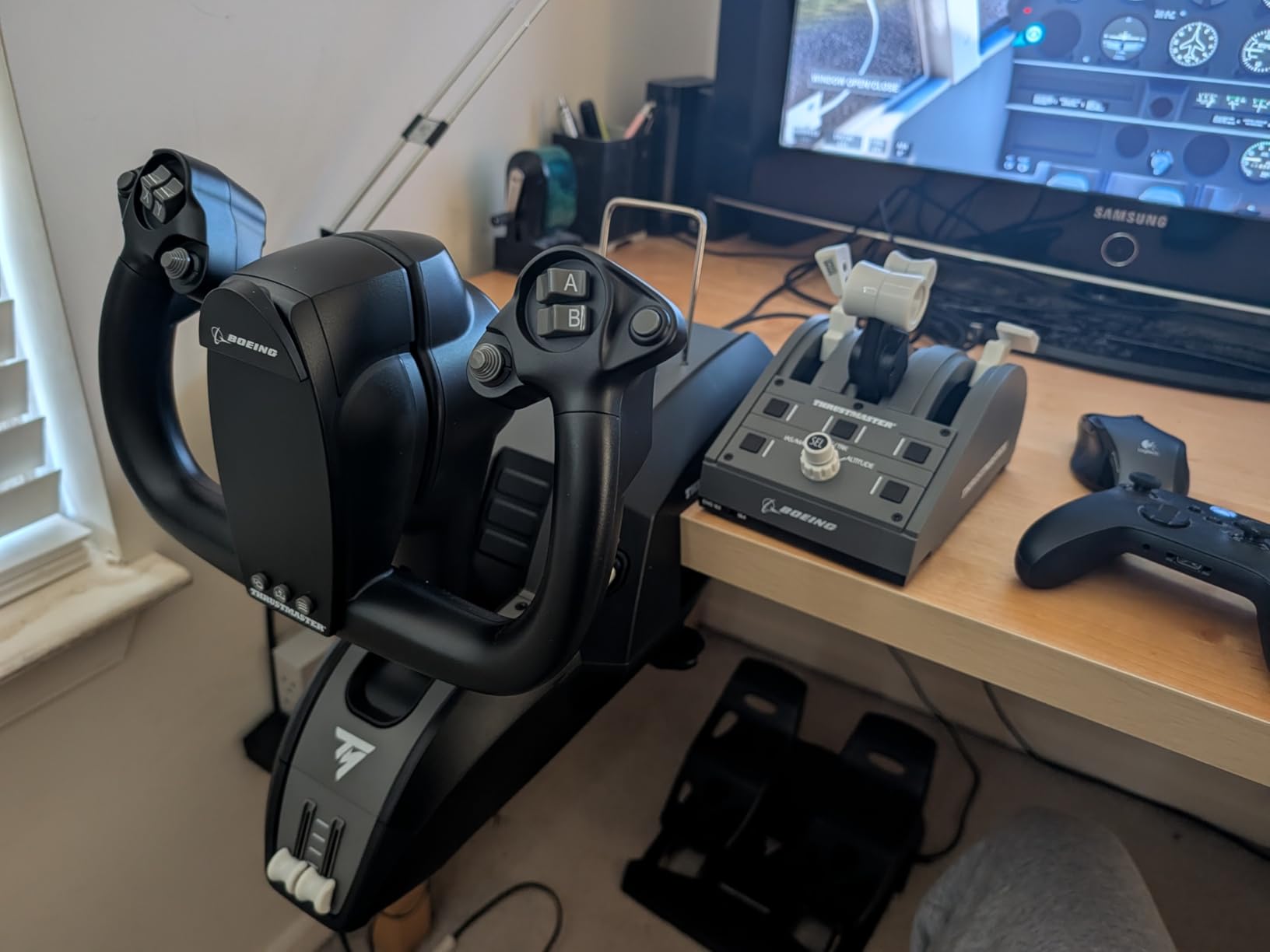
The Thrustmaster TCA Yoke PACK Boeing Edition offers something no other consumer yoke can claim: a 1:1 scale replica of the Boeing 787 Dreamliner yoke. The PENDUL-R mechanism replicates the pendular movement of the actual Dreamliner control system, and the result is a yoke that feels remarkably different from spring-centered designs like the Honeycomb or Logitech.
The metal internal construction is immediately apparent. When you move the yoke, there is a mechanical solidity that plastic controllers simply cannot replicate. The 8.3-inch rotation range is generous, and the adjustable spring tension lets you customize the feel. During my testing flying the PMDG 737 and the default 747 in MSFS, the Boeing yoke felt like a natural extension of the aircraft’s control system.
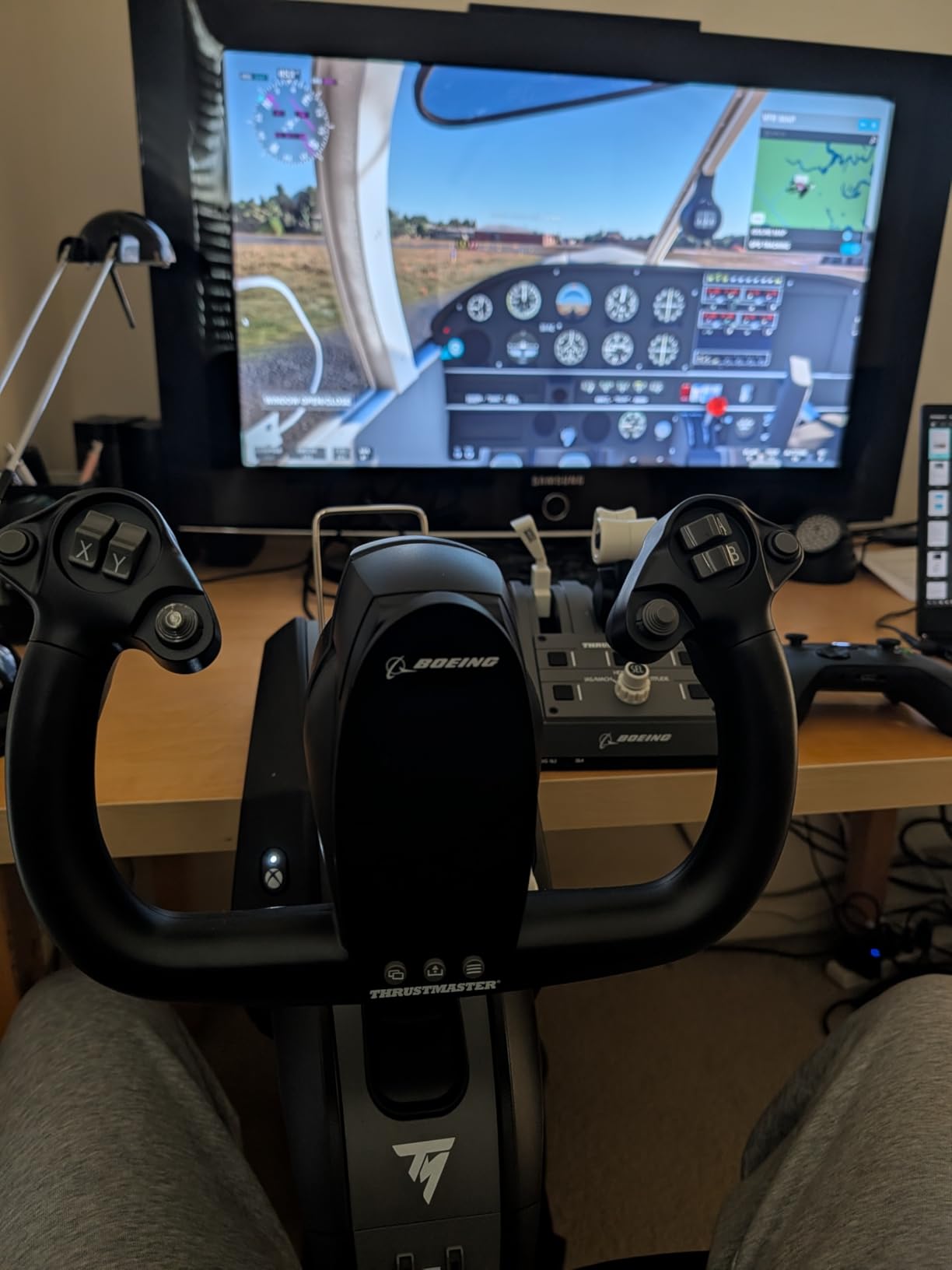
Unfortunately, the included throttle quadrant does not match the yoke quality. Multiple users describe it as feeling rushed to market, and I agree. The throttle levers do not align properly at idle or full thrust, and the reverser levers are thin and fragile. The autopilot knob on the quadrant is supposed to control altitude, airspeed, and heading, but in MSFS the response is so slow and jumpy that it is nearly unusable. I ended up controlling autopilot through the sim interface instead.
The integrated phone and tablet stand on the yoke base is a thoughtful addition that I used constantly for Navigraph charts. Many simmers mount an iPad nearby for approach plates and flight plans, and having a built-in stand eliminates the need for a separate mount. The yoke is officially licensed by both Boeing and Xbox, which is meaningful for authenticity and compatibility.
Who Should Buy the TCA Yoke Boeing Edition
This yoke is designed for Boeing enthusiasts and airline simmers. If your flying time is dominated by 737s, 747s, and 787s in MSFS, the authentic Boeing feel and 1:1 scale replica create an experience that generic yokes cannot match. It is also one of the few premium yoke options available for Xbox, making it attractive for console users who want more than the Turtle Beach VelocityOne offers.
Combat simmers and general aviation pilots should look elsewhere, as the Boeing-specific design is overkill for Cessnas and inappropriate for fighter aircraft.
What to Know Before You Buy
The throttle quadrant quality does not justify the bundle price. Several users recommend buying the yoke standalone rather than the pack, if standalone options are available. The autopilot knob on the throttle is essentially non-functional in MSFS, so do not factor it into your purchasing decision. The yoke is bulky with the bottom jaw extending 8 to 10 inches below the mounting surface, so verify your desk or rig can accommodate it.
9. Logitech G X56 H.O.T.A.S – Feature-Rich RGB HOTAS
Logitech G X56 H.O.T.A.S Throttle and Joystick Flight Simulator Game Controller, 4 Spring Options, +189 Programmable Controls, RGB Lighting, 2x USB, PC – Black
189 Programmable Controls
RGB Lighting
Twin Throttles
4-Spring System
16-bit Axes
Pros
- Highly customizable with 189 programmable controls across 3 modes
- Accurate 16-bit axes with Hall Effect sensors
- Adjustable 4-spring system for stick tension customization
- Twin throttles with friction adjuster and lock
- Swappable stick design
- Good value for the feature set
Cons
- Throttle is very stiff even at lowest tension
- Known ghost input issue on lower-powered USB ports
- Cannot throttle to complete zero in some games
- Large footprint requires significant desk space
The Logitech G X56 H.O.T.A.S sits in the interesting middle ground between budget HOTAS controllers and premium options like the Warthog. With 189 programmable controls, RGB lighting, and twin throttles, it offers features that approaches Warthog-level customization at a significantly lower price. I tested it extensively in DCS World and Star Citizen over a six-week period.
The customization is where the X56 excels. The three-mode switch (M1, M2, S1) effectively triples your button count, giving you more inputs than any aircraft could realistically need. The mini analog sticks on the throttle are particularly useful for slewing sensor cameras in DCS or controlling gimballed weapons in Star Citizen. I mapped one stick to zoom and pan the external view, which became indispensable during formation flying.
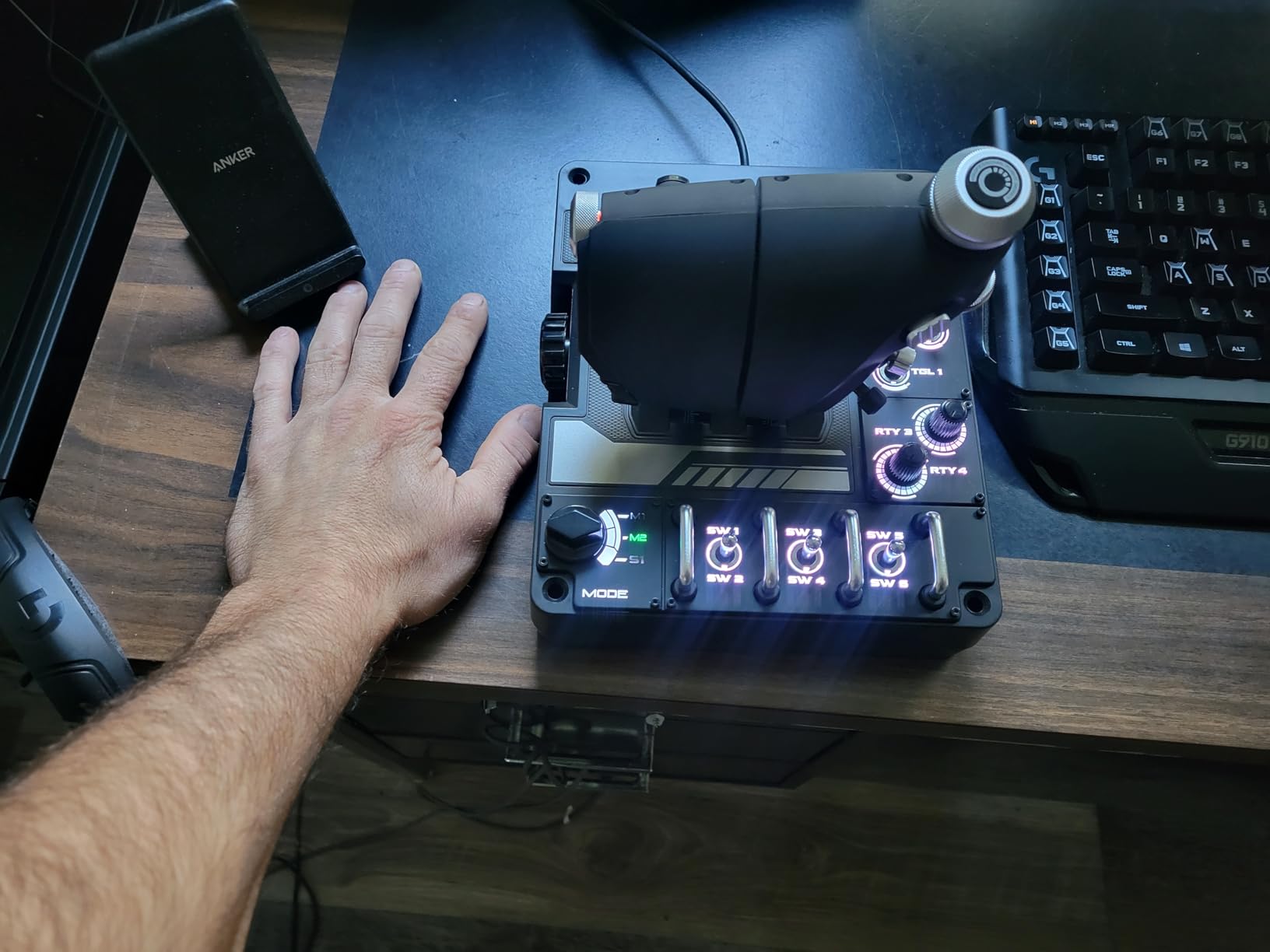
The 4-spring system lets you adjust stick tension to your preference, which is a feature normally found on much more expensive controllers. I experimented with all four spring configurations and settled on the lightest setting for precision flying, though combat maneuvers benefited from the heavier springs. The 16-bit axes with Hall Effect sensors provide excellent precision that held up well during extended testing.
The throttle unit is the X56’s biggest weakness. Even at the lowest friction setting, the twin throttles are noticeably stiff, and I found fine thrust adjustments difficult. The ghost input issue is real and documented across many reviews: on lower-powered USB ports, the throttle sends spurious inputs that can cause unexpected engine behavior. I solved this by using a powered USB hub, but it is an extra expense and complication.
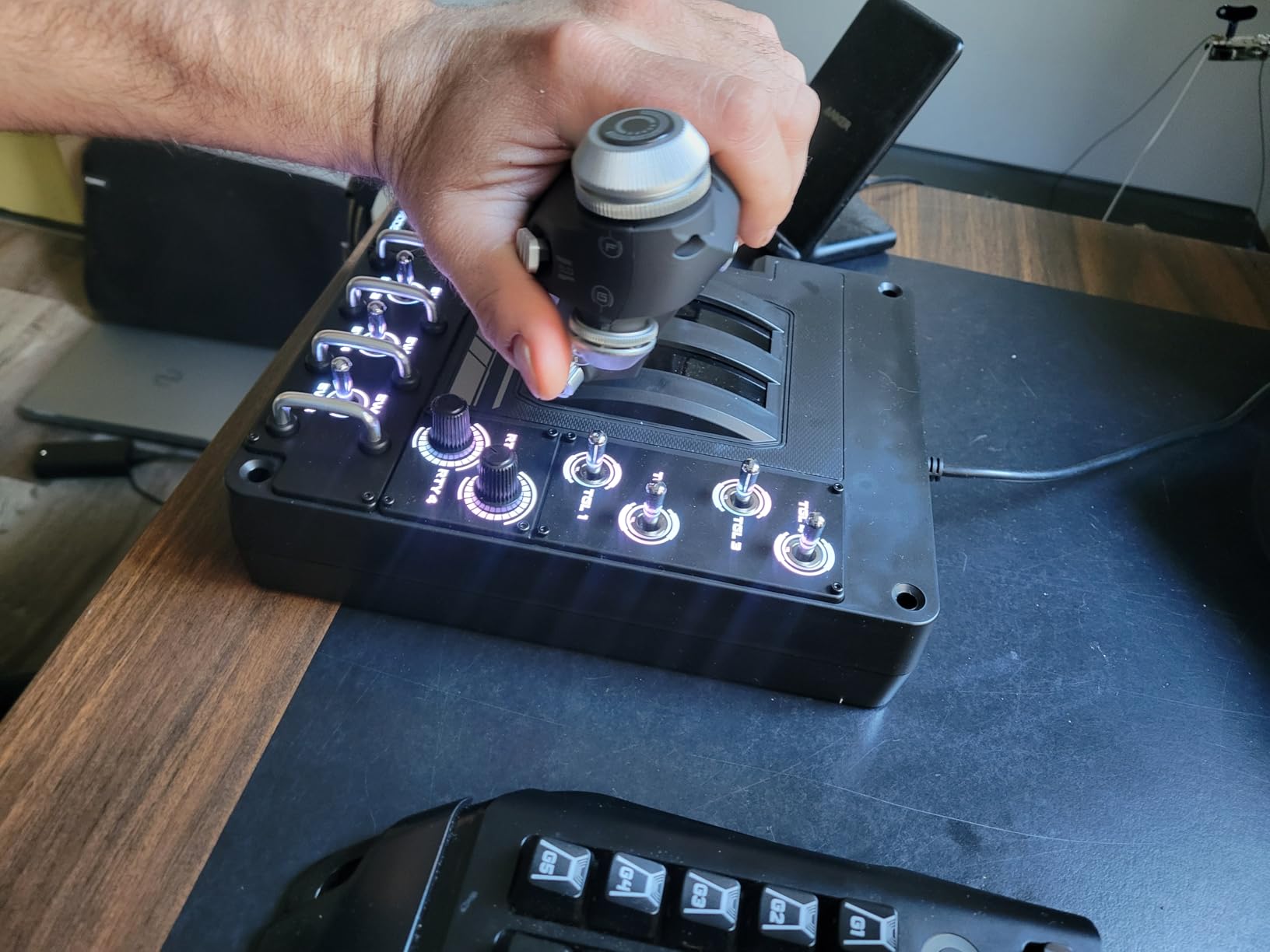
Who Should Buy the Logitech X56 HOTAS
The X56 is ideal for space sim and combat sim enthusiasts who want maximum programmability without paying Warthog prices. If you play DCS World, Star Citizen, Elite Dangerous, or IL-2 Sturmovik, the 189 controls and twin throttle configuration cover virtually every aircraft type. The RGB lighting and VR-friendly button placement also make it attractive for immersive cockpit setups.
It is less suitable for civilian flight simulation in MSFS or X-Plane, where a yoke provides a more authentic experience. The stiff throttle also makes it suboptimal for precision instrument flying.
What to Know Before You Buy
Budget for a powered USB hub to avoid the ghost input issue, which affects many users on standard motherboard USB ports. The X56 requires two USB 2.0 ports and significant desk space for both the stick and throttle units. The throttle stiffness improves slightly with use but never fully resolves. If you primarily fly DCS and can stretch your budget, the Warthog delivers a superior experience for the same aircraft types.
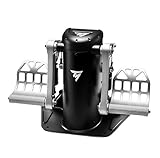
10. Thrustmaster TPR Pendular Rudder Pedals – Professional-Grade Pedals
Thrustmaster TPR Rudder Pedals, Flight Simulator Rudder Control – PC
Pendular Mechanism
Hall Effect Sensors
All-Metal
Adjustable Spring
Differential Brakes
Pros
- Exceptional all-metal build quality
- Pendular mechanism provides incredibly smooth realistic motion
- Hall Effect magnetic sensors for frictionless precision
- Adjustable spring tension for customized feel
- Highly accurate differential braking
- Quiet operation with no squeaking
Cons
- Very expensive premium price point
- Heavy at over 20 pounds
- Large footprint may not suit all setups
- Still requires anchoring to prevent sliding
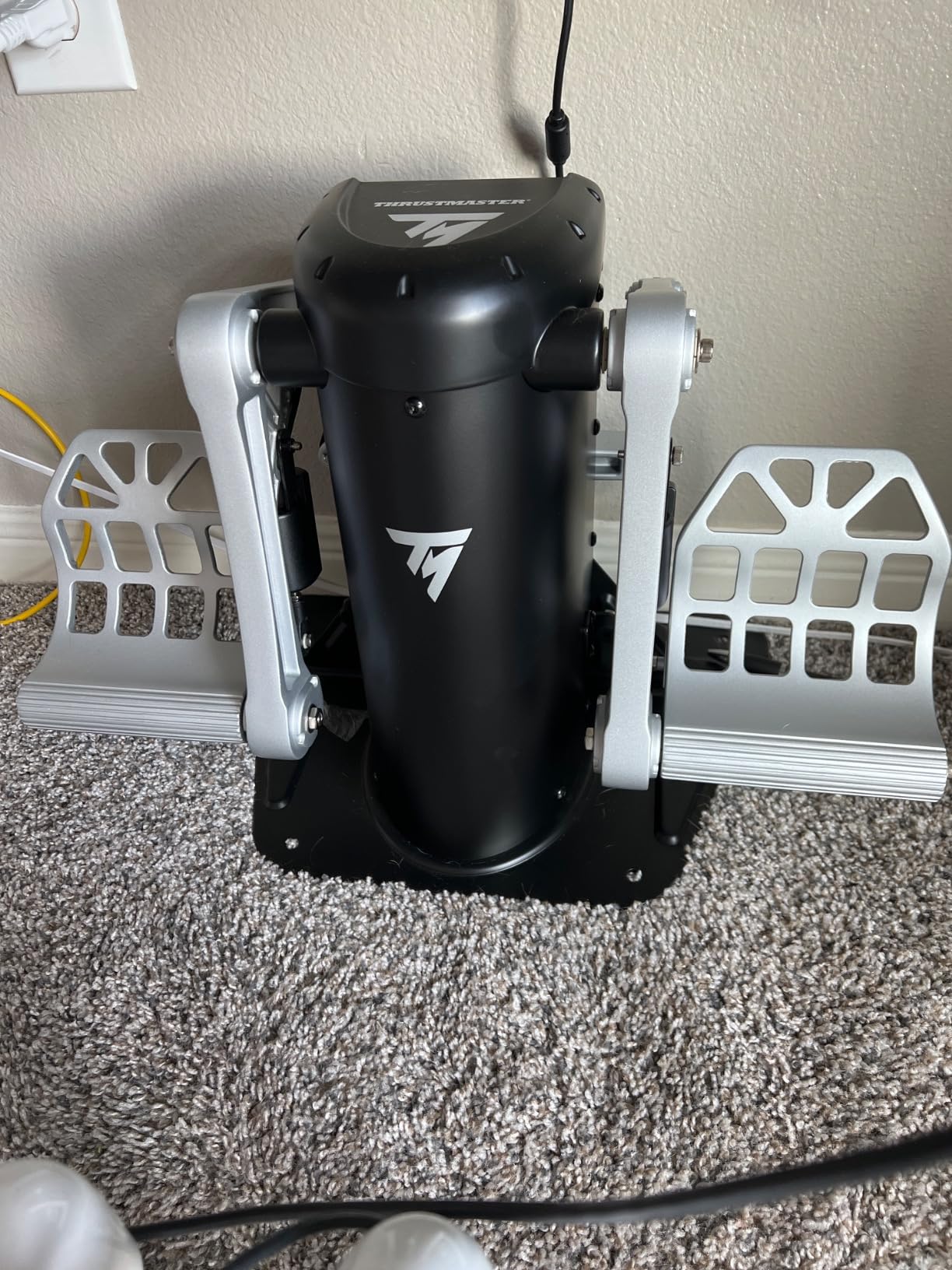
Rudder pedals are often the most overlooked component of flight simulator setups, but they make an enormous difference in realism. The Thrustmaster TPR Pendular Rudder Pedals are the most realistic consumer-grade pedals I have tested, and they are the closest thing to actual aircraft rudder pedals available for home use.
The pendular mechanism is what sets these apart from every other pedal design. Instead of sliding horizontally on rails like traditional sim pedals, the TPR uses a suspended pendular mechanism that replicates how rudder pedals actually move in a real aircraft. The motion is fluid and natural, with a progressive resistance curve that feels exactly right. After years of using slider-style pedals, the difference was immediately noticeable.
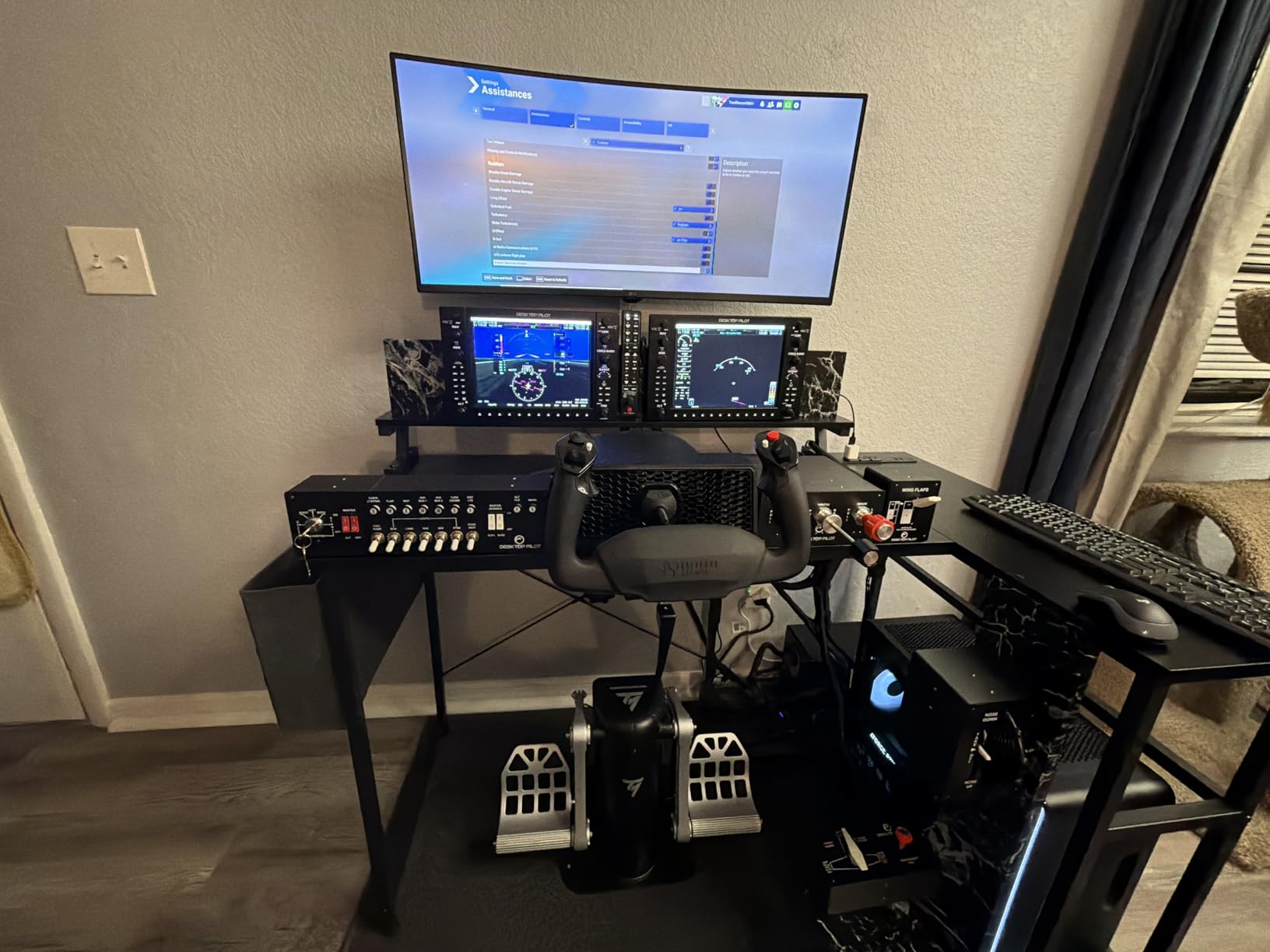
The Hall Effect magnetic sensors provide the same frictionless, wear-free precision that makes Thrustmaster’s higher-end products so reliable. There is no detectable dead zone, no stiction at the center position, and no drift over time. I tested the differential braking by performing short-field landings in the Cessna 172, and the toe brake response was precise enough to hold the aircraft straight during rollout in strong crosswinds.
The all-metal construction explains the 20-pound weight. These pedals feel like they belong in an actual training device, not a home setup. The adjustable spring system with two springs and multiple positioning options lets you dial in the resistance for different aircraft types. I preferred heavier resistance for airliner flying and lighter settings for general aviation maneuvers.
Who Should Buy the TPR Pendular Rudder Pedals
These pedals are for dedicated flight simmers who want the absolute best rudder control available for home use. If you already own a premium yoke or HOTAS and want pedals that match the quality, the TPR is the natural pairing. Pilots who fly helicopters, where rudder control is continuous and critical, will benefit enormously from the precise, smooth response.
The price is steep, and for casual simmers, the Logitech Pro Flight Rudder Pedals deliver 80 percent of the experience at less than a third of the cost. The TPR is for those who demand maximum realism and have the budget to support it.
What to Know Before You Buy
Despite weighing over 20 pounds, the TPR still slides during aggressive rudder input on smooth floors. Plan to anchor it with Velcro strips, non-slip pads, or screws to a wooden floor or sim rig. The large footprint means you need adequate space under your desk. These pedals are PC compatible only via USB, so Xbox and Mac users need to verify compatibility with their setup.
11. Logitech G Pro Flight Rudder Pedals – Best Budget Pedals
Logitech G Pro Flight Rudder Pedals
Self-Centering
Adjustable Tension
Differential Toe Brakes
Properly Spaced
USB
Pros
- Best budget rudder pedals under 200 dollars
- Smooth self-centering action with realistic feel
- Adjustable tension dial for quick customization
- Pedals properly spaced like real aircraft
- Adjustable pedal length for different foot sizes
- Differential toe brakes for ground control
Cons
- Plastic construction not as premium as metal
- Some users report sloppy yaw action
- Toe brakes have minimal resistance
- Can slide on smooth floors without anchoring
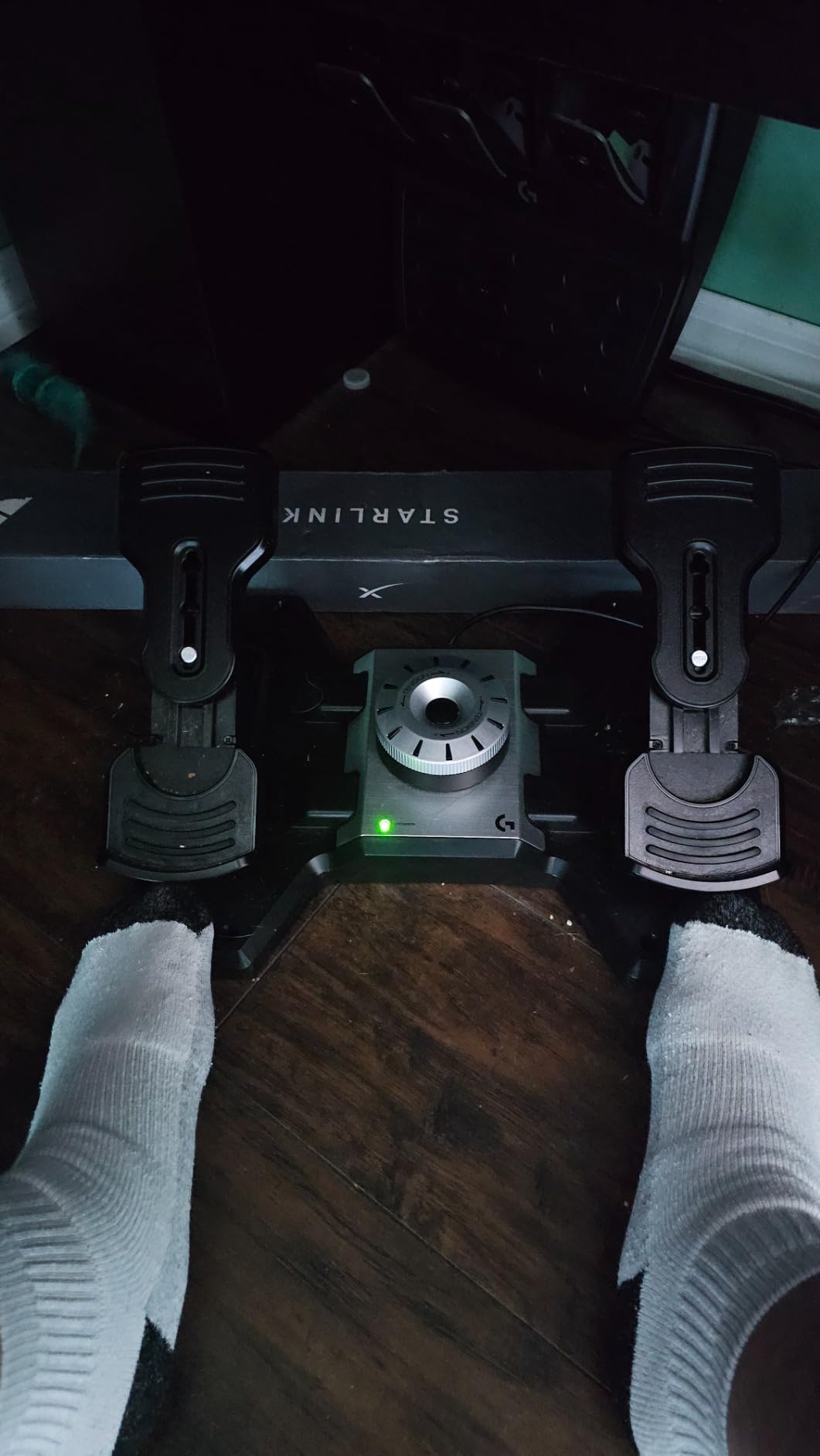
The Logitech G Pro Flight Rudder Pedals are the pedals that most flight simmers start with, and for good reason. At their price point, nothing offers the same combination of features, build quality, and reliability. I used these for two years before upgrading to the Thrustmaster TPR, and they served me well throughout that period.
The self-centering action is smooth with a realistic progressive resistance. The adjustable tension dial on the side lets you quickly change the pedal feel without tools, which I used when switching between general aviation and glider flying. The pedals are properly spaced like real aircraft pedals rather than crammed together like some budget alternatives, which makes the transition to real-world flying more natural.
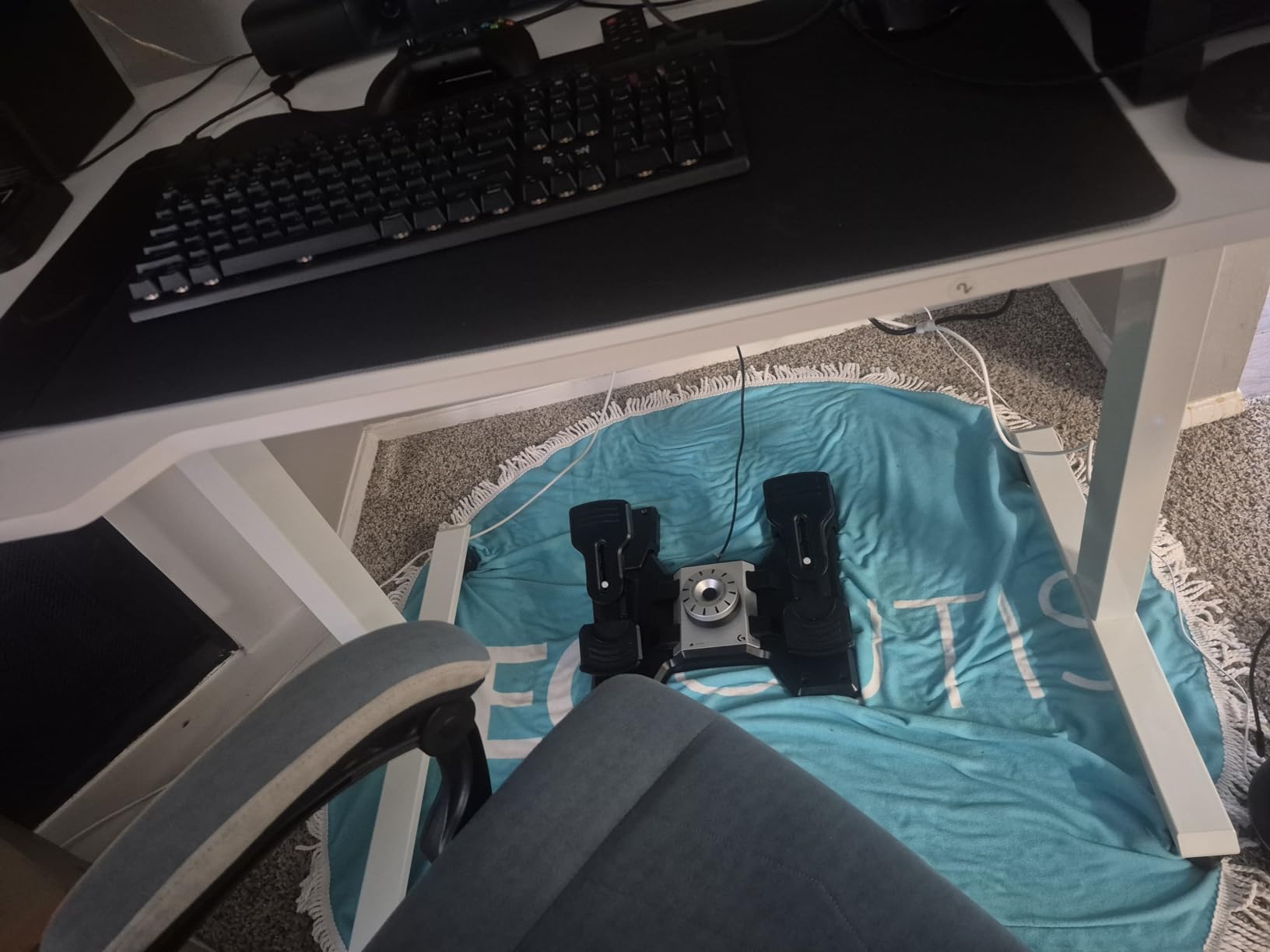
The differential toe brakes work well for ground control and short-field landings. They tilt forward at the top to engage the brakes, mimicking real aircraft toe brake operation. The one drawback is that the brake resistance is minimal, making precise braking modulation difficult. I found myself over-braking during early practice sessions, though I eventually adapted to the lighter feel.
Durability is impressive for a plastic pedal set. Several users report four or more years of reliable service, which is excellent at this price point. The adjustable pedal length accommodates different foot sizes, a thoughtful detail that ensures comfortable operation regardless of shoe size. My one complaint is that the pedals can slide on smooth floors during aggressive rudder input, so some form of anchoring is recommended.
Who Should Buy the Logitech Pro Flight Rudder Pedals
These are the ideal starter pedals for flight simmers building their first complete setup. If you have a yoke or joystick and are wondering whether rudder pedals are worth the investment, the Logitech pedals answer that question with a resounding yes. The improvement in ground control, crosswind handling, and coordinated turns is dramatic compared to using twist-stick or keyboard rudder.
They are also a practical choice for budget-conscious simmers who want realistic controls without spending hundreds on premium metal pedals. Pair them with the Logitech G PRO Flight Yoke for an affordable, cohesive setup.
What to Know Before You Buy
The plastic construction means these pedals will not last forever under heavy use, but the value proposition is excellent. The yaw axis can develop some slop over time, which is noticeable during precision maneuvers. Toe brake resistance is minimal out of the box, so expect an adjustment period. On smooth floors, add non-slip pads or Velcro to prevent sliding. These pedals are Windows compatible via USB.
12. Logitech G Pro Flight Radio Panel – Advanced Avionics Control
Logitech G USB Pro Flight Radio Panel
Twin Concentric Dials
LED Displays
Standby Switch
Real-Time
Mounting Bracket
Pros
- Realistic mechanical knobs much easier than mouse or touchscreen
- Real-time LED displays integrate seamlessly with flight simulators
- Solid build quality with mounting bracket included
- Works well with X-Plane 11 and Prepar3D
- Easy to mount on Honeycomb Alpha and Bravo units
- Excellent Logitech customer support
Cons
- Not plug and play requires driver download and setup
- Radio layout differs from real GA aircraft panels
- Using multiple Logitech panels may require third-party software
- Instructions are not very helpful for setup
- LEDs may burn out prematurely
The Logitech G Pro Flight Radio Panel is one of those accessories that seems unnecessary until you use one, and then you cannot imagine flying without it. Tuning radio frequencies with physical concentric dials instead of clicking through the cockpit with a mouse adds a level of immersion that transforms the instrument flying experience.
I tested the Radio Panel primarily with X-Plane 11 and MSFS, tuning COM and NAV frequencies while flying IFR approaches. The twin concentric dials let you adjust the coarse and fine frequency digits independently, exactly like real aircraft radio stacks. The standby switch for activating frequencies is satisfying to use, and the real-time LED displays show both active and standby frequencies clearly.
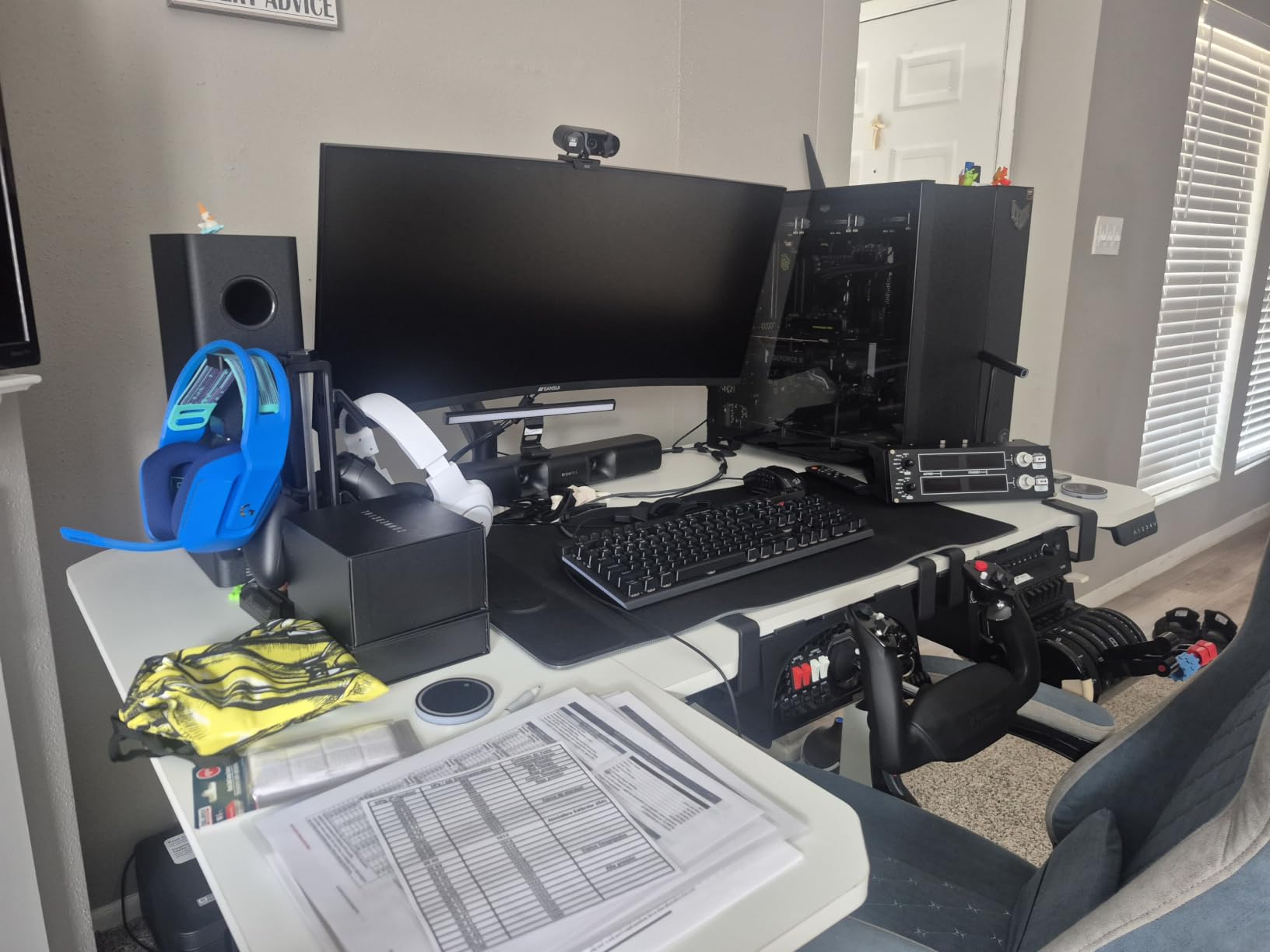
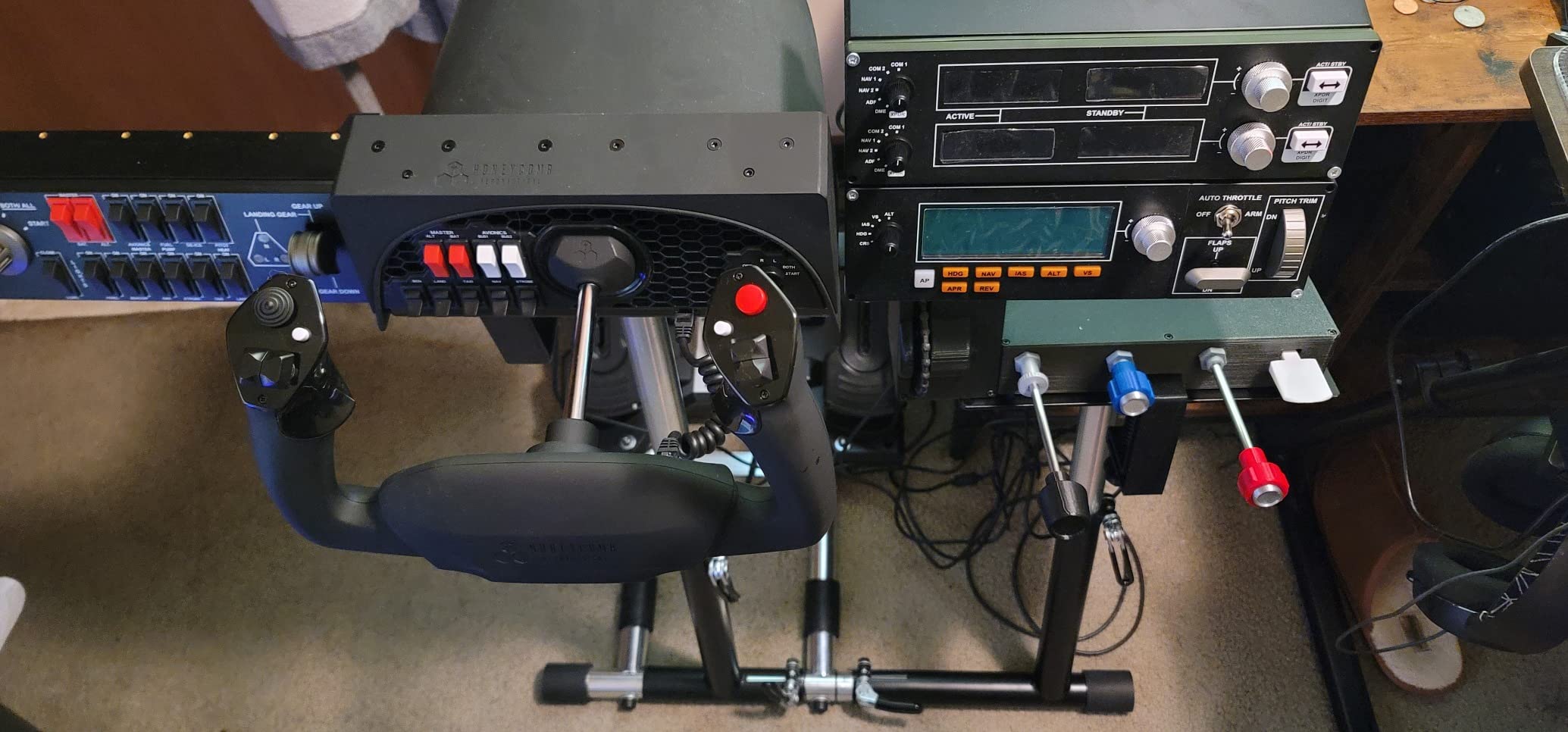
The mounting bracket included with the panel allows you to attach it to other Logitech Pro Flight accessories or mount it standalone. I bolted it to the side of my Honeycomb Bravo throttle quadrant using the included hardware, and it integrated seamlessly into my cockpit layout. The physical dimensions match standard radio stack spacing, so multiple panels can be stacked for a complete avionics stack.
Setup is not plug-and-play, which is the main frustration. You need to download drivers from the Logitech website, and the included instructions are unhelpful. If you plan to use multiple Logitech panels together, you will likely need third-party software like SpadNext to manage them properly. The display does not illuminate until the drivers are installed and the simulator is running, which confused me initially.
Who Should Buy the Logitech Pro Flight Radio Panel
This panel is for instrument-rated pilots and IFR-focused simmers who want physical radio controls. If you fly approaches regularly, tune frequencies constantly, and want the muscle memory of operating real radio stacks, this panel delivers excellent value. It is particularly useful for pilots maintaining instrument currency or students practicing communication procedures.
VFR-only flyers who rarely tune radios will find less value here, as mouse-based frequency entry is adequate for casual flying. The panel is also best suited for Logitech or Honeycomb ecosystem users, since the mounting hardware is designed for those systems.
What to Know Before You Buy
Driver installation is required, so budget time for setup. The radio layout differs from real general aviation aircraft panels, which could develop incorrect muscle memory for student pilots. If you plan to use multiple Logitech panels (Radio, Multi-Panel, Switch Panel), invest in SpadNext software for proper management. The panel works with Windows PCs and is compatible with MSFS, X-Plane 11, and Prepar3D.
How to Choose the Best Flight Simulator Setups?
Choosing from the many flight simulator setups available comes down to understanding your flying style, platform, budget, and space constraints. The forum communities on r/MicrosoftFlightSim and r/homecockpits consistently highlight how overwhelming the options can feel for newcomers. This buying guide breaks down the key decisions to help you build the right setup for your needs.
Yoke Versus Joystick: Which Is Right for You?
Your choice between a yoke and a joystick (HOTAS) should be driven by what you fly most often. Yokes are designed for civilian aircraft that use yoke controls, including Cessnas, Pipers, Beechcraft, and most general aviation and airline aircraft. If you primarily fly the PMDG 737, the Fenix A320, or the default Cessna 172 in MSFS, a yoke like the Honeycomb Alpha or Thrustmaster TCA Boeing Edition will feel more authentic.
Joysticks and HOTAS systems are better suited for aircraft that use stick controls. This includes fighter jets in DCS World, military aircraft, aerobatic planes, and helicopters. The Thrustmaster Warthog is purpose-built for the A-10C in DCS, while the Logitech X56 handles everything from F-16s to space combat. Some simmers own both a yoke and a HOTAS to cover the full spectrum of aircraft types.
Hall Effect Sensors Versus Potentiometers
This is the single most important technical specification to understand when evaluating flight controls. Potentiometers are mechanical variable resistors that physically contact a track to measure position. Over time, the contact surface wears down, causing dead zones, drift, and erratic inputs. Every budget controller uses potentiometers, and they are the primary reason cheap controls degrade.
Hall Effect sensors use magnetic fields to measure position with no physical contact whatsoever. This means there is no wear, no drift, and no degradation over the life of the product. Every premium controller in our roundup, from the Warthog to the Honeycomb Alpha to the Thrustmaster TPR pedals, uses Hall Effect sensors. If you plan to use your controls regularly, the investment in Hall Effect technology pays for itself in longevity alone.
Platform Compatibility: PC, Xbox, and Mac
Platform compatibility is a critical decision factor. PC users have the widest selection, as virtually all flight controls are designed for Windows. Microsoft Flight Simulator on PC supports the broadest range of peripherals, and X-Plane and DCS are PC-native platforms.
Xbox users face more limited options. The Turtle Beach VelocityOne Flight and the Thrustmaster TCA Yoke Boeing Edition are the primary premium options for Xbox Series X and S. Not all PC peripherals work on Xbox, so verify compatibility before purchasing. The Thrustmaster T-Flight Hotas One is the budget Xbox HOTAS option.
Mac users should look at the Honeycomb Alpha and Bravo, which offer Mac compatibility alongside PC support. X-Plane 12 runs natively on Mac, including Apple Silicon. However, many Logitech panels have driver limitations on Mac, and some users report compatibility issues with X-Plane 12 on Apple Silicon specifically.
Space and Mounting Considerations
Full flight simulator setups consume significant space. The Thrustmaster TPR pedals alone require nearly 19 by 18 inches of floor space, and adding a yoke, throttle quadrant, and radio panel to a desk quickly uses up all available surface area. Before purchasing, measure your desk width, depth, and the space available underneath for rudder pedals.
For apartment dwellers or those with limited space, consider a desk-mounted yoke and a compact HOTAS rather than a full cockpit rig. The Honeycomb Alpha’s dual mounting system (clamps or suction pad) offers flexibility for different desk types. If you plan to build a dedicated sim room or cockpit frame, budget for a rig from Next Level Racing or Trak Racer, which provide integrated mounting points for all peripherals.
Budget Tiers and Upgrade Paths
Reddit users consistently recommend starting at the mid-tier rather than buying entry-level gear that you will want to replace within a year. Here is how the budget tiers break down for complete flight simulator setups.
The starter tier combines the Thrustmaster T-Flight Hotas X with the Logitech Pro Flight Rudder Pedals for a complete setup that gets you flying without a huge investment. This is adequate for testing whether flight simulation is a hobby you want to pursue.
The mid-tier pairs the Honeycomb Alpha yoke with the Honeycomb Bravo throttle and Logitech rudder pedals. This combination covers virtually all civilian aircraft types and delivers the build quality and features that will satisfy most simmers for years. This is the sweet spot for value and performance.
The premium tier includes the Thrustmaster HOTAS Warthog or Thrustmaster TCA Boeing yoke, paired with TPR Pendular Rudder Pedals and Logitech Radio Panel accessories. This level approaches professional training device quality and is appropriate for serious pilots and dedicated simmers who want maximum realism.
Many simmers report on Reddit that they spent $10,000 or more on their setups over time through incremental upgrades. Starting with mid-tier gear and upgrading individual components as budget allows is the most cost-effective approach.
FAQs
How much does a full flight simulator setup cost?
A complete flight simulator setup ranges from about $300 for an entry-level HOTAS and pedals configuration to $4,000 or more for a premium yoke, throttle quadrant, rudder pedals, and radio panel system. Budget tiers break down as follows: entry-level starts around $300 to $600 with the Thrustmaster T-Flight Hotas X and Logitech pedals. Mid-tier runs $1,000 to $2,500 with Honeycomb Alpha and Bravo. Premium builds with Warthog HOTAS and TPR pedals reach $3,000 to $5,000 or more when you include a dedicated cockpit frame.
What is the best screen setup for flight sim?
For maximum immersion, a triple 4K monitor setup provides the widest field of view and is ideal for instrument flying where instrument readability matters most. An ultra-wide curved display is a strong single-monitor alternative. VR headsets like the Meta Quest 3 offer the most immersive experience for VFR flying where you look around the cockpit and scan for traffic, but instrument readability can be challenging. For IFR procedures and instrument training, high-resolution monitors are the better choice.
What is the most realistic flight simulator for pilots?
Microsoft Flight Simulator offers the most realistic visuals with photorealistic scenery powered by Azure AI and Bing Maps. X-Plane 12 excels in aerodynamic flight modeling using blade element theory and is the only home simulator with an FAA-certified training version. DCS World is the most realistic option for military combat simulation with study-level aircraft that replicate every system. For pilot training, X-Plane 12 is generally preferred, while MSFS wins for visual immersion.
Is a yoke or joystick better for flight simulator?
A yoke is better for civilian aircraft like Cessnas, Pipers, and airliners that use yoke controls in the real world. A joystick or HOTAS is better for military aircraft, helicopters, and aerobatic planes that use stick controls. Your choice should match the aircraft you fly most often. Many serious simmers own both a yoke for civilian flying and a HOTAS for combat simulation to cover all aircraft types.
Do I need rudder pedals for a flight simulator setup?
Yes, rudder pedals significantly improve realism for taxiing, crosswind landings, coordinated turns, and helicopter flight. While you can use twist-stick rudder or keyboard inputs, physical pedals provide the precise control and muscle memory that transfers to real-world flying. Budget options like the Logitech Pro Flight Rudder Pedals under $200 deliver most of the benefit, making them a worthwhile addition to any setup.
Conclusion
Finding the best flight simulator setups in 2026 comes down to matching your hardware to your flying style, platform, and budget. Our Editor’s Choice, the Thrustmaster HOTAS Warthog, remains the pinnacle of combat flight simulation hardware with its all-metal construction and Hall Effect precision. The Honeycomb Alpha yoke takes our Best Value award as the most realistic civilian yoke under $250, and the Thrustmaster T-Flight Hotas X is unbeatable as a Budget Pick for newcomers testing the waters.
For simmers ready to commit, the mid-tier combination of Honeycomb Alpha yoke, Bravo throttle quadrant, and Logitech rudder pedals creates one of the best flight simulator setups for general aviation and instrument training. Xbox users should look at the Turtle Beach VelocityOne Flight as their go-to all-in-one solution. Whatever you choose, prioritize Hall Effect sensors over potentiometers, as the longevity and precision difference is dramatic over time.
The most important step is simply getting started. Even a budget HOTAS and basic pedals will transform your experience compared to a gamepad, and you can always upgrade individual components as your passion for flight simulation grows.