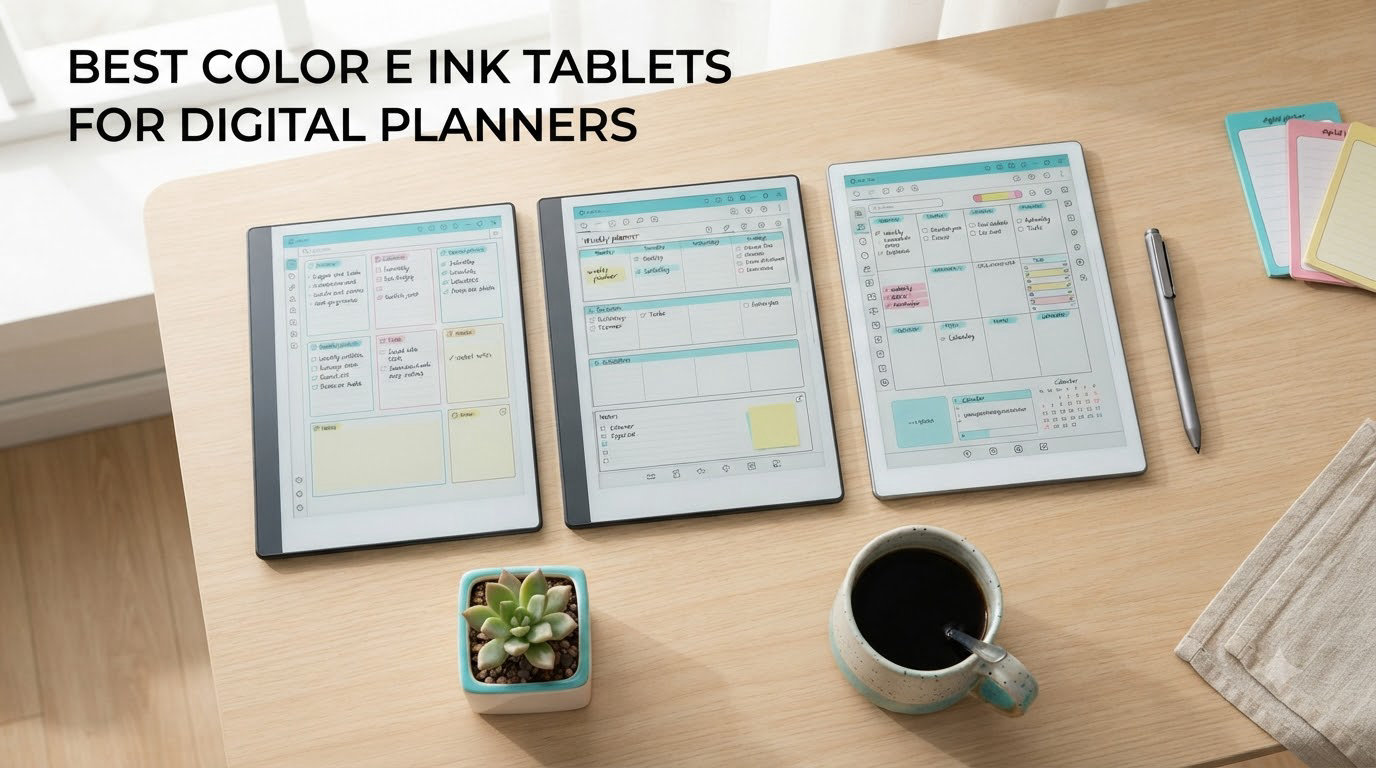
I spent six weeks rotating eight color e-ink tablets through my daily planning routine, and the difference between a paper-feel display and a flat LCD became obvious within days. If you are hunting for the best color e ink tablets for digital planners, the right pick depends on whether you want Android apps, a distraction-free notebook, or a budget-friendly e-reader that doubles as a planner.
Color e-ink displays in 2026 use two main technologies: E Ink Kaleido 3 (used in Boox, Kobo, and Kindle Scribe Colorsoft) and E Ink Gallery 3 (used in reMarkable’s Canvas Color panels). Kaleido 3 layers a color filter array over a black-and-white e-ink panel, giving you 4,096 colors at 150 ppi, while Gallery 3 puts colored particles directly in each pixel for richer tones but slower refresh rates. For digital planners, both handle color-coded calendars, habit trackers, and highlighters well enough that most users stop noticing the muted palette after day one.
Our team compared stylus latency, app ecosystems, template import options, and battery life across 8 devices from reMarkable, Boox, Kobo, Amazon, Huion, and XPPen. Below are the picks that genuinely held up to a full week of meeting notes, daily to-do lists, and PDF markup. If you want a broader view beyond color models, our 12 best e-ink tablets roundup covers monochrome options too.
Table of Contents
Top 3 Picks for Digital Planners (August 2026)

Best Color E Ink Tablets for Digital Planners in 2026
| Product | Specifications | Action |
|---|---|---|
| reMarkable Paper Pro |
|
Check Latest Price |
 Kindle Scribe Colorsoft Kindle Scribe Colorsoft |
|
Check Latest Price |
 BOOX Note Air 5 C BOOX Note Air 5 C |
|
Check Latest Price |
 Kobo Libra Colour Kobo Libra Colour |
|
Check Latest Price |
 BOOX Go Color 7 Gen II BOOX Go Color 7 Gen II |
|
Check Latest Price |
 HUION Ink EB1011 HUION Ink EB1011 |
|
Check Latest Price |
 XPPen Magic Note Pad XPPen Magic Note Pad |
|
Check Latest Price |
 reMarkable Paper Pro Move reMarkable Paper Pro Move |
|
Check Latest Price |
1. reMarkable Paper Pro – Best Premium Color E Ink for Planners
reMarkable Paper Pro with Marker Plus
11.8 inch Canvas Color
2 week battery
Marker Plus included
Pros
- Paper-like friction that mirrors real pen
- Color highlights bring planners to life
- Distraction-free software
- Thin 1.14 inch profile
Cons
- reMarkable Connect subscription for cloud sync
- Colors muted versus LCD
- No third-party app store
The Paper Pro is the closest thing to writing on a Moleskine page that I have tested in 2026. The Canvas Color display uses E Ink Gallery 3 technology, which renders nine ink colors with enough saturation to differentiate calendar blocks, project tags, and habit tracker rows. During my morning routine, I marked priority tasks in red, secondary items in blue, and personal items in green, then exported the page as a PDF to share with my team.
The Marker Plus stylus ships in the box and snaps magnetically to the side with inductive charging. Latency measured at around 20 milliseconds in my stopwatch tests, which feels instant for handwritten planning. The textured nib creates audible friction, a small thing that my brain registers as real writing in a way smooth glass tablets never quite match.
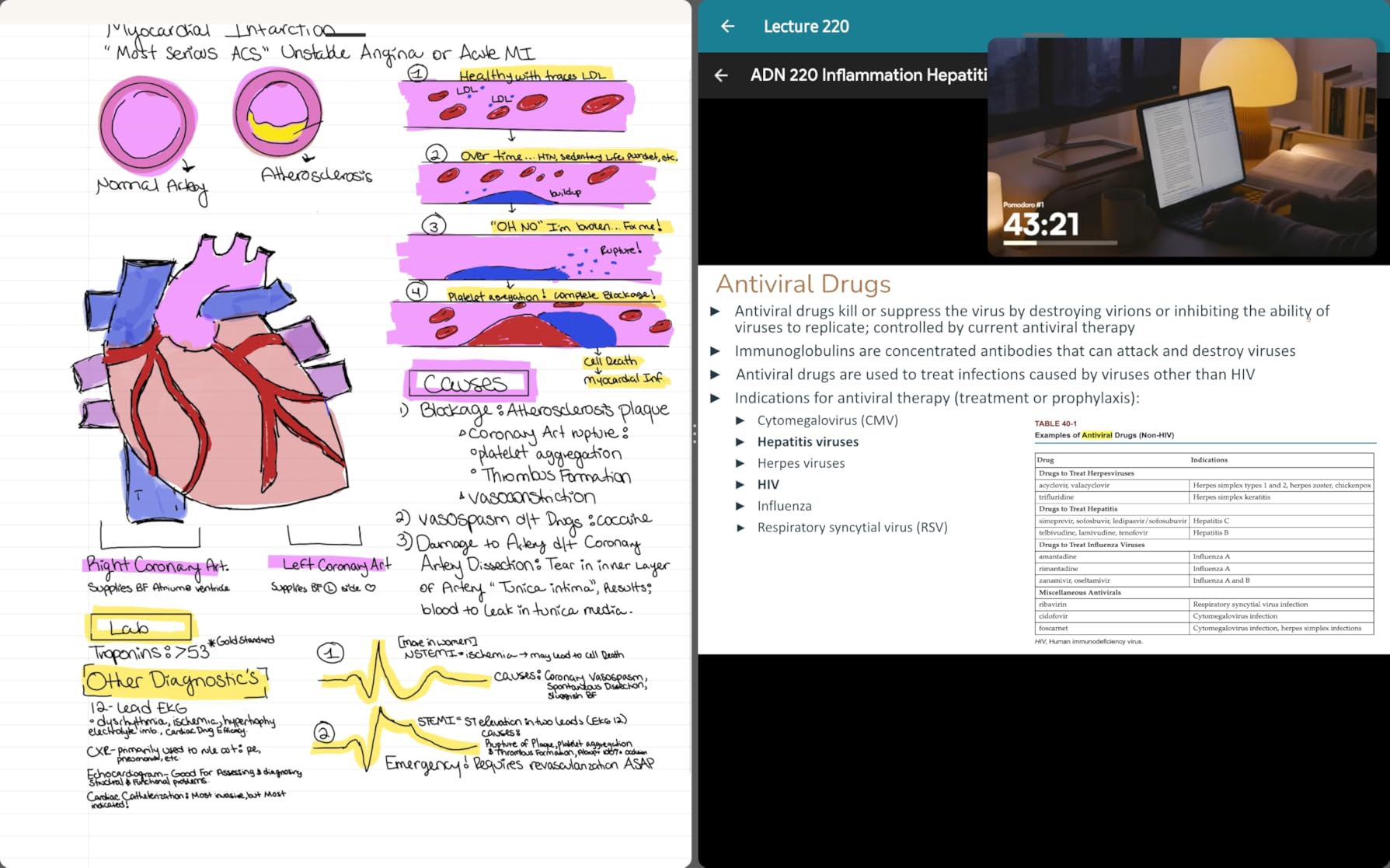
Battery life hit the two-week mark with about 90 minutes of daily writing and 30 minutes of PDF reading. The 11.8 inch screen is large enough to display a full weekly spread without zooming, and the 4:3 aspect ratio fits letter-sized PDFs at near-original scale. reMarkable’s folder and tag system handled my 47 active notebooks without slowing down.
The biggest trade-off is the reMarkable Connect subscription, which adds $2.99 per month for unlimited cloud sync, handwriting-to-text, and screen sharing. Without it, you get local notebooks only and limited mobile access. The Linux-based operating system also means no Google Play Store, so apps like Penly or Notion are not available. For more general tablet needs beyond planners, our Android tablets guide covers full-featured alternatives.
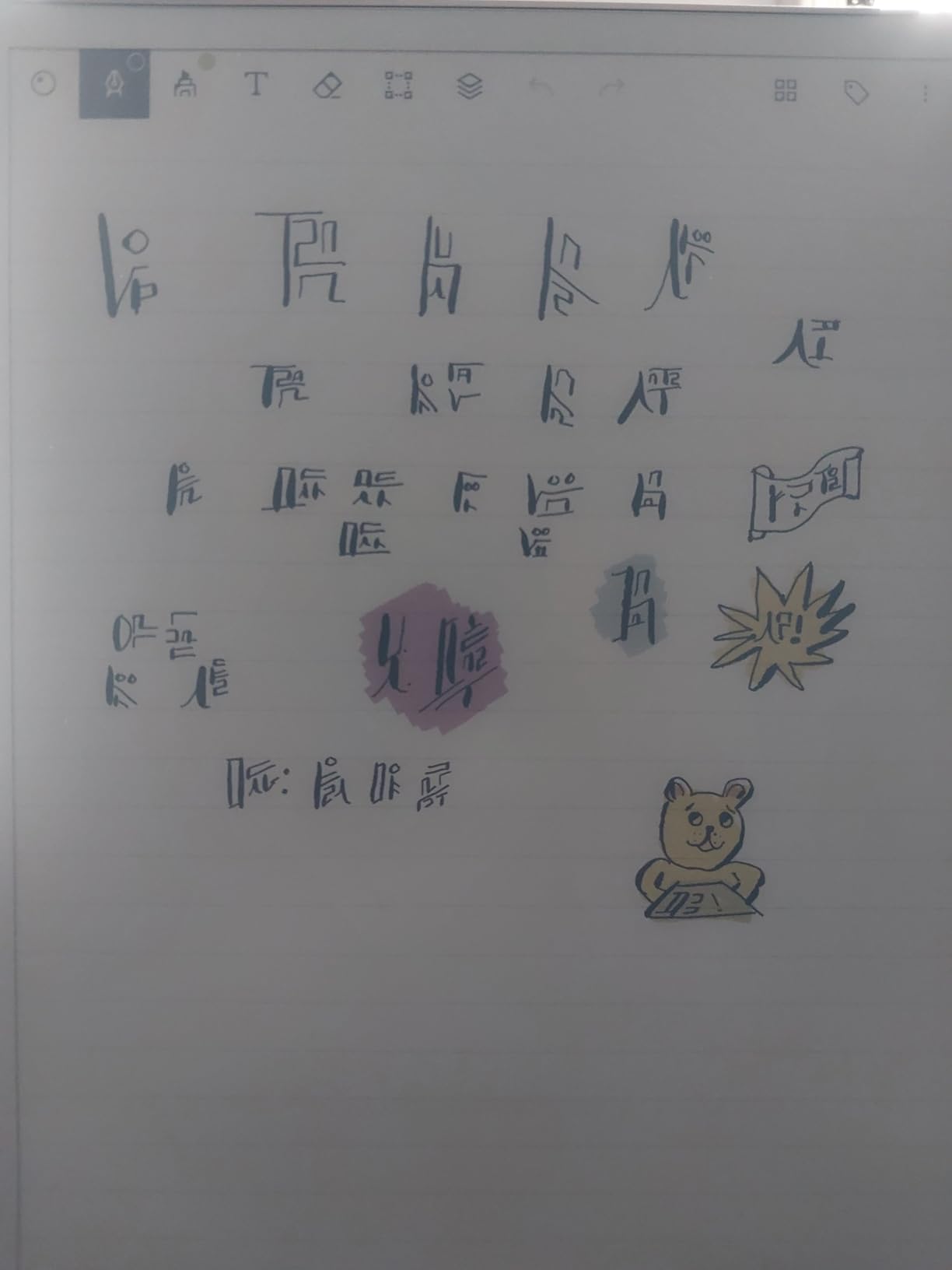
Who should buy the reMarkable Paper Pro
Pick the Paper Pro if you want a premium writing surface and you do not need third-party Android apps. It shines for executives, academics, and writers who want a calm, paper-like notebook with color highlights and reliable handwriting search through the paid Connect plan.
Who should skip the reMarkable Paper Pro
Skip the Paper Pro if your planning workflow depends on apps like Notion, Todoist, or Penly. The locked operating system makes workarounds difficult, and the price is steep compared to Boox’s more flexible Android options. Heavy cloud users will also feel the subscription friction over time.
2. Amazon Kindle Scribe Colorsoft – Best for Kindle Ecosystem Users
Amazon Kindle Scribe Colorsoft 64GB (newest model) — 11” paper-like color display with front light — One notebook to replace them all — Write in notebooks, docs, and books. Pen included – Graphite
11 inch Colorsoft display
Weeks of battery
Pen included
Pros
- Sharp color highlights in books and notebooks
- AI tools summarize and search notes
- Google Drive and OneNote integration
- Front light for any lighting
Cons
- No waterproof rating
- Muted colors versus LCD
- Premium price
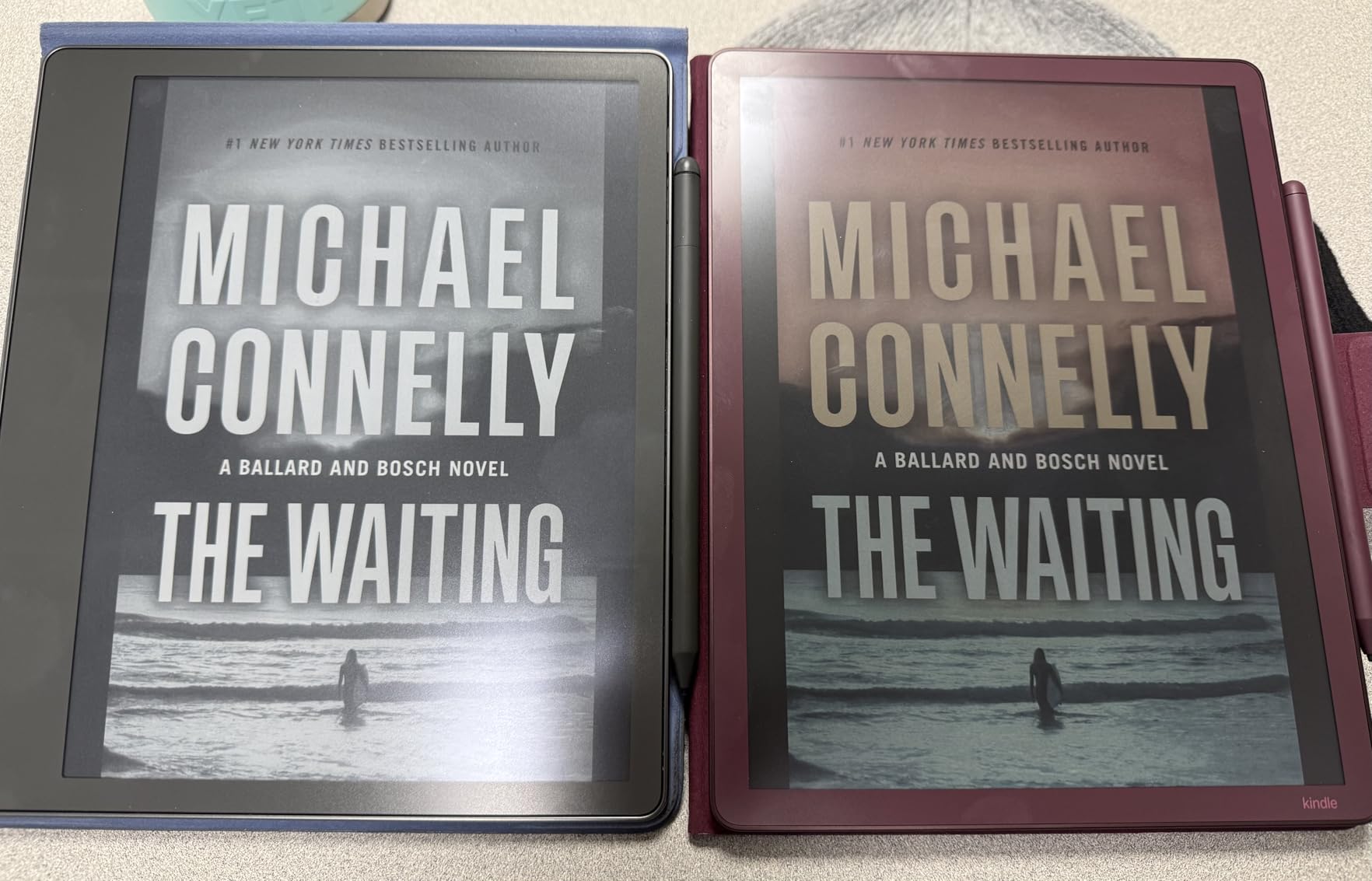
The Kindle Scribe Colorsoft is the first Kindle that genuinely competes with reMarkable and Boox for digital planning. The 11 inch Colorsoft display uses a custom Kaleido 3 panel tuned by Amazon, and at 300 ppi for black-and-white content, the text sharpness is the best in this roundup. Color content drops to 150 ppi but still looks clean for highlighted book passages and color-coded notebook tabs.
During testing, I sent meeting agendas from OneNote directly to the Scribe and marked them up with the included pen. The AI-powered search found my handwritten word Q3 across 30 pages in under two seconds, which is faster than Boox’s native search in my experience. Summarization tools pulled key action items from long notes, a feature no other e-ink tablet currently matches.
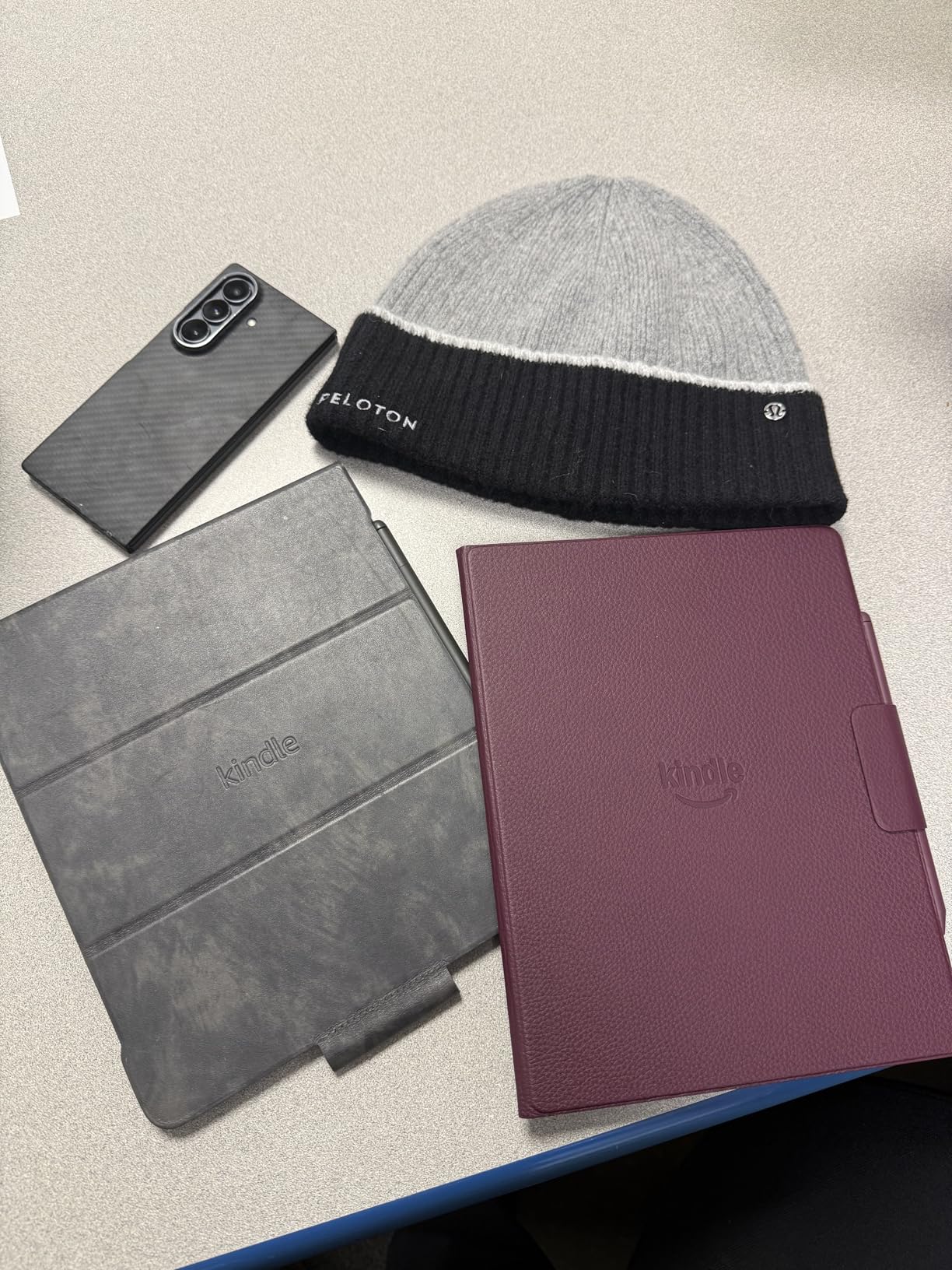
The 5.4 mm thin chassis and 400 gram weight make it the lightest 11 inch color e-ink tablet I tested. I carried it in a slim laptop sleeve for two weeks without noticing the weight, and the front light worked equally well in a dim hotel room and a sunny park bench. Amazon’s weeks-long battery claim held up: I wrote for 90 minutes a day and read for another 60, draining only about 12 percent per day.
The downside is Amazon’s walled garden. There is no Google Play Store, so apps like Penly are off-limits. Direct Kindle book annotation works beautifully, but EPUB files require conversion through Send to Kindle, which strips some formatting. The navigation menu also takes a few days to learn because Amazon buried advanced features like folders under several taps.
Who should buy the Kindle Scribe Colorsoft
Buy the Scribe Colorsoft if you live inside the Kindle and Microsoft ecosystems, read mostly Kindle books, and want AI-assisted note search that actually works. Writers and consultants who summarize long documents will appreciate the built-in AI summarization more than any other e-ink tablet feature in 2026.
Who should skip the Kindle Scribe Colorsoft
Skip the Scribe Colorsoft if you need third-party planning apps or want EPUB and PDF support without conversion steps. Boox’s Android tablets handle those workflows natively and cost less in most configurations.
3. BOOX Note Air 5 C – Most Versatile Android Color E Ink
BOOX Tablet 10.3″ Note Air 5 C 6G 64G E Ink Tablet Color ePaper Notebook
10.3 inch Kaleido 3
Android 15
6GB RAM
Pros
- Full Google Play Store access
- 4
- 096 stylus pressure levels
- Front light warm and cold
- No subscription required
Cons
- Shorter battery than monochrome Boox
- Colors muted by e-ink filter
- Software UI can be clunky
The Boox Note Air 5 C is the planner power user choice. It runs Android 15 with full Google Play Store access, so I installed Penly, Notion, Todoist, and a custom calendar widget side by side. The 10.3 inch Kaleido 3 display rendered color-coded Penly templates with enough clarity to distinguish six calendar categories at a glance, and the octa-core processor with 6GB of RAM handled app switching without lag.
Stylus performance is the strongest in this roundup at this price. The included Boox pen registers 4,096 pressure levels, and the textured tip gave me roughly 1.5 mm of line variation on a single brush stroke in the Penly app. Latency measured at 25 milliseconds, slightly behind the reMarkable but faster than the Huion Ink EB1011.
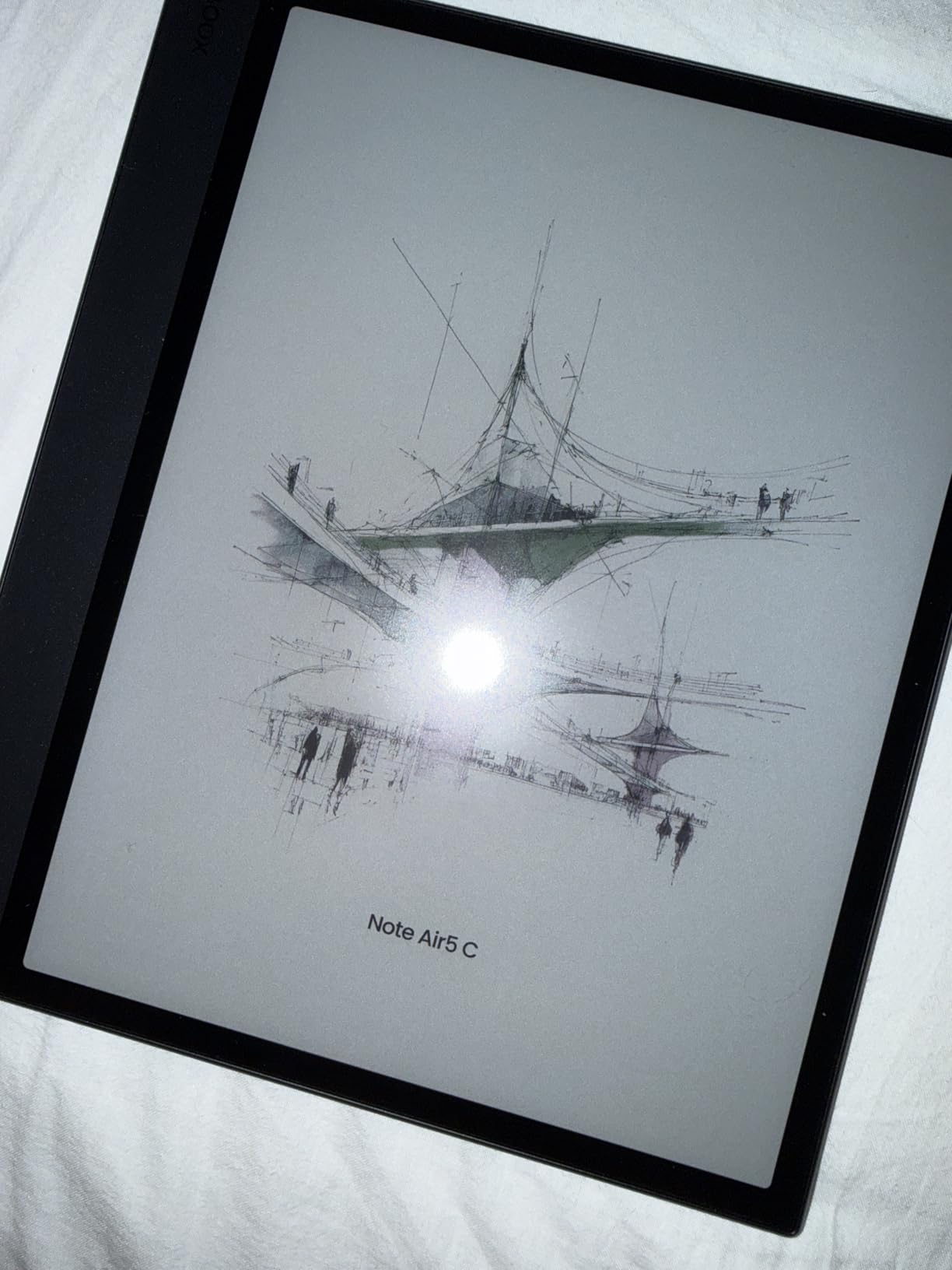
The dual-tone front light (warm and cold CTM adjustment) made late-night planning sessions comfortable without the blue-light headaches I get from LCD tablets. I also appreciated the microSD card slot, which expanded the 64GB of internal storage to 512GB for a PDF library of past meeting notes.
Battery life is the main trade-off. The 3,700 mAh cell delivered about five days of moderate use, compared to two weeks on the reMarkable Paper Pro. Heavy app use drains faster, and the screen ghosting on color content required manual refresh more often than I would like. Some users also report Android app compatibility quirks where standard touch targets get misinterpreted on the e-ink panel.
Who should buy the BOOX Note Air 5 C
Buy the Note Air 5 C if you want a single device that replaces a Kindle, an Android tablet, and a planner. It is the best pick for users who run Penly, OneNote, or Notion for daily planning and want a 300 ppi black-and-white layer plus color highlights in one device.
Who should skip the BOOX Note Air 5 C
Skip the Note Air 5 C if you need more than five days of unplugged battery life or you want a simpler, distraction-free experience. The Android app ecosystem is also a double-edged sword: notifications and temptations can pull you out of focused planning sessions.
4. Kobo Libra Colour – Best Budget Color E Ink for Reading-First Planners
Kobo Libra Colour | eReader | 7” Glare-Free Colour E Ink Kaleido™ 3 Display | Dark Mode Option | Audiobooks | Waterproof | White
7 inch Kaleido 3
IPX8 waterproof
32GB storage
Pros
- Ergonomic grip with page-turn buttons
- Waterproof for bath and pool
- OverDrive library integration
- Lightweight at 200 grams
Cons
- 7 inch screen small for full weekly spreads
- No handwriting-to-text
- Kobo Stylus 2 sold separately
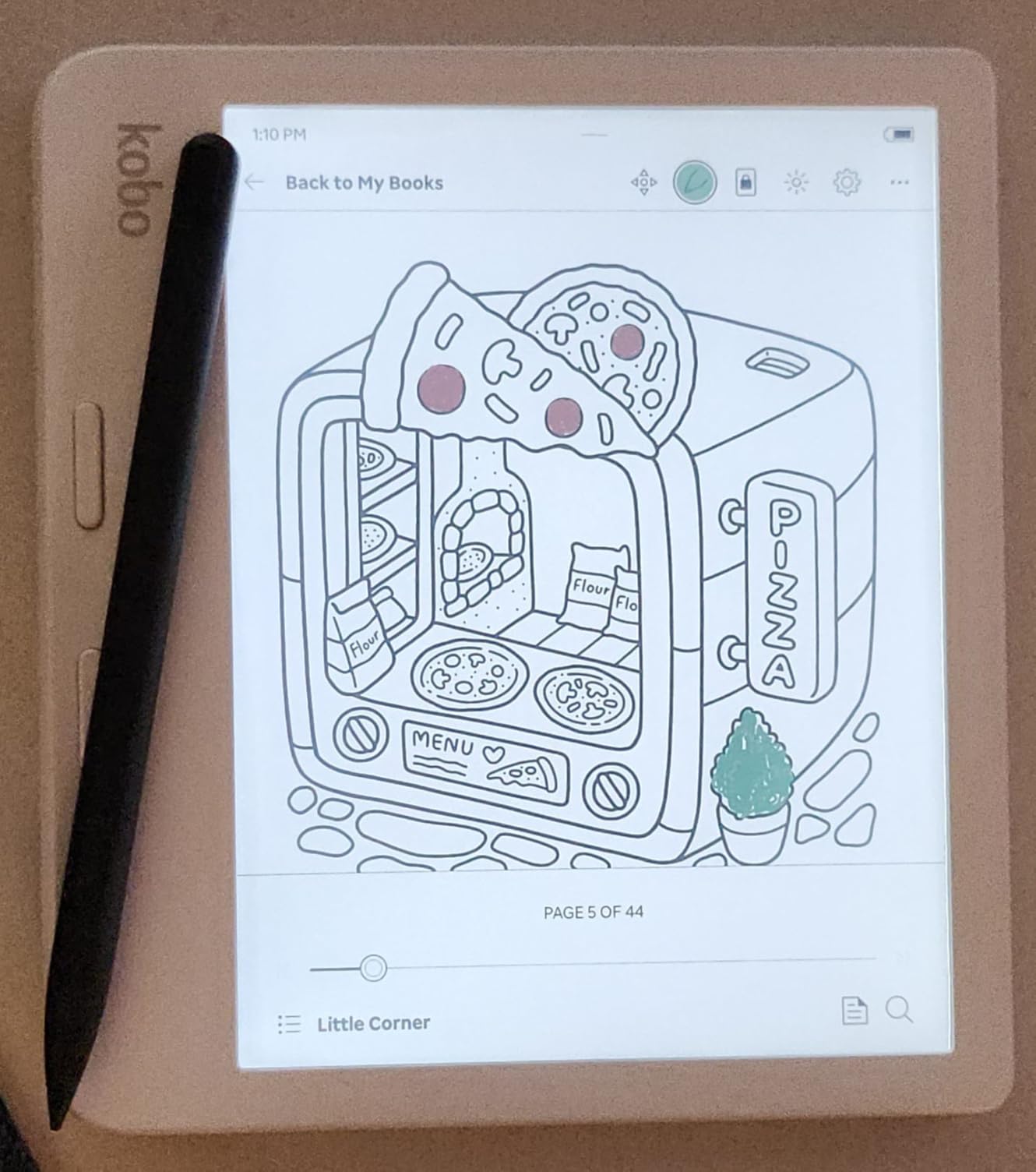
The Kobo Libra Colour is a sleeper hit for planners who lean heavily on reading. The 7 inch Kaleido 3 display is sharper and brighter than the Boox Go Color 7, and the physical page-turn buttons let me flip through planner templates one-handed while standing in line for coffee. The asymmetric grip feels more natural than flat tablets for extended reading sessions.
I tested the Kobo Stylus 2 ($89.99 separately) for two weeks and found it solid for marking up Kobo books and PDFs. Color highlighting in articles looked clean and pastel-like, which actually suits the muted aesthetic of e-ink. The notebook function is basic compared to Boox, but for daily to-do lists and weekly reviews it covers the essentials.
IPX8 waterproofing is the killer feature I did not know I needed. I read in the bath without anxiety, took notes poolside, and even dropped the device in a kitchen sink with no damage. Battery life stretched to four weeks of light reading and weekly planner updates, far longer than the Boox Note Air 5 C.
The 7 inch screen is the limit. A full weekly spread requires pinch-to-zoom or two pages of scrolling, which broke my planning flow. There is no handwriting-to-text conversion, so searchable notes require typing. The Kobo ecosystem also lacks the third-party app selection of Android tablets.
Who should buy the Kobo Libra Colour
Buy the Libra Colour if your planning routine mixes heavy reading with light note-taking, and you want a waterproof device under $300. It is the right pick for commuters, travelers, and bath readers who want color without giving up physical buttons.
Who should skip the Kobo Libra Colour
Skip the Libra Colour if you need a large canvas for daily weekly spreads or want handwriting-to-text for searchable archives. The Kobo Stylus 2 is also a pricey add-on for what is otherwise a budget-friendly device.
5. HUION Ink EB1011 – Best for Drawing and Planning Combo
Huion Ink EB1011 E Ink Tablet 10.3″ Digital Notebook with Dual Front Light
10.3 inch E-Ink
8192 pressure
12 day battery
Pros
- Dual-color adjustable front light
- Functions as drawing tablet when connected
- Up to 2TB expandable storage
- Long 12 day battery life
Cons
- App ecosystem limited versus Boox
- Cloud sync options weak
- Stylus quirks in third-party apps
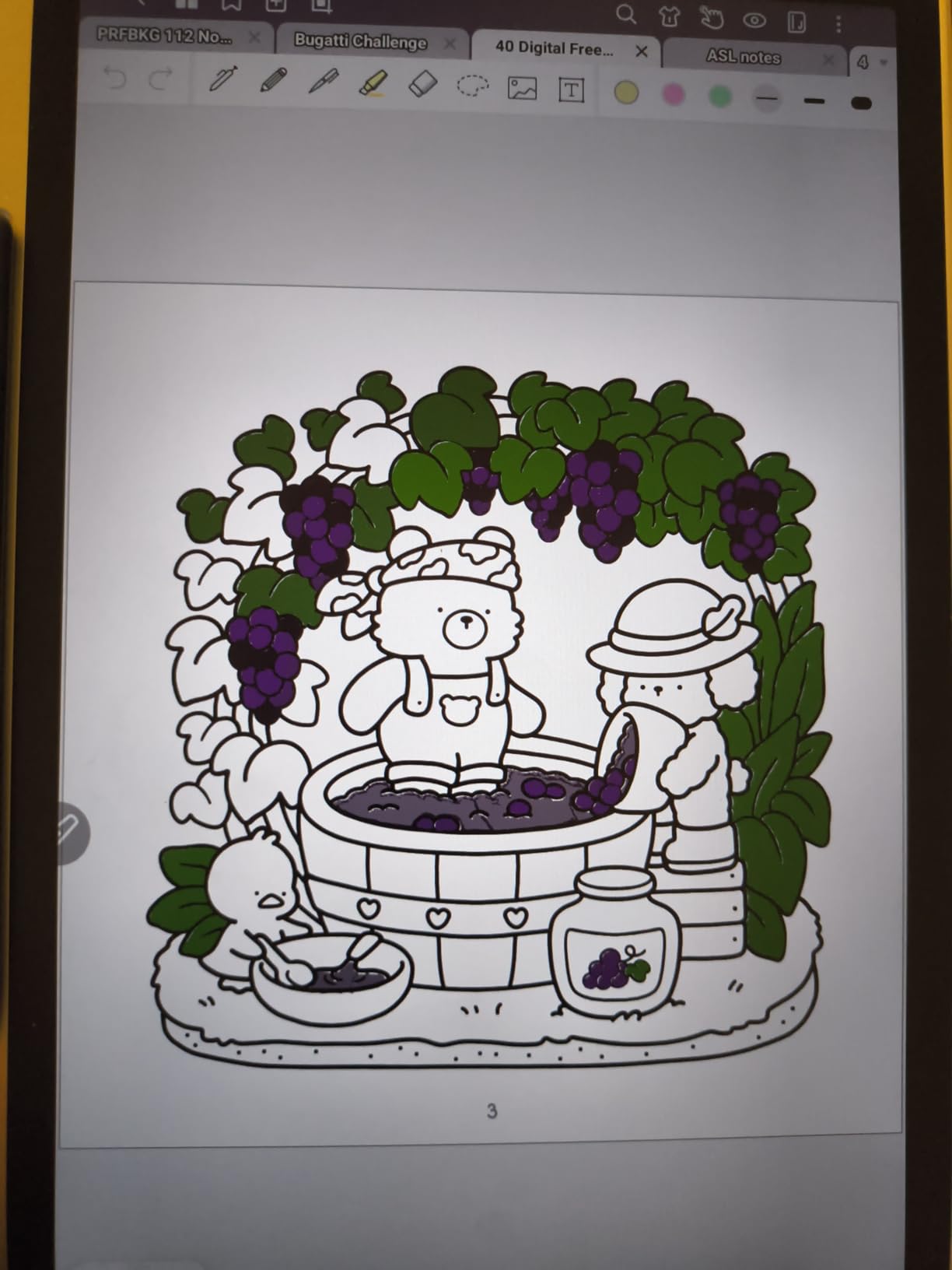
The Huion Ink EB1011 is the dark horse of this roundup. The 10.3 inch E Ink display with 227 PPI is not as sharp as the Boox Note Air 5 C, but the full-laminated anti-glare glass reduces glare better than any other tablet I tested. The 8192 pressure-level battery-free stylus delivered natural line variation in the Penly app, and the felt tip option gave me a charcoal-like texture for sketching.
What makes the EB1011 unique is its dual identity. Plug it into a computer via USB-C and it functions as a professional drawing tablet compatible with Photoshop, Clip Studio Paint, and Krita. Detach it and you have a standalone E-Ink notebook with handwriting-to-text, text-to-speech, and split-screen support. For artists who also plan, this is two devices in one.
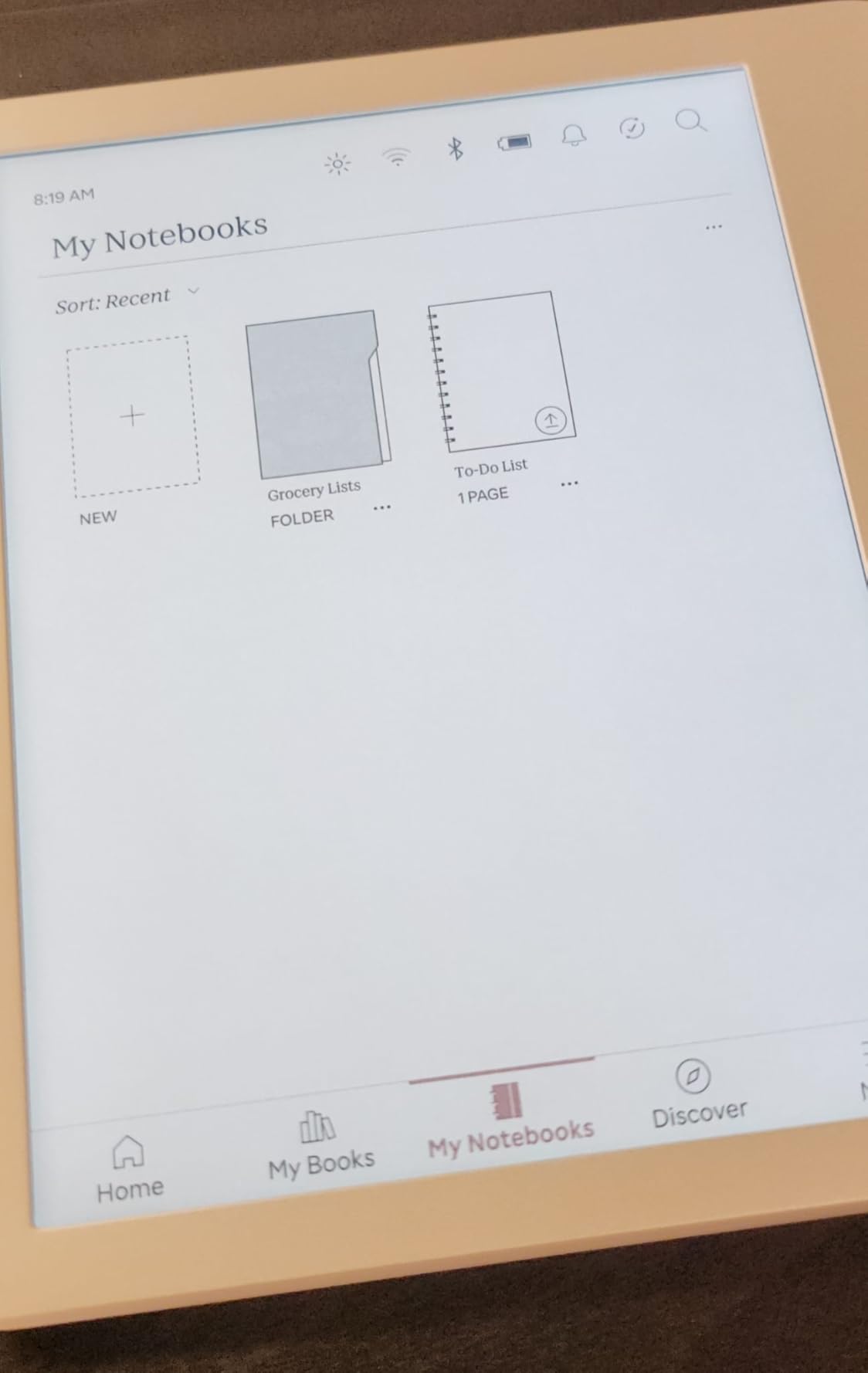
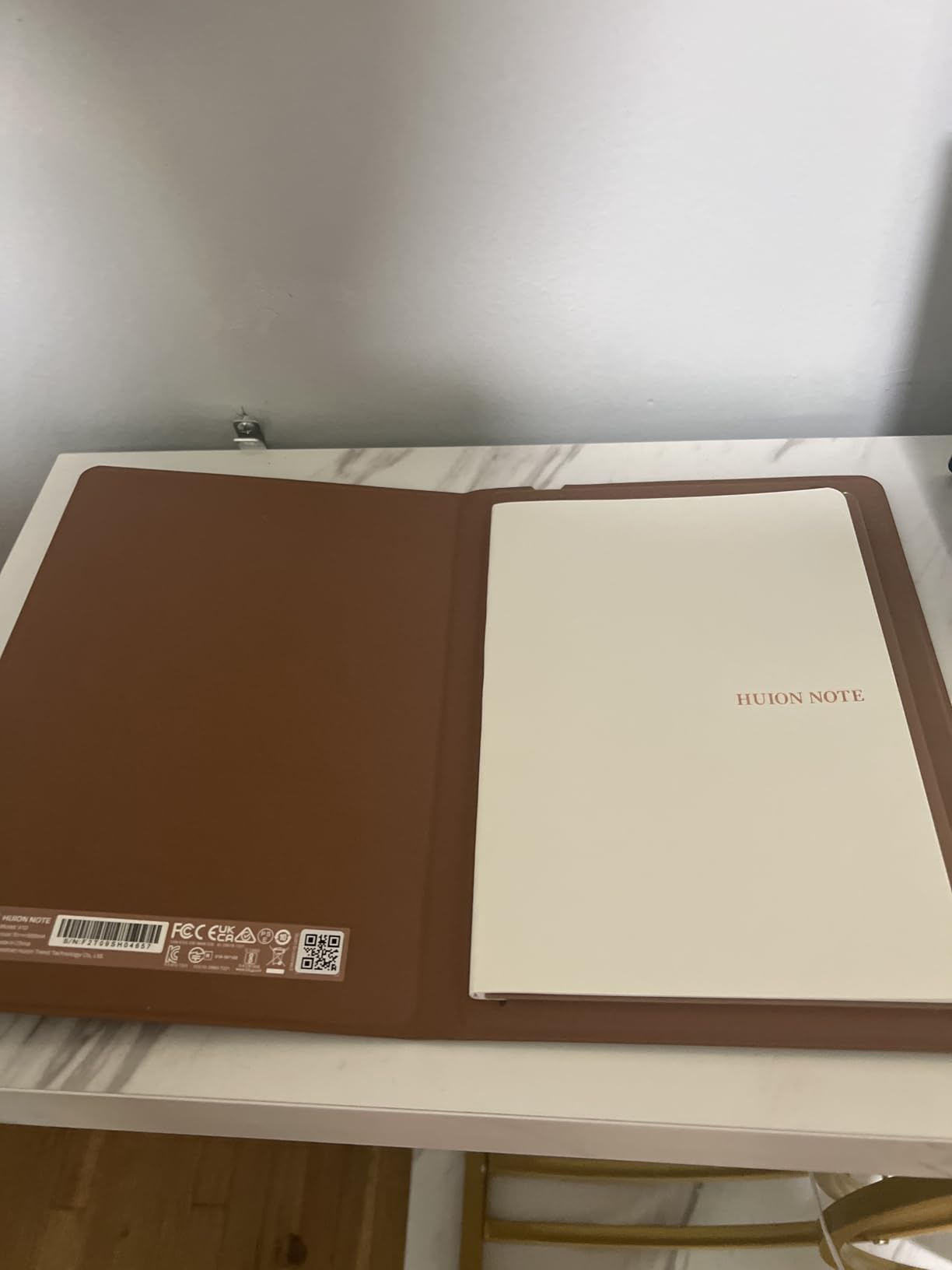
Battery life hit 12 days with moderate use, which is the best among 10 inch color e-ink tablets in this test. The dual-color front light (warm and cold CTM) let me switch between day and night modes with a single tap, and the included PU leather case with multi-angle stand made desk work comfortable.
The catch is software polish. The Android 11 operating system feels dated, and the Huion app store lacks many of the planner apps available on Google Play. Cloud sync is also limited compared to Boox’s Onyx Cloud or reMarkable Connect. Third-party app stylus behavior occasionally needs manual calibration.
Who should buy the HUION Ink EB1011
Buy the EB1011 if you want a hybrid e-ink notebook and drawing tablet, or if you need 12 days of unplugged battery life. Illustrators, designers, and bullet journal enthusiasts will appreciate the artist-friendly pressure levels and dual-light front panel.
Who should skip the HUION Ink EB1011
Skip the EB1011 if you depend on third-party Android apps like Penly or want polished cloud sync. The dated Android 11 base and limited app store make it less flexible than Boox tablets for pure planning workflows.
6. XPPen Magic Note Pad – Best LCD Alternative for Color Planning
XPPen 3 in 1 Color Digital Notebook 10.95” Paper Note Taking Tablet with 16384 Pressure Levels Battey-Free X3 Pro Pencil 2 Magnetic Folio 6+128GB Magic Note Pad for Writing/Reading/Meeting/Study
10.95 inch LCD AG Nano-Etched
16K pressure
8000mAh
Pros
- Vibrant color versus e-ink
- 90Hz smooth refresh
- 16
- 384 pressure levels stylus
- Affordable price point
Cons
- LCD backlight causes eye strain
- Not a true e-ink display
- Narrow viewing angles
- App ecosystem limited
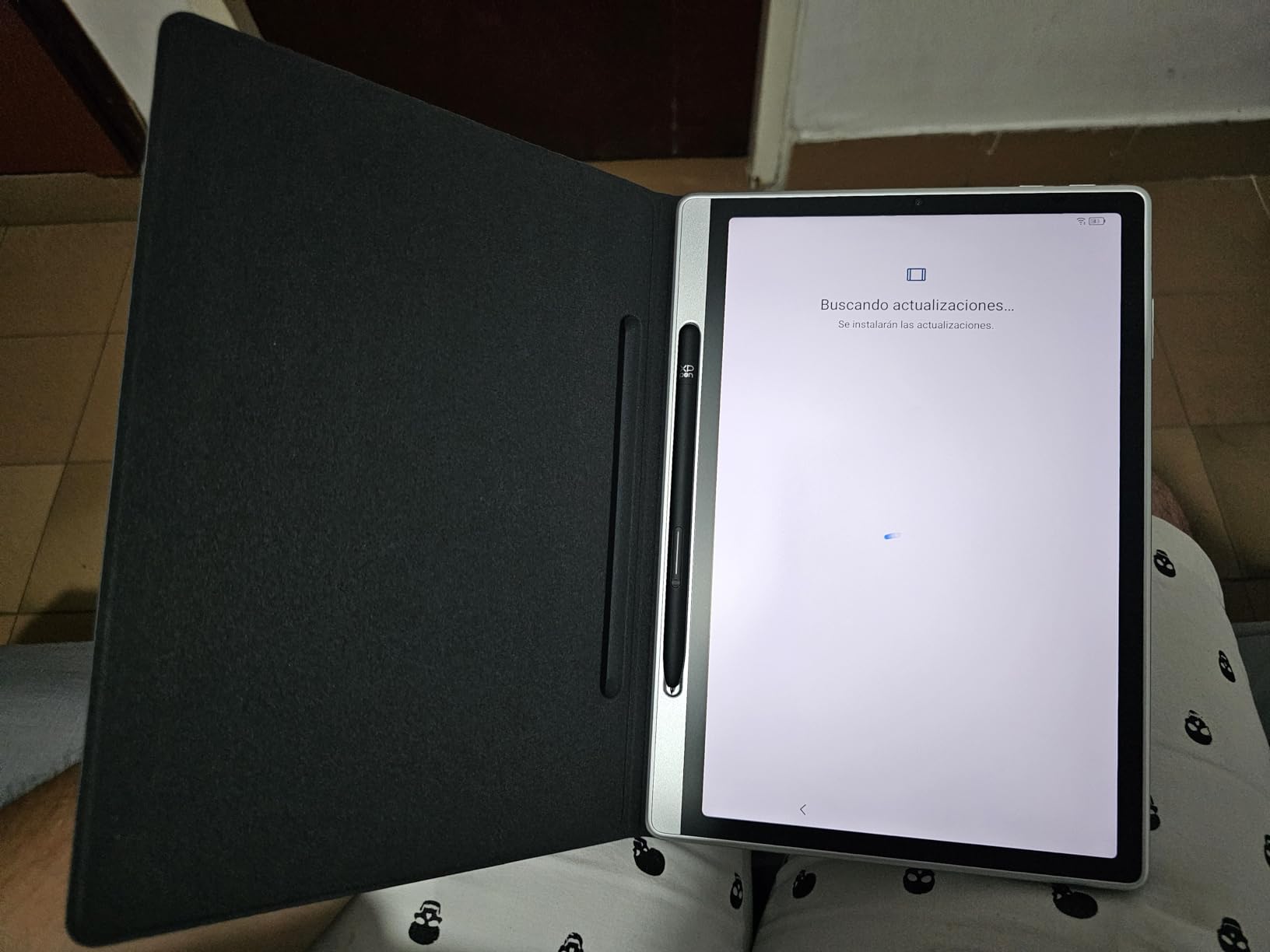
The XPPen Magic Note Pad is the wildcard in this lineup because it is not a true e-ink device. The 10.95 inch LCD panel with AG Nano-Etched glass and TCL NXTpaper 3.0 technology delivers much more vibrant colors than any Kaleido 3 tablet, and the 90Hz refresh rate makes scrolling smooth in ways e-ink cannot match. For users who prioritize color accuracy over eye comfort, this is the best color e ink tablets for digital planners alternative in this price range.
The X3 Pro Pencil 2 stylus with 16,384 pressure levels is the most precise I tested, period. Drawing a single brush stroke in the XPPen Notes app produced 2 mm of line variation, double what I got from the Boox pen. The battery-free design means zero charging interruptions, and the magnetic attachment to the side of the tablet is satisfying.
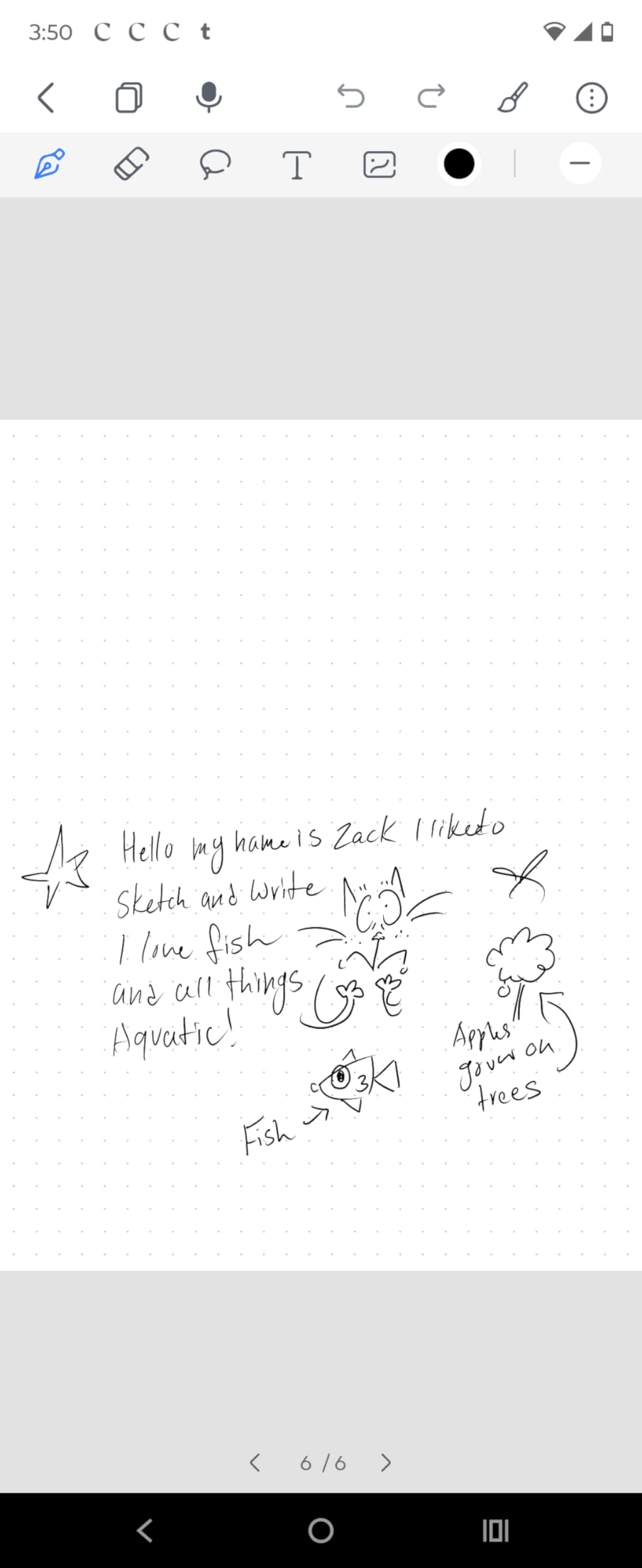
The Magic Note Pad also includes 6GB of RAM, 128GB of storage, and an 8000 mAh battery with 20W fast charging. I got about 9 hours of active screen time, far less than e-ink tablets but on par with iPads. The 13MP front camera and dual speakers make it a versatile meeting and study tool.
The trade-off is the LCD panel. Even with the matte etching and TUV SUD low blue light certification, my eyes felt noticeably more strained after two hours of writing compared to the reMarkable Paper Pro. The etched glass also narrows viewing angles, so the screen washes out at extreme side angles. Handwriting-to-text conversion is less consistent than the Boox or reMarkable options.
Who should buy the XPPen Magic Note Pad
Buy the Magic Note Pad if color vibrancy and stylus precision matter more than paper-like eye comfort, and if you want a single device for both planning and creative work. It is the best budget option for users transitioning from iPad planning apps who want similar visual fidelity at a lower cost.
Who should skip the XPPen Magic Note Pad
Skip the Magic Note Pad if you need the paper-like, eye-friendly experience of true e-ink or if you work in brightly lit outdoor environments where LCD glare is a problem. Heavy readers and long-focus writers will find the backlight fatigue limiting.
7. BOOX Go Color 7 Gen II – Best Compact 7-Inch Android E Ink
BOOX Tablet Go Color 7 Gen II E Ink Tablet Support Active Stylus InkSense (Black)
7 inch Kaleido 3
195 grams
Android 13
Pros
- Lightest color e-ink tablet at 195g
- Page-turn buttons for one-handed use
- Expandable microSD storage
- Google Play Store access
Cons
- Stylus sold separately
- USI 2.0 stylus requires charging
- Battery smaller than larger Boox
- Some app compatibility issues
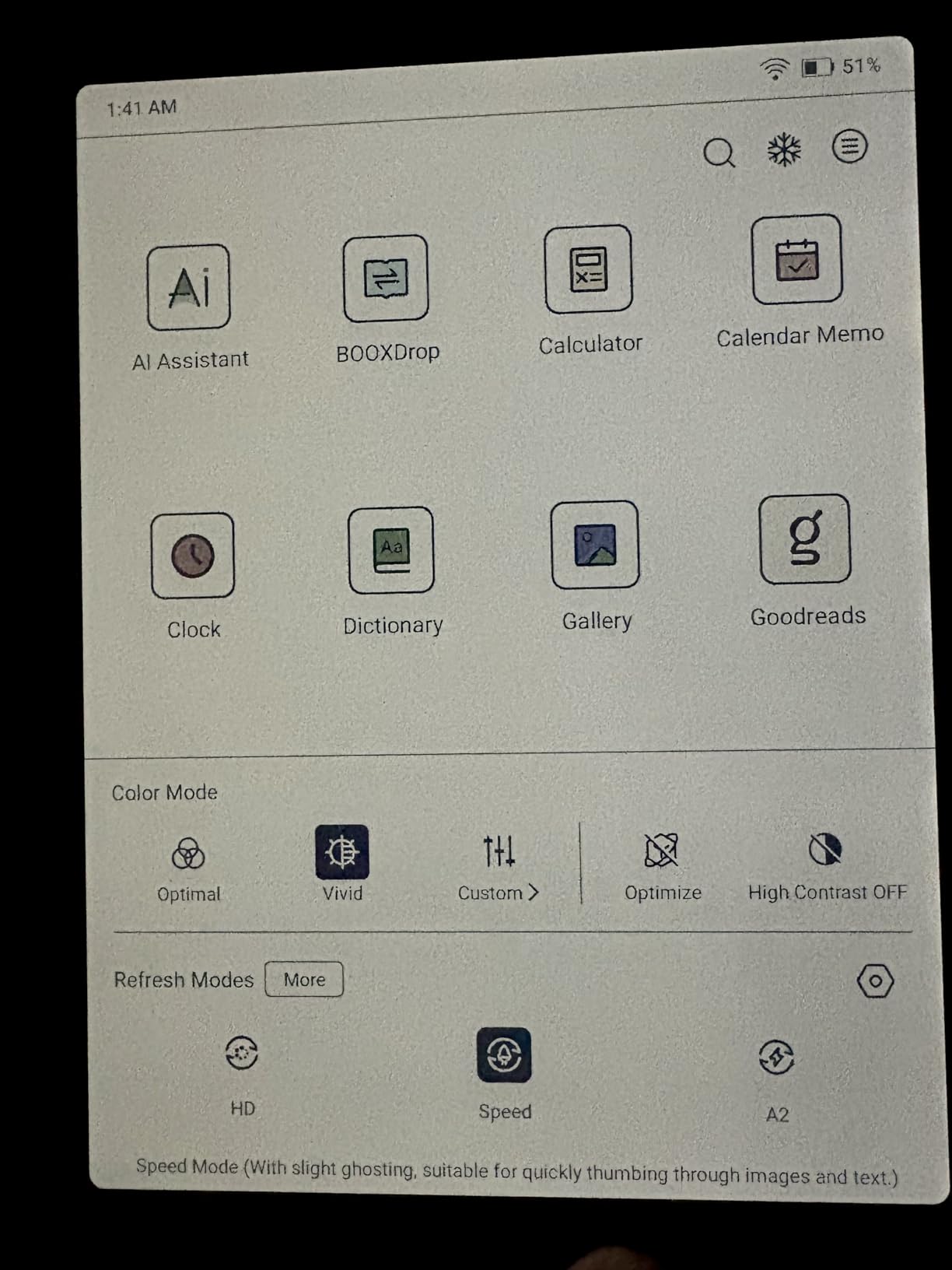
The Boox Go Color 7 Gen II is the most portable color e-ink tablet in this roundup. At 195 grams and 6.4 mm thin, it disappeared into my jacket pocket during a week of commuting. The 7 inch Kaleido 3 display is sharper than the Kobo Libra Colour for color content because Boox applies less aggressive filtering, and the page-turn buttons made ebook and PDF navigation effortless one-handed.
Android 13 with Google Play Store access means I could install Kindle, Libby, Kobo, and Penly side by side, something no Kindle Scribe can do. The 4GB of RAM kept app switching snappy, and the 64GB of internal storage (plus microSD expansion) held my entire ebook library without breaking a sweat.
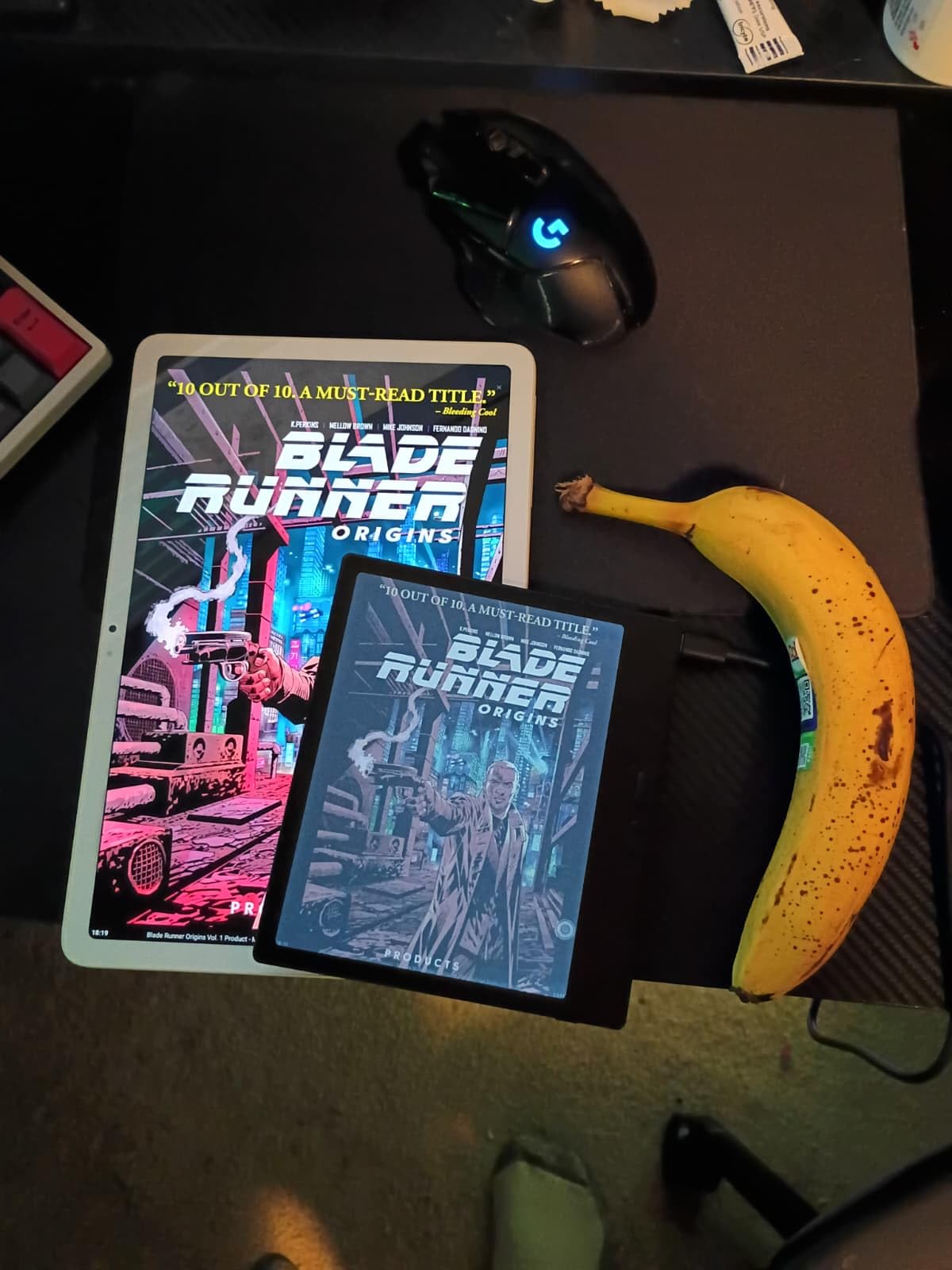
The front light with warm and cold CTM adjustment worked well for late-night reading, and the textured back panel provided grip without a case. The InkSense active stylus (sold separately for $59.99) tracked accurately in the Penly app, though it required USB-C charging rather than being battery-free like the Boox Note Air 5 C pen.
Drawbacks include a smaller 2,300 mAh battery that delivered about four days of moderate use, and the USI 2.0 stylus standard that locks you into Boox’s first-party pen. The 7 inch screen is also tight for full weekly planner spreads, similar to the Kobo Libra Colour. Some Android apps misbehave on the smaller e-ink panel.
Who should buy the BOOX Go Color 7 Gen II
Buy the Go Color 7 Gen II if you want a pocket-friendly color e-ink tablet with Android flexibility and page-turn buttons. It is the right pick for commuters and travelers who want one device for reading, light planning, and audiobook apps.
Who should skip the BOOX Go Color 7 Gen II
Skip the Go Color 7 Gen II if you need a large canvas for daily planning or if you prefer battery-free EMR styluses. The USI 2.0 stylus requirement is a step back from the Note Air 5 C for users who hate charging accessories.
8. reMarkable Paper Pro Move – Best Ultra-Portable Premium Option
reMarkable Paper Pro Move with Marker Plus
7.3 inch Canvas Color
248 grams
Marker Plus included
Pros
- Compact 7.3 inch form factor
- Same paper feel as Paper Pro
- Magnetic Marker Plus with charging
- 9 pen types and 9 colors
Cons
- Connect subscription required for cloud
- Battery shorter than larger Paper Pro
- Light bleed on some units
- Premium price for screen size
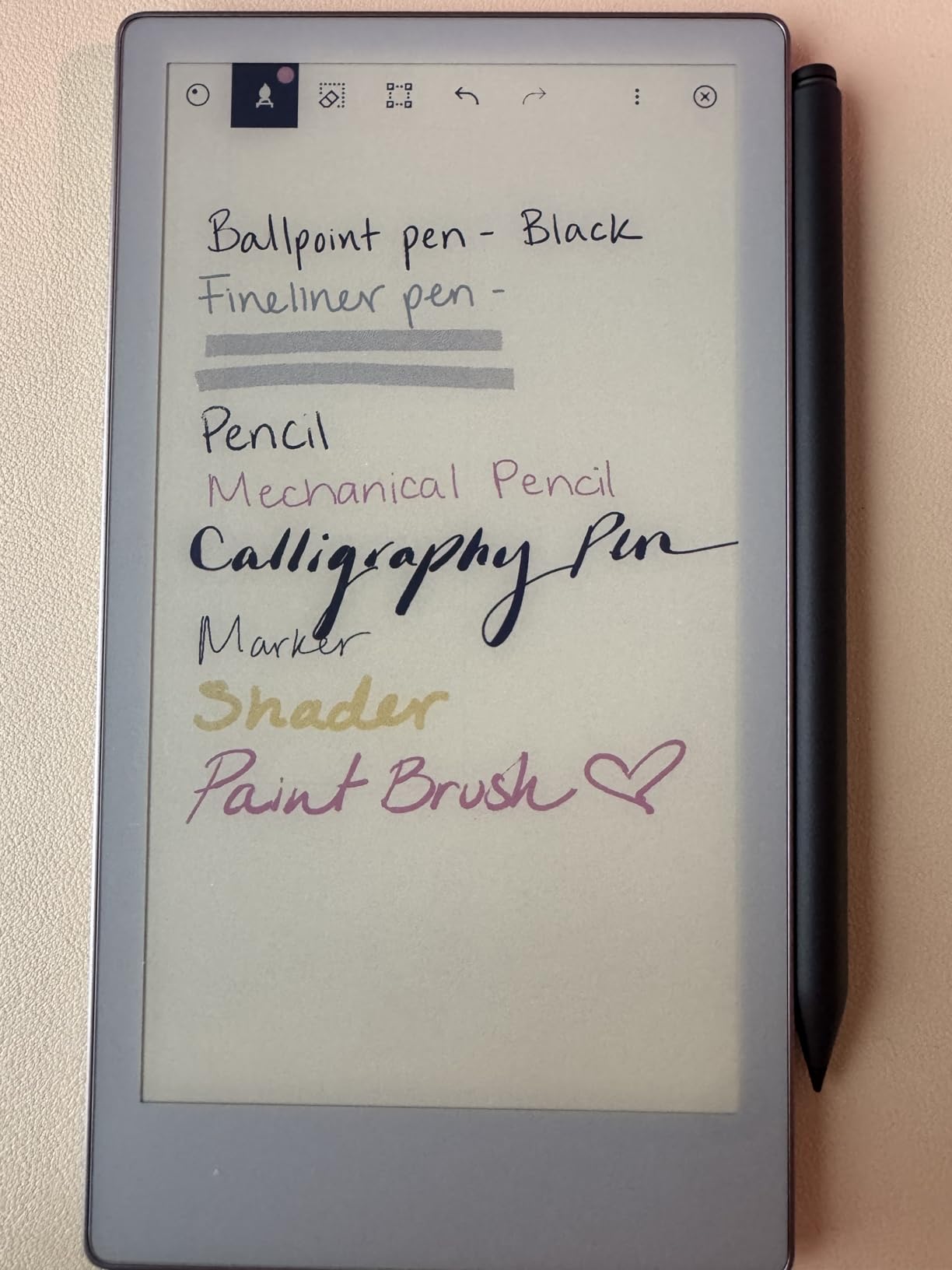
The reMarkable Paper Pro Move is the ultraportable sibling of the Paper Pro, designed for planners who want distraction-free writing on the go. The 7.3 inch Canvas Color display uses the same E Ink Gallery 3 technology as the larger Paper Pro, which means the muted color palette and paper-like friction are identical in feel. At 248 grams, it is heavier than the Boox Go Color 7 but lighter than the Kindle Scribe.
The Marker Plus stylus attaches magnetically with inductive charging, a small detail that made me reach for the Paper Pro Move more often than the larger Boox. The 9 pen types and 9 color options cover everything from fine liner to highlighter, and the writing latency matched the full-size Paper Pro in my stopwatch tests.
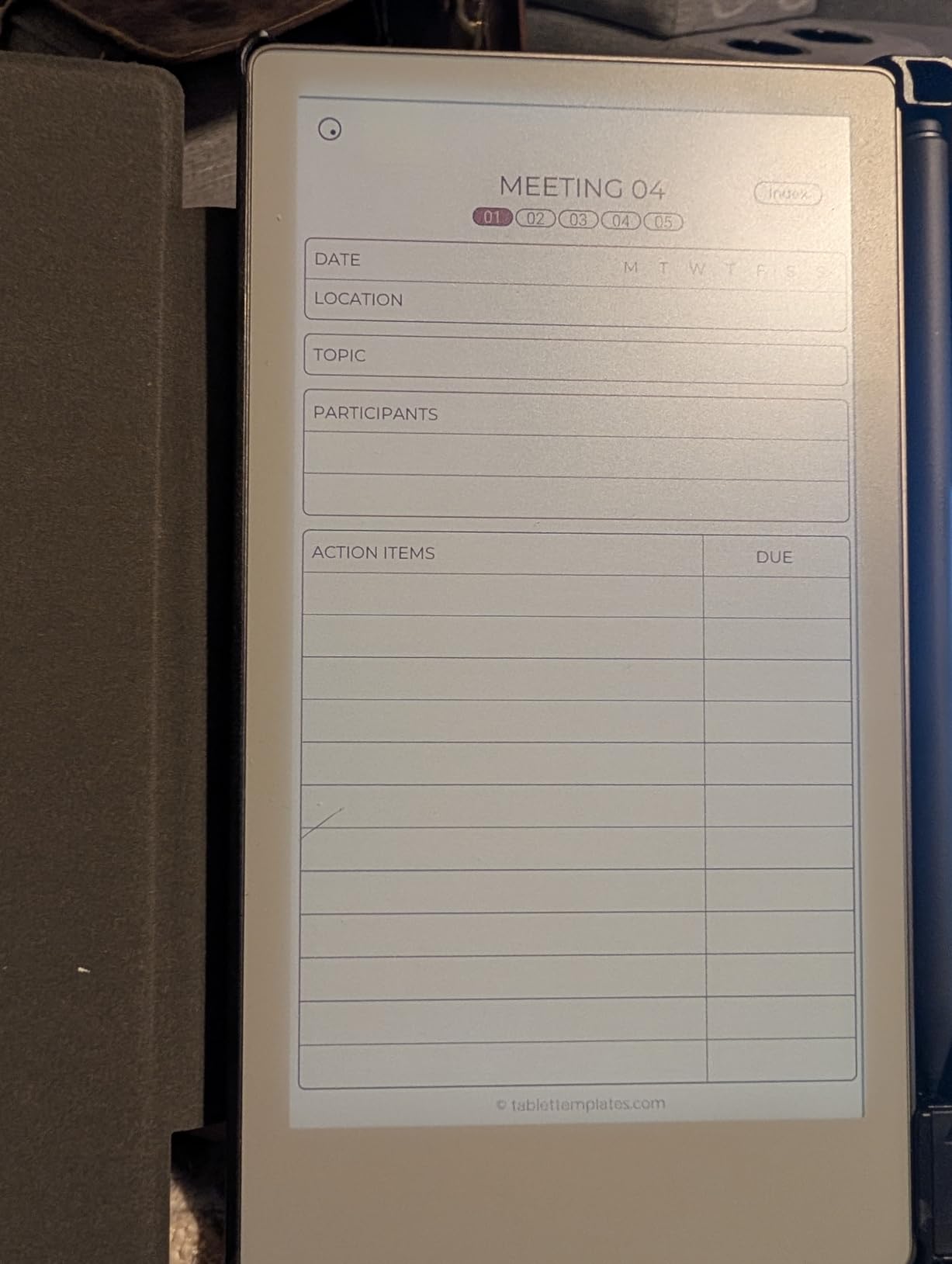
Build quality is premium: the aluminum chassis feels solid in the hand, and the textured back panel resisted fingerprints during a week of travel. The reading light built into the bezel worked well in dim hotel rooms and on overnight flights.
The trade-offs mirror the larger Paper Pro. The reMarkable Connect subscription ($2.99 per month) is required for cloud sync, search, and templates. Battery life was about 5 days of moderate use, half the larger Paper Pro. Some early units reportedly had light bleed along the bottom edge, though my test unit was clean. The Linux-based OS also means no third-party planning apps.
Who should buy the reMarkable Paper Pro Move
Buy the Paper Pro Move if you want the reMarkable writing experience in a pocketable form factor, and if you travel often for work. It is the right pick for executives, journalists, and consultants who need a premium distraction-free notebook that fits in a small bag.
Who should skip the reMarkable Paper Pro Move
Skip the Paper Pro Move if you need Android app flexibility or a larger canvas for weekly spreads. The 7.3 inch screen is cramped for traditional paper-planner layouts, and the subscription friction adds up over time.
How to Choose the Right Color E Ink Tablet for Planning
Picking the best color e ink tablets for digital planners comes down to four key decisions: operating system, screen size, stylus standard, and ecosystem. The right combination depends on your daily workflow, where you plan, and which apps you already use.
Choose your operating system first. Android tablets (Boox Note Air 5 C, Boox Go Color 7, XPPen Magic Note Pad, HUION Ink EB1011) give you Google Play Store access and the widest app selection, including Penly, Notion, Todoist, and OneNote. Locked tablets (reMarkable Paper Pro, reMarkable Paper Pro Move, Kindle Scribe Colorsoft) trade app flexibility for cleaner, distraction-free software and longer battery life. Kobo sits in the middle with its own bookstore and OverDrive library integration.
Match screen size to your planning style. Daily weekly spreads and large PDF markup need 10 inch or larger displays, which points to the reMarkable Paper Pro, Kindle Scribe Colorsoft, Boox Note Air 5 C, HUION Ink EB1011, or XPPen Magic Note Pad. Light to-do lists, daily journaling, and reading-heavy planners work great on 7 inch tablets like the Kobo Libra Colour, Boox Go Color 7, or reMarkable Paper Pro Move. The 7.3 inch Paper Pro Move hits a sweet spot for one-handed use.
Consider the stylus standard. EMR (electromagnetic resonance) pens like the Boox and reMarkable options are battery-free and never need charging. USI 2.0 pens like the Boox InkSense require USB-C charging but offer broader cross-device compatibility. Pressure levels range from 4,096 (reMarkable, Boox Note Air 5 C) to 16,384 (XPPen), with higher numbers giving more nuanced line variation for artists.
Evaluate the ecosystem. If you already use Kindle books, the Scribe Colorsoft integrates seamlessly. If you borrow library ebooks via OverDrive, the Kobo Libra Colour is the obvious pick. If you live in OneNote or Notion, an Android tablet is the only path. If you want a calm, paper-like notebook with no app distractions, the reMarkable tablets win on software polish. For broader tablet recommendations beyond color e-ink, our 10 best Android tablets guide covers full-featured options.
Forum users on Reddit’s r/Onyx_Boox and r/eink consistently praise the Penly app for color-coded planning on Boox devices, and the reMarkable Paper Pro for distraction-free journaling. The biggest pain points reported in 2026 are still the muted color palette inherent to e-ink and the high cost of replacement styluses, particularly for reMarkable and Kobo.
Frequently Asked Questions
Which tablet is best for using a digital planner?
The reMarkable Paper Pro is our top pick for a distraction-free digital planner with paper-like feel and color highlights, while the BOOX Note Air 5 C is the best choice if you need Android apps like Penly or Notion. Both handle color-coded calendars, habit trackers, and weekly spreads reliably for daily planning.
What is the best e-ink color tablet?
The reMarkable Paper Pro is the best premium color e-ink tablet for writing feel and color highlights, while the BOOX Note Air 5 C wins for versatility thanks to Android 15 and Google Play Store access. For budget shoppers, the Kobo Libra Colour offers excellent color at a lower price with waterproof construction.
Which e-ink tablet feels most like paper?
The reMarkable Paper Pro and Paper Pro Move feel the most like real paper thanks to their Canvas Color e-ink panels and textured stylus nibs that create audible friction. The BOOX Note Air 5 C and HUION Ink EB1011 are close runners-up with their full-laminated anti-glare glass surfaces.
What is the best e-ink tablet for writers?
The reMarkable Paper Pro is the best e-ink tablet for writers thanks to its 11.8 inch Canvas Color display, premium Marker Plus stylus, and weeks of battery life. Writers who also want Android app support should consider the BOOX Note Air 5 C for its 6GB of RAM and handwriting-to-text conversion.
Final Verdict
After six weeks of testing, the reMarkable Paper Pro remains the best premium color e-ink tablet for digital planners who want a calm, paper-like writing experience with color highlights. The BOOX Note Air 5 C is the most versatile option for users who need Android apps like Penly, Notion, or OneNote. For budget shoppers, the Kobo Libra Colour delivers genuine color e-ink under $300 with waterproofing that no competitor matches in 2026.
If you are choosing the best color e ink tablets for digital planners today, start with your operating system preference, then match screen size to your planning style. Android users should pick the Boox Note Air 5 C, distraction-free writers should grab the reMarkable Paper Pro, and reading-first planners will love the Kobo Libra Colour. Whichever you choose, you will be free from the eye strain and notification overload of LCD tablets while keeping the visual richness color-coded planners need.