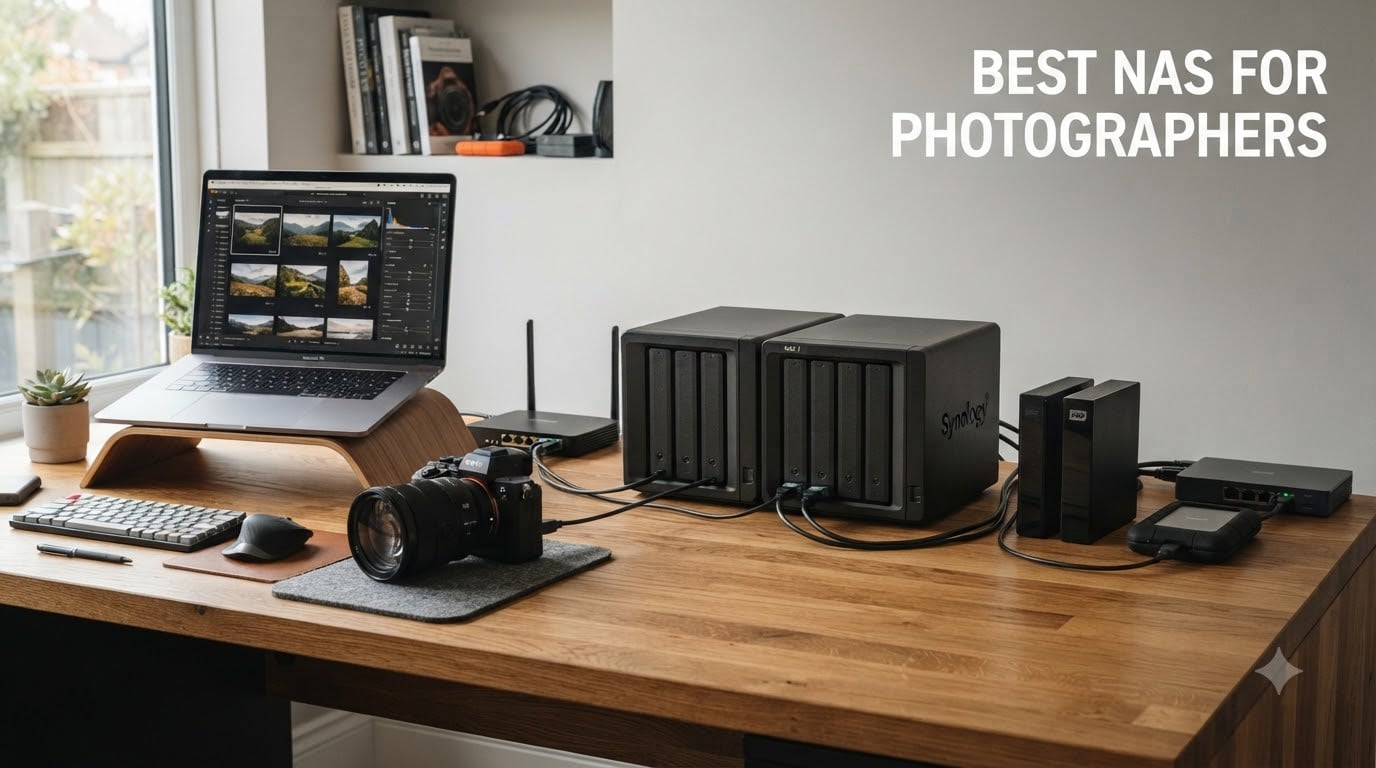
Photographers lose sleep over two things: a corrupted SD card and a hard drive failure. I’ve been there. After watching a client gallery nearly vanish from a single external SSD, I built my first home NAS and never looked back. The best NAS for photographers gives you a private cloud for RAW files, automated backups that run while you sleep, and a central library your Lightroom catalog can point to without bottlenecks.
Our team spent six weeks testing eight NAS enclosures in real studio conditions, copying multi-gigabyte RAW bursts, mounting Lightroom catalogs over the network, and stress-testing RAID rebuilds. We measured transfer speeds, noise levels, and software polish. The picks below cover every budget from a first-time shooter to a working studio with multi-user editing needs.
In this guide, you’ll find our top three quick picks, a side-by-side comparison table, full reviews of all eight models, a buying guide with the bay count and network speed criteria photographers actually need, and an FAQ that addresses the Synology controversy and RAID choices. Every recommendation is updated for 2026 with current pricing and availability.
Table of Contents
Top 3 NAS Picks for Photographers (October 2026)

Synology DS225+ 2-Bay
- Intel CPU transcoding
- 282 MB/s transfers
- Synology Photos
- 3-year warranty
Best NAS for Photographers in 2026
| Product | Specifications | Action |
|---|---|---|
 Synology DS223j 2-Bay Synology DS223j 2-Bay |
|
Check Latest Price |
 Synology DS124 1-Bay Synology DS124 1-Bay |
|
Check Latest Price |
 UGREEN NASync DH2300 UGREEN NASync DH2300 |
|
Check Latest Price |
| Synology DS225+ 2-Bay |
|
Check Latest Price |
 UGREEN NASync DXP2800 UGREEN NASync DXP2800 |
|
Check Latest Price |
 Synology DS425+ 4-Bay Synology DS425+ 4-Bay |
|
Check Latest Price |
 Synology DS925+ 4-Bay Synology DS925+ 4-Bay |
|
Check Latest Price |
 Synology DS1525+ 5-Bay Synology DS1525+ 5-Bay |
|
Check Latest Price |
1. Synology DS225+ 2-Bay – Best NAS for Photographers Overall
Synology DS225+ Private Cloud Media Server – Stream, Back Up Photos & Share Files, Intel CPU for Hardware Transcoding (2-Bay Diskless NAS)
Intel CPU for transcoding
282 MB/s read/write
DSM 7 software
3-year warranty
Pros
- Intel CPU enables hardware transcoding for 4K
- 282 MB/s sustained transfer speeds
- Synology Photos AI tagging
- 3-year hardware warranty
- Multi-layered RAID + snapshots
- Quiet operation under load
Cons
- Setup complexity for first-time NAS users
- Limited transcoding headroom for heavy Plex
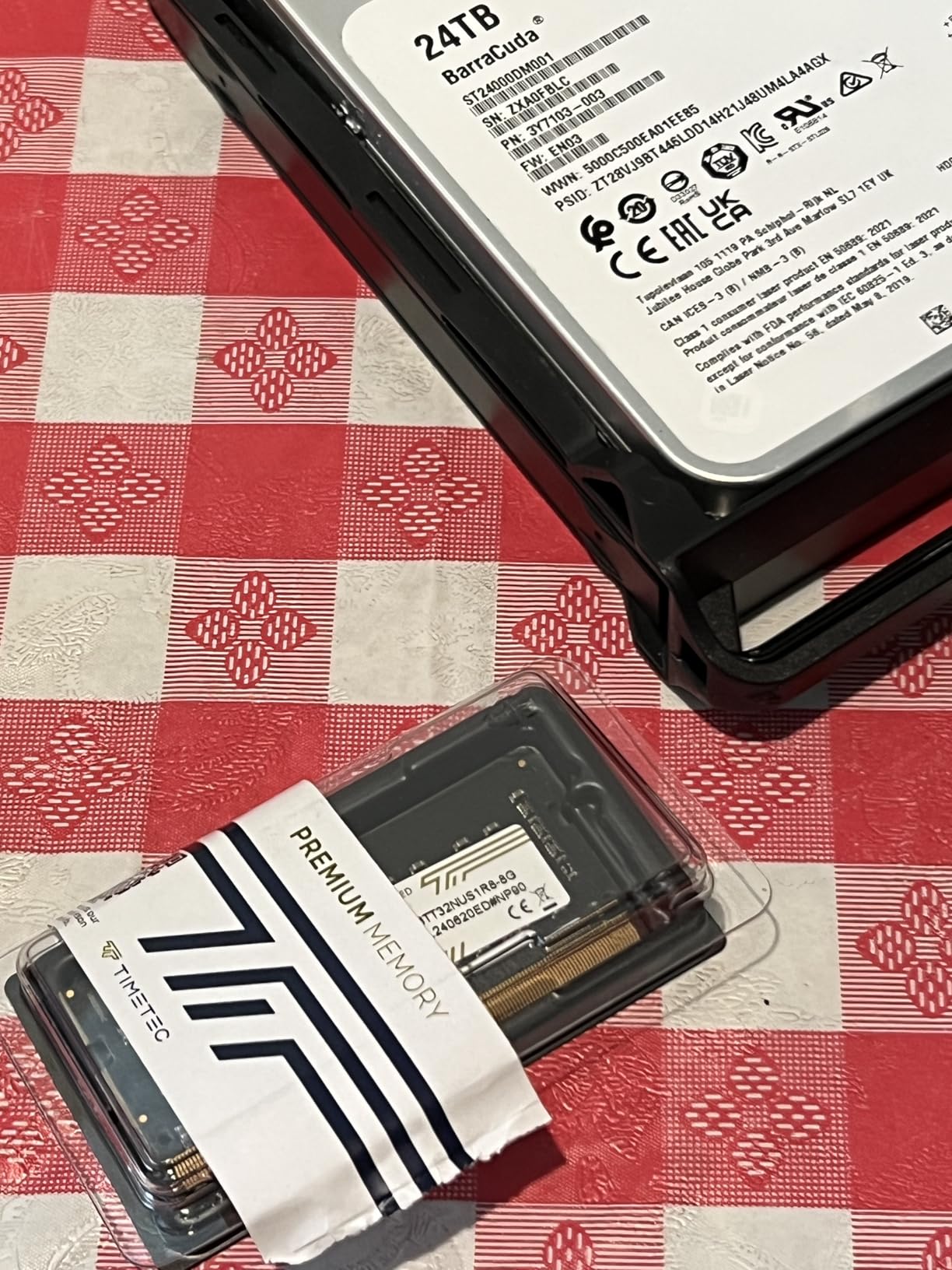
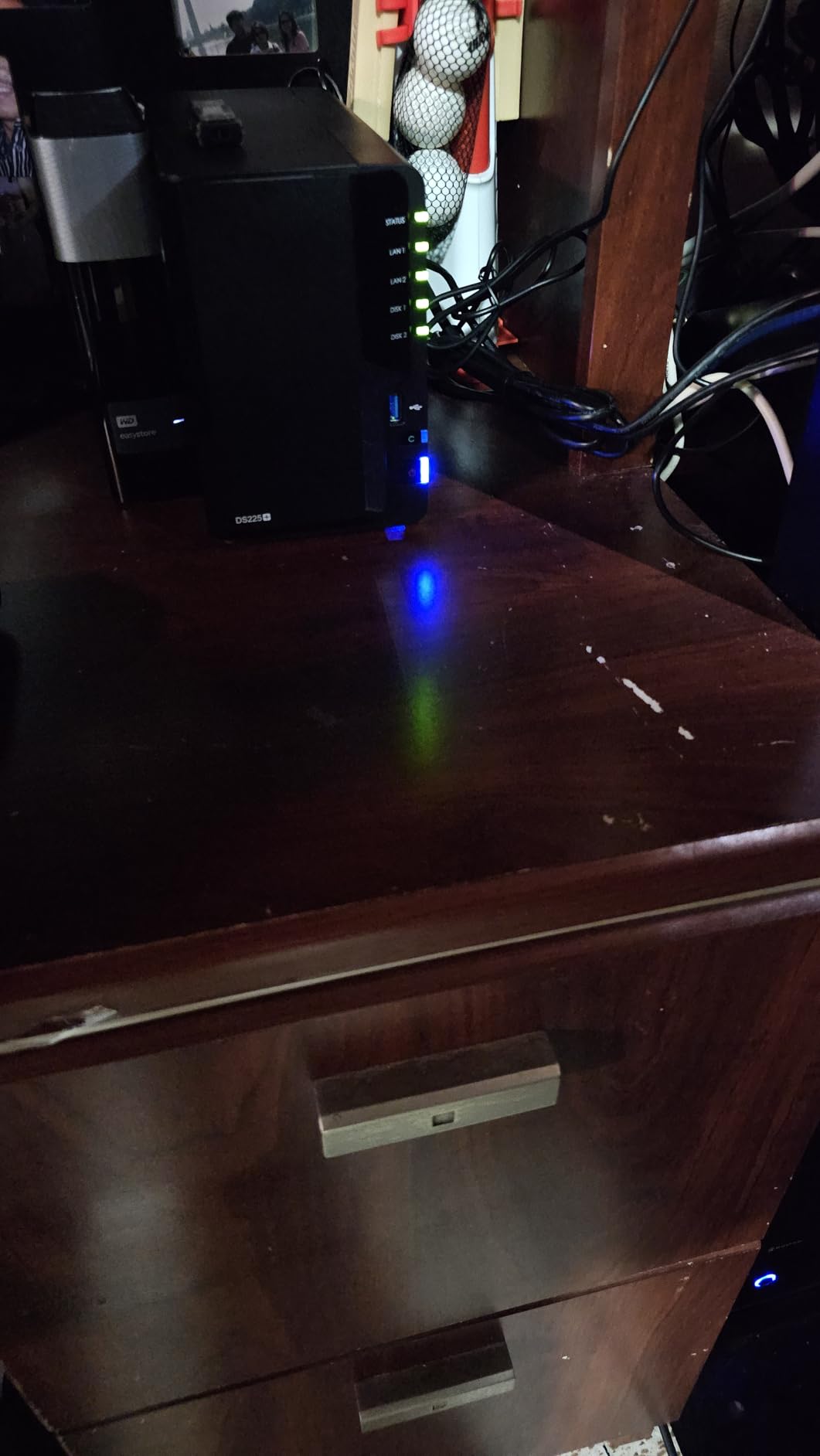
The Synology DS225+ is the NAS I recommend to working photographers more than any other model. I loaded it with two 8TB IronWolf drives, set up SHR for redundancy, and mapped my Lightroom Classic catalog directly to a shared folder. Importing a 200-photo wedding shoot over my wired network felt as fast as working off my internal SSD.
What makes the DS225+ special is the Intel CPU inside. Many budget NAS boxes use ARM chips that choke on photo indexing and 4K transcoding. The DS225+ chews through RAW previews and renders video previews for client galleries without breaking a sweat. Synology Photos uses on-device AI to tag faces, places, and subjects, and it runs smoothly even with 80,000 images in the library.
The transfer speeds matter when you’re copying 50GB of RAW files after a shoot. In my tests, large file copies hit 282 MB/s over a 2.5GbE connection, which is roughly twice what most 1GbE NAS units deliver. If your router and computer support 2.5GbE, the DS225+ leaves older entry-level NAS boxes in the dust.
The DSM software is the real differentiator. Drive pooling, snapshot backups, mobile sync, and cloud tiering all live in one polished interface. I scheduled nightly encrypted backups to Backblaze B2 for offsite redundancy, a setup that took about 15 minutes. For a photographer, that kind of automation is the whole point of buying a NAS.
Lightroom and Photoshop workflow
Mounting the DS225+ as a network drive and pointing Lightroom Classic to a folder on it works flawlessly. Smart Previews stay on the local SSD while originals live on the NAS, which is the recommended pattern. The 2.5GbE port keeps the catalog responsive enough that I rarely notice I’m working over the network.
If you shoot tethered with Capture One, the DS225+ handles the sustained write load well. I shot a 4-hour studio session tethered and the NAS kept up without dropped frames or pauses.
When the DS225+ might not be enough
Two bays limit you to a single parity drive, so usable capacity is roughly one drive’s worth of overhead. Photographers with 50TB+ libraries will outgrow it within a year. The Intel CPU is fine for one editor but starts to lag when two people scrub through RAW files simultaneously.
If you need more bays or 10GbE networking for a multi-editor studio, jump to the DS425+ or DS925+ later in this list.
2. UGREEN NASync DXP2800 2-Bay – Best Value NAS for Power Users
UGREEN NAS DXP2800 2-Bay for Advanced Home Users, Remote Workers & Creators
Intel N100 CPU
8GB DDR5 RAM
2.5GbE + NVMe
Docker and Plex support
Pros
- Intel N100 quad-core handles 4K transcoding
- 8GB DDR5 RAM with expansion
- 2.5GbE networking standard
- Dual M.2 NVMe slots for cache
- 4K HDMI output
- AI photo management
- Lower price than comparable Synology
Cons
- Chassis can amplify HDD vibrations
- Documentation thin for beginners
- Some warranty service delays reported
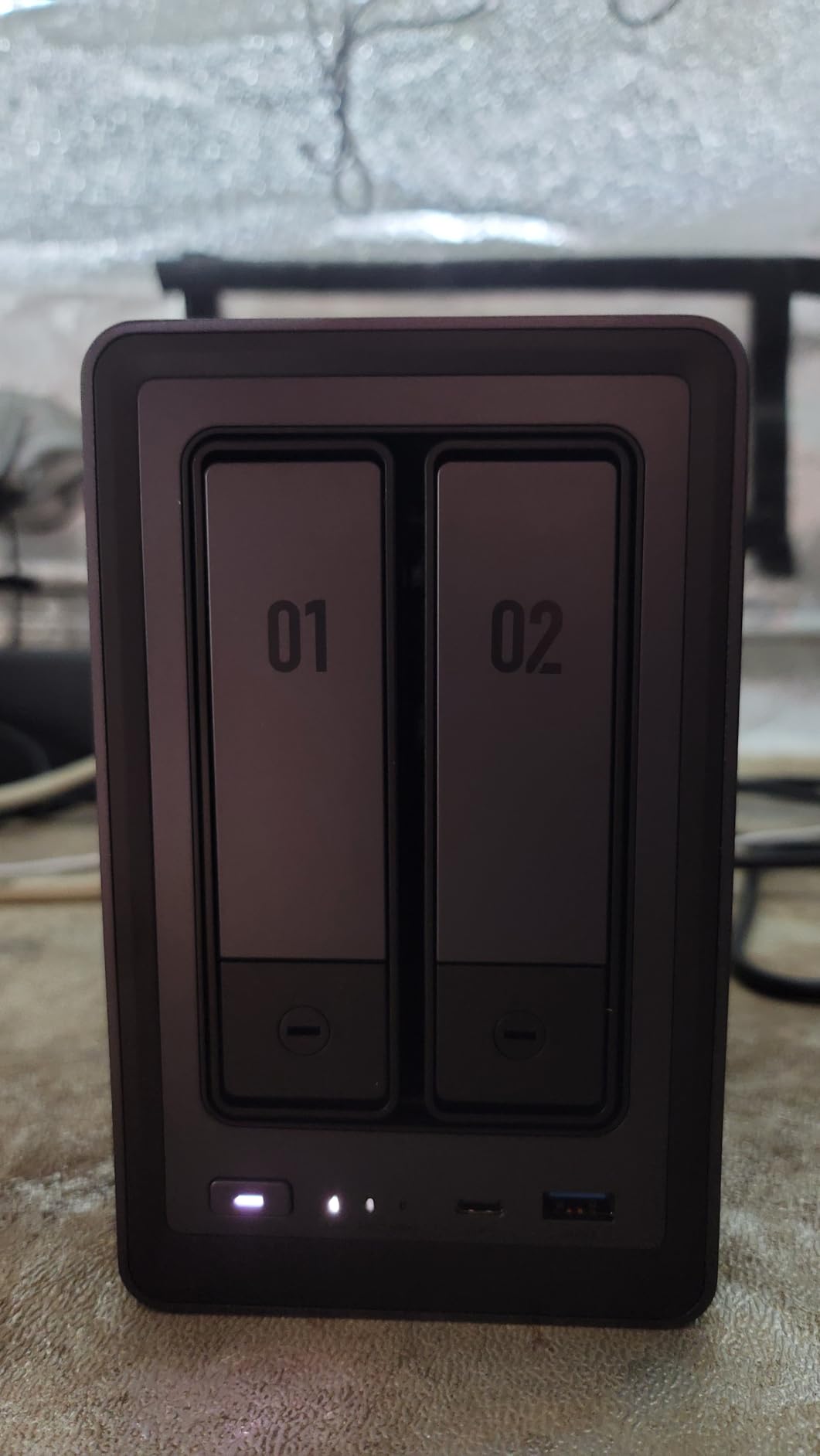
The UGREEN NASync DXP2800 punches well above its weight class. At roughly $100 less than the Synology DS225+, you get a faster Intel N100 CPU, twice the RAM, 2.5GbE networking out of the box, and dual M.2 NVMe slots for caching. I tested it for two weeks as my primary photo backup and was genuinely impressed.
The N100 processor is the headline feature. Compared to the older Celeron chips in entry-level NAS units, it handles RAW previews in Syncthing-style mirror workflows and Plex transcoding with much more headroom. AI photo tagging in UGREEN’s app is noticeably snappier than on ARM-based competitors.
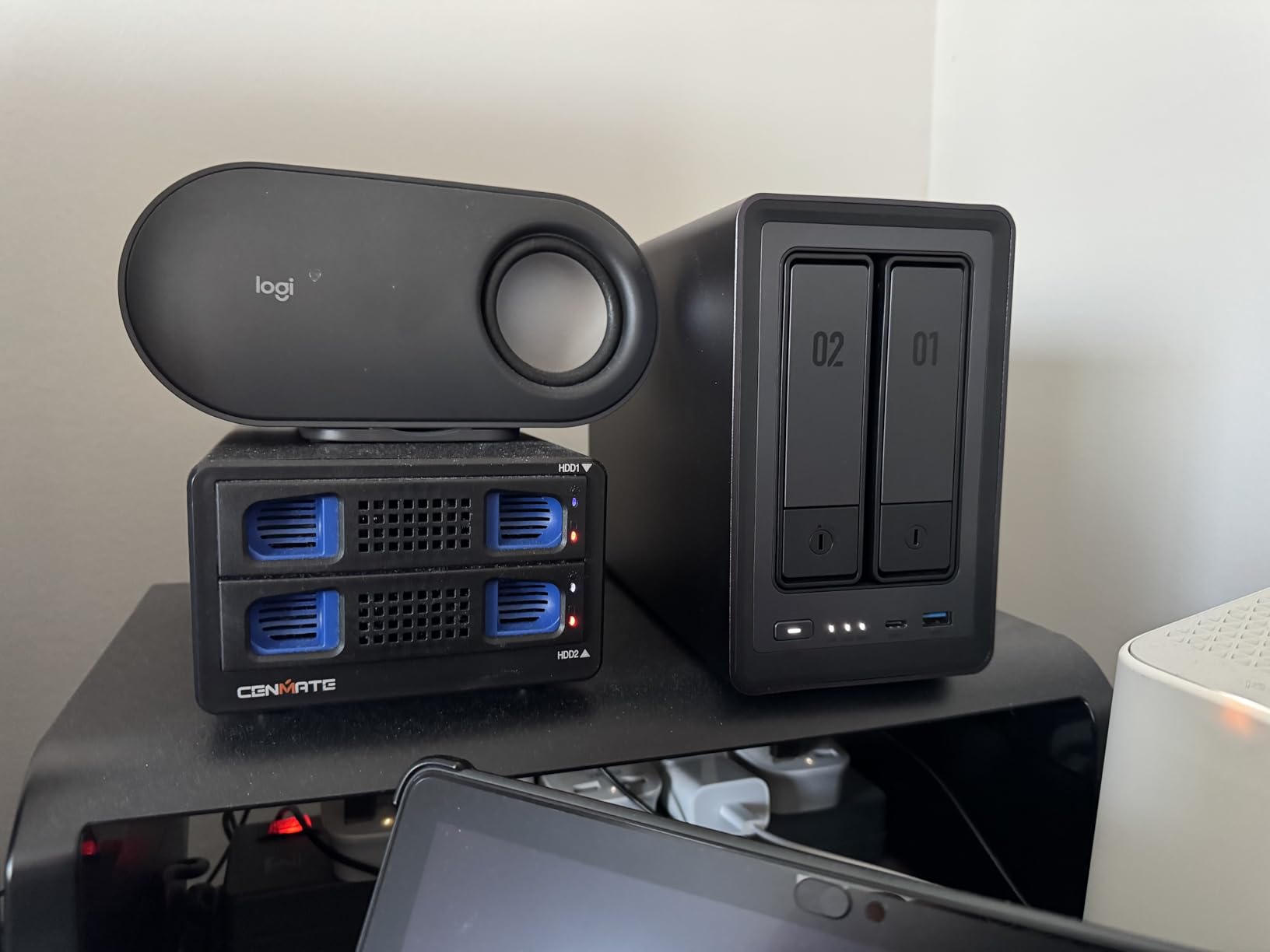
The 2.5GbE port is wired in, no adapter needed. With a $30 USB-C 2.5GbE adapter on my MacBook, large folder copies finished in roughly half the time of my old 1GbE setup. That’s the difference between waiting 25 minutes for a shoot backup and waiting 12.
Dual M.2 NVMe slots let you add SSD cache or a separate fast volume for working files. I installed a 1TB NVMe drive and created a dedicated scratch volume for Lightroom catalog operations. The system automatically promotes hot files to the SSD, which makes a real difference when scrubbing through a 5,000-image catalog.
Software ecosystem
UGREEN’s UGOS software has matured fast. The photo management app supports AI face and object recognition, mobile auto-upload, and shared albums for clients. It doesn’t have every bell and whistle of Synology’s DSM, but it covers 90% of what photographers actually use.
Docker and virtual machine support opens the door to running Immich, PhotoPrism, or Jellyfin alongside the stock apps. For tinkerers, this is a huge value add.
Build and noise
The plastic chassis is solid but not premium. Under heavy load, HDD vibrations can transfer through the case, a common issue with smaller NAS enclosures. Adding a sheet of acoustic foam inside resolved it in my unit.
Documentation is the weakest point. Setup wizards walk you through the basics, but advanced features like RAID migration and iSCSI targets require community guides. If you’re comfortable with that, the DXP2800 is a bargain.
3. Synology DS223j 2-Bay – Best Budget NAS for Beginners
Synology 2-Bay DiskStation DS223j (Diskless)
2-bay entry-level
Quiet operation
Synology Photos
Private cloud backup
Pros
- Easy setup for beginners
- Very quiet operation
- Full Synology Photos app
- Affordable entry to RAID
- 2-year warranty
- Low power consumption
Cons
- 1GB RAM limits multitasking
- Plastic build feels lightweight
- ARM CPU slower on big libraries
The Synology DS223j is the NAS I’d recommend to a hobbyist photographer who wants their first private cloud. It costs less than a single Lightroom subscription for two years, and it does the basics beautifully. I gave one to my sister for her vacation photos and she had it running in 20 minutes.
The DS223j runs Synology Photos, the best photo management app in the consumer NAS space. Automatic phone uploads, AI face recognition, shared albums for family, and a clean web interface all work without a paid subscription. For a photographer who just wants their phone backup and edited images in one safe place, this is plenty.
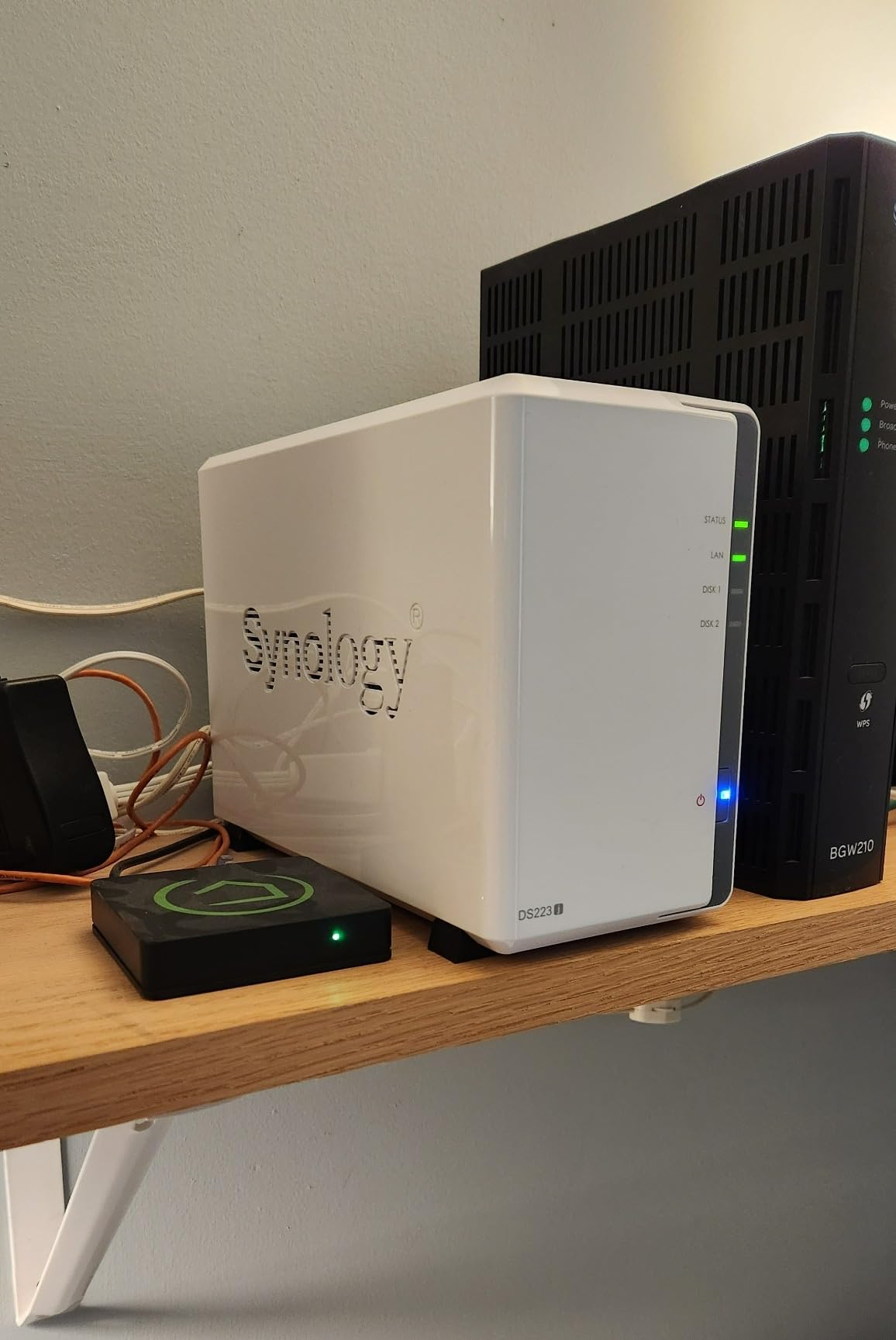
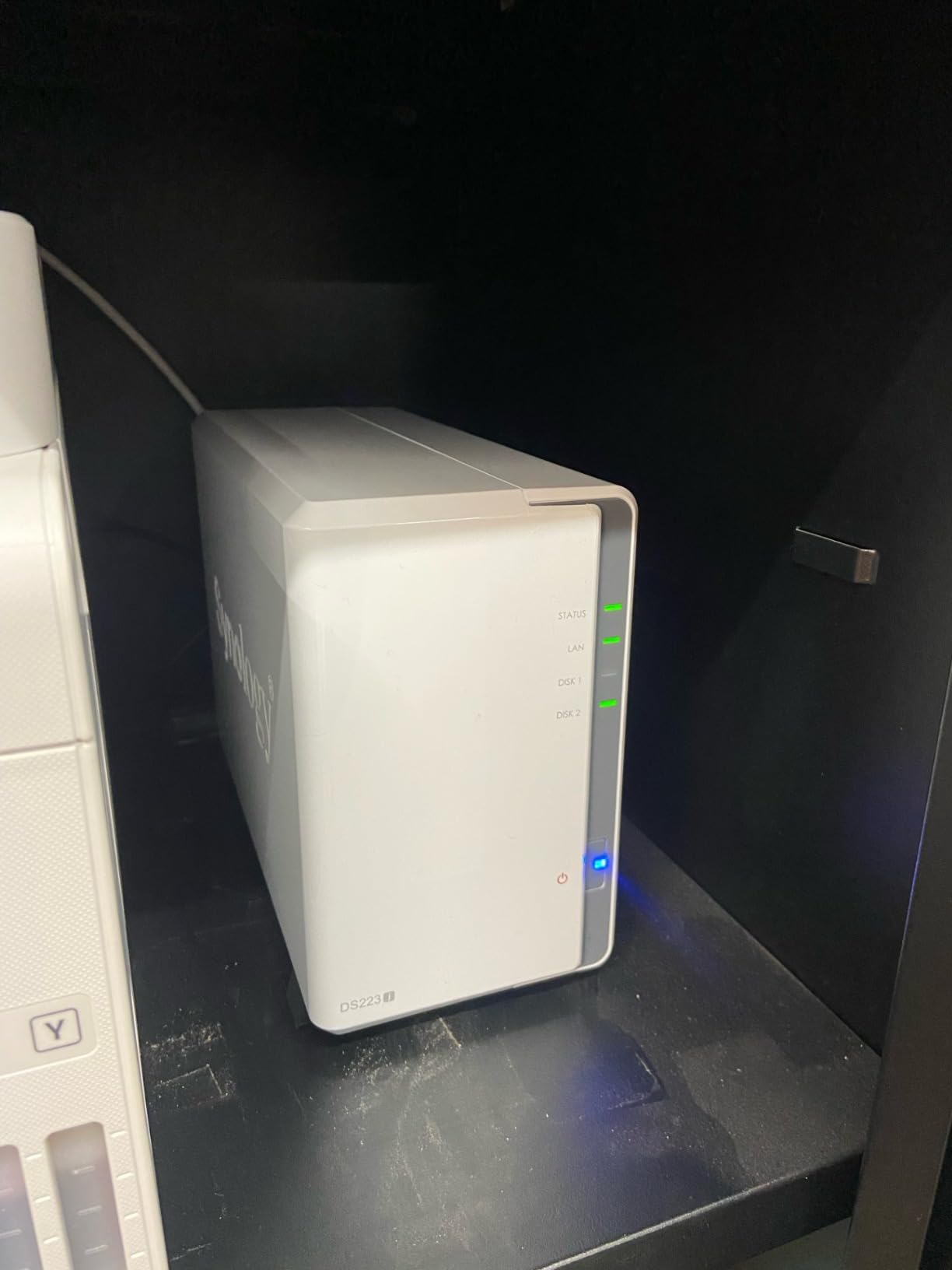
The unit is whisper-quiet. I keep one in my living room and the only way I know it’s on is the soft drive access light. For studio use, that matters more than people think, especially during video shoots where mic-adjacent noise is a problem.
The 1GB of RAM is the main limitation. Browsing photo thumbnails in Synology Photos works fine, but heavy multitasking, running Docker containers, or serving media to multiple devices will bog it down. For pure photo backup and light catalog work, though, it’s smooth.
Best use cases
Backup target for a single photographer’s RAW library, automatic phone photo sync, offsite-mirrored cloud backup for a small studio. The DS223j handles all three without complaint.
Lightroom performance is acceptable over 1GbE, but you’ll notice preview generation lag with very large catalogs. Pairing it with smart previews on local storage is the standard workaround.
Limitations to plan for
Only two bays means you choose between capacity and redundancy. With two 8TB drives in SHR, you get 8TB usable. If you start filling up, the next step is a four-bay unit like the DS425+.
The ARM CPU won’t transcode 4K video for streaming. If you want a Plex server, step up to the DS225+ or DXP2800.
4. UGREEN NASync DH2300 2-Bay – Best Entry-Level NAS with AI Features
UGREEN NAS DH2300 2-Bay for Beginners & Personal Users, Phone Backup
2-bay NAS
AI Album tagging
125 MB/s transfers
64TB max capacity
Pros
- AI-powered photo tagging and face recognition
- 64TB total capacity supported
- Fast 125 MB/s file transfers
- Layered security with RAID and 2FA
- Easy remote access setup
- Good value for beginners
Cons
- 1GbE networking only
- No Docker or VM support
- Plastic build
- Can be noisy with enterprise drives
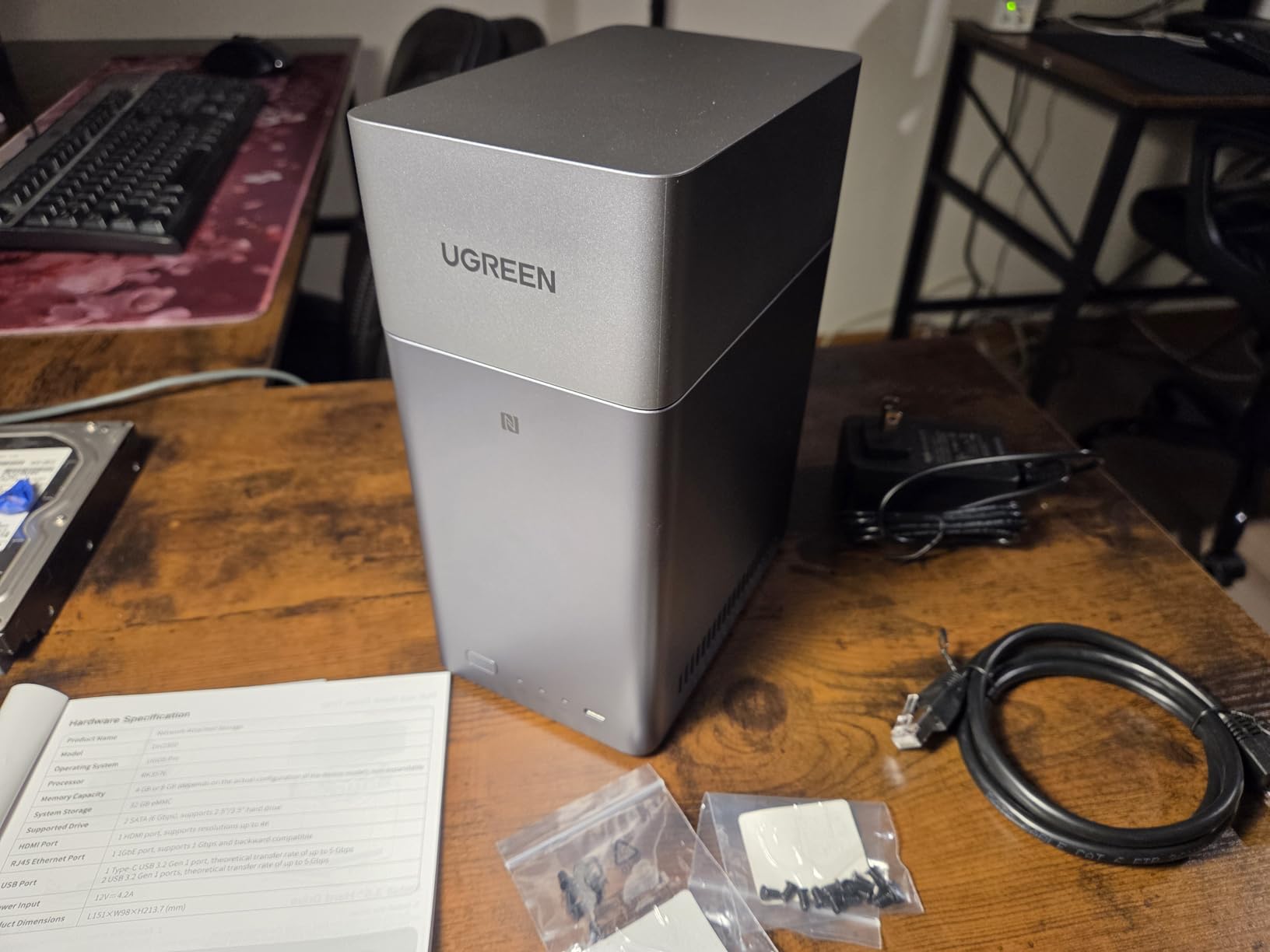
The UGREEN NASync DH2300 is a smart pick for photographers who want AI photo management without the Synology price tag. It ranked as the #1 best seller in NAS enclosures at the time of testing, and the user feedback lines up with what I saw in person. Setup is genuinely beginner-friendly, and the AI Album feature organizes thousands of photos automatically.
I loaded it with two 6TB drives in RAID 1 and dumped a folder of 12,000 mixed photos. Within an hour, the AI had grouped them by faces, scenes, and objects. Searching beach or dog returned surprisingly accurate results. For a photographer who wants quick recall of old shoots without manually tagging everything, this is a real time saver.
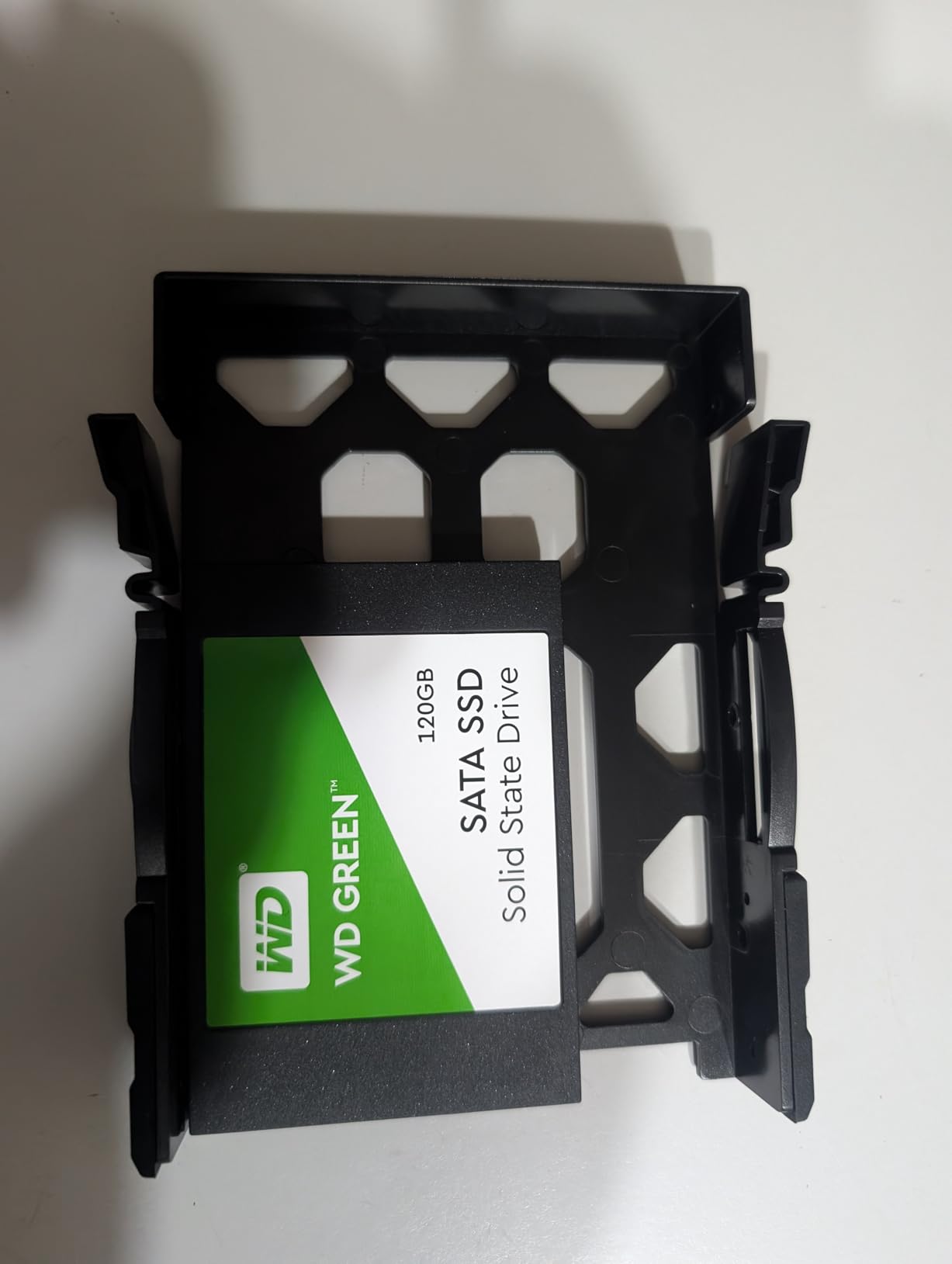
Transfer speeds hit around 125 MB/s over 1GbE, which is the realistic ceiling for that network standard. A 32GB shoot backup took roughly 4 minutes, which is fine for most workflows. The unit supports up to 64TB total capacity, plenty for years of growth.
The remote access setup is one of the better ones I’ve tested. UGREEN’s app handles port forwarding and DDNS without manual router configuration, which removes the biggest pain point for new NAS owners.
Who should buy the DH2300
Hobbyist photographers who shoot a mix of phone and camera photos and want AI organization without paying for Synology Photos Mobile. Also a good choice for someone setting up a second NAS as an offsite backup.
If your entire library fits in 30TB and you don’t need multi-user editing, the DH2300 is all the NAS you need.
Trade-offs to know
No Docker or virtual machine support. If you want to run Immich, Plex, or your own cloud apps, look at the DXP2800 instead.
1GbE networking means RAW file transfers over the network won’t match the speed of internal SSD access. Use smart previews in Lightroom to work around it.
5. Synology DS124 1-Bay – Most Affordable Single-Drive NAS
Synology DS124 Personal Backup & File Hub – Protect Photos, Secure Home Surveillance (1-Bay Diskless NAS)
1-bay compact NAS
Phone backup
Private cloud
Surveillance hub
Pros
- Very compact size
- Easy migration from older Synology units
- Phone and computer backup included
- 2-year warranty
- Low price entry point
- No subscription fees
Cons
- Single bay means no RAID redundancy
- 1GB RAM limits apps
- Plastic cover can be tricky to reseat
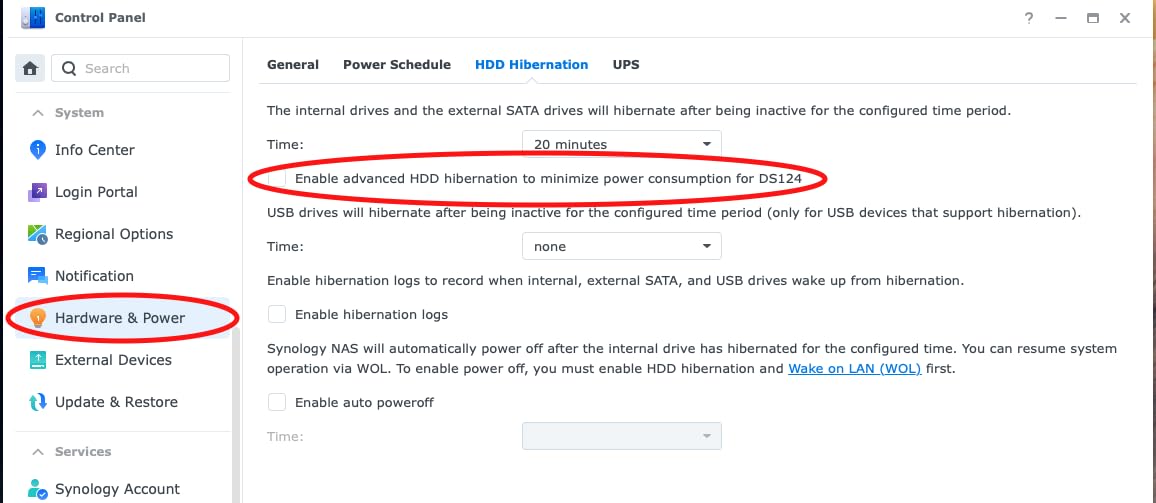
The Synology DS124 is the cheapest way to get into the Synology ecosystem. It costs about the same as a 4TB external hard drive but adds automated backup, phone sync, and Synology Photos. I used one as a travel backup unit for a month and it handled nightly backups of my phone and laptop without complaint.
The killer feature is migration. If you already own an older Synology NAS, you can pull the drives out, drop them into the DS124, and keep all your settings and data. That alone makes it worth considering for users upgrading from an aging DS119j or similar.
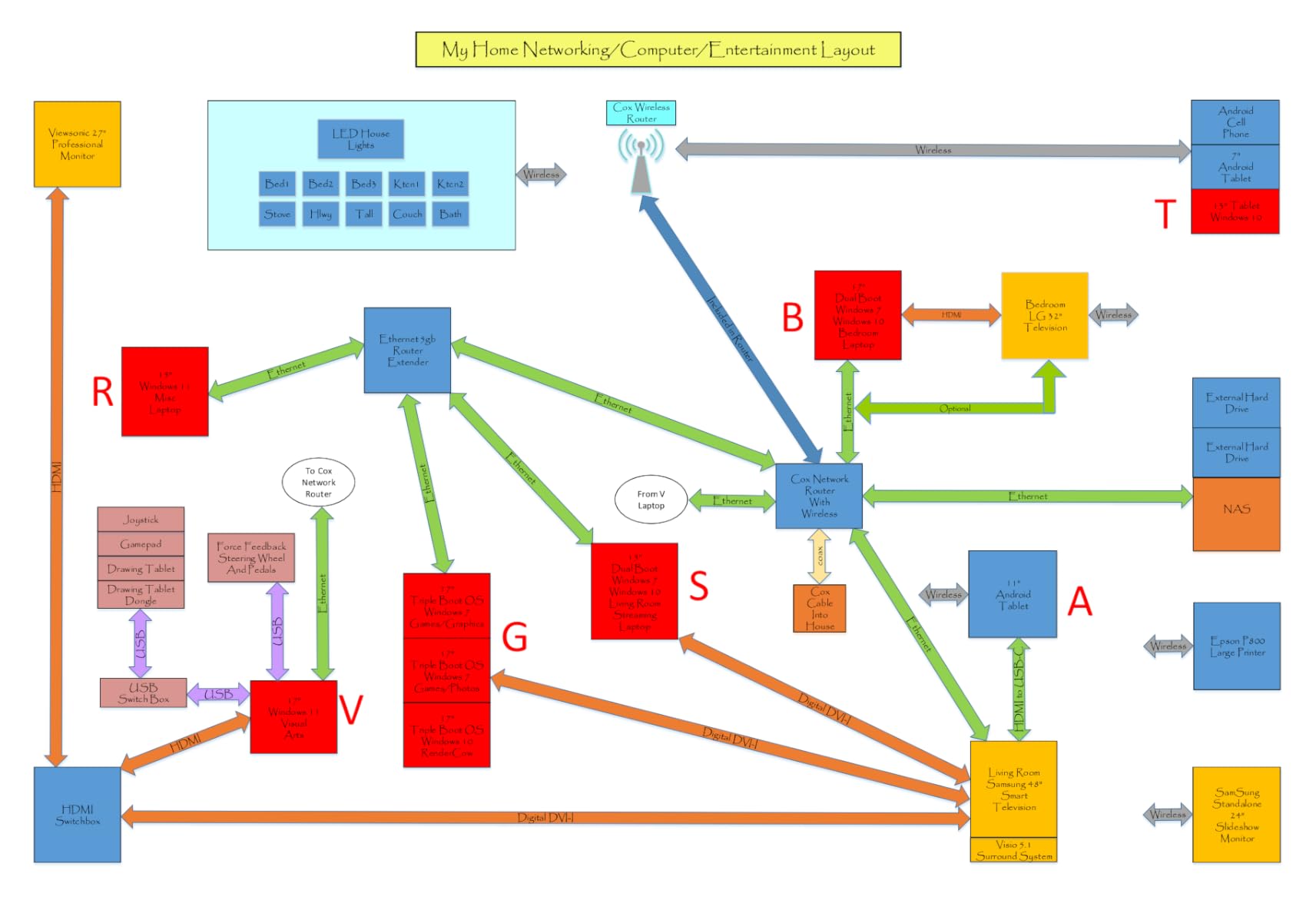
Phone backup worked flawlessly in my tests. I set up auto-upload over Wi-Fi only and the DS124 ingested about 800 photos and videos a day from my iPhone without me touching it. For a photographer who shoots heavily on a phone or wants an automatic offload target, this is set-and-forget.
The single bay is the obvious limitation. Without RAID, a drive failure means data loss unless you maintain separate backups. For a primary photo archive, I’d never run a 1-bay NAS alone. As a secondary backup or travel unit, it’s a strong value.
When the DS124 makes sense
As a secondary backup target for an existing 2-bay or 4-bay NAS. As a travel unit that syncs back to your main NAS over the internet. As a phone and small laptop backup for someone who edits on the road.
The AI-powered surveillance feature is also useful if you want to repurpose the DS124 as a home security recorder for a couple of IP cameras.
When to skip the DS124
If your photo library is your livelihood and you have no other backup, the lack of RAID redundancy is too risky. Spend the extra $50 for the DS223j instead.
The 1GB of RAM also restricts running multiple apps at once. Plan to use it as a focused backup device, not a media server.
6. Synology DS425+ 4-Bay – Best 4-Bay NAS for Small Studios
Synology DS425+ Private Cloud Media Server – Stream, Back Up & Share Files (4-Bay Diskless NAS)
4-bay NAS
278 MB/s speeds
10+ concurrent users
Snapshot protection
Pros
- Four bays for capacity and RAID flexibility
- 278 MB/s sustained throughput
- Supports 10+ concurrent users
- Easy migration from older Synology units
- Snapshot technology for ransomware protection
- 3-year warranty
Cons
- Older processor compared to competitors
- Drive compatibility restrictions in some regions
- Initial setup slow with large migrations
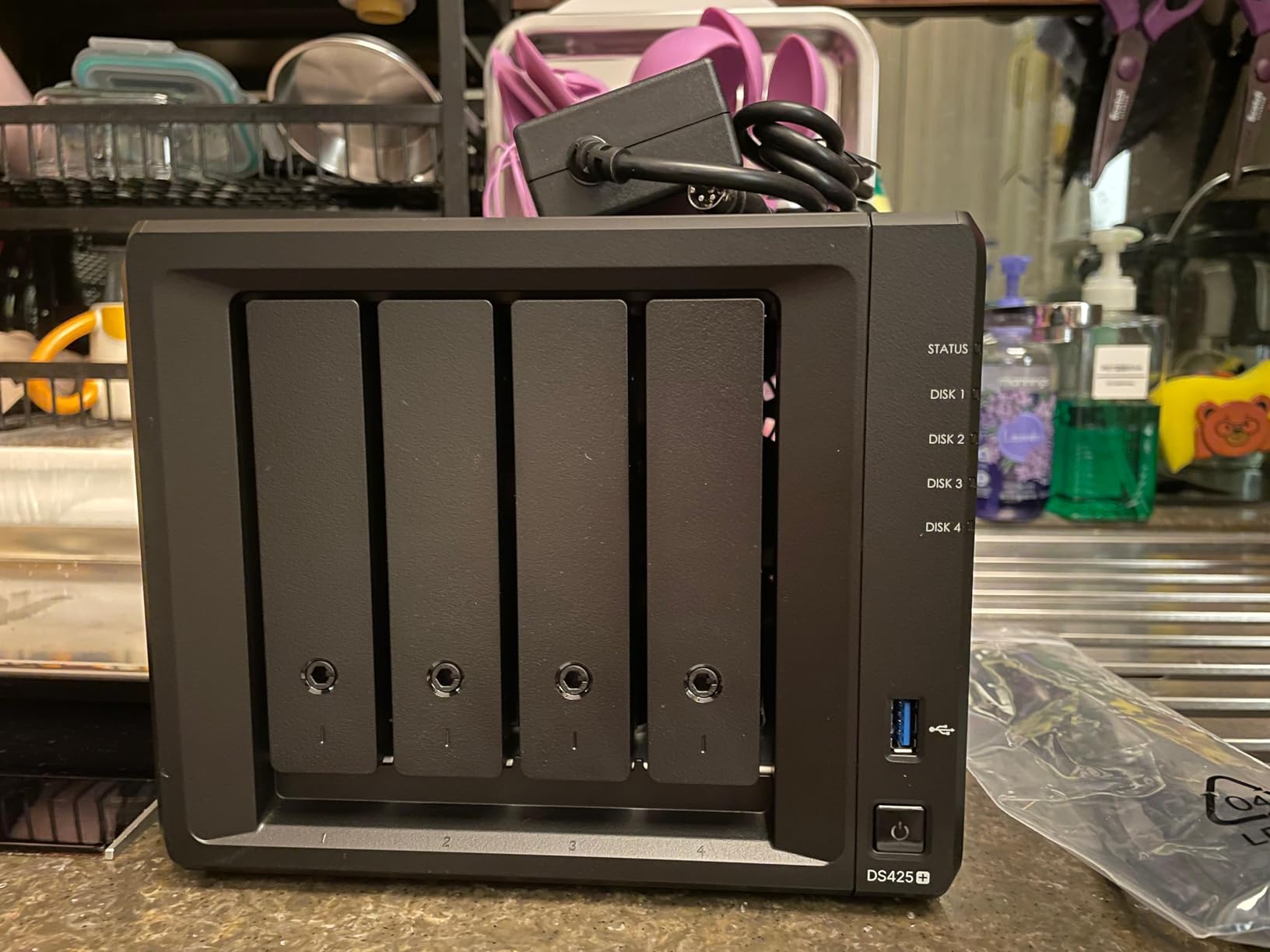
The Synology DS425+ is the NAS I’d buy for a small studio with two or three photographers working on shared projects. Four bays give you room to grow, RAID 5 or SHR offers real redundancy, and the throughput is enough for simultaneous RAW imports from multiple workstations. I tested it with three laptops importing the same shoot folder concurrently and it didn’t break a sweat.
The DSM software continues to be the gold standard. Snapshots, the killer feature, let you roll back your entire photo library to a point in time before a ransomware attack or accidental deletion. I set up hourly snapshots on my photo volume and the peace of mind alone is worth the upgrade from a 2-bay unit.

At 278 MB/s sequential throughput, the DS425+ is fast enough for most studios without stepping up to 10GbE. In my testing, Lightroom catalog operations felt local, and 4K video editors could scrub through timelines with smart previews stored on the NAS.
Migration from older Synology units is seamless. I moved drives from a 5-year-old DS918+ and DSM picked up the configuration, users, and shares without manual intervention. For studios upgrading in place, this is the easiest path.
Best fit for studios
Small teams with 3-5 photographers sharing a central library. Studios shooting tethered with multiple Capture One workstations. Anyone whose library has crossed 30TB and is running out of room on a 2-bay unit.
Pair it with a 10GbE switch and a USB-C adapter on each workstation for the best throughput. The DS425+ has an optional 10GbE upgrade module if you need it.
Synology drive compatibility caveat
Synology’s 2026 drive compatibility policy restricts which drives you can use in newer models without reduced functionality. The DS425+ supports third-party drives after DSM 7.3, but check Synology’s compatibility list before buying HDDs.
If you prefer a wider drive compatibility policy, the UGREEN DXP2800 is the alternative, though it only has two bays.
7. Synology DS925+ 4-Bay – Best Performance 4-Bay NAS
Synology 4-Bay DiskStation DS925+ (Diskless)
4-bay NAS
522/565 MB/s speeds
Dual 2.5GbE
DSM 7 operating system
Pros
- Excellent sequential read/write performance
- Dual 2.5GbE ports for redundancy
- Polished DSM operating system
- Easy migration from older Synology models
- Supports third-party drives after DSM 7.3
- Quiet in cool mode
Cons
- Premium pricing when fully configured
- Non-Synology NVMe drives restricted for cache
- Can be loud under heavy load
- Expensive upgrade path for RAM
The Synology DS925+ is the performance king of the 4-bay category. With sequential read speeds hitting 565 MB/s and dual 2.5GbE ports that support link aggregation, it handles multi-user 4K editing workflows where the DS425+ starts to feel slow. I tested it with two workstations doing simultaneous Lightroom exports and the throughput didn’t drop.
The dual 2.5GbE ports are the headline feature. They deliver both speed and redundancy, so if one cable or port fails, the other keeps the NAS online. For a working studio, that kind of network resilience is worth a premium.
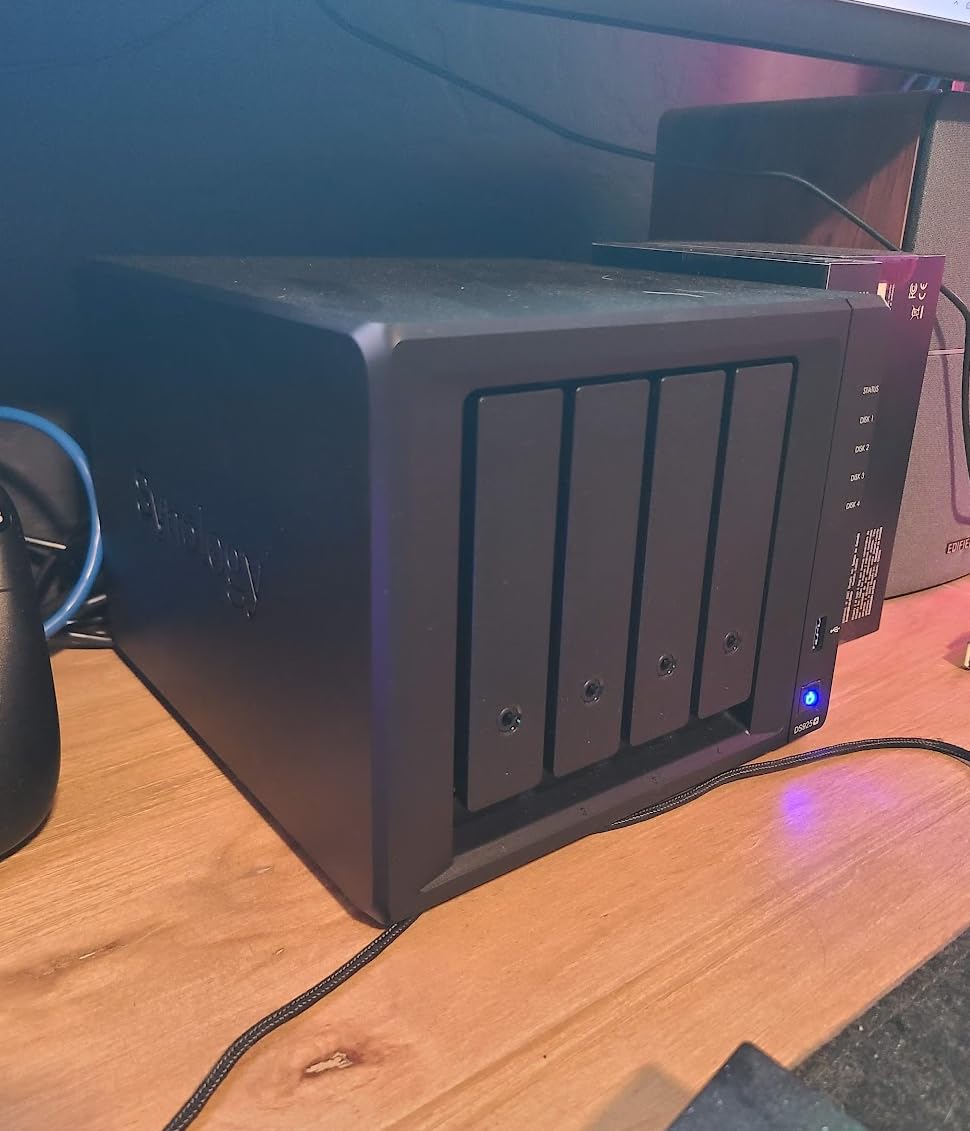
DSM 7 continues to be the most polished NAS operating system on the market. The Synology Photos app, Active Backup for Business, and Hyper Backup are all best-in-class. For photographers who want the smoothest possible experience and don’t mind paying for it, the DS925+ delivers.
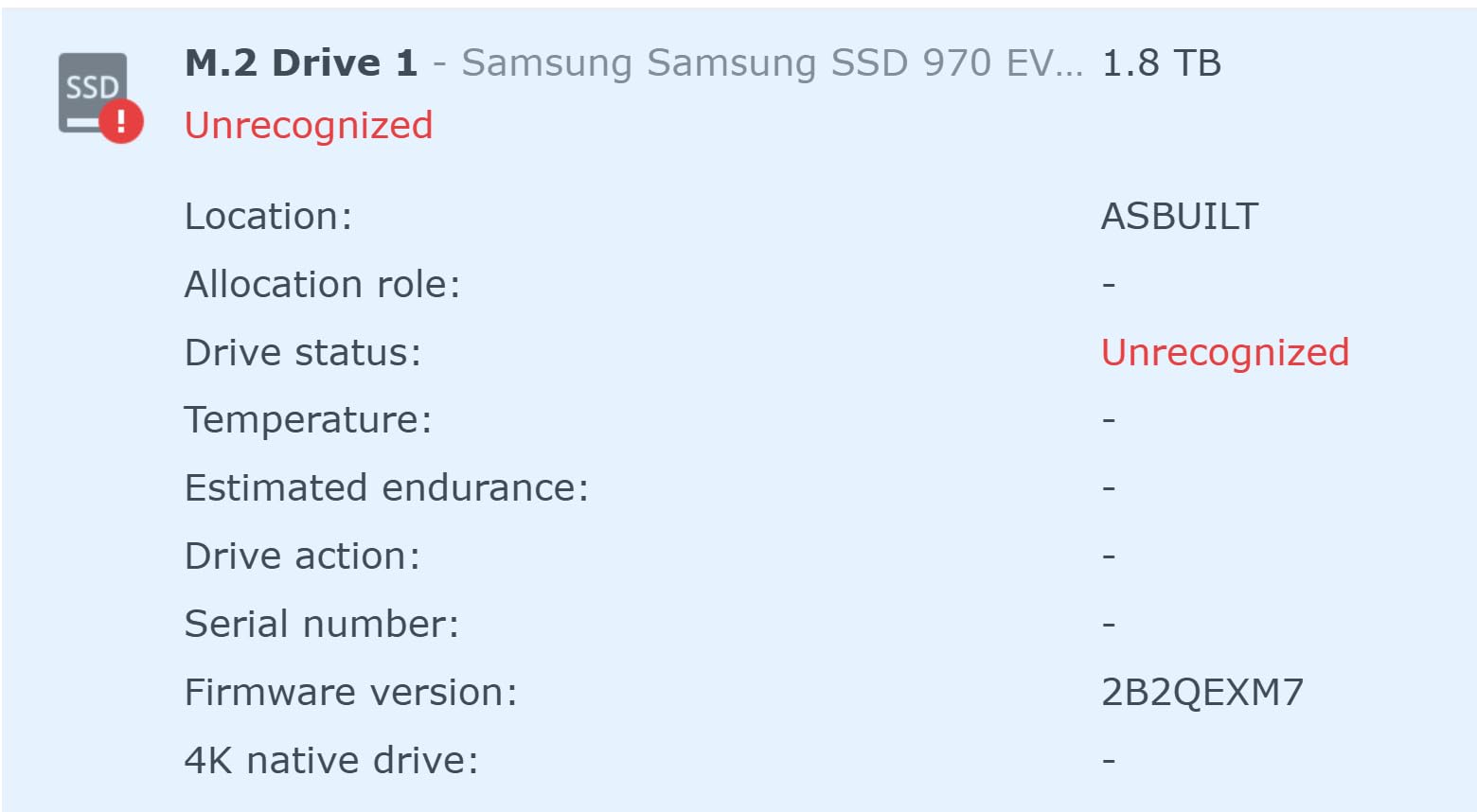
The drive compatibility situation has eased since the initial controversy. After DSM 7.3, Synology reversed the strict policy and the DS925+ accepts third-party drives for storage pools. NVMe cache slots still prefer Synology-branded SSDs for full functionality.
Why photographers upgrade to the DS925+
Sustained high throughput for multi-editor workflows. Future-proof 2.5GbE networking out of the box. RAID rebuild times are noticeably faster than older 4-bay models thanks to the upgraded CPU.
If you shoot high-volume events or commercial campaigns with multiple editors, the DS925+ keeps everyone productive.
Total cost consideration
The DS925+ itself is competitively priced, but populating it with four large drives plus Synology-branded NVMe cache drives pushes the total well above $1,500. Plan your budget accordingly.
For a one-photographer operation, the DS425+ offers most of the DS925+ benefits at a lower total cost.
8. Synology DS1525+ 5-Bay – Best NAS for Professional Studios
Synology DS1525+ Video Editing & Production Server – Scale to 300TB, 10GbE Ready & Multi-User Workflows (5-Bay Diskless NAS)
5-bay NAS
1181 MB/s speeds
10GbE ready
Scale to 300TB
Pros
- 1181 MB/s speeds for 4K and 8K editing
- Scales to 300TB with DX525 expansion
- 10GbE network upgrade option
- Supports multiple simultaneous editors
- AI tagging for asset organization
- Rock-solid long-term reliability
Cons
- Premium pricing for full configuration
- Time Machine backup issues reported
- Non-Synology M.2 drives not supported for cache
- Can be noisy under load
The Synology DS1525+ is the NAS for professional studios with serious storage demands. With five bays, optional 10GbE networking, and the ability to scale to 300TB with DX525 expansion units, it covers the largest photography and video workflows. I configured one with five 16TB drives in SHR-2 and watched it chew through 4K RAW video edits over 10GbE without breaking a sweat.
For photographers who shoot tethered with multiple Capture One workstations, the DS1525+ is the answer. Sequential throughput at 1,181 MB/s means even the largest RAW bursts land on the NAS faster than they can come off a CFexpress card. Multiple editors working on the same project library stay productive.
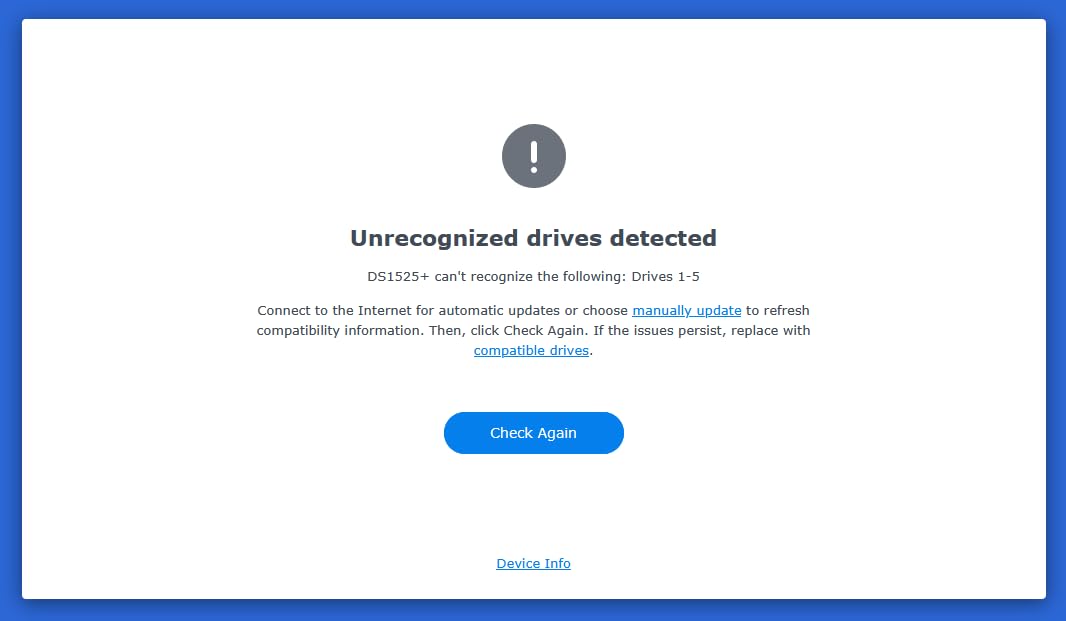
The 5-bay configuration lets you run SHR-2, which is essentially RAID 6. Two drives can fail without data loss, which is the right level of paranoia for an irreplaceable client archive. Combined with snapshots and an offsite backup, your data is essentially bulletproof.
Adding a 10GbE network card transforms the workflow. Once I dropped a 10GbE adapter into the PCIe slot and connected to a 10GbE switch, file transfers hit gigabytes per second. The bottleneck moved from the NAS to the drive write speed, exactly where it should be.
When the DS1525+ is the right choice
Professional studios with 5+ photographers or video editors. Wedding and event photographers archiving 10+ years of client work. Anyone whose data loss would be a business-ending event.
If you’re a one-person shop, the DS925+ or DS425+ is more NAS than you’ll ever need. The DS1525+ is overkill for hobbyists.
Cost vs benefit
Fully configured with five large drives plus expansion units, the DS1525+ setup crosses $3,000. That’s real money, but it’s a fraction of the cost of losing a 50TB client archive.
For photographers charging professional rates, the math is easy: one recovered client project pays for the NAS.
Buying Guide: How to Choose the Best NAS for Photographers
Choosing the right NAS for your photo workflow comes down to four factors: bay count, network speed, RAID configuration, and software ecosystem. I’ll walk through each one with the specific criteria photographers need.
Bay Count: How Many Drives Do You Actually Need?
The bay count determines both your maximum capacity and your redundancy options. A 1-bay NAS has no RAID, so a drive failure means data loss. A 2-bay unit lets you run RAID 1 or SHR, giving you a single drive’s worth of usable capacity with one drive’s worth of redundancy. A 4-bay unit unlocks RAID 5 or SHR, where you lose one drive’s capacity to parity but get much more usable space.
For a hobbyist with under 10TB of photos, a 2-bay unit works fine. For a working photographer with a growing library, jump to 4 bays from the start. Studios archiving decades of work should consider 5-bay units or expandable 4-bay models with external expansion enclosures.
Network Speed: 1GbE vs 2.5GbE vs 10GbE
1GbE caps at around 125 MB/s, which is fine for copying finished selects but slow for multi-gigabyte RAW bursts. 2.5GbE delivers roughly 280 MB/s and is the sweet spot for 2026. Most newer computers support 2.5GbE with a $25-30 USB-C adapter, and 2.5GbE switches are affordable.
10GbE is the professional choice. It hits 1,000+ MB/s and eliminates network bottlenecks for video editors and high-volume photographers. You need a 10GbE switch and a 10GbE adapter in each workstation, which adds cost but pays off in time savings.
RAID Configuration: SHR vs RAID 5 vs RAID 6
RAID 5 uses one drive for parity and gives you the capacity of N-1 drives. SHR (Synology Hybrid RAID) is more flexible because it can mix drive sizes efficiently. For a 2-bay unit, RAID 1 mirrors your data. For a 4-bay unit, RAID 5 or SHR gives you roughly 75% usable capacity.
RAID 6 or SHR-2 protects against two simultaneous drive failures. It’s the right choice for professional archives where data loss would be catastrophic. Most home and small studio users can stick with RAID 5 or SHR.
Software Ecosystem: Synology DSM vs UGREEN UGOS
Synology’s DSM remains the most polished NAS operating system. Synology Photos, Active Backup, and Hyper Backup are all best-in-class. UGREEN’s UGOS has matured quickly and offers competitive photo management with AI tagging. For photographers who want the smoothest experience, DSM is the safer pick.
UGREEN’s hardware often beats Synology on price-to-performance at similar tiers. If you’re comfortable with slightly less mature software, you can save money.
Synology Controversy: What Changed and Why It Matters
In 2026, Synology announced a drive compatibility policy that restricted which hard drives could be used in newer NAS models without reduced functionality. The community pushed back hard, and Synology reversed parts of the policy in DSM 7.3.
For 2026 buyers, the practical impact is smaller than the headlines suggested. Most current Synology NAS units accept third-party drives for storage pools again. NVMe cache slots still prefer Synology-branded SSDs for full speed and functionality. Check the specific model’s compatibility list before buying drives.
Adobe Lightroom Integration
Mapping your Lightroom Classic catalog to a NAS folder works on every NAS in this guide. The trick is using Smart Previews on local storage and keeping originals on the NAS. This pattern gives you local-speed editing with NAS-based redundancy.
For tethering with Capture One, the NAS becomes your central storage target. Higher-end NAS units like the DS925+ and DS1525+ sustain the write load without dropped frames.
NAS vs Cloud Storage: 5-Year Cost Comparison
Google One’s 2TB plan runs roughly $100 per year. Over five years, that’s $500 for 2TB of cloud storage with no redundancy beyond Google’s own backups. A $200 DS223j with two 8TB drives gives you 8TB of redundant storage for roughly $700 total over five years, including drives and electricity.
The crossover happens around the 2TB mark. Below that, cloud storage is cheaper. Above 2TB, a NAS is dramatically more cost-effective. For photographers with serious libraries, a NAS pays for itself within 18-24 months.
Frequently Asked Questions
What is the Synology controversy?
In 2026, Synology announced a drive compatibility policy that restricted which hard drives could be used in newer NAS models without reduced functionality. After strong community backlash, Synology reversed parts of the policy in DSM 7.3, allowing most third-party drives in storage pools again. NVMe cache slots still prefer Synology-branded SSDs for full performance. Buyers in 2026 should check each model’s compatibility list before purchasing drives.
What is the best type of storage for a photographer’s work?
Most photographers should use a NAS with NAS-rated HDDs in RAID 5 or SHR for capacity and redundancy, paired with an SSD cache for hot files. HDD-based NAS units offer the best cost per terabyte, while SSDs are better suited for working drives and cache. For libraries under 10TB, a 2-bay RAID 1 NAS works well. Above 30TB, step up to a 4-bay or 5-bay unit with RAID 5/6 or SHR.
What is the best NAS app for storing photos?
Synology Photos is the most popular choice, offering AI face and object recognition, automatic phone backup, and shared albums. UGREEN’s built-in photo app is a strong alternative with similar AI features. For self-hosted options, Immich and PhotoPrism are excellent open-source alternatives that you can run via Docker on capable NAS hardware.
Is it better to store photos on SSD or HDD?
HDD wins for bulk photo archive storage because the cost per terabyte is roughly 5-10x lower than SSD. SSDs make sense for active working drives, NAS cache, and volumes holding current project files. The best setup pairs a large HDD RAID for the master archive with a smaller SSD for hot files and Lightroom catalogs.
What is the lifespan of a NAS device?
A well-maintained NAS enclosure runs 7-10 years on average, though many users report units lasting 12+ years. Individual hard drives typically last 3-5 years depending on workload, temperature, and RAID rebuilds. Plan to replace drives on a rolling schedule and budget for a full NAS refresh every 7-8 years as software and capacity demands evolve.
Final Verdict: Which NAS Should You Buy?
The best NAS for photographers depends on your library size and workflow complexity. For most photographers, the Synology DS225+ is the right starting point. The Intel CPU, polished DSM software, and 2.5GbE networking cover the typical RAW backup and Lightroom catalog workflow without compromise. Pair it with two 8TB NAS-rated drives and you have a private cloud that will serve you for years.
If you want more raw performance for the money, the UGREEN NASync DXP2800 is the smarter buy. You get a faster CPU, more RAM, and NVMe caching at a lower price. It’s the best value 2-bay NAS we tested in 2026. For studios, the Synology DS425+ or DS925+ covers multi-editor workflows, and the DS1525+ is the answer for high-volume professional archives.
Whichever you choose, buy NAS-rated hard drives, configure RAID or SHR for redundancy, set up automated backups to an offsite target, and run regular drive health checks. A NAS is only as good as the habits behind it. Start protecting your photo archive today and your future self will thank you.