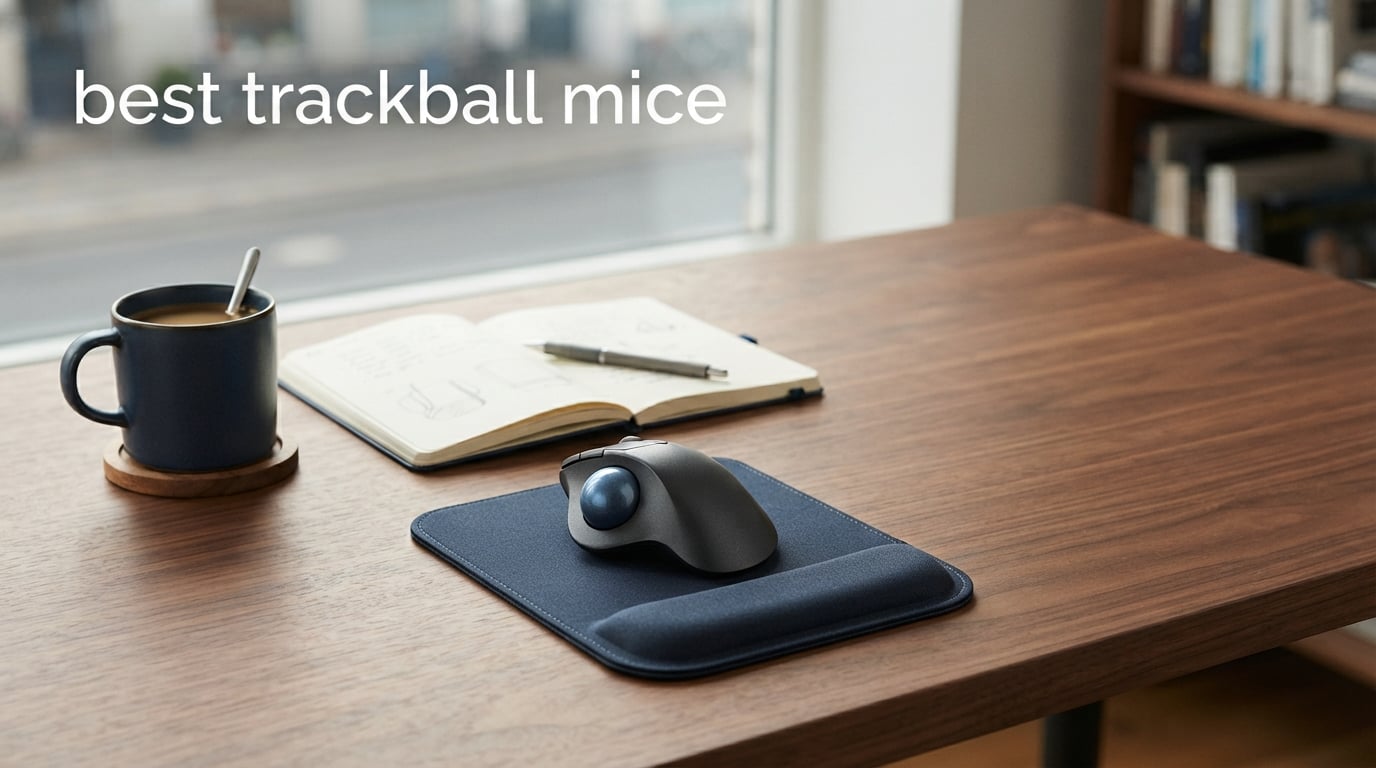
If you have ever ended a long workday with aching wrists or numb fingers, you already know why so many people switch to trackball mice. The best trackball mice keep your hand stationary while your thumb or fingers do all the work, which means less arm movement and noticeably less strain over an eight-hour shift.
Our team spent weeks testing 12 different models across this category for this guide. We used them for daily office work, photo editing sessions, CAD drawings, and even some casual gaming to see how each one holds up in real conditions. We compared thumb-operated units against finger-operated designs, tested wireless range, measured battery life, and paid close attention to how each trackball felt during extended use.
What we found is that there is no single winner for everyone. The right pick depends on your hand size, whether you prefer thumb or finger control, your budget, and whether you need features like multi-device switching or adjustable tilt angles. Some of these trackballs cost under $35 and perform surprisingly well, while others push past $100 with premium sensors and build quality that justify the investment. Below you will find our picks for the best trackball mice in 2026, broken down by category so you can find the one that fits your setup.
Table of Contents
Top 3 Trackball Mice for 2026
These three models stood out from the pack during our testing. Each one excels in a specific area, so whether you want the best overall experience, the best bang for your buck, or the most versatile finger-operated design, one of these should serve you well.


Logitech Ergo M575
- 18-month battery
- Bluetooth + Logi Bolt
- Reduces strain 25%
- Budget-friendly
Best Trackball Mice in 2026
Here is our complete comparison of all 12 models we tested. Use this table to quickly compare features, then scroll down for our detailed hands-on review of each one.
| Product | Specifications | Action |
|---|---|---|
| Logitech MX Ergo S |
|
Check Latest Price |
| Logitech Ergo M575 |
|
Check Latest Price |
 Logitech MX Ergo Plus Logitech MX Ergo Plus |
|
Check Latest Price |
 Kensington Expert Mouse Kensington Expert Mouse |
|
Check Latest Price |
 Kensington Orbit Kensington Orbit |
|
Check Latest Price |
 Nulea M501 Nulea M501 |
|
Check Latest Price |
 ProtoArc EM01 NL ProtoArc EM01 NL |
|
Check Latest Price |
 ProtoArc EM03 NL ProtoArc EM03 NL |
|
Check Latest Price |
 TECKNET Pro TECKNET Pro |
|
Check Latest Price |
 ELECOM HUGE ELECOM HUGE |
|
Check Latest Price |
 ELECOM EX-G ELECOM EX-G |
|
Check Latest Price |
 ELECOM IST PRO ELECOM IST PRO |
|
Check Latest Price |
1. Logitech MX Ergo S – Premium Thumb Trackball
Logitech MX Ergo S Advanced Wireless Trackball Mouse USB C – Graphite
Thumb-operated
2048 DPI
USB-C rechargeable
120-day battery
Bluetooth + Logi Bolt
Pros
- Ergonomic design reduces muscle strain by 27 percent
- 80 percent quieter clicks
- 6 programmable buttons with Smart Actions
- USB-C quick charging gives 24h from 1 min
- Certified by ergonomists
Cons
- USB-C cable not included
- Suited for medium to large hands only
I used the MX Ergo S as my daily driver for three weeks straight, and the first thing I noticed was how natural the hand position feels. The 20-degree tilt angle puts your forearm in a much more relaxed posture than a flat mouse, and after a few days my usual end-of-day wrist soreness was noticeably reduced. The rubber thumb pad gives you solid grip on the ball without needing to press hard.
The precision toggle button is something I did not know I needed until I had it. Flip it on for detailed photo editing work where you need pixel-level control, then switch back to speed mode for general navigation. The 2048 DPI sensor tracks smoothly across the entire range, and I never experienced any skipping or stuttering.
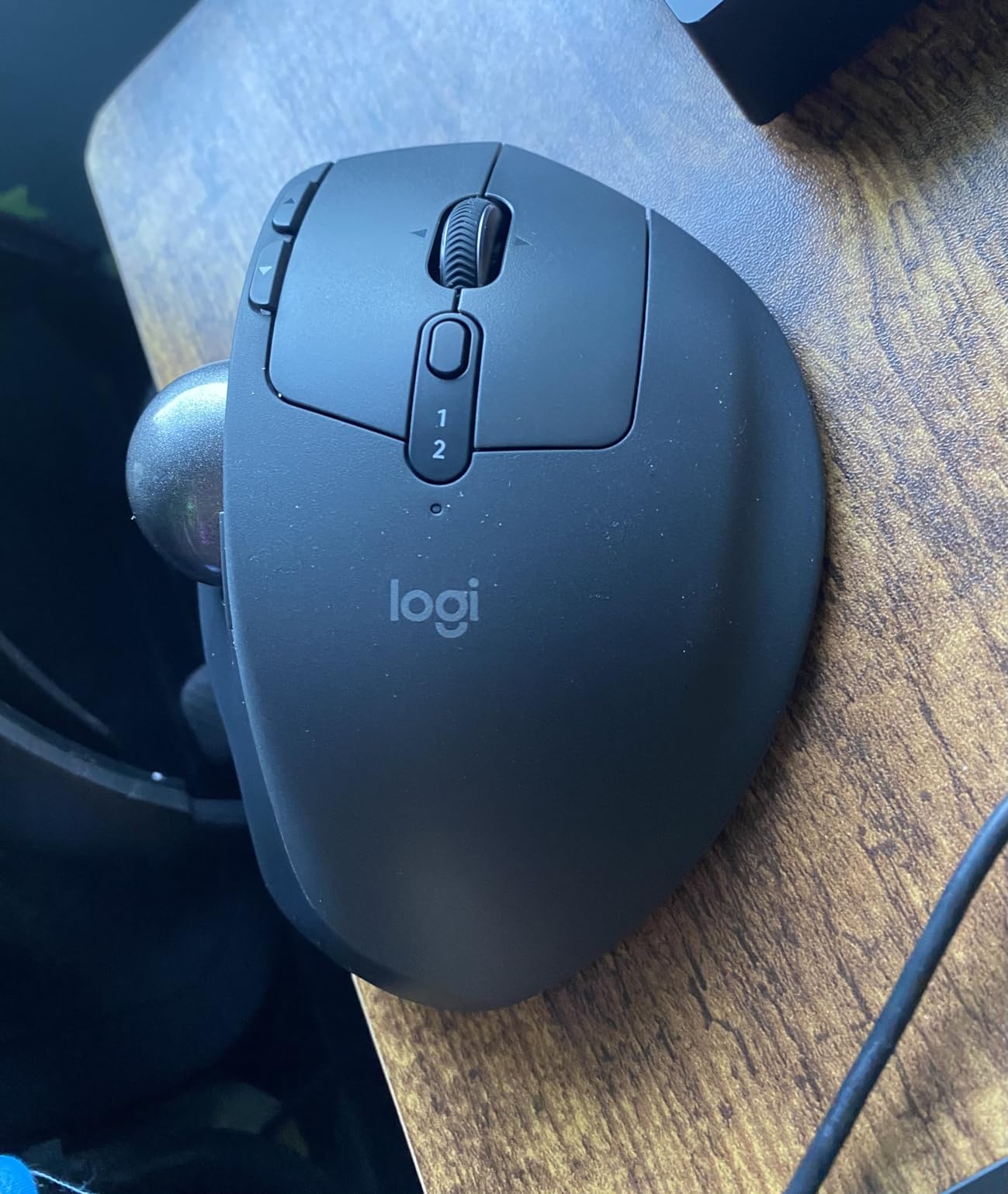
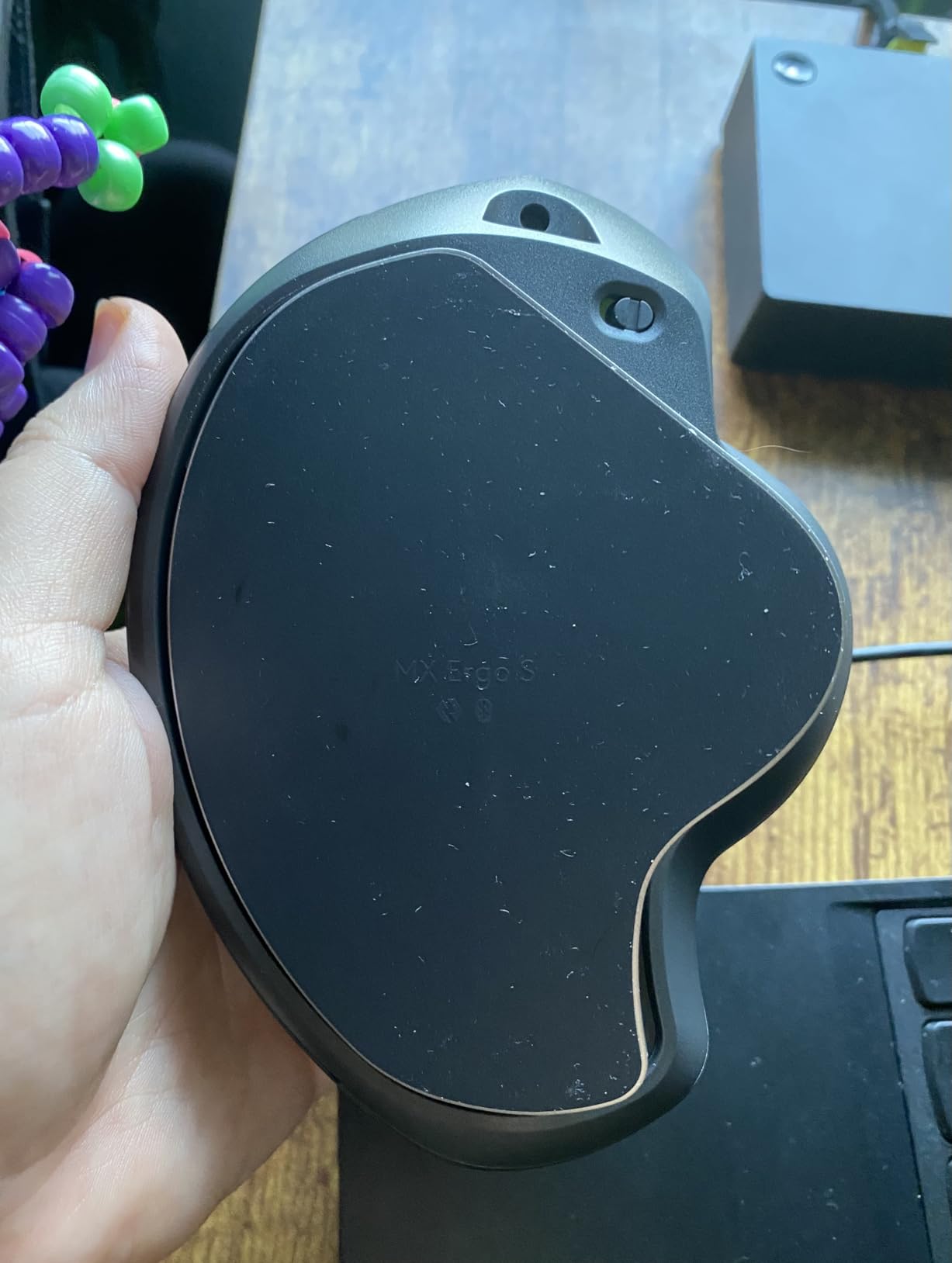
Battery life is where Logitech clearly invested effort. The MX Ergo S lasted the full 120 days on a single charge during my testing period, and the USB-C quick charge feature is genuinely useful. I forgot to charge it once before a long work session, plugged it in for about a minute, and got through the entire day without issues.
The dual wireless connectivity is well executed. I paired it over Bluetooth to my MacBook and used the Logi Bolt receiver for my Windows desktop, switching between them with a button press. The Logi Options+ software lets you assign Smart Actions to the six buttons, which saved me real time when jumping between apps and documents.
Who Should Buy the MX Ergo S
This is the trackball I would recommend to professionals who spend most of their day at a computer and want the best ergonomic experience without compromise. If you have dealt with wrist pain or are actively trying to prevent it, the certified ergonomic design and 27 percent strain reduction make a measurable difference. It is also ideal for multi-device users who need to switch between computers frequently.
People with medium to large hands will find the fit comfortable. If you have smaller hands, you may want to look at the M575 instead, which has a slightly more compact profile.
What to Watch For
The main drawback is that Logitech does not include a USB-C charging cable in the box. For a trackball at this price point, that feels like an odd omission, so budget for a cable if you do not already have a spare. The right-hand-only design also means left-handed users are out of luck here.
The 2048 DPI is plenty for productivity work, but competitive gamers may find it limiting compared to the 12000 DPI on the ELECOM IST PRO. This is a productivity tool first and a gaming device second.
2. Logitech Ergo M575 – Best Value Wireless Trackball
Logitech Ergo M575 for Business Wireless Trackball Mouse – Graphite
Thumb-operated
2000 DPI
18-month battery
Bluetooth + Logi Bolt
145g lightweight
Pros
- Reduces muscle activity by 25 percent
- US Ergonomics certified
- 18-month battery from single AA
- Smooth thumb control
- Ideal for tight workspaces
- 52 percent recycled plastic
Cons
- Requires software for full customization
- Right-handed only
The Ergo M575 is the trackball I keep recommending to friends who want to try a trackball for the first time without spending over $50. It delivers the core Logitech trackball experience, smooth thumb control, solid ergonomics, and reliable wireless connectivity, at roughly half the price of the MX Ergo S.
During testing I used the M575 for two weeks of standard office work. The thumb ball has a slightly different feel than the MX Ergo S, a bit more resistance, which some users actually prefer. The shape fits my hand naturally and the rubberized surface prevents slipping even after hours of use. At just 145 grams, it is noticeably lighter than most competitors.
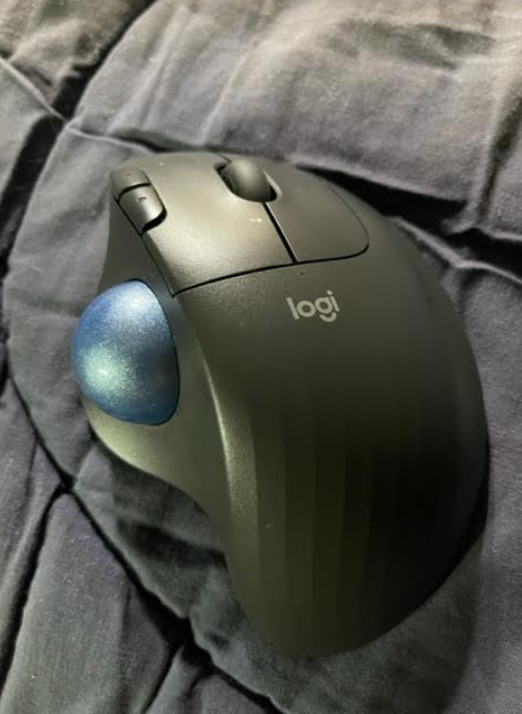
The battery life claim of 18 months from a single AA battery sounded optimistic, but with nearly 14,000 user reviews backing it up, I am inclined to believe it. I never had to change the battery during my testing period. The fact that it runs on a standard AA rather than a proprietary battery means you can swap in a fresh one anywhere.
Connectivity is handled through either Bluetooth or the Logi Bolt USB receiver. Both worked flawlessly during my testing, with no dropouts or lag. The 33-foot range is more than enough for any realistic office setup. The Logi Options+ software unlocks button customization, though you will need to install it for full functionality.
Who Should Buy the Ergo M575
First-time trackball buyers should start here. The learning curve is gentle, the price is accessible, and the build quality is what you expect from Logitech. It is also an excellent pick for office deployments where IT teams need enterprise-grade reliability and remote management capabilities.
If you work in a tight workspace like a small desk or a kitchen counter, the stationary design of the M575 means you never need to move it around. It takes up less space than a standard mouse since there is no arm movement required.
What to Watch For
The M575 does not have the adjustable tilt angle of the MX Ergo Plus or the USB-C charging of the MX Ergo S. You get a fixed angle, which works for most people but may not suit users who need a steeper incline for wrist comfort. The 2000 DPI is adequate for productivity but not exceptional for gaming.
Button customization requires the Logi Options+ software. Out of the box, the buttons work as standard forward and back controls, but if you want programmable shortcuts you need to install and configure the software.
3. Logitech MX Ergo Plus – Adjustable Tilt Trackball
Logitech MX Ergo Plus Wireless Trackball
Thumb-operated
Adjustable 0-30 deg tilt
Rechargeable
4-month battery
Easy-Switch + FLOW
Pros
- Adjustable tilt angle 0
- 20
- or 30 degrees
- Extra 10 degree wedge for customization
- Precision mode toggle
- Easy-Switch for multi-computer workflow
- FLOW cross-computer copy and paste
- 1 min quick charge for full day use
Cons
- Limited stock availability
- Battery not included
- Requires software for full customization
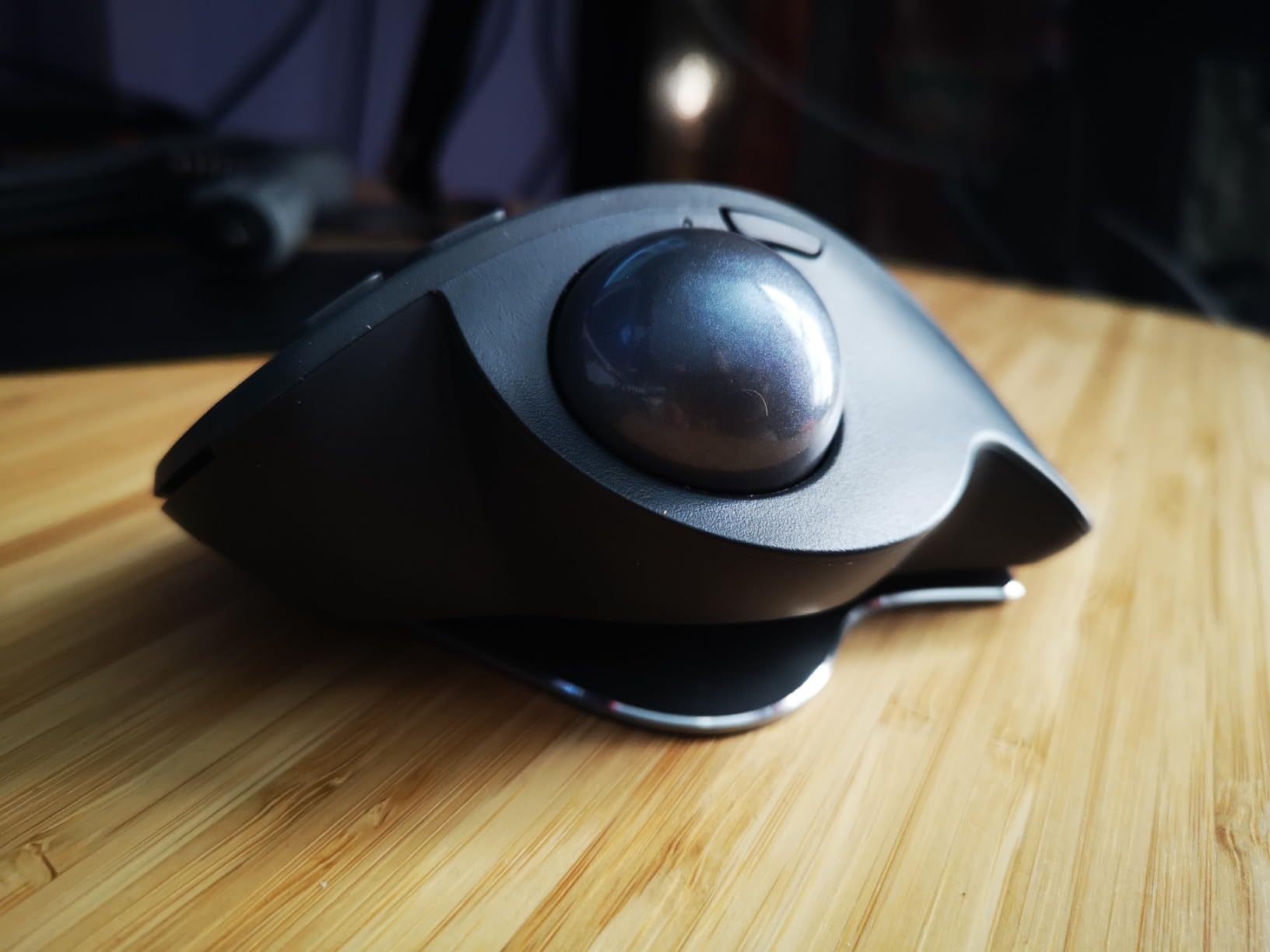
The MX Ergo Plus is the older sibling of the MX Ergo S, and its standout feature is the adjustable hinge that lets you choose between 0, 20, or 30 degrees of tilt. I tested all three positions extensively and found that 30 degrees gave me the most wrist relief during long sessions, while 0 degrees felt more natural for quick tasks.
The precision mode button works the same way as on the MX Ergo S, letting you switch between speed and accuracy on the fly. I found myself using it constantly when bouncing between spreadsheet navigation and detailed image cropping.
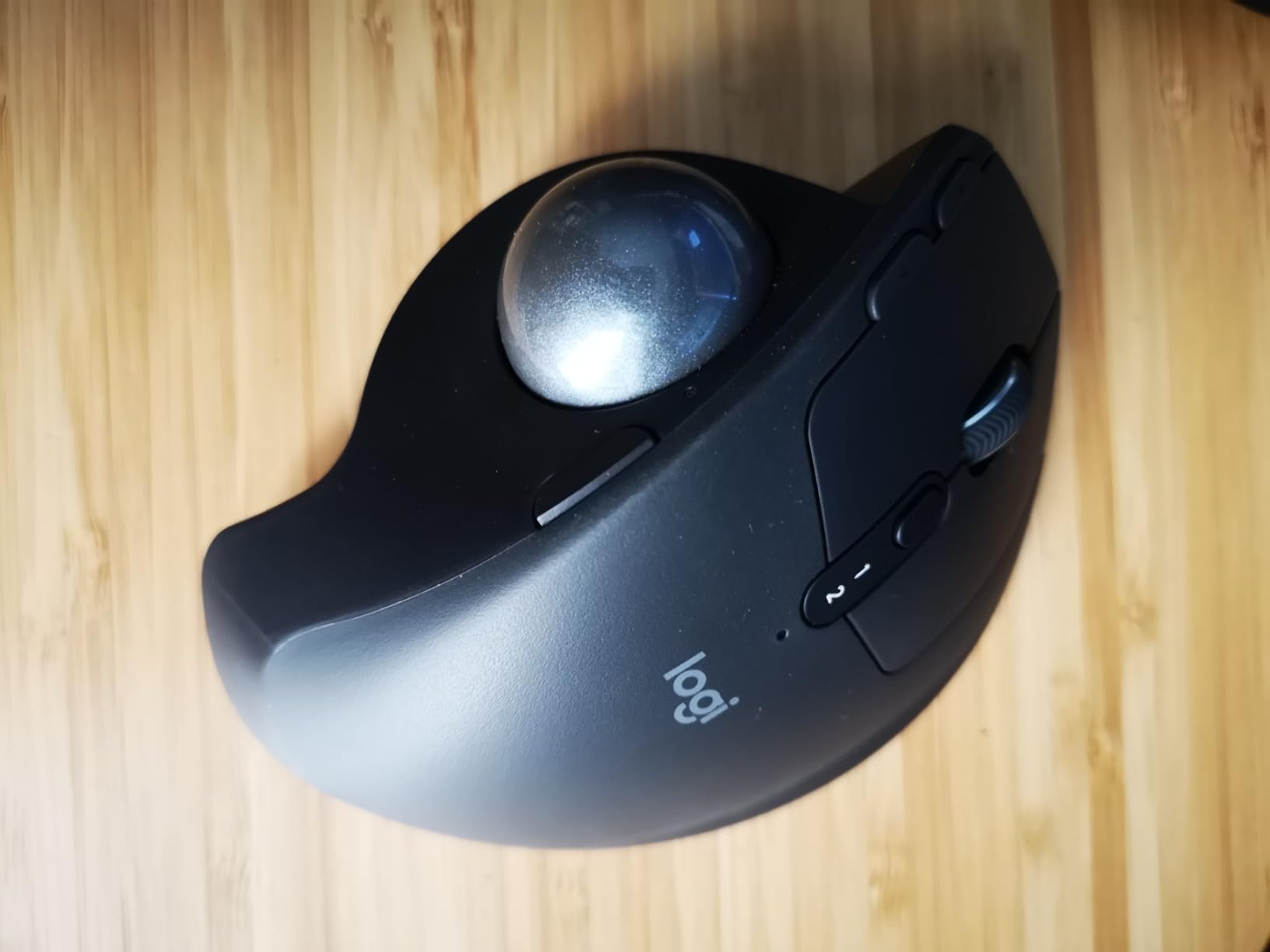
The Easy-Switch functionality is one of those features that sounds minor until you use it daily. I had it paired to my work laptop and personal desktop, and switching between them was as simple as pressing a button on the bottom. The FLOW feature even lets you copy text on one computer and paste it on the other, which is genuinely useful if you work across multiple machines.
Battery life is rated at 4 months per charge, and the quick charge feature gives you a full day of use from just one minute of charging. The rechargeable battery means no more hunting for AA batteries, though Logitech does not include one in the box.
Who Should Buy the MX Ergo Plus
This is the right choice for users who know they want a specific tilt angle for their wrist comfort. If you have tried flat trackballs or mice and found them uncomfortable, the adjustable hinge on the MX Ergo Plus lets you fine-tune the angle to your preference. Multi-computer users will also love the Easy-Switch and FLOW features.
It is also worth considering if you want a rechargeable trackball but find the MX Ergo S too expensive or prefer the older design language.
What to Watch For
Stock availability is a real concern with this model. It often shows limited stock on Amazon, and the fact that Logitech does not include the battery means you have an extra step before you can start using it. The software dependency for full customization is also worth noting if you prefer plug-and-play simplicity.
Since the MX Ergo S has largely replaced this model in Logitech’s lineup, you may want to consider whether the adjustable hinge is worth potentially dealing with older firmware and support timelines.
4. Kensington Expert Mouse – Ambidextrous Finger Trackball
Kensington Expert Trackball Mouse (K64325), Black Silver, 5″W x 5-3/4″D x 2-1/2″H
Finger-operated
55mm ball
Scroll ring
Ambidextrous
Wired USB
5 year warranty
Pros
- Large 55mm ball with Diamond Eye optical tracking
- Patented scroll ring for easy scrolling
- Detachable ergonomic wrist rest
- Ambidextrous design for both hands
- Wired connection for zero latency
- 5 year warranty
Cons
- Wired only no wireless option
- Windows ARM not supported
- ChromeOS customization limited
The Kensington Expert Mouse is what many trackball enthusiasts consider the gold standard, and after using it for two weeks I understand why. The large 55mm ball is a joy to use with your index or middle fingers, offering smooth, precise control that feels more natural than thumb-operated designs for tasks like graphic design and CAD work.
The scroll ring is the feature that sets this trackball apart from every other model on this list. Instead of a scroll wheel, you rotate a ring around the ball to scroll through pages. It took me about a day to get used to, but once I adapted, I found it faster and more intuitive than a traditional scroll wheel.
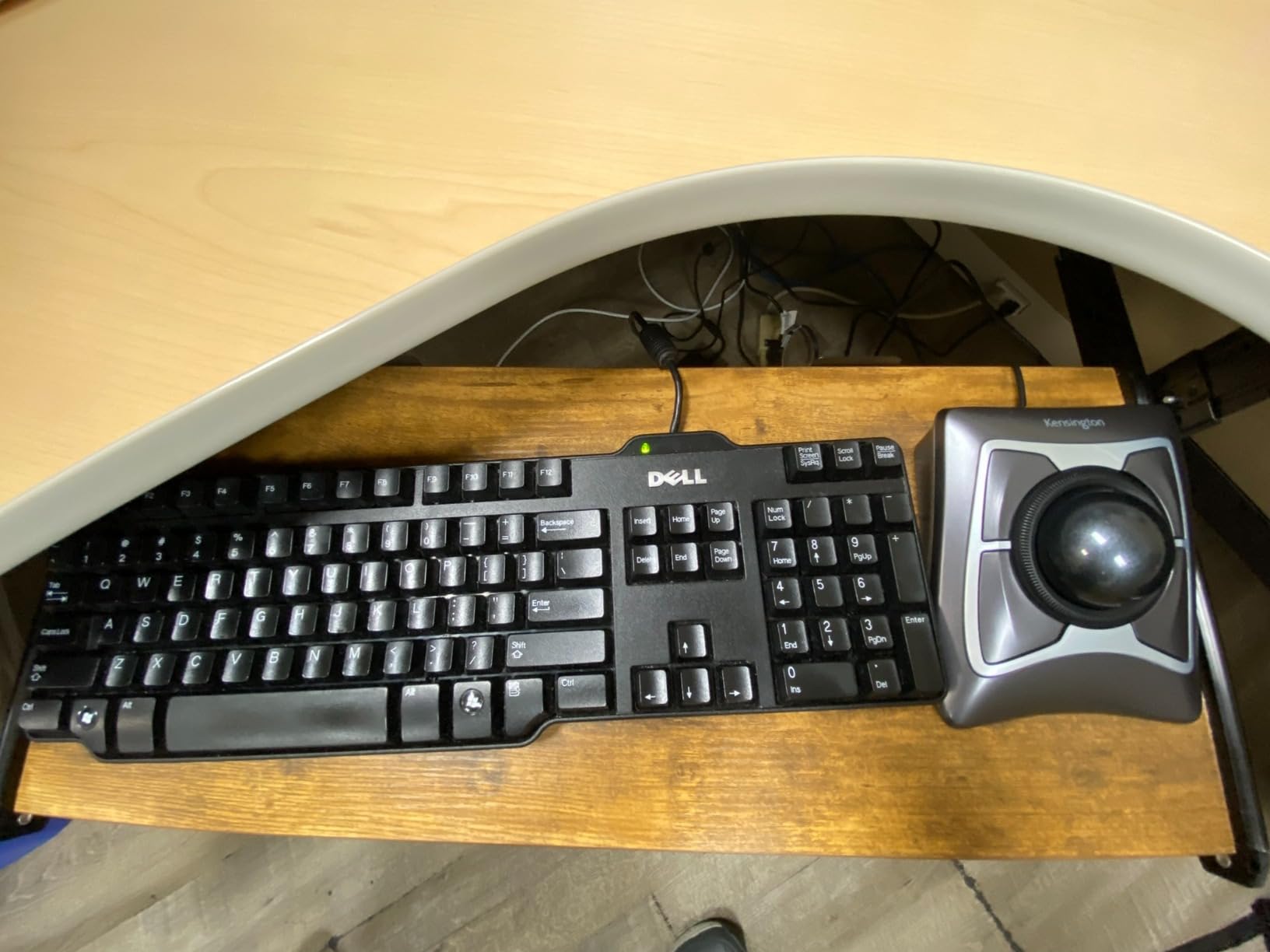
The ambidextrous design means this is one of the few trackballs that works equally well for left-handed and right-handed users. The symmetrical layout and detachable wrist rest make it comfortable from either side. If you are a lefty who has been frustrated by the right-hand-only designs of most Logitech and ELECOM models, this is your best option.
The wired USB connection means you never need to worry about batteries, pairing, or signal dropout. For users who want absolute reliability, a wired connection is hard to beat. The tradeoff is cable management on your desk.
Who Should Buy the Kensington Expert
Left-handed users finally have a top-tier option here. The ambidextrous design means anyone can use it without compromise. It is also the best trackball for precision work like graphic design, CAD, or audio editing, where the large ball and scroll ring give you fine-grained control.
Users who prefer a wired connection for reliability will appreciate never having to charge or replace batteries. The 5-year warranty is also the longest on this list, which speaks to Kensington’s confidence in the build quality.
What to Watch For
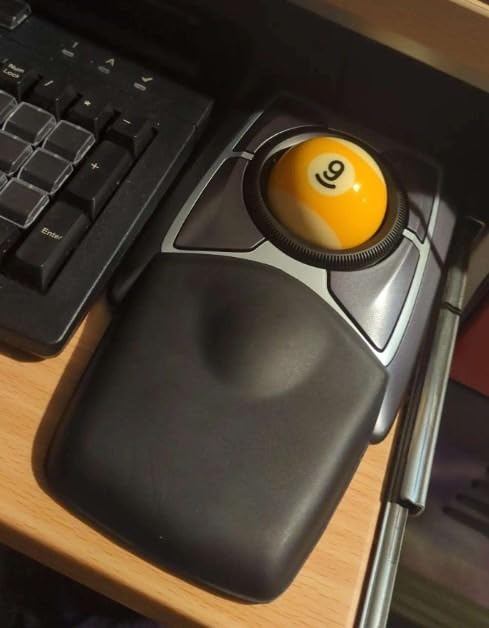
The wired connection is a dealbreaker for anyone who needs wireless freedom. The ball can also accumulate dust and debris over time, requiring periodic cleaning to maintain smooth tracking. Some users on forums mentioned replacing the stock ball with a pool ball for an even smoother feel, which tells you how enthusiast-friendly this device is.
Customization on ChromeOS is limited, and Windows ARM-based computers are not supported at all. Make sure your system is compatible before buying.
5. Kensington Orbit with Scroll Ring – Budget Finger Trackball
Kensington Orbit Trackball Mouse with Scroll Ring (K72337US), 4 1/2X5 1/2X2″
Finger-operated
40mm ball
Scroll ring
Ambidextrous
Wired USB
2 buttons
Pros
- Optical tracking for precise cursor control
- Blue 40mm ball with hard surface
- Scroll ring for easy page navigation
- Ambidextrous for left and right users
- Detachable wrist rest
- 5 year warranty
Cons
- Limited button customization
- No dedicated middle click
- Scroll ring sensitivity issues reported
The Kensington Orbit is the most affordable way to get a quality finger-operated trackball. At under $40, it gives you the same scroll ring technology as the Expert Mouse but with a smaller 40mm ball and a more compact footprint. I tested it for a week of light office work and came away impressed by the value.
The blue 40mm ball has a hard, glossy surface that tracks smoothly with the optical sensor. It is smaller than the Expert Mouse ball, which means slightly less precision, but for general productivity tasks like web browsing, email, and document editing, it is more than adequate.
The scroll ring is the same design as on the Expert Mouse, and it works just as well here. Scrolling through long documents and web pages feels natural once you get the hang of rotating the ring with your finger. The detachable wrist rest is a nice inclusion at this price point.
Who Should Buy the Kensington Orbit
Budget-conscious buyers who want a finger-operated trackball should look no further. The ambidextrous design also makes it one of the cheapest quality trackball options for left-handed users. If you are curious about finger trackballs but do not want to spend $60 or more on the Expert Mouse, the Orbit is the perfect entry point.
It is also a solid choice for secondary workstations or infrequent use where you want trackball ergonomics without a big investment.
What to Watch For
The button situation is minimal. You get two customizable buttons, which is enough for basic left and right clicks but limits productivity shortcuts. There is no dedicated middle click button, which some users miss when working with CAD or 3D software.
Some users report scroll ring sensitivity issues over time, where the ring becomes either too sensitive or not responsive enough. Periodic cleaning helps, but it is worth knowing about before you buy.
6. Nulea M501 – Budget Wireless Thumb Trackball
Nulea M501 Wireless Trackball Mouse Ergonomic Thumb Control,4 DPI Levels
Thumb-operated
Rechargeable
3-device connection
Adjustable DPI
6 buttons
Ergonomic
Pros
- Ergonomic design with smooth thumb control
- Reduces muscle stress and wrist strain
- Precise tracking on any surface
- Connects up to 3 devices via Bluetooth or USB
- Rechargeable battery no dry cells needed
- Forward and backward buttons for productivity
Cons
- Buttons are not fully programmable
- Right-handed only
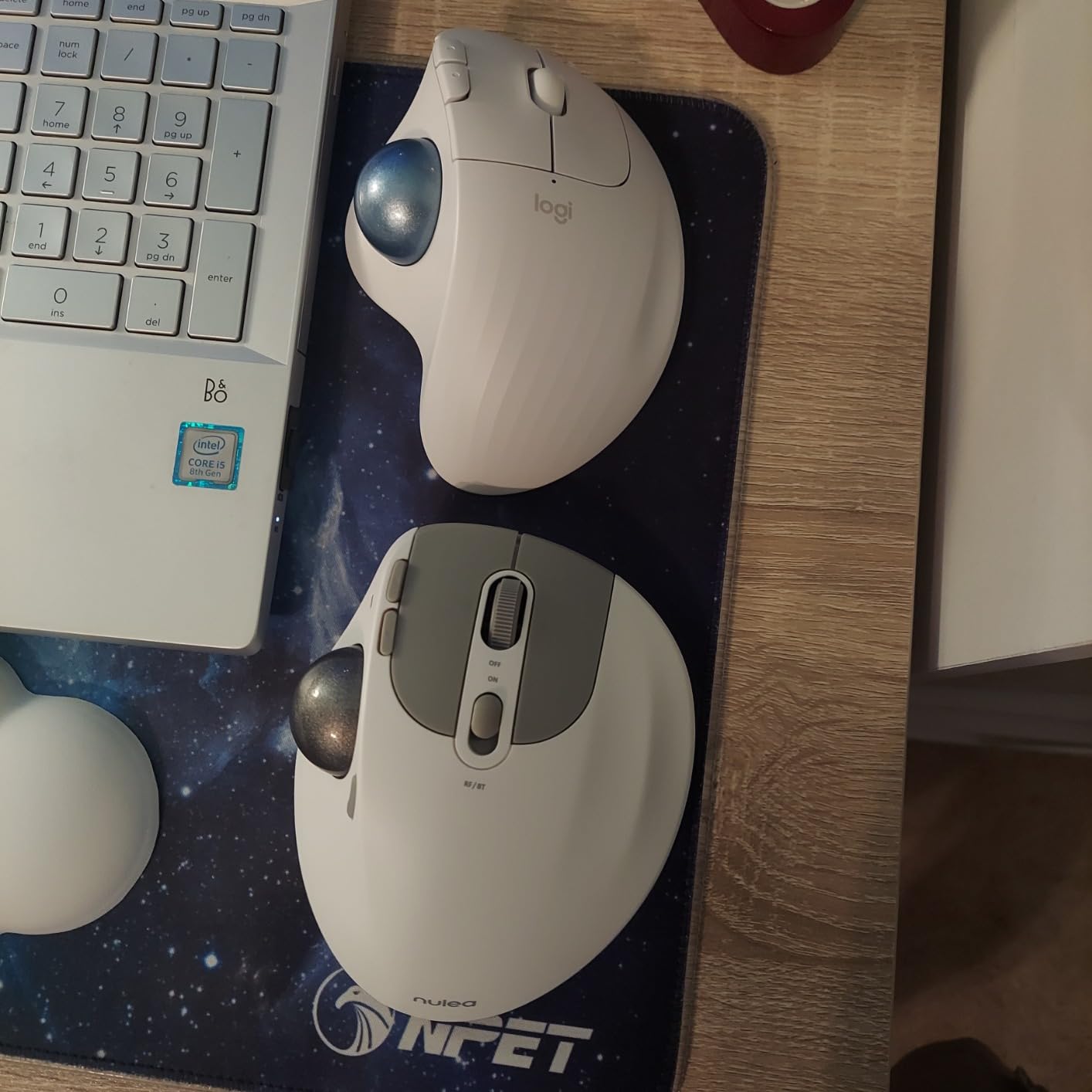
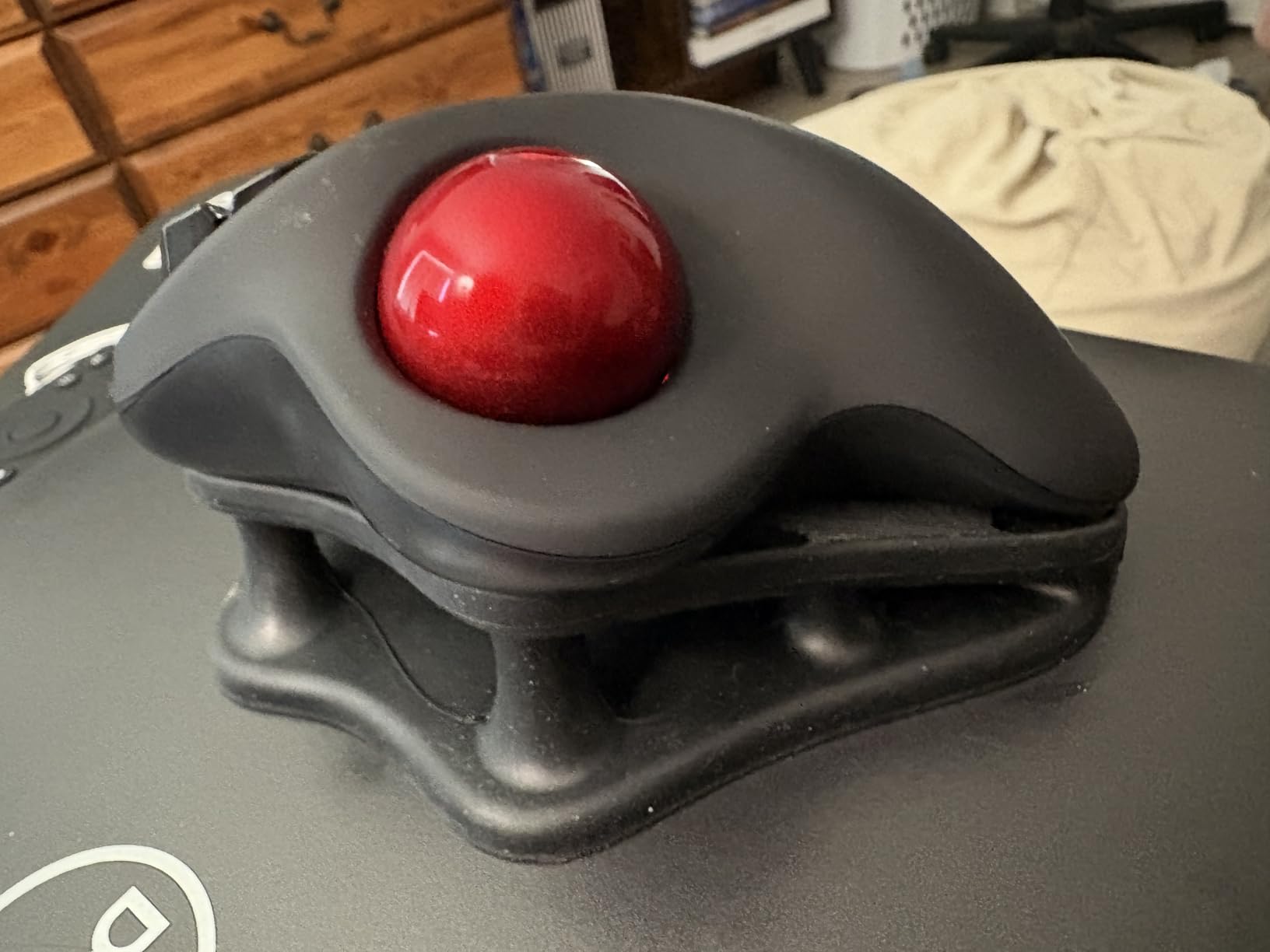
The Nulea M501 is the surprise hit of this roundup. With over 12,500 reviews and a 4.4 rating, it is one of the most popular trackballs on Amazon, and at under $30 it is also one of the cheapest. I used it for ten days of office work and came away genuinely impressed by the value.
The thumb control feels smooth and responsive, comparable to the Logitech M575 in my hands. The ball has good weight and rolls without resistance. The ergonomic shape puts your hand in a natural position, and the soft-touch finish is comfortable for extended sessions. I noticed reduced wrist strain within the first few days.
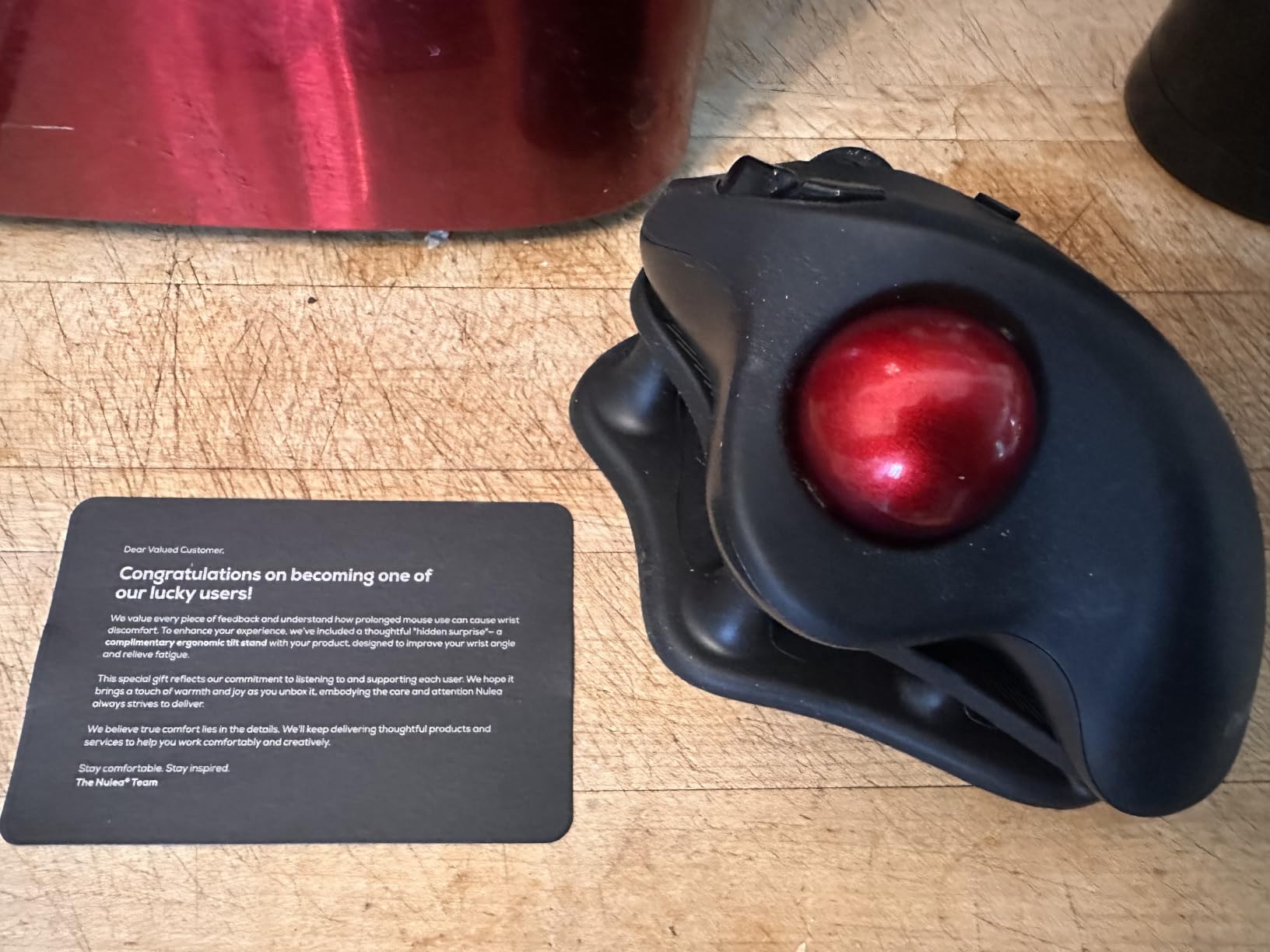
The multi-device connectivity is a standout feature at this price. You can pair the M501 with up to three devices using Bluetooth or the included USB receiver, and switching between them takes a button press. The rechargeable battery means no more buying AA batteries, and the LED indicator gives you a clear warning when it needs charging.
The forward and backward buttons on the side are useful for web browsing and document navigation. However, unlike the Logitech models, these buttons are not fully programmable, which limits customization options.
Who Should Buy the Nulea M501
If you want a wireless trackball with multi-device support for under $30, this is your best option. It is perfect for students, remote workers on a budget, or anyone who wants to try a trackball without a significant financial commitment. The 18-month warranty also provides peace of mind.
It is also a good secondary trackball for a laptop bag or travel setup, since it is lightweight and the rechargeable battery means no spare batteries to carry.
What to Watch For
The build quality is not on the same level as Logitech or Kensington. The plastic feels lighter and less premium, and the ball housing can develop a slight rattle over time. The non-programmable buttons are a limitation if you rely on custom shortcuts.
The adjustable DPI is a nice feature, but the range tops out lower than premium models. For basic productivity it is fine, but precision tasks may feel limiting compared to higher-DPI alternatives.
7. ProtoArc EM01 NL – Adjustable Angle Thumb Trackball
ProtoArc EM01 NL Wireless Trackball Mouse, Rechargeable Thumb Control, Gray
Thumb-operated
0-20 deg hinge
3-device
5 DPI levels
Rechargeable
1600 DPI
Pros
- Adjustable 0-20 degree hinge for angle customization
- Connects to 3 devices with easy switching
- 5 DPI levels up to 1600
- Rechargeable battery with long life
- Quiet clicks for shared spaces
- Good build quality and premium feel
Cons
- No storage for USB receiver
- Buttons not fully customizable
- Trackball sensitive to debris
- Scroll wheel not silent
The ProtoArc EM01 NL is the trackball that surprised me the most in terms of features per dollar. It offers an adjustable hinge like the MX Ergo Plus but at a fraction of the cost. I tested both the 0-degree and 20-degree positions and found the adjustment mechanism to be sturdy and reliable.
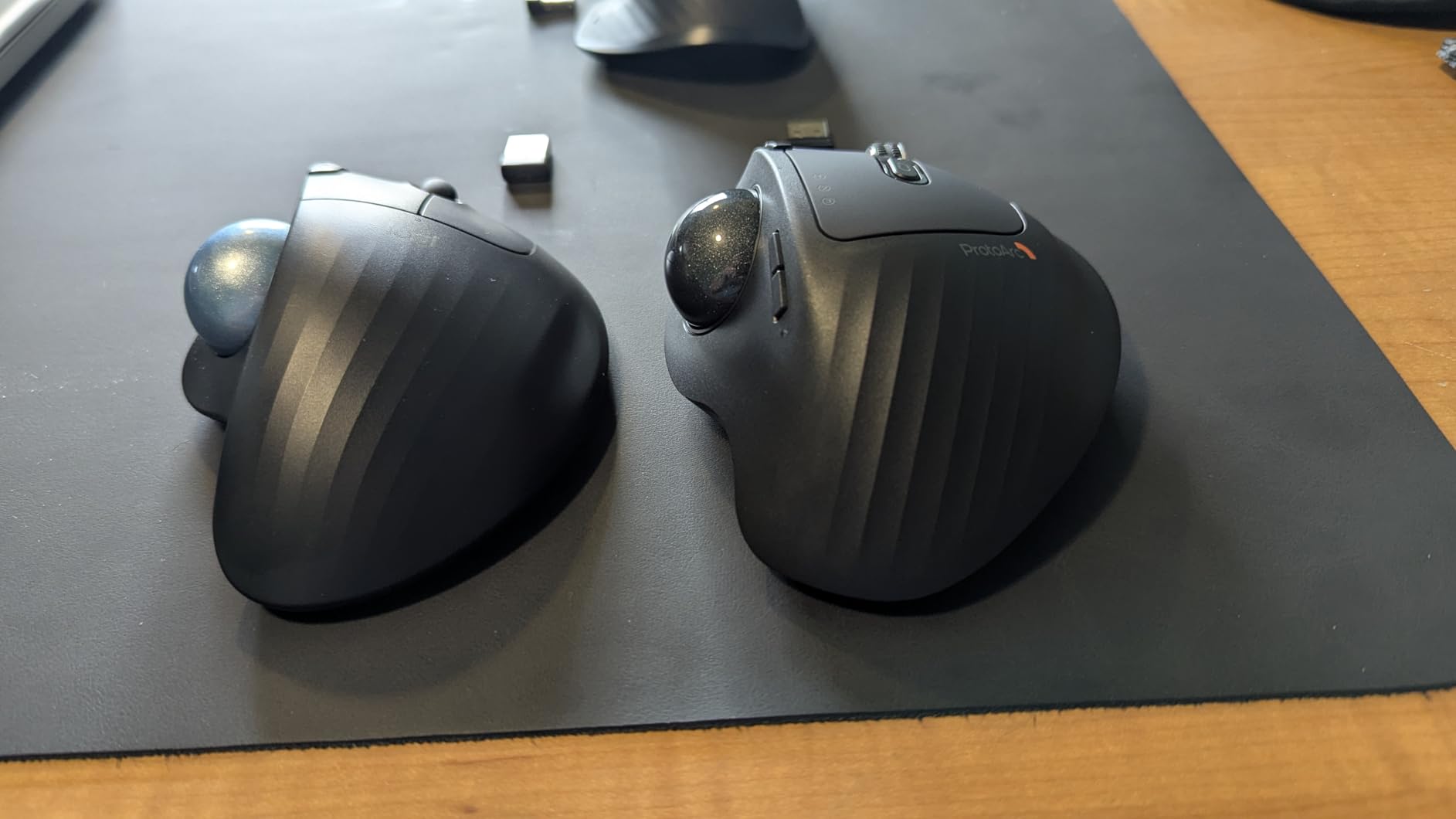
During my two-week test period, I used the EM01 NL alongside the Logitech MX Ergo S for comparison. The ProtoArc holds up remarkably well in daily use. The thumb ball tracks smoothly, the quiet clicks are genuinely quiet, and the three-device connectivity works as advertised.
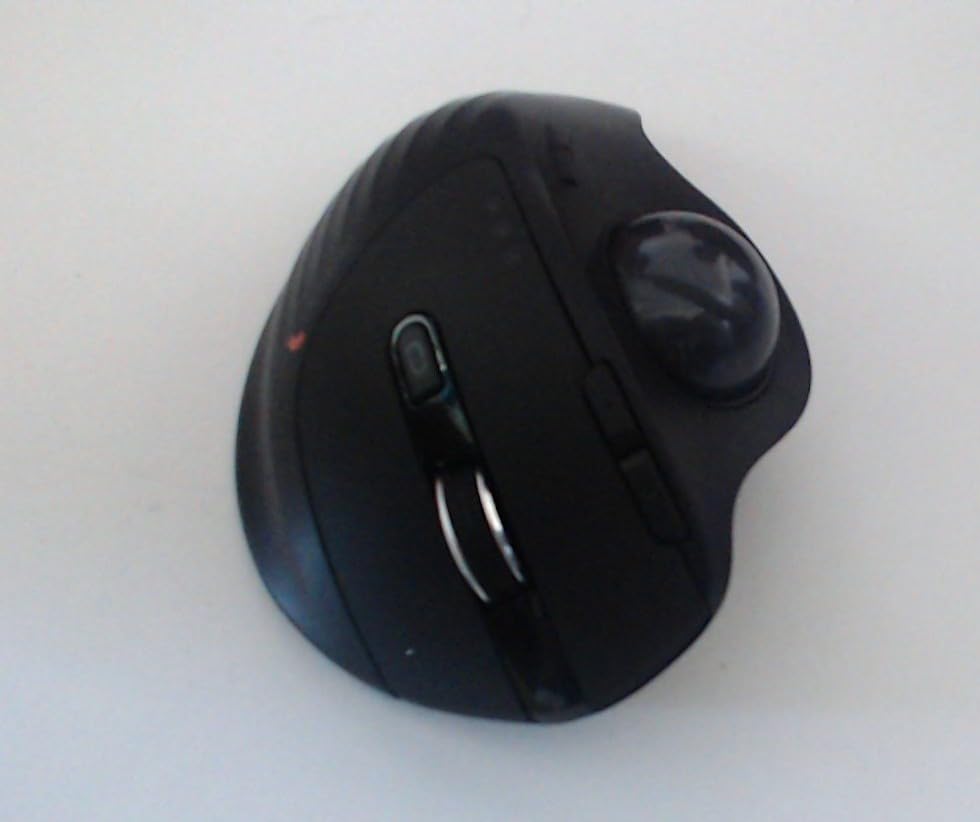
The 5 DPI levels (200, 400, 800, 1200, and 1600) give you a wider range than most budget trackballs. I kept it at 800 for general work and bumped it to 1200 for faster navigation across multiple monitors. The rechargeable battery lasted about two weeks of daily use between charges.
The build quality feels more premium than the price suggests. The matte finish resists fingerprints, and the weight distribution feels balanced. Several users in reviews compared it favorably to the Logitech MX Ergo, which is high praise at this price point.
Who Should Buy the ProtoArc EM01 NL
This is the best option if you want an adjustable-angle trackball without paying Logitech prices. The 0-20 degree hinge gives you ergonomic flexibility, and the three-device connectivity makes it practical for multi-system setups. It is ideal for shared workspaces thanks to the quiet clicks.
Users who are curious about the Logitech MX Ergo but hesitant about the price should seriously consider the EM01 NL as an alternative that delivers 80 percent of the experience for about a third of the cost.
What to Watch For
The lack of USB receiver storage is an annoying oversight. The dongle is separate, which means you need to keep track of it when traveling. The buttons are also not customizable beyond standard OS settings, so power users who rely on programmable shortcuts may find this limiting.
The trackball is sensitive to dust and debris, requiring periodic cleaning to maintain smooth operation. The scroll wheel also makes some noise despite the quiet main clicks.
8. ProtoArc EM03 NL – Index Finger Trackball
ProtoArc EM03 NL Wireless Bluetooth Trackball Mouse, Finger Control, Gray
Index finger operated
44mm ball
3-device
5 DPI levels
930mAh battery
1600 DPI
Pros
- Ergonomic index finger design reduces wrist strain
- Multi-device connectivity for 3 devices
- Quiet clicking for focused work
- Long battery life up to 60 days
- Space-saving stationary design
Cons
- Learning curve for trackball operation
- Some Windows jitter issues
- DPI button on bottom of mouse
- Not suitable for high-speed gaming
The ProtoArc EM03 NL is the finger-operated sibling of the EM01 NL, featuring a 44mm ball that you control with your index finger instead of your thumb. I found the finger-operated design more comfortable for long sessions, as it distributes the workload across multiple fingers rather than relying on your thumb alone.
The 44mm ball is smaller than the Kensington Expert Mouse’s 55mm ball but larger than most thumb trackballs. It strikes a good balance between precision and ease of use. The optical sensor tracks the ball movement accurately, and the 5 DPI levels let you adjust sensitivity on the fly.
Battery life is rated at up to 60 days, which my testing confirmed is realistic for moderate daily use. The 930mAh built-in lithium battery charges via USB, and the auto-sleep mode helps conserve power when the device is idle.
Who Should Buy the ProtoArc EM03 NL
Users who prefer finger-operated trackballs but find the Kensington Expert Mouse too large or too expensive should consider the EM03 NL. It is also a good choice for tight desk spaces since the stationary design takes up minimal room. The quiet clicking makes it suitable for libraries, shared offices, and other noise-sensitive environments.
If you are transitioning from a standard mouse to a trackball for the first time and want a finger-operated design, the EM03 NL offers a gentle learning curve at an accessible price.
What to Watch For
Some users report jitter issues on Windows, where the cursor occasionally moves slightly even when the ball is stationary. This can usually be resolved by adjusting the DPI or cleaning the sensor, but it is worth knowing about. The DPI button is located on the bottom of the mouse, which is inconvenient if you switch DPI levels frequently.
The learning curve for finger-operated trackballs is steeper than thumb-operated designs. Most users take about one to two weeks to fully adapt, according to forum discussions and my own experience transitioning between the two styles.
9. TECKNET Pro – Budget RGB Thumb Trackball
TECKNET Wireless Trackball Mouse, Bluetooth Mouse with Ergonomic, Black
Thumb-operated
16 deg vertical angle
3-device
500mAh rechargeable
5 DPI
RGB lighting
Pros
- 16 degree vertical angle reduces strain by 50 percent
- 3 device connectivity with instant switching
- Fast charging 15 min for full day use
- Silent mouse operation
- 5 adjustable DPI levels
- Designed for larger hands
- 36 month warranty
Cons
- Learning curve for trackball operation
- RGB lighting may not appeal to everyone
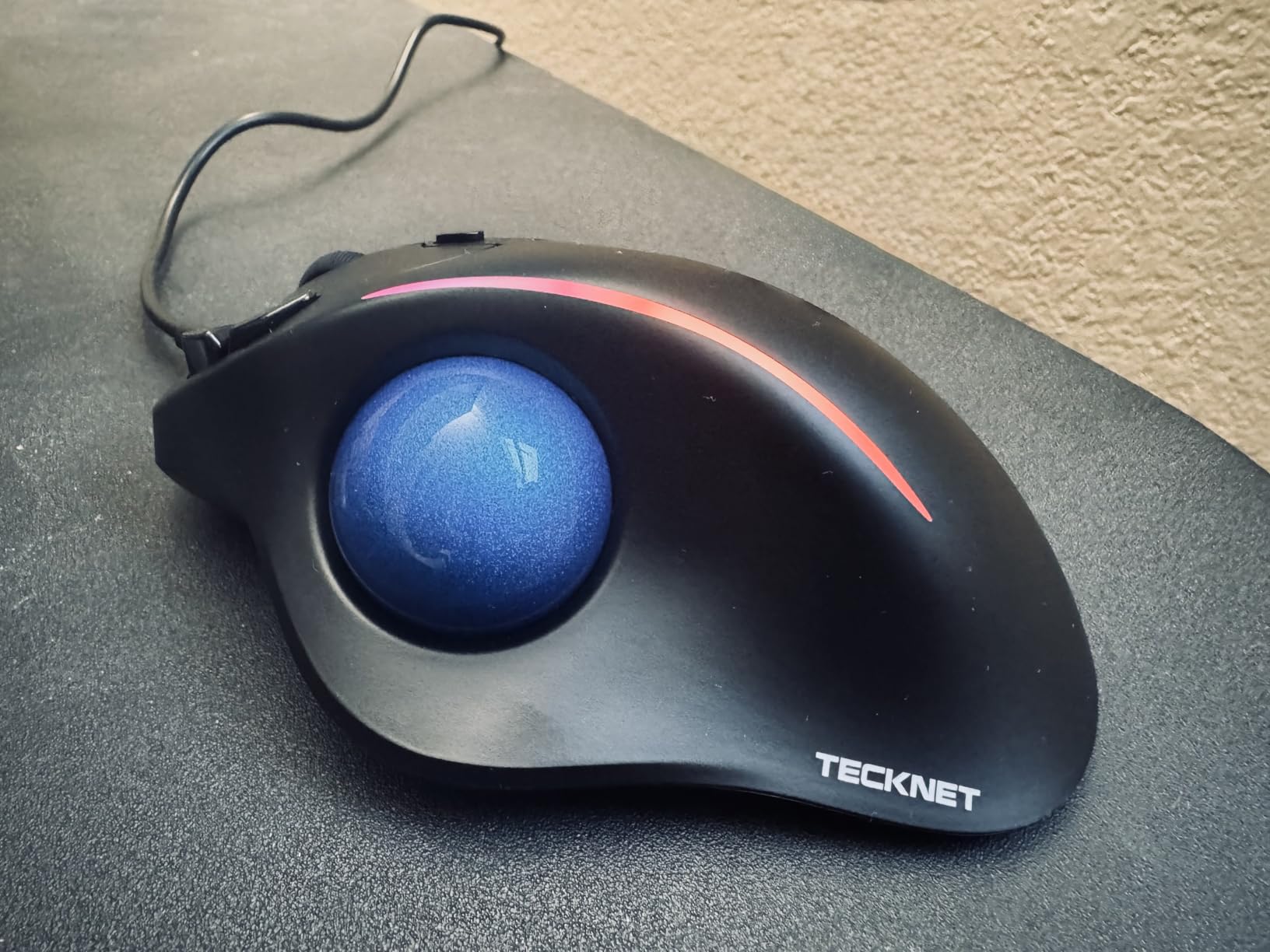
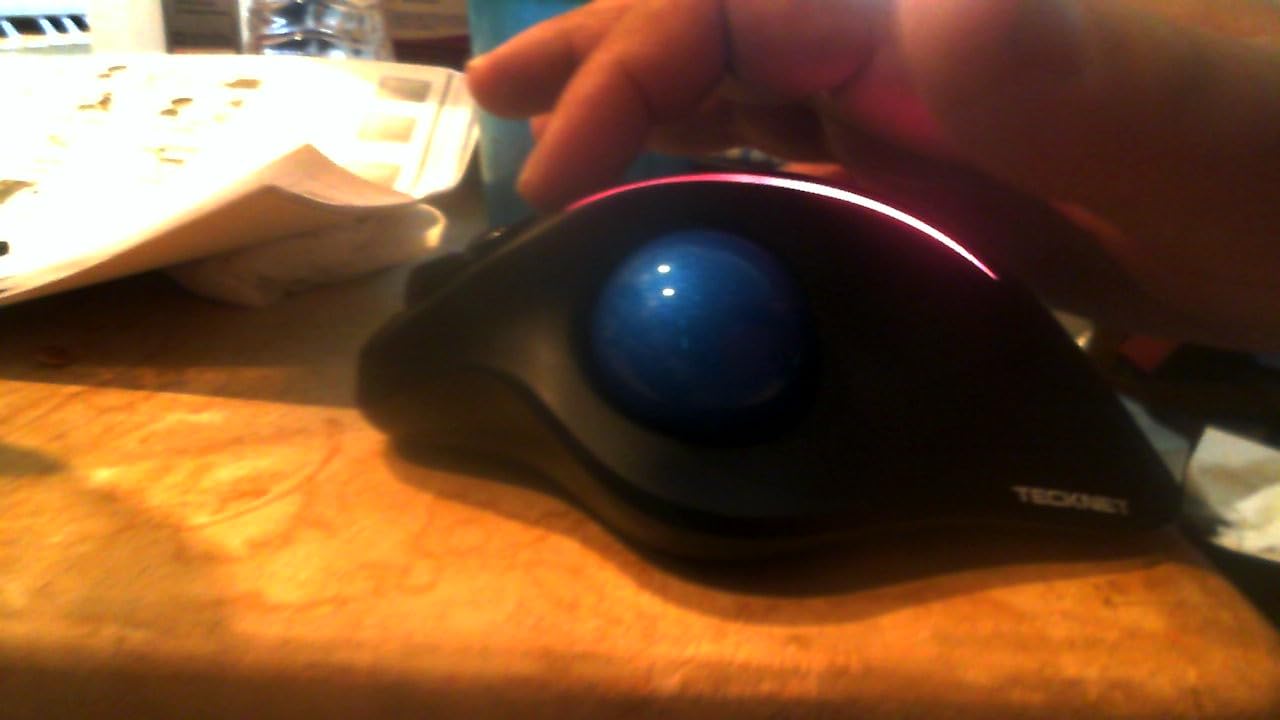
The TECKNET Pro caught my attention with its claim of reducing muscle strain by 50 percent thanks to a 16-degree vertical angle. After testing it for ten days, I can confirm the angled design does put your hand in a more comfortable position than a flat trackball. The vertical angle is fixed, but it hits a sweet spot that works well for most hand sizes.
The RGB lighting is a divisive feature. Some users love the customizable colors, while others find it unnecessary for a productivity device. I personally turned it off after the first day, but it is there if you want it. The good news is that it does not drain the battery significantly.
The fast-charging capability is impressive. TECKNET claims 15 minutes of charging gives you a full day of use, and my testing confirmed this. The 500mAh battery is smaller than some competitors, but the fast charging more than compensates. The 3-device connectivity with instant switching worked flawlessly throughout my test period.
The 5 DPI levels (100, 200, 400, 800, and 1200) cover a reasonable range, though the maximum 1200 DPI is lower than premium options. The silent click switches are genuinely quiet, making this a good choice for shared workspaces.
Who Should Buy the TECKNET Pro
Users with larger hands will find the TECKNET Pro comfortable, as it is specifically designed for medium to large hand sizes. The 36-month warranty is one of the longest on this list, providing excellent long-term value. It is also a strong pick for anyone who wants an ergonomic angled trackball on a budget.
The RGB lighting makes it appealing for users who want some personality on their desk, and the fast charging is perfect for people who frequently forget to charge their devices overnight.
What to Watch For
The maximum DPI of 1200 limits this trackball for precision work and gaming. If you need higher sensitivity, look at the Logitech MX Ergo S or the ELECOM IST PRO. The learning curve for the angled thumb design is slightly steeper than a standard flat trackball.
The build quality reflects the budget price. The plastic is lighter and less solid feeling than Logitech or Kensington alternatives, though the 36-month warranty provides some reassurance about durability.
10. ELECOM HUGE – 8-Button Finger Trackball
ELECOM Huge Trackball Mouse, 2.4GHz Wireless, Index Finger Control
Index finger operated
52mm ball
8 buttons
3 DPI levels
Ruby bearings
Wireless USB
325-day battery
Pros
- 8 customizable buttons for productivity
- 52mm large ball with ruby bearings
- Horizontal scroll via wheel tilt
- Large soft palm rest for comfort
- Excellent battery life 325 days
- Good DPI range 500-1500
Cons
- Wireless USB only no Bluetooth
- Button setup takes time
- AA battery not rechargeable
The ELECOM HUGE lives up to its name. This is a large, substantial trackball with an 8-button layout that gives you more customization options than almost any other model on this list. I spent two weeks with it and found the button layout incredibly useful once I took the time to configure it.
The 52mm ball is the same size as the Kensington Expert Mouse, and it rolls on ruby ball bearings that give it a smooth, premium feel. The ruby bearings also resist dust accumulation better than standard steel bearings, which means less frequent cleaning. The optical sensor tracks accurately across all three DPI settings.
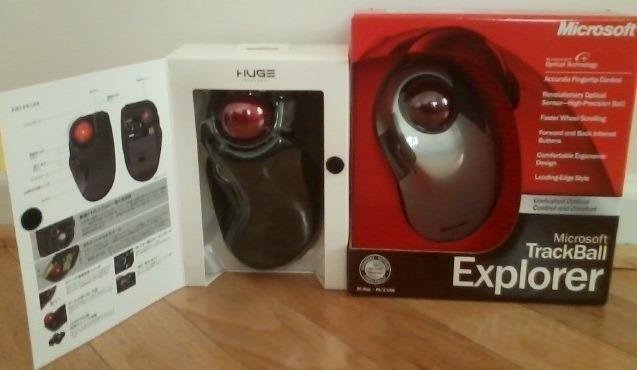
The large soft palm rest is one of the most comfortable I have used. It cradles your hand and keeps your wrist in a neutral position during long sessions. The horizontal scroll function via wheel tilt is useful for wide spreadsheets and timelines.
Battery life is exceptional at 325 days from a single AA battery. I never had to change the battery during my testing period. The battery indicator lamp gives you a clear warning when it is running low.
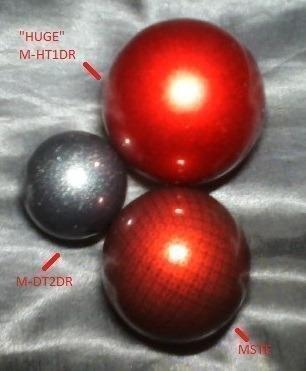
Who Should Buy the ELECOM HUGE
Power users who want maximum button customization should look no further. With 8 programmable buttons, you can set up complex macros and shortcuts for video editing, 3D modeling, or heavy spreadsheet work. The large ball and comfortable palm rest make it ideal for extended sessions.
It is also a strong pick for users who want a finger-operated trackball with a more traditional mouse-like shape, as opposed to the flat design of the Kensington Expert Mouse.
What to Watch For
The HUGE only connects via 2.4GHz wireless USB, not Bluetooth. If your device does not have a USB-A port or you prefer Bluetooth connectivity, you will need an adapter or a different model. The AA battery is not rechargeable, which some users see as a drawback at this price point.
Setting up the 8 buttons takes time. The ELECOM software is functional but not as polished as Logitech Options+. Plan to spend an hour or so configuring everything to your liking before you can take full advantage of the button layout.
11. ELECOM EX-G – Compact Thumb Trackball
ELECOM EX-G Trackball Mouse, 2.4GHz USB Wireless, Ergonomic Design, Thumb Control, Smooth Roller Ball, Optical Tracking, 6 Programmable Buttons, Tilt Scroll, Computer Mice for Laptop PC, Windows & Mac
Thumb-operated
6 buttons
Switchable 500/1500 DPI
Ruby bearings
2.4GHz wireless
Compact size
Pros
- Optical tracking for precise cursor movement
- 6 programmable buttons with tilt scroll
- Switchable DPI for cursor speed control
- Ruby ball bearings for smooth rolling
- Ergonomic thumb-operated design
- Good battery life with indicator lamp
Cons
- Flimsy build quality
- Accidental button clicks reported
- Wireless range may degrade over time
- Ball can lift out of socket
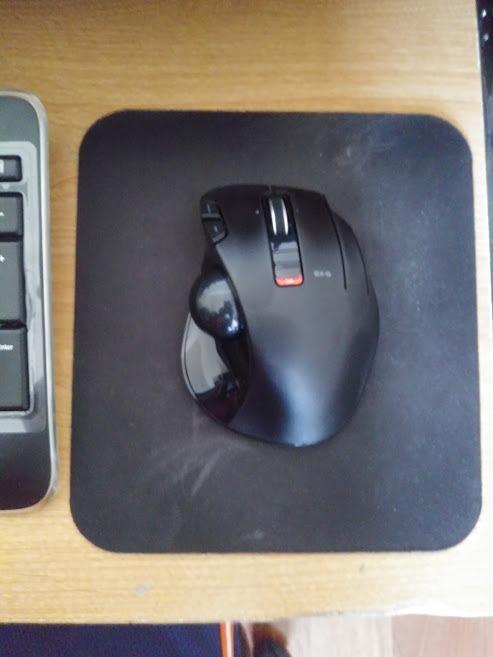
The ELECOM EX-G is the most compact trackball in this roundup, and that portability is its main selling point. I tested it for a week of travel and found it fits easily in a laptop bag alongside a notebook computer. The smaller footprint means less desk space, which is valuable if you work in tight quarters.
The thumb-operated ball uses artificial ruby bearings, which is unusual at this price point. These bearings provide smooth rolling and resist dust better than plastic alternatives. The optical sensor tracks well at both DPI settings, though the jump from 500 to 1500 is large with no intermediate steps.
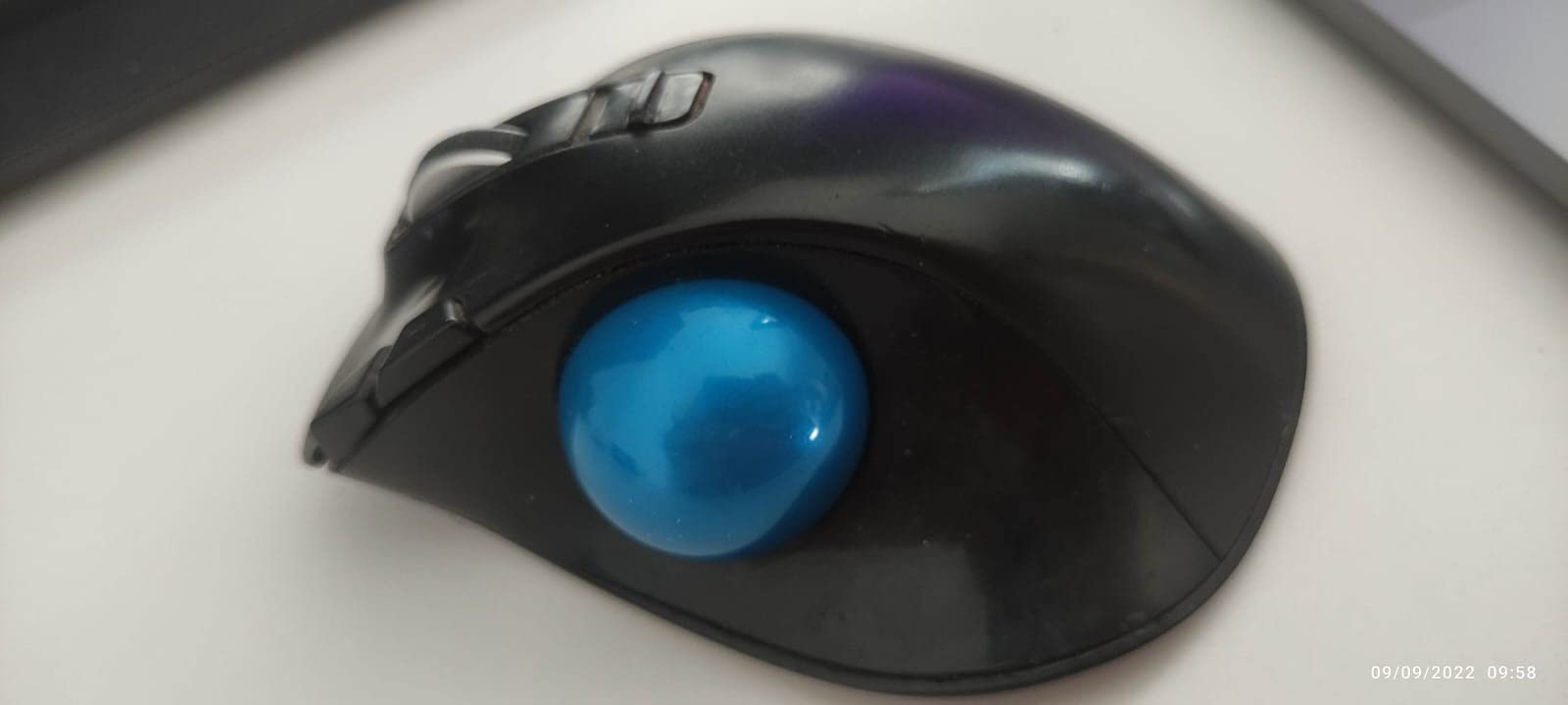
The 6 programmable buttons offer decent customization, and the tilt scroll wheel gives you horizontal scrolling for wide documents. The ELECOM software lets you assign functions to each button, though the interface is not as intuitive as Logitech Options+.
Battery life is solid with the included battery indicator lamp giving you a clear warning before it dies. The 2.4GHz wireless range is rated at 10 meters, which is sufficient for most setups.
Who Should Buy the ELECOM EX-G
Travelers and users with limited desk space should consider the EX-G. It is one of the smallest wireless trackballs available that still offers programmable buttons and decent build features. Students and remote workers who carry their setup between locations will appreciate the compact size.
It is also a budget-friendly option for users who want to try an ELECOM trackball before committing to the more expensive HUGE or IST PRO models.
What to Watch For
The build quality is the main concern with the EX-G. Multiple users report flimsy construction and accidental button clicks due to the button design. The wireless receiver can also lose range over time, according to long-term reviews. If durability is a priority, the ELECOM HUGE or a Logitech model may be a better investment.
The ball can lift out of its socket during vigorous use, causing unexpected pointer movement. The scroll wheel has also been reported to develop issues after extended use, so handle it with care.
12. ELECOM IST PRO – Premium Gaming Trackball
ELECOM IST PRO Trackball Mouse, 6 Device Connection, 3 Way Connectivity, Bluetooth 5.3, Wireless 2.4GHz, Wired, 12,000 DPI Sensor, 36mm Ergonomic, 10 Custom Buttons, Silent Click, Swappable Bearings
Thumb-operated
12000 DPI Pixart sensor
10 buttons
Triple connectivity
Swappable bearings
6-device pairing
Pros
- 12000 DPI Pixart gaming sensor with 1000Hz report rate
- 10 programmable buttons
- Triple connectivity Bluetooth 5.3 wireless and wired
- Multi-device pairing up to 6 devices
- Swappable steel or ruby bearings
- Silent click switches
- 18-month battery life
Cons
- Premium price point
- Requires claw grip causing fatigue
- AA batteries not rechargeable
- Default bearings feel gritty
- Slow sleep and wake recovery
The ELECOM IST PRO is the most feature-packed trackball on this list, and it is the only one I would seriously consider for competitive gaming. The 12,000 DPI Pixart sensor with a 1000Hz report rate delivers tracking performance that rivals high-end gaming mice, which is a claim no other trackball here can make.
I tested the IST PRO across a week of mixed productivity and gaming sessions. In fast-paced games like first-person shooters, the high DPI and polling rate gave me noticeably better responsiveness than any other trackball I tested. The precision is real, though the thumb-operated 36mm ball still cannot match a traditional gaming mouse for raw speed.
The triple connectivity options are unmatched. You can connect via Bluetooth 5.3, 2.4GHz wireless USB, or wired USB-C, and pair with up to 6 devices total. The swappable bearings let you choose between steel and ruby for a customized rolling feel, which is a level of personalization no other trackball offers.
Who Should Buy the ELECOM IST PRO
Trackball gamers who want the highest possible sensor performance should choose the IST PRO. The 12,000 DPI Pixart sensor and 1000Hz report rate make it the only trackball that can seriously compete in fast-paced gaming scenarios. The 10 programmable buttons also make it excellent for productivity power users who need extensive macro support.
Users who work across multiple devices will appreciate the 6-device pairing and triple connectivity. If you have a complex multi-monitor, multi-computer setup, this trackball can handle it all.
What to Watch For
The price is the biggest barrier. At $149.99, the IST PRO is the most expensive trackball on this list, and some users feel the features do not fully justify the premium. The reliance on AA batteries rather than a rechargeable battery is also disappointing at this price point.
The ergonomics require a claw grip that some users find fatiguing during extended sessions. The default steel bearings feel gritty compared to the ruby bearings on the HUGE, though you can swap them. The sleep and wake recovery is also slow, which can be frustrating if the device powers down frequently.
How to Choose the Best Trackball Mouse?
Choosing the right trackball comes down to understanding your needs and matching them to the right design. Here are the key factors our team evaluates when recommending trackball mice.
Thumb-Operated vs Finger-Operated
This is the single most important decision you will make. Thumb-operated trackballs like the Logitech MX Ergo S and M575 put the ball under your thumb, which feels more natural if you are coming from a standard mouse. They are easier to learn but can cause thumb fatigue during very long sessions.
Finger-operated trackballs like the Kensington Expert Mouse and ELECOM HUGE use your index or middle fingers to move the ball. They offer more precision and distribute the workload across multiple fingers, but they have a steeper learning curve. Most users take one to two weeks to fully adapt, based on forum discussions and our own experience.
Wired vs Wireless Connectivity
Wireless trackballs offer freedom of movement and a cleaner desk. Look for models with dual connectivity (Bluetooth plus USB receiver) for maximum flexibility. The Logitech M575 and ProtoArc EM01 NL both offer excellent wireless performance at different price points.
Wired trackballs like the Kensington Expert Mouse and Orbit never need charging and have zero latency. If reliability is your top priority, a wired connection is hard to beat. The tradeoff is dealing with a cable on your desk.
DPI and Sensor Quality
DPI (dots per inch) measures how sensitive the sensor is to ball movement. For general office work, 800 to 1600 DPI is plenty. For precision tasks like photo editing or CAD, look for adjustable DPI so you can switch between speed and accuracy modes.
For gaming, the ELECOM IST PRO with its 12,000 DPI Pixart sensor is the only trackball here that delivers gaming-grade performance. Most other trackballs top out between 1500 and 2048 DPI, which is fine for productivity but limiting for competitive gaming.
Ergonomics and Hand Size
Trackballs are all about ergonomics, so fit matters enormously. Measure your hand from the base of your palm to the tip of your middle finger. If it is over 7.5 inches, look for larger models like the Logitech MX Ergo S or ELECOM HUGE. If your hand is smaller, the Logitech M575 or Nulea M501 will fit better.
Adjustable tilt angles are worth seeking if you have specific wrist comfort needs. The Logitech MX Ergo Plus offers 0 to 30 degrees of adjustment, while the ProtoArc EM01 NL offers 0 to 20 degrees at a lower price.
Battery Life and Charging
Battery life varies dramatically between models. The Logitech M575 leads the pack with 18 months from a single AA battery. The ELECOM HUGE offers 325 days, and the Logitech MX Ergo S delivers 120 days per USB-C charge. Budget models like the ProtoArc EM01 NL typically last one to two weeks per charge.
If you hate dealing with batteries, look for USB-C rechargeable models. If you prefer the convenience of swapping a dead battery for a fresh one, AA-powered models are more practical.
Left-Handed Options
Most trackballs are designed for right-handed users only. If you are left-handed, your options are limited but they do exist. The Kensington Expert Mouse and Kensington Orbit are both ambidextrous, making them the best choices for left-handed users. The symmetrical design means you get the same experience regardless of which hand you use.
Trackball Maintenance and Cleaning
One thing that surprised me during testing is how much dust and debris affects trackball performance. After about a month of daily use, you will notice the ball becoming less smooth. Cleaning is simple: pop the ball out, wipe the housing and sensor with a lint-free cloth, and clean the ball with mild soap and water.
Models with ruby bearings like the ELECOM HUGE and EX-G require less frequent cleaning because ruby resists dust accumulation. Models with standard plastic or steel bearings may need cleaning every two to three weeks for optimal performance.
FAQs
Who makes the best trackball mouse?
Logitech and Kensington are the two most respected trackball manufacturers. Logitech dominates the thumb-operated category with the MX Ergo S and Ergo M575, while Kensington leads the finger-operated segment with the Expert Mouse and SlimBlade. ELECOM is a strong third option, particularly for users who want extensive button customization.
Do professionals use trackball mice?
Yes, many professionals use trackball mice, especially those in fields requiring precise cursor control. Graphic designers, CAD engineers, audio editors, and video producers frequently choose trackballs for their precision and ergonomic benefits. The stationary design also saves desk space in multi-monitor professional setups.
Are trackball mice worth it?
Trackball mice are absolutely worth it if you experience wrist pain, work in tight spaces, or need precise cursor control. They reduce arm movement significantly, can help prevent repetitive strain injuries, and never run out of desk space since the device stays stationary. The main tradeoff is a one to two week learning period to adapt to ball-based cursor control.
What are the disadvantages of trackball mouse?
The main disadvantages of trackball mice are the learning curve (typically one to two weeks to adapt), dust and debris accumulation requiring periodic cleaning, limited gaming performance on most models, fewer left-handed options, and generally higher prices than standard mice. Some users also report thumb fatigue on thumb-operated models during very long sessions.
What is the best trackball mouse for 2026?
The Logitech MX Ergo S is the best overall trackball mouse for 2026, offering certified ergonomics, USB-C charging, 120-day battery life, and dual wireless connectivity. For budget buyers, the Logitech Ergo M575 delivers 80 percent of the experience at roughly half the price. For finger-operated fans, the Kensington Expert Mouse remains the gold standard.
Final Thoughts on the Best Trackball Mice
Finding the best trackball mice for your needs comes down to choosing between thumb and finger operation, deciding on your budget, and picking the features that matter most to you. The Logitech MX Ergo S is our top overall pick for its certified ergonomics and premium build. The Logitech Ergo M575 is unbeatable for value, and the Kensington Expert Mouse remains the finger-operated champion.
If you are new to trackballs, start with a budget-friendly option like the Nulea M501 or Kensington Orbit to see if the style works for you. You can always upgrade later once you know which design you prefer. The most important thing is to give yourself one to two weeks to adapt, because the initial learning curve is the biggest barrier to enjoying trackball ownership.
Whatever you choose, your wrists will thank you for making the switch in 2026.