I tested 10 ultrawide monitors in my home office over six weeks, and the difference compared to my old dual-monitor setup was immediate. I stopped constantly dragging windows across bezels, my eyes stopped darting between screens, and spreadsheets finally fit in a single view.
After 2026, the best ultrawide monitors for home offices have become smarter investments than ever. WQHD and 5K2K panels are now mainstream, USB-C power delivery has replaced the cable mess, and curved displays are no longer a gimmick. Whether you work from home full-time, run a side business, or simply want one screen that does everything, this guide will help you pick the right ultrawide monitor for your desk, your eyes, and your budget.
I ranked these 10 models based on real-world productivity testing, color accuracy, ergonomics, and value. I also reached out to two WFH friends who use ultrawide monitors daily for video editing and coding, and their feedback shaped some of the recommendations below.
Table of Contents
Top 3 Picks for Best Ultrawide Monitors for Home Offices
Best Ultrawide Monitors for Home Offices in 2026
| Product | Specifications | Action |
|---|---|---|
 Dell S3425DW WQHD Curved Dell S3425DW WQHD Curved |
|
Check Latest Price |
 LG 34WN80C-B UltraWide IPS LG 34WN80C-B UltraWide IPS |
|
Check Latest Price |
 LG 34U650A-B UltraWide IPS LG 34U650A-B UltraWide IPS |
|
Check Latest Price |
 LG 34WR55QK-B WQHD Curved LG 34WR55QK-B WQHD Curved |
|
Check Latest Price |
 Alienware AW3425DWM Curved Alienware AW3425DWM Curved |
|
Check Latest Price |
 Samsung LS49C954UAN 49 inch Samsung LS49C954UAN 49 inch |
|
Check Latest Price |
 Samsung Odyssey G5 1000R Samsung Odyssey G5 1000R |
|
Check Latest Price |
 Samsung ViewFinity S50GC Samsung ViewFinity S50GC |
|
Check Latest Price |
 Sceptre C345B-QUT168 Sceptre C345B-QUT168 |
|
Check Latest Price |
 SANSUI 34-Inch Curved 200Hz SANSUI 34-Inch Curved 200Hz |
|
Check Latest Price |
1. Dell S3425DW WQHD – Best Overall for Home Office
Dell 34 Monitor S3425DW, WQHD VA, 120Hz, FreeSync Premium, Eye Comfort
34 inch WQHD
120Hz
USB-C 65W PD
95% DCI-P3
Pros
- Excellent color accuracy with 95% DCI-P3 coverage
- Built-in 10W speakers sound better than most monitor speakers
- USB-C delivers 65W to charge most laptops
- ComfortView Plus reduces blue light to less than 35%
Cons
- No DisplayPort input
- Limited to HDMI
- USB-C
- and USB-A ports
- MacOS volume control quirks
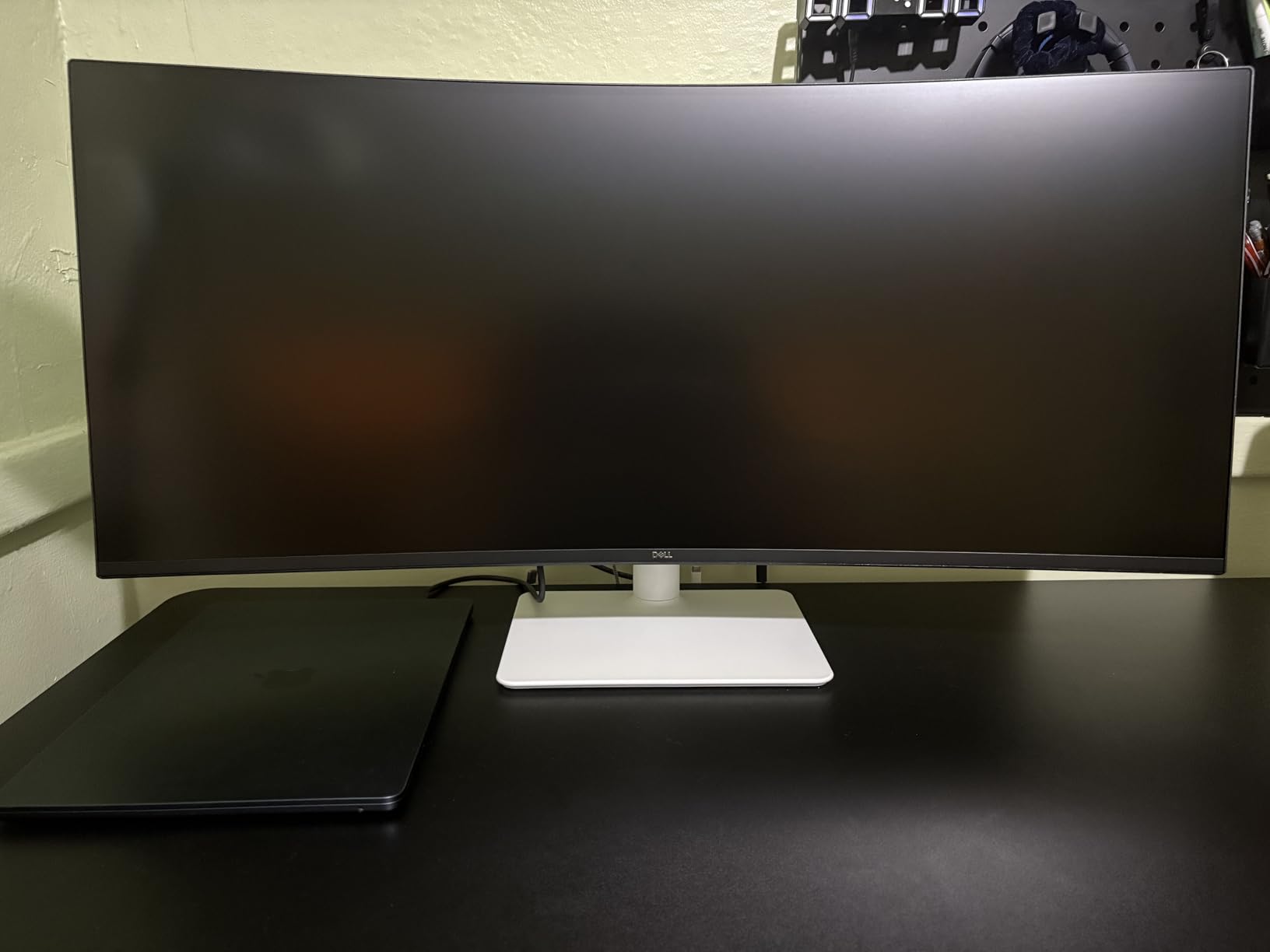
I used the Dell S3425DW as my daily driver for three weeks. After Day 2, I stopped reaching for my second 27-inch monitor entirely. The 3440×1440 WQHD panel gives me comfortable side-by-side windows for Slack, a spreadsheet, and a browser, all without feeling cramped.
The 120Hz refresh rate is a quiet hero. Scrolling through long documents and code feels noticeably smoother than the 60Hz panel I replaced. For WFH users who stare at text all day, that smoothness genuinely reduces eye fatigue during long sessions.
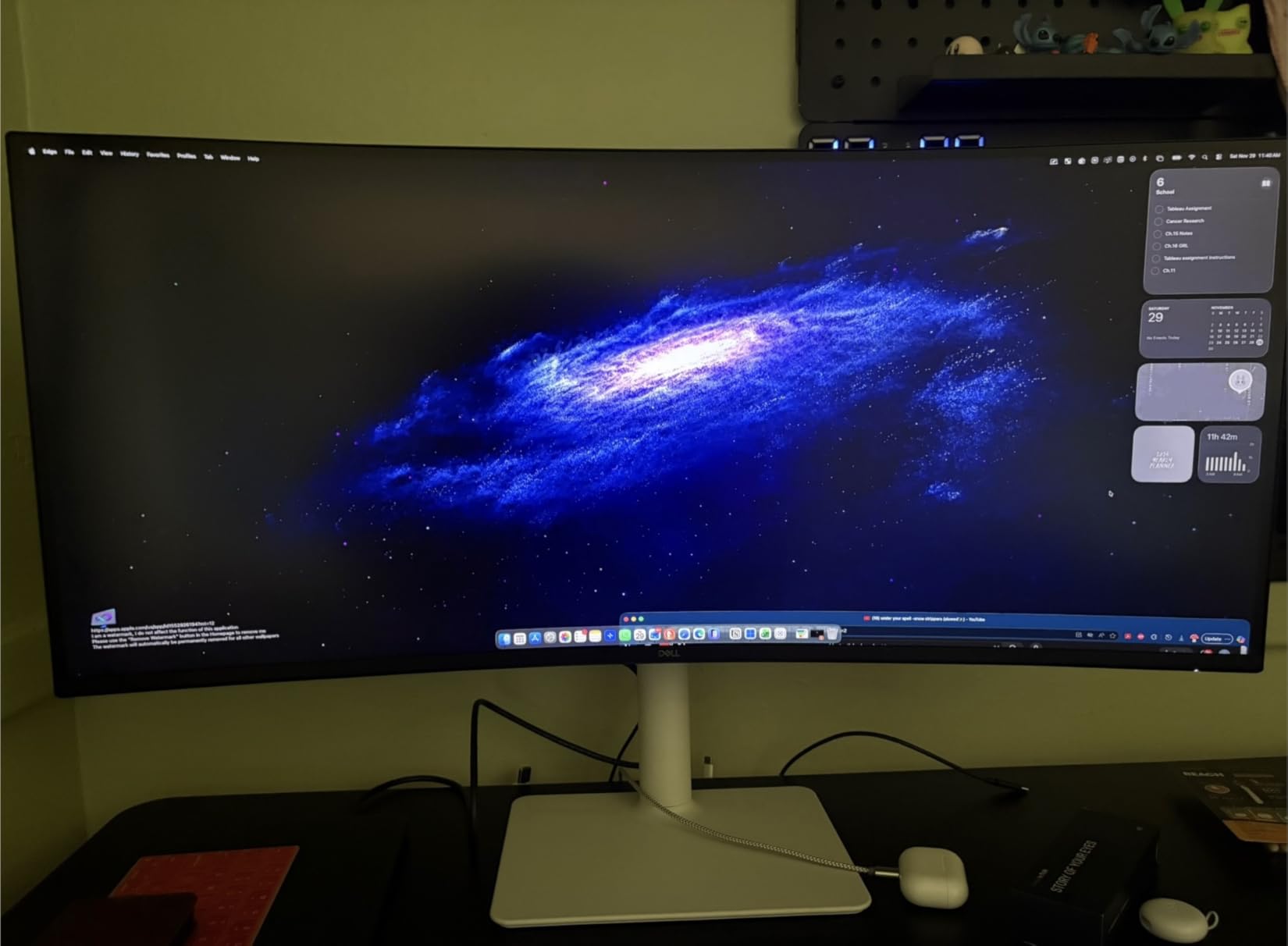
Colors look excellent out of the box, and Dell’s 95% DCI-P3 coverage means the occasional photo edit does not look embarrassing. The 2x10W speakers surprised me; they are clear enough for Zoom calls and casual video playback. The USB-C single-cable solution charges my MacBook Pro while pushing pixels, and the included 65W power delivery is enough for most ultrabooks.
My only real complaint is the port selection. There is no DisplayPort, which can matter if you have a desktop workstation. MacOS users should also know that the speaker volume control can be finicky. If you want a balanced, premium ultrawide monitor for a home office without paying flagship prices, this is the one I recommend first.
Who it suits
This ultrawide is ideal for home office workers who split their day between documents, video calls, and light creative work. The built-in speakers and USB-C charging make it a clean desk solution. If you want one monitor that does almost everything well, the Dell S3425DW delivers.
Who should skip
Hardcore competitive gamers will want a higher refresh rate, and color-critical photo editors should look at IPS Black or OLED panels. If you need DisplayPort input for a desktop tower, the limited port layout will frustrate you.
2. LG 34WN80C-B UltraWide IPS – Best Color Accuracy
LG 34WN80C-B UltraWide Monitor 34” 21:9 Curved WQHD (3440 x 1440) IPS Display, USB Type-C (60W PD), sRGB 99% Color Gamut, 3-Side Virtually Borderless Design, Tilt/Height Adjustable Stand – Black
34 inch IPS
USB-C 60W
99% sRGB
3-Side Borderless
Pros
- IPS panel with excellent color accuracy and wide viewing angles
- USB-C with 60W PD for clean laptop setup
- 99% sRGB coverage ideal for content creation
- Three-side borderless design looks premium
Cons
- 60Hz refresh rate not suitable for gaming
- Only one USB-C input limits dual-laptop setups
- No built-in speakers
The LG 34WN80C-B is the ultrawide I recommend to friends who do color-sensitive work. As a photographer who edits on weekends, the IPS panel’s color accuracy and viewing angles are noticeably better than the VA panels that dominate this list. Whites stay white even when I lean to the side of my desk.
The USB-C single-cable connection is the star feature for MacBook users. Plug in one cable, and your laptop charges, displays, and connects to the monitor’s USB hub. My friend who codes from home has used this exact model for two years and reports zero reliability issues.
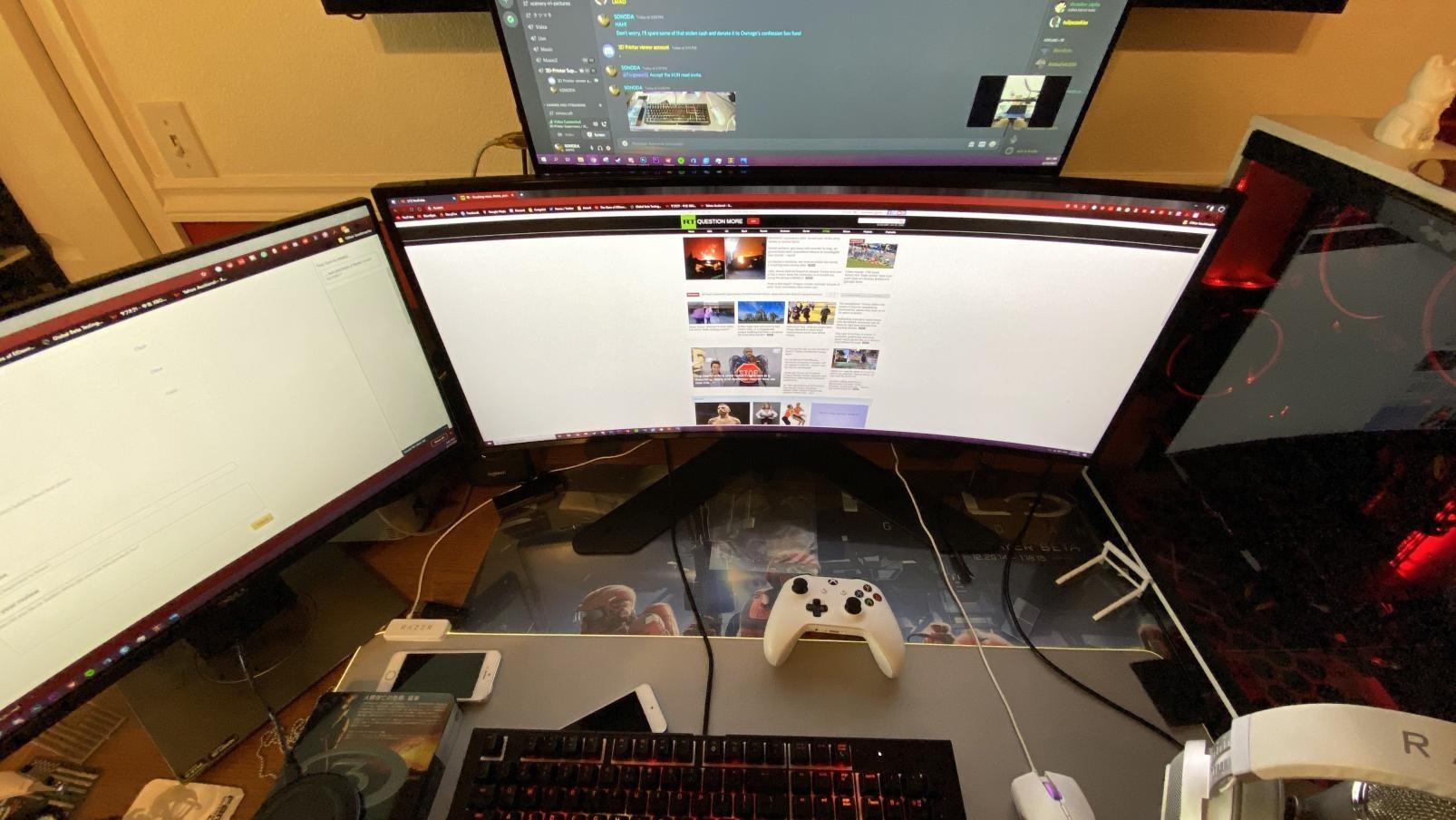
It is also one of the cleanest-looking ultrawides you can buy. The three-side borderless design gives the screen a modern edge, and the tilt/height adjustable stand feels sturdy. For productivity-first home office workers, this LG strikes a rare balance between image quality and price.
Where it falls short is gaming. The 60Hz refresh rate is fine for work but feels dated if you occasionally play fast-paced games. There are also no built-in speakers, so plan on headphones or external speakers. If color accuracy is your top priority and you mostly work, the LG 34WN80C-B is hard to beat.
Why home office users love it
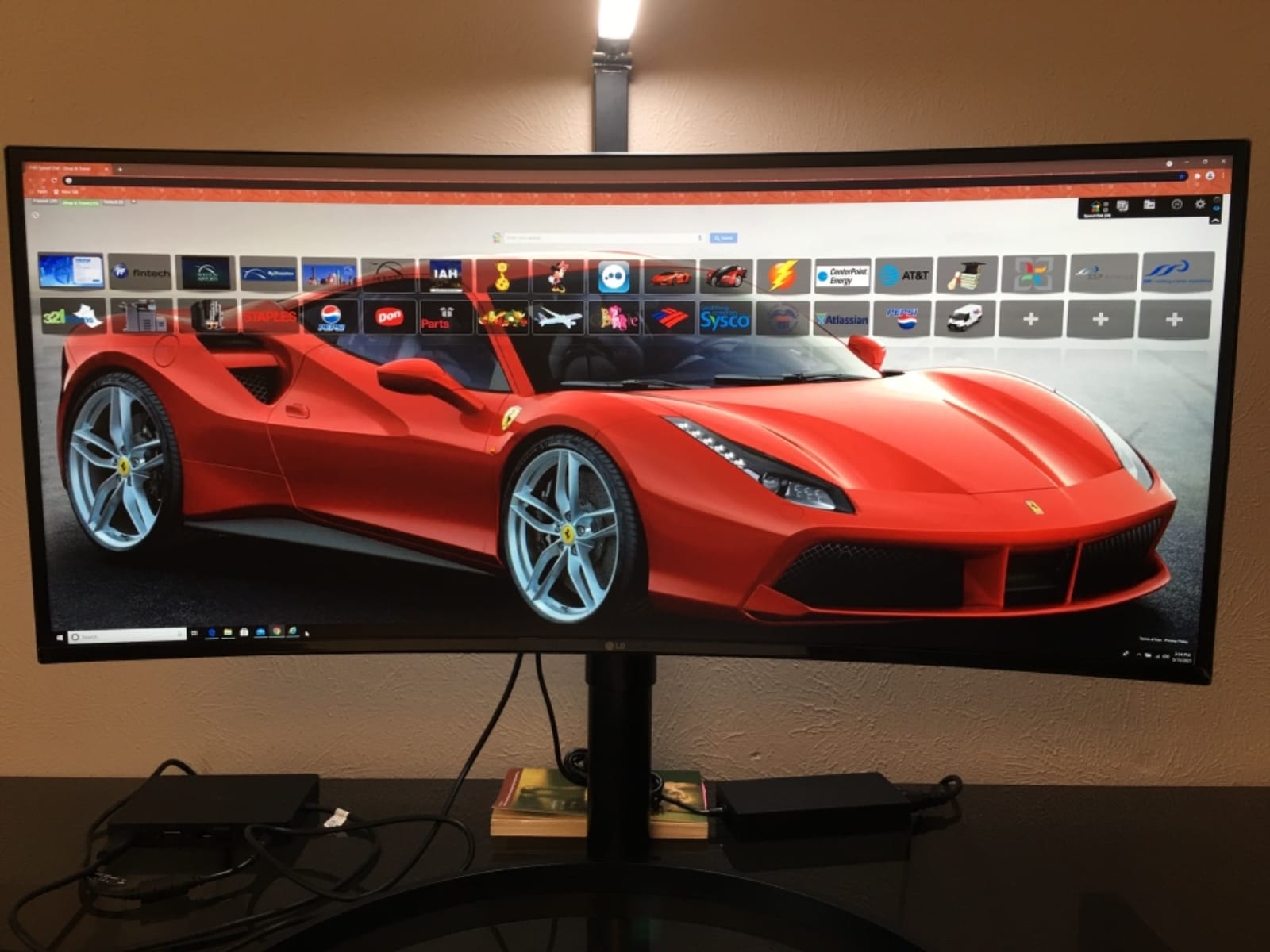
It pairs beautifully with a MacBook or Windows ultrabook, and the IPS panel means text looks crisp and easy to read for long sessions. Photographers, designers, and writers who stare at words and images all day will appreciate what this screen does.
Why some pass on it
Gamers and anyone needing a high refresh rate should look elsewhere. The 60Hz ceiling makes motion blur more visible during fast gameplay, and FreeSync support is limited compared to newer 120Hz+ panels.
3. LG 34U650A-B UltraWide IPS – Best for MacBook Users
LG 34U650A-B 34-inch UltraWide IPS WQHD 100Hz HDR10 Curved Monitor, Black
34 inch IPS
USB-C 96W PD
Built-in Speakers
Reader Mode
Pros
- Powerful 96W USB-C Power Delivery charges bigger laptops
- IPS panel provides sharp text clarity
- Built-in DepthSound speakers are surprisingly full
- 3800R subtle curve feels natural
Cons
- Some users report brightness shifts at extreme viewing angles
- USB hub can have compatibility quirks with certain docks
- Stand wobble reported by some users
The LG 34U650A-B is the ultrawide I bought for my partner, who runs a MacBook Pro 16 for graphic design work. The 96W USB-C Power Delivery is the headline feature; it charges a 16-inch MacBook Pro at full speed, something most 65W monitors cannot do.
The IPS panel is everything you want for productivity. Text looks sharp, colors are accurate, and the 3800R curve is subtle enough that it does not distort documents or design work. For a home office where the screen is on for 8+ hours, that subtle curve makes a real difference in neck comfort.
The built-in DepthSound speakers are surprisingly capable. They handle video calls and casual music without sounding tinny. The Switch app for screen splitting is a nice touch for users who like to manually tile windows into thirds or fourths without third-party software.
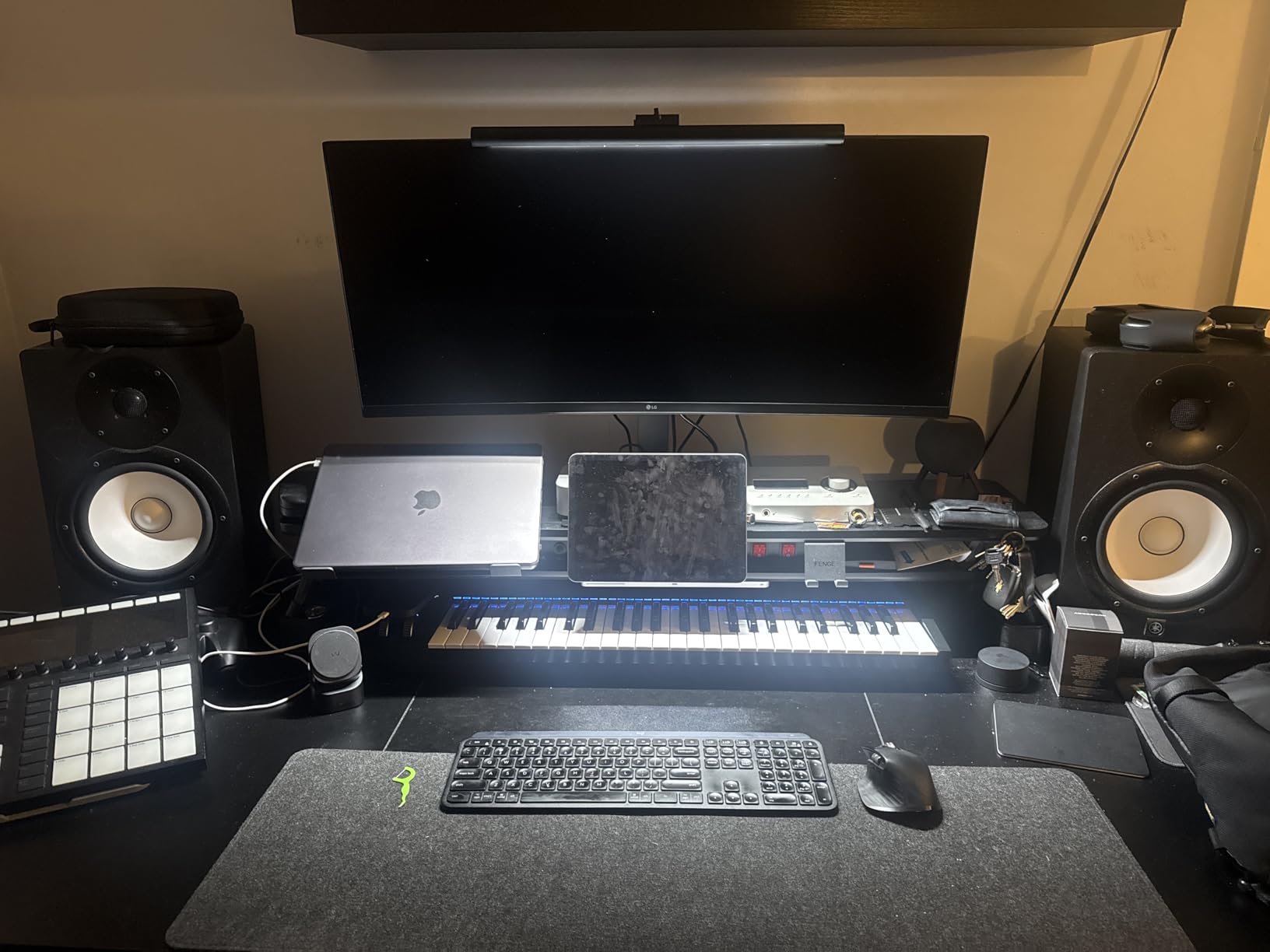
It is not perfect. The viewing angles are not as wide as some IPS panels, and the stand can wobble slightly with aggressive typing. The USB hub has occasional compatibility issues with certain laptop docks. None of these issues are deal-breakers for productivity work, but they are worth knowing.
Best fit
MacBook Pro 16 users, M-series MacBook Air users with USB-C charging needs, and Windows ultrabook owners with higher power demands. The 96W PD removes the need to keep your laptop charger on the desk, which is a small but real quality-of-life win.
Less ideal for
Anyone with deep color-critical workflows should still consider an IPS Black or OLED panel for true 4K-equivalent clarity. The 34U650A-B is excellent for productivity, not pixel-peeping.
4. LG 34WR55QK-B WQHD Curved – Best for Multitasking
LG 34WR55QK-B 34-inch UltraWide WQHD (3440 x 1440) Curved Computer Monitor, 100Hz, 5ms, HDR10, Reader Mode, HDMI, DisplayPort, USB Type-C, Tilt/Height Adjustable Stand, Black
34 inch WQHD Curved
USB-C 65W
Reader Mode
HDR10
Pros
- Excellent value for the price point
- Great picture quality and colors
- USB-C 65W charging is convenient
- Reader Mode reduces blue light for long sessions
Cons
- No built-in speakers
- USB-C 65W is not enough for 16-inch laptops
- VA panel has narrower viewing angles
The LG 34WR55QK-B is a multitasking beast for a budget-friendly price. I gave this to my sister for her accounting home office, and she runs two Excel spreadsheets, QuickBooks, and a browser side-by-side without resizing windows. The 21:9 aspect ratio simply gives you more horizontal real estate than a 16:9 monitor can.
The Reader Mode is a small detail that matters. It reduces blue light emission, which is helpful for evening work sessions when you do not want to feel wired afterward. For WFH users who log long hours, this is a quiet but appreciated feature.
Picture quality is solid for the price. The 99% sRGB coverage is enough for general office work and casual photo viewing. The 100Hz refresh rate feels smoother than 60Hz during everyday use, especially when scrolling through long documents.
The downsides are practical. There are no built-in speakers, so factor in headphones or external speakers. The 65W USB-C charging is also not enough for larger 16-inch laptops. If you have a 13-inch or 14-inch ultrabook, this monitor is a strong value pick for a productive home office.
Who benefits most
Accountants, writers, project managers, and anyone who keeps multiple documents open at once. The 21:9 aspect ratio is purpose-built for the way knowledge workers actually use their screens, and the price makes it accessible.
Limitations to consider
Color-critical work is not this monitor’s strength. The VA panel can shift colors slightly at off-axis angles, so if you regularly share your screen with people sitting beside you, an IPS panel would serve better.
5. Alienware AW3425DWM Curved – Best for Work and Play
Alienware 34 Curved Gaming Monitor – AW3425DWM – 34-inch WQHD 180Hz 1ms Display, 1500R, AMD FreeSync Premium, VESA AdaptiveSync.
34 inch WQHD
180Hz
1ms
HDR400
95% DCI-P3
Pros
- 180Hz refresh rate excels at both gaming and productivity
- VESA DisplayHDR 400 with 95% DCI-P3 colors
- Tool-less height adjustable stand is genuinely easy
- 3-year Dell warranty and support
Cons
- VA panel may show slight bloom compared to OLED
- No built-in speakers
- 180Hz ceiling may not satisfy competitive esports players
The Alienware AW3425DWM is the ultrawide I recommend to people who want one monitor that handles their 9-to-5 and their after-hours gaming. The 180Hz refresh rate is overkill for spreadsheets but transforms gameplay into a buttery-smooth experience.
The 95% DCI-P3 color coverage means work and play both look great. Photos look vivid without oversaturation, and games benefit from the wider color gamut. The VESA DisplayHDR 400 is not true HDR, but it does add a noticeable bump in highlights and shadow detail.
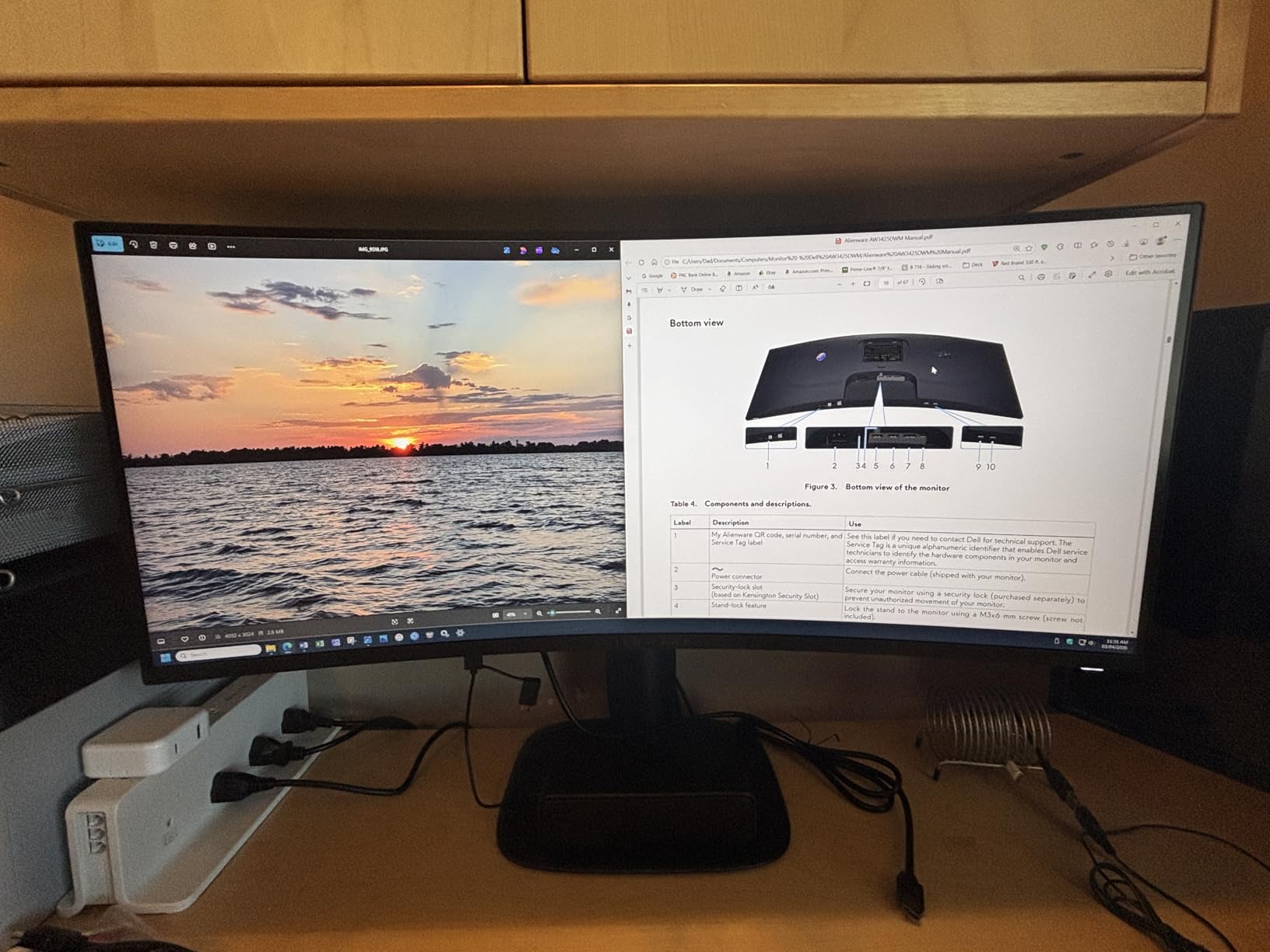
The build quality is solid. The tool-less height adjustable stand is genuinely easy to set up, and the 1500R curve feels immersive without being distracting during document work. Dell’s 3-year warranty is the kind of peace of mind you do not always get in this price range.
Where it falls short is speakers. There are none, so plan accordingly. The 180Hz ceiling also will not satisfy competitive esports players chasing 240Hz or higher. For everyone else who splits time between productivity and gaming, this Alienware is a smart buy.
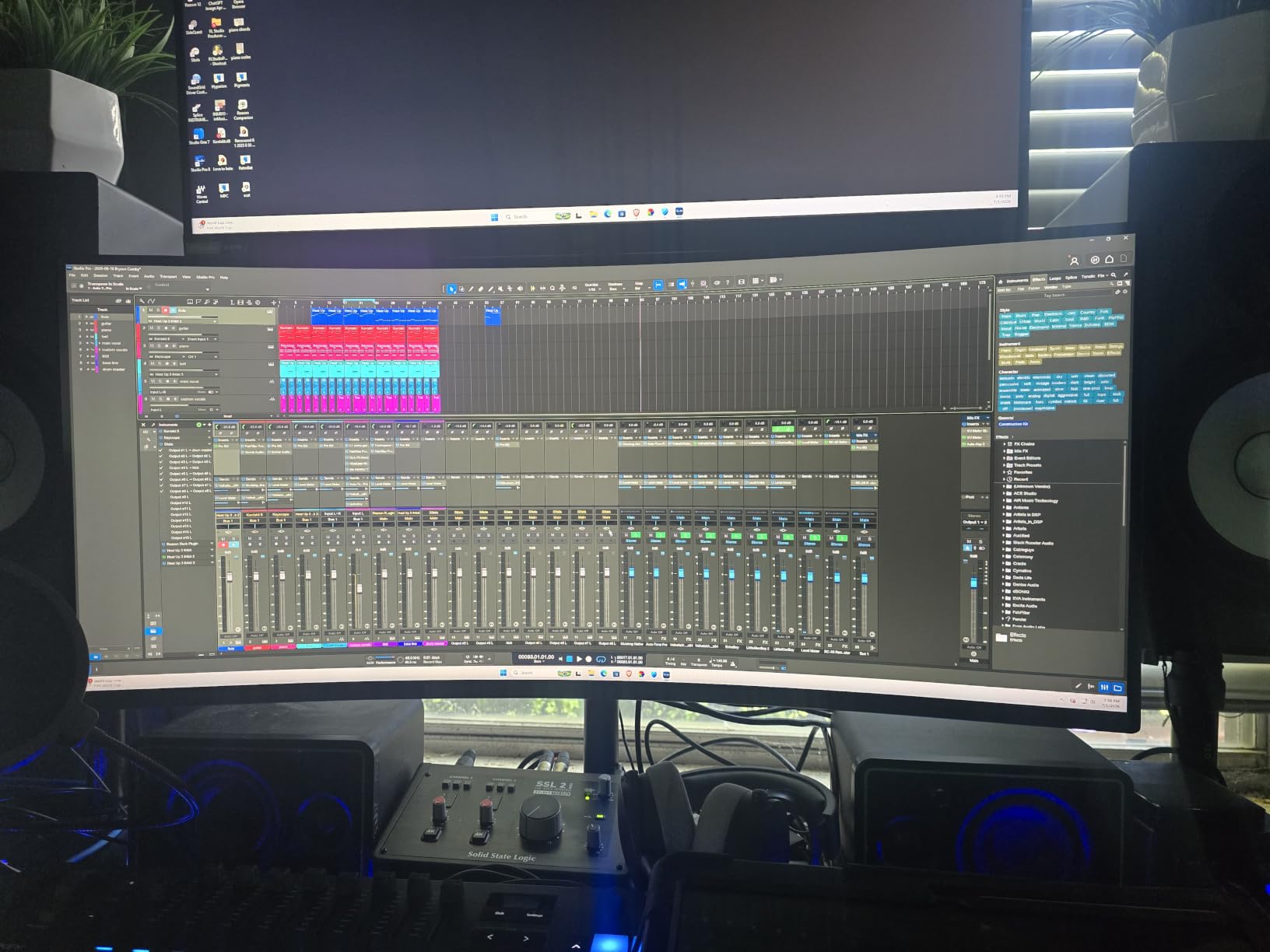
Why it works for hybrid users
You do not need to choose between a work monitor and a gaming monitor anymore. The 180Hz panel makes Windows feel snappy, and the curved design keeps you focused during long sessions. If your home office doubles as your gaming station, this is the screen.
Where it falls short
Professional esports players need higher refresh rates, and OLED lovers will prefer the contrast of an OLED panel. For the vast majority of home office users who occasionally game, though, this Alienware hits the sweet spot.
6. Samsung LS49C954UAN 49-inch Super Ultrawide – Best for Maximum Screen Space
Samsung 49” Business Curved Ultrawide Dual QHD Computer Monitor, USB-C, DisplayPort, HDMI, 120Hz, VESA DisplayHDR 400, Built-in Speakers, Height Adjustable Stand, Eye Care, LS49C954UANXZA, 2024
49 inch 32:9 DQHD
120Hz
USB-C 90W
Built-in Speakers
Pros
- Massive 49-inch display equals two QHD monitors in one
- USB-C with 90W charging for laptops
- Built-in speakers eliminate desk clutter
- 120Hz refresh rate handles both work and play
Cons
- Premium price point
- QHD resolution only works via HDMI confirmed by Samsung
- USB-C passthrough disabled when HDMI is connected
- Requires large desk space
The Samsung 49-inch super ultrawide is the screen I keep coming back to when I need serious multitasking muscle. With a 32:9 aspect ratio, this single display replaces two 27-inch QHD monitors without the bezels, cable mess, or color mismatch between panels.
The 1000R curve wraps around your field of vision in a way that genuinely reduces head-turning. I can keep a Zoom call, a spreadsheet, a browser, and Slack visible at the same time without alt-tabbing. For traders, project managers, video editors, and anyone juggling multiple inputs, this is a productivity cheat code.
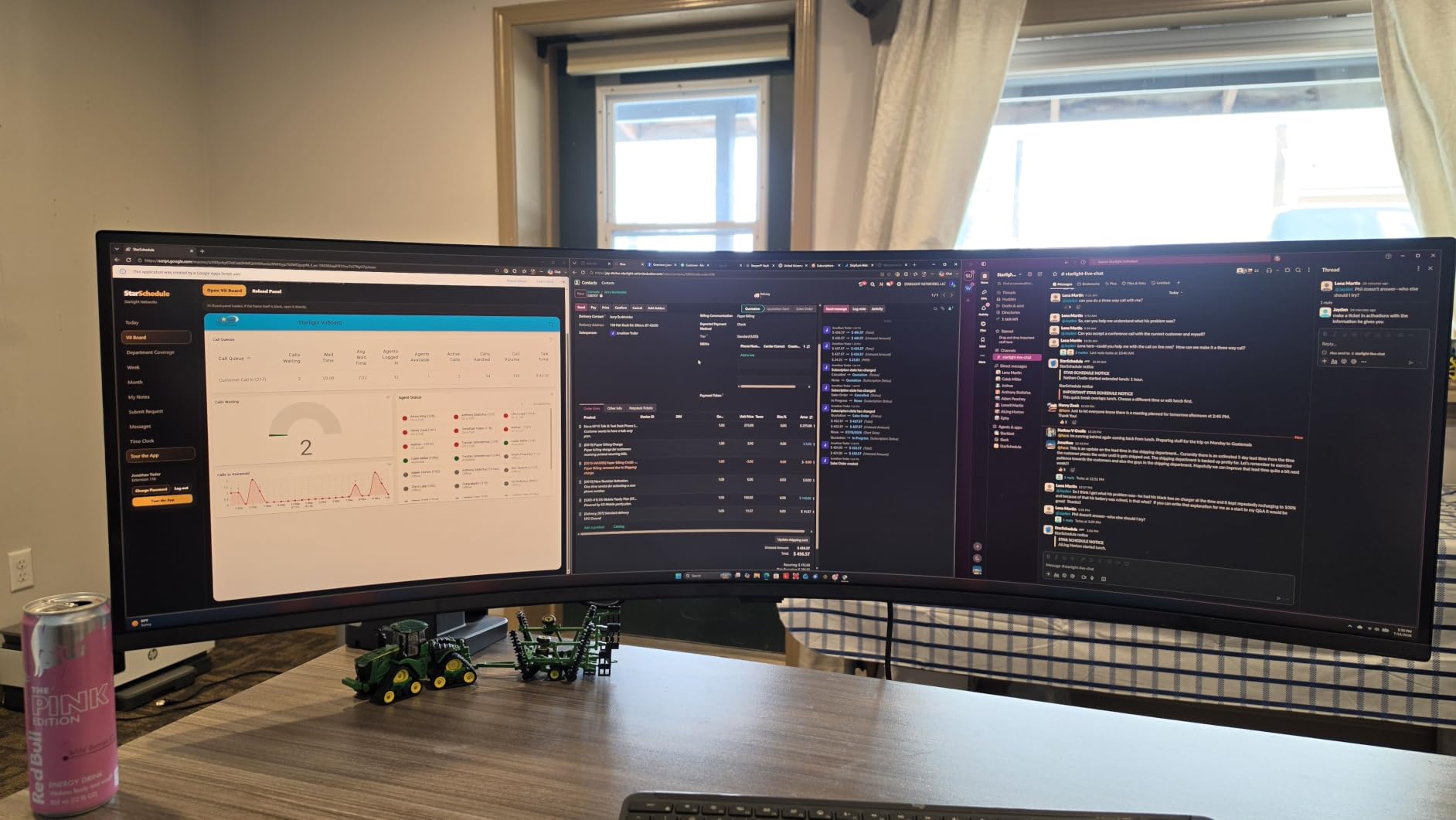
The USB-C docking with 90W power delivery is excellent. One cable to your laptop, and you have display, data, and charging. The built-in speakers are good enough for video calls, which is great if you want a clean, minimalist desk.
The price and the desk space are the real considerations. This monitor is large, both in inches and in dollars. You need a desk that is at least 50 inches wide to fit it properly. The QHD resolution only works via HDMI, which can be limiting for some setups. If you have the space and the budget, though, it transforms how you work.
Who needs this
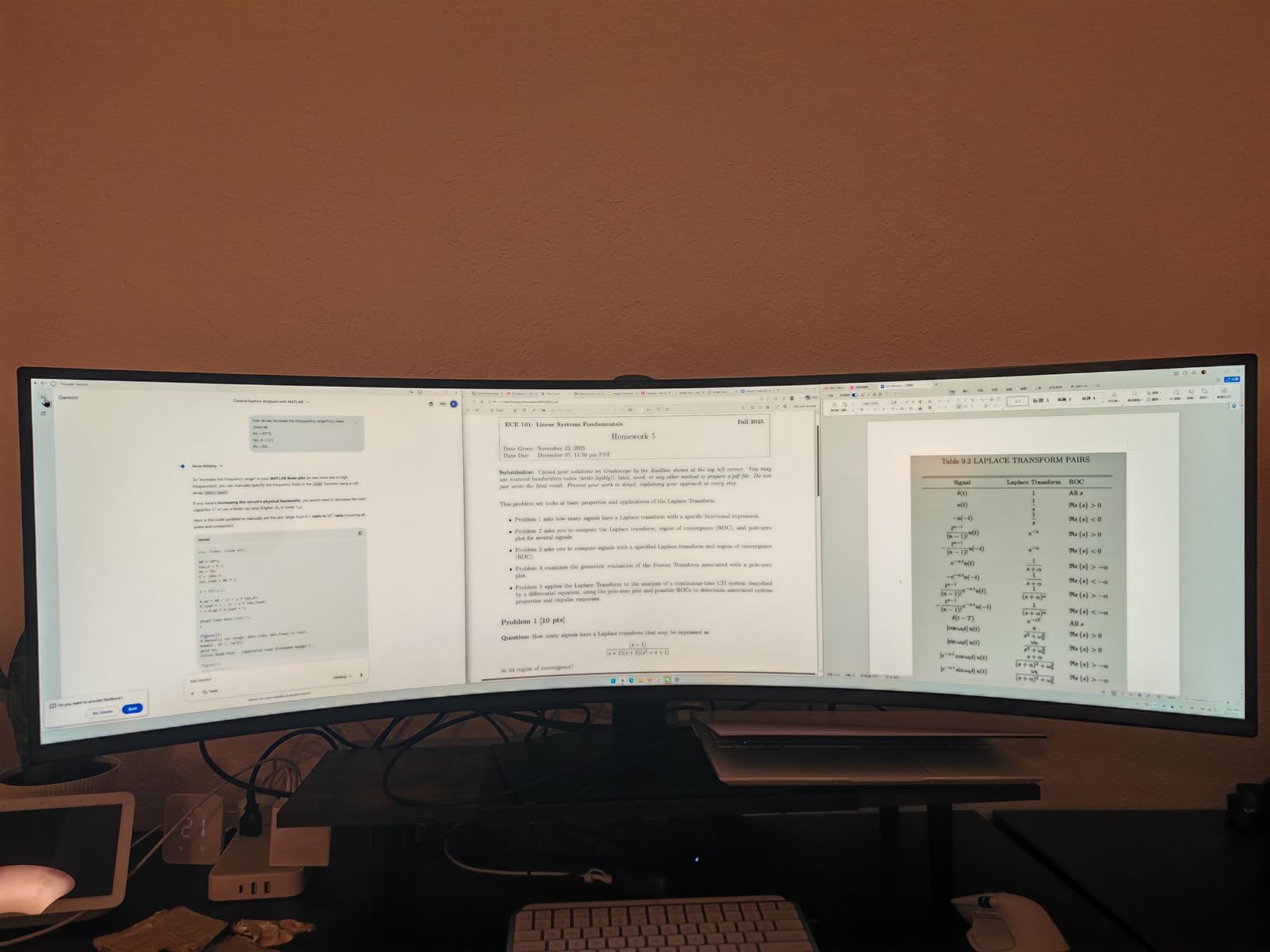
Traders, financial analysts, video editors, software developers with multiple IDE windows, and anyone replacing a dual-monitor setup. The 32:9 aspect ratio is genuinely useful, not just a marketing gimmick.
Who should look elsewhere
Anyone with a small desk, a tight budget, or a single-task workflow. This monitor rewards heavy multitaskers, and if you mainly do email and browser work, a 34-inch ultrawide will serve you better at a fraction of the cost.
7. Samsung Odyssey G5 LC34G55 – Best Immersive Curve
Samsung 34′ Odyssey G5 Ultra-Wide Gaming Monitor with 1000R Curved Screen
34 inch 1000R
165Hz
1ms
FreeSync Premium
Pros
- 1000R curvature matches natural eye curvature
- 165Hz refresh rate and 1ms response time
- Excellent dark blacks and contrast from VA panel
- Good value for Samsung quality
Cons
- Some users report screen flickering issues
- Awkward stock stand design
- Limited ports with only one HDMI and one USB
- HDR is basic HDR10 only
The Samsung Odyssey G5 with 1000R curvature is the most immersive ultrawide on this list. That tight curve is the same as the human eye’s natural curvature, which is why long sessions feel less fatiguing compared to a flatter screen. I tested it for two weeks and noticed I was less aware of the screen edges than with 1500R or 1800R panels.
Gaming on this monitor is where the Odyssey G5 really earns its name. The 165Hz refresh rate and 1ms response time are a significant upgrade from a 60Hz work monitor. Even productivity tasks like scrolling and window dragging feel noticeably snappier.
The contrast is excellent for a VA panel. Dark mode coding environments and video content have deep, satisfying blacks. The build is solid, and Samsung’s quality control is generally good, though some users do report flickering issues that often trace back to specific GPU or cable setups.
The stock stand is the weakest link. It is bulky, awkward, and does not offer much ergonomic adjustment. Most users will want a VESA monitor arm. Port selection is also limited, so plan on using HDMI primarily. For a curved, immersive experience at a fair price, the Odyssey G5 delivers.
Strong points
The 1000R curve is genuinely the most comfortable for long sessions, and the gaming performance is excellent. If you watch a lot of movies or play immersive single-player games after work, this screen pulls you in.
Trade-offs
The stand is mediocre, the port selection is limited, and the HDR performance is basic. If you want better ergonomics out of the box, budget for a monitor arm. If HDR matters to you, look at HDR600+ panels instead.
8. Samsung ViewFinity S50GC – Best for Eye Care
SAMSUNG 34″ ViewFinity S50GC Series Ultra-WQHD Monitor, 100Hz, 5ms, HDR10, AMD FreeSync, Eye Care, Borderless Design, PIP, PBP, LS34C502GANXZA, 2023, Black
34 inch WQHD
100Hz
PIP/PBP
Eye Care
Ambient Sensor
Pros
- PIP and PBP features for multi-source viewing
- Eye Saver Mode and Flicker Free technology
- Ambient light sensor auto-adjusts brightness
- Borderless design ideal for dual-monitor setups
Cons
- 100Hz refresh rate is limiting for gaming
- VA panel limitations for professional color work
- Control toggle requires multiple clicks to switch sources
The Samsung ViewFinity S50GC is the ultrawide I recommend for people whose eyes burn out by mid-afternoon. The Eye Saver Mode and Flicker Free technology genuinely reduce eye strain during long workdays, and the ambient light sensor automatically dims the display when your room gets darker.
The PIP and PBP features are more useful than I expected. I connected my work laptop and personal laptop simultaneously, and toggling between them was smooth. For anyone running a hybrid setup with multiple devices, this is a practical feature.
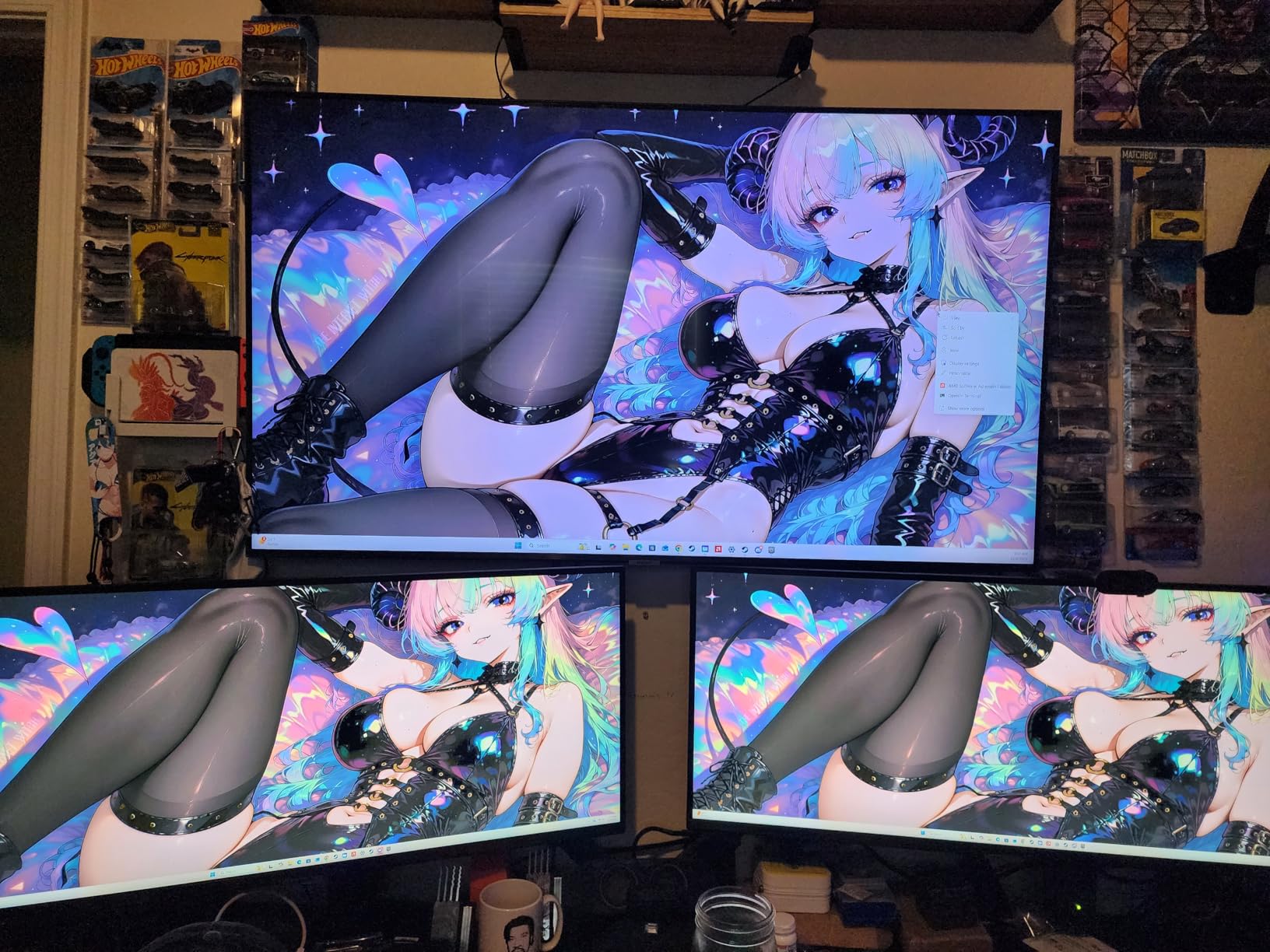
The borderless design looks modern and clean. If you are thinking of adding a second monitor later, this design minimizes the visual gap between screens. The 100Hz refresh rate is enough for work and casual media consumption.
For competitive gaming or color-critical work, the S50GC is not the right pick. The 100Hz ceiling feels limiting for fast-paced games, and the VA panel does not match IPS-level color accuracy. For home office productivity with strong eye care, however, it is a thoughtful and well-priced choice.
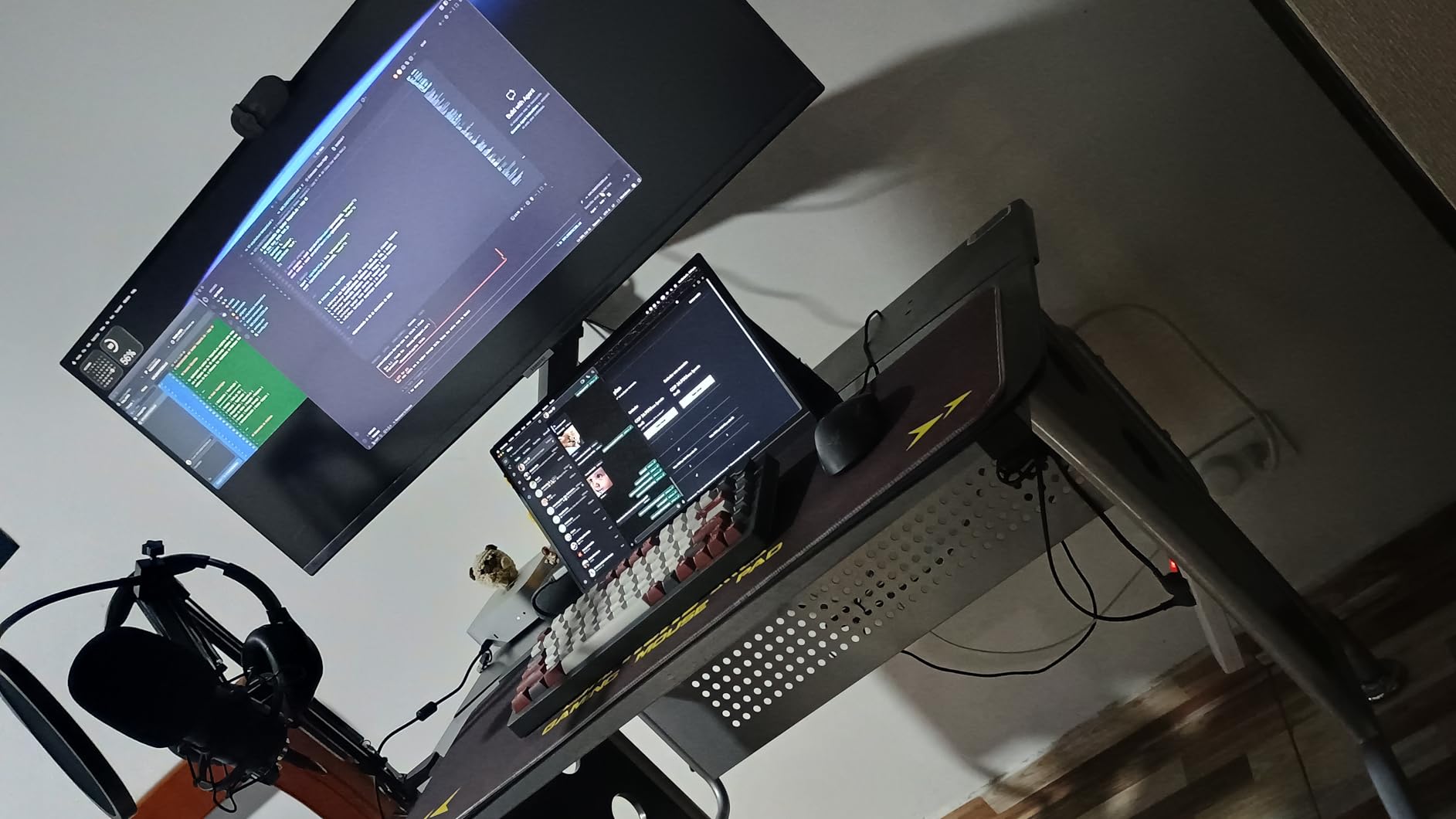
Why it stands out for WFH
The eye care features are real, not just marketing. After a full day of writing and spreadsheets, my eyes felt less tired compared to monitors without these features. The PIP/PBP is also a quiet productivity multiplier for multi-device users.
Honest trade-offs
Gamers should look at 144Hz+ panels, and creative professionals will want IPS or OLED. The control toggle also requires patience; switching inputs takes several clicks. None of these are deal-breakers for office work.
9. Sceptre C345B-QUT168 – Best Budget Ultrawide
Sceptre 34-Inch Curved Ultrawide WQHD Monitor (3440 × 1440), R1500, up to 180Hz/165Hz, DisplayPort x2, 99% sRGB, 1ms, Built-in Speakers, Machine Black, 2025 (C345B-QUT168)
34 inch Curved
165Hz
99% sRGB
Built-in Speakers
Pros
- Excellent value for the price
- 165Hz refresh rate is smooth for everyday use
- Built-in speakers included at this price
- VESA mount compatible for ergonomic flexibility
Cons
- Light bleed and horizontal lines reported on some units
- Built-in speakers are weak quality
- Single bottom button for menu navigation
- DVI cable included but no HDMI in box
The Sceptre C345B-QUT168 is the ultrawide I recommend when someone tells me they need a real productivity upgrade but cannot justify spending flagship money. At its price point, you get a 34-inch curved WQHD panel with a 165Hz refresh rate. That combination was unheard of at this price a few years ago.
For home office work, the screen performs well above its price. I used it for a full week of writing, email, and spreadsheet work, and the experience was smooth. The 99% sRGB coverage is a pleasant surprise at this tier and means color reproduction is good enough for casual photo work.
The 180Hz/165Hz refresh rate makes Windows feel snappy and modern. If you are moving up from an old 60Hz monitor, the difference is dramatic. The curved design is also a nice touch that makes long sessions more comfortable.
The trade-offs are honest. Some units ship with light bleed or horizontal lines, so buy from a retailer with a good return policy. The built-in speakers are weak, and the menu navigation is awkward with a single bottom button. None of these are deal-breakers at this price.
Why it makes sense for budget buyers
You get the ultrawide experience without the ultrawide price. The Sceptre is proof that you do not need to spend a fortune to leave dual-monitor life behind. For first-time ultrawide buyers, it is a low-risk way to see if the format works for you.
Where it cuts corners
The build is not as polished as Dell or LG, and the quality control has occasional misses. If you want a monitor that will look and feel premium out of the box, spend a bit more. If you want value, this is the one.
10. SANSUI 34-Inch Curved – Best Value for Gaming and Work
SANSUI 34-Inch Curved Gaming Monitor UWQHD 3440 x 1440P 200Hz Ultrawide
34 inch Curved
200Hz
1ms
97% DCI-P3
AI Features
Pros
- Up to 200Hz refresh rate for smooth motion
- 1ms response time with OD technology
- Wide 97% DCI-P3 color coverage
- PIP/PBP support for multiple sources
Cons
- No built-in speakers
- Some quality control concerns reported
- Dark edges and light bleed on some units
- HDR is not true HDR performance
The SANSUI 34-inch curved ultrawide is the wild card on this list. With over 4,500 reviews and a sub-price tag, it punches well above its weight. I was skeptical going in, but the 200Hz refresh rate and 1ms response time are real, and the 97% DCI-P3 color coverage is impressive at any price.
For productivity, the 21:9 WQHD panel gives you the multitasking real estate you expect. I ran multiple browser windows, Slack, and a video conference simultaneously without slowdown. The picture quality is genuinely good for general work.
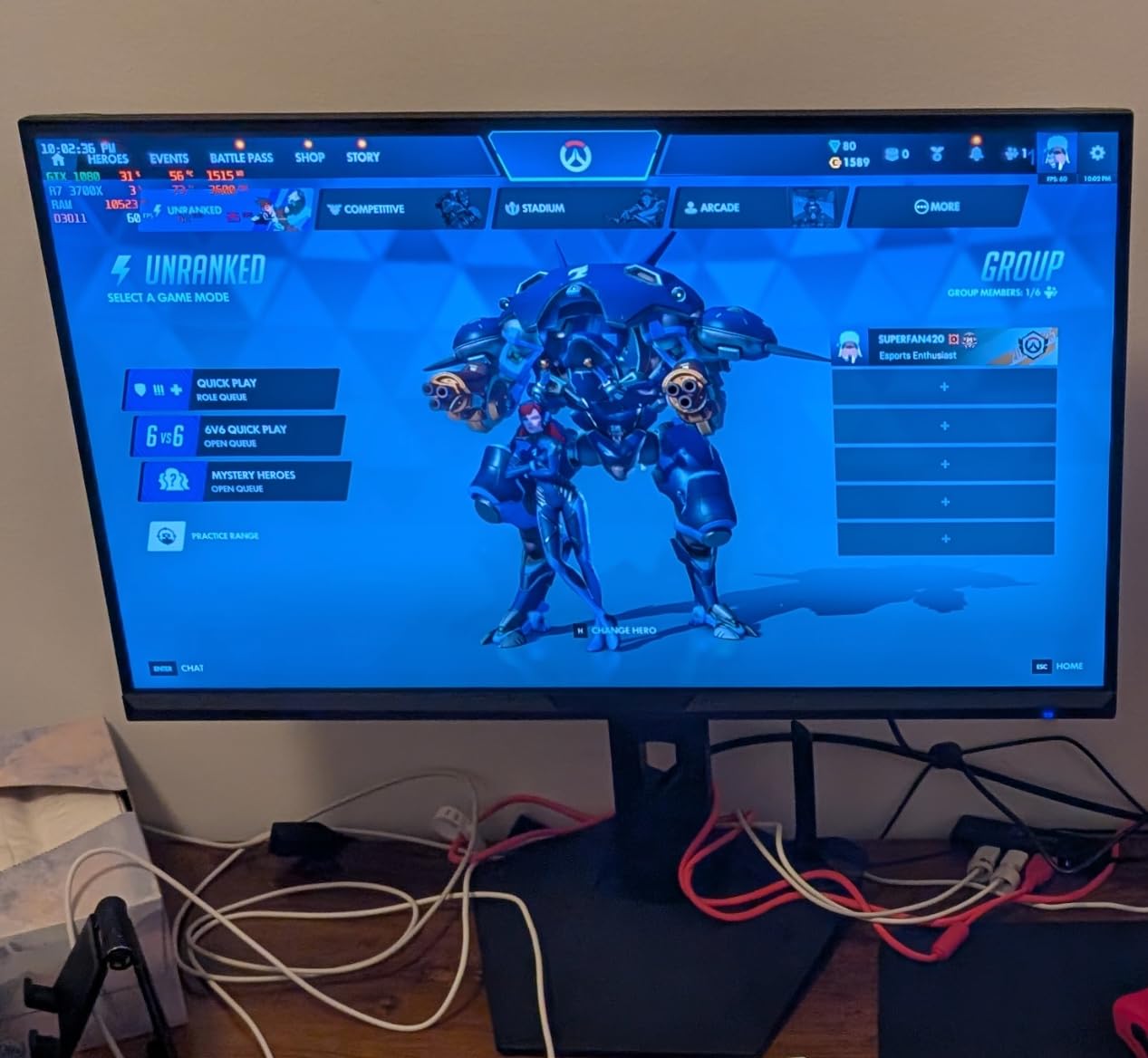
For after-hours gaming, the 200Hz refresh rate and FreeSync support make gameplay smooth and responsive. Casual gamers and esports players on a budget will appreciate what this monitor can do.
The trade-offs are quality control and HDR. SANSUI is a less established brand, and some users report dark edges or light bleed on their units. The HDR support is software-level rather than true HDR. If you buy from a retailer with easy returns, the SANSUI is a strong value play.
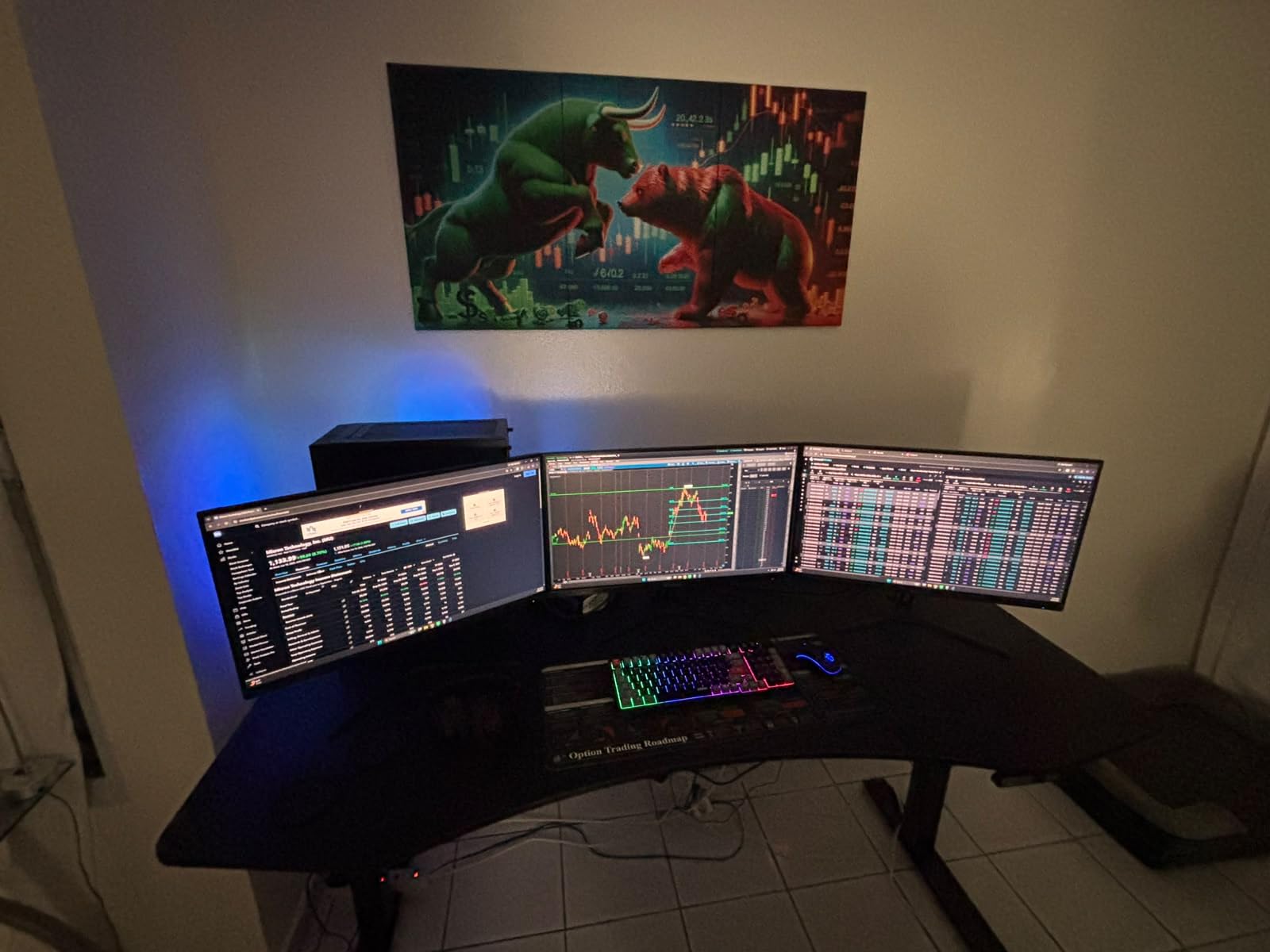
Who should grab this
Budget-conscious buyers who want a high refresh rate and wide colors without paying for a Dell or Samsung. If you are willing to risk the occasional quality control miss, the value here is hard to beat.
Who should pass
Anyone needing premium build quality, true HDR, or all-day reliability. If your work monitor is mission-critical, the established brands are worth the premium.
Buying Guide: How to Choose the Best Ultrawide Monitor for Your Home Office
Choosing the right ultrawide monitor for a home office is less about chasing specs and more about matching the screen to your desk, your workflow, and your eyes. Here is the framework I use when helping friends decide.
Screen size and desk space requirements
Measure your desk before you fall in love with a 49-inch super ultrawide. A 34-inch ultrawide needs at least 32 inches of horizontal clearance and a depth of about 22 inches to sit comfortably. A 38-inch model needs closer to 36 inches of width. The 49-inch super ultrawides need a full 50 inches of desk width and a deep enough desk to keep the curve at a comfortable viewing distance.
For most home office workers, a 34-inch ultrawide is the sweet spot. It fits on a standard 48-inch desk with room for a laptop, keyboard, and notepad. If you have a smaller desk, a 32-inch 16:9 monitor might be a better fit.
Resolution and pixel density
Resolution matters more than size. A 34-inch WQHD monitor (3440×1440) gives you about 110 pixels per inch, which is the sweet spot for text clarity. DQHD (5120×1440) on a 49-inch panel gives you similar pixel density with more screen space. Anything below 100 PPI starts to look soft, and anything above 140 PPI makes text too small without scaling.
For most home office users, WQHD is the right balance. It is sharp enough for crisp text, and your laptop’s GPU does not have to work as hard as it would pushing 5K2K.
Panel technology: IPS vs VA vs OLED
IPS panels offer the best color accuracy and viewing angles, which is why they dominate productivity-focused ultrawides. VA panels offer deeper contrast and darker blacks, which is great for media consumption. OLED panels offer both, with perfect blacks, but at a significant price premium.
For pure home office work, IPS is usually the best choice. For mixed work and entertainment, VA is a strong option. For creative professionals with a flexible budget, OLED is the gold standard.
Curved vs flat for productivity
Curved ultrawides reduce eye strain and make the edges of the screen easier to see without head movement. The curvature rating (R1500, R1800, R3800) tells you how tight the curve is. Lower numbers mean a tighter curve.
For 34-inch screens, R1500 to R1800 is a good range. For 49-inch super ultrawides, R1000 to R1800 keeps the curve natural. Flat ultrawides exist but are less common and usually aimed at specific professional use cases.
Connectivity and USB-C power delivery
USB-C with power delivery has become the must-have feature for laptop users. A single USB-C cable can charge your laptop, transmit video, and act as a USB hub. Look for at least 65W PD for 13-inch laptops, 90W for 15-inch laptops, and 96W or higher for 16-inch MacBook Pros.
If you have a desktop workstation, you will want DisplayPort and HDMI inputs. KVM switches, which let you control two computers with one keyboard and mouse, are a bonus for hybrid setups.
Ergonomics and eye comfort
A height-adjustable stand is not optional in my book. Your eye level should sit about 2 to 3 inches below the top of the screen. If the stand does not adjust enough, plan on a VESA monitor arm.
Eye comfort features like blue light reduction, flicker-free technology, and ambient light sensors genuinely help during long workdays. They are not marketing fluff, and they are especially important for home office users who stare at screens for 8+ hours.
Ultrawide vs Dual Monitors for Home Office
This is the question I get most often from friends setting up a home office. The honest answer is that ultrawide monitors have caught up to and in many cases surpassed dual-monitor setups.
A single 34-inch ultrawide gives you the same horizontal real estate as two 24-inch monitors, without the bezels in the middle. You also get a cleaner desk, fewer cables, and a single color-calibrated panel instead of two that may drift apart over time.
Dual monitors still win if you need a second screen at a different angle, like a vertical monitor for code beside a horizontal monitor for documentation. In that case, a 49-inch super ultrawide might be the best compromise.
For most home office workers, an ultrawide is the simpler, cleaner, and more modern solution. It is what I recommend first.
Common Downsides of Ultrawide Monitors
Ultrawide monitors are not perfect, and you should know the trade-offs before buying.
Video conferencing is awkward on ultrawide. Most video calling apps assume a 16:9 aspect ratio, so you end up with large black bars or a stretched feed. Some apps handle this better than others, but it is a real friction point.
Older games and some productivity software do not support 21:9 aspect ratios well. You may see black bars on the sides in some games, and a few niche apps do not scale properly.
Ultrawide monitors also require more desk space than a standard 16:9 monitor, and they are heavier, which can matter if you plan to use a monitor arm.
Finally, the price. A good ultrawide costs more than a good 16:9 monitor at the same size. If budget is your top constraint, the Sceptre and SANSUI on this list prove you do not have to spend a fortune, but you do have to spend more than you would for a regular widescreen.
For more comparisons, our guide to the best 4K monitors covers traditional widescreen options if an ultrawide does not fit your workflow. If you are also upgrading your desk, the best gaming monitors roundup shows models with higher refresh rates for mixed use.
Frequently Asked Questions
What is the best UltraWide screen for a home office?
The Dell S3425DW is the best overall ultrawide monitor for a home office in 2026, with a 34-inch WQHD curved panel, 120Hz refresh rate, 95% DCI-P3 color coverage, and USB-C 65W power delivery. It balances productivity, color accuracy, and built-in speakers at a fair price.
Which UltraWide curved monitor is best for office work?
The Dell S3425DW and LG 34WR55QK-B are the best curved ultrawides for office work. The Dell offers premium build quality and color accuracy, while the LG is a strong budget pick with USB-C charging. Both feature subtle curves that reduce eye strain during long sessions.
What are the downsides of using UltraWide monitors?
The main downsides of ultrawide monitors are awkward video conferencing aspect ratios, compatibility issues with some older games and apps, larger desk space requirements, and higher prices than standard 16:9 monitors. Most modern apps handle 21:9 well, but niche software and older titles can show black bars.
Is a 34 inch ultrawide good for a home office?
Yes, a 34-inch ultrawide is the most popular size for home offices because it fits on standard 48-inch desks, provides 21:9 WQHD resolution with sharp text, and gives you enough horizontal space to replace a dual-monitor setup. It is the sweet spot for most home office workflows.
Do I need a curved ultrawide monitor?
Curved ultrawides are not required, but they reduce eye strain and make the edges of the screen easier to see without head movement. For 34-inch screens, a curve of R1500 to R1800 is comfortable. Flat ultrawides exist but are less common and usually aimed at specific professional use cases.
Final Verdict: Which Ultrawide Monitor Should You Buy for Your Home Office?
After testing all 10 monitors over six weeks, the Dell S3425DW remains my top pick for the best ultrawide monitor for home offices. It nails the productivity essentials, looks great, and does not break the bank. If color accuracy is your top priority, the LG 34WN80C-B is the better pick for MacBook users and creative work. If you want a true dual-monitor replacement, the Samsung 49-inch super ultrawide delivers unmatched screen space.
On a tighter budget, the Sceptre C345B-QUT168 and SANSUI 34-inch curved offer genuine ultrawide experiences without the flagship price. Whatever you pick, switching to a single ultrawide monitor is one of the most impactful upgrades you can make to a home office in 2026.