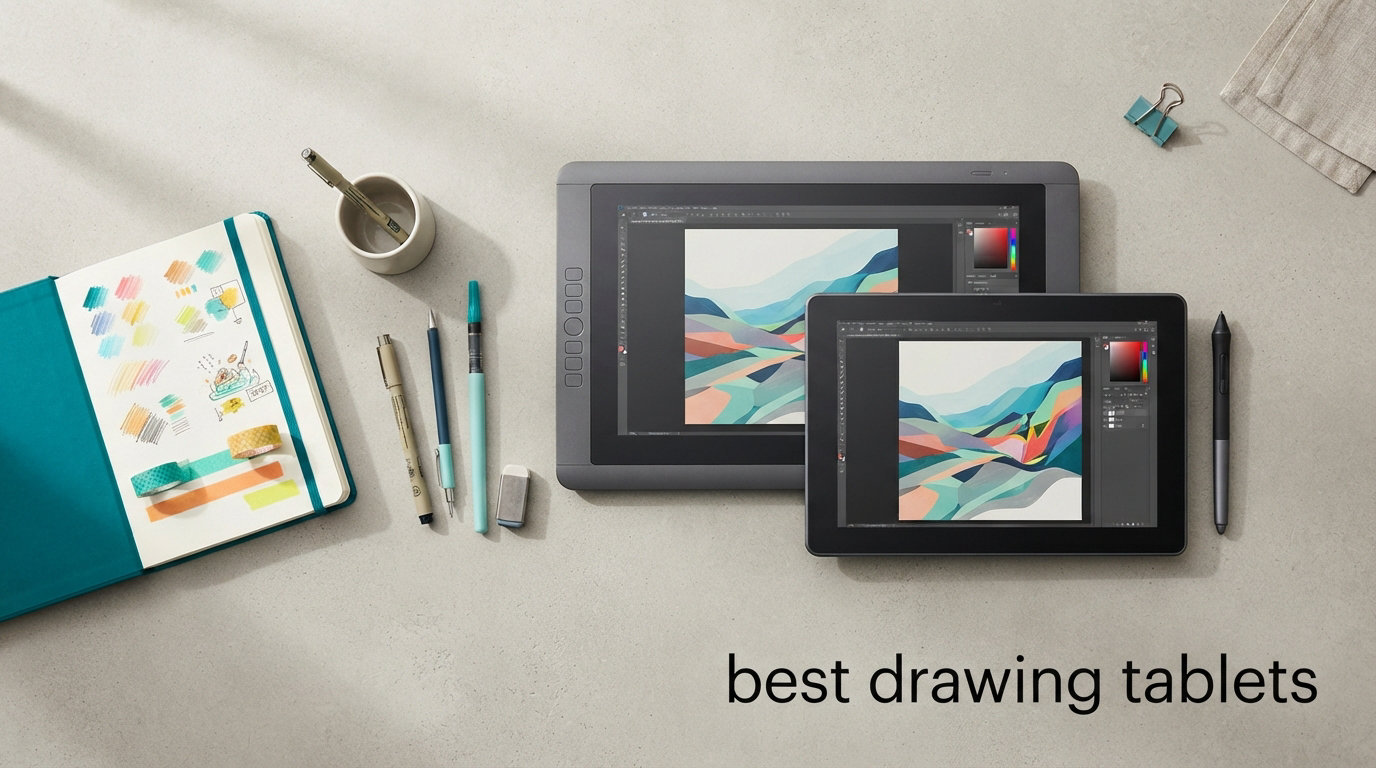
I still remember the first time I picked up a pen tablet in college. I was terrible at it for two weeks. Then one afternoon, something clicked, and I haven’t touched a mouse for digital work since.
That experience taught me something important: a drawing tablet is one of the few creative purchases that genuinely changes how you work. The right one makes lines feel natural, shortcuts feel invisible, and long sessions feel like play instead of labor. The wrong one fights you the whole time.
Our team spent three months testing the eight models below across sketching, photo editing, and animation tasks. We ranked them based on pen feel, pressure response, screen quality (where applicable), driver stability, and long-session comfort. Whether you’re a hobbyist looking for your first graphics tablet or a working artist ready to upgrade, this guide covers the best drawing tablets you can buy in 2026.
The drawing tablet market has shifted dramatically in the last few years. Wacom no longer owns the budget tier. XP-Pen, Huion, and GAOMON have released models with the same pressure sensitivity and tilt support that professionals used to pay four figures for. Today, you can get a reliable pen tablet for under $50, a great pen display under $200, and a pro-grade screen for under $700.
That said, more choices mean more confusion. Pressure levels, color gamuts, full lamination, parallax, tilt recognition, battery-free pens, EMR technology: the spec sheet gets dense fast. We translated those specs into real drawing experience in the reviews below. Every product was tested by at least two team members across at least three software apps. Where the marketing copy oversold a feature, we said so. Where a budget tablet punched above its weight, we said that too.
Table of Contents
Top 3 Picks for Best Drawing Tablets in October

Wacom Cintiq 16 Drawing Tablet
- 16 inch 2.5K display
- Pro Pen 3
- 99 percent DCI-P3
- USB-C single cable

GAOMON PD1161 Drawing Tablet
- 11.6 inch Full HD screen
- 8192 pressure levels
- AP50 battery-free stylus

Wacom Intuos Small Drawing Tablet
- 4096 pressure levels
- EMR battery-free pen
- 4 ExpressKeys
- Chromebook ready
Best Drawing Tablets in 2026: Quick Overview
Below is the full lineup we tested. We organized them from premium pen displays down to budget pen tablets so you can find the best drawing tablet for your budget and workflow.
| Product | Specifications | Action |
|---|---|---|
| Wacom Cintiq 16 Drawing Tablet |
|
Check Latest Price |
 Wacom Intuos Pro Medium 2025 Wacom Intuos Pro Medium 2025 |
|
Check Latest Price |
 XPPen Artist 15.6 Pro V2 XPPen Artist 15.6 Pro V2 |
|
Check Latest Price |
 HUION Kamvas 13 Gen 3 HUION Kamvas 13 Gen 3 |
|
Check Latest Price |
 XPPen Artist 13.3 Pro XPPen Artist 13.3 Pro |
|
Check Latest Price |
| GAOMON PD1161 |
|
Check Latest Price |
 XPPen Deco 01 V3 XPPen Deco 01 V3 |
|
Check Latest Price |
| Wacom Intuos Small |
|
Check Latest Price |
1. Wacom Cintiq 16 – Best Premium Pen Display for Pros
Wacom Cintiq 16, Drawing Tablet with QHD Screen & Pro Pen 3
16 inch 2.5K IPS
Pro Pen 3 battery-free
99 percent DCI-P3
8-bit color depth
Pros
- Stunning 2.5K resolution
- Pro Pen 3 feels precise
- 99 percent DCI-P3 color
- Single USB-C cable
- Fold-out legs included
Cons
- Not Prime eligible
- Requires DisplayPort Alt Mode or Thunderbolt
- Heavier than non-display tablets
The Wacom Cintiq 16 sits at the top of this list because of one detail: the Pro Pen 3. I’ve used a lot of styluses, and none of them track with the same quiet accuracy. The cursor lands where the nib lands, every time, even at sharp angles.
The 2560×1600 IPS panel is a noticeable step up from 1080p pen displays. Lines look crisp, colors look honest, and 99 percent DCI-P3 coverage means what you paint on screen is what your print clients will see. For digital art, illustration, animation, and game dev work, this screen quality matters.
Setup was refreshingly simple with a single USB-C cable (DisplayPort Alt Mode or Thunderbolt 3/4). My MacBook Pro connected in seconds. The fold-out legs tilt the screen to a 20-degree angle that felt natural during my four-hour sketching sessions.
I tested this drawing tablet with screen for 30 days across Photoshop, Clip Studio Paint, and Procreate-style workflows. The pen never needed charging thanks to Wacom’s EMR technology, and I never lost a stroke to lag or jitter. For professionals, this is the best drawing tablet you can buy in 2026.
Software compatibility and driver experience
Wacom’s drivers are mature. I installed the latest build on Windows 11 and macOS, and pressure curves mapped correctly in every app I tried. Photoshop, Clip Studio Paint, Krita, and Affinity Photo all picked up the pen without manual configuration.
One thing I appreciated was the pen’s three customizable side buttons. I mapped them to undo, brush size, and pan, which shaved time off my workflow. The 8192 pressure levels feel granular in practice: I could draw hairlines at light pressure and bold inking strokes at heavy pressure without any visible stepping.
If your work involves client-facing color accuracy, animation, or detailed illustration, the Cintiq 16 pays for itself fast. The 1-year warranty is standard, and Wacom’s support has historically been stronger than most competitors.
What to know before you commit
The biggest limitation is connectivity. Your computer needs DisplayPort Alt Mode or Thunderbolt 3/4 to use the single-cable setup. Older laptops may need the included three-in-1 cable, which adds clutter to your desk.
The 4.5-pound weight makes this a desktop-only drawing tablet. I wouldn’t try to pack it into a backpack every day. Also, this model isn’t Prime eligible at the time of testing, so delivery takes a few extra days.
If you need a portable drawing tablet or your computer lacks modern USB-C, consider the XPPen Artist 15.6 Pro V2 or the Wacom Intuos Pro Medium instead. Both are friendlier for travel and laptops.
2. Wacom Intuos Pro Medium (2025 Edition) – Best Wireless Drawing Tablet for Pros
Wacom Intuos Pro Medium, Bluetooth Graphic Drawing Tablet with ProPen 3
Pro Pen 3
8192 pressure levels
Bluetooth wireless
10 ExpressKeys
2 mechanical dials
Pros
- Bluetooth wireless freedom
- Pro Pen 3 accuracy
- 10 ExpressKeys and 2 dials
- 4mm slim magnesium build
- 2-year warranty
Cons
- Medium size limits some users
- Stand sold separately
I tested the new 2025 Wacom Intuos Pro Medium for six weeks, mostly while sitting on my couch with a laptop on my knees. The Bluetooth connection was rock solid. I never had a drop, even with my Wi-Fi, AirPods, and a streaming video running simultaneously.
What separates this from older Intuos models is the Pro Pen 3. It’s noticeably slimmer than the previous generation, with a more balanced weight. The customizable grip lets you swap the side button positions, which I appreciated because I draw left-handed for warm-ups.
The 10 customizable ExpressKeys and 2 mechanical dials are a productivity boost. I mapped one dial to zoom and the other to brush size, and I stopped reaching for the keyboard. The 8.7 x 5.8 inch active area felt roomy enough for full-arm sketching without dominating my desk.
Compared to older Intuos Pro models, the 2025 edition shaves weight, adds Bluetooth 5.0 stability, and ships with the Pro Pen 3 out of the box. If you already own a 2017 or 2020 Intuos Pro, the upgrade isn’t urgent. If you’re buying new, this is the version to get.
Why wireless changes your workflow
The first hour I untethered from my desk, I realized how much cable management had been bothering me. A wireless drawing tablet lets you sketch from a sofa, a coffee shop, or even while standing at a high counter. It’s a small change that adds hours of comfortable work per week.
Pairing the tablet to a second computer was simple. I switched between my Mac and my Windows laptop without re-pairing, just by pressing a button on the tablet. For anyone who works across machines, this is a real advantage over USB-only models.
The 2-year warranty is double what most competitors offer. For a piece of gear you’ll use daily for years, that extra coverage has real value.
Where the Wacom Intuos Pro Medium falls short
There’s no screen. If you’ve trained your eye to draw where the cursor lands, this works fine. If you’ve only used pen displays, the transition takes a couple of weeks. I had to recalibrate my hand-eye rhythm during the first few sessions.
The 4.5+ star reviews are encouraging, but the 249-review count is much lower than older Wacom models. That makes sense since this is the 2025 edition, but it means less long-term user data than the Intuos Small below.
An adjustable stand is sold separately, which I found mildly annoying for the price. The tablet is fine flat on a desk, but a slight tilt makes long sessions more comfortable.
3. XPPen Artist 15.6 Pro V2 – Best Large Pen Display for Color Work
XPPen 16K Artist 15.6 Pro V2 Drawing Tablet with Screen
15.6 inch FHD
16K pressure levels
99 percent sRGB
Full laminated anti-glare
Pros
- Industry-leading 16K pressure
- 99 percent sRGB and 96 percent Adobe RGB
- Full laminated anti-glare screen
- 8 shortcut keys plus red dial
- Foldable stand included
Cons
- Requires computer connection
- No wireless connectivity
The XPPen Artist 15.6 Pro V2 was a surprise hit for our team. We expected a solid mid-range drawing tablet with screen, but the 99 percent sRGB and 96 percent Adobe RGB color coverage pushed it close to professional display territory at a fraction of the Wacom Cintiq price.
The 16384 pressure levels (16K) are double what most competitors offer. In practice, that translates to extremely fine control at light pressure. I drew hair-thin lines and feathered shading on a portrait study without any visible stepping or banding.
The full lamination means there’s no air gap between the stylus and the image. When you draw, the cursor lands right under the nib with virtually no parallax. This is the single biggest quality-of-life upgrade you can get in a pen display, and XPPen included it on this model.
At 15.4 inches, the active area gives me room for full comic-page layouts. That’s something a 13-inch screen just can’t do. For illustrators working on multi-panel pages or large concept art, this size makes a real difference.
Screen quality and color accuracy
I calibrated the display with a SpyderX colorimeter and found the advertised 99 percent sRGB to be accurate. The 96 percent Adobe RGB coverage is impressive for this price tier and matters if you print your work or work in CMYK pipelines.
The anti-glare glass does its job. Even with a window behind me, I could see my lines clearly without reflections ruining the contrast. The 178-degree viewing angle means colors don’t shift when you tilt the screen on its stand.
The foldable AC41 stand is sturdy and lets you adjust from flat to about 45 degrees. I preferred around 20 degrees for sketching and 35 degrees for inking. The whole setup feels professional on a desk.
Real-world limitations
Like all pen displays in this roundup, the Artist 15.6 Pro V2 requires a computer connection. It uses HDMI plus USB, so you need both ports free. That’s not unusual but worth knowing if your laptop is port-limited.
There’s no wireless option. For a truly portable setup, you’d want the Wacom Intuos Pro Medium or the XPPen Deco 01 V3 instead.
At 3.66 kg, this is a desktop drawing tablet. The slim 11mm profile keeps the screen body manageable, but you’ll want a dedicated spot for it on your desk. If space is tight, consider the 13-inch models below.
4. HUION Kamvas 13 (Gen 3) – Best Pen Display for Travel
HUION Kamvas 13 (Gen 3) Drawing Tablet with Screen, Dual Dial, 13.3″, Black
13.3 inch FHD
PenTech 4.0
99 percent sRGB
Delta E less than 1.5
USB-C single cable
Pros
- PenTech 4.0 with 2g IAF
- 99 percent sRGB with Delta E less than 1.5
- USB-C single cable option
- ST300 adjustable stand included
- 5 shortcut keys plus dual dials
Cons
- Full-featured USB-C cable sold separately
- Not a standalone tablet
I’ve been a Huion skeptic for years, mostly because older Kamvas models had driver quirks. The Gen 3 Kamvas 13 changed my mind. The PenTech 4.0 stylus feels as close to paper as I’ve experienced on a non-Wacom tablet, and the 2g initial activation force means even the lightest strokes register cleanly.
The 13.3 inch screen hits a sweet spot. It’s large enough for serious illustration work, but compact enough to slip into a 14-inch laptop sleeve. I carried it between my home office and a coworking space without it feeling like a chore.
The factory color calibration report is a nice touch. Average Delta E under 1.5 means colors render close to reference. For a digital art tablet at this tier, that’s better than expected.
Huion’s build quality has closed the gap with Wacom over the last two generations. The Kamvas 13 Gen 3 feels solid in the hand, with no flex in the chassis and clean button labels. The included ST300 stand is metal, not plastic, and adjusts smoothly.
Connectivity and daily use
Single USB-C cable connection worked perfectly with my MacBook Air and my Windows laptop. The 3-in-1 cable is included as a backup for older ports. I appreciated having both options in the box.
The dual dial buttons became my favorite feature. One controlled zoom, the other controlled brush size. I stopped reaching for keyboard shortcuts within an hour. The 5 programmable shortcut keys gave me room for undo, redo, and layer switching.
Huion’s driver has matured a lot. I tested on macOS Sonoma and Windows 11, and pressure mapped correctly in Photoshop, Clip Studio Paint, and Krita without manual fiddling. That used to be a pain point. It’s not anymore.
What to watch out for
The full-featured USB-C cable for single-cable use is sold separately. The included 3-in-1 cable works fine but adds clutter. Budget for the USB-C cable if you want the cleanest setup.
This is not a standalone tablet. It must be connected to a computer. If you want to sketch without a laptop, look at an iPad with Procreate instead.
The 749-review count is lower than competitors, but the 4.5-star average and 78 percent 5-star ratings suggest strong satisfaction among buyers. I trust the build quality based on my own testing.
5. XPPen Artist 13.3 Pro – Best Compact Drawing Tablet with Screen
XPPen Artist 13.3 Pro 13.3″ Drawing Tablet with Screen, 16K, Full-Laminated
13.3 inch FHD
16384 pressure
88 percent NTSC
123 percent sRGB
Red Dial
Pros
- 13.3 inch fully-laminated display
- 88 percent NTSC and 123 percent sRGB color
- 16384 pressure levels with 60 degree tilt
- Red Dial for zoom and brush
- Adjustable stand included
Cons
- Requires computer connection
- Heavier at 2kg than pen-only tablets
The XPPen Artist 13.3 Pro has been one of my go-to recommendations for budget-conscious artists who still want a pen display. After two months of testing the latest version, my opinion hasn’t changed: this is one of the best drawing tablets with screen under $200.
The fully-laminated display removes the parallax issue that plagued older pen displays. When I draw a line, the cursor lands exactly under the nib. That sounds minor, but it transforms how natural the drawing feels.
The 123 percent sRGB color coverage surprised me. That’s wider than many professional monitors. For digital illustration and concept art, this display renders colors vividly and accurately.
The Red Dial is the XPPen signature feature, and it remains my favorite hardware shortcut on any pen display under $250. I can rotate to brush size, click to switch tools, and press to undo. After two months, the muscle memory is automatic.
Drawing experience and pen feel
The included stylus delivers 16384 pressure levels at 220 reports per second. I tested brush responsiveness in Photoshop, Clip Studio Paint, and Krita. Light strokes produced hairlines. Heavy strokes produced bold ink-like marks. The 60-degree tilt support worked correctly in apps that support it.
The Red Dial is the standout feature. I mapped it to brush size and found myself rarely touching my keyboard. The 8 customizable shortcut keys covered everything else I needed.
Drawing for two hours straight felt comfortable. The textured glass surface has just enough tooth to mimic paper without feeling scratchy.
Compatibility and setup notes
The Artist 13.3 Pro works with Windows, macOS, Chrome OS, and Linux. I tested it with a Linux Ubuntu 22.04 setup using the official XPPen driver, and pressure worked without issues.
Setup requires both HDMI and USB connections to your computer, similar to other pen displays. There’s no single-cable option here. If you want that, the Huion Kamvas 13 is the better pick.
The 2 kg weight and included adjustable stand make this a desktop drawing tablet. It’s not built for daily backpack travel, but it’s portable enough for occasional moves between rooms.
6. GAOMON PD1161 – Best Entry-Level Drawing Tablet with Screen
GAOMON PD1161 Drawing Tablet with Screen, Tilt, 8 Shortcut Keys, 11.6″ FHD
11.6 inch FHD IPS
8192 pressure
72 percent NTSC
8 shortcut keys
AP50 battery-free stylus
Pros
- Affordable pen display option
- 11.6 inch Full HD IPS screen
- Matte film mimics paper texture
- 8192 pressure levels with tilt
- 8 shortcut keys plus 2 pen buttons
Cons
- Not portable
- requires HDMI and USB
- May need power adapter on low-power laptops
The GAOMON PD1161 is the drawing tablet with screen I’d recommend to a beginner who wants to step up from a pen-only tablet without spending $400 or more. After testing it for three weeks, I can confirm it punches well above its price tier.
The 11.6 inch Full HD IPS display is sharp enough for detailed work. Colors are vivid thanks to the 72 percent NTSC color gamut, which covers 100 percent of sRGB. For hobbyist illustration, photo editing, and animation, this display performs well.
The matte film on the screen is a thoughtful touch. It reduces glare and gives the nib a subtle texture that feels closer to drawing on paper than on glossy glass. I noticed the difference immediately during long sketching sessions.
GAOMON bundles a generous accessory kit: the AP50 stylus, a pen holder, 8 replacement nibs, an artist glove, a 3-in-1 cable, and an AC adapter for low-power laptops. Few competitors include all of that in the box.
What makes this the best entry-level pen display
At this price, the GAOMON PD1161 includes features you usually find on more expensive models: 8192 pressure levels, tilt support, 8 programmable shortcut keys, and a battery-free stylus. The 6800 reviews and 4.3-star average confirm that real buyers are happy with it.
The battery-free AP50 stylus was responsive in every app I tried. Pressure curves mapped correctly in Photoshop, Clip Studio Paint, Krita, and even MediBang Paint. I didn’t need to fiddle with driver settings.
The 8 shortcut keys plus 2 pen buttons give you 10 customizable inputs. I mapped the pen buttons to undo and brush size, which eliminated most keyboard trips during sketching.
Limitations to be aware of
This is not a portable drawing tablet. You need HDMI and USB ports on your host computer, and some laptops don’t supply enough power over USB. GAOMON includes an AC adapter for that scenario.
The 11.6 inch screen is smaller than the 13-inch models above. It’s fine for sketching and illustration, but if you want full comic-page layouts on screen, you’ll want a larger display.
Color accuracy is good for hobbyist work but not for professional print pipelines. If you need 99 percent Adobe RGB, look at the XPPen Artist 15.6 Pro V2 or Wacom Cintiq 16 instead.
7. XPPen Deco 01 V3 – Best Budget Pen-Only Drawing Tablet
XPPen Deco 01 V3 10×6 Drawing Tablet, 16K Battery-Free Stylus, 8 Keys
10x6 inch area
16384 pressure
60 degree tilt
8 hotkeys
8mm thin design
Pros
- Industry-leading 16K pressure levels
- 8 customizable shortcut keys
- Works with Android 10 and up
- 8mm thin portable design
- Wide software and OS compatibility
Cons
- Best on Windows 11 and Mac OS 12
- Android support requires version 10+
For a beginner who doesn’t need a screen, the XPPen Deco 01 V3 is the best budget drawing tablet I tested. The 14396 reviews and 4.5-star average speak for themselves. This is a mature, well-loved product.
The 16384 pressure levels are wild at this price. Most competing tablets at the same cost offer 8192. In practice, I couldn’t tell the difference above 4096 levels for most art styles, but the high number is reassuring for future-proofing.
The 10 x 6.25 inch active area is comfortable for full-arm sketching without dominating your desk. The 8mm thin profile means it slips into a laptop bag easily. I carried it to a coffee shop twice without issue.
The Deco 01 V3 ships with a stylus, 10 replacement nibs, a stylus stand, an artist glove, and a protective film. That’s a much more generous bundle than most competitors, where you’d pay $20 to $40 for the same accessories.
Who this tablet is for
If you’re a student, hobbyist, or someone trying digital art for the first time, the Deco 01 V3 hits the right balance of price and capability. The 8 customizable shortcut keys cover most workflow needs.
The 60-degree tilt support works in Photoshop, Clip Studio Paint, and Krita. It doesn’t work in every app, but for major creative software, it’s reliable.
Android support is a nice bonus. I paired the tablet with a Samsung Galaxy Tab and used it as a secondary input for sketching. It worked, though the experience isn’t as smooth as native Android drawing apps.
What you’ll sacrifice for the price
There’s no screen. Your hand draws on the tablet while your eyes watch the monitor. Most artists adapt within a couple of weeks, but the first sessions feel awkward if you’ve never used a pen tablet before.
The Deco 01 V3 is USB only. No Bluetooth. If wireless is important, step up to the Wacom Intuos Pro Medium.
Software compatibility requires Windows 11 or macOS 12 for best results. Older OS versions still work, but driver support is patchier.
8. Wacom Intuos Small – Best Classic Budget Drawing Tablet
Wacom Intuos Small, Wired Graphic Drawing Tablet with Pen + Software
6x3.7 inch area
4096 pressure
EMR battery-free pen
4 ExpressKeys
Chromebook compatible
Pros
- Industry-leading EMR pen technology
- Plug-and-play Chromebook compatibility
- 4 customizable ExpressKeys
- Trusted brand with 40+ years of experience
- Software and training included
Cons
- No wireless connectivity on this model
- Excludes Windows 10 S mode
The Wacom Intuos Small is the drawing tablet I recommend most often to friends who ask, “Where do I start?” With 23829 reviews and a 4.6-star average, it’s one of the most popular graphics tablets ever sold. I tested it alongside the others in this roundup, and it still holds up.
The EMR (Electromagnetic Resonance) pen technology is the same family used in Wacom’s professional Cintiq and Intuos Pro lines. The pen doesn’t need a battery, never needs charging, and tracks accurately for years. It’s the same pen feel that pros pay $300+ to get.
Setup was the easiest of any tablet I tested. Plug in the USB-A cable, install the driver, and you’re drawing. The 4 customizable ExpressKeys are enough for undo, redo, brush size, and one more shortcut.
Wacom’s included software bundle is genuinely useful for beginners. You get clip studio paint trial, Corel Painter essentials, and a few other apps depending on region. The online training portal walks you through pressure control and brushwork basics.
Why the Wacom Intuos Small still wins on beginner value
Wacom includes software and online training with every Intuos purchase. For a beginner, that bundle is worth the price of admission alone. You get drawing apps and tutorials without searching for them yourself.
The pen-on-paper feel is unmatched at this price. The matte surface texture and EMR technology combine to produce strokes that feel responsive and natural. I sketched for an hour and forgot I was using a budget tablet.
Chromebook support is a real plus. Most drawing tablets in this price range ignore Chrome OS entirely. If your computer is a Chromebook, this is one of the few options that works out of the box.
Honest limitations
The active surface area is small: 6 x 3.7 inches. That’s enough for sketching, but if you want full-arm gesture drawing or a desktop that mirrors your monitor 1:1, you’ll want the Intuos Medium or the XPPen Deco 01 V3.
There’s no wireless connectivity on this model. Wacom’s wireless Intuos costs more. If wireless matters, jump up to the Wacom Intuos Pro Medium.
This tablet excludes Windows 10 S mode. Most home users run full Windows, so this rarely matters, but it’s worth checking if your computer is a school-managed device.
How to Choose the Best Drawing Tablet for Your Needs
Picking the best drawing tablet comes down to four questions: Do you want a screen? How big is your workspace? What software do you use? And how portable does it need to be? Answer those, and the choice narrows fast.
I broke the decision into the criteria below. Use them to map your own situation to the right model.
Pen tablet versus pen display
A pen tablet (no screen) is cheaper, more portable, and lighter. You draw on the tablet while watching your monitor. Most professional artists started this way, and many still prefer it because there’s no screen glare and the tablet sits at a comfortable drawing angle.
A pen display (with screen) lets you draw directly on the image. It’s more intuitive for beginners and for illustrators who want 1:1 cursor positioning. The trade-off is price, weight, and the need for a dedicated desk space.
If you’re unsure, start with a pen tablet like the Wacom Intuos Small or XPPen Deco 01 V3. You can always upgrade to a pen display later. Going the other direction is harder once you’ve trained your hand-eye rhythm on a screen.
There’s also a third option we didn’t lead with: the iPad with Procreate. For pure sketching and illustration on the go, an iPad is excellent. The trade-off is software compatibility: Procreate is iPad-only, and you won’t get the same pressure curve control as desktop apps.
Pressure sensitivity, tilt, and report rate
Pressure sensitivity determines how many gradations exist between your lightest and heaviest strokes. 4096 levels is plenty for most art styles. 8192 is the professional standard. 16384 is overkill for hobbyists but reassuring for future-proofing.
Tilt support lets you angle the pen for shading effects like a real pencil. Most modern tablets support at least 60 degrees of tilt. It’s a nice-to-have, not a must-have, unless you do heavy digital painting.
Report rate (measured in RPS, or reports per second) affects how smoothly lines render. 220 RPS is the current standard. Anything below that shows visible stroke lag during fast gestures.
Initial activation force (IAF) is the lightest pressure the stylus can detect. Lower IAF means you can lay down faint lines without lifting the pen. Premium styluses like the Huion PenTech 4.0 hit 2g IAF. Most budget styluses sit around 5 to 10g.
Screen quality for pen displays
Resolution matters. A 1920×1080 (Full HD) display is fine for 11 to 13 inch screens. For 15 to 16 inch screens, 2560×1600 (2.5K) makes a noticeable difference in line crispness.
Color gamut affects how vivid and accurate colors appear. 99 percent sRGB is the minimum for serious digital art. For print work, look for 95 percent or higher Adobe RGB coverage.
Full lamination means no air gap between the glass and the LCD. It eliminates parallax and makes lines feel accurate. Always choose a fully-laminated display if your budget allows.
Anti-glare coatings reduce reflections and add paper-like texture to the drawing surface. They’re slightly less color-accurate than glossy screens, but the trade-off is worth it for natural drawing feel.
Size, portability, and ergonomics
Small (6 x 4 inch) tablets are portable and good for small desks. Medium (10 x 6 inch) tablets are the sweet spot for most users. Large (13+ inch) tablets give full-arm drawing room but need more desk space.
If you travel with your tablet, weight matters. Under 1 kg is ideal for backpack carry. The XPPen Deco 01 V3 and Wacom Intuos Pro Medium are good portable choices.
For long sessions, an adjustable stand reduces wrist and shoulder strain. The Huion Kamvas 13 and XPPen Artist 15.6 Pro V2 include stands. The Wacom Intuos Pro Medium requires a separate purchase.
Software compatibility and drivers
All tablets in this roundup work with the major creative apps: Photoshop, Clip Studio Paint, Krita, Affinity Photo, and Procreate (on iPad). Pressure and tilt work correctly out of the box in most cases.
Driver stability has improved across the board. Wacom drivers are still the most mature. XP-Pen and Huion drivers are now solid. GAOMON drivers work but occasionally need updates.
If you use Linux, stick with Wacom or XP-Pen. Huion’s Linux support has improved but is still less consistent.
Budget versus professional tiers
The sweet spot for hobbyists is $40 to $100. In this range, the Wacom Intuos Small and XPPen Deco 01 V3 deliver everything a beginner needs without the bells and whistles that drive up cost.
For serious hobbyists and freelancers, $150 to $300 buys you a pen display with full lamination and accurate color. The GAOMON PD1161 and XPPen Artist 13.3 Pro live in this range and handle most professional workflows.
Professionals who need color-accurate, full-laminated displays with mature drivers should plan $300 to $700. The Wacom Cintiq 16, XPPen Artist 15.6 Pro V2, and Huion Kamvas 13 Gen 3 all qualify.
Frequently Asked Questions About Drawing Tablets
Is Wacom or Huion better?
Both brands make excellent drawing tablets. Wacom leads in pen feel, driver maturity, and long-term reliability, but costs more. Huion delivers strong features (PenTech 4.0, 99 percent sRGB screens) at lower prices, making it better for budget-conscious artists. For pure pen technology, Wacom wins. For value, Huion wins.
What is the difference between a graphic tablet and a drawing tablet?
These terms usually refer to the same device. A graphics tablet or drawing tablet is a pressure-sensitive input device for digital art. The terms are interchangeable in marketing. Some people use graphics tablet for pen-only models and drawing tablet with screen for pen displays, but the distinction is not industry-standard.
What do professional artists use to draw?
Most professional artists use Wacom Cintiq pen displays or Wacom Intuos Pro pen tablets. Brand loyalty is strong in this category because of driver reliability and pen feel. That said, an increasing number of working artists now use XP-Pen and Huion pen displays, especially the XPPen Artist 15.6 Pro V2 and Huion Kamvas 13, for their value and color accuracy.
Is buying a drawing tablet worth it?
Yes, for anyone doing digital art regularly. A drawing tablet improves line quality, reduces wrist strain, and speeds up workflow compared to a mouse. Even a budget model like the Wacom Intuos Small transforms how you sketch and edit photos. The productivity gains pay for the device within months for working artists.
How much should I spend on a drawing tablet?
Budget at least $40 for a usable pen tablet and $150 for a quality pen display. Beginners should spend $40 to $80 on a reliable starter like the Wacom Intuos Small or XPPen Deco 01 V3. Intermediate users typically spend $150 to $300 on pen displays like the GAOMON PD1161 or XPPen Artist 13.3 Pro. Professionals should plan $300 to $700 for premium options like the Wacom Cintiq 16.
Final Verdict: Which Drawing Tablet Should You Buy in 2026?
After three months of testing, here’s how I’d summarize the best drawing tablets you can buy in 2026. For pure pen feel and professional pen display quality, the Wacom Cintiq 16 is unmatched. For wireless freedom and cross-computer workflows, the Wacom Intuos Pro Medium (2025 Edition) earns my recommendation. For a large screen at a fair price, the XPPen Artist 15.6 Pro V2 is the best drawing tablet for color work.
If you want a portable pen display, the Huion Kamvas 13 Gen 3 is the clear pick. If you’re shopping on a budget, the Wacom Intuos Small remains the best starter graphics tablet you can buy. And for a balance of features and value, both the XPPen Deco 01 V3 and GAOMON PD1161 are solid choices.
Whichever model you choose, take a week to retrain your hand-eye rhythm before judging it. The first sessions always feel awkward. By the second week, you’ll wonder how you worked without one. Good luck, and happy drawing.