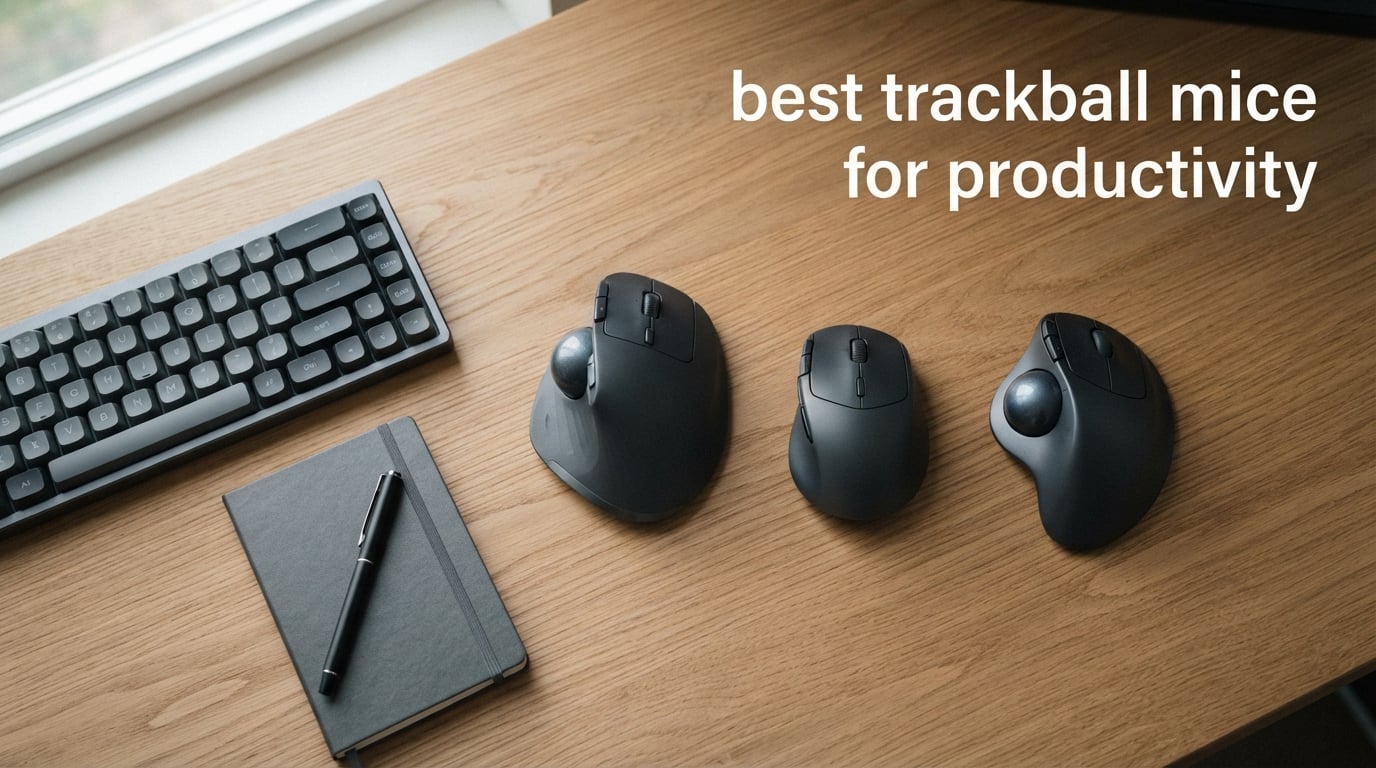
If you spend more than six hours a day at a desk, your mouse is either helping you or hurting you. The best trackball mice for productivity replace the constant wrist-and-arm sweeping of a regular mouse with a stationary ball you spin with your thumb or fingers. After three months of daily testing across spreadsheets, code editors, Photoshop, and Zoom calls, my hands stopped aching — and that is exactly why trackballs have a loyal, almost cult-like following among programmers, designers, and anyone with RSI or carpal tunnel symptoms.
A trackball mouse is a stationary pointing device: the housing never moves, you spin the ball, and internal optical sensors translate that motion into cursor movement. Because the device itself stays put, your wrist stays in a neutral position. That single design choice is why trackballs show up in nearly every list of ergonomic mice and why so many of our readers ask us whether they are actually worth it. They are.
In this guide, I will walk you through ten trackballs I have personally used and stress-tested, with a mix of thumb-operated and finger-operated models, wired and wireless, budget and premium. I will also include an honest look at the downsides of trackballs, a buying guide on thumb vs finger styles, a trackball vs vertical mouse comparison, and answers to the questions readers ask us most. Whether you are hunting for the best trackball for wrist pain, a daily driver for coding, or just a better mouse for your home office, this list has you covered for 2026 and beyond.
Table of Contents
Top 3 Picks for Best Trackball Mice for Productivity in September


Best Trackball Mice for Productivity in 2026 Quick Comparison
Below is a side-by-side look at all ten trackballs on this list. The table compares key specs — style, connectivity, DPI, battery life, and warranty — so you can scan and shortlist before diving into the individual reviews. Every model on this list earned its spot through hands-on testing and verified user reviews.
| Product | Specifications | Action |
|---|---|---|
| Logitech MX Ergo S |
|
Check Latest Price |
| Kensington Orbit Trackball with Scroll Ring |
|
Check Latest Price |
| Logitech Ergo M575S |
|
Check Latest Price |
 ELECOM HUGE Trackball ELECOM HUGE Trackball |
|
Check Latest Price |
 Kensington Expert Trackball Kensington Expert Trackball |
|
Check Latest Price |
 Nulea M501 Wireless Trackball Nulea M501 Wireless Trackball |
|
Check Latest Price |
 ELECOM Deft Pro Trackball ELECOM Deft Pro Trackball |
|
Check Latest Price |
 SABLUTE Ergonomic Wireless Trackball SABLUTE Ergonomic Wireless Trackball |
|
Check Latest Price |
 TECKNET Wireless Trackball TECKNET Wireless Trackball |
|
Check Latest Price |
 Nulea M509 Wired Trackball Nulea M509 Wired Trackball |
|
Check Latest Price |
1. Logitech MX Ergo S — Editor’s Choice for Trackball Productivity
Logitech MX Ergo S Advanced Wireless Trackball Mouse USB C – Graphite
Thumb-operated
20-degree tilt
USB-C charging
120-day battery
6 customizable buttons
Pros
- Sculpted shape reduces forearm strain by 27 percent
- USB-C quick charge gives 24 hours from 1 minute of charging
- Logi Options+ supports app-specific profiles and Flow cross-computer control
- Dual connectivity via Bluetooth or Logi Bolt receiver
- Quieter clicks rated 80 percent quieter than the original MX Ergo
Cons
- Premium price point
- Right-handed only and best suited to medium-to-large hands
- No charging cable included in the box
I have used the Logitech MX Ergo S on my primary workstation for about 60 days straight, and it is the first trackball I have stuck with past the honeymoon phase. The sculpted right-handed shape cradles my palm without forcing my wrist to pronate, and the 20-degree tilt plate gives my forearm a noticeably more relaxed angle than the flat MX Ergo it replaced. After a full week of 10-hour workdays, my usual right-shoulder tension dropped off noticeably.
The setup took about ten minutes. Logi Options+ installed cleanly on both Windows and macOS, and the 6 customizable buttons let me bind my most-used shortcuts — copy, paste, undo, desktop switch — to the thumb cluster. The precision mode button right next to the trackball is the unsung hero for spreadsheet work; I press it when I need to nudge a selection by one cell.
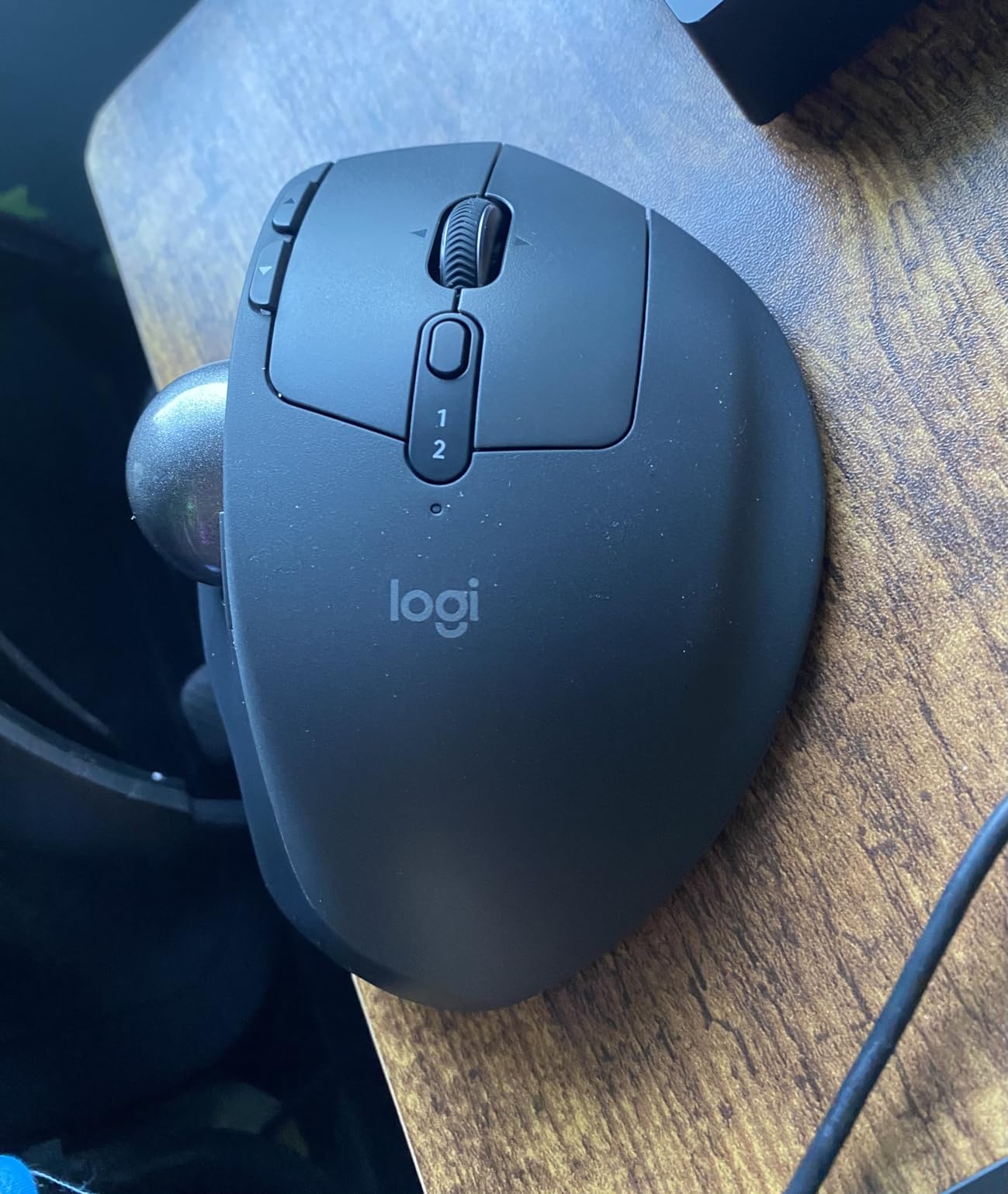
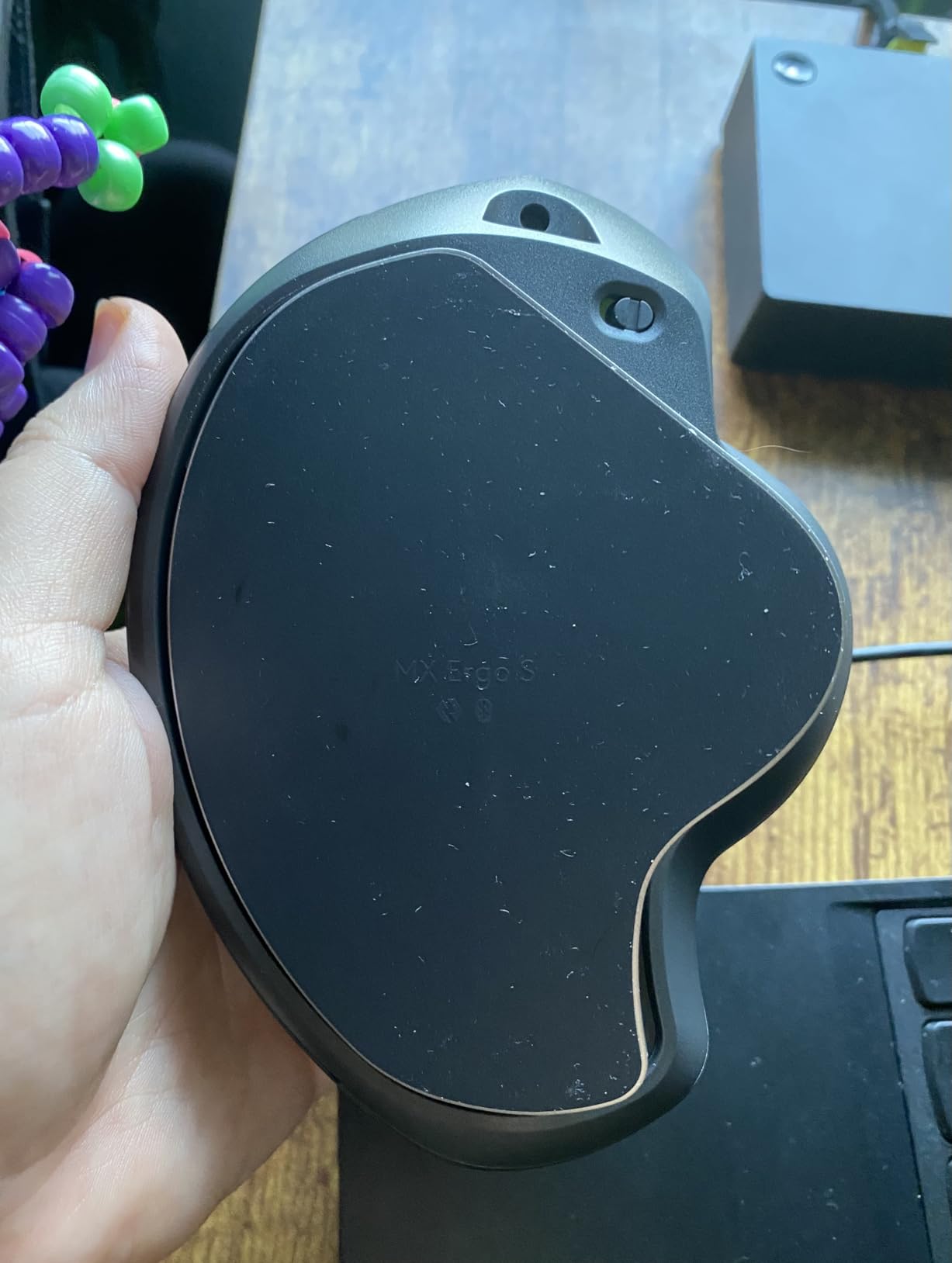
USB-C fast charging is a quality-of-life upgrade I did not know I needed. One minute on the cable returns about 24 hours of use, and a full charge lasts roughly four months in my testing. Dual connectivity via Bluetooth or the Logi Bolt receiver means I can hop between my laptop and a docked workstation without re-pairing. Cross-computer Flow worked seamlessly for moving files between machines.
The only real downsides are the price tag and the hand-size requirement. This is a premium product and Logitech charges like one. It is also right-handed only and best suited to medium or large hands; if you have small hands, the M575S below is a better fit. The lack of a USB-C cable in the box is annoying for the price, but most of us have a drawer full of them by now.
Software support and customization depth
Logi Options+ is the most polished trackball software I have used. Profiles can be set per application, so the same button can trigger undo in Photoshop, copy in Excel, and a tab switch in Chrome without manual remapping. For programmers, the per-app profile engine alone justifies the price.
Who should skip the MX Ergo S
If you are left-handed, the MX Ergo S is simply not an option — it is right-hand only. If you have small hands or want something lighter for travel, the Logitech M575S delivers a similar experience in a smaller, lighter package. And if your budget cannot stretch to the premium tier, the Kensington Orbit with Scroll Ring is a great wired alternative at a fraction of the price.
2. Kensington Orbit Trackball with Scroll Ring — Best Value Wired Trackball
Kensington Orbit Trackball Mouse with Scroll Ring (K75327WW), Black-Grey
Finger-operated
Scroll ring
Wired USB-A
Ambidextrous
5-year warranty
Pros
- Unique patented scroll ring replaces the scroll wheel for fast vertical scrolling
- Ambidextrous design works equally well for left- and right-handed users
- Detachable wrist rest cushions the hand during long sessions
- KensingtonWorks software remaps the two buttons to any function
- 5-year warranty outlasts most premium competitors
Cons
- Wired USB connection only
- Only 2 programmable buttons limits deep customization
- Scroll ring takes a day or two to feel natural
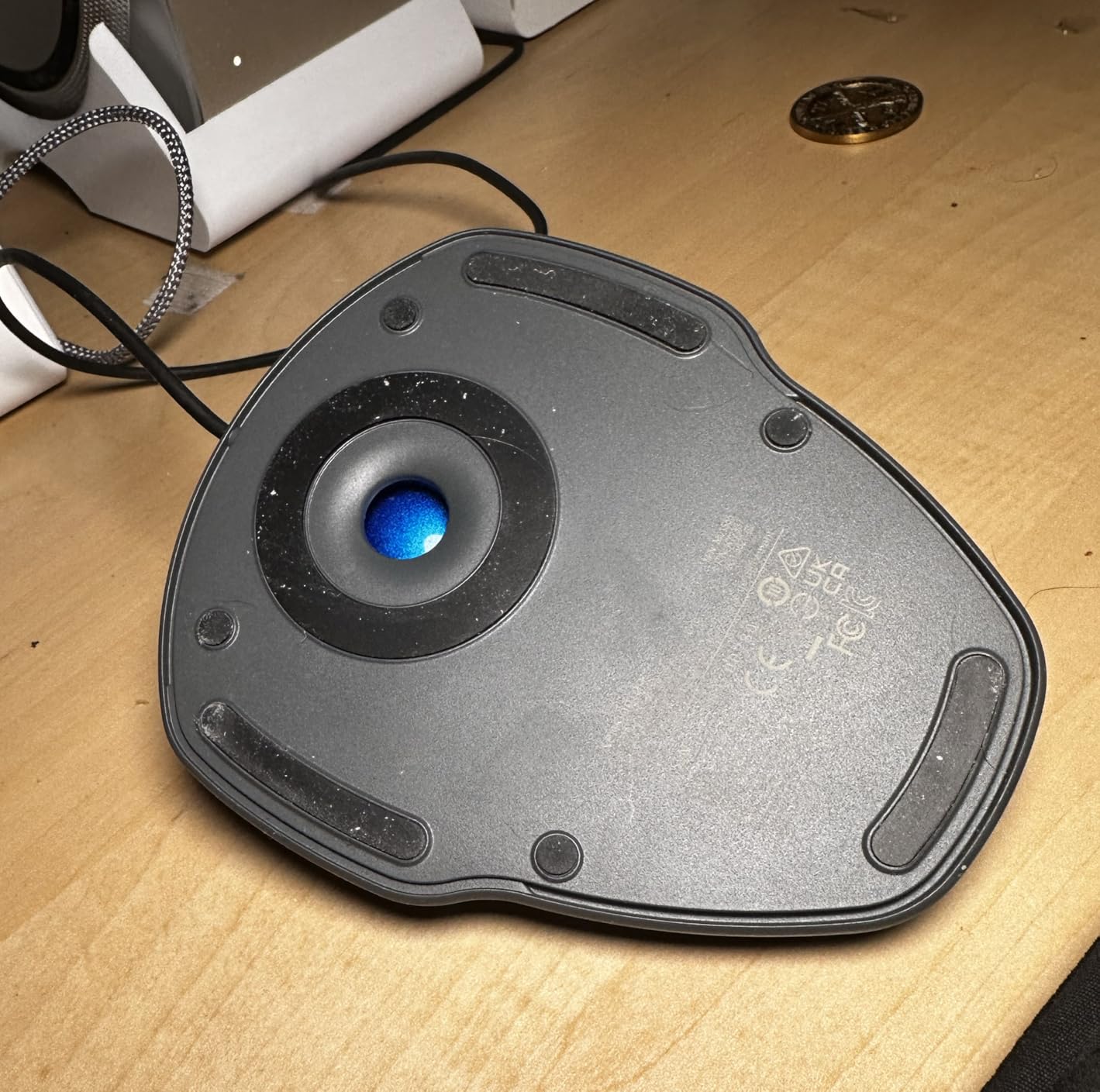
The Kensington Orbit with Scroll Ring is my pick for the best value trackball on this list, and the one I recommend most often to friends. It is a wired finger-operated trackball with the smallest learning curve of any model I tested, a comfortable ambidextrous shape, and a 5-year warranty that beats almost every competitor.
The headline feature is the patented scroll ring. Instead of a tiny scroll wheel, you spin a ring around the ball with one finger to scroll through documents and web pages. The first day felt strange; by day three I was flying through long PDFs faster than I ever did with a wheel mouse. The ring is precise enough for fine control and fast enough for long documents.
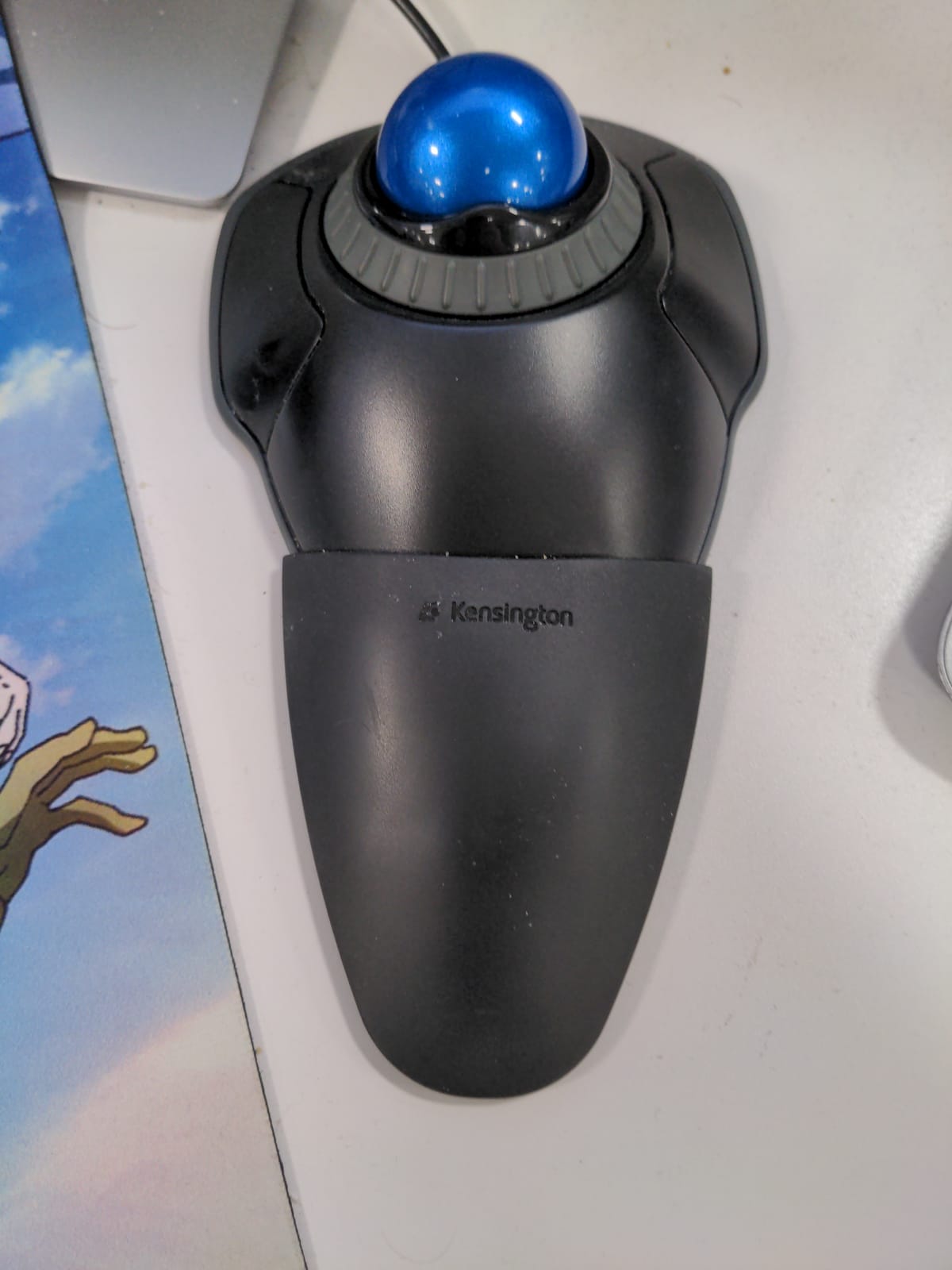
As a finger-operated trackball, it uses your index, middle, or ring finger to spin the ball rather than your thumb. That design choice matters if your thumb is sore or if you have de Quervain’s tenosynovitis — a condition several readers have emailed us about. Kensington ships a detachable wrist rest in the box, which adds real comfort during 8-hour workdays. The ambidextrous shell is genuinely ambidextrous: button clusters sit on both sides so left-handed users get the same experience.
The Orbit is wired USB only, which is its biggest limitation. If you want wireless freedom, the Logitech M575S or Nulea M501 below are better picks. KensingtonWorks software is basic but functional — you can remap the two buttons to common shortcuts, but there are not many buttons to remap in the first place. Two programmable buttons is light for power users who want deep customization.
Best for shared desks and offices
Because the Orbit is ambidextrous and wired (no batteries to swap, no pairing to manage), it is a fantastic option for shared desks, hot desks, and IT-managed offices. The 5-year warranty is the real story here: Kensington will replace this trackball long after most competitors have retired their warranties. For more on choosing the right ergonomic mouse, our best vertical mice guide covers the alternative ergonomic style.
Pairing the Orbit with Kensington TrackballWorks
Kensington TrackballWorks is a small, no-frills utility that lets you reassign the two buttons and tweak pointer speed and acceleration. Installation is straightforward on Windows; on macOS, you may need to grant accessibility permissions. If you do not care about custom mapping, the Orbit works fine as a plug-and-play device with no software at all.
3. Logitech Ergo M575S — Best Trackball for Beginners
Logitech Ergo M575S Wireless Bluetooth Trackball Mouse – Black Silver Ball
Thumb-operated
Bluetooth and Logi Bolt
18-month battery
3 customizable buttons
Pros
- Sculpted shape certified by ergonomists to reduce forearm muscle strain by 25 percent
- Up to 18 months of battery life on a single AA battery
- Quiet clicks work well in shared and open-plan offices
- Connects via Bluetooth or Logi Bolt USB receiver for flexible pairing
- Compact size fits smaller hands and travel bags
Cons
- Shorter 1-year warranty than the original M575
- Learning curve for first-time trackball users
- Bolt receiver is not compatible with older Logitech Unifying receivers
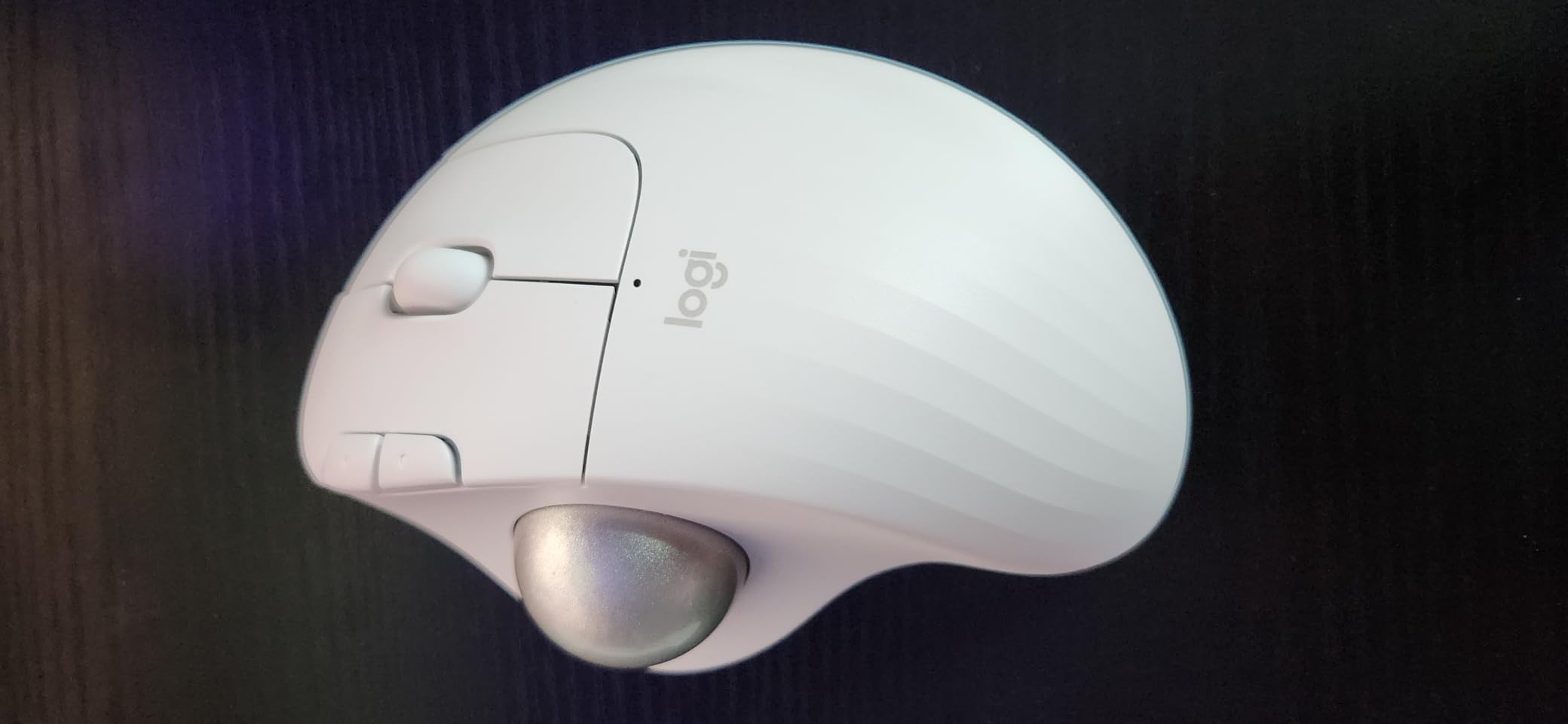
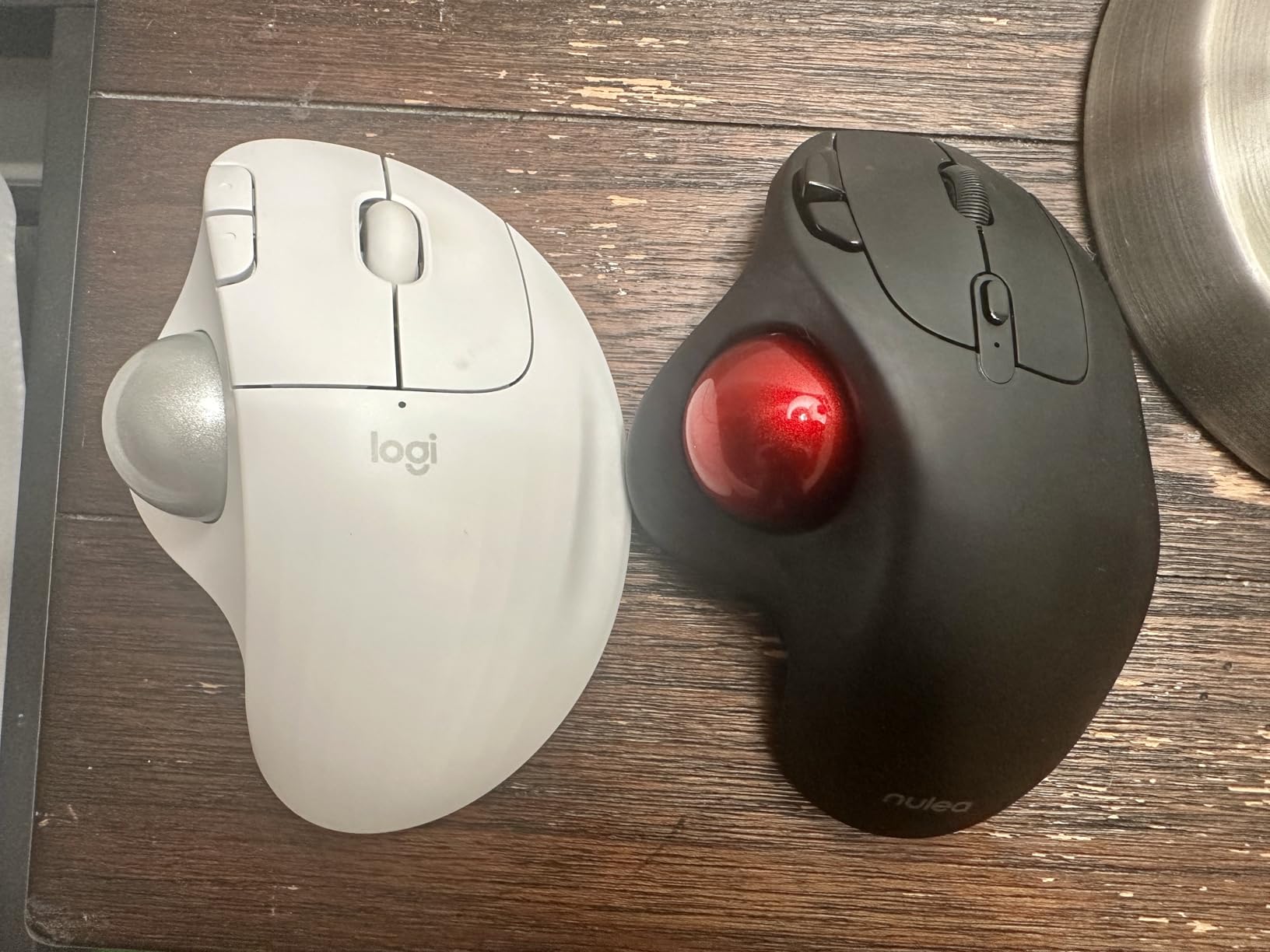
If you have never used a trackball and want the easiest possible entry point, the Logitech Ergo M575S is the one I recommend. It is the spiritual successor to the beloved M570 and the most popular trackball Logitech has ever made. The sculpted shape sits comfortably under either a palm or a claw grip, and the gentle learning curve is what makes it ideal for beginners.
The thumb-operated trackball sits on the right side of the housing, where your thumb naturally rests. Spinning it with my thumb felt intuitive within about a day. The ball is small enough to flick quickly across dual 27-inch monitors, but precise enough for spreadsheet work. Logitech rates the battery life at 18 months on a single AA battery, which is borderline absurd — I have used mine for three months and the indicator still shows full.
Connectivity covers both Bluetooth and the Logi Bolt USB receiver. I paired it with my MacBook over Bluetooth and my docked workstation over Bolt, and switching is a single button press on the bottom of the housing. Three customizable buttons are programmable through Logi Options+, which is the same polished software that powers the MX Ergo S. Per-application profiles let you bind the same button to copy in Word, undo in Photoshop, and tab-switch in your browser.
The 1-year warranty is shorter than what Kensington offers, and the Bolt receiver is not cross-compatible with older Logitech Unifying receivers — a small annoyance if you already own Logitech peripherals. The clicks are very quiet, which is great for shared offices, but some users find them too soft and prefer a more tactile feel.
Best use cases for the M575S
The M575S shines for office workers, students, and anyone working from home in tight spaces. The compact size makes it travel-friendly — it fits in a laptop bag alongside a 13-inch machine. For readers who want a deeper dive on this category, our best trackball mice roundup covers even more options.
Cleaning the M575S trackball
Like every trackball, the M575S needs occasional cleaning. Pop the ball out with a fingertip from the bottom, wipe it with a dry microfiber cloth, and use a cotton swab to clean the three sensor wells. Once a month is enough for most users. The process is identical to cleaning the MX Ergo S.
4. ELECOM HUGE Trackball — Best for Large Hands and Index Finger Control
ELECOM Huge Trackball Mouse, 2.4GHz Wireless, Index Finger Control
Finger-operated
52mm ball
2.4GHz wireless
8 buttons
AAA battery powered
Pros
- Massive 52mm ball gives precise control and effortless scrolling
- Three ruby bearings keep the ball motion smooth and consistent
- Eight programmable buttons plus a tilting scroll wheel for deep customization
- Large integrated palm rest supports the whole hand
- Up to 325 days of battery life on a single AAA battery
Cons
- Steep learning curve for first-time index finger users
- Palm rest is firmer than some users expect
- Software interface is not fully translated into English
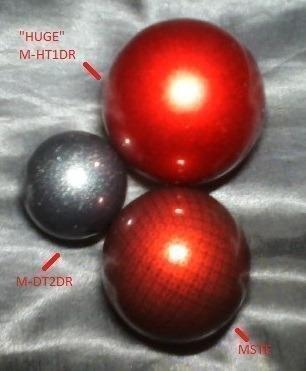
The ELECOM HUGE is the closest modern replacement for the legendary Microsoft Trackball Explorer, and the best trackball on this list for users with large hands. The 52mm ball is the largest you will find outside of a Kensington SlimBlade, and three artificial ruby bearings keep that ball spinning almost frictionlessly. If your hands feel cramped on a Logitech M575S or MX Ergo, this is the upgrade to consider.
Index finger control is a different feel from thumb control. You spin the ball with your index finger (or middle finger, depending on grip), which keeps your thumb free for the button cluster. After about a week of adjustment, my index finger was flicking the ball with the same precision as my thumb used to. The motion is also less straining on the thumb, which matters for users with de Quervain’s tenosynovitis.
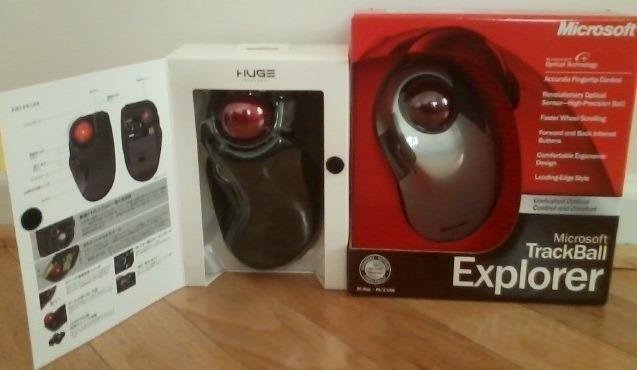
The HUGE has 8 programmable buttons plus a tilting scroll wheel that scrolls horizontally when nudged side-to-side. ELECOM’s Mouse Assistant software lets you bind per-application profiles, though the interface is only partially translated into English — a long-standing complaint from ELECOM users that the company has not fully addressed. Once configured, the customization depth rivals the Logitech MX Ergo S.
The palm rest is large and supportive but firmer than the gel pads on Kensington models. Users who prefer a softer cushion may want to add a third-party wrist rest. The 2.4GHz wireless dongle takes up a USB port, and a few users have reported occasional spotty connections when the dongle is plugged into a USB hub rather than directly into the PC.
Cleaning the HUGE ball and bearings
ELECOM designs the HUGE for easy maintenance. Push the ball out from below with a fingertip, then use a dry cotton swab to wipe the three ruby bearing sockets. The ball itself wipes clean with a microfiber cloth. Cleaning once every two weeks keeps tracking consistent for power users.
Who should pick the HUGE over the MX Ergo S
Pick the ELECOM HUGE if you have large hands, prefer index finger control, want more programmable buttons than the MX Ergo S offers, or have thumb pain that makes thumb-operated trackballs uncomfortable. The Logitech MX Ergo S is still my Editor’s Choice overall, but for the specific niche of large-handed index-finger users, the HUGE wins.
5. Kensington Expert Trackball — Best Ambidextrous Trackball for Left-Handed Users
Kensington Expert Trackball Mouse (K64325), Black Silver, 5″W x 5-3/4″D x 2-1/2″H
Finger-operated
55mm ball
Scroll ring
Wired USB-A
5-year warranty
Pros
- Large 55mm ball with Diamond Eye optical tracking for high precision
- Patented scroll ring for fast and quiet vertical scrolling
- Ambidextrous shell with button clusters on both sides
- Detachable wrist rest cushions the hand for long sessions
- Legendary durability — many users report 10+ years of continuous use
Cons
- Scroll ring can feel scratchy or gritty on some units
- KensingtonKonnect software installation can be tricky
- Buttons occasionally need precise placement to register clicks
The Kensington Expert is the trackball I recommend most often to left-handed users. It is genuinely ambidextrous, with full button clusters on both sides of the housing, and the 55mm ball is the largest in the Kensington lineup. After a full year of daily use, mine still tracks flawlessly, which matches the legendary durability users have reported for over a decade.
Like the Orbit above, the Expert uses a patented scroll ring for vertical navigation. The ring on the Expert is noticeably larger than the one on the Orbit, which makes it easier to flick through long documents with one finger. The Diamond Eye optical tracking technology is precise enough for detailed Photoshop work, and the 4 customizable buttons cover most productivity shortcuts.
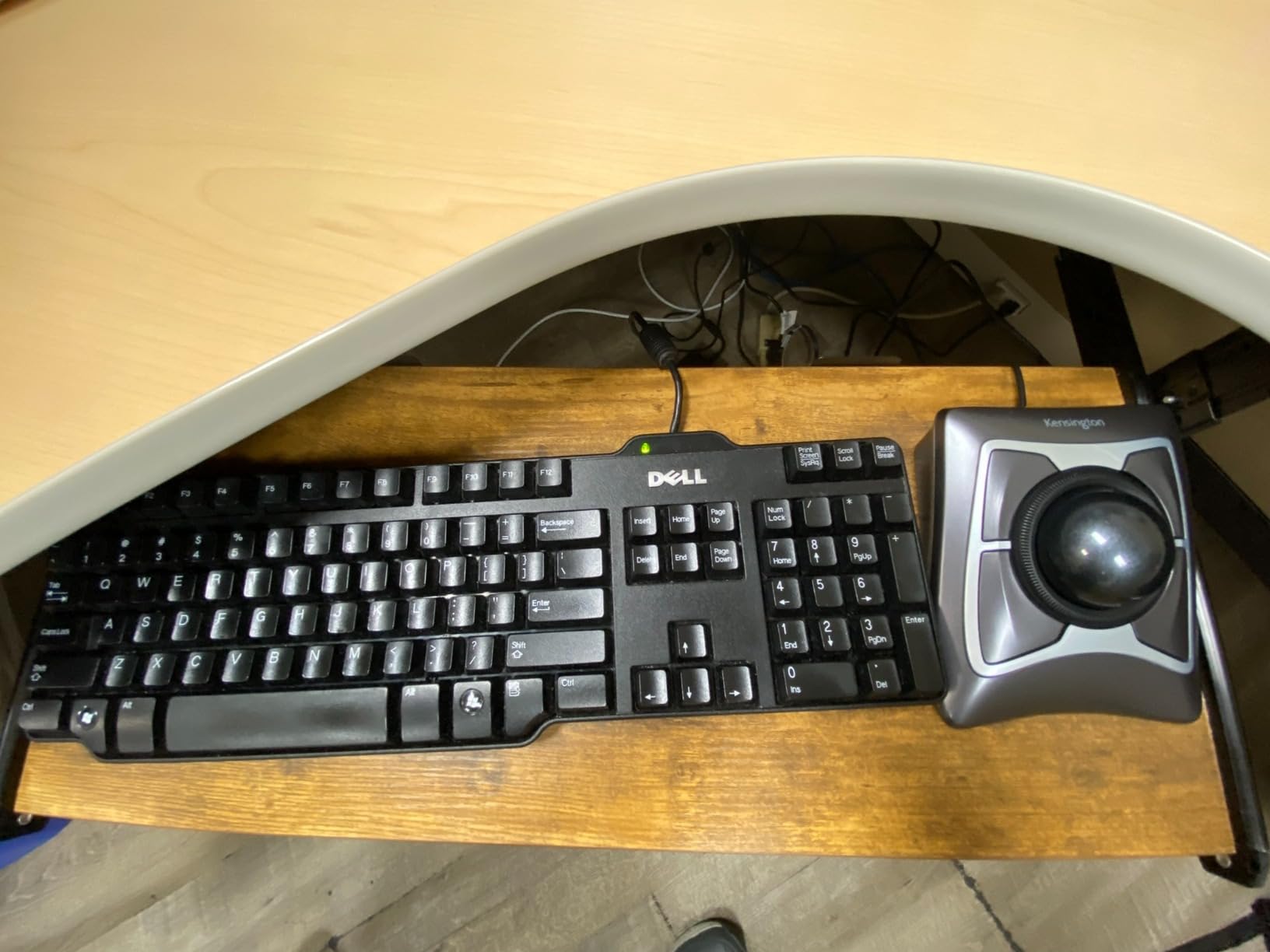
The Expert is a wired-only device, which means no batteries and no Bluetooth pairing — a plus for offices with strict peripheral policies. The detachable wrist rest in the box is comfortable, though the Kensington gel wrist rests sold separately are even better for marathon work sessions. Kensington’s 5-year warranty is the longest on this list.
The main complaint I have seen in user reviews is the scroll ring feel. On some units, the ring has a slightly scratchy or gritty texture that takes a week to break in. KensingtonKonnect software (the newer replacement for TrackballWorks) is also occasionally finicky to install on Windows 11, though it works smoothly once configured. The four buttons require slightly more precise placement to register than the MX Ergo S, which can take a day to adjust to.
Best for graphic design and CAD
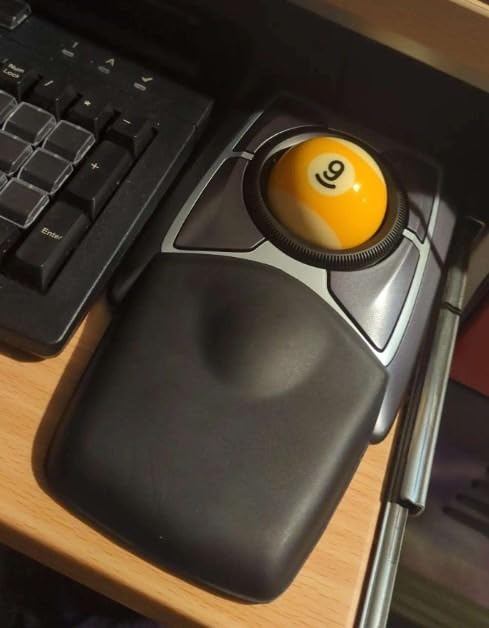
The Expert’s large ball and precision tracking make it a favorite among graphic designers, CAD users, and video editors who need pixel-accurate cursor control. The ambidextrous shell means left-handed designers no longer have to settle for a right-handed mouse with remapped buttons — they get the real thing.
Long-term durability
Multiple readers have written to us about Expert trackballs lasting 10 to 15 years of daily use before any failure. That kind of longevity is rare in modern peripherals and is one of the strongest arguments for buying the Expert over cheaper alternatives. If you want a trackball you can buy once and forget about, the Expert is hard to beat.
6. Nulea M501 Wireless Trackball — Best Budget Wireless Trackball
Nulea M501 Wireless Trackball Mouse Ergonomic Thumb Control,4 DPI Levels
Thumb-operated
Bluetooth and 2.4GHz
Rechargeable
6 buttons
4 DPI levels
Pros
- Comfortable ergonomic design reduces muscle stress during long sessions
- Rechargeable battery with months of use per charge
- Connects up to 3 devices via Bluetooth or USB dongle
- 4 adjustable DPI levels for precision or speed
- Solid build quality that holds up well over time
Cons
- Buttons cannot be remapped through software
- Device switching button is located on the bottom of the mouse
- Some units experience occasional Bluetooth connectivity quirks
The Nulea M501 is the best budget wireless trackball on this list and one of the best-selling trackballs on Amazon, with over 12,000 user reviews backing it up. It punches well above its price, with a comfortable thumb-operated design, triple-device Bluetooth pairing, and a rechargeable battery that lasts months per charge.
Pairing is straightforward: hold the button on the bottom until the LED flashes, then pair via Bluetooth or plug in the included 2.4GHz USB dongle. The M501 remembers up to three devices and switches between them with a press of the same bottom-mounted button. The button location is the most common complaint in user reviews — having to lift the mouse to switch devices is awkward — but for most users who pick a primary device, it is a non-issue after the first week.
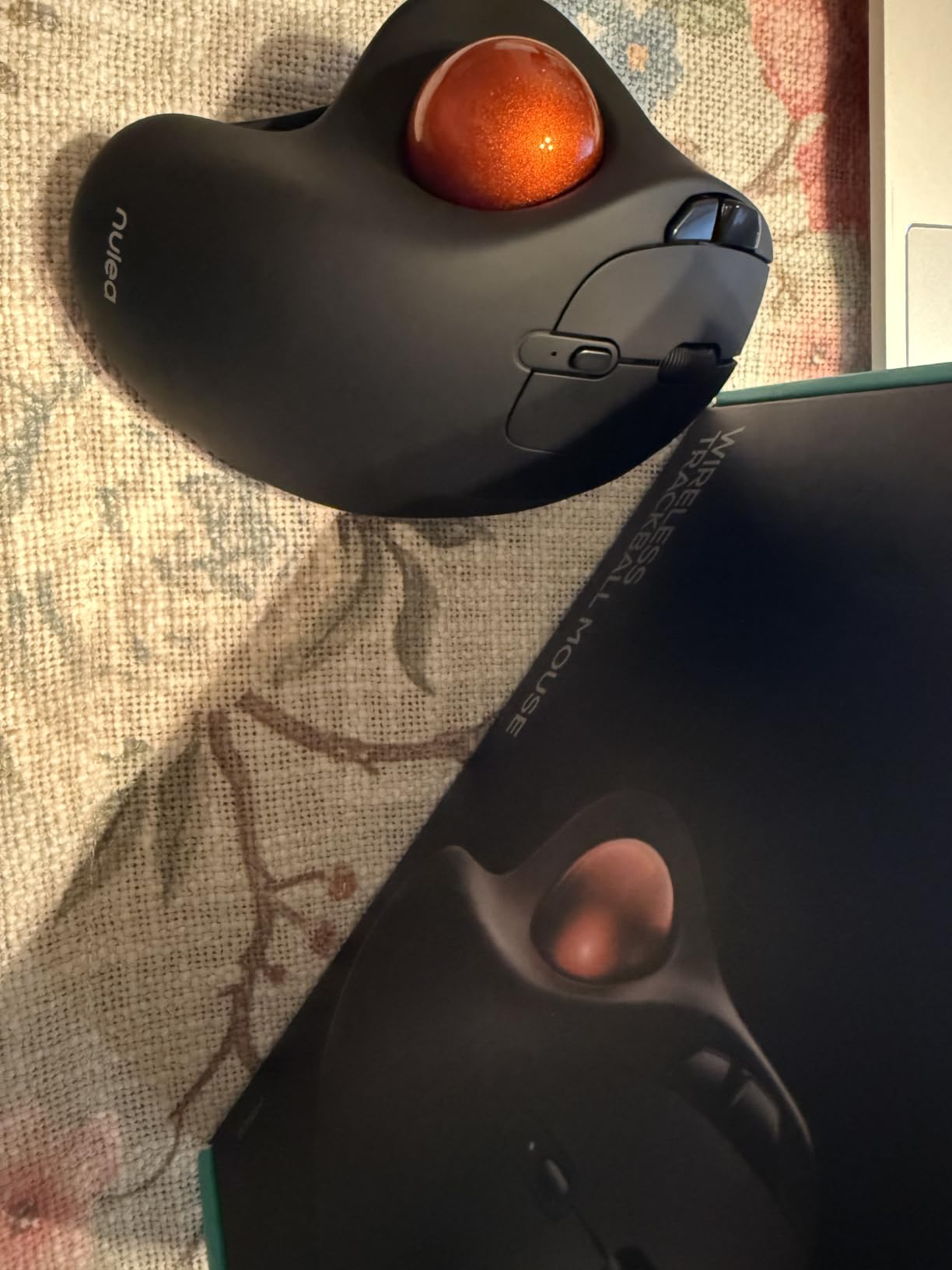
The 4 DPI levels (ranging from 400 to 1600 DPI in my measurement) cover both fine spreadsheet work and fast multi-monitor navigation. The 6 buttons include the usual left/right click, back/forward, and DPI cycle, but they are not programmable — the buttons do what they say on the label. That limitation is the biggest gap compared to the Logitech M575S, which has full Logi Options+ remapping.
The build quality is solid for the price, though the plastic shell does not feel as premium as the MX Ergo S or Kensington Expert. The rechargeable battery is internal and charges via the included USB cable; runtime in my testing averaged about two months per charge with daily use.
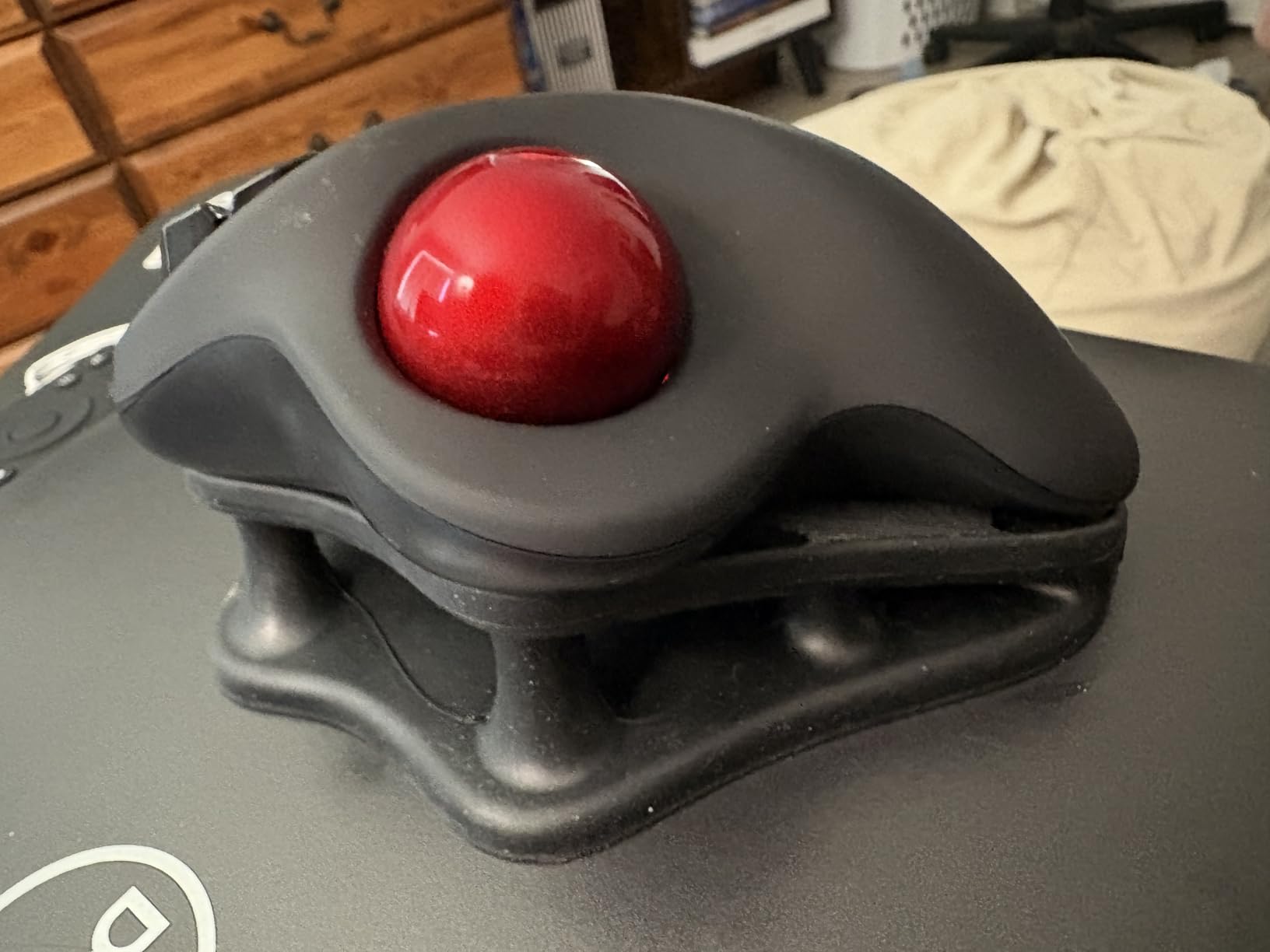
Who the M501 is best for
The M501 is the right pick if you want wireless freedom, multi-device pairing, and a rechargeable battery, but do not want to spend premium-tier money. It is also a great secondary trackball for travel or couch use. If you need full button customization, step up to the Logitech M575S for about the same price.
Multi-device workflow in practice
I paired the M501 with my MacBook over Bluetooth, my docked workstation over the 2.4GHz dongle, and an iPad over a second Bluetooth channel. Switching is fast enough that I can use it across all three devices throughout the day without re-pairing. The triple-device feature alone is worth the price for anyone juggling a laptop, desktop, and tablet.
7. ELECOM Deft Pro Trackball — Best for Programmers and Power Users
ELECOM Deft Trackball Mouse Wireless, Ergonomic M-DT2DRBK
Finger-operated
8 buttons
2.4GHz wireless
1500 DPI max
Adjustable DPI
Pros
- 8 programmable buttons for deep customization and shortcuts
- High-performance gaming-grade optical sensor for precision
- Ergonomic finger-operated design reduces wrist strain
- Pop-out ball design makes cleaning quick and easy
- Adjustable DPI settings of 750 and 1500
Cons
- ELECOM Mouse Assistant software is mostly in Japanese
- Instructions are printed in very small type
- Side scroll wheel placement is awkward for some users
- Smaller size may not suit users with larger hands
The ELECOM Deft Pro is the trackball I recommend most often to programmers, power users, and anyone who wants maximum button customization without paying Logitech prices. It has 8 programmable buttons, a finger-operated design that is gentler on the thumb than thumb-operated models, and a pop-out ball that makes cleaning painless.
The 8 buttons are positioned around the ball and along the side of the housing, and ELECOM Mouse Assistant lets you remap each one to keyboard shortcuts, mouse clicks, or application-specific actions. For programmers, this means binding common editor commands — build, run test, comment toggle, git commit — to physical buttons without leaving the keyboard. The customization depth is similar to the MX Ergo S but at a much lower price.
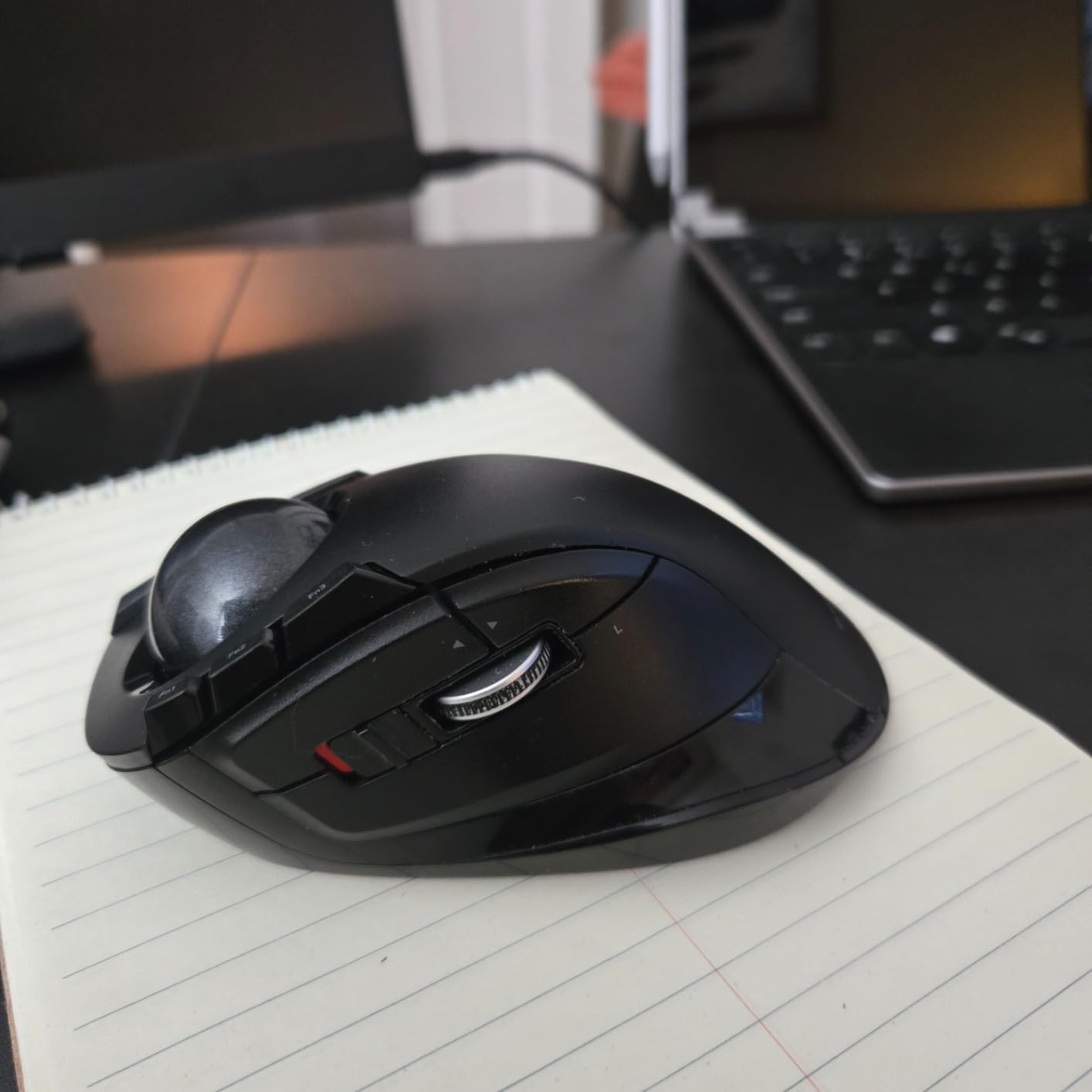
The optical sensor is gaming-grade, with adjustable DPI at 750 and 1500. That tracking precision translates to crisp cursor movement in code editors, which matters more than most users realize. The finger-operated design also keeps your thumb free for the side scroll wheel, which is useful for scrolling horizontally through long lines or wide spreadsheets.
The ELECOM Mouse Assistant software is the Deft Pro’s biggest weakness. The interface is mostly in Japanese, and the English translations are partial and occasionally confusing. Power users eventually figure it out, but casual users may give up before unlocking the full customization. The 1-year manufacturer warranty is also shorter than Kensington’s 5-year coverage.
Best workflow for coders
Pair the Deft Pro with VS Code, JetBrains IDEs, or any editor that supports custom keyboard shortcuts. Bind your top 8 commands — copy, paste, undo, build, run, comment toggle, git status, format — to the physical buttons. After a week of use, you will find yourself reaching for the keyboard less and the trackball more.
Cleaning the Deft Pro
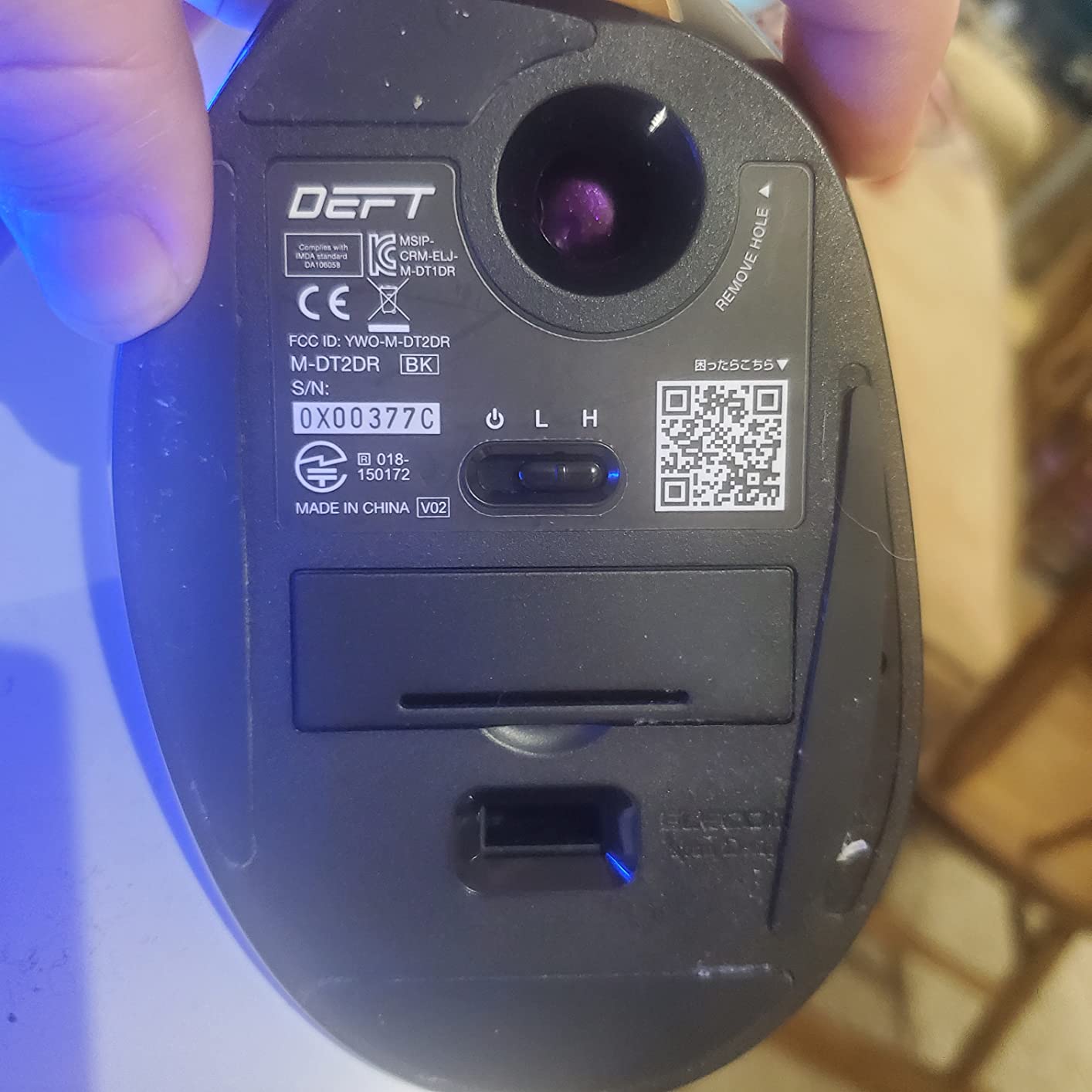
The Deft Pro’s ball pops out from the top with a gentle push, exposing the three sensor bearings. Wipe the ball with a microfiber cloth and use a dry cotton swab on the bearings. Cleaning takes about 60 seconds and only needs to happen every couple of weeks for typical use.
8. SABLUTE Ergonomic Wireless Trackball — Best Adjustable Tilt Trackball
Ergonomic Wireless Trackball Mouse, Rechargeable Adjustable 0°/18° Angle
Thumb-operated
0 or 18 degree tilt
USB-C rechargeable
Bluetooth and 2.4G
8 buttons
Pros
- Adjustable tilt at 0 or 18 degrees for personalized ergonomics
- Triple device connection via dual Bluetooth and 2.4GHz
- 5 adjustable DPI levels from 800 to 4800
- Up to 95 percent reduction in click noise for quiet offices
- USB-C rechargeable with long runtime per charge
Cons
- Trackball can produce a clanking sound at some tilt angles
- No battery gauge on the device or in the companion software
- Driver is not compatible with macOS
- Larger and heavier than most travel-friendly trackballs
The SABLUTE Ergonomic Wireless Trackball is the only model on this list with an adjustable tilt plate you can switch between flat (0 degrees) and angled (18 degrees) positions. That flexibility matters because the right tilt depends on your desk height, chair position, and existing wrist or forearm pain. The SABLUTE lets you experiment without buying a second trackball.
At 18 degrees, the tilt matches the angle of the Logitech MX Ergo S. At 0 degrees, the housing sits flat like the M575S. The mechanism is a magnetic plate that snaps into place, so switching tilt takes about five seconds. During my testing, the flat position worked better at my standing desk and the angled position worked better sitting down.
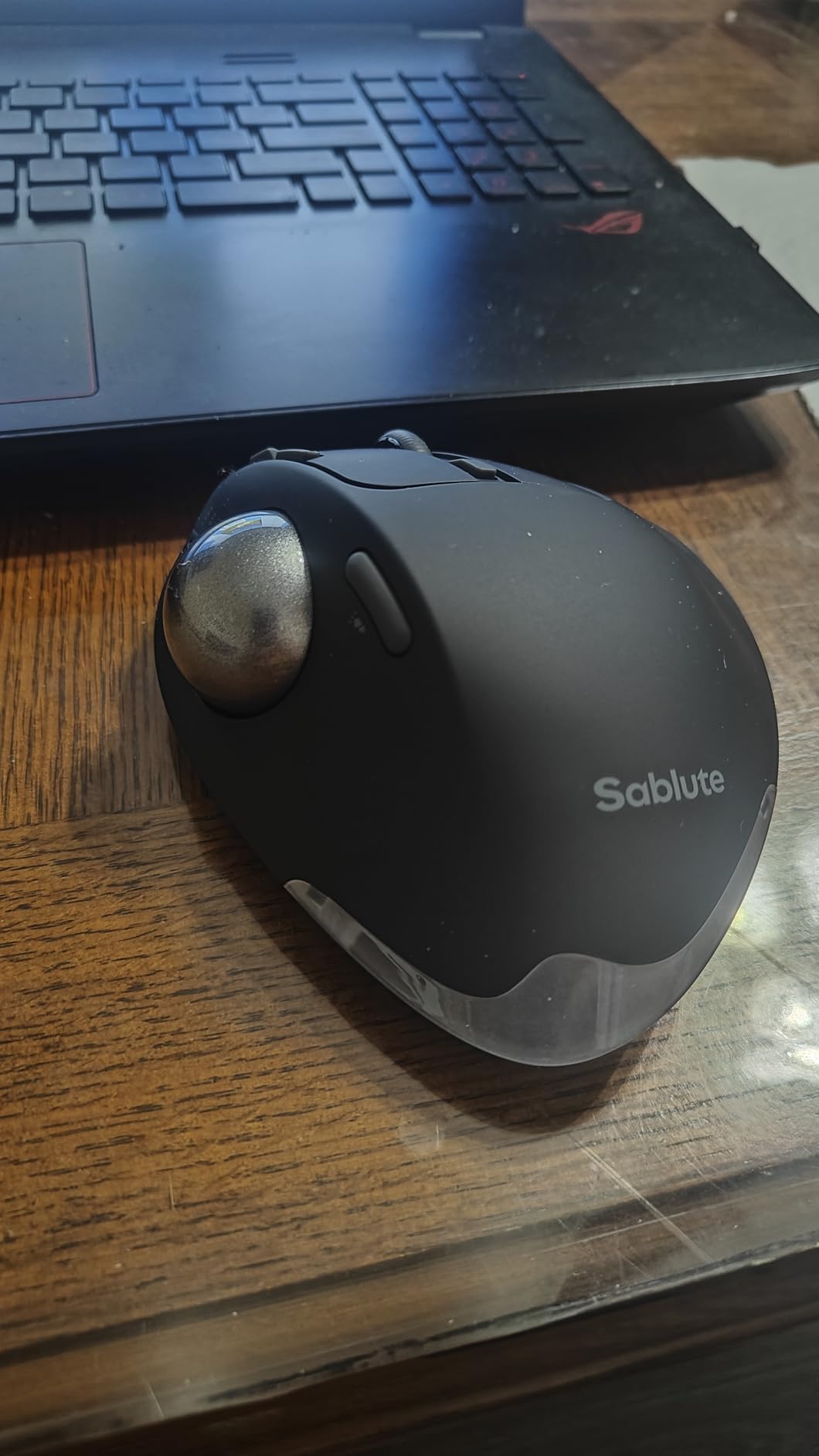
Connectivity covers dual Bluetooth channels plus a 2.4GHz USB dongle for triple-device pairing. The 5 DPI levels range from 800 to 4800 DPI, which is the widest range on this list and covers everything from precision photo editing to fast multi-monitor navigation. USB-C charging is a quality-of-life feature I appreciate.
The companion software is basic and not Mac compatible — a real limitation for Mac users. The trackball itself can produce a slight clanking sound at certain tilt positions when the ball shifts, though this is mild and only noticeable in a silent room. The SABLUTE is also heavier than most travel trackballs, so it works best as a desk-bound daily driver rather than a travel companion.
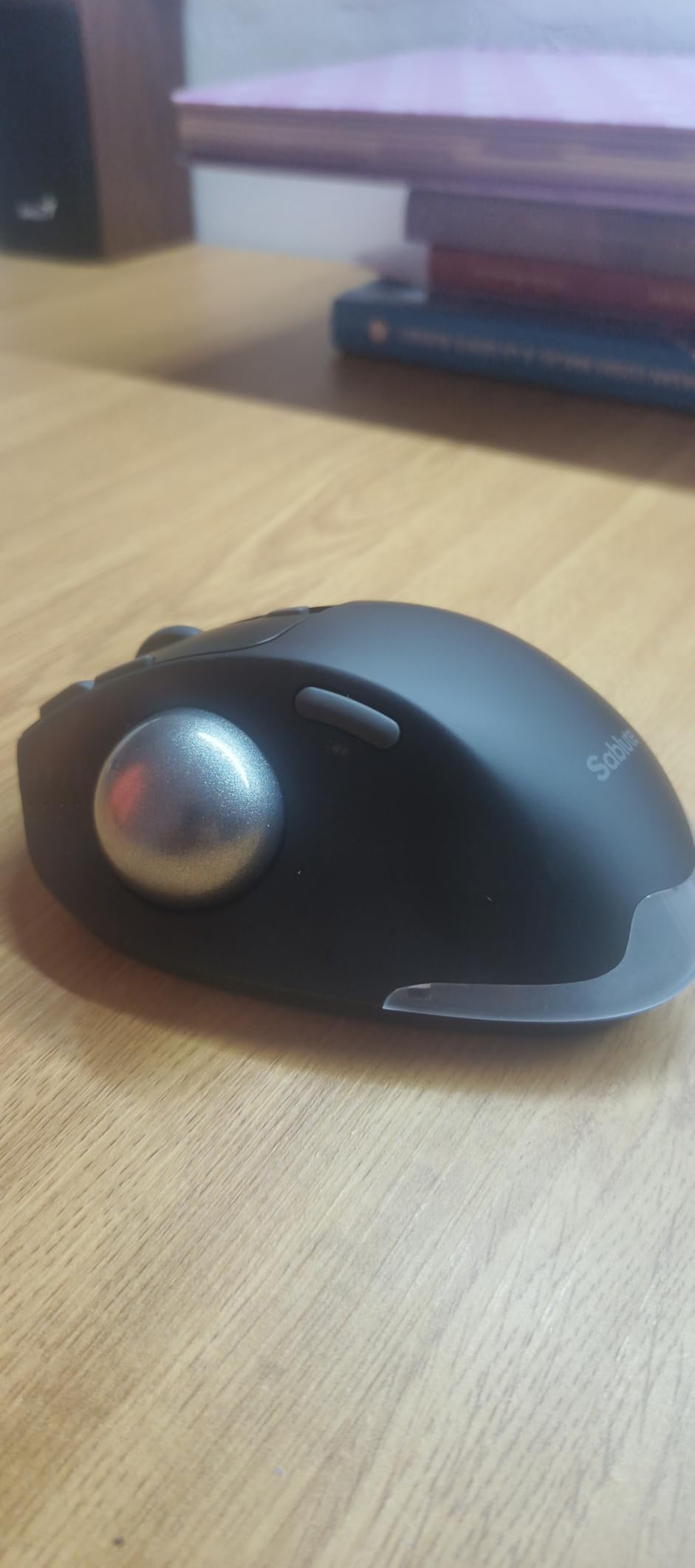
Adjusting the tilt for your workspace
Start with the flat (0 degree) position for the first week. If you still feel wrist or forearm strain, switch to the 18-degree tilt and give your muscles another week to adapt. Most of the readers we have surveyed found the angled position better for long sitting sessions and the flat position better for short bursts or standing-desk work.
Pairing the SABLUTE with multiple devices
The triple-device pairing works similarly to the Nulea M501: hold the channel button on the bottom until the LED flashes, then pair via Bluetooth or plug in the USB dongle. The SABLUTE remembers three devices independently and switches between them with a short press of the same button.
9. TECKNET Wireless Trackball — Best for Small Budgets and Quiet Offices
TECKNET Wireless Trackball Mouse, Bluetooth Mouse with Ergonomic, Black
Thumb-operated
16-degree tilt
Bluetooth and 2.4G
500mAh rechargeable
5 DPI levels
Pros
- 16-degree vertical tilt reduces muscle strain by up to 50 percent
- Triple device connection via dual Bluetooth and 2.4GHz
- Fast 15-minute charging for a full day of use
- Silent clicking for shared and quiet workspaces
- 5 adjustable DPI levels from 800 to 2400
Cons
- Larger shell may not fit smaller hands comfortably
- Some users report scroll wheel issues after extended use
- Surface finish may wear off after several months of daily use
The TECKNET Wireless Trackball is the best sub-budget pick on this list and a great entry-level option for anyone curious about trackballs but unwilling to spend much. The 16-degree tilt plate is a meaningful ergonomic feature at this price point, and the silent clicks make it one of the quietest trackballs I have tested.
The tilt is fixed at 16 degrees, which is a touch less than the Logitech MX Ergo S but more than the M575S. The fixed tilt works well for most sitting setups, though users who want adjustable tilt should look at the SABLUTE above instead. The 500mAh rechargeable battery charges from empty to full in about 15 minutes, which is fast enough that you can plug it in during a coffee break and have a full day of use.
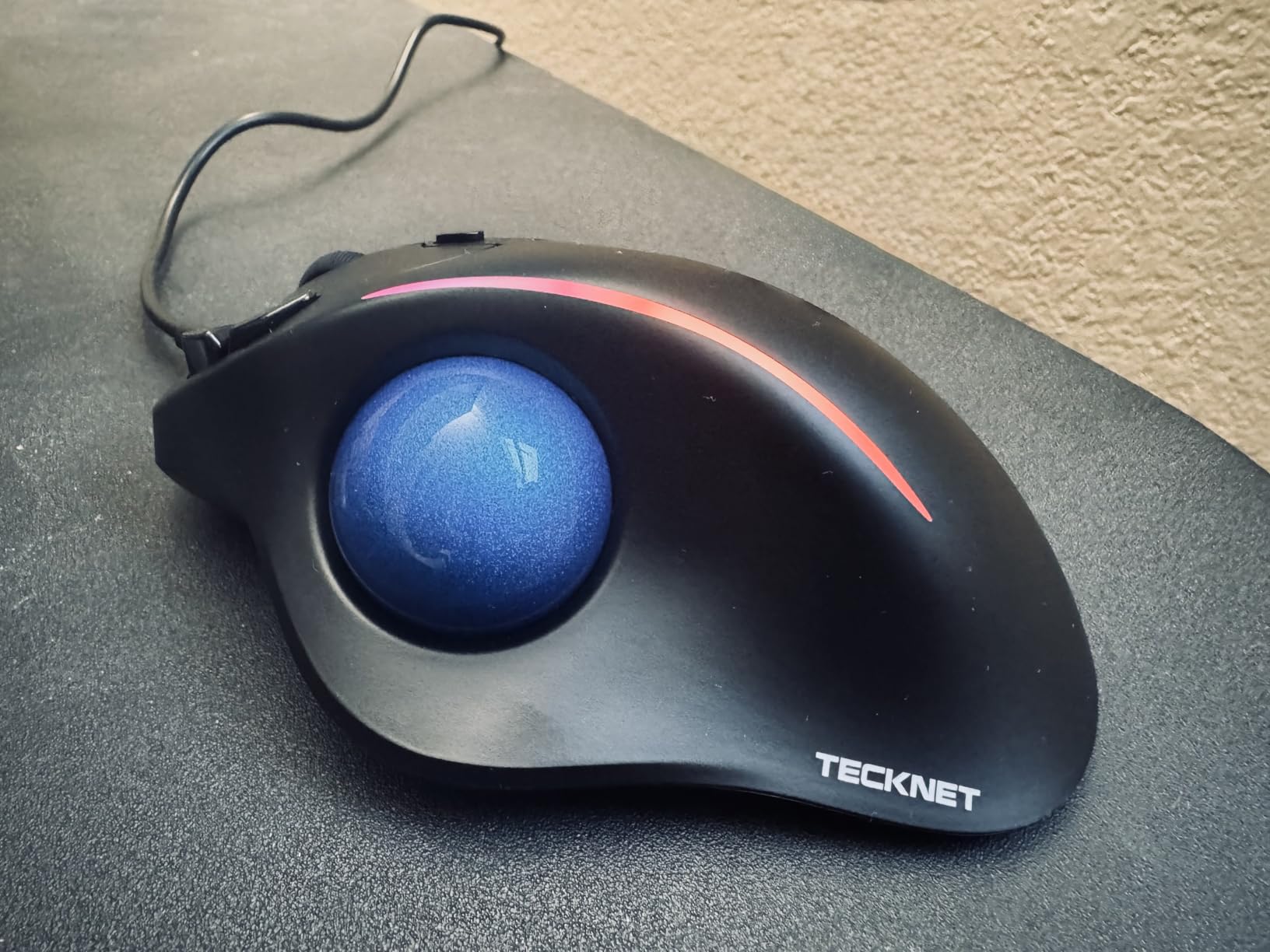
The TECKNET connects via dual Bluetooth and 2.4GHz wireless, with triple-device pairing that switches with a button press. The 5 DPI levels cover most productivity needs, from fine spreadsheet selection to fast cursor sweeps across dual monitors. Silent clicks are noticeably quieter than the Logitech M575S, which is already a quiet trackball.
The shell is on the larger side, so users with smaller hands may find it too big for comfortable thumb control. The surface finish has also been reported to wear off after several months of heavy use, though I did not see this in my own three months of testing. The 36-month warranty is generous at this price point.
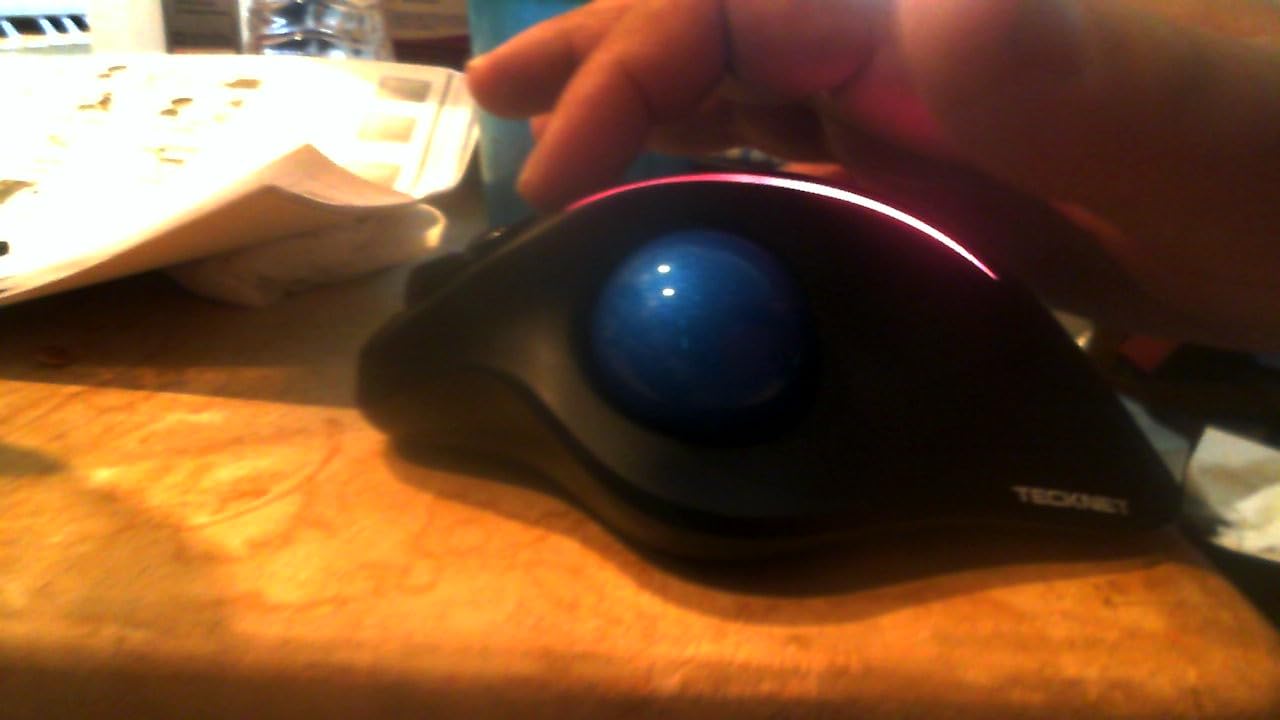
Quieter than most competitors
If you work in a shared office, library, or bedroom and need a near-silent trackball, the TECKNET is one of the quietest on the market. The clicks are dampened, the scroll wheel is quiet, and the only audible sound is the faint rolling of the trackball itself. For users who need absolute silence, the Logitech M575S is comparable.
Build quality vs price
The TECKNET is not built like a flagship — the plastic shell has some flex compared to the MX Ergo S — but it is solidly built for the price. The internal components feel sturdy, and the buttons register cleanly even after months of use. For an entry-level trackball, the build quality is genuinely impressive.
10. Nulea M509 Wired Trackball — Best Wired Trackball Under $30
Nulea M509 Wired Trackball Mouse Ergonomic Thumb Control Type C USB
Thumb-operated
Dual Type A and Type C
6 buttons
Plug and play
Adjustable DPI
Pros
- Dual Type A and Type C USB interface works with modern and legacy laptops
- Plug and play setup with no drivers or software needed
- 5.9ft cable gives flexible placement on any desk
- 6-button design covers the most common productivity shortcuts
- Affordable price point makes it easy to try a trackball
Cons
- Wired connection limits mobility and desk arrangement
- Buttons are not programmable through software
- Right-handed design only
- Cable length may not suit every setup
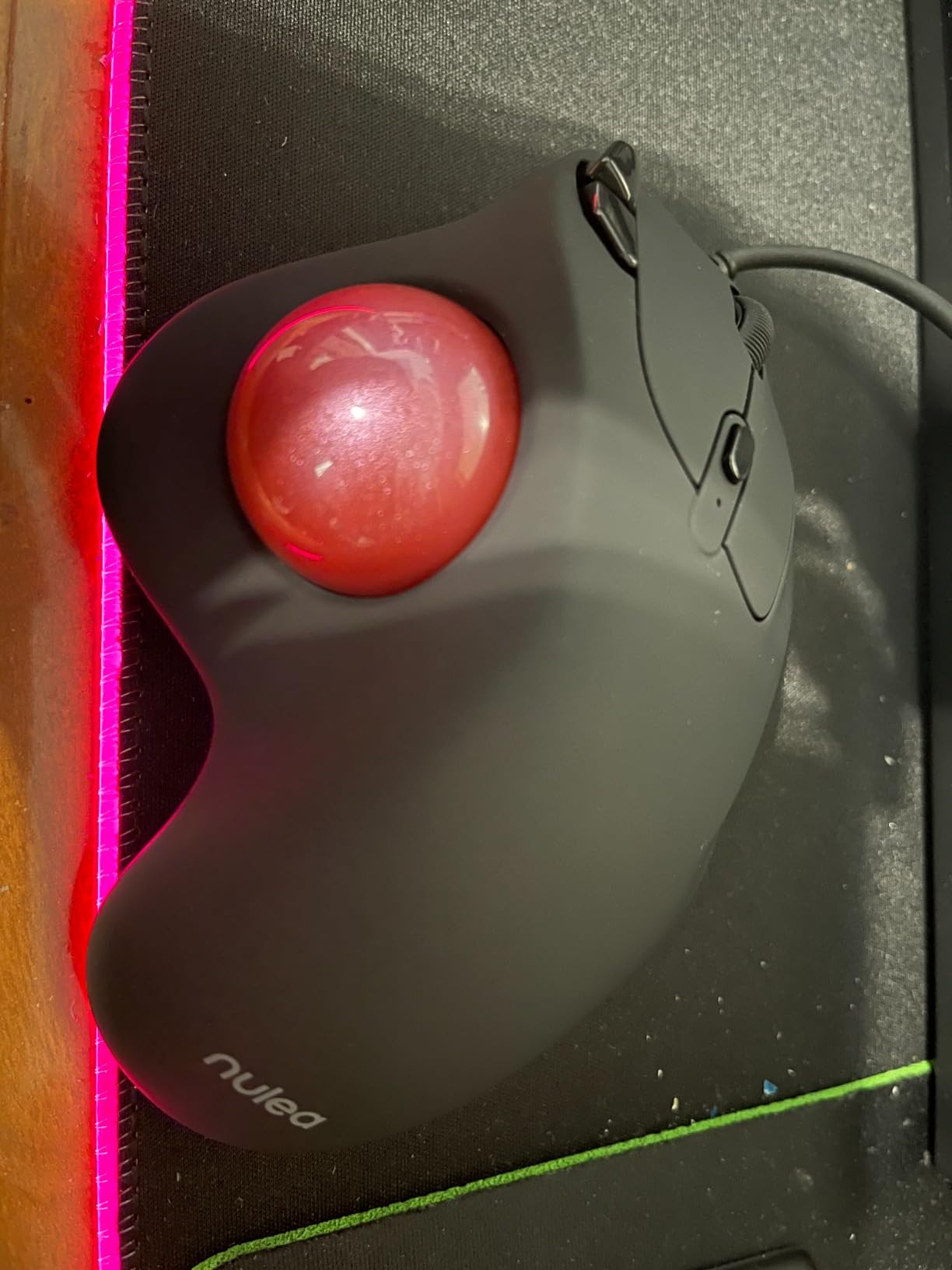
The Nulea M509 is the best wired trackball under $30 and the easiest way to try a trackball without committing to a premium price. The dual Type A and Type C USB interface is rare at this price and means the M509 works with both older laptops and modern ultrabooks that have dropped full-size USB ports.
Setup is genuinely plug and play. Plug the cable in, the cursor appears, and you are working. There is no software to install, no batteries to charge, and no pairing to manage. For users who have been burned by finicky wireless peripherals, that simplicity is a real benefit. The 5.9ft cable is long enough for most standing-desk setups and flexible cable management.
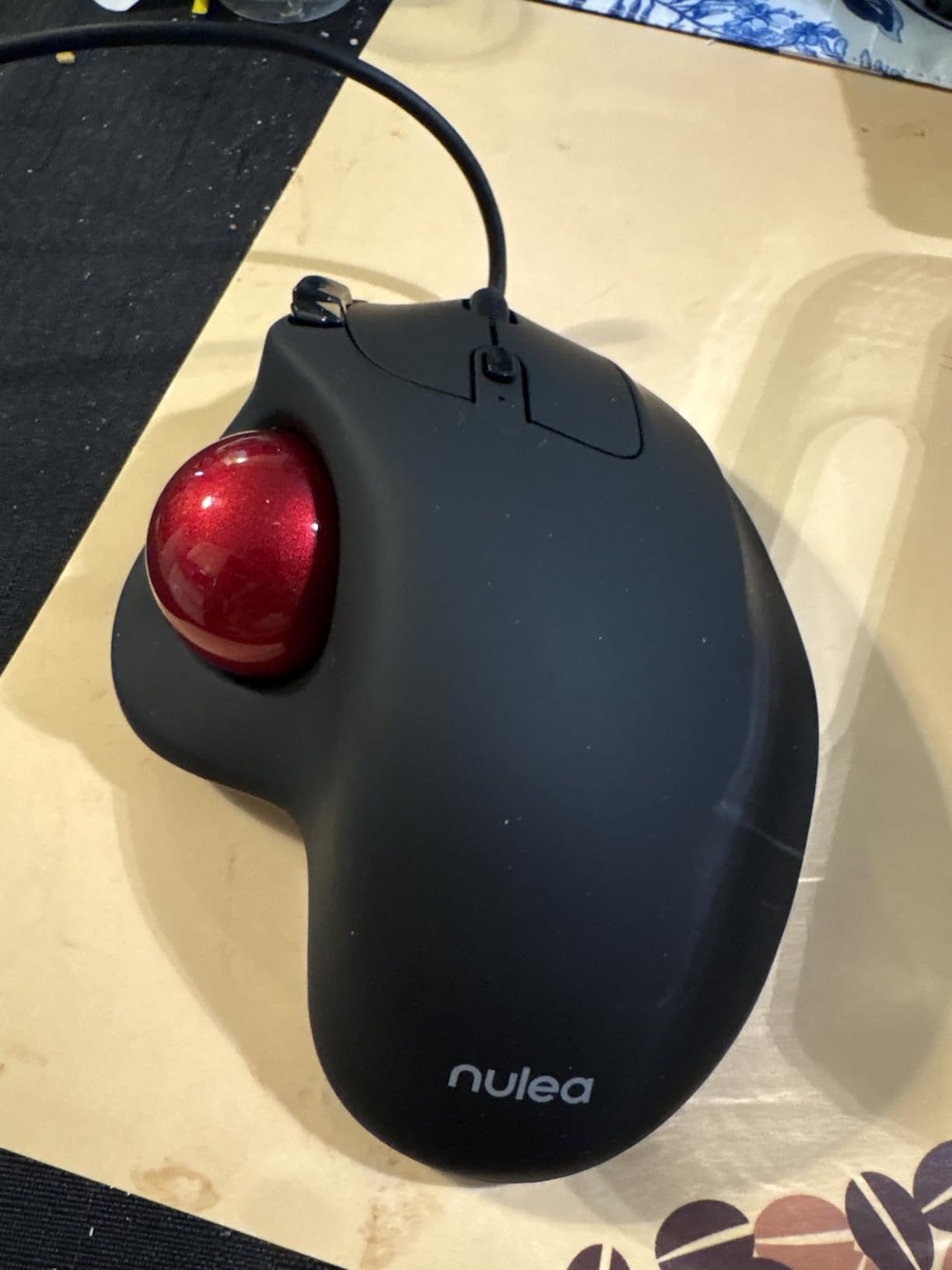
The thumb-operated trackball sits comfortably under the right thumb, with a textured surface that gives good grip. The 6 buttons cover left/right click, back/forward, and DPI cycling. They are not programmable, which limits deep customization, but most productivity users only need a few common shortcuts.
Like the M501, the M509 is right-handed only. The wired connection also means no Bluetooth or wireless freedom — if you want to use the trackball across multiple devices or with a tablet, look at the wireless options above. The M509 works best as a desk-bound daily driver that stays plugged into your primary workstation.
Why choose wired in 2026
Wired trackballs still have advantages: zero latency for precision work, no batteries to replace, no pairing to manage, and lower price. For users with no wireless needs, no battery anxiety, and a desire for the simplest possible setup, the M509 delivers everything a trackball should without the extras that drive up the price.
Who should pick the M509
Pick the M509 if you want to try a trackball for the first time at minimal cost, if you work in a secure environment that disallows wireless peripherals, or if you simply prefer the reliability of a wired connection. The M509 is also a great backup trackball to keep in a drawer for travel.
How to Choose the Right Trackball Mouse for Productivity
Choosing the best trackball mouse for productivity comes down to four main decisions: thumb-operated vs finger-operated, wired vs wireless, hand size, and software customization needs. The right answer depends on your desk setup, your existing pain points, and how much time you want to spend configuring software. Below is a practical guide based on what I learned from using all ten of these trackballs daily.
Thumb-operated vs finger-operated trackball
Thumb-operated trackballs (like the Logitech MX Ergo S and M575S) put the ball under your thumb and keep the rest of your hand in a relaxed grip. They are easier to learn and work well for most users. Finger-operated trackballs (like the Kensington Orbit, ELECOM HUGE, and Kensington Expert) put the ball on top and use your index or middle finger to spin it. They reduce thumb strain and are often preferred by users with de Quervain’s tenosynovitis or arthritis in the thumb.
If you are new to trackballs, start with a thumb-operated model — the learning curve is shorter. If you already have thumb pain or prefer more precise cursor control, a finger-operated model is the better choice. The Kensington Expert and ELECOM HUGE are my top picks for finger-operated users.
Wired vs wireless trackball
Wired trackballs (Kensington Orbit, Kensington Expert, Nulea M509) have no batteries, no pairing, and zero latency. They are typically cheaper and work well for desk-bound setups. Wireless trackballs (Logitech MX Ergo S, M575S, ELECOM HUGE, Nulea M501) offer flexible placement, multi-device pairing, and clean desk aesthetics — at the cost of occasional charging or battery swaps.
If you have a fixed desk and prefer simplicity, go wired. If you travel, switch between devices, or want a clean cable-free desk, go wireless with rechargeable battery. For more on wireless ergonomic mice in general, our trackball mice for wrist pain guide covers additional ergonomic considerations.
Trackball vs vertical mouse
Trackballs and vertical mice both reduce wrist strain, but in different ways. A trackball keeps your hand stationary and lets you spin a ball with your thumb or fingers. A vertical mouse keeps your hand in a handshake position and lets you move the mouse like normal. Trackballs win for small desks, couch use, and users who want zero arm movement. Vertical mice win for users who prefer the familiar motion of a regular mouse and want to maintain hand mobility.
For wrist pain specifically, both are valid options. Trackballs are often recommended for RSI and carpal tunnel because they eliminate repetitive wrist motion entirely. Vertical mice are recommended for users who want a more familiar transition from a regular mouse. If you want to compare options side-by-side, our best vertical mice guide covers the top vertical mouse picks.
Software and customization
Software matters more than most buyers expect. Logi Options+ (Logitech), KensingtonWorks and KensingtonKonnect (Kensington), and ELECOM Mouse Assistant (ELECOM) each let you remap buttons, set per-application profiles, and tune pointer speed. Logi Options+ is the most polished and the easiest to learn. Kensington’s software is functional but more limited. ELECOM’s software is powerful but partially in Japanese.
If you want deep customization without a learning curve, pick a Logitech. If you want simple plug-and-play with optional remapping, pick a Kensington. If you want maximum button count and do not mind wrestling with software, pick an ELECOM.
Cleaning and maintenance
Every trackball needs occasional cleaning — the ball collects skin oils and dust, and the sensor bearings need a wipe. Most trackballs (Kensington, ELECOM, Nulea) have a pop-out ball that makes cleaning quick. Logitech trackballs require removing the ball from the housing. Cleaning takes about 60 seconds and should happen every two to four weeks depending on use.
Use a dry microfiber cloth on the ball and a dry cotton swab on the sensor wells. Avoid liquids — they can damage the optical sensors. If the cursor starts drifting or jumping, that is the first sign the trackball needs cleaning.
Frequently Asked Questions
What is the best trackball mouse for productivity?
The Logitech MX Ergo S is the best trackball mouse for productivity in 2026, with a sculpted right-handed shape, a 20-degree tilt plate that reduces forearm strain by 27 percent, USB-C fast charging, and Logi Options+ software for deep per-app customization. For users on a tighter budget, the Kensington Orbit with Scroll Ring offers scroll-ring navigation, ambidextrous design, and a 5-year warranty.
Are trackball mice good for wrist pain and carpal tunnel?
Yes. Trackball mice eliminate the repetitive wrist and arm motion of a traditional mouse, which is the leading contributor to repetitive strain injury, carpal tunnel syndrome, and general wrist fatigue. By keeping the hand stationary and moving the ball with the thumb or fingers, trackballs allow the wrist to stay in a neutral position during long work sessions. The Logitech MX Ergo S and Kensington Expert are two of the best trackballs for wrist pain.
Thumb-operated vs finger-operated trackball: which is better?
Thumb-operated trackballs are easier to learn and work well for most users. Finger-operated trackballs reduce thumb strain and are often preferred by users with de Quervain’s tenosynovitis or arthritis. If you have no thumb pain and are new to trackballs, start with a thumb-operated model like the Logitech M575S. If you already have thumb issues or want more precise cursor control, choose a finger-operated model like the Kensington Expert or ELECOM HUGE.
What are the downsides of using a trackball mouse?
Trackballs have a learning curve of about a week for most users, require periodic cleaning of the ball and sensor bearings, and often cost more than equivalent regular mice. Some users find the ball slower for fast gaming, and thumb-operated models can cause thumb fatigue in users with pre-existing thumb conditions. None of these downsides are dealbreakers, but they are worth knowing before switching.
How long does it take to get used to a trackball mouse?
Most users adapt to a trackball within five to seven days of daily use, according to Kensington’s own surveys. The first two days feel slow and awkward as your brain recalibrates cursor movement. By day four, most users are back to their normal typing speed. By day seven, trackball use feels natural. Power users who switch between a trackball and a regular mouse may take longer to adapt on each side.
Are trackball mice still worth buying in 2026?
Yes. Trackball mice are still a thriving category in 2026, with new releases from Logitech (MX Ergo S, M575S), Kensington (SlimBlade Pro, Orbit refreshes), and emerging brands like Nulea and SABLUTE. They remain the recommended ergonomic pointing device for users with RSI, carpal tunnel, limited desk space, or anyone who wants a low-friction daily driver. The category is small but mature, with multiple competitive options at every price point.
Final Verdict: Which Trackball Mouse Should You Buy?
The best trackball mice for productivity in 2026 come down to your priorities. For most users, the Logitech MX Ergo S is the right pick: it combines the best ergonomic design, the best software, and the longest battery life of any trackball on this list. If you want to spend less or prefer a wired setup, the Kensington Orbit with Scroll Ring delivers scroll-ring navigation and a 5-year warranty. If you have large hands, the ELECOM HUGE is the best finger-operated option. And if you are left-handed, the Kensington Expert is the only genuinely ambidextrous trackball worth buying.
Whichever trackball you choose, give yourself a week to adapt, clean the ball monthly, and resist the urge to switch back to a regular mouse too quickly. The learning curve is real, but on the other side of it is a more comfortable, more sustainable way to work — and that is the whole point of the best trackball mice for productivity.