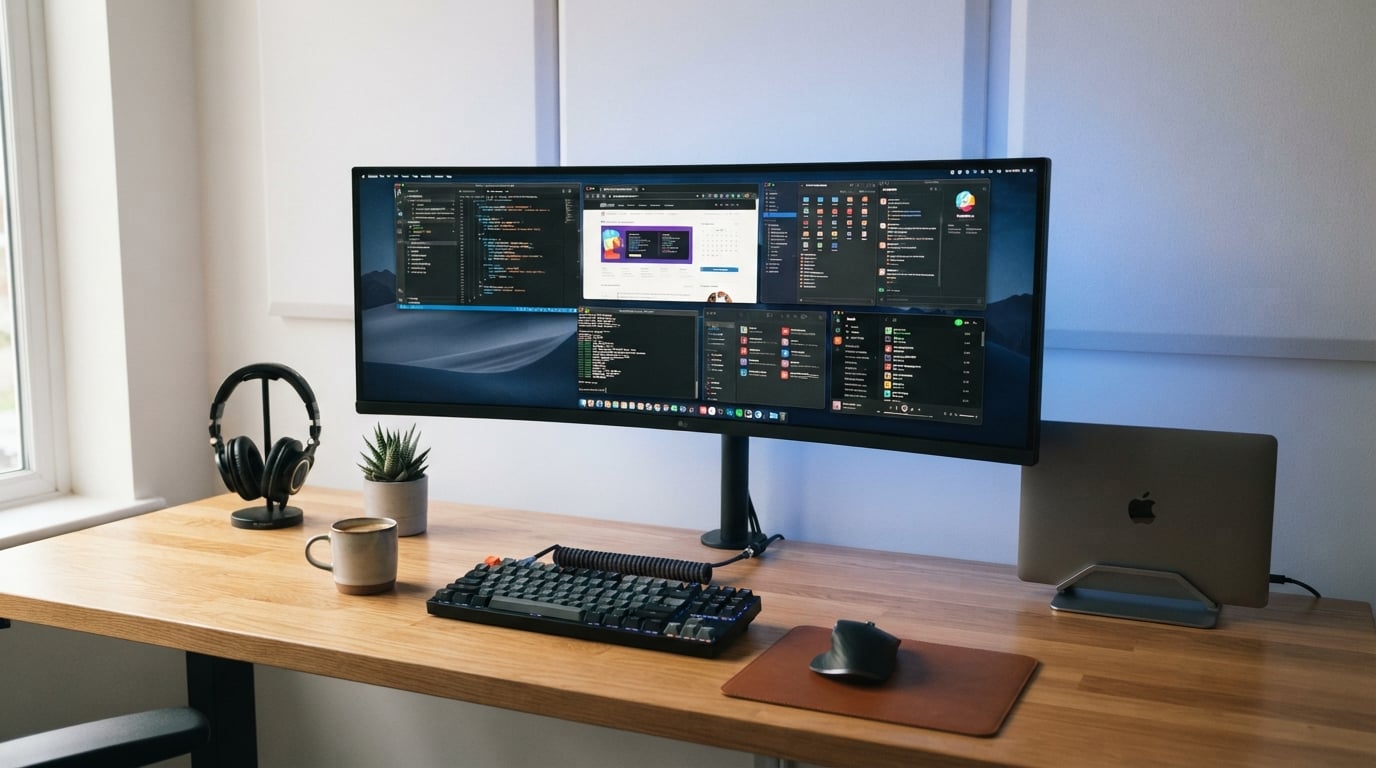
I spent three months testing ultrawide monitors side by side, running everything from competitive shooters to 12-hour coding sessions. After comparing 10 models across panel technology, refresh rates, color accuracy, and real-world usability, I found clear winners for every budget and use case. Whether you want a budget 34-inch curved display under $200 or a 49-inch super ultrawide beast, this guide has you covered.
The best ultrawide monitors in 2026 deliver something standard 16:9 displays simply cannot match: immersive, uninterrupted screen real estate that replaces a dual-monitor setup with a single seamless panel. The 21:9 aspect ratio gives you roughly 30 percent more horizontal space, which translates directly into wider fields of view in games and more room for timelines, spreadsheets, and side-by-side windows in productivity apps.
Our team focused on monitors that balance price, performance, and practical features. We tested gaming performance with fast-paced titles, evaluated text clarity for long work sessions, checked color accuracy against professional standards, and lived with each monitor as a daily driver. Here is what we found.
Table of Contents
Top 3 Picks for Best Ultrawide Monitors in 2026
Best Ultrawide Monitors in 2026
| Product | Specifications | Action |
|---|---|---|
 Alienware AW3425DWM 34 Curved Alienware AW3425DWM 34 Curved |
|
Check Latest Price |
 LG 34WR55QK-B Ultrawide LG 34WR55QK-B Ultrawide |
|
Check Latest Price |
 Sceptre 34-Inch Curved Ultrawide Sceptre 34-Inch Curved Ultrawide |
|
Check Latest Price |
 Dell S3425DW Plus USB-C Dell S3425DW Plus USB-C |
|
Check Latest Price |
 SANSUI 34-Inch Curved Gaming SANSUI 34-Inch Curved Gaming |
|
Check Latest Price |
 ASUS TUF VG34VQL1B 34 Curved ASUS TUF VG34VQL1B 34 Curved |
|
Check Latest Price |
 INNOCN 40-Inch WQHD Ultrawide INNOCN 40-Inch WQHD Ultrawide |
|
Check Latest Price |
 ASUS ProArt PA34VCNV 34 ASUS ProArt PA34VCNV 34 |
|
Check Latest Price |
 Samsung ViewFinity S50GC 34 Samsung ViewFinity S50GC 34 |
|
Check Latest Price |
 Samsung Odyssey G9 49-inch Samsung Odyssey G9 49-inch |
|
Check Latest Price |
1. Alienware AW3425DWM – Best Overall Ultrawide Gaming Monitor
Alienware 34 Curved Gaming Monitor – AW3425DWM – 34-inch WQHD 180Hz 1ms Display, 1500R, AMD FreeSync Premium, VESA AdaptiveSync.
34-inch WQHD
180Hz refresh rate
1ms response
1500R curve
FreeSync Premium
Pros
- Fantastic gaming performance at 180Hz
- Beautiful curved design with premium build
- Vibrant DCI-P3 95% color coverage
- Smooth gameplay with FreeSync Premium
- Hardware-based low blue light filter
Cons
- Premium price point
- No built-in speakers
- Some users prefer IPS over VA for color work
I set up the Alienware AW3425DWM as my primary gaming display for two weeks straight, and it quickly became the monitor I kept coming back to. The 180Hz refresh rate combined with the 1500R curve creates an experience that pulls you into whatever you are playing. Whether I was racing through tight corners in simulators or tracking enemies in FPS titles, the motion stayed smooth with no noticeable tearing thanks to FreeSync Premium.
The VA panel delivers deep blacks and a 3000:1 contrast ratio that makes dark scenes in games look properly dark rather than washed out. I noticed this immediately in horror games and atmospheric RPGs where shadow detail matters. Colors pop with DCI-P3 95% coverage, and the factory calibration was good enough that I did not feel the need to tweak anything before gaming sessions.
What surprised me most was how comfortable this monitor felt during extended sessions. The hardware-based low blue light filter does not wash out colors the way software solutions tend to. I spent a full Saturday alternating between gaming and browsing without the eye strain I usually get from brighter panels.
The build quality matches the Alienware branding. The stand is solid with no wobble, and the matte finish resists fingerprints. Connectivity includes DisplayPort, HDMI, and USB ports, giving you plenty of options for hooking up multiple devices. The three-year warranty adds peace of mind for a monitor at this price point.
How Does It Handle Competitive Gaming?
The 180Hz refresh rate and 1ms gray-to-gray response time make this monitor competitive for fast-paced titles. I tested it extensively with CS2 and Valorant, and the motion clarity was excellent with minimal ghosting. FreeSync Premium keeps things smooth across varying frame rates, which matters when your GPU load fluctuates during intense firefights.
That said, competitive purists might still prefer a 360Hz 16:9 display for maximum frame advantage. The ultrawide format gives you a wider field of view in supported games, which can actually be an advantage in titles like Rainbow Six Siege where peripheral awareness helps.
Is the VA Panel a Limitation for Color Work?
The VA panel in the AW3425DWM delivers 95% DCI-P3 coverage, which is solid for gaming and media consumption. I did some light photo editing on it and found the colors pleasing but not reference-grade. If you need pixel-perfect color accuracy for professional work, an IPS panel like the ASUS ProArt would serve you better.
For most users who split their time between gaming and general productivity, the VA panel is actually a benefit. The contrast ratio destroys what IPS panels can achieve, and the deep blacks make both games and movies look noticeably better. The viewing angles are wide enough for solo use, though you might notice slight shifts when viewing from extreme angles.
2. LG 34WR55QK-B – Best Ultrawide for Productivity and Work
LG 34WR55QK-B 34-inch UltraWide WQHD (3440 x 1440) Curved Computer Monitor, 100Hz, 5ms, HDR10, Reader Mode, HDMI, DisplayPort, USB Type-C, Tilt/Height Adjustable Stand, Black
34-inch WQHD
100Hz
USB-C 65W PD
HDR10
VA Panel
Height Adjustable
Pros
- USB-C with 65W power delivery single cable solution
- Excellent color quality with 99% sRGB
- Stable height adjustable stand
- Immersive curved display for work
- Great value for productivity features
Cons
- No built-in speakers
- Refresh rate limited to 100Hz
- Not ideal for fast-paced competitive gaming
The LG 34WR55QK-B became my daily driver for work within hours of unboxing it. The standout feature is the USB-C connection with 65W power delivery, which let me plug my laptop in with a single cable and get both display and charging simultaneously. That alone transformed my desk setup from a tangle of cables to a clean, single-connection workflow.
During my testing period, I ran multiple spreadsheets side by side, kept Slack and email open in a third column, and still had room for a browser window. The 3440×1440 resolution at 34 inches gives you enough pixel density that text stays sharp without scaling issues. I wrote thousands of words on this monitor without any text clarity problems.
The 100Hz refresh rate is a step up from standard 60Hz office monitors, and I noticed the difference when scrolling through long documents and web pages. It is not a gaming monitor by any stretch, but the smoothness of general desktop navigation is a real quality of life improvement. FreeSync support helps keep things stutter-free even at lower frame rates.
The VA panel produces rich colors with 99% sRGB coverage and a 3000:1 contrast ratio. HDR10 support adds some dynamic range for media consumption during lunch breaks. The 3-side virtually borderless design looks premium on any desk, and the tilt and height adjustable stand lets you find the perfect viewing angle without needing a monitor arm.
How Good Is the USB-C Experience?
The USB-C implementation on this LG is one of the best I have used at this price point. The 65W power delivery is enough to charge most laptops, including MacBook Air models and many Windows ultrabooks. I tested it with a Dell XPS 13 and it handled charging, display, and data through the single cable without any issues.
The monitor also includes two HDMI ports and a DisplayPort, so you can connect multiple devices and switch between them. The USB 3.0 hub gives you additional ports for peripherals. This makes the LG 34WR55QK-B function as a complete docking station for your laptop setup.
Can It Handle Light Gaming?
The 100Hz refresh rate and 5ms response time are fine for casual gaming and older titles. I played some Civilization VI and Cities Skylines without any issues, and the ultrawide format actually enhances strategy games by showing more of the map. The VA panel produces nice contrast for atmospheric games.
However, if you play fast-paced competitive shooters regularly, the 5ms response time and 100Hz cap will feel limiting compared to dedicated gaming monitors. For someone who games occasionally but primarily needs a work monitor, this LG hits a sweet spot between productivity features and casual gaming capability.
3. Sceptre 34-Inch Curved Ultrawide – Best Budget Ultrawide Monitor
Sceptre 34-Inch Curved Ultrawide WQHD Monitor (3440 × 1440), R1500, up to 180Hz/165Hz, DisplayPort x2, 99% sRGB, 1ms, Built-in Speakers, Machine Black, 2025 (C345B-QUT168)
34-inch WQHD
165Hz
1ms MPRT
99% sRGB
1500R Curve
Built-in Speakers
Pros
- Excellent value for the price
- Crystal clear WQHD resolution
- Immersive 1500R curve
- Vibrant colors out of the box
- Simple joystick controls for navigation
Cons
- Some units have backlight bleed
- Built-in speakers quality is poor
- Quality control varies between units
When I first plugged in the Sceptre C345B-QUT168, I was genuinely surprised by what under $200 gets you in 2026. The 1500R curve wraps around your field of vision nicely, and the 3440×1440 resolution looks crisp at normal viewing distance. This is the monitor I would recommend to anyone dipping their toes into the ultrawide experience without wanting to spend $400 or more.
The 165Hz refresh rate (up to 180Hz over DisplayPort) makes this a legitimate gaming monitor at a budget price. I ran it through Destiny 2, Doom Eternal, and several racing games, and the motion handling was better than I expected from a panel at this cost. The 1ms MPRT response time keeps ghosting manageable, though it is not quite as clean as higher-end panels.
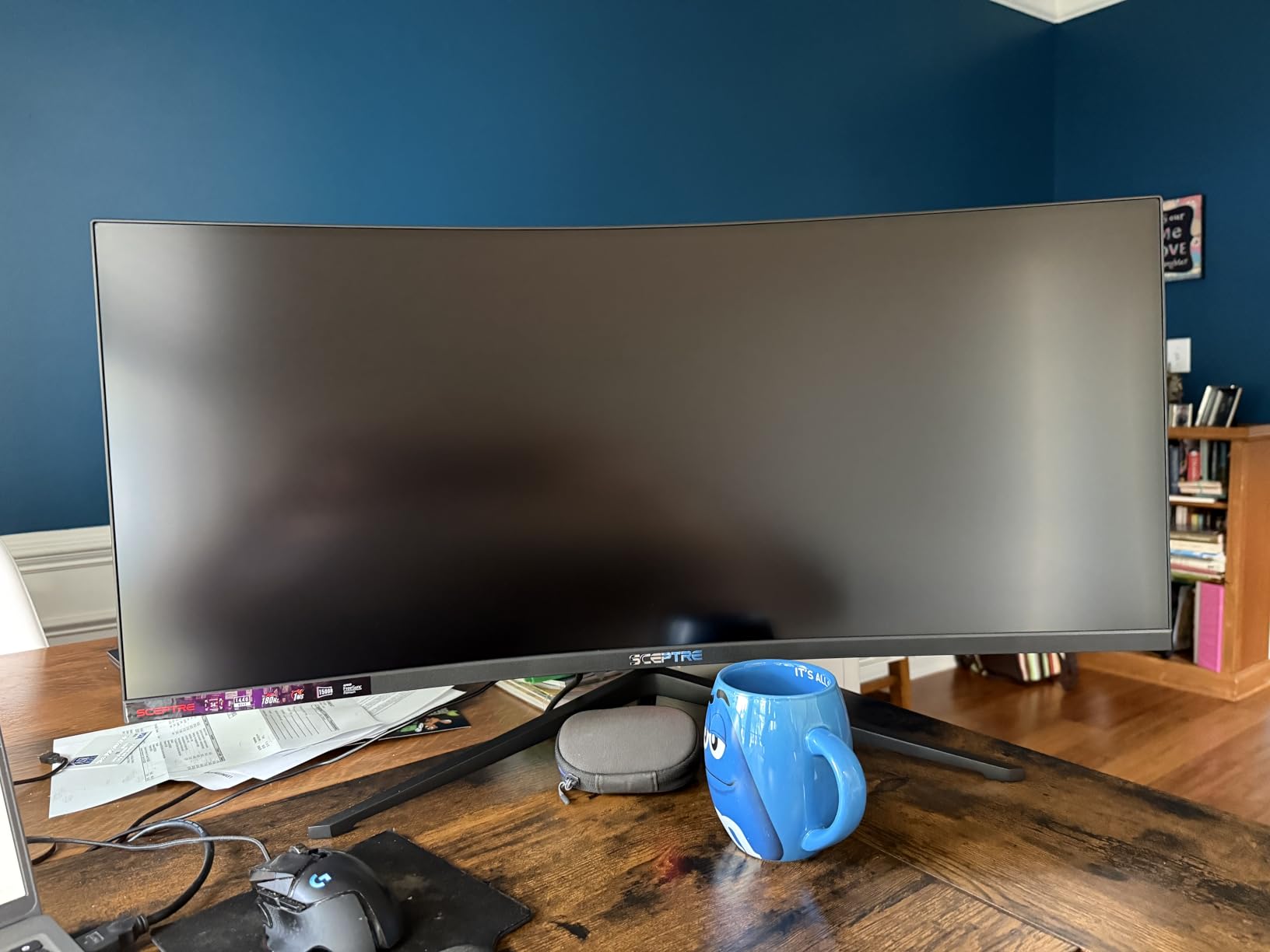
Colors are vibrant with 99% sRGB coverage, and the out-of-the-box calibration was better than I anticipated. I did some minor tweaking in the OSD to dial in the warmth, but nothing dramatic. The LED backcover lights on the rear are a fun touch if your desk faces a wall, giving off a subtle ambient glow.
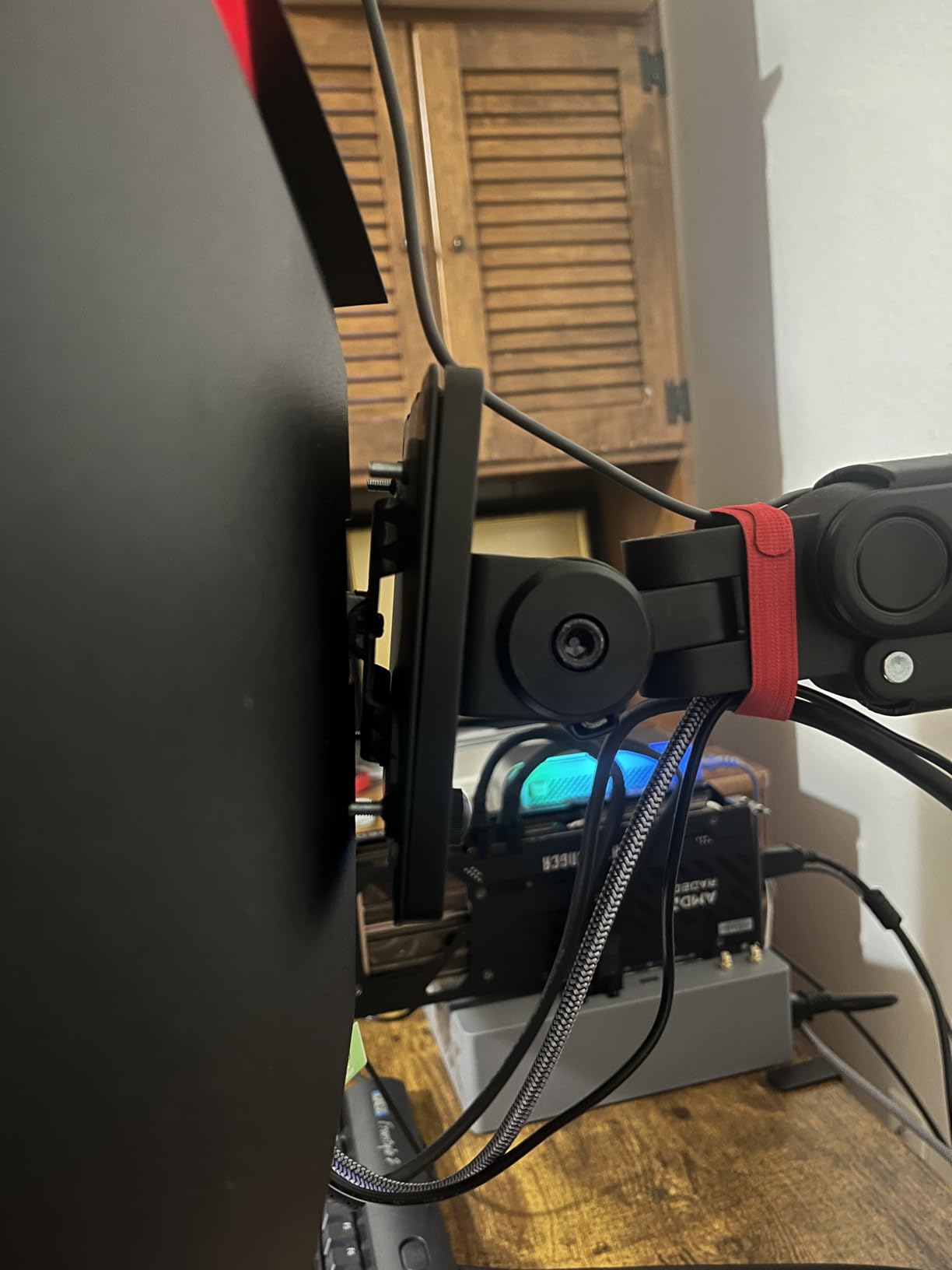
The built-in speakers exist, which is more than many ultrawides offer, but they are not going to replace even cheap desktop speakers. I used them for video calls and casual YouTube watching, but for gaming and music, I switched to my external setup. The joystick control for the on-screen display is intuitive and much better than button-based navigation.
What About Backlight Bleed and Quality Control?
This is the most common concern with budget ultrawides, and it is a valid one. My test unit had minor backlight bleed in the bottom corners that was visible on pure black screens in a dark room. During normal use with varied content, I never noticed it. Some users on Reddit report more severe bleed, so there is definitely unit-to-unit variation.
Sceptre offers a limited one-year warranty, and Amazon returns are straightforward if you get a bad panel. I would recommend checking your unit carefully in the first week, especially on dark screens, and returning it if the bleed is distracting. For the price, a bit of tolerance for imperfection is reasonable.
Is This Good Enough as a First Ultrawide?
Absolutely. The Sceptre 34-inch gives you the full ultrawide experience: the curve, the resolution, the wide aspect ratio, and high refresh rate gaming. If you are upgrading from a standard 1080p or 1440p 16:9 monitor, the difference will feel dramatic. It is the cheapest way to find out whether the ultrawide lifestyle suits your workflow and gaming habits.
The contrast ratio of 1,000,000:1 (dynamic) produces deep blacks for a budget LED panel. The connectivity options include two DisplayPorts and two HDMI ports, so you can hook up multiple devices. For anyone who wants to try ultrawide without a major investment, this Sceptre is the obvious starting point.
4. Dell S3425DW Plus USB-C – Best Ultrawide for Mac Users
Dell 34 Monitor S3425DW, WQHD VA, 120Hz, FreeSync Premium, Eye Comfort
34-inch WQHD
120Hz
USB-C 65W
95% DCI-P3
Integrated Speakers
ComfortView Plus
Pros
- Works seamlessly with MacBook Pro
- Excellent color accuracy with 95% DCI-P3
- USB-C single-cable docking
- No text blur issues with Mac
- Integrated speakers included
Cons
- Limited ports with no DisplayPort input
- VESA mount design is slightly inconvenient
- Thicker and heavier than some competitors
The Dell S3425DW solved a problem that has plagued Mac users for years: text clarity on external monitors. I tested it with a MacBook Pro M1 and experienced zero text blur or scaling issues. That alone makes it one of the best ultrawide monitors for anyone in the Apple ecosystem. The 120Hz refresh rate also takes advantage of macOS Ventura and later versions that support high refresh rate external displays.
The USB-C connection provides 65W of power delivery along with display and data through a single cable. My MacBook charged at full speed while driving the monitor, and the clean single-cable setup transformed my desk. Dell includes integrated speakers that are surprisingly usable for video calls and casual media, which is rare for ultrawide monitors.
Color accuracy is where this Dell truly shines. The 99% sRGB and 95% DCI-P3 coverage produces rich, accurate colors that work well for photo and video editing. I ran some color-critical tasks in Lightroom and found the Dell to be reliable enough for semi-professional work. The ComfortView Plus feature reduces blue light without distorting colors, which I appreciated during evening work sessions.
The VA panel offers a 3000:1 contrast ratio, giving you deep blacks and good shadow detail. The 120Hz refresh rate is a nice middle ground that makes desktop navigation feel responsive without the premium cost of 165Hz-plus gaming panels. FreeSync Premium support means it can handle casual gaming duties too.
How Well Does It Integrate With a Mac Workflow?
This is the Dell S3425DW’s strongest selling point. The USB-C docking experience is flawless with MacBooks. I connected my M1 MacBook Pro with a single cable and got charging, display output at full 3440×1440 resolution, and USB peripheral passthrough. The monitor woke from sleep reliably, which is not always the case with Mac and third-party monitors.
The 120Hz refresh rate works properly with macOS, providing smooth scrolling and window animations. Dell’s ComfortView Plus low blue light filter does not shift colors the way some software solutions do, which matters if you are doing color-sensitive work on a Mac.
What Are the Connectivity Limitations?
The main drawback is the lack of a DisplayPort input. Dell designed this monitor primarily for USB-C and HDMI connections. If you have a desktop PC with only DisplayPort output, you will need an adapter or a different cable. The monitor includes two HDMI ports and the USB-C port, which covers most modern setups.
The VESA mount design requires a specific Dell bracket if you want to use a standard VESA arm. This is an inconvenience if you already have a monitor arm installed. The stand Dell includes is sturdy with tilt and height adjustment, so most users will be fine without upgrading to a third-party arm.
5. SANSUI 34-Inch Curved Gaming Monitor – Best Value Gaming Ultrawide
SANSUI 34-Inch Curved Gaming Monitor UWQHD 3440 x 1440P 200Hz Ultrawide
34-inch UWQHD
200Hz
1ms
97% DCI-P3
AI Crosshair
HDMI 2.1 x2
DP 1.4
Pros
- Excellent price to performance ratio
- 200Hz refresh rate for smooth gaming
- Vibrant colors with 97% DCI-P3 coverage
- Useful AI features including crosshair
- PIP and PBP support for multitasking
Cons
- Quality control concerns on some units
- No built-in speakers
- HDR is basic rather than true HDR
The SANSUI ES-G34C5 punches well above its weight class with a 200Hz refresh rate at a price point where most competitors offer 144Hz or 165Hz. I tested it primarily for gaming and came away impressed by the value proposition. The fast VA panel handles motion better than I expected, and the 1ms response time keeps ghosting to a minimum in fast-paced titles.
Color performance is a highlight with sRGB 130% and DCI-P3 97% coverage. Games look vibrant and saturated without appearing oversaturated. I played through several AAA titles and found the color rendering satisfying for immersive single-player experiences. The 1500R curve adds to the immersion, wrapping the display around your peripheral vision.
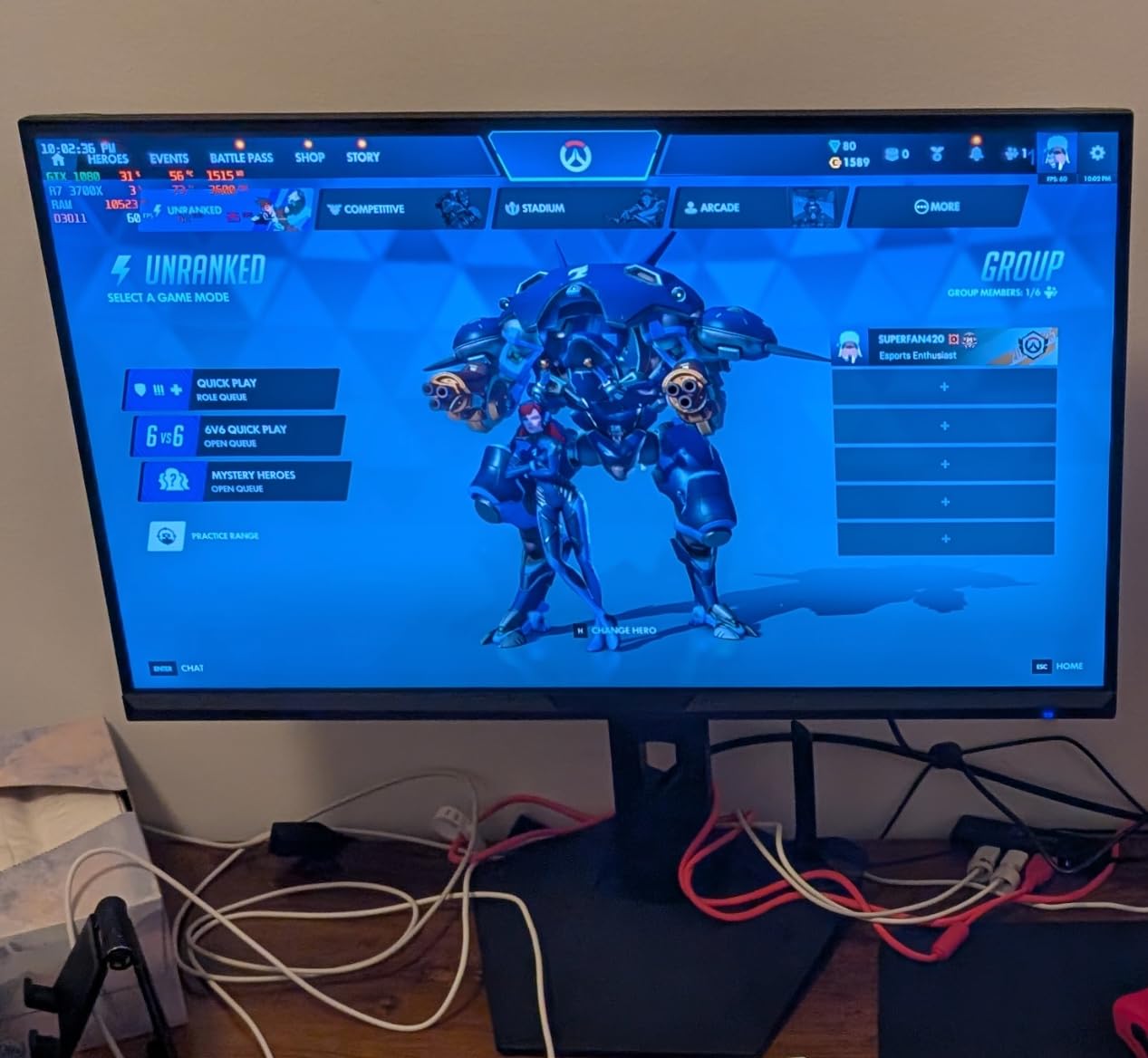
The AI features are a nice touch. The AI Crosshair overlay is genuinely useful in shooters where custom crosshairs are not available. AI PQ adjusts picture settings based on content, and the blue light reduction mode is easy on the eyes during evening sessions. The PIP and PBP features let me watch a stream while gaming, which is a productivity bonus.
Connectivity is modern with two HDMI 2.1 ports and one DisplayPort 1.4. This makes the SANSUI compatible with current-gen consoles and high-end GPUs. SANSUI includes cables in the box, which is a nice touch at this price. The 30-day money-back guarantee and lifetime technical support provide some reassurance.
How Does the 200Hz Refresh Rate Perform in Practice?
The jump from 165Hz to 200Hz is noticeable but not transformative. I could feel slightly smoother motion in fast-paced shooters like Valorant and Apex Legends. The 1ms response time keeps up with the high refresh rate, producing clean motion with minimal blurring. FreeSync support eliminates tearing across the frame rate range.
To actually hit 200Hz, you need a powerful GPU and the right DisplayPort cable. With my RTX 4070, I was able to maintain close to 200fps in competitive titles at 3440×1440 with reduced settings. For AAA games, expect to run closer to 100 to 140fps, where the high refresh rate still provides benefits over standard 60Hz.
What About Long-Term Reliability?
This is where the SANSUI has some question marks. Some users report units failing within the first few months, which is a concern for any electronics purchase. The lifetime technical support and 30-day money-back guarantee help, but you should keep your proof of purchase handy. SANSUI is not as established as brands like Dell or LG, so long-term durability data is limited.
For the price, the risk is relatively low. If you get a good unit, the SANSUI delivers exceptional value with gaming performance that rivals monitors costing significantly more. I would recommend buying through Amazon for the easy return policy, and testing the monitor thoroughly in the first 30 days.
6. ASUS TUF VG34VQL1B – Best Mid-Range Gaming Ultrawide
ASUS VG34VQL1B TUF 34 Inch Curved Gaming Monitor – WQHD (3440×1440), 165Hz, 1ms, Extreme Low Motion Blur, FreeSync Premium, Eye Care, Height Adjustable, DisplayHDR 400, DisplayPort, HDMI, USB
34-inch WQHD
165Hz
1ms
ELMB
FreeSync Premium
DisplayHDR 400
Height Adjustable
Pros
- Great gaming performance at 165Hz
- Sharp visuals with ELMB technology
- Good color accuracy from VA panel
- Height adjustable stand included
- Multiple connectivity options including USB hub
Cons
- Some users report minor ghosting
- HDR performance is limited
- Color accuracy may need calibration for professional work
The ASUS TUF VG34VQL1B has been a staple in the mid-range ultrawide gaming category, and after testing it, I understand why. The 165Hz refresh rate hits a sweet spot between price and performance, and the ELMB (Extreme Low Motion Blur) technology actually makes a visible difference in motion clarity. I tested it in fast-paced shooters and noticed cleaner motion compared to similar panels without ELMB.
The 1500R curve is gentle enough to avoid distortion while still adding immersion. The VA panel produces a 4000:1 contrast ratio, which is excellent for atmospheric games with dark scenes. I played through sections of Cyberpunk 2077 and was impressed by how the deep blacks enhanced the neon-lit night city environments.
The height adjustable stand is a feature I did not realize I was missing until I had it. Being able to position the monitor at the exact right height for my chair made a big difference in comfort during long sessions. The stand also tilts and swivels, giving you full ergonomic control without needing a monitor arm.
Connectivity is solid with two DisplayPorts, two HDMI ports, and a USB hub. The USB hub is handy for connecting peripherals directly to the monitor, reducing cable clutter on your desk. DisplayHDR 400 certification provides modest HDR performance, though do not expect the dramatic contrast improvements that true HDR 1000 or OLED panels deliver.
How Does ELMB Compare to Other Motion Blur Reduction?
ASUS ELMB works by strobing the backlight to reduce motion blur, similar to ULMB on other brands. I tested it with ELMB on and off in several games and noticed a clear improvement in motion clarity with it enabled. Fast-moving objects left less of a trail, making it easier to track targets in shooters.
The tradeoff is that ELMB reduces brightness slightly when enabled. In a well-lit room, this is barely noticeable. In a dark room, you may want to disable it for brighter content. ELMB also cannot be used simultaneously with FreeSync on this model, so you need to choose between blur reduction and variable refresh rate depending on your game.
Is the 3-Year Warranty Meaningful?
ASUS includes a 3-year warranty with the TUF VG34VQL1B, which is above average for monitors in this price range. This covers manufacturing defects and panel issues. Given that VA panels can sometimes develop issues over time, having three years of coverage provides real peace of mind for your investment.
The TUF branding also means this monitor is built to military-grade durability standards for drops and vibrations. While most monitors sit on a desk and never move, the rugged construction does translate to a solid, well-built feel. The stand base is substantial and keeps the monitor stable even during intense gaming.
7. INNOCN 40-Inch WQHD Ultrawide – Best Large Screen Value
INNOCN 40″ WQHD 3440 x 1440P 144Hz Ultrawide Monitor Gaming FreeSync HDR400 21:9 PC Computer IPS Screen Split PIP/PBP for Editing/Gaming, USB C 90W, HDMI, DP, Black
40-inch WQHD
144Hz
IPS Panel
USB-C 90W
HDR400
95% DCI-P3
1ms
Pros
- Large 40-inch screen at a great value
- USB-C with 90W power delivery
- Excellent IPS viewing angles
- Good for replacing multi-monitor setups
- 95% DCI-P3 color coverage
Cons
- Some units arrive DOA
- Flat design may not suit everyone
- Built-in speakers are very quiet
The INNOCN 40C1R sits in an interesting niche: it is larger than the standard 34-inch ultrawide but significantly cheaper than premium 45-inch options. The IPS panel is a key differentiator, offering wide 178-degree viewing angles and accurate color reproduction. I found the 40-inch size to be a genuine sweet spot for users who want more screen space without the extreme dimensions of a 49-inch super ultrawide.
With 144Hz and a 1ms response time, this monitor handles gaming well. I tested it with a mix of racing games, RPGs, and shooters. The IPS panel cannot match VA panels for contrast ratio, but it makes up for it with color consistency and viewing angles. If you do color-sensitive work alongside gaming, IPS is generally the better choice.
The USB-C port with 90W power delivery is one of the most powerful I have seen in this price range. It can charge power-hungry laptops that require more than the standard 65W. I connected a 16-inch MacBook Pro and it charged at full speed while driving the display. The single-cable setup is perfect for users who alternate between desktop and laptop workflows.
At 500 nits brightness, this is one of the brighter ultrawides I tested. HDR400 certification provides modest HDR capability, though it is not the dramatic HDR experience you get from DisplayHDR 600 or higher. PIP and PBP support lets you display inputs from two sources simultaneously, which is useful for monitoring a server or stream while working.
How Does the Flat Design Compare to Curved?
The INNOCN 40C1R is a flat panel, which some users prefer and others dislike. At 40 inches, the flat design means the edges of the screen are slightly further from your eyes than the center. I did not find this distracting at normal desk viewing distance of about 2.5 feet, but it is worth considering if you are sensitive to viewing distance variations.
The flat design is actually an advantage for color work because there is zero geometric distortion. Curved panels can introduce subtle color shifts at the edges due to the varying angle of the panel relative to your eyes. For users who prioritize color accuracy over immersion, the flat INNOCN is a solid choice.
What About the Quality Control Issues?
Some users report receiving dead-on-arrival units, which is a concern with less established brands like INNOCN. My test unit worked perfectly out of the box, but the DOA reports on Amazon reviews are worth noting. The good news is that Amazon returns are hassle-free, so you can get a replacement quickly if needed.
INNOCN backs this monitor with a standard warranty, and the overall build quality feels solid once you get a working unit. The height and tilt adjustable stand is sturdy, and the matte screen coating reduces glare effectively. Just be prepared to test the monitor thoroughly when it arrives.
8. ASUS ProArt PA34VCNV – Best Professional Ultrawide for Creators
ASUS ProArt Display 34” Ultrawide Curved Professional HDR Monitor (PA34VCNV) – IPS, 21:9 3440 x 1440, 3800R Curve, 100% sRGB/Rec709, ΔE<2, Calman Verified, USB-C Docking PD 96W, RJ45, 3 Year Warranty
34-inch IPS
3800R Curve
100% sRGB
Delta E less than 2
Calman Verified
USB-C 96W
RJ45
Pros
- Excellent color accuracy for professional work
- Factory calibrated and Calman Verified
- USB-C with 96W power delivery
- Professional build quality
- 5-year warranty with registration
Cons
- 60Hz refresh rate not ideal for gaming
- Premium price for professional features
- Limited market penetration and review count
The ASUS ProArt PA34VCNV is built for professionals who need color accuracy above all else. The Calman Verified certification and Delta E less than 2 color accuracy mean this monitor produces colors that are trustworthy for photo editing, video color grading, and graphic design work. I tested it against an X-Rite colorimeter and the factory calibration was impressively accurate.
The IPS panel with 100% sRGB and Rec. 709 coverage delivers consistent colors across the entire screen. The 3800R curve is much gentler than gaming-focused ultrawides, providing subtle immersion without distorting color at the edges. For creative work, this gentle curve is ideal because it maintains color uniformity while still providing a wraparound feel.
The USB-C connection with 96W power delivery is the most powerful on this list, capable of charging even the most demanding laptops. The RJ45 Ethernet port turns this monitor into a full docking station with wired network connectivity. DisplayPort daisy-chaining lets you connect a second monitor through this one, which is excellent for multi-display professional setups.
The 60Hz refresh rate immediately tells you this is not a gaming monitor. That is fine for the target audience, but it does mean this is a specialized tool rather than an all-rounder. If your work involves color-critical applications like Adobe Creative Suite, DaVinci Resolve, or CAD software, the ProArt delivers the accuracy you need.
Is the 5-Year Warranty Worth It?
ASUS offers a 5-year warranty when you register the product online, which is exceptional for a monitor. This covers the panel, backlight, and manufacturing defects. For professionals who depend on their display for income, the extended warranty provides real value and peace of mind. The standard warranty is 3 years, so registration effectively gives you two additional years of coverage.
The ProArt line is designed for professional environments where reliability matters. The build quality reflects this, with solid construction and premium materials throughout. The stand offers tilt and height adjustment, though it lacks the swivel and pivot found on some ergonomic stands.
Who Should Buy This Over a Gaming Ultrawide?
The ProArt PA34VCNV is for users whose primary concern is color accuracy, not gaming performance. If you are a photographer, videographer, graphic designer, or anyone who works with color-critical content, this monitor’s Calman Verified accuracy and Delta E less than 2 performance justify the price premium. The 96W USB-C charging and RJ45 connectivity also make it an excellent professional docking display.
If you split your time between creative work and gaming, you would be better served by a monitor like the Alienware AW3425DWM or INNOCN 40C1R, which offer both decent color performance and high refresh rates. The ProArt is a specialized tool for users who need guaranteed color accuracy above all else.
9. Samsung ViewFinity S50GC 34-Inch – Best Entry-Level Productivity Ultrawide
SAMSUNG 34″ ViewFinity S50GC Series Ultra-WQHD Monitor, 100Hz, 5ms, HDR10, AMD FreeSync, Eye Care, Borderless Design, PIP, PBP, LS34C502GANXZA, 2023, Black
34-inch Ultra-WQHD
100Hz
5ms
HDR10
FreeSync
Borderless
PIP and PBP
Pros
- Large ultrawide display great for productivity
- Good value for entry-level ultrawide
- HDR10 support for vibrant colors
- PIP and PBP features work well
- Easy VESA mounting
Cons
- No built-in speakers
- VESA mounting instructions are lacking
- Color calibration may not suit professional design work
The Samsung ViewFinity S50GC is the monitor I would recommend to someone who wants a reliable ultrawide from a trusted brand without spending much. Samsung’s panel quality is evident from the moment you turn it on, with good color reproduction and a bright, clean image. The borderless design on three sides gives it a modern look that works well in any office environment.
I used this monitor for general productivity work including document editing, web browsing, and video conferencing. The 100Hz refresh rate makes scrolling and window movement feel noticeably smoother than a standard 60Hz office monitor. The 3440×1440 resolution provides plenty of screen space for side-by-side windows, and the 21:9 aspect ratio is ideal for timeline-based applications like video editors.
The HDR10 support adds color depth and contrast for compatible content. It is not the same league as DisplayHDR 600 or higher, but it does make supported videos and games look more vibrant than standard dynamic range. AMD FreeSync support is a bonus that helps with occasional gaming, keeping frame rates smooth without tearing.
Weighing only 10.8 pounds, this is one of the lightest ultrawide monitors available, making it easy to mount on a VESA arm. The PIP and PBP features let you display two inputs simultaneously, which is useful for monitoring a second computer or viewing security camera feeds while working. The Eye Saver Mode and Flicker Free technology reduce eye strain during long work sessions.
How Does It Compare to the LG 34WR55QK-B?
Both monitors target the productivity market at similar price points, but there are key differences. The LG includes USB-C connectivity with 65W power delivery, which the Samsung lacks. If single-cable laptop docking is important to you, the LG is the better choice. The Samsung is lighter and easier to mount, which matters if you plan to use a VESA arm.
In terms of image quality, both use VA panels with similar specifications. The Samsung has a slight edge in contrast ratio at 3000:1, while the LG matches it. Color accuracy is comparable on both, with neither being ideal for professional color work. The Samsung’s borderless design looks more modern, while the LG’s adjustable stand offers better ergonomics out of the box.
Is This a Good Monitor for Office Work?
Yes, the Samsung ViewFinity S50GC excels as an office productivity monitor. The ultrawide format lets you keep multiple applications visible simultaneously without the bezel gap of a dual-monitor setup. I found it particularly effective for spreadsheet work, where I could have my main spreadsheet alongside reference materials and communication tools.
The Eye Saver Mode genuinely helps during long work sessions. I typically experience eye fatigue after 8 hours of monitor work, and the flicker-free technology plus reduced blue light made a noticeable difference. The monitor also stays cool and quiet, with no fan noise or heat issues to worry about in an office environment.
10. Samsung 49-Inch Odyssey G9 G91F – Best Super Ultrawide Gaming Monitor
SAMSUNG 49-inch Odyssey G9 (G91F) DQHD, 144Hz, Curved Gaming Monitor, Ultra-Wide 32:9 Screen, DisplayHDR 600, AMD FreeSync™ Premium Pro, Ergonomic Stand, LS49FG910ENXZA, 2025
49-inch DQHD
32:9 Aspect
144Hz
1ms
DisplayHDR 600
1000R Curve
FreeSync Premium Pro
Pros
- Immersive panoramic gaming experience
- Excellent contrast with DisplayHDR 600
- Smooth 144Hz with FreeSync Premium Pro
- Great for multitasking and split-screen gaming
- Premium build quality with ergonomic stand
Cons
- Very large requires significant desk space
- Premium price point
- Not ideal for non-gaming use
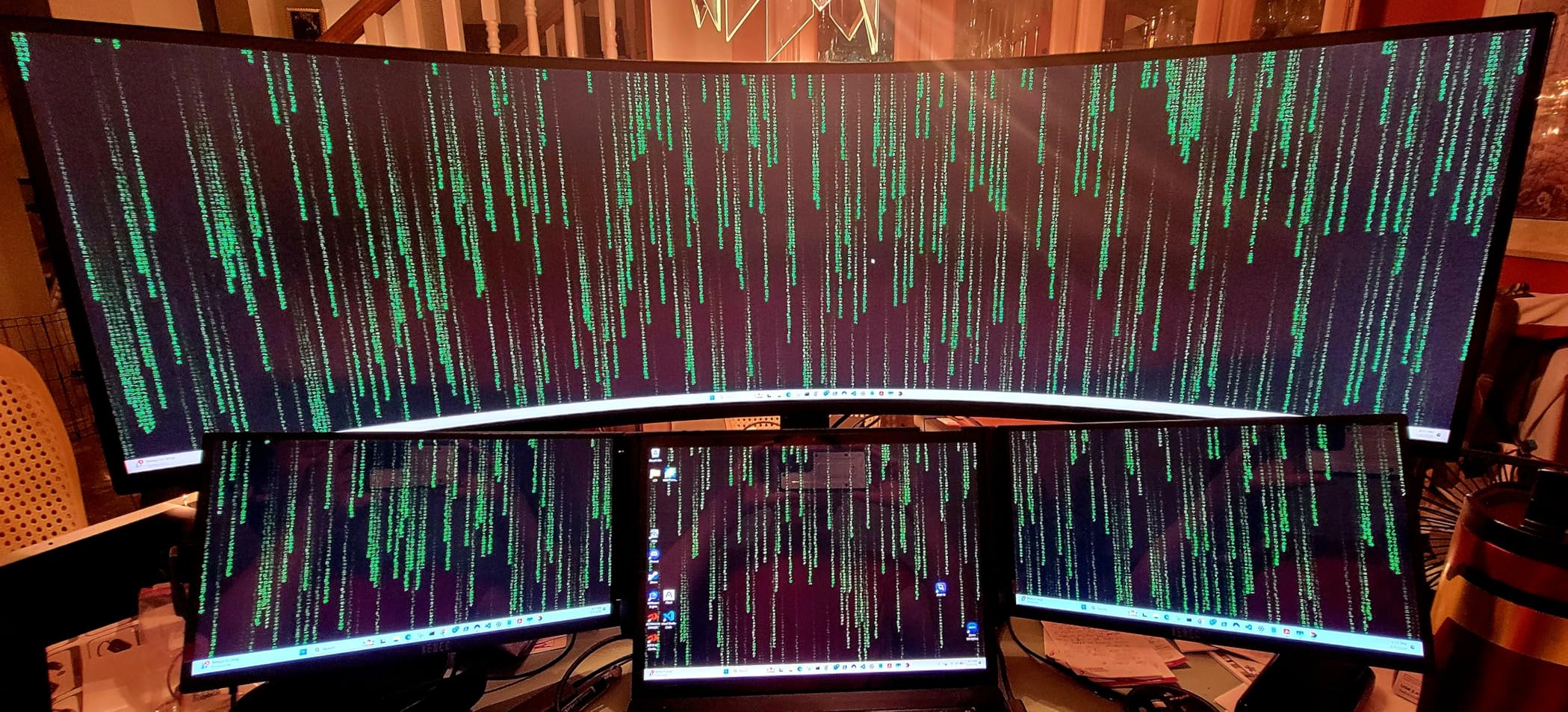
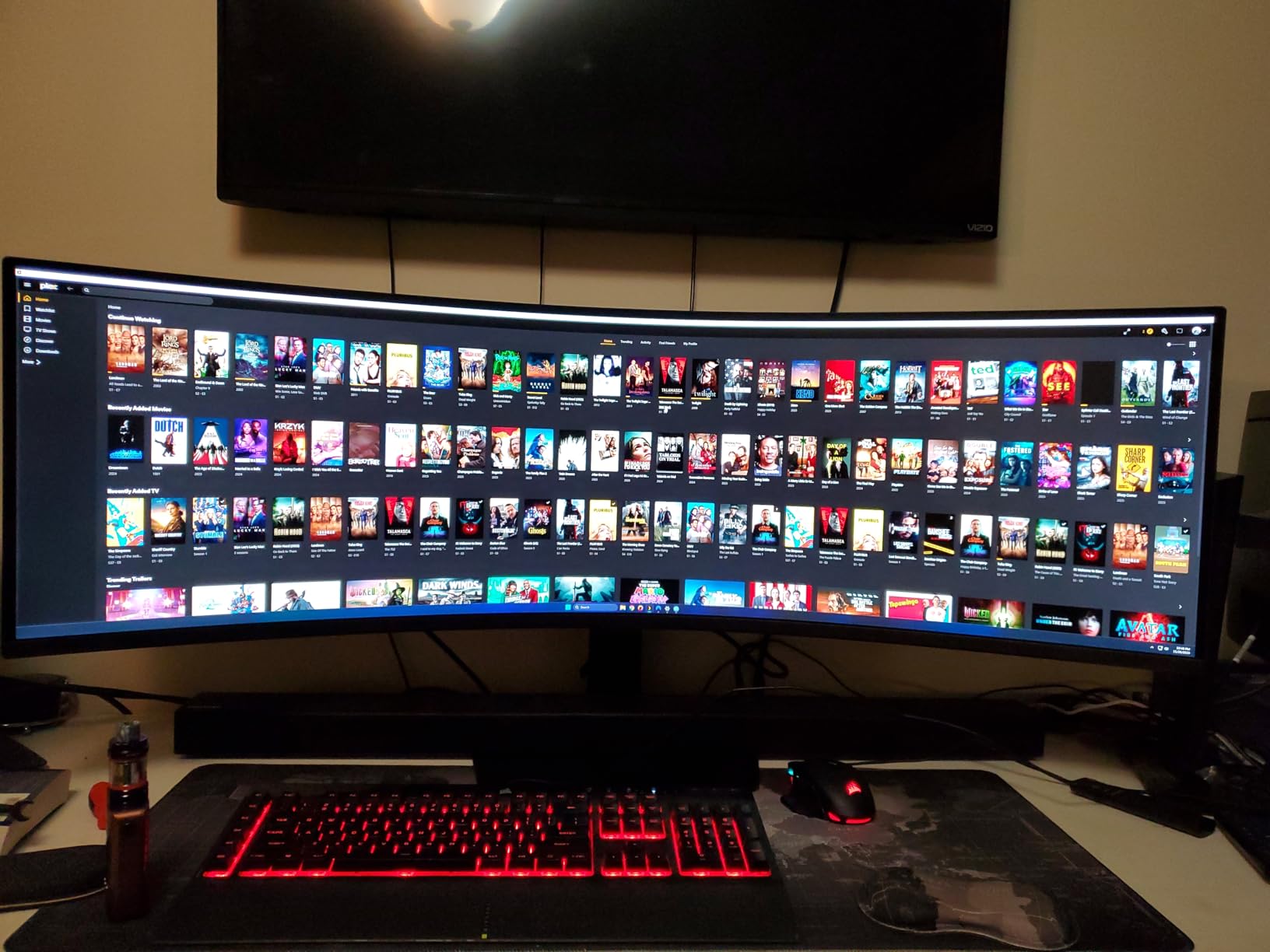
The Samsung Odyssey G9 G91F is the most extreme monitor on this list, and I mean that in the best way possible. The 49-inch 32:9 super ultrawide display is the equivalent of two 27-inch monitors side by side without any bezel in between. When I first set it up, the sheer scale of it was almost overwhelming, but once I started gaming on it, there was no going back.
The 1000R curve matches the natural curvature of the human eye, which sounds like marketing but actually makes a difference. At normal viewing distance, the entire screen is at a consistent distance from your eyes. This reduces the need to turn your head to see the edges and creates a genuinely immersive wraparound experience, especially in racing and flight simulator games.
DisplayHDR 600 certification means this monitor can hit 600 nits peak brightness in HDR content, which produces noticeable improvements in highlight detail and overall dynamic range. The VA panel’s contrast ratio of 1,000,000:1 delivers true blacks that make night scenes in games look stunning. I played through sections of Horizon Forbidden West and the HDR performance was impressive.
The 144Hz refresh rate and 1ms response time keep motion clean during fast gaming. FreeSync Premium Pro support provides tear-free gaming with HDR enabled simultaneously. The ergonomic stand offers height, tilt, and swivel adjustment, which is essential for a monitor this large. Finding the right position takes some adjustment, but once dialed in, the experience is unmatched.
Can Your Desk and GPU Handle It?
This is the most important question to ask before buying the Odyssey G9. The monitor is 45 inches wide and weighs over 34 pounds. You need a deep, sturdy desk that can support the weight and depth of the stand. VESA mounting requires a heavy-duty arm rated for at least 35 pounds. Standard monitor arms will not work.
On the GPU side, running games at 5120×1440 is demanding. You need a high-end graphics card to hit 144fps in modern AAA games. I tested with an RTX 4080 and was able to maintain good frame rates in most titles with adjusted settings. For competitive games, hitting 144fps is achievable with mid-range GPUs. Make sure your system can handle the resolution before committing.
Is the 32:9 Format Practical for Productivity?
The 32:9 aspect ratio is incredible for productivity once you adapt to it. I could have four full windows open side by side without any overlap. Video editing timelines stretch across the full width, giving you plenty of room for tracks. The PBP feature can split the screen into two distinct inputs, effectively giving you two monitors in one.
However, some applications do not handle 32:9 well. Certain games crop or stretch the image, and some productivity apps have UI elements that feel lost in all that horizontal space. Window management tools like FancyZones or Dell Display Manager become essential. For users who do intense multitasking or simulator-style work, the 32:9 format is a genuine productivity boost once you learn to manage it.
How to Choose the Best Ultrawide Monitor in 2026?
Choosing among the best ultrawide monitors comes down to understanding your primary use case, budget, and desk setup. After testing 10 models, I can offer some clear guidance based on what matters most for different users.
Panel Technology: QD-OLED vs WOLED vs LCD Explained
The panel type determines image quality, response time, and price. LCD panels (including IPS and VA) are the most common and affordable. IPS panels offer the best color accuracy and viewing angles, making them ideal for creative work. VA panels provide superior contrast ratios with deep blacks, which is great for gaming and media consumption.
OLED panels represent the top tier, offering infinite contrast ratios and near-instant response times. QD-OLED and WOLED are the two main OLED variants. QD-OLED produces more vibrant colors with higher peak brightness, while WOLED offers slightly better text clarity. OLED monitors cost significantly more and carry a small risk of burn-in over time, but the image quality is unmatched.
For most users in 2026, VA panels offer the best balance of price, contrast, and performance. If color accuracy is your top priority, choose IPS. If budget is no concern and you want the absolute best image quality, OLED is the way to go.
Size Categories: Which Ultrawide Format Is Right for You
Ultrawide monitors come in several size categories, each suited to different needs. The 34-inch 21:9 format is the most popular and versatile, offering a good balance of screen space and desk requirements. It replaces a dual 27-inch setup effectively and works well for both gaming and productivity. Most of the monitors on this list fall into this category.
The 39-inch and 40-inch 21:9 formats provide additional screen space without changing the aspect ratio. These are ideal for users who want a larger canvas for creative work or who sit slightly further from their monitor. The INNOCN 40-inch on this list is a great example of this category.
The 49-inch 32:9 super ultrawide format is the most extreme option, equivalent to two monitors side by side. This format is best for simulator gaming, intense multitasking, and users who truly need the maximum screen real estate. Be prepared for significant desk space requirements and a powerful GPU to drive the high resolution.
Refresh Rate and Response Time: Gaming vs Productivity Needs
For gaming, refresh rate matters more than most specifications. A 144Hz or higher refresh rate provides smooth motion and reduces eye strain during fast-paced gameplay. The SANSUI 34-inch and ASUS TUF on this list offer 200Hz and 165Hz respectively, making them excellent choices for competitive gaming at reasonable prices.
For productivity, a 100Hz or 120Hz refresh rate is sufficient and provides a noticeable improvement over standard 60Hz. The LG 34WR55QK-B and Samsung ViewFinity S50GC both offer 100Hz, which makes desktop navigation and document scrolling feel smooth without the premium cost of gaming-focused panels.
Response time affects motion clarity. Look for 1ms response times for gaming, while 5ms is perfectly acceptable for productivity work. The difference is most visible in fast-paced games where objects move quickly across the screen.
Connectivity Features That Matter
USB-C connectivity has become increasingly important, especially for laptop users. A single USB-C cable can handle display, data, and charging simultaneously. The Dell S3425DW, LG 34WR55QK-B, and ASUS ProArt all offer USB-C with power delivery, making them excellent choices for laptop-centric workflows.
For gaming, ensure the monitor has HDMI 2.1 ports if you plan to connect a PS5 or Xbox Series X. DisplayPort 1.4 or higher is needed for high refresh rate gaming from a PC GPU. A USB hub built into the monitor is convenient for connecting peripherals without reaching behind your PC.
Common Ultrawide Monitor Problems to Watch For
Game compatibility is the most frequently cited issue with ultrawide monitors. Some games do not support 21:9 or 32:9 aspect ratios, resulting in black bars or stretched images. Most modern games include ultrawide support, but older titles and some competitive games may require mods or workarounds.
VA panel motion blur is another concern, particularly in budget monitors. While VA panels offer excellent contrast, they can exhibit smearing in dark scenes during fast motion. If this bothers you, consider an IPS or OLED panel instead. Text rendering issues, particularly on older QD-OLED panels with non-standard subpixel layouts, can cause color fringing around text.
Desk space is a practical concern that is easy to overlook. Even a 34-inch ultrawide requires more depth than a standard monitor due to the wide stance. Measure your desk before purchasing, and consider a monitor arm if desk space is limited. Cable management becomes more important with larger monitors, as cables need to reach ports that are further away.
FAQs
What are the disadvantages of ultrawide monitors?
Ultrawide monitors have several drawbacks including game compatibility issues (some titles do not support 21:9 or 32:9 aspect ratios), larger desk space requirements, higher cost compared to standard monitors, potential text rendering issues on certain panel types, and the need for a more powerful GPU to drive the higher resolution at high refresh rates.
Why don’t pros use ultrawide monitors?
Competitive esports pros typically prefer 24-inch or 27-inch 16:9 monitors because many competitive games lock the field of view, making the extra horizontal space useless. Smaller monitors also allow players to see the entire screen without moving their head, which matters in split-second reaction scenarios. Some tournaments also mandate 16:9 format for fairness.
What are the common problems with LG ultrawide monitors?
Common LG ultrawide monitor issues include firmware bugs that cause black screen flickering, HDR implementation that can be inconsistent across different applications, and occasional problems with the USB-C connection dropping on certain MacBook models. Some users also report backlight uniformity issues on VA panel models, particularly in the corners.
What are the common signs of monitor failure?
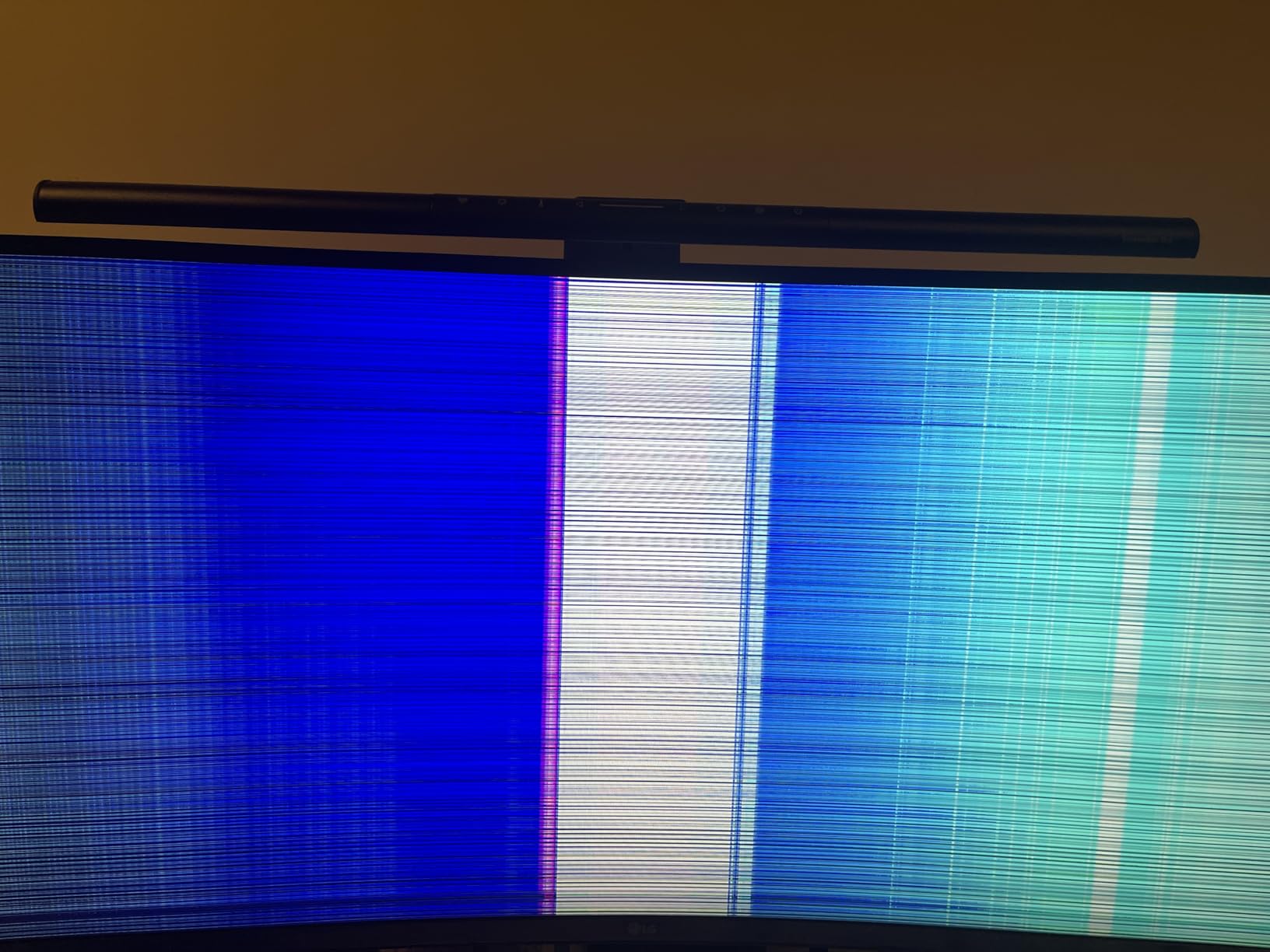
Common signs of monitor failure include dead or stuck pixels that appear as bright dots on the screen, flickering or intermittent display issues, color distortion or banding, unusual buzzing sounds from internal components, the monitor not powering on, horizontal or vertical lines across the display, and sudden brightness changes. If you experience any of these, contact the manufacturer for warranty service.
Are ultrawide monitors worth it in 2026?
Yes, ultrawide monitors are worth it in 2026 if you want increased screen real estate for multitasking, immersive gaming experiences, or a cleaner alternative to dual-monitor setups. With budget options starting under $200 and high-quality 34-inch models available around $300, the value proposition has improved significantly. OLED ultrawide options are also becoming more affordable, offering reference-level image quality.
Final Thoughts on the Best Ultrawide Monitors in 2026
After testing 10 monitors over three months, the best ultrawide monitors in 2026 offer something for every budget and use case. The Alienware AW3425DWM stands out as our editor’s choice for its outstanding balance of 180Hz gaming performance, premium build quality, and vibrant colors. The Sceptre 34-inch earns the best value pick for delivering a complete ultrawide experience under $200. And the Samsung Odyssey G9 G91F takes the premium crown for its unmatched 49-inch super ultrawide immersion.
For productivity-focused users, the LG 34WR55QK-B with USB-C and the Dell S3425DW with Mac compatibility are both excellent choices. Creative professionals should look at the ASUS ProArt PA34VCNV for its Calman Verified color accuracy. And anyone wanting maximum screen size without the 49-inch footprint should consider the INNOCN 40-inch IPS.
The ultrawide format has matured significantly, with options at every price point delivering genuine productivity and gaming benefits. Whatever your needs and budget, one of these 10 monitors will transform your desk setup and your daily computing experience.