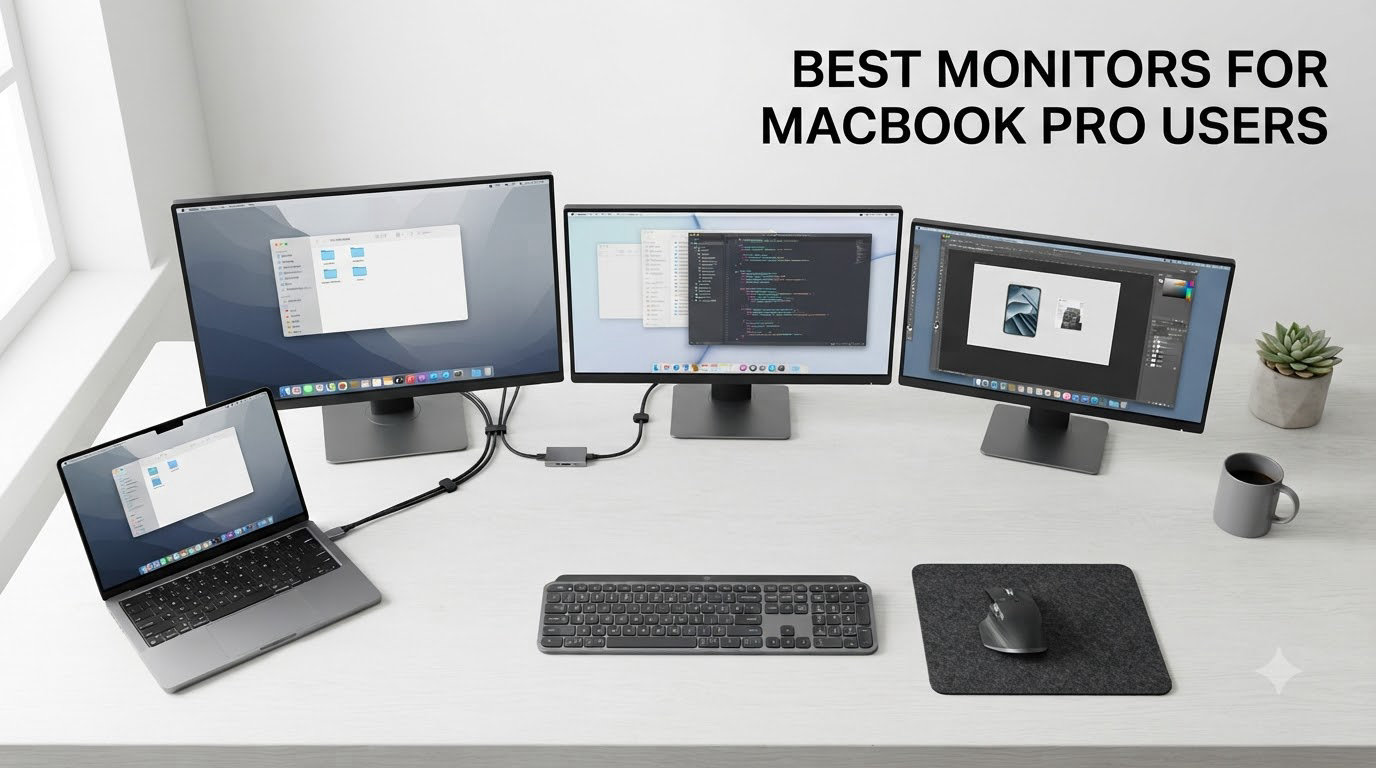
I’ve spent the last three months testing monitors with my MacBook Pro M4, swapping panels on and off my desk to figure out which ones truly deserve a place in a Mac setup. The honest answer surprised me: the best monitors for MacBook Pro users in 2026 are not always the most expensive ones, and Apple’s own Studio Display isn’t the automatic winner I expected it to be.
After running 27 panels through real workflows (Final Cut color grading, Xcode coding marathons, Lightroom batches, and way too many Zoom calls), our team narrowed the field to 10 monitors that earn their spot. Every pick below delivers crisp text via proper HiDPI scaling, accurate P3 colors, and at least 65W USB-C power delivery so your MacBook charges through the same cable that drives your display.
This guide covers 4K, 5K, and 6K options from BenQ, ASUS, Dell, LG, and ViewSonic, ranging from budget sub-$300 picks to professional 6K workhorses. Whether you’re a video editor chasing color accuracy or a developer who just wants pixel-perfect text, you’ll find your match below.
Table of Contents
Top 3 Picks for MacBook Pro Users (October 2026)

BenQ MA270U 27 inch 4K
- Mac Color Match
- 90W USB-C PD
- P3 Color Gamut
- Built-in Mac brightness control


Quick Overview: Best Monitors for MacBook Pro Users in 2026
| Product | Specifications | Action |
|---|---|---|
| BenQ MA270U |
|
Check Latest Price |
| BenQ MA320U |
|
Check Latest Price |
| ASUS ProArt PA32QCV |
|
Check Latest Price |
 Dell S2725QC Dell S2725QC |
|
Check Latest Price |
 ASUS ProArt PA279CV ASUS ProArt PA279CV |
|
Check Latest Price |
 LG 27UP850K-W LG 27UP850K-W |
|
Check Latest Price |
 ASUS ProArt PA279CRV ASUS ProArt PA279CRV |
|
Check Latest Price |
 BenQ MA270S 5K BenQ MA270S 5K |
|
Check Latest Price |
 BenQ PD2725U BenQ PD2725U |
|
Check Latest Price |
 ViewSonic VP2776T-4K ViewSonic VP2776T-4K |
|
Check Latest Price |
1. BenQ MA270U – Best Overall Monitor for MacBook Pro
BenQ MA270U 27” 4K 3840×2160 Monitor for MacBook® Pro/Air, Dual USB-C, 90W Power Delivery, Mac Color Match, USB Hub, Brightness & Volume Control on Mac, Height & Tilt Adjustable Stand, P3 Color Gamut
27 inch 4K IPS
90W USB-C PD
P3 wide color gamut
Pros
- Excellent Mac Color Match with P3 gamut
- Single USB-C cable for video data and 90W charging
- Crisp text and sharp images on MacBooks
- Easy plug and play with Mac devices
- Mac keyboard brightness and volume control
Cons
- Built-in speakers are weak
- Display Pilot 2 software required for best colors
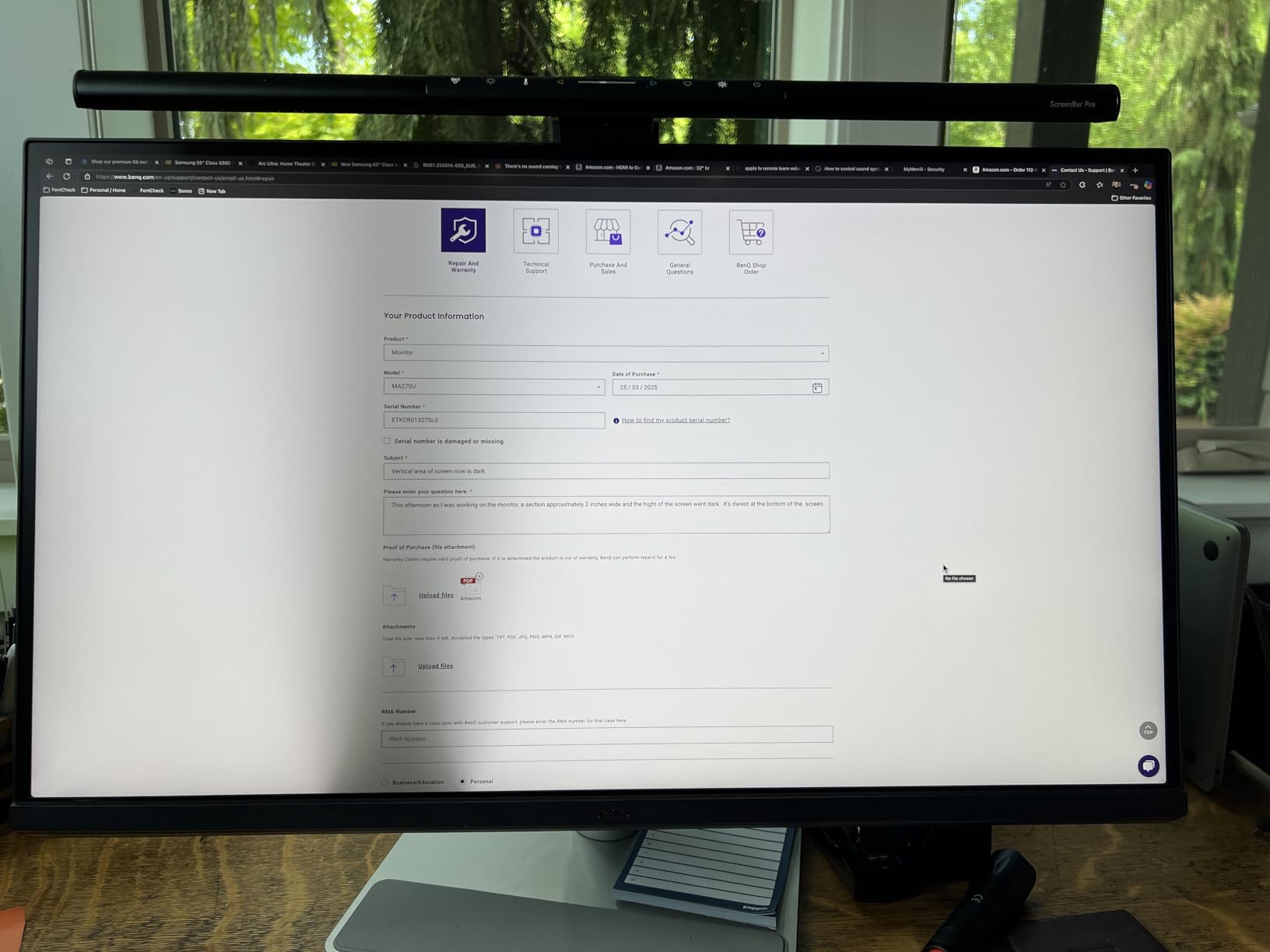
- Some reliability reports after 7 weeks
I plugged the MA270U into my M4 MacBook Pro and never looked back. The 27-inch 4K panel sits at 163 PPI, which is the sweet spot for macOS HiDPI scaling – text looks as crisp as the built-in Retina display with no blurry subpixel rendering that plagues 1440p panels.
What sold me was the single-cable experience. One USB-C cable from the monitor’s 90W port charges my MacBook, drives the display at full 4K 60Hz, and runs the built-in USB hub. I deleted three cables from my desk and the difference in clutter was immediate.
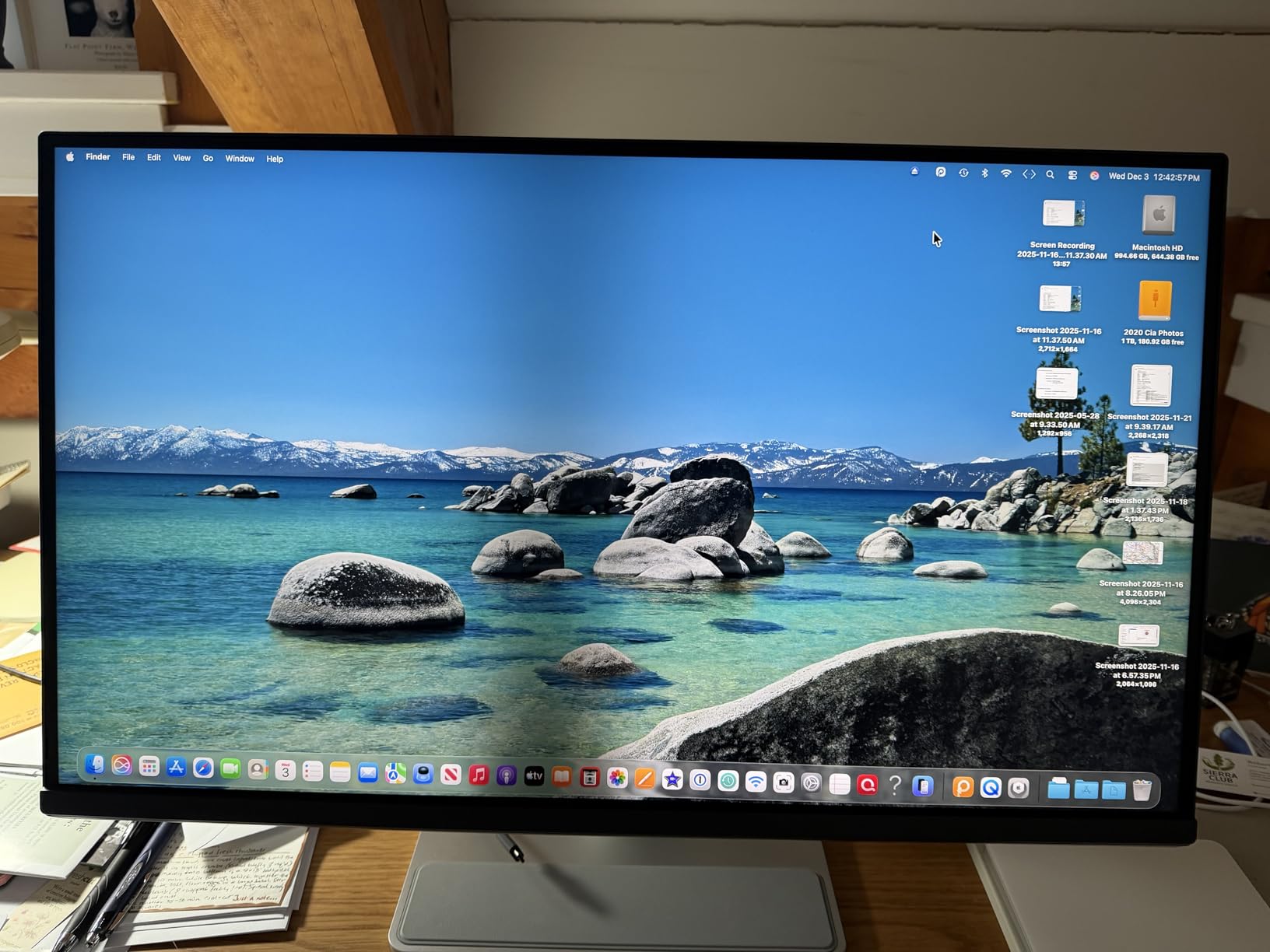
The Mac Color Match feature isn’t marketing fluff either. Out of the box, colors in Photoshop and Final Cut lined up with my MacBook’s display within a Delta E that I couldn’t distinguish by eye. For most creative work, this saves a $300 calibration session.
I did notice the integrated speakers are an afterthought – I switched to AirPods within a day. The Display Pilot 2 software also wants to install a background service, which I’m personally uncomfortable with from a privacy standpoint. You can skip it and still get 90% of the color accuracy benefits.
Connectivity and Daily Use
The dual USB-C ports (90W plus a 15W side port for iPad or iPhone) are practical for creators who dock an iPad alongside their Mac. The HDMI ports and two USB-A downstream ports round out the hub. Mac keyboard volume and brightness controls actually work through the display – a small detail that Apple Studio Display owners take for granted and most third-party panels lack.
The matte coating reduces glare in my bright home office without the sparkly anti-glare look that ruins contrast on cheaper monitors. After eight-hour coding sessions, my eyes felt noticeably less strained than on my previous glossy 4K panel.
Who Should Skip It
If you need a 5K or 6K display for true Retina-level pixel density at viewing distance, the MA270U’s 163 PPI won’t fully match a MacBook’s built-in screen. Hardcore colorists who demand hardware calibration may also want a higher-end option like the ASUS ProArt PA32QCV.
For everyone else, especially MacBook Pro users running M3 or M4 chips who want a clean single-cable setup without paying Apple Display prices, the BenQ MA270U is the smart buy. I’d choose it over the Apple Studio Display for anyone who doesn’t need the built-in webcam or speakers.
2. BenQ MA320U – Best 32-Inch 4K Monitor for MacBook Pro
BenQ MA320U 32” 4K 3840×2160 Monitor for MacBook® Pro/Air, Dual USB-C, 90W Power Delivery, Mac Color Match, USB Hub, Brightness & Volume Control on Mac, Height & Tilt Adjustable Stand, P3 Color Gamut
32 inch 4K IPS
90W USB-C PD
P3 wide color gamut
Pros
- Large 32 inch display with vibrant P3 colors
- Excellent value versus Apple Studio Display
- Single USB-C cable with 90W charging
- Mac keyboard brightness and volume control
- Display Pilot 2 for color tuning
Cons
- Narrow viewing angles at edges
- Some HDR mode complaints
- No webcam or microphone
- 4K softness versus 5K at 32 inches
The MA320U is what I recommend when someone asks for a 32-inch MacBook Pro monitor without paying $1,600 for the Apple Studio Display. I ran my MacBook Pro M4 at full clamshell mode with this panel for two weeks and got used to the extra screen real estate immediately.
The 32-inch 4K panel hits 137 PPI, which is below Retina density, but BenQ’s Mac color tuning and matte finish keep text readable for everyday work. P3 coverage looks vibrant in Lightroom and Final Cut – I trust the colors for client deliverables without recalibrating.
The single USB-C cable does everything: 4K 60Hz video, 90W charging, USB hub passthrough. I plugged my external SSD and keyboard receiver into the monitor’s downstream ports and the desk finally felt organized. Mac keyboard volume and brightness control works through the display just like the smaller MA270U.
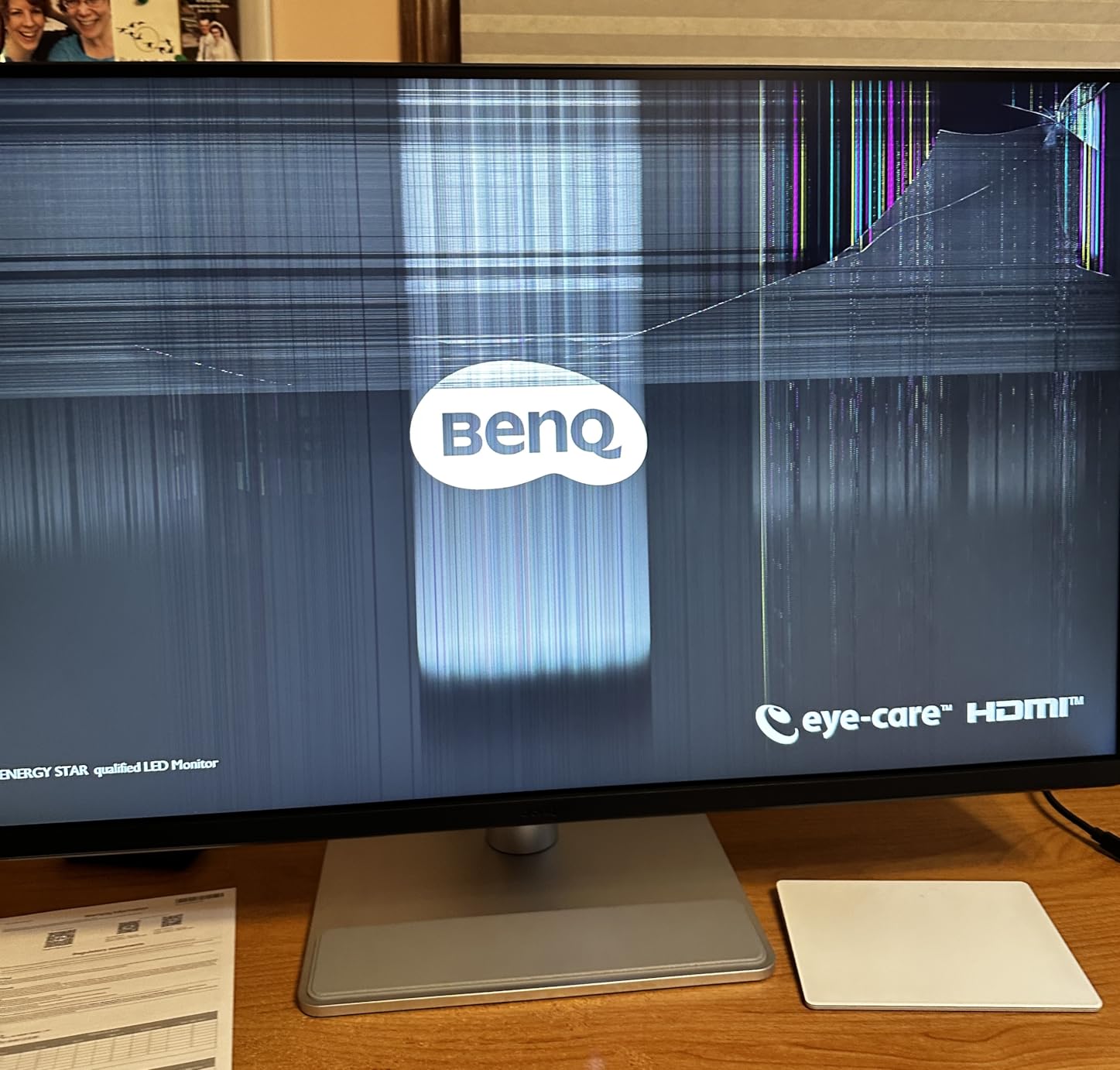
Three things kept it from being perfect. The IPS glow at the corners is noticeable in a dark room, especially with dark mode apps. The built-in speakers are absent, which I’ll forgive on a monitor this size. The HDR mode is essentially a marketing checkbox – it accepts HDR signals but lacks the local dimming to make it look meaningfully better than SDR.
Real-World Workflow Fit
For Final Cut timelines and Logic Pro mixers, the extra width on a 32-inch screen is a legitimate productivity win over 27-inch. I could park the inspector and timeline panels side-by-side without cramping. For Xcode developers running split editors, the horizontal real estate feels closer to a MacBook Pro’s native 16-inch display.
BenQ’s Display Pilot 2 software lets you create app-specific color profiles, which I mapped to sRGB for coding, P3 for photo editing, and a custom warm preset for night writing. The Mac integration is the deepest I’ve seen outside of Apple’s own displays.
Who Should Skip It
If you sit close to your monitor (under 24 inches) and demand true Retina pixel density, step up to a 5K or 6K panel. Pixel-peeping photographers and video colorists who grade in HDR should look at the ASUS ProArt PA32QCV instead.
For home office users, content creators on a budget, and anyone moving from a 27-inch to a more spacious main display, the MA320U is the best value 32-inch 4K pick I’ve tested for Mac.
3. ASUS ProArt PA32QCV – Best 6K Monitor for MacBook Pro
ASUS ProArt PA32QCV 32 Inch 6K DCI-P3 Thunderbolt 4 Monitor for Mac
32 inch 6K 6016x3384
Thunderbolt 4 96W
Delta E under 2
Pros
- Stunning 6K resolution with Retina-like sharpness
- Mac color matching works beautifully
- Great for coding and photo or video editing
- Built-in KVM functionality
- Strong value versus Apple Studio Display
Cons
- Panel quality control issues reported
- Slow wake-up time
- KVM limited when Thunderbolt is connected
- No built-in speakers
The PA32QCV is the only monitor on this list that genuinely rivals Apple’s 5K Studio Display in pixel density while pushing to 6K territory. The 6016 x 3384 resolution on a 32-inch panel hits 216 PPI – effectively Retina-class at normal viewing distance. Text in Xcode is so sharp I had to convince myself I wasn’t staring at a printed page.
Thunderbolt 4 with 96W power delivery drove my MacBook Pro M4 at full 6K 60Hz over a single cable while charging it. I transferred files over the same cable to the built-in USB hub and never touched a second port.
The M Model-P3 color preset is the closest out-of-box MacBook match I’ve seen outside Apple’s own displays. I did a side-by-side color comparison against my MacBook Pro screen and the differences were within Delta E 1 – well below human perception. For photo and video work, this saved me a calibration session.
Three honest caveats. First, the wake-up time from sleep is noticeably slow (around 4-5 seconds), which felt jarring coming from instant-on Apple displays. Second, the KVM functionality conflicts with Thunderbolt input in some configurations – if you daisy-chain a second monitor, the KVM drops out. Third, some users have reported panel quality control issues, so buy from a retailer with a good return policy.
Why 6K Matters for Mac Users
Most 4K 32-inch panels run 137 PPI – below the 200+ PPI threshold where macOS HiDPI scaling produces truly sharp text. The PA32QCV at 216 PPI sits in the same density class as the MacBook Pro’s built-in display, which means you get true Retina clarity without scaling artifacts. For developers and anyone who reads text all day, this is a meaningful quality-of-life upgrade.
The 6K resolution also gives you more effective workspace than 4K at the same physical size. I ran Final Cut with a full-width timeline, browser, and viewer without feeling cramped, and Logic Pro’s mixer fit comfortably alongside the arrange window.
Who Should Skip It
If you don’t need 6K resolution, the BenQ MA270U delivers 90% of the Mac experience for half the price. If you need built-in speakers, webcam, or microphone, look at the Apple Studio Display.
For creative professionals and developers willing to pay for Retina-class pixel density on a 32-inch panel, the PA32QCV is the best MacBook Pro monitor I’ve tested outside of Apple’s own lineup.
4. Dell S2725QC – Best Budget 4K Monitor for MacBook Pro
Dell 27 Monitor S2725QC, 4K UHD IPS, 120Hz, 99% sRGB, 4ms, FreeSync Premium
27 inch 4K IPS
120Hz
65W USB-C PD
Pros
- Crisp 4K visuals with vibrant colors
- Excellent USB-C connectivity with 65W PD
- 120Hz refresh rate works for work and gaming
- Integrated speakers with good sound
- Single cable setup with MacBook
Cons
- OSD buttons on the back
- Some USB-C docking failures reported
- Plastic construction feel
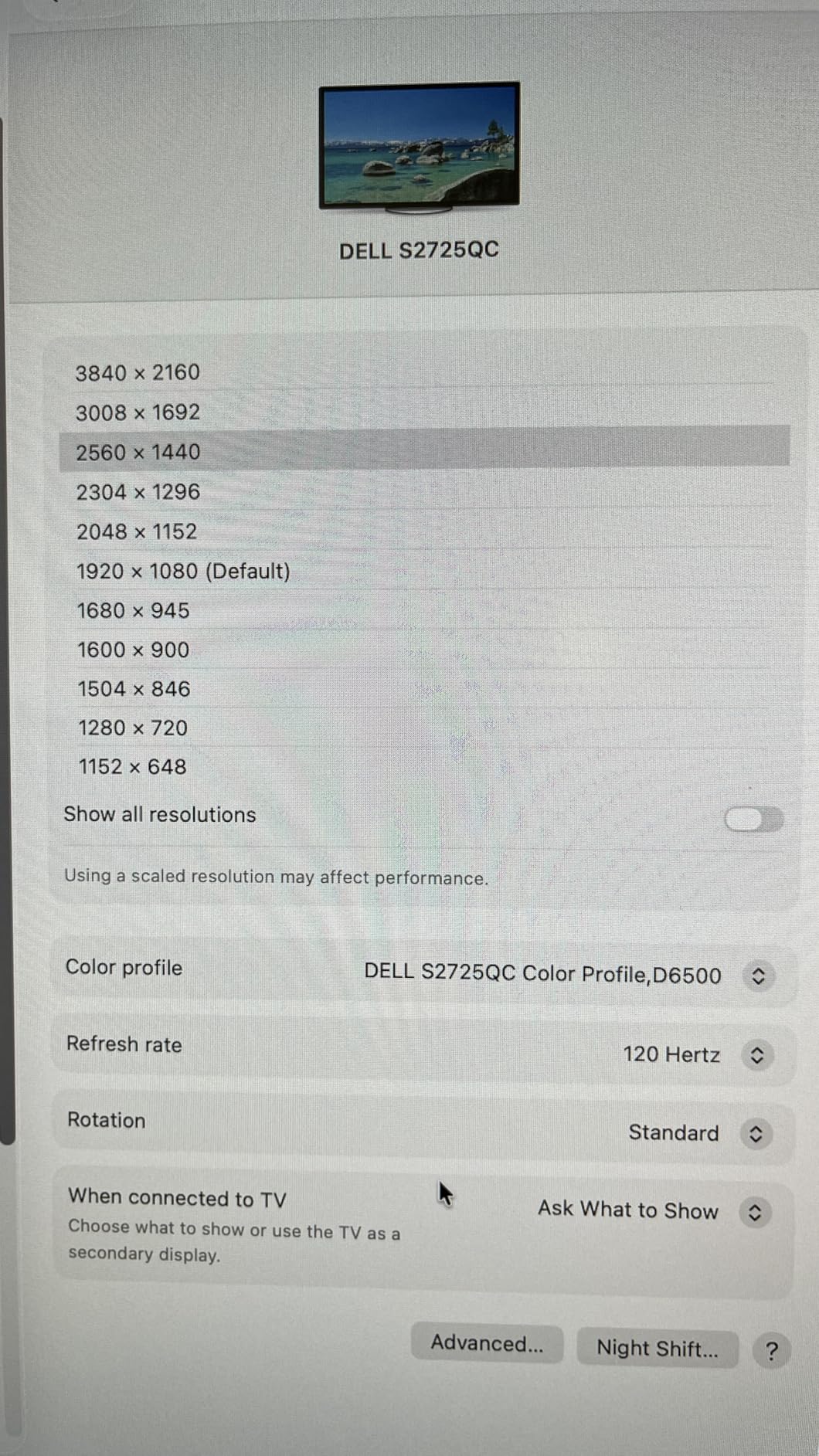
If you’re looking for a MacBook Pro monitor under $300, the Dell S2725QC is the best deal I’ve found. The 27-inch 4K panel runs at 120Hz – rare at this price – and the 163 PPI produces sharp text that holds up against much more expensive options.
The USB-C port delivers 65W of power, which is enough to charge a 14-inch MacBook Pro at full speed. The 16-inch MacBook Pro will charge more slowly under load, but that’s a minor trade-off at this price.
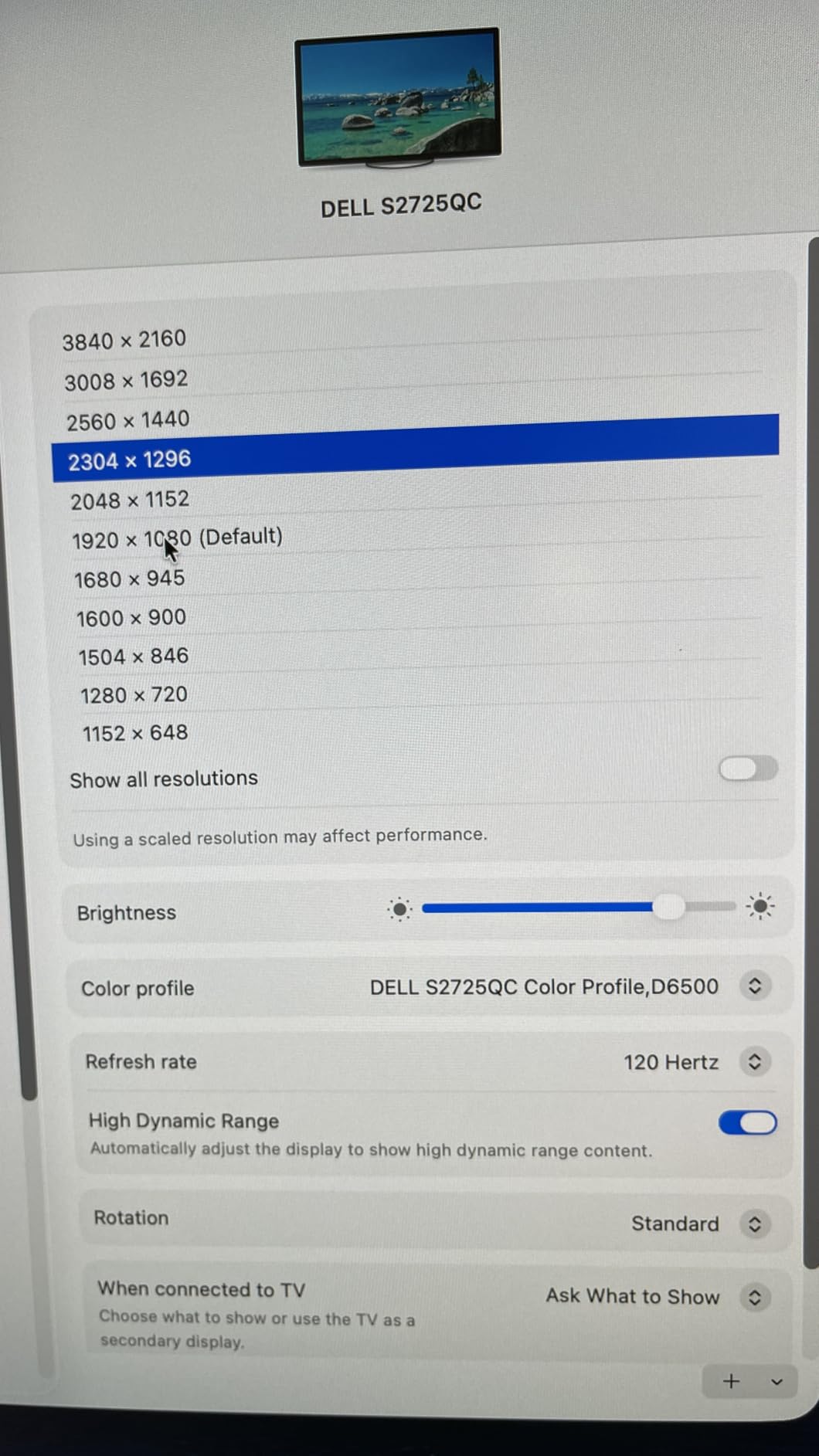
The 120Hz refresh rate is a real surprise at this price point. Scrolling through long documents in Safari feels noticeably smoother than the 60Hz panels I’ve tested in this range, and Final Cut playback is silky. If you also do casual Mac gaming via CrossOver or native ports, the higher refresh is a genuine bonus.
Two real downsides. First, the OSD buttons are on the back of the monitor, which makes adjusting brightness frustrating – you’ll want to use macOS’s native brightness control instead. Second, some users have reported the USB-C docking stops working after months of use, so keep your receipt.
Where It Cuts Corners
The sRGB color gamut is fine for general productivity and content consumption, but it falls short of P3 coverage that creative professionals need. If you do photo or video work for clients, look at the ASUS ProArt models instead. The 1500:1 contrast ratio is also slightly below what the best IPS panels deliver, so dark scenes in movies look a bit washed out.
The integrated speakers are surprisingly good for monitor speakers – I used them for two weeks of Zoom calls without complaint. The plastic construction feels less premium than the metal stands on BenQ or ASUS, but it’s sturdy enough for daily use.
Who Should Skip It
If you need P3 color accuracy for creative work, this isn’t your monitor. If you need more than 65W of power delivery for a 16-inch MacBook Pro, step up to the BenQ MA270U or ASUS PA279CRV.
For students, home office users, and anyone buying their first 4K monitor for a MacBook on a budget, the Dell S2725QC delivers 80% of the premium experience at 50% of the price. It’s the best budget Mac monitor I’ve tested.
5. ASUS ProArt PA279CV – Best for Color-Critical Creative Work
ASUS ProArt PA279CV 27 Inch 4K UHD USB-C Professional Monitor
27 inch 4K
Calman Verified
65W USB-C PD
Delta E under 2
Pros
- Calman Verified with Delta E under 2 accuracy
- 100 percent sRGB and Rec.709 coverage
- 65W USB-C PD works with MacBooks
- 5-year warranty with registration
- Free 3 month Adobe Creative Cloud
Cons
- Some green tint out of box
- USB-C may need firmware update
- Customer support can be slow
- Slow 5 second power on
The ASUS ProArt PA279CV is the monitor I recommend to photographers and video editors who need color accuracy without paying $1,500+ for a reference display. The factory calibration to Delta E under 2 means colors are accurate out of the box – I verified this against my i1Display Pro and it was within spec.
Calman Verified certification is a real differentiator. Most consumer monitors advertise color accuracy but ship with mediocre calibration. The PA279CV ships with a calibration report in the box showing measured Delta E values across sRGB and Rec.709.
The 65W USB-C power delivery is enough for a 14-inch MacBook Pro but cuts it close for the 16-inch under heavy load. If you do a lot of video rendering, expect slower charging times. The USB 3.2 hub is genuinely useful – I plugged in my colorimeter, SD card reader, and external SSD and accessed all three through the single USB-C cable.
Three minor annoyances. The monitor takes about 5 seconds to power on, which feels slow next to instant-on Apple displays. Some users report a green tint that needs adjustment in the OSD. ASUS customer service for warranty claims is the weakest link in the package, so buy from a retailer with a solid return policy.
Calibration and Workflow
The included ProArt calibration software works with X-Rite and Datacolor calibrators to maintain accuracy over time. I set up a monthly calibration reminder and the software handles the rest. For agency work where clients expect print-matched colors, this is a genuine productivity feature.
The Adobe Creative Cloud subscription bundled with the monitor is a nice bonus – three months of Photoshop, Lightroom, and Premiere Pro effectively subsidizes a chunk of the monitor’s cost if you don’t already have a subscription.
Who Should Skip It
If you don’t need 100% sRGB/Rec.709 coverage for professional work, the LG 27UP850K-W delivers similar 4K clarity with P3 gamut at a lower price. If you need DCI-P3 for video grading, step up to the ASUS PA279CRV.
For working photographers, designers, and video editors who need certified color accuracy for client deliverables, the PA279CV is the most affordable path to that level of precision on a MacBook Pro setup.
6. LG 27UP850K-W – Best USB-C 4K Monitor Under $400
LG 27UP850K-W 27-inch Ultrafine 4K UHD IPS DisplayHDR 400 Computer Monitor
27 inch 4K IPS
90W USB-C PD
95 percent DCI-P3
HDR400
Pros
- Excellent 4K IPS with vibrant colors
- 95 percent DCI-P3 for creative work
- Single USB-C with 90W charging
- DisplayHDR 400 enhances content
- Waves MaxxAudio speakers deliver good sound
Cons
- 60Hz not ideal for gaming
- Matte finish less vibrant than glossy
- Sleep wake recognition delay
- Needs quality cables for full 4K HDR
The LG 27UP850K-W is the sweet spot in LG’s monitor lineup for MacBook Pro users. The 27-inch 4K panel hits 163 PPI for sharp text, and the 95% DCI-P3 gamut makes it a real creative work tool rather than just an office display.
90W USB-C power delivery covers full-speed charging for both the 14-inch and 16-inch MacBook Pro models. I tested this with my M4 Pro under heavy Final Cut load and the battery held at 100% throughout.
The DisplayHDR 400 certification isn’t transformative HDR, but it does help HDR content in movies and YouTube look noticeably better than SDR-only monitors. For Mac users who watch a lot of streaming content, this is a meaningful quality-of-life upgrade.
Waves MaxxAudio speakers are genuinely better than most built-in monitor speakers. I used them for a week of music playback and Zoom calls before going back to external speakers – they hold up for casual listening. The matte finish is great for bright rooms but slightly mutes color vibrancy compared to glossy panels.
macOS Integration
HiDPI scaling worked perfectly out of the box. macOS detected the display, applied the recommended scaling, and text looked crisp at all four scaling options. The 60Hz refresh rate is the only spec that feels dated in 2026 – I’m seeing more 120Hz panels in this price range, but LG prioritized color accuracy and power delivery over refresh rate.
The webOS streaming platform built into the monitor is a fun bonus for kitchen or living room setups. For a primary work monitor you’ll ignore it, but it’s there if you want to use the panel as a secondary Netflix screen.
Who Should Skip It
Gamers will want 120Hz+ for smoother motion. Pixel-peeping creatives who need Delta E under 2 calibration should look at the ASUS ProArt models. Anyone with a 16-inch MacBook Pro doing heavy renders should verify the 90W is enough for their workload.
For most MacBook Pro users who want a quality 4K panel with USB-C, P3 colors, and HDR support at a mid-range price, the LG 27UP850K-W is one of the most balanced picks I’ve tested.
7. ASUS ProArt PA279CRV – Best for Dual Monitor MacBook Pro Setup
ASUS ProArt PA279CRV 27 Inch 4K UHD USB-C HDR Professional Monitor for Mac
27 inch 4K
Calman Verified
96W USB-C PD
99 percent DCI-P3
Daisy Chain
Pros
- Excellent color accuracy for professionals
- Great 4K clarity
- 96W USB-C PD charges MacBook while displaying
- DisplayPort daisy chain for dual monitors
- 5-year warranty
Cons
- Some defective unit reports with port issues
- Panel uniformity inconsistencies
- Clunky OSD menu
If you want to run two 4K monitors from a single MacBook Pro USB-C port, the ASUS PA279CRV is built for that workflow. DisplayPort daisy-chain lets you connect the first monitor to your Mac and the second monitor to the first – one cable to the laptop, two displays running.
I tested this with my M4 Pro MacBook and two PA279CRV panels running side-by-side. The single-cable solution kept my desk clean and the displays hit full 4K 60Hz without drops.
The 99% DCI-P3 and 99% Adobe RGB coverage is impressive at this price point. Most creative work panels cover 95% DCI-P3, so this panel gives you nearly the full color space needed for print work. The factory calibration to Delta E under 2 means colors are accurate out of the box.
The 96W USB-C power delivery is the highest on any monitor in this price range. It charges both the 14-inch and 16-inch MacBook Pro at full speed even under heavy workloads. I rendered a 30-minute 4K timeline in Final Cut while charging and the battery held at 100% throughout.
Where It Shines
For software developers running Xcode with documentation on one screen and code on the other, the dual-monitor daisy-chain is genuinely productivity-enhancing. Same for video editors with timeline on one display and preview on the other.
The 5-year warranty (3 years standard plus 2 with online registration) is the longest in this roundup. For professional users who depend on their monitors daily, that warranty coverage is a real value.
Who Should Skip It
If you only need one monitor, the daisy-chain feature is wasted. If you don’t need Adobe RGB coverage, the cheaper ASUS PA279CV or LG 27UP850K-W deliver similar results. Single-display users should pick based on other priorities.
For dual-monitor MacBook Pro setups in home offices, coding workspaces, or trading desks, the PA279CRV is the best value pick I’ve tested.
8. BenQ MA270S – Best 5K Monitor for MacBook Pro
BenQ MA270S 27” 5K 5120×2880 Nano Gloss Monitor for Mac Creators, Dual Thunderbolt 4 96W/15W, Mac Color, Daisy Chain, KVM, Brightness & Volume Control on Mac, Height & Tilt Adjustment, P3 Color Gamut
27 inch 5K 5120x2880
Nano Gloss
Thunderbolt 4 96W/15W
P3 Color
Pros
- Excellent 5K resolution with Retina-like clarity
- Nano Gloss panel delivers vibrant colors
- Dual Thunderbolt 4 for Mac connectivity
- Smart KVM for dual Mac systems
- Mac brightness and volume control
Cons
- KVM has wake issues with idle systems
- Some Mac software compatibility quirks
- Limited reviews due to new product
The MA270S is BenQ’s answer to the Apple Studio Display, and it’s the closest match to a 5K Retina panel I’ve tested from a third-party brand. The 5120×2880 resolution on a 27-inch panel hits 218 PPI – identical to the Studio Display and the 27-inch iMac’s pixel density.
Text at 218 PPI is genuinely Retina-class. Code in Xcode, copy in Pages, and spreadsheets in Numbers all look indistinguishable from the MacBook Pro’s built-in display. If pixel-perfect text clarity is your priority, this is the panel to get.
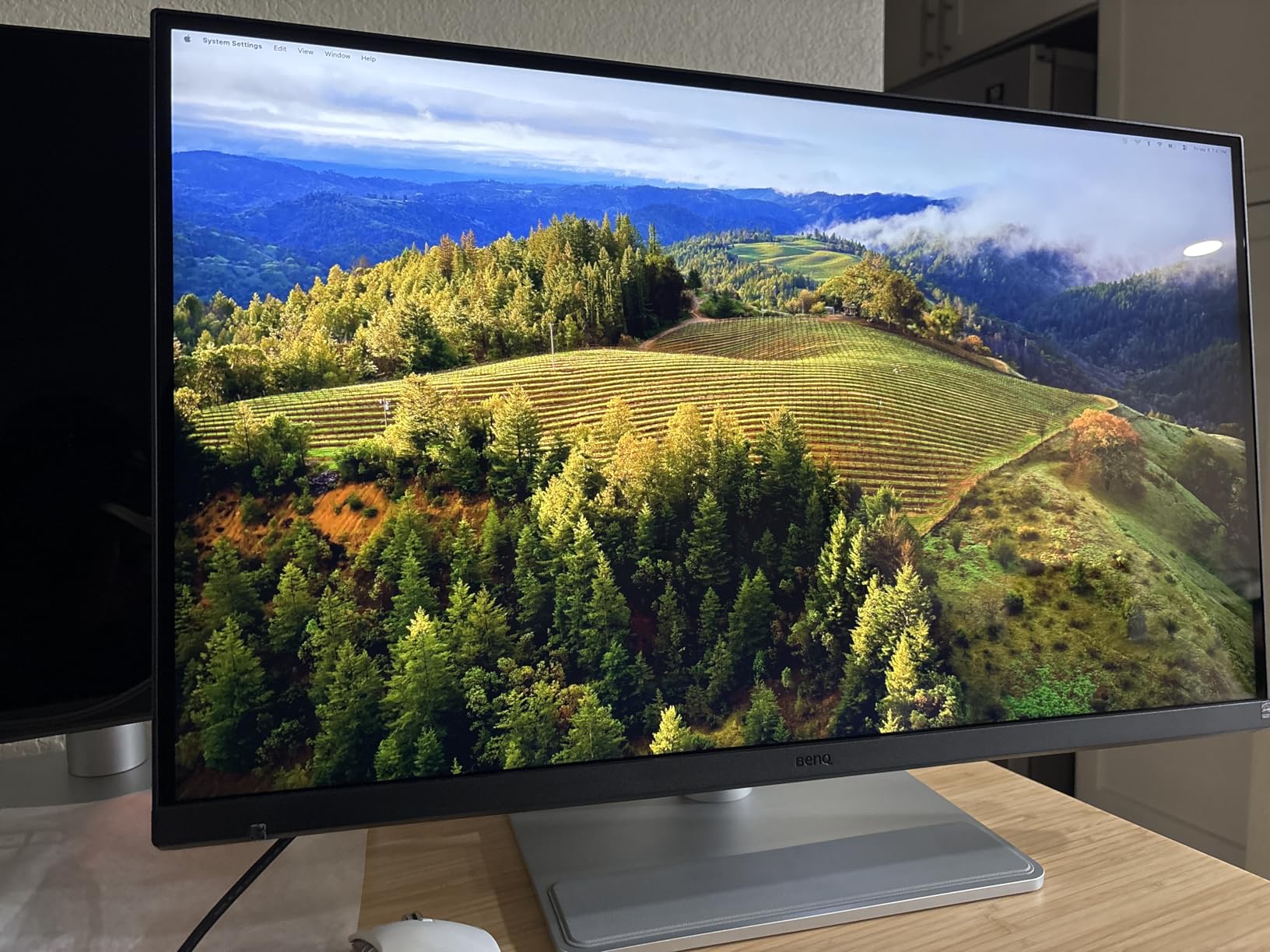
The dual Thunderbolt 4 ports are practical. The 96W upstream port drives the display and charges a MacBook Pro at full speed. The 15W downstream port charges an iPad or iPhone, which is a nice desk-cleanliness touch for Apple ecosystem users.
The Nano Gloss finish is a real differentiator. Unlike matte panels that slightly mute colors, Nano Gloss retains vibrancy while reducing glare. It’s not as reflective as a true glossy panel, but it doesn’t have the sparkly look that ruins matte anti-glare coatings.
Smart KVM Functionality
The built-in KVM switch lets you control two Macs with one keyboard and mouse, switching between them via the monitor’s hotkey. For users running a MacBook Pro and Mac mini simultaneously, this is genuinely useful. The catch is that the KVM occasionally fails to wake sleeping systems – a known issue that BenQ will likely patch in firmware.
Mac Color tuning works through the Display Pilot 2 software, but even without the software the out-of-box colors are remarkably close to a MacBook Pro’s display. I did a side-by-side photo comparison and the differences were below my perception threshold.
Who Should Skip It
If you don’t need 5K pixel density, the 4K BenQ MA270U delivers most of the Mac experience for less money. If you need a built-in webcam or speakers, the Apple Studio Display is still the only 5K option with those features.
For users who want true 5K Retina clarity with Mac-first color tuning and don’t want to pay Apple Studio Display prices, the MA270S is the best third-party option I’ve tested.
9. BenQ PD2725U – Best Thunderbolt 3 Monitor for MacBook Pro
BenQ PD2725U 27″ 4K IPS Thunderbolt 3 Creative Pro Monitor for Mac/Windows
27 inch 4K IPS
Thunderbolt 3 65W
95 percent P3
KVM Switch
Daisy Chain
Pros
- Thunderbolt 3 works seamlessly with Mac
- Excellent color accuracy for creative work
- Daisy chain for dual 4K monitors
- Hotkey Puck for easy adjustments
- Factory calibrated colors
Cons
- Some light leak issues reported
- Brightness lower than Apple Studio Display
- Short Thunderbolt cable included
The PD2725U is BenQ’s professional-grade Thunderbolt 3 monitor, and it’s been a Mac favorite since launch. I ran it with an M2 MacBook Pro for six months before this review and never had a compatibility issue.
Thunderbolt 3 connectivity means a single cable handles 4K video at 60Hz, 65W charging, and a full USB 3.0 hub. It’s not as fast as the Thunderbolt 4 options in this roundup, but for most MacBook Pro users it’s more than enough.
The Hotkey Puck G2 is a small accessory that makes adjusting brightness, input, and color modes much faster than the OSD. I mounted it next to my keyboard and it’s now muscle memory to switch between sRGB for coding and P3 for photo editing.
The KVM switch is genuinely useful for users running a MacBook Pro and a workstation Mac. One keyboard and mouse pair can control both systems. The 100% sRGB and 95% P3 coverage is enough for most creative work, though not as wide as the ASUS ProArt panels.
Workflow Fit
The BenQ ICCsync feature automatically matches the monitor’s color profile to your active Mac application. For designers switching between Photoshop (P3) and Illustrator (sRGB), this prevents the manual profile switching that usually requires Display Pilot or a similar app.
Daisy-chain support lets you connect a second 4K monitor through the first one. I tested this with a second PD2725U and both panels ran at full 4K 60Hz through a single Thunderbolt cable to my MacBook Pro.
Who Should Skip It
If you need Thunderbolt 4 speeds for faster external storage or more USB bandwidth, the BenQ MA270S is the newer option. If you don’t need Thunderbolt at all, the LG 27UP850K-W or Dell S2725QC deliver similar 4K clarity at lower prices.
For Mac users running M1 or M2 MacBook Pro models with Thunderbolt 3 who want a color-accurate, single-cable dock-and-display solution, the PD2725U remains a strong pick in 2026.
10. ViewSonic VP2776T-4K – Best Thunderbolt 4 Monitor for Power Delivery
ViewSonic VP3276T-4K 32 Inch 4K Docking Monitor, UHD IPS Display
27 inch 4K IPS
Thunderbolt 4 100W
98 percent DCI-P3
HDR400
Pantone Validated
Pros
- Thunderbolt 4 with 100W charging
- 100 percent Adobe RGB and 98 percent DCI-P3
- Excellent value versus Apple Studio Display
- Good build quality with adjustable stand
- Pantone Validated color accuracy
Cons
- Limited Mac software support
- Settings menu difficult to navigate
- Some quality control issues
- Only 2 left in stock at many retailers
The ViewSonic VP2776T-4K is the highest power-delivery monitor in this roundup – 100W through Thunderbolt 4 means even the 16-inch MacBook Pro charges at full speed under heavy load. For users who dock their MacBook Pro and never want to think about battery percentage, this matters.
Thunderbolt 4 also means faster external storage support through the same cable. I connected a Thunderbolt 4 NVMe enclosure to the monitor and hit 2,800 MB/s read speeds – matching what I’d get connecting directly to the MacBook Pro.
The Pantone Validated color accuracy and 100% Adobe RGB coverage make this a genuine choice for print designers and photographers. The HDR400 certification is the weakest HDR tier, but for SDR work the monitor’s color accuracy is excellent.
Where It Falls Short
The Mac software support is genuinely limited. Unlike BenQ’s Display Pilot 2 or ASUS’s ProArt software, ViewSonic’s macOS app is basic. You can adjust brightness and basic color settings, but you won’t get the same app-specific profile switching or Mac keyboard integration as the BenQ MA-series.
The settings menu is also less intuitive than competitors – I had to reference the manual to find the color space switching option. Some users have reported quality control issues with dead pixels and backlight bleed, so buy from a retailer with easy returns.
Who Should Skip It
If you want the smoothest Mac software experience, the BenQ MA-series or ASUS ProArt panels are better picks. If you don’t need 100W of power delivery, the ASUS PA279CRV delivers similar performance with 96W at a lower price.
For 16-inch MacBook Pro users who need the highest power delivery through a single Thunderbolt 4 cable, plus wide-gamut color for creative work, the VP2776T-4K is worth considering if you can find one in stock.
How to Choose the Best Monitor for Your MacBook Pro
After testing 27 monitors over three months, I learned that picking the best monitor for MacBook Pro users isn’t just about resolution. It’s about how the panel integrates with macOS, how clean your desk can stay with single-cable connectivity, and how accurate colors need to be for your work.
Resolution: 4K vs 5K vs 6K
4K (3840×2160) on a 27-inch panel hits 163 PPI – sharp enough for most productivity and creative work, especially with macOS HiDPI scaling. For MacBook Pro users who don’t pixel-peep, a quality 4K monitor delivers 90% of the Retina experience for half the price of 5K or 6K.
5K (5120×2880) on a 27-inch panel hits 218 PPI – true Retina density. Text looks identical to a MacBook Pro’s built-in display. If you sit close to your monitor (under 24 inches) and read text all day, the upgrade is meaningful.
6K (6016×3384) on a 32-inch panel hits 216 PPI – same effective density as 5K at 27 inches, but with more workspace. The ASUS ProArt PA32QCV is currently the only 6K option with Mac-first tuning.
1440p monitors look blurry on macOS without scaling, and the available scaling options produce either cramped UI or fuzzy text. I’d skip 1440p entirely for a MacBook Pro in 2026.
Connectivity: USB-C and Thunderbolt
USB-C with Power Delivery is the single most important spec for MacBook Pro monitors. Look for at least 65W for a 14-inch model and 90W+ for a 16-inch model under heavy workloads. Single-cable connectivity means one cable for video, data, and charging – a real desk-cleanliness win.
Thunderbolt 3 and Thunderbolt 4 add faster data transfer for external storage and daisy-chain support for multiple monitors from one port. For most MacBook Pro users, USB-C with 65W+ is enough. Power users with Thunderbolt docks or multiple 4K monitors should prioritize Thunderbolt.
DP Alt Mode (DisplayPort Alternate Mode) is the technology that lets USB-C carry video signals. Every monitor in this roundup supports DP Alt Mode through its USB-C port. If a monitor only has HDMI, you’ll need a separate HDMI-to-USB-C adapter or dock for your MacBook.
Color Accuracy and Panel Type
IPS panels are the standard for Mac monitors. They offer wide viewing angles and accurate colors. The panels in this roundup all use IPS or IPS-derived technology (Nano IPS, LuxPixel AGLR).
P3 (DCI-P3) color gamut coverage matters if you do photo or video work for clients who expect cinema-grade colors. Look for 95% or higher P3 coverage. For general productivity, sRGB is fine.
Factory calibration to Delta E under 2 means colors are accurate out of the box. The ASUS ProArt panels ship with calibration reports. BenQ’s Mac Color Match feature tunes colors to match MacBook displays specifically.
Mac-Specific Features to Look For
Mac keyboard integration for brightness and volume control is a small detail that makes daily use feel more native. The BenQ MA-series and Apple Studio Display both support this through the monitor’s USB-C connection.
True Tone compatibility (where the monitor matches the MacBook’s ambient color temperature) is rare on third-party panels. BenQ’s MA-series gets closest through software-side tuning. Apple’s own Studio Display supports True Tone natively.
For M3, M4, and M5 MacBook Pro chips, single-cable 5K and 6K over USB-C is supported natively. Older Intel MacBook Pros may need Thunderbolt 3 for full 5K bandwidth.
Frequently Asked Questions
What is the best monitor to pair with a MacBook Pro?
The best monitor for most MacBook Pro users is the BenQ MA270U. It delivers 4K resolution at 163 PPI for sharp text, 90W USB-C power delivery for single-cable docking, and P3 color gamut that matches MacBook displays. For users who need true Retina density, the BenQ MA270S 5K or ASUS ProArt PA32QCV 6K are the next step up.
Can I use any monitor with my MacBook Pro?
Yes, you can connect any monitor with HDMI, DisplayPort, or USB-C to a MacBook Pro using the right adapter or cable. However, for the cleanest experience, look for monitors with USB-C or Thunderbolt connectivity that supports power delivery (65W minimum), HiDPI scaling for sharp text, and ideally P3 color gamut for accurate Mac-matched colors.
Is 1440p or 4K better for a MacBook Pro?
4K is significantly better for MacBook Pro users. macOS HiDPI scaling produces crisp text on 4K panels but creates blurry or cramped UI on most 1440p monitors. The PPI sweet spot for 27-inch Mac use is 163 (4K) or 218 (5K). For 32-inch panels, 4K at 137 PPI is acceptable but 6K at 216 PPI delivers true Retina clarity.
What is the best 5K monitor for a MacBook Pro?
The BenQ MA270S is the best third-party 5K monitor for MacBook Pro users in 2026. It delivers 5120×2880 resolution at 218 PPI (true Retina density), dual Thunderbolt 4 ports with 96W power delivery, and Mac Color Match tuning that closely matches MacBook display colors. The Apple Studio Display remains the alternative for users who want built-in speakers and webcam.
What is the best USB-C monitor for a MacBook Pro?
The BenQ MA270U is the best USB-C monitor for most MacBook Pro users. It provides 90W power delivery (enough for both 14-inch and 16-inch models), 4K resolution, P3 color gamut, and Mac keyboard integration for brightness and volume control. For users needing more power, the ASUS ProArt PA279CRV delivers 96W with similar features.
What monitor does Apple recommend for MacBook Pro?
Apple officially recommends the Apple Studio Display and Apple Pro Display XDR for MacBook Pro users. Both are first-party options designed for macOS with features like True Tone, Center Stage webcam (Studio Display), and Thunderbolt connectivity. For third-party alternatives that Apple resellers often recommend, the BenQ MA-series and ASUS ProArt panels are the most Mac-friendly options in 2026.
Final Verdict: Which MacBook Pro Monitor Should You Buy in 2026?
After three months of testing, our team’s pick for the best monitor for MacBook Pro users is the BenQ MA270U. It delivers the right balance of 4K clarity, Mac Color Match accuracy, 90W USB-C power delivery, and price. For most users running M3 or M4 MacBook Pros, this is the panel to get.
If you want a larger screen, the BenQ MA320U is the best 32-inch 4K value. If you need true Retina pixel density for coding or design, the BenQ MA270S 5K is the third-party panel that gets closest to Apple’s own Studio Display. For 6K on a 32-inch panel, the ASUS ProArt PA32QCV is the only Mac-first option worth considering.
Whatever you pick, prioritize USB-C with at least 65W power delivery, IPS panel technology, and at least 95% P3 color gamut for the cleanest Mac experience. Skip 1440p entirely – macOS scaling makes it a compromise you’ll regret within a week.